Drivers.com

follow us:

facebook twitter
  • Home
  • Download Drivers
  • Drivers Help
  • PC/Mac Resources
  • Software Drivers
  • Mac Fixes and Tips
  • PC Fix Tips
  • Security/ Backup
  • Tablets & Smartphones
  • Tech News
  • Software Drivers
  • Mac Fixes and Tips
  • PC Fix Tips
  • Security/ Backup
  • Tablets & Smartphones
  • Tech News

Video Scheduler Internal error

By Susan C on May 26, 2018

Video Scheduler Internal error

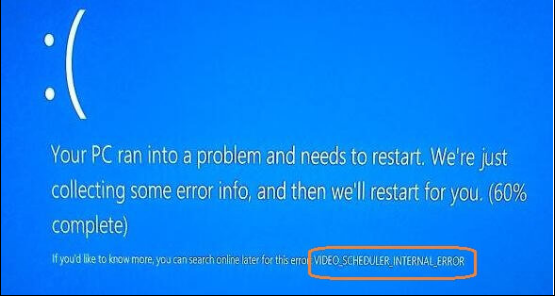
Are you getting a Blue Screen of Death error that says “video scheduler internal” error?

video scheduler error

This error is a common issue, but thankfully it doesn’t take much to solve it. Usually it occurs because of one problem or another with your graphics card. At times, other issues can also trigger this error.

In this post, we have listed four solutions for the “video scheduler internal” error. You need not try all solutions given on in this post. Start with the first solution and work your way downwards, until the error is fixed.

You need to be logged in your Windows computer to perform the troubleshooting steps. If you are unable to do so, power on and off your PC three times to force a hard reboot, so that you can launch windows in Safe Mode and try the solutions given below.

Solution One- Check hard drive and system files for errors

Faulty hard drive or corrupt system files could cause the “video scheduler internal” error. To rule out this possibility, you need to run check disk utility that can detect and fix hard drive errors.

Here are the steps to run Check Disk.

  • Click Start and type cmd in Cortana search
  • Right-click Command Prompt from the list of search results and click Run as administrator
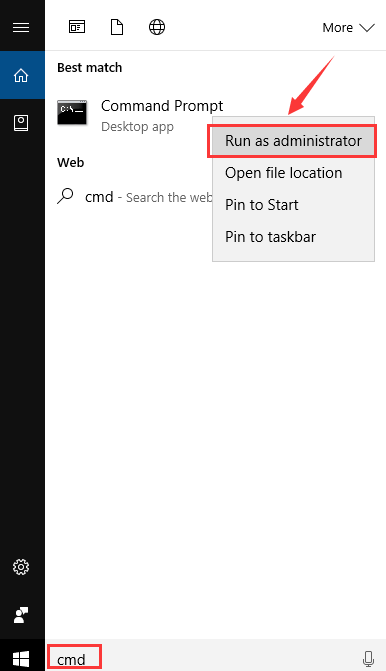
cmd run as admin
  • When the User account control prompts for confirmation, click Yes
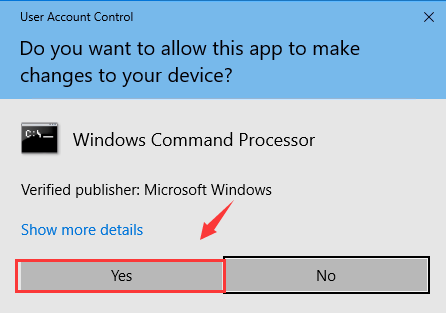
user account control
  • In the command prompt window, type chkdsk /f /r and press Enter on your keyboard.
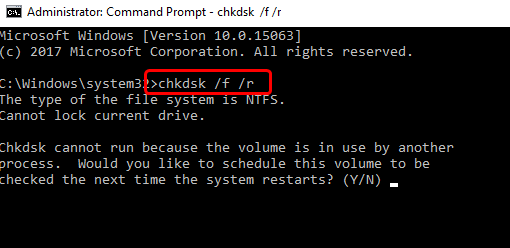
chkdsk
  • When the computer asks you about scheduling check disk at next system restart, type Y for an answer
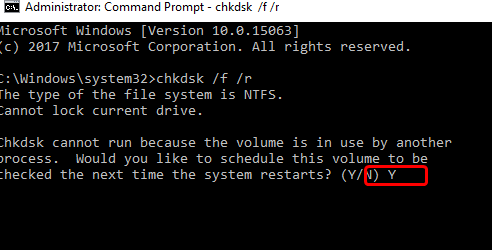
press Y
  • Restart your computer so that Windows can run the Check Disk program
  • After the system reboots, you will see Check Disk running and see the progress and findings on screen. Wait for the program to finish. Once the Check Disk completes checking the hard drive, it will boot the system in normal mode.

To check system files for integrity, Windows provides an inbuilt-program known as System File Checker. The System File Checker will scan all protected system files and replace any corrupted files with the cached versions.

Here are the steps to run System File Checker.

  • Click Start and type cmd in Cortana search
  • Right-click Command Prompt and click Run as administrator
  • In the command prompt window, type sfc /scannow and hit Enter key on your keyboard.
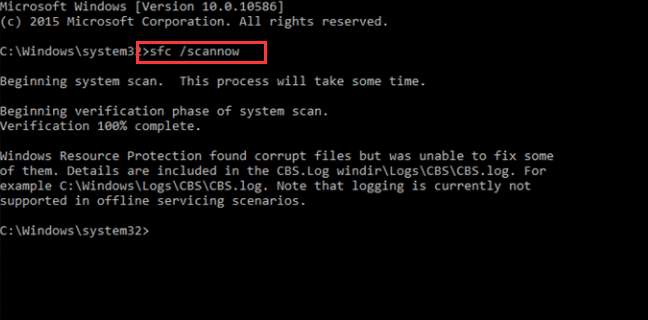
sfc-scannow
  • Have patience and wait till the System File Checker checks all system files and replaces the corrupt ones with cached versions
  • After the process is completed, restart the computer

Now see if you still get the “video scheduler internal” error. If the error is not resolved, try next solution.

Solution Two- Install pending Windows updates

There is a possibility the “video scheduler internal” error might be caused by an internal bug in the operating system. Microsoft provides regular updates to fix bugs in Windows operating system.

To resolve the issue, you need to install all pending Windows updates. Here are the steps to follow.

  • Press Windows logo key and I simultaneously on the keyboard to open Settings
  • In the Settings window, click Update & Security
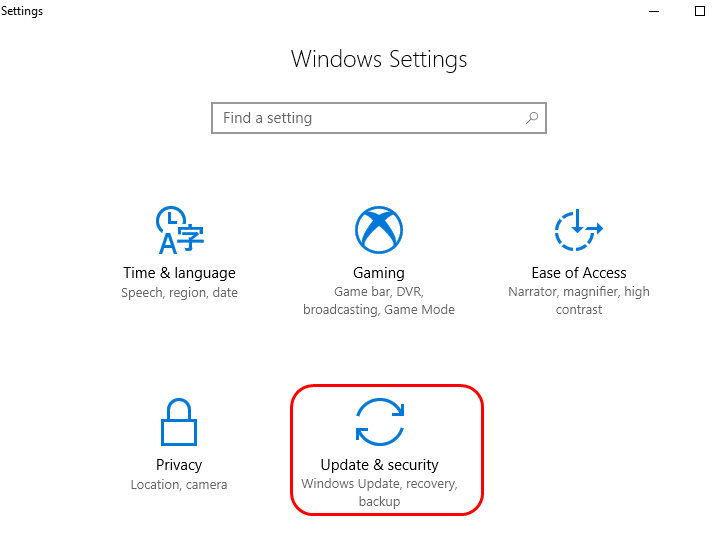
update & security
  • In the next window, click Windows update in the left pane and then click Check for updates in the right pane
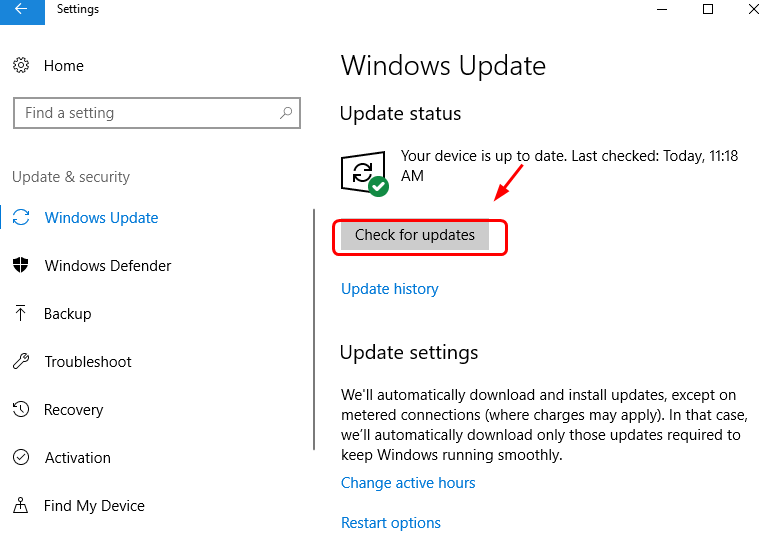
check for updates
  • Windows will provide you list of available updates. Click on updates to install them
  • After Windows is up-to-date, restart PC and see if the “video scheduler internal” error is generated. If the issue persists you need to update drivers following the steps given

Solution Three – Update Drivers

The most uncomplicated way of updating device drivers is by using a trustworthy and fast driver update tool.

Automatic driver update tools offer many benefits, the most important ones being:

  • You can update device drivers automatically
  • The software scans and updates all outdated or missing drivers at one go
  • The tool picks the right drivers for your device and operating system, so you won’t have to worry about installing an incorrect driver by mistake
  • Automatic driver updates are 100% safe

Driver Updater is one of the best driver update tools out there. Outbyte Driver Updater will give you access to a database of over 1 million drivers. It will regularly scan your PC, suggesting new driver versions to install. Driver Updater contains drivers for a variety of Windows devices. With just one click, you can update drivers in your system.

Step 1
Click here to Install and launch the app

Step 2
Scan all devices

Step 3
Install or update drivers automatically


Start Download


Solution Four – Reinstall Drivers for Problematic Devices

Faulty or incompatible drivers could be one of the reasons behind the “video scheduler internal” error. You can know about problematic devices in Device Manager; they will have a yellow exclamation mark which indicates right drivers are not installed.

To fix the issue, you need to uninstall problematic devices and install latest drivers. Here are the steps to follow.

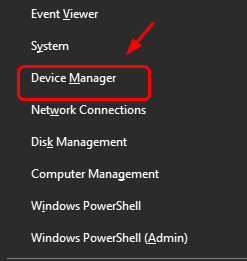
  • Press Windows logo key and X simultaneously on the keyboard to bring up Start Menu
  • Click Device Manager from the list
device manager
  • In the Device Manager window, click Scan for hardware changes icon at the top
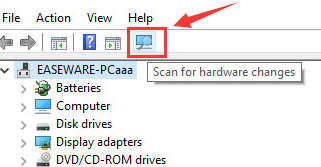
scan for hardware changes
  • Double-click on Other devices category to expand it. Here you would find devices with faulty drivers with a yellow exclamation mark or question mark. You need to also look in other categories and find problematic devices if any.
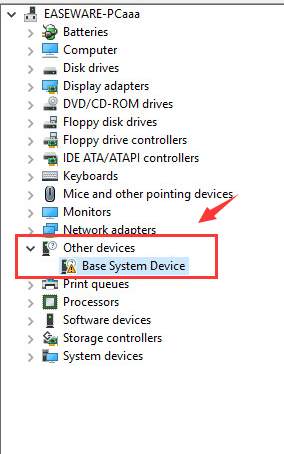
yellow exclamation mark
  • Right-click on problematic device and click Uninstall
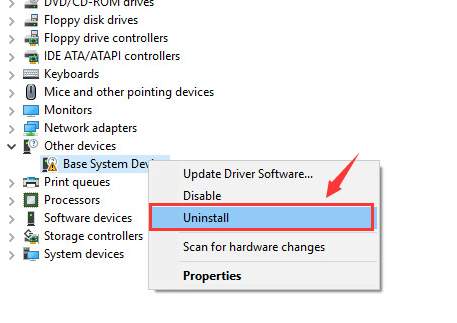
uninstall
  • When Windows prompts for confirmation, click OK
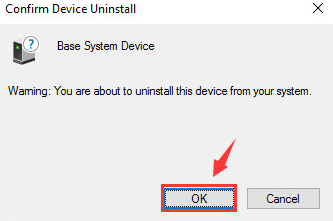
confirmation OK

You need to go to hardware manufacturer website to download latest drivers for the device. Download drivers that are compatible with your Windows version.  Drivers are available in various formats that include ZIP and EXE format.

If the driver is available EXE file, double-click on it and follow on-screen instructions to install drivers.  If the driver file is in ZIP format, you need to unzip the contents to a designated folder and then follow the steps given below to install the latest driver for the device.

  • Perform the first four steps from above-given solution
  • Right-click on the problematic device and click Update driver software
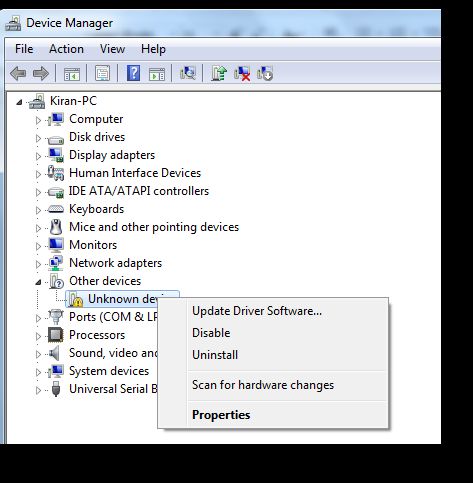
update driver software
  • In the next window, click Browse my computer for driver software
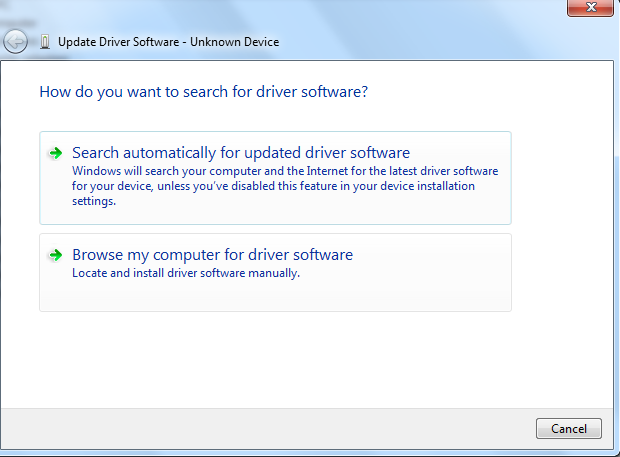
browse my computer
  • Click Browse and navigate to the location where you have unzipped the contents of driver file
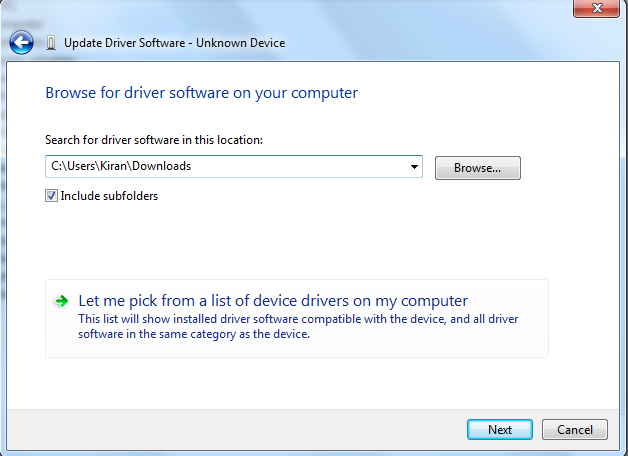
browse for file
  • Click Next
  • Windows will recognize the driver file from the folder and install it

Restart your computer and see if the “video scheduler internal” error is generated. In most cases, the issue should be resolved now.
Filed Under: PC Fix Tips Tagged With: video scheduler error

Synaptics pointing device not working

By Susan C on May 25, 2018

Synaptics pointing device not working

The Synaptics touchpad device is an important input device that provides you functionality of the mouse and enables you to move the cursor around, select content and invoke menus.

But like any other computer device, sometimes Synaptics touchpad does not function like it should. When that happens, you naturally experience problems while using the laptop.

Most of the problems with the Synaptics pointing device happen because of driver issues. Therefore, whenever you experience issues with the Synpatics touchpad device, you should first update its drivers.

In this post, we have listed three easy ways to update Synaptics touchpad drivers. You can use any method that suits you.

Let’s get started…

Method 1 – Update Synaptics device drivers automatically (recommended)

Looking for the easiest and quickest way to update your Synaptics device drivers?

If yes, we recommend you use a reliable device driver tool.

Automatic driver update tools offer many benefits, the most important ones being:

  • You can update device drivers automatically
  • The software scans and updates all outdated or missing drivers at one go
  • The tool picks the right drivers for your device and operating system, so you won’t have to worry about installing an incorrect driver by mistake
  • Automatic driver updates are 100% safe

Driver Updater is one of the best driver update tools out there. Outbyte Driver Updater will give you access to a database of over 1 million drivers. It will regularly scan your PC, suggesting new driver versions to install. Driver Updater contains drivers for a variety of Windows devices. With just one click, you can update drivers in your system.

Step 1
Click here to Install and launch the app

Step 2
Scan all devices

Step 3
Install or update drivers automatically


Start Download


Method Two – Update Synaptics driver through Device Manager

Updating Synaptics driver through Device Manager is one way to get driver updates, but there is no guarantee that you will get latest Synaptics touchpad driver this way. Nevertheless, here are the steps to follow.

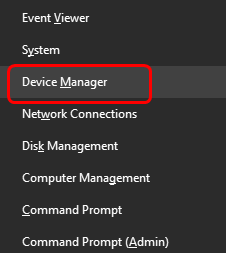
  • Press Windows logo and X key simultaneously on the keyboard to access Start Menu
  • Click Device Manager from the menu
device manager
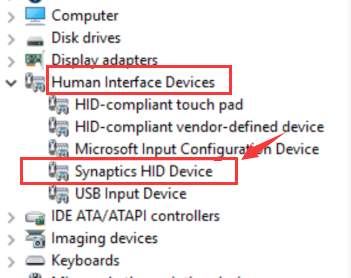
  • In the Device Manager window, go to Human Interface Devices category and expand it. In some laptops, the Synaptics Pointing device may be listed under Mice and other pointing devices
  • Look for Synaptics HID Device in the list and double-click on it
synaptics device
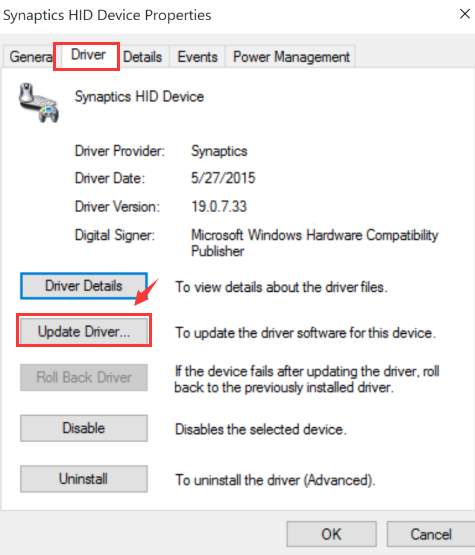
  • In the Synaptics HID Device properties window, click Driver tab and then click Update Driver
update driver
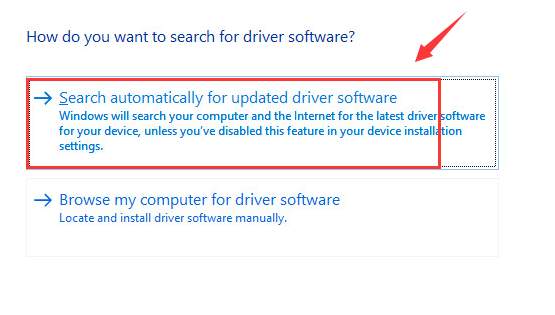
  • In the next window, click Search automatically for updated driver software
search automatically
  • Windows will search the Internet for driver updates and install them.
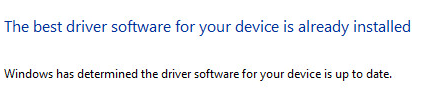
  • In many cases, it returns a message that says “the best software for your device is already installed” like the one below
best driver installed

There are many factors for driver updates not received this way. For example, the website is  too busy, the network speed is too bad, or the Internet connection is overloaded. In such cases, Windows will return the above message and you need to try the next method given below.

Method Three – Update Synaptics driver manually

To manually update Synaptics touchpad drivers, you need to go to device manufacturer website and look for a driver update for the touchpad. You can also go to Synaptics website and download drivers compatible with Windows operating system. However, the drivers at Synaptics website might be generic, which may not include certain functionalities that might be unique to your laptop model.

Here’s how you can download drivers from your laptop manufacturer website and install them.

  • Visit your laptop manufacturer website and go to Drivers section
  • Select your laptop models and the operating system
  • Select touchpad drive/Synaptics pointing device or any name in the list that indicates touchpad driver
  • Click
  • In most cases, the driver is available in zip format. You should download the drivers in ZIP format even if drivers are available in other formats like EXE or SYS.
  • After the file is downloaded, unzip the contents to a designated folder and double-click the executable file to install the Synaptics pointing device drivers
  • You may be required to reboot your PC to let changes take effect

Filed Under: PC Fix Tips Tagged With: Synaptics device error

Video_TDR_Failure (nvlddmkm.sys) error

By Susan C on May 24, 2018

Video_TDR_Failure (nvlddmkm.sys) error

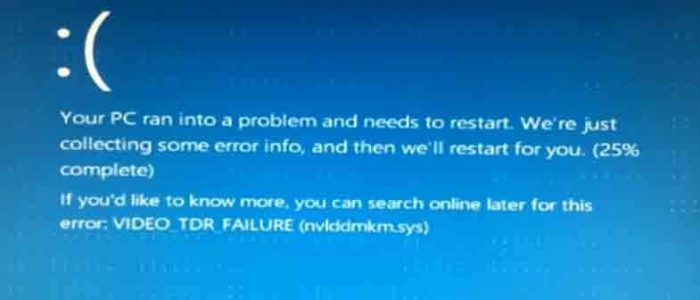
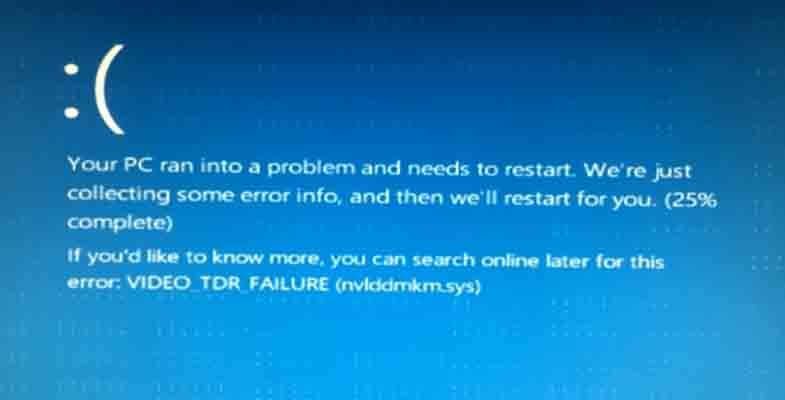
Are you getting a Blue Screen of Death error at startup that reads VIDEO_TDR_FAILURE (nvlddmkm.sys) like the one shown below?

video tdr- error message

If yes, there is nothing to worry about as we have listed some easy solutions that would help you fix the issue.

The Video_TDR_failure mentioning the file name nvlddmks.sys is related to NVIDIA graphics card and many users who have reported this error were able to resolve the error by following the solutions given below.

What does Video_TDR_failure error mean?

The TDR in the error message stands for Timeout, Detection and Recovery. It is a feature in Windows that detects response problems in the graphics card and resets the graphics card to recover functional desktop.

By default, the operating system waits for 2 seconds for a response from the graphics card and then resets the card.

TDR is a useful feature that prevents system freeze ups, in which rebooting the system is the only option. Luckily, there are solutions that can fix the issue with NVIDIA graphics card. Now, let’s get started.

Solution One – Clean re-install NVIDIA graphics card

Corrupt NVIDIA graphics card drivers could be one of the reasons behind the Video_TDR_failure error. A clean re-install of the NVIDIA graphics card means removing the NVIDIA graphics driver completely and then installing latest NVIDIA graphics card drivers. Here are the steps to follow.

  • Download and install Display Driver Uninstaller(DDU)
  • After DDU is installed, run the application
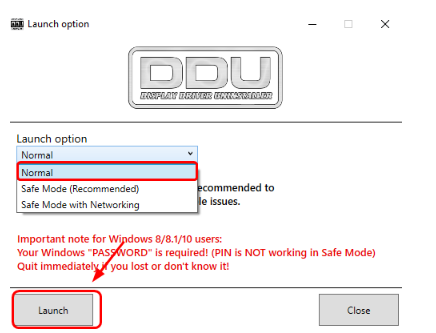
  • You can run the application in different modes- Safe Mode, Safe Mode with Networking and Normal mode. Here, we have chosen to run DDU in Normal mode
  • After you have selected the desired Launch mode, click Launch
DDU Click Launch
  • Click Clean and Restart (Highly recommended)
  • DDU will remove NVIDIA graphics card drivers and related packages from the system. It will also remove all leftovers like registry entries, drive store, and folders and files related to NVIDIA graphic card drivers
  • After the NVIDIA graphics card drivers are completely removed from the system, Windows will reboot
  • After the system reboots, press Windows key and X simultaneously on the keyboard
device manager
  • Click Device Manager from the menu
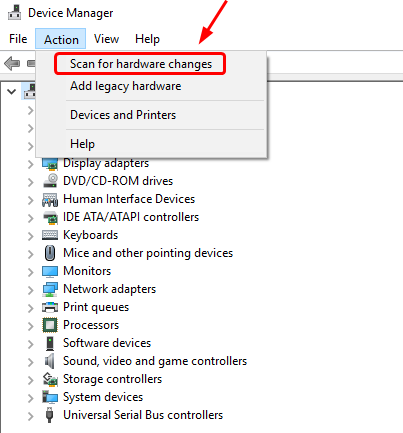
  • In the Device Manager window, click Action and then click Scan for hardware changes
scan hardware changes
  • Windows will detect the missing drivers for NVIDIA graphics card and install the latest driver update available. Please be patient while Windows finds the right graphics card drivers and installs them.

Solution Two – Update NVIDIA graphics card drivers

You can also receive this error if you NVIDIA graphics card drivers are outdated. Though it is possible to update drivers manually, the whole process is often tedious. If you don’t have much time to spare, we recommend you use a Driver Update Tool.

Automatic driver update tools offer many benefits, the most important ones being:

  • You can update device drivers automatically
  • The software scans and updates all outdated or missing drivers at one go
  • The tool picks the right drivers for your device and operating system, so you won’t have to worry about installing an incorrect driver by mistake
  • Automatic driver updates are 100% safe

Driver Updater is one of the best driver update tools out there. Outbyte Driver Updater will give you access to a database of over 1 million drivers. It will regularly scan your PC, suggesting new driver versions to install. Driver Updater contains drivers for a variety of Windows devices. With just one click, you can update drivers in your system.

Step 1
Click here to Install and launch the app

Step 2
Scan all devices

Step 3
Install or update drivers automatically


Start Download


Solution Three – Check for drivers and programs conflict

There is a possibility that you have recently installed some programs and drivers that are causing conflicts. You can resolve this issue by following steps given below.

Try to recall the programs and drivers you have installed. Look for their updated version and install them

According to some experts, there is a driver conflict between the integrated webcam and Logitech webcam. So you need to uninstall Logitech webcam and its drivers and see if it fixes the issue. Here are the steps to follow.

  • Click Start and then Settings
  • In the Settings window, click Apps
  • Now click Logitech webcam in the list of apps and then select Uninstall
  • Follow on-screen instructions to uninstall Logitech webcam and its drivers

Solution Four-Run check disk and check memory for errors

One of the reasons behind BSODs can be corrupt hard drive and faulty RAM. You need to rule out this possibility by running check disk utility and Windows Memory Diagnostic tool that checks memory for errors.

Here are the steps to follow.

Run Check Disk

The Check Disk (CHKDSK) utility in Windows checks the hard drive for errors and rectifies any problem with the file system.

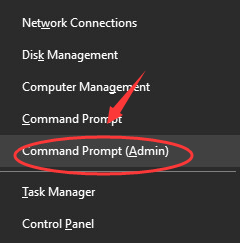
  • Press Windows logo key and X at the same time on the keyboard
  • From the menu, click Command prompt(admin)
  • command prompt admin
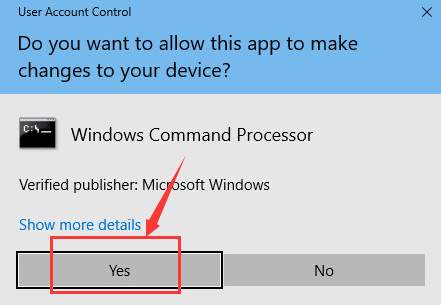
  • When the user account control prompts for permission, click Yesuser account control
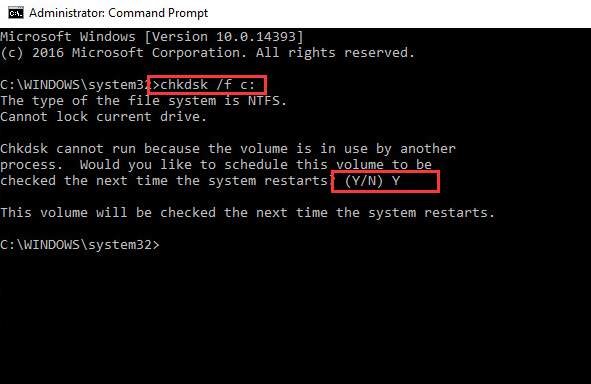
  • In the command prompt windows, type chkdsk /f c: (where c: is the drive where Windows is installed.chkdsk
  • Press Enter on keyboard after typing the above command
  • When the Windows asks whether you want to schedule CHKDSK during next system reboot, type Y for an answer.
  • Windows will restart and you will see CHKDSK running and scanning hard drive for errors. Wait for the program to complete the process.

Your computer will reboot after the process is completed. Now check if the issue persists. If you are still getting BSOD, run Memtest.

Run Windows Memory Diagnostic tool

The Windows Memory diagnostic tool checks the physical RAM module for any faults. Here are the steps to follow

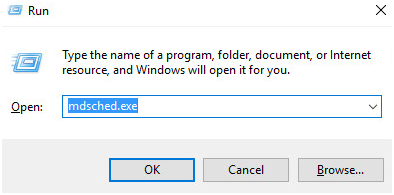
  • Press Windows logo key and R simultaneously to bring up the Run command console
  • In the run command box, type mdsched.exe
mdsched-exe
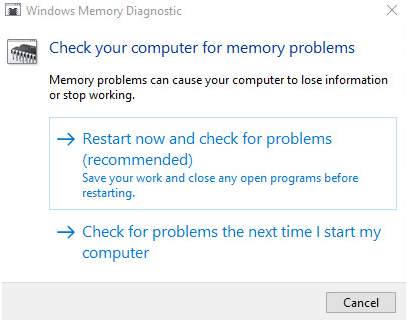
  • In the next window, you get two options- 1) Restart now and check for problems (recommended) and 2) Check for problems the next time I start my computer
  • Select 1st option if you want to run Windows Memory diagnostic tool immediately. Your computer will reboot and start the Memory test
restart now and check
  • Select 2nd option if you want to run Windows Memory diagnostic tool later.
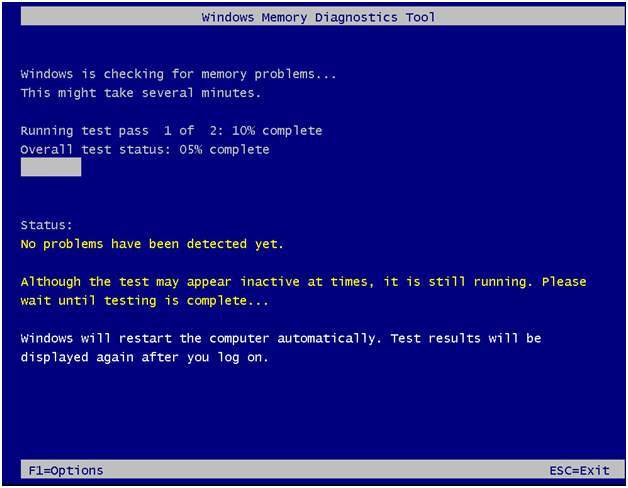
  • When the computer reboots, you will see the Windows Memory diagnostic tool in action. After the memtest process is completed. The computer reboots and you can see the errors(if any) in the log file.
memtest screen

Filed Under: PC Fix Tips Tagged With: nvlddmkm.sys error

  • « Previous Page
  • 1
  • …
  • 168
  • 169
  • 170
  • 171
  • 172
  • …
  • 189
  • Next Page »


  • Recent Posts
  • Popular Posts
        

Read More Posts


Read More Posts

Drivers.com Sites

  • Software Drivers
  • Drivers Ed

About Us

  • Advertise
  • About Drivers
  • Drivers Support
  • Drivers.com Privacy Policy
  • Disclaimer
  • Software Drivers
  • Mac Fixes and Tips
  • PC Fix Tips
  • Security/ Backup
  • Tablets & Smartphones
  • Tech News

© Copyright 2026 PDE Publications Ltd. End User License Agreement (EULA)