Drivers.com

follow us:

facebook twitter
  • Home
  • Download Drivers
  • Drivers Help
  • PC/Mac Resources
  • Software Drivers
  • Mac Fixes and Tips
  • PC Fix Tips
  • Security/ Backup
  • Tablets & Smartphones
  • Tech News
  • Software Drivers
  • Mac Fixes and Tips
  • PC Fix Tips
  • Security/ Backup
  • Tablets & Smartphones
  • Tech News

The default gateway is not available error

By Susan C on May 22, 2018

The default gateway is not available error

“The default gateway is not available” is a common connectivity issue that shows up its ugly face every now and then on Windows operating system. Users who get this error will either have no Internet connection at all (Red Cross on network icon) or experience internet connection drop every now and then.

If you are experiencing this problem and looking for a solution, this post is exactly for you.

Here we have provided four solutions to fix the issue. You need not try every solution presented here. Just start with the first solution and work your way downwards until the “The default gateway is not available” issue is fixed.

Solution One – Remove 3rd party antivirus program

Anti-virus programs are known to interfere with network configuration. In fact, many users have reported that McAfee antivirus caused such problems in their cases.

If you have a 3rd party antivirus software tool installed, we recommend you start troubleshooting this error by uninstalling it. Kindly ensure that you have enabled the Microsoft’s Windows Defender protection program which is included in Windows. It is a perfectly competitive antivirus tool and will keep your system protected from security threats for the time being.

Here are the steps to follow to activate Windows Defender.

Steps to activate Windows Defender in Windows 10

  • Click Start and then click Settings (gear icon)
  • In the Settings window, click Update and Security
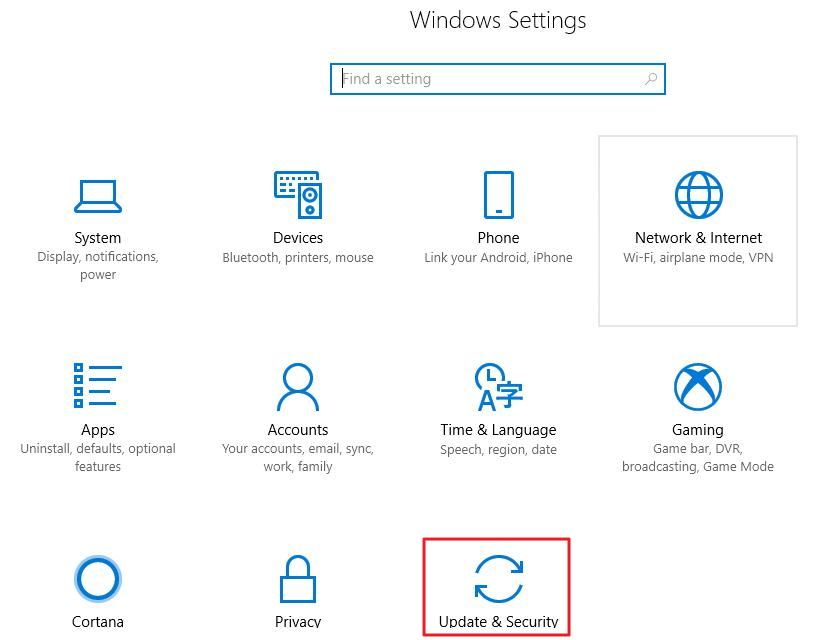
update and security
  • In the next window, look for Windows Defender entry in the left pane and click on it
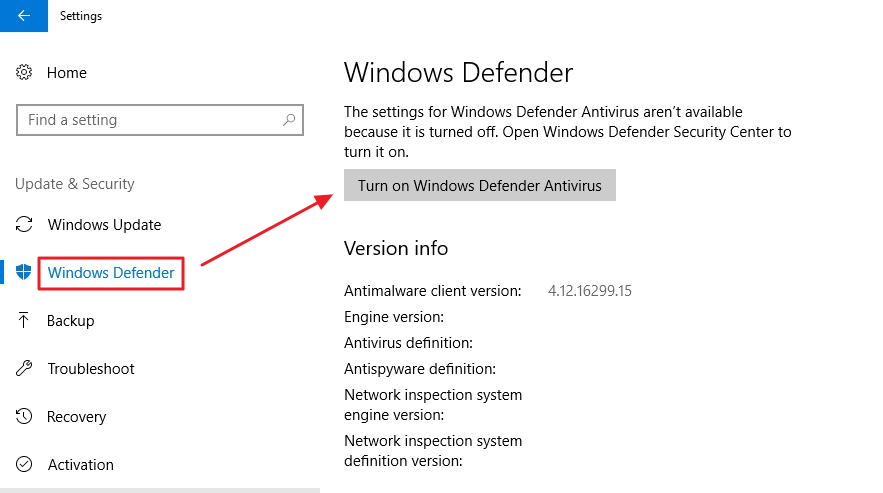
activate windows defender
  • Click Turn on Windows Defender Antivirus

Now uninstall McAfee program or any other 3rd party protection tool installed on your system.

Steps to uninstall McAfee or any 3rd party protection tool

  • To open Run command window, press Windows logo key and R simultaneously on the keyboard
  • In the Run command box, type appwiz.cpl and click OK
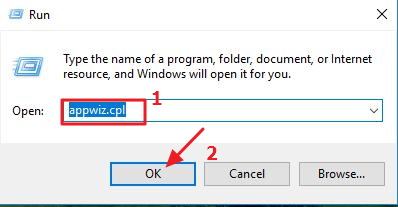
appwiz
  • Click McAfee program or any 3rd anti-virus program you may have and then click Uninstall (we have Avast installed so we’ve selected that).
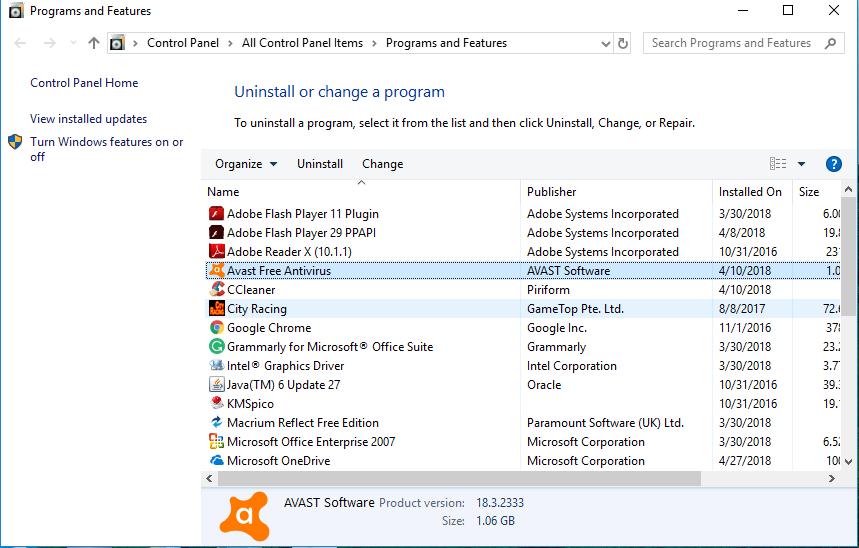
uninstall anti-virus
  • You need to restart the computer after uninstalling McAfee or 3rd anti-virus program from your computer.

After rebooting the computer, check if the issue persists.

If you do not get “The default gateway is not available” error, you can conclude the 3rd party anti-virus program was the culprit. In that case, you can keep Windows Defender protection activated on your computer, and contact the third party antivirus manufacturer and ask for a solution.

Alternatively you can use another 3rd party antivirus tool. If you want, you can also only use Windows Defender. For most average users, it is enough.

Solution Two – Update Network Drivers

If your network driver is outdated, you can get “The default gateway is not available” error. You can update drivers manually through device manager, but the process takes time. A better option, in our opinion, is to use a reliable driver update tool.

Automatic driver update tools offer many benefits, the most important ones being:

  • You can update device drivers automatically
  • The software scans and updates all outdated or missing drivers at one go
  • The tool picks the right drivers for your device and operating system, so you won’t have to worry about installing an incorrect driver by mistake
  • Automatic driver updates are 100% safe

Driver Updater is one of the best driver update tools out there. Outbyte Driver Updater will give you access to a database of over 1 million drivers. It will regularly scan your PC, suggesting new driver versions to install. Driver Updater contains drivers for a variety of Windows devices. With just one click, you can update drivers in your system.

Step 1
Click here to Install and launch the app

Step 2
Scan all devices

Step 3
Install or update drivers automatically


Start Download


Solution Three- Reinstall Network Drivers

A faulty network driver can cause various network and connectivity problems including “The default gateway is not available” error.

To rule out the possibility of a faulty network driver, you need to reinstall network drivers following the steps given below.

  • Press Windows logo key and X simultaneously on the keyboard
  • In the menu that appears on the screen, click Device Manager
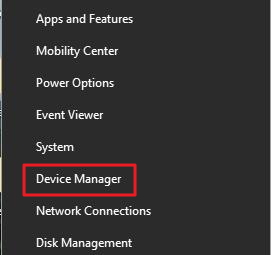
device manager
  • In the Device Manager window, double-click on Network Adapters category to expand it
  • Right-click on Network Adapter in the list and click Uninstall
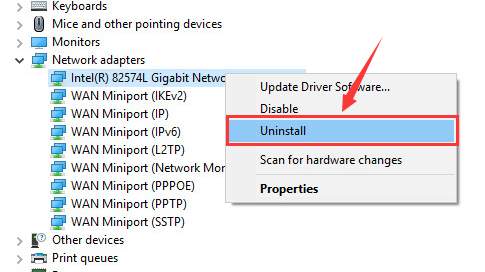
uninstall network adapter
  • When Windows prompts for confirmation, click OK to continue
  • Restart the computer after network adapter is installed
  • Windows will reinstall network drivers after computer reboots.

Check if the network issue is resolved. If you are still getting “The default gateway is not available” error, try next solution.

Solution Four – Change Network drivers

There is a possibility that your computer doesn’t have the correct network driver installed and this in turn might be causing “The default gateway is not available” error. To resolve this issue, you need to change network drivers through Device Manager.

Here are the steps to follow.

  • Place the mouse cursor on the Start button and press the right mouse button
  • In the menu that appears on the screen, click Device Manager
  • Go to Network Adapters category and expand it
  • Right-click on Network Adapter in the list and click Update driver software
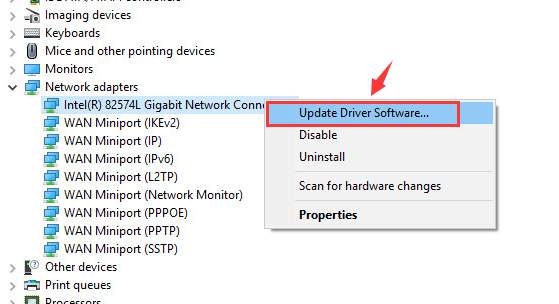
update-driver-software
  • In the next step, click Browse my computer for driver software
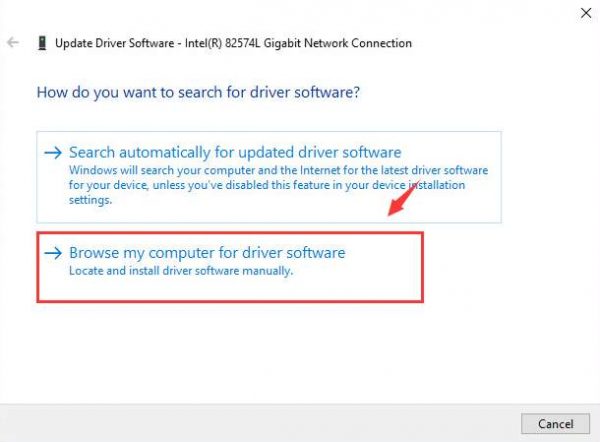
browse-my-computer
  • In the next window, click Let me pick from a list of device drivers on my computer
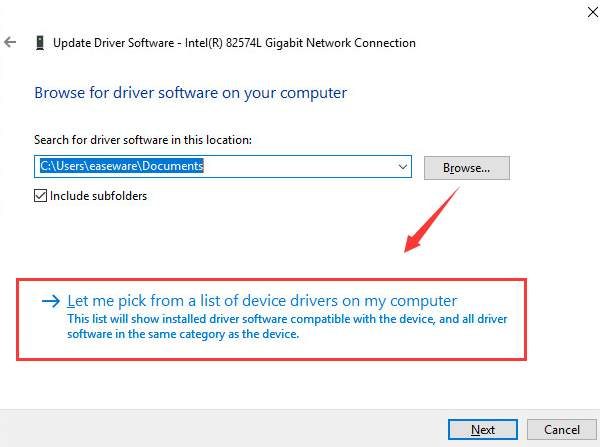
let-me-pick
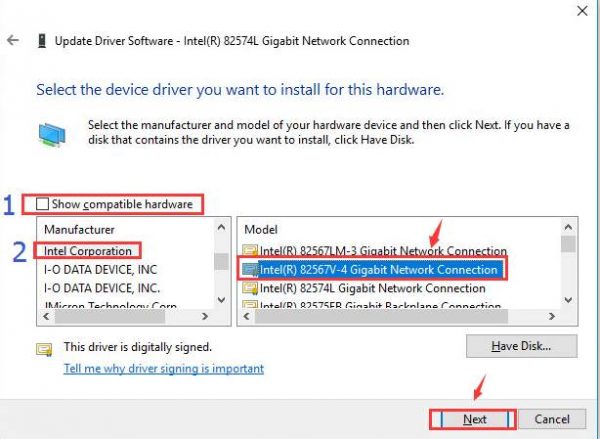
  • Un-tick Show compatible hardware box
select network driver
  • Click Intel Corporation from the left column and select a different network adapter driver from what is installed
  • Click Next
  • See if changing the network driver solves the issue.
  • If it doesn’t you need to repeat the steps above and select a different network adapter from the list. You need to repeat the above troubleshooting steps until you install right network adapter driver or until you have exhausted all options in the network adapter driver list.
Filed Under: PC Fix Tips Tagged With: default gateway error

Fix 0xc0000005 Error in Windows

By Susan C on May 21, 2018

Fix 0xc0000005 Error in Windows

0xc0000005 is a common error code. Many window users encounter it at least once in a while.  This is a very broad error code that you can occur in different cases, such as the following

  • Access Violation error
  • The application was not able to start
  • Windows installation error.

When you receive this error, you should check the issue that has lead to this error code and then try the solutions listed for that case in this post.

Case 1 – Access Violation Error

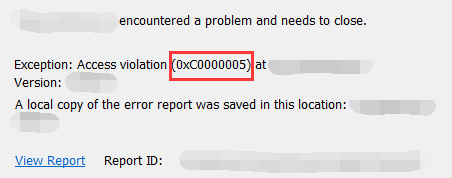
In case of access violation error, your system can throw up the 0xc0000005 error message. Access violation error mainly occurs when you run an application that tries to access a location that it is not assigned for its use. You will see an error message like the one below.

access violation error

When you close the error message box, the application that caused the error will also close automatically, allowing the system to recover. There can be many reasons for this error, including the application wanting to use system memory improperly.

Here are some troubleshooting methods you can follow.

Solution One- Run Anti-virus scan

Malware and viruses can affect the working of your system in unknown ways and might force the Windows to generate a 0xc0000005 error code. Hence, the first thing you need to do is run anti-virus scan to ensure your system is malware-free.

Solution Two- Make changes to Disable Data Execution Prevention (DEP) settings

Viruses and malware are known to attack Windows operating system by executing code from system reserved memory for Windows and authorized programs. The Data Execution Prevention is a security feature in Windows that prevents any damage to your computer from malicious programs and security threats.

Some programs are not compatible with DEP. It is possible this is true for the program with which you are getting the 0xc0000005 error code. In such a case, you can disable Data Execution Prevention. However, before you do that, you must ensure that the program you are trying to run is completely safe.

Here are the steps you need to follow to disable Data Execution Prevention.

  • Log in Windows as administrator
  • Press Windows key and R simultaneously to bring up Run command console
  • Type cpl in Run command box
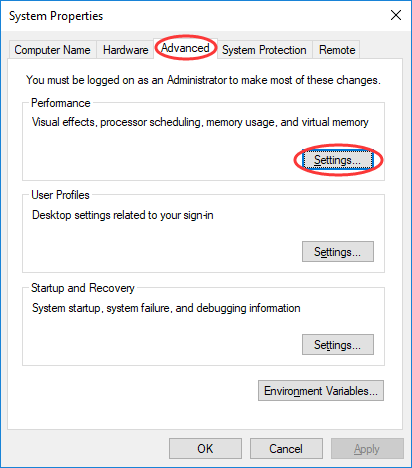
  • In the system properties window, click Advanced tab and then click Settings
advanced settings
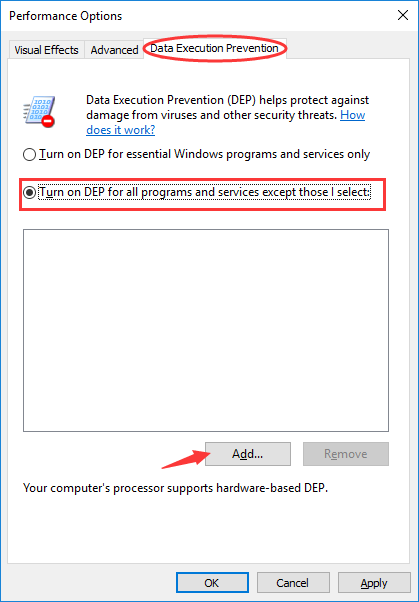
  • In the Performance option window, click Data Execution Prevention tab
  • Select Turn on DEP for all programs and services except those I select and then Click Add
turn on DEP
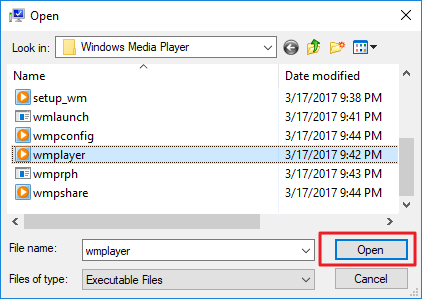
  • Open the problematic application executable file and then click OK
open executable file

Solution Three – Check Physical RAM

A faulty physical RAM could be one of the reasons behind the 0xc0000005 error. You need to check the physical RAM by swapping it with another RAM module of same specification. Since physical RAM is installed inside the computer, you need to take a professional’s help to do it.

If you are confident of doing it by self then follow the steps given below

  • Switch off the computer/laptop and remove the power cables
  • Open the computer and unseat the physical RAM module from its slot
  • Replace another RAM module in the empty slot
  • Close the computer/laptop chassis start the computer and see if the issue is resolved.

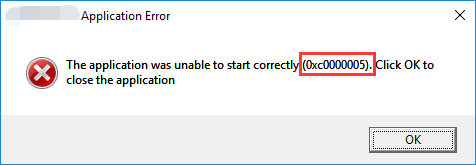
Case 2- The application was unable to start correctly (0xc0000005)

You get this error when you are trying to run a program and it crashes displaying an error message like shown below

application error

To resolve this error, you can follow the solutions given below.

Solution One- check your system for virus or malware

Virus and malware can prevent some programs from running and you need to rule out this possibility by running a full virus scan on your computer. In some cases, anti-virus software can also prevent the execution of certain programs. To rule out this possibility, temporarily disable the anti-virus software and try launching the problematic program.

Solution Two- Fix faulty drivers

Corrupt, outdated or incompatible drivers can be one of the causes behind “The application was unable to start correctly” error. In such cases, updating drivers is the best option available to resolve such issue.

There are two ways to update drivers- manually through device manager and automatically using driver update software.

Automatic driver update tools offer many benefits, the most important ones being:

  • You can update device drivers automatically
  • The software scans and updates all outdated or missing drivers at one go
  • The tool picks the right drivers for your device and operating system, so you won’t have to worry about installing an incorrect driver by mistake
  • Automatic driver updates are 100% safe

Driver Updater is one of the best driver update tools out there. Outbyte Driver Updater will give you access to a database of over 1 million drivers. It will regularly scan your PC, suggesting new driver versions to install. Driver Updater contains drivers for a variety of Windows devices. With just one click, you can update drivers in your system.

Step 1
Click here to Install and launch the app

Step 2
Scan all devices

Step 3
Install or update drivers automatically


Start Download


Solution Three- Undo any changes

“The application was unable to start correctly (0xc0000005)” error might be also caused due to recent system changes you may have done like installing a program or any changes to the settings that are not compatible with the system.

You can resolve this issue by undoing the changes like uninstalling the program or reverting settings back to the previous state.

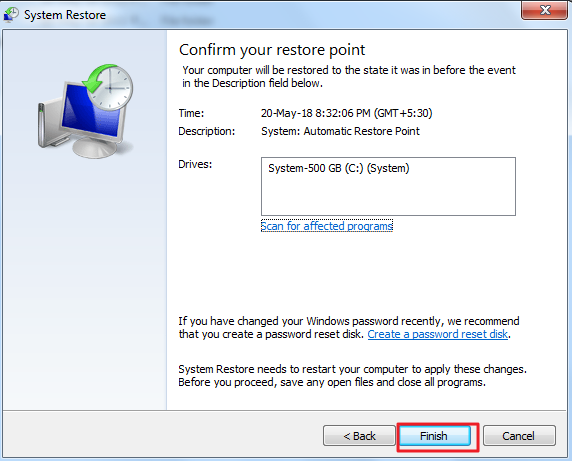
If you are unable to recall the changes made recently, you can use the system restore option to revert the Windows operating system to a previous state (when the problematic program worked without any problems).

Here are the steps to follow.

For Windows 7

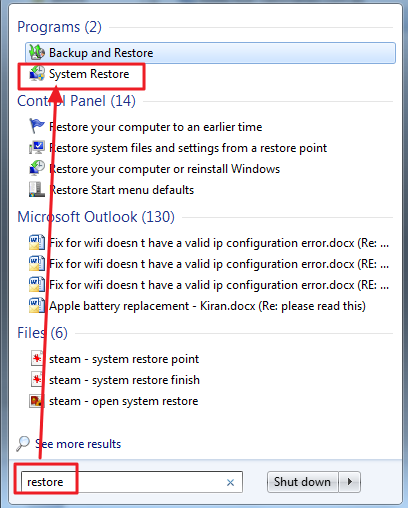
  • Click Start and type restore in the search box
restore windows 7
  • Select System Restore from the list of search results
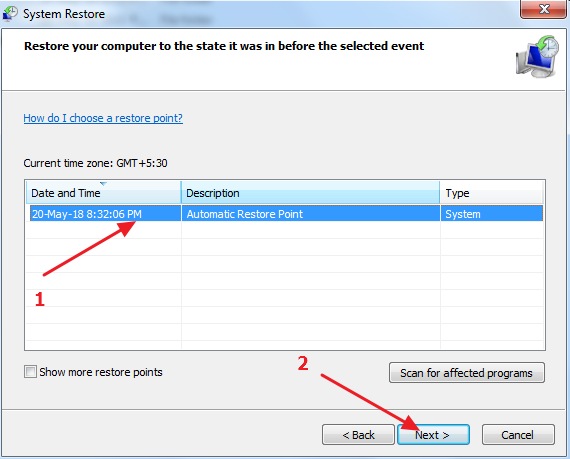
  • When the system restore window opens, click Next
  • In the next window, select the appropriate system restore point and click Next
select restore point
  • Click Finish to initiate System Restore process

For Windows 10

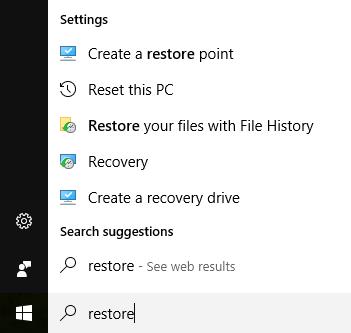
  • Click Start and type restore in Cortana search box
restore 10
  • Click Create restore point from the list of search results
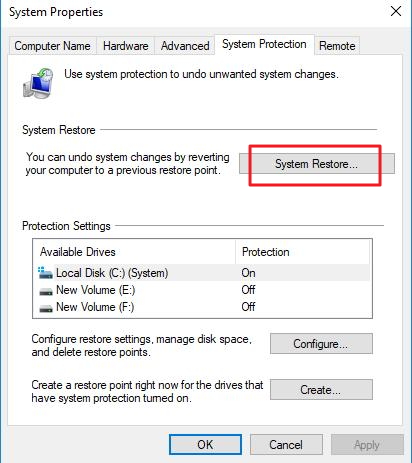
  • In the System Properties window, click System Restore
system restore 10
  • In the System Restore window, click Next
  • In the next window, select the right system restore point and click Next
  • Click Finish to start the System Restore process
finish restore point

Windows will reboot and revert the system to the previous state. Now see if the error is resolved.

Solution Four – Repair Boot Configuration Data

Windows operating system might also throw up “The application was unable to start correctly (0xc0000005)” error due to erroneous boot configuration data (BCD).

To rectify this problem, you need to repair boot configuration data by following steps given below.

  • Put Windows installation media in your computer
  • Boot your computer from installation media
  • If you are using Windows 7: click Next -> Repair your computer -> Next -> Command Prompt.
  • If you are using Windows 8 or 10: click Next -> Repair your computer -> Troubleshoot-> Advanced options -> Command Prompt.
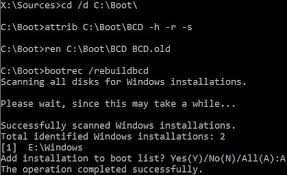
  • In the command prompt window, type following commands and press Enter after each command. After typing the last command in the list, press Enter, and Y when prompted for an answer.
BCD commands
  • del d:\windows\system32\xntkrnl.exe
  • del d:\windows\system32\xosload.exe
  • del d:\windows\system32\drivers\oem-drv64.sys
  • attrib c:\boot\bcd -h -r -s
  • ren c:\boot\bcd bcd.old
  • bootrec /rebuildbcd
  • Close command prompt window and reboot PC. Launch the problematic application and see if the issue persists.

Case 3- Windows installation error

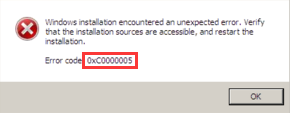
Many users also encounter a 0xc0000005 error while installing Windows. When you get the Windows installation encountered an unexpected error (0xc0000005), you cannot continue with the installation.

windows installation error

One of the reasons to encounter a 0xc0000005 error during Windows installation is a problem with partition where you are trying to install Windows. To resolve this issue, delete all partitions and create new partitions.

Remember deleting partition will lead to loss of all data stored in the partition. So be careful when you proceed with this troubleshooting step. There is also a possibility the RAM or hard drive is faulty. You can try using other hard disk and RAM module and see if the issue is resolved.

Common Windows 10 install issues

Filed Under: PC Fix Tips Tagged With: 0xc0000005 error

Realtek HD Audio Drivers Download for Windows 7/8/10

By Susan C on May 21, 2018

Realtek HD Audio Drivers Download for Windows 7/8/10

If you are experiencing “No sound” issue on your computer then the problem might be related to missing drivers.

To resolve the no sound issue, you need to update the sound drivers. In this post, we have shared two ways to update Realtek Audio drivers. These steps are applicable to Windows 7, 8, 8.1 and 10 systems.

There are two ways to update Realtek audio drivers – manually update Realtek audio driver through Device Manager and automatic update using Realtek audio driver using a reliable driver software tool. We recommend Driver Updater, because it is quick, accurate, reliable, and affordable.

Let’s get started.

Solution One- Manually update Realtek audio driver through Device Manager

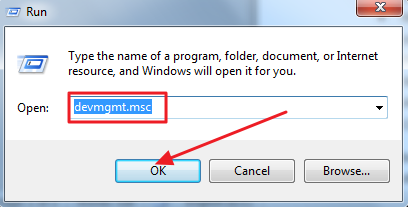
  • To bring up run command console, press Windows key and R simultaneously on the keyboard
  • In the Run box, type devmgmt.msc and click OK
devmgmt
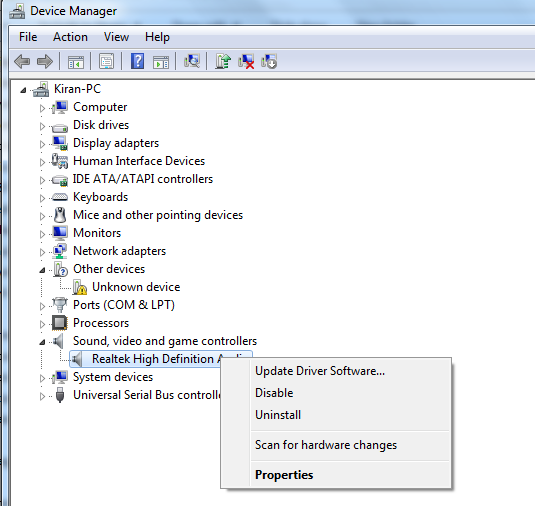
  • In the Device Manager window, double-click Sound, video, and game controllers to expand the category
update driver software
  • Now right-click, Realtek High Definition Audio, then click Update Driver Software. In some cases, you may see option Update driver
  • In the next window, click Search automatically for updated driver software
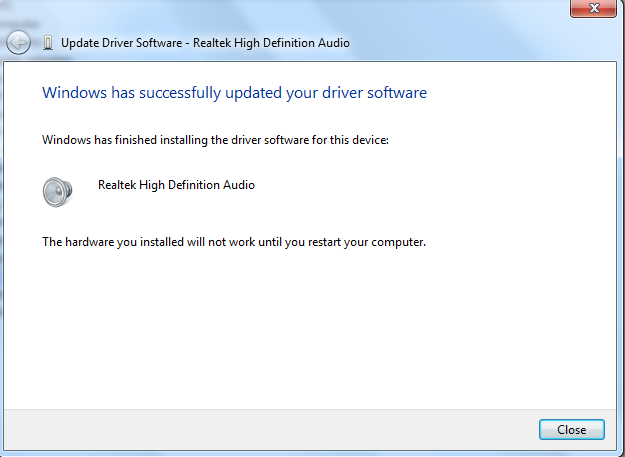
  • Windows will search for driver updates online and install them
audio driver installed
  • After the driver is installed, Windows will prompt to restart PC
  • Close all files and programs and restart PC

Alternatively, you can also visit device manufacturer or motherboard manufacturer to download latest Realtek driver for your system. The driver is available in different forms including EXE and Zip format.

If the Realtek audio driver is in EXE format you can straightway double-click on file and follow on-screen instructions to install it.

If the Realtek audio driver is in ZIP format, you need to first unzip the contents to a designated folder and then perform steps given below.

  • Repeat first four steps from the solution given above (up to Update driver software step)
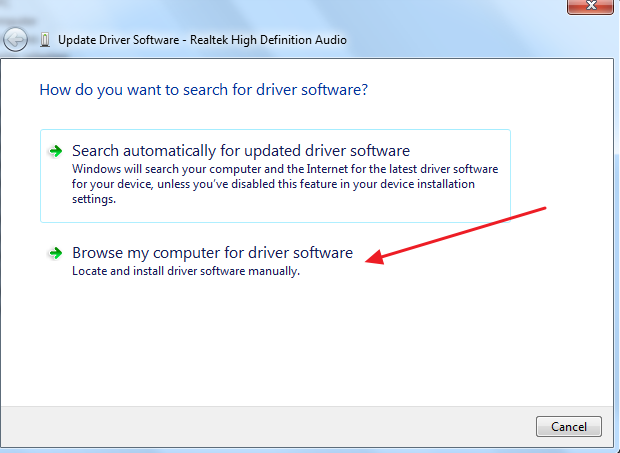
  • In the next step, click Browse my computer for driver software
locate driver file
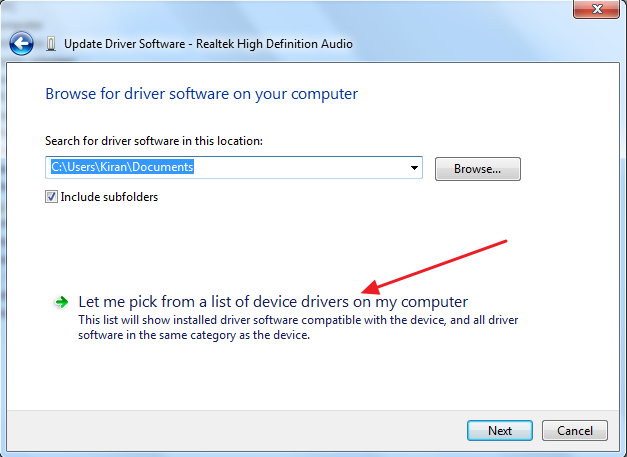
  • In the next window, click Let me pick a list of device drivers on my computer
let me pick
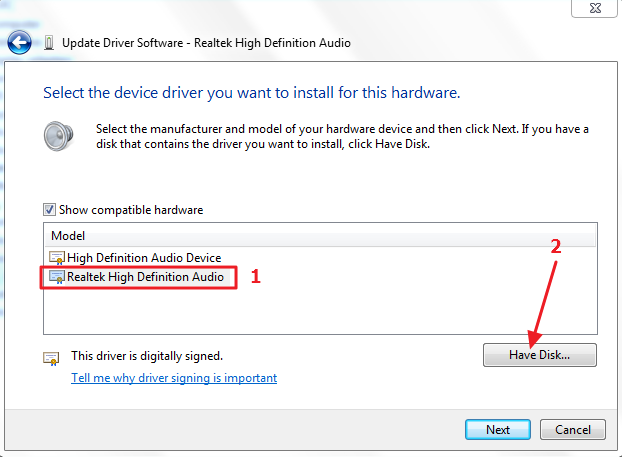
  • Select Realtek High Definition Audio and then click Have Disk
have disk
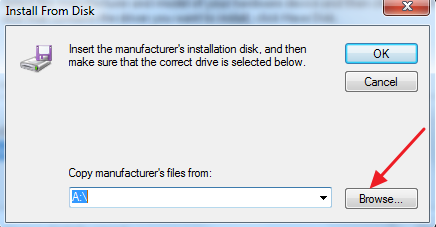
  • Click Browse and navigate to the designated folder where you have unzipped driver contents
browse driver file
  • Select driver file and follow on-screen instructions to install Realtek audio driver
  • After the driver installation completes, Windows will prompt you to restart the computer
  • Restart PC to let the changes take effect.

Solution Two – Update Realtek audio drivers automatically

Automatic driver update tools offer many benefits, the most important ones being:

  • You can update device drivers automatically
  • The software scans and updates all outdated or missing drivers at one go
  • The tool picks the right drivers for your device and operating system, so you won’t have to worry about installing an incorrect driver by mistake
  • Automatic driver updates are 100% safe

Driver Updater is one of the best driver update tools out there. Outbyte Driver Updater will give you access to a database of over 1 million drivers. It will regularly scan your PC, suggesting new driver versions to install. Driver Updater contains drivers for a variety of Windows devices. With just one click, you can update drivers in your system.

Step 1
Click here to Install and launch the app

Step 2
Scan all devices

Step 3
Install or update drivers automatically


Start Download


Filed Under: PC Fix Tips Tagged With: no sound issue

  • « Previous Page
  • 1
  • …
  • 169
  • 170
  • 171
  • 172
  • 173
  • …
  • 189
  • Next Page »


  • Recent Posts
  • Popular Posts
        

Read More Posts


Read More Posts

Drivers.com Sites

  • Software Drivers
  • Drivers Ed

About Us

  • Advertise
  • About Drivers
  • Drivers Support
  • Drivers.com Privacy Policy
  • Disclaimer
  • Software Drivers
  • Mac Fixes and Tips
  • PC Fix Tips
  • Security/ Backup
  • Tablets & Smartphones
  • Tech News

© Copyright 2026 PDE Publications Ltd. End User License Agreement (EULA)