Drivers.com

follow us:

facebook twitter
  • Home
  • Download Drivers
  • Drivers Help
  • PC/Mac Resources
  • Software Drivers
  • Mac Fixes and Tips
  • PC Fix Tips
  • Security/ Backup
  • Tablets & Smartphones
  • Tech News
  • Software Drivers
  • Mac Fixes and Tips
  • PC Fix Tips
  • Security/ Backup
  • Tablets & Smartphones
  • Tech News

Antimalware Service Executable High CPU on Windows 10

By Susan C on May 28, 2018

Antimalware Service Executable High CPU on Windows 10

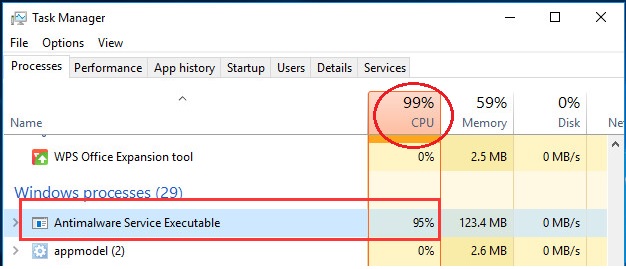
Is your system running slow? Are you seeing high CPU usage by Anti-malware service executable process like the one shown below?

error image

If yes, this post is for you.

You don’t need to worry if you’re getting this error, and no, your system has not been attacked by malware or virus.

All the solutions given here are easy to follow and you won’t need an expert’s help to resolve this issue.

PC Speed Help: How to fix high CPU usage

What is anti-malware service executable process?

The anti-malware service executable process is related to Windows Defender, Microsoft’s own anti-virus program that is inbuilt in Windows. The background process is also listed as MsMpEng.exe and you can find more about this process by clicking the Details tab.

When you see the anti-malware service executable process utilizing heavy CPU resources, the Windows Defender program is scanning your system for virus and malware. Whenever you access any program or file, Windows Defender springs into action to see whether the application and file is not a threat.

It is quite normal for Windows Defender to use CPU resources while scanning for threats.

However, if you are seeing heavy CPU usage by anti-malware service executable process for prolonged periods, something is wrong and you should fix it.

So let’s look at the solutions now.

How to fix Antimalware Service Executable High CPU usage on Windows 10?

Below we have listed three solutions that can help fix the issue. You are not required to try all solutions. Start with the first solution and work your way downwards, until the issue gets fixed.

Solution One – Make changes to Windows Defender’s schedule

The high CPU usage problem by Anti-malware Service Executable process is mainly due to real-time protection feature of Windows Defender program. You need to change the schedule of Windows Defender to resolve this issue.

Here are the steps to follow.

  • Press Windows logo key and R simultaneously on the keyboard to bring up the Run command box
  • In the Run command box, type taskschd.msc and press Enter
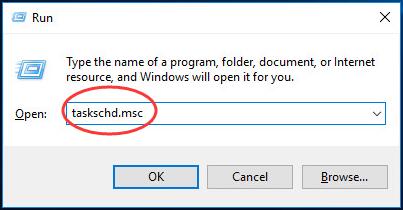
taskschd
  • In the Task Scheduler window, double-click on Task Scheduler Library -> Microsoft -> Windows
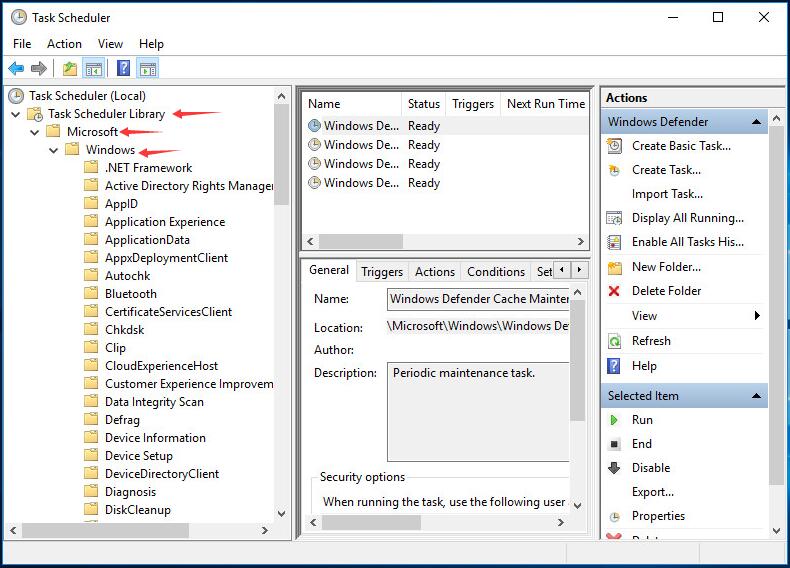
task scheduler
  • Scroll down below in left pane and double-click Windows Defender. Then double-click Windows Defender Scheduled Scan.
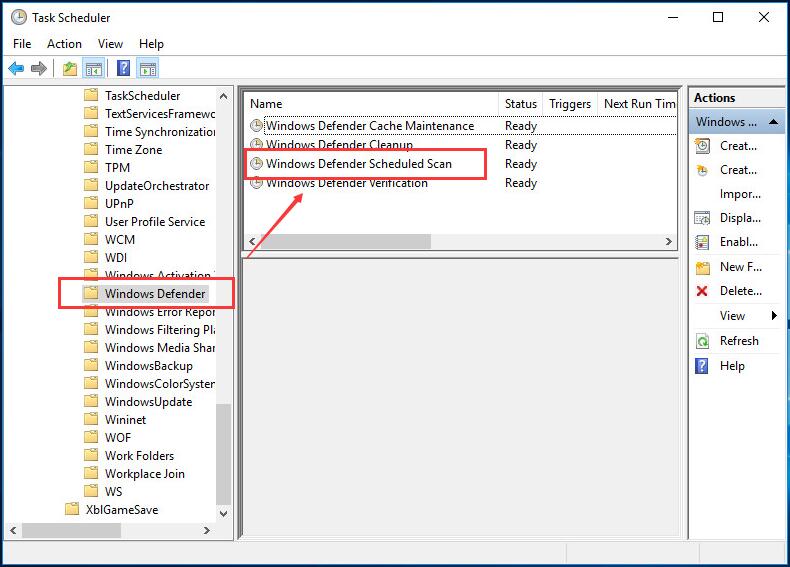
windows defender
  • In the General tab, uncheck the box Run with highest privileges
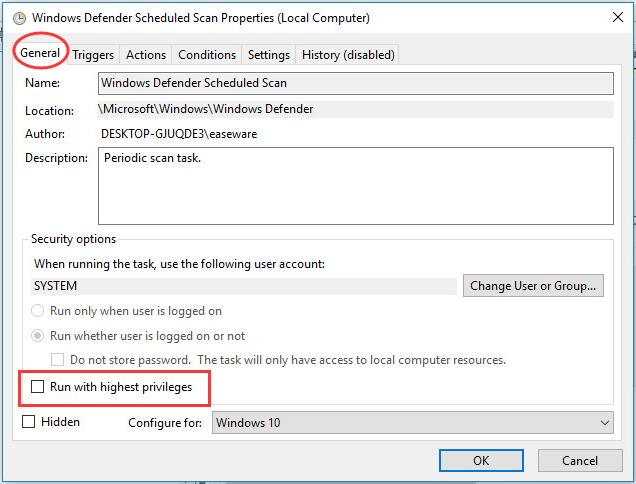
run highest privileges
  • Go to Conditions tab and uncheck all options and then click OK
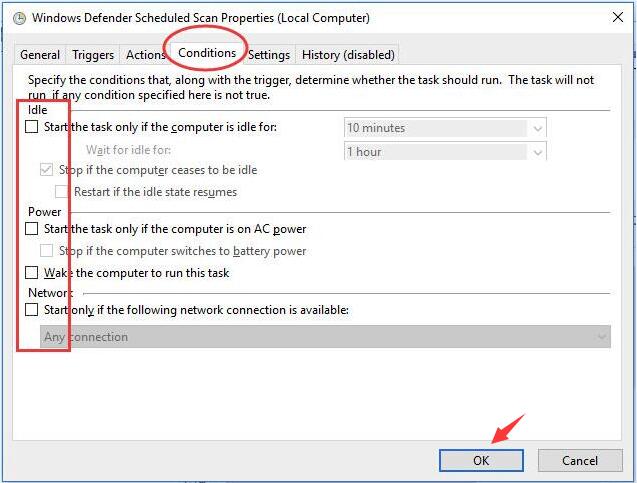
conditions

Now open Task Manager and go to the Processes tab. If you see the CPU usage by Antimalware Service Executable process has reduced and within the normal range, it means the issue has been resolved, and there’s no need for you to attempt other listed solutions.

However, if you still see high CPU usage by Anti-malware Service Executable process, try the next solution.

Solution Two – Add Antimalware Service Executable to Windows Defender exclusion list

Microsoft has provided an exclusion list feature in Windows Defender that stops the anti-virus program from looking at a file, folder, or processes as malicious.  You can use this feature to your advantage and put the MsMpEng.exe in the exclusion list which will do the trick and prevent the Anti-malware Service Executable process from utilizing maximum CPU resources.

Here are the steps to follow.

  • Press Windows logo key and I simultaneously on the keyboard to bring up the Settings window
  • In the Settings window, click Update & Security
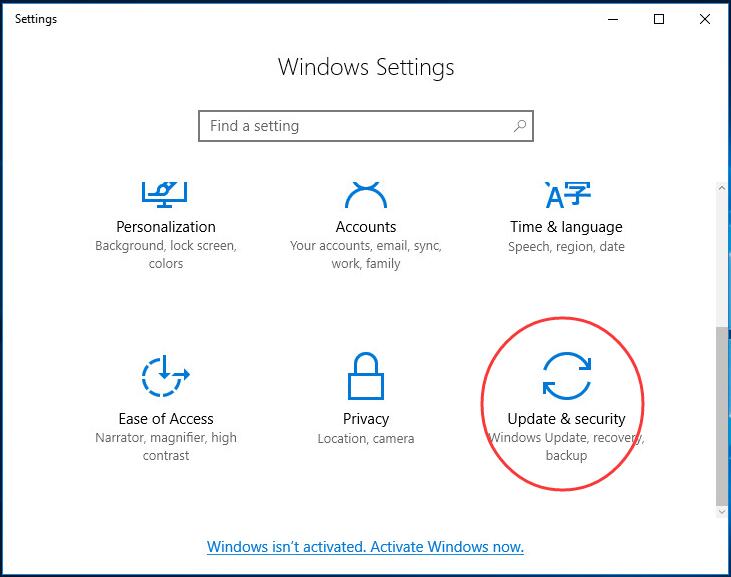
update & security
  • Click Windows Defender. Then click Add an exclusion in Exclusions.
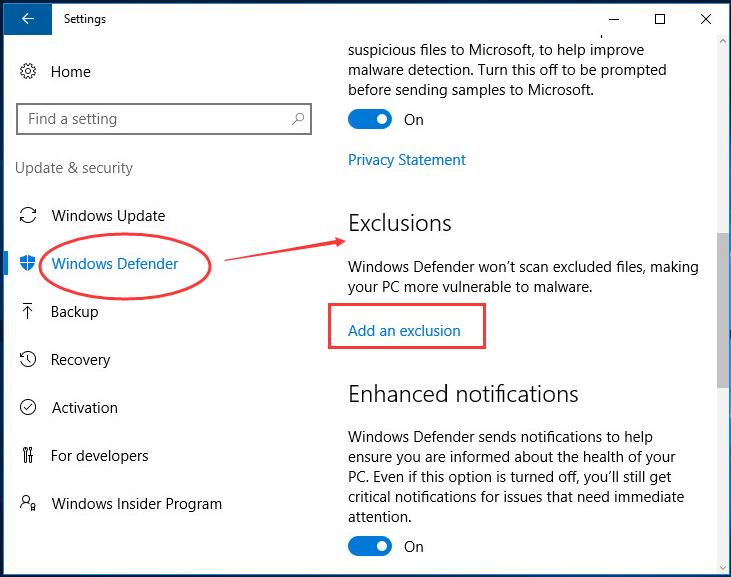
windows defender exclusions
  • Click Exclude a .exe, .com or .scr process
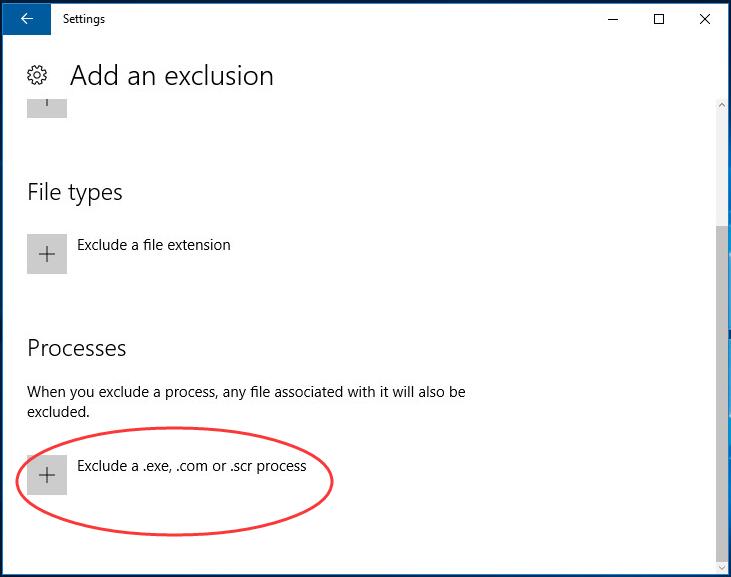
add exclusion
  • In the next window, type MsMpEng.exe  and then click OK
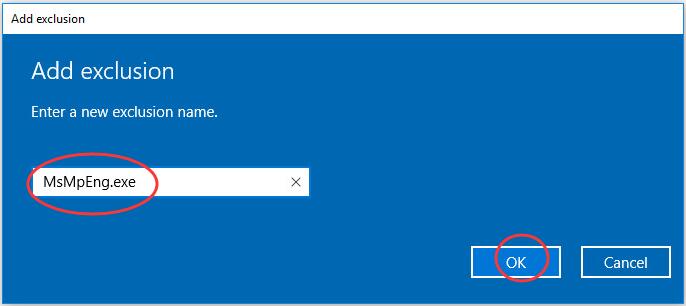
msmpeng
  • When finished, close the Settings window

Now that you have added Anti-malware Service Executable process to the exclusion list, the problem should be resolved. If you still see high CPU usage by Anti-malware Service Executable process, you need to update drivers.

Solution Three – Update Drivers

You can encounter issues like high CPU usage by Anti-malware service executable process if your device drivers are outdated. While it is true that you can download manually, this method is not only time-consuming but also far from ideal.

Updating Drivers Automatically

Automatic driver update tools offer many benefits, the most important ones being:

  • You can update device drivers automatically
  • The software scans and updates all outdated or missing drivers at one go
  • The tool picks the right drivers for your device and operating system, so you won’t have to worry about installing an incorrect driver by mistake
  • Automatic driver updates are 100% safe

Driver Updater is one of the best driver update tools out there. Outbyte Driver Updater will give you access to a database of over 1 million drivers. It will regularly scan your PC, suggesting new driver versions to install. Driver Updater contains drivers for a variety of Windows devices. With just one click, you can update drivers in your system.

Step 1
Click here to Install and launch the app

Step 2
Scan all devices

Step 3
Install or update drivers automatically
 

Start Download


Filed Under: PC Fix Tips Tagged With: high cpu usage

How to install the PS3 controller in Windows?

By Susan C on May 27, 2018

How to install the PS3 controller in Windows?

If you have recently bought a PS3 controller and looking for steps to connect it to Windows PC then this post is for you.  Here are the steps to follow

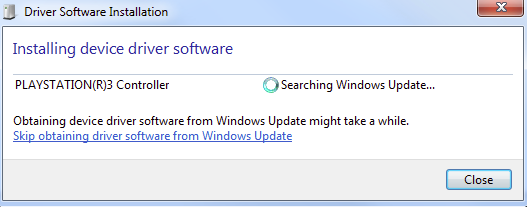
  • Plug the PS3 controller to your PC through USB cable. You should see a window like the one below which indicates Windows is installing the driver for the PS3 controller
driver installation
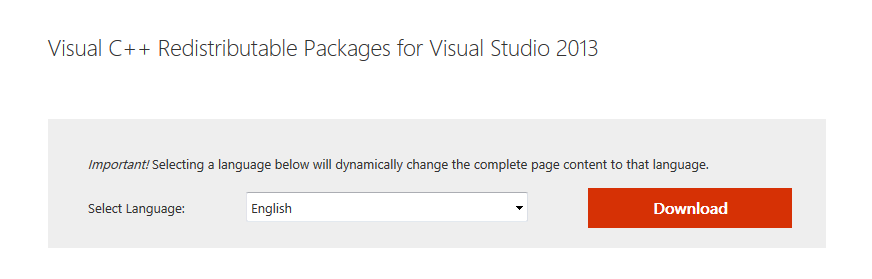
  • Download Microsoft .NET 4.0 and Visual C++ 2013 Runtime from Microsoft website and install them
microsoft net framework
visual c++
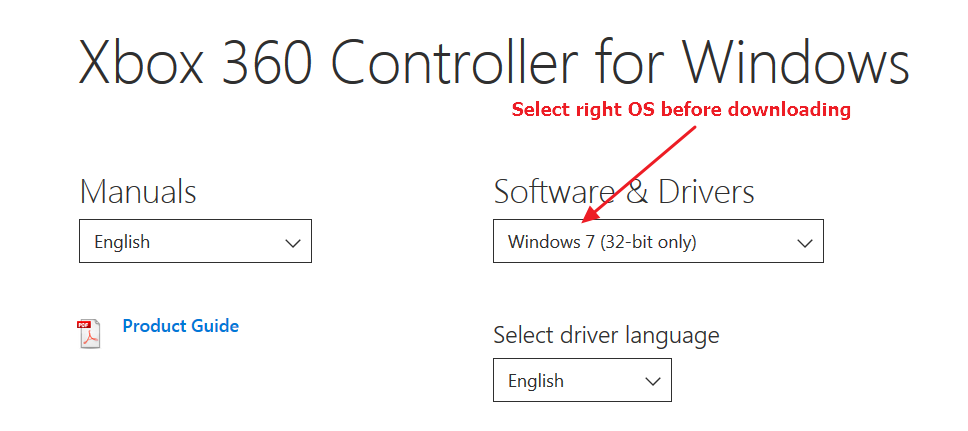
  • Download Xbox 360 controller driver from Microsoft website and install it manually. You need to select right operating system before downloading Xbox 360 controller
xbox 360 controller

Alternatively, you can use a reliable driver update tool.

Updating Drivers Automatically

Automatic driver update tools offer many benefits, the most important ones being:

  • You can update device drivers automatically
  • The software scans and updates all outdated or missing drivers at one go
  • The tool picks the right drivers for your device and operating system, so you won’t have to worry about installing an incorrect driver by mistake
  • Automatic driver updates are 100% safe

Driver Updater is one of the best driver update tools out there. Outbyte Driver Updater will give you access to a database of over 1 million drivers. It will regularly scan your PC, suggesting new driver versions to install. Driver Updater contains drivers for a variety of Windows devices. With just one click, you can update drivers in your system.

Step 1
Click here to Install and launch the app

Step 2
Scan all devices

Step 3
Install or update drivers automatically

 

Start Download


Register the software to get automatic driver updates.

After you have installed required drivers, you will need an emulator which will recognize your PS3 controller as Xbox 360 controller. We are using SCP toolkit as the emulator.

  • Download SCP Toolkit here
  • Extract downloaded files to a designated folder
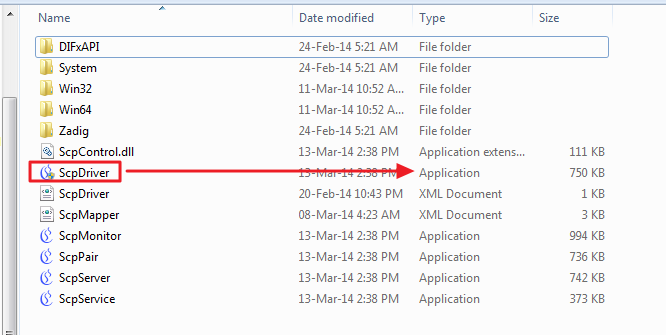
  • In the extracted folder, go to ScpServer -> bin and then double-click ScpDriver (Application type)
scpdriver
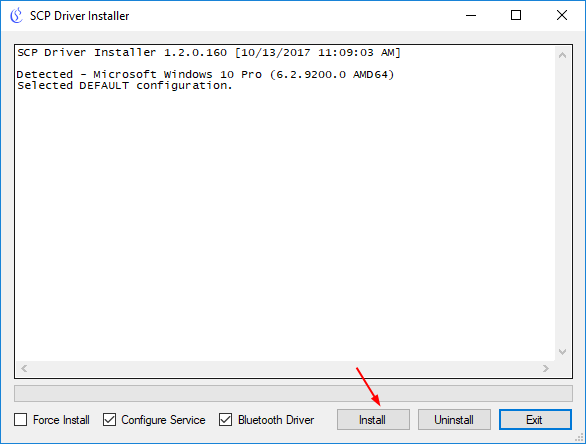
  • Click Install
click install
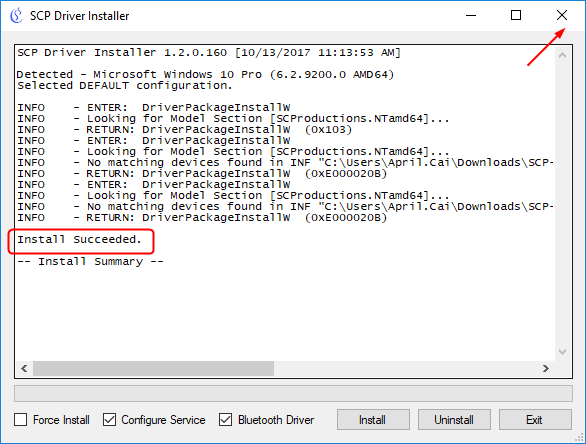
  • When you see the installation has succeeded, close the window
install succeeded
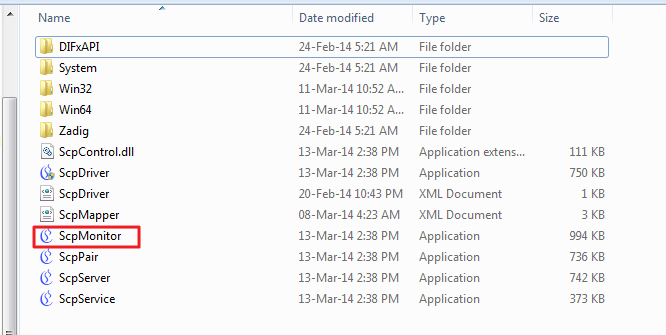
  • Go back to bin folder and double-click ScpMonitor
scpmonitor
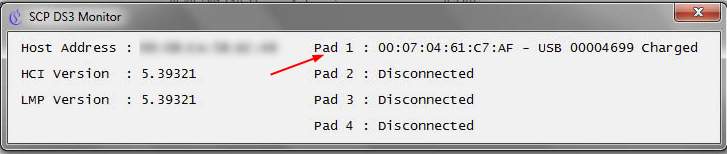
  • You can see the PS3 controller is recognized and available as Pad 1 as shown in the figure
PS3 -PAD 1

Filed Under: PC Fix Tips Tagged With: install P3 controller

Download Dell Drivers for Windows

By Susan C on May 26, 2018

Download Dell Drivers for Windows

Updating drivers can help enhance the performance of your Dell laptop. This is because the hardware manufacturer may update drivers after Microsoft has integrated new features through Windows updates or after some new games have been released.

If you are having some trouble with some device on your Dell laptop, updating drivers should be your first port of call. Dell provides driver updates on its website and all you need to do is visit the website and download them.

Here we have discussed two ways to update Dell drivers

Method One – Update Drivers manually

  • Go to Dell Driver Download page
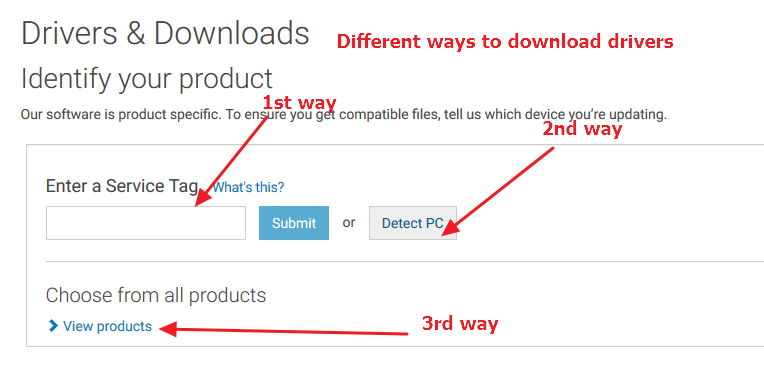
  • Here you will see three ways to find drivers for your Dell laptop – Service Tag, Detect PC and Choose from all products.
download drivers
  • You can use any method that suits you. If you have the Service Tag number, type the service tag number in the box and click Submit. Follow the on-screen instructions to download drivers.

If you don’t know the Dell laptop model, use Detect PC option.

When you click Detect PC option on the page, you will be taken to a page where you can install Support Assist program. You need to download and install the application which will then detect the Dell Laptop model.

The third option Choose from all products can be used when you know the Dell Laptop model. It is easy to find out information about Dell laptop model. The model number of Dell laptop is mentioned on laptop identification label on the bottom of the computer.

We are demonstrating steps to download drivers using the 3rd option. Our Dell laptop model is Dell Vostro 15 3565. You would need to substitute this laptop model number with your Dell laptop model.

Here are the steps to follow.

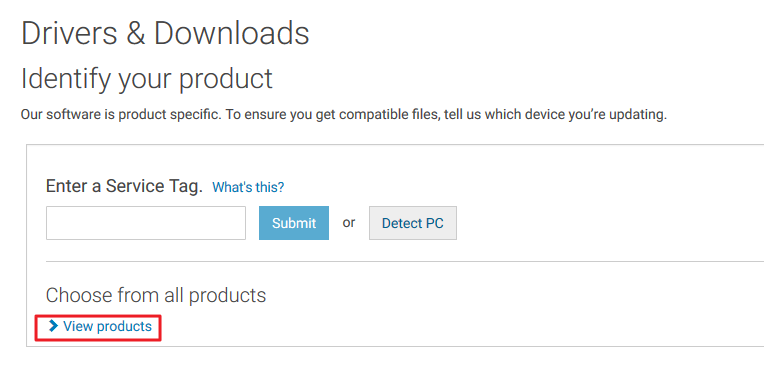
  • Click View Products
view products
  • Click Laptop and then click Vostro
  • <insert Dell -select laptop>
  • Click Vostro 15 3565
Vostro 15 3565
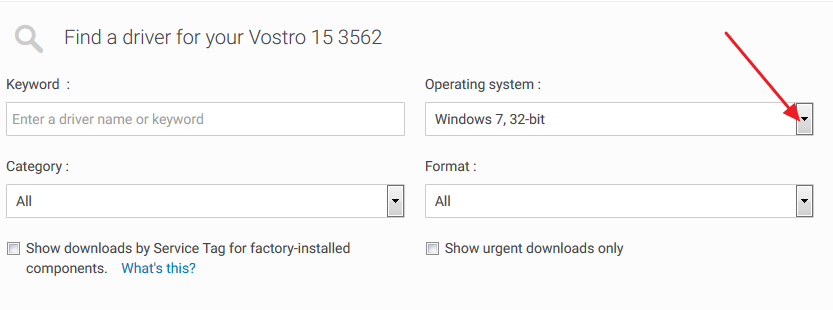
  • In the next page, you need to select the Windows operating system installed in your Dell laptop
choose OS
  • After you select the operating website, the page refreshes and you will see a list of drivers compatible with your Windows version.
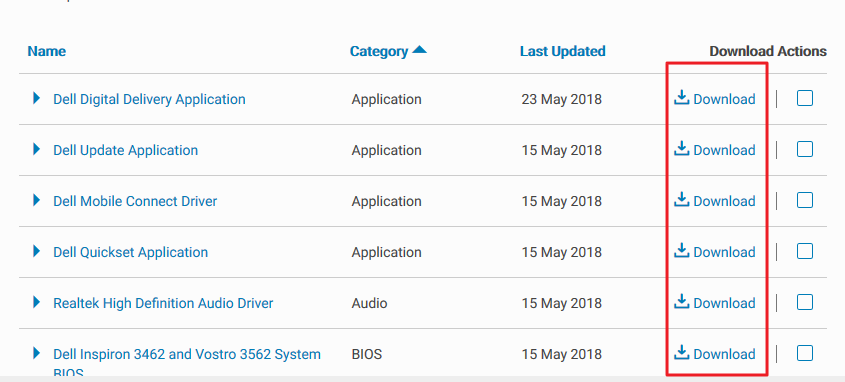
  • If you want to select any one driver, you can straightway click Download option beside the driver file
download single driver
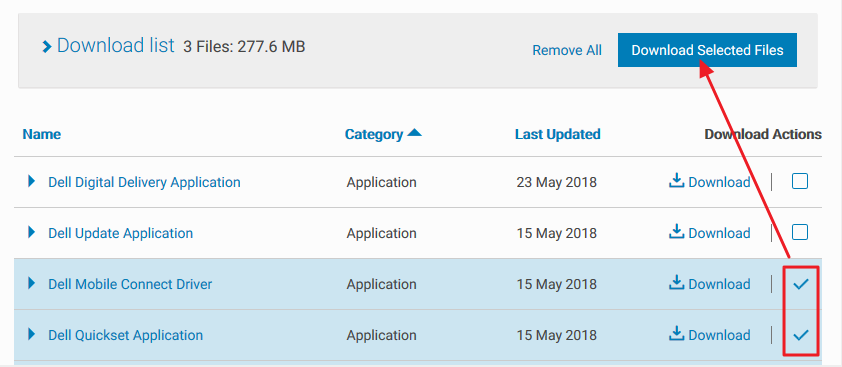
  • If you want to download more than one driver file, check the boxes corresponding to the driver file. When you are done with the selection, click Download selected files
download multiple drivers
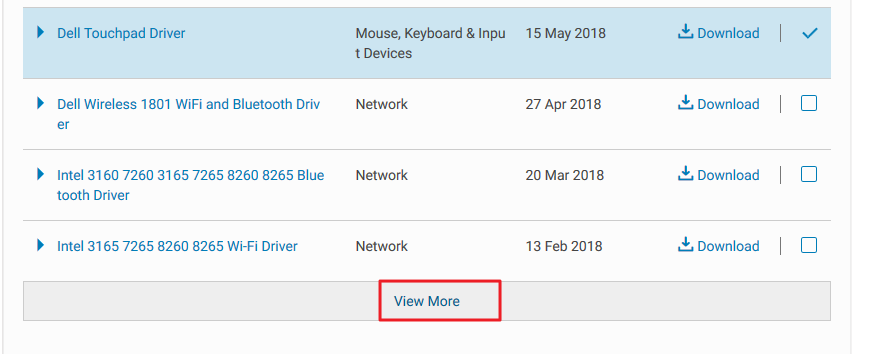
  • If you are unable to find the driver you need, scroll down the page and click View More to see all drivers available for Dell Vostro 15 3562
view more
  • The Driver files are in EXE format, double-click on the driver file to install the driver

For many users, the manually downloading Dell drivers can be a difficult and time-consuming option. Hence we have also shared another option where the drivers are updated automatically.

Method Two- Update Dell drivers automatically

Don’t want to go through all these hassles to update Dell drivers?

Updating Drivers Automatically

Automatic driver update tools offer many benefits, the most important ones being:

  • You can update device drivers automatically
  • The software scans and updates all outdated or missing drivers at one go
  • The tool picks the right drivers for your device and operating system, so you won’t have to worry about installing an incorrect driver by mistake
  • Automatic driver updates are 100% safe

Driver Updater is one of the best driver update tools out there. Outbyte Driver Updater will give you access to a database of over 1 million drivers. It will regularly scan your PC, suggesting new driver versions to install. Driver Updater contains drivers for a variety of Windows devices. With just one click, you can update drivers in your system.

Step 1
Click here to Install and launch the app

Step 2
Scan all devices

Step 3
Install or update drivers automatically
 

Start Download


Filed Under: PC Fix Tips Tagged With: update dell drivers

  • « Previous Page
  • 1
  • …
  • 167
  • 168
  • 169
  • 170
  • 171
  • …
  • 189
  • Next Page »


  • Recent Posts
  • Popular Posts
        

Read More Posts


Read More Posts

Drivers.com Sites

  • Software Drivers
  • Drivers Ed

About Us

  • Advertise
  • About Drivers
  • Drivers Support
  • Drivers.com Privacy Policy
  • Disclaimer
  • Software Drivers
  • Mac Fixes and Tips
  • PC Fix Tips
  • Security/ Backup
  • Tablets & Smartphones
  • Tech News

© Copyright 2026 PDE Publications Ltd. End User License Agreement (EULA)