Drivers.com

follow us:

facebook twitter
  • Home
  • Download Drivers
  • Drivers Help
  • PC/Mac Resources
  • Software Drivers
  • Mac Fixes and Tips
  • PC Fix Tips
  • Security/ Backup
  • Tablets & Smartphones
  • Tech News
  • Software Drivers
  • Mac Fixes and Tips
  • PC Fix Tips
  • Security/ Backup
  • Tablets & Smartphones
  • Tech News

Bad System Config Info error in Windows 10

By Susan C on June 6, 2018

Bad System Config Info error in Windows 10

Are you getting bad system config info BSOD error at startup? If yes, this post is for you. Though unwelcoming as other BSOD errors, the bad system config error troubles users most as it appears more serious.
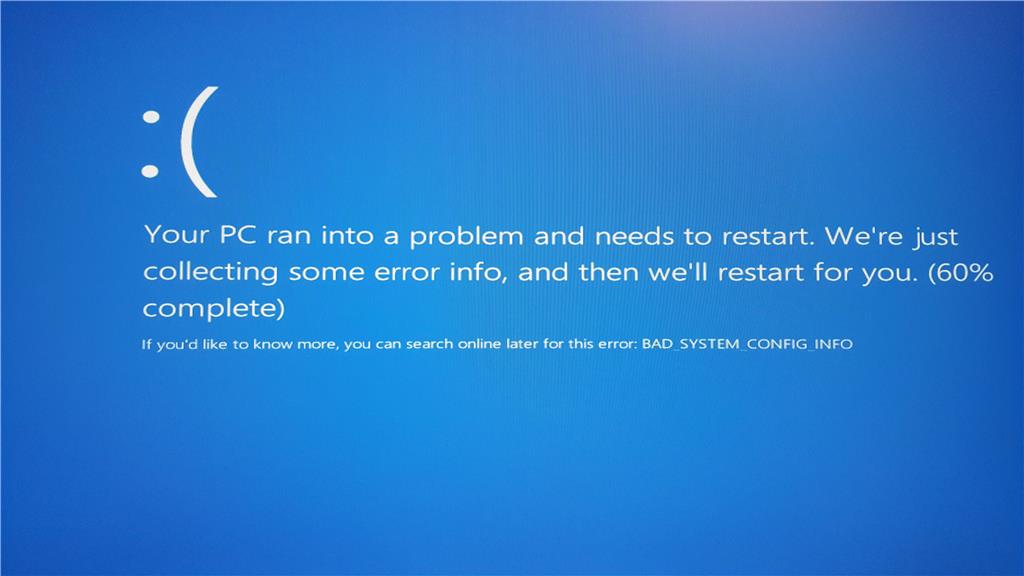
error image

The bad system config error can be caused by corrupt driver files, boot configuration data, malfunctioning system files or bad registry files. Whatever the reason, we have provided you with three solutions that might fix the issue.

You need not try all solutions given in the post. Start with the first solution and work your way downwards trying other solutions until the issue gets fixed. Let’s get started.

Solution One- Update Drivers

One of the commonest causes of this error is outdated or corrupt drivers. In both the cases, you can resolve the issue by updating drivers. If you didn’t know, device drivers are software programs that instruct hardware on how to run on your Windows system.

You can update driver manually through device manager, but the process is not only tedious but at times unreliable. A better approach is to use a reliable driver update tool.

Updating Drivers Automatically

Automatic driver update tools offer many benefits, the most important ones being:

  • You can update device drivers automatically
  • The software scans and updates all outdated or missing drivers at one go
  • The tool picks the right drivers for your device and operating system, so you won’t have to worry about installing an incorrect driver by mistake
  • Automatic driver updates are 100% safe

Driver Updater is one of the best driver update tools out there. Outbyte Driver Updater will give you access to a database of over 1 million drivers. It will regularly scan your PC, suggesting new driver versions to install. Driver Updater contains drivers for a variety of Windows devices. With just one click, you can update drivers in your system.

Step 1
Click here to Install and launch the app

Step 2
Scan all devices

Step 3
Install or update drivers automatically


Start Download


Solution Two- Repair Boot Configuration Data

If you are unable to log into Windows, the reason could be a corrupt BCD file. In that case, you would not be able to enter Safe Mode as well.  In such circumstances, you would need Windows 10 setup DVD/USB to repair Boot Configuration Data. Here are the steps to follow.

  • Insert bootable media in your PC and restart it. When you see the BIOS flash screen, press the function key specified by your device /motherboard manufacturer to bring up the boot menu. Select the device which has bootable media and boot from it.
  • After you have selected right language, time and keyboard/input, click Next
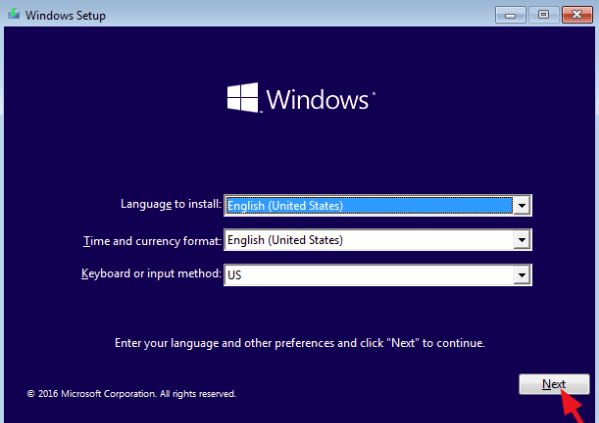
click next
  • In the next screen, click Repair your computer
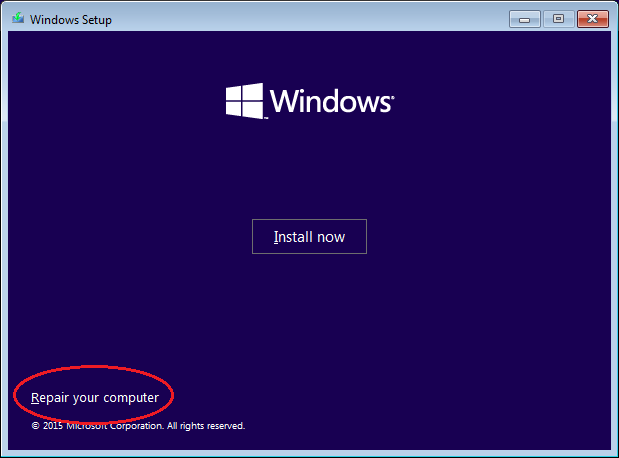
repair computer
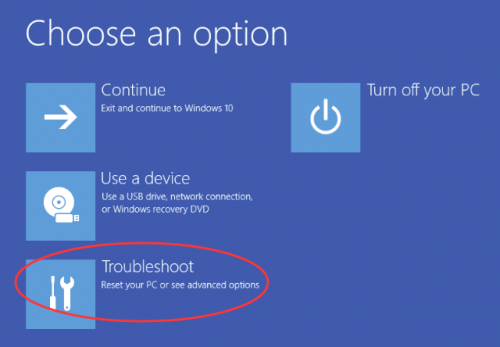
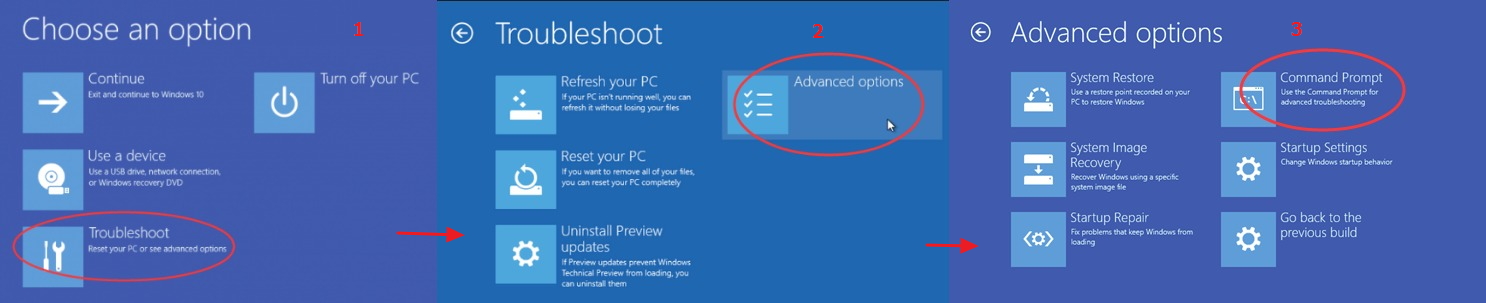
  • In the next screen click Troubleshoot
troubleshoot
  • Click Advanced options
adv options
  • Click Command Prompt
  • In the command prompt window, type following commands and press Enter on the keyboard after each command
  • bootrec /repairbcd
  • bootrec /osscan
  • bootrec /repairmbr
  • Close command prompt window and restart your computer

If the computer boots up successfully, the bad system config info error has been successfully resolved. If the problem persists, try next solution.

Solution Three – Repair Windows Registry

As mentioned above, the reason behind bad system config info error could be incorrect registry settings.  In that case, you can resolve the problem by repairing the registry through command prompt.

You will need Windows 10 installation media to perform the troubleshooting steps given below. Here are the steps to follow.

  • Insert boot installation media in your computer and boot from it. For more detailed instructions on how to boot from installation media, refer the 1st step of the Solution Two
  • In the first Window setup screen, select appropriate language, time and currency, and keyboard and then click Next
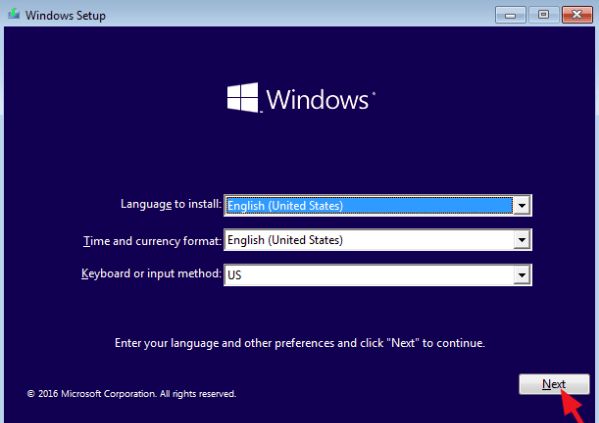
next
  • In the next screen, click Repair your computer
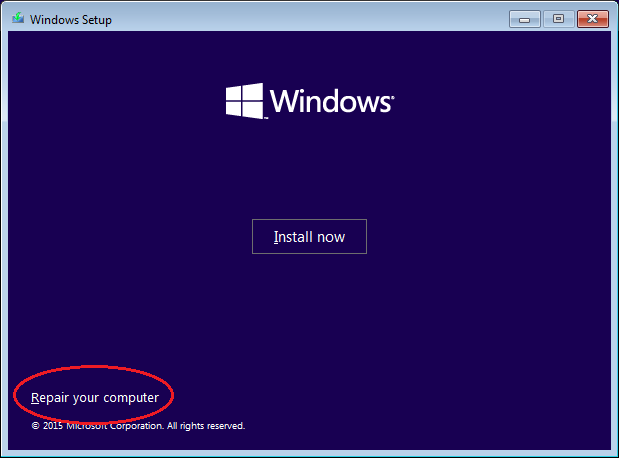
repair computer
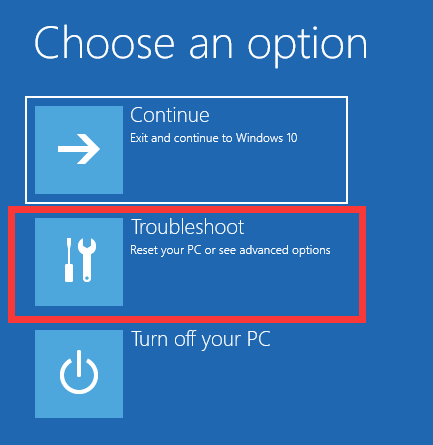
  • In the next few screens, select options in the following order – click Troubleshoot -> Advanced options -> Command Prompt
adv options
  • In the command prompt window, type following commands and hit Enter on the keyboard after each command
  • CD C:\Windows\System32\config
  • ren C:\Windows\System32\config\DEFAULT DEFAULT.old
  • ren C:\Windows\System32\config\SAM SAM.old
  • ren C:\Windows\System32\config\SECURITY SECURITY.old
  • ren C:\Windows\System32\config\SOFTWARE SOFTWARE.old
  • ren C:\Windows\System32\config\SYSTEM SYSTEM.old
  • After you have renamed registry files, you need to create new registry files by typing following commands in the command prompt window. After typing each command, press Enter on the keyboard for its execution.
  • copy C:\Windows\System32\config\RegBack\DEFAULT C:\Windows\System32\config\
  • copy C:\Windows\System32\config\RegBack\SAM C:\Windows\System32\config\
  • copy C:\Windows\System32\config\RegBack\SECURITY C:\Windows\System32\config\
  • copy C:\Windows\System32\config\RegBack\SYSTEM C:\Windows\System32\config\
  • copy C:\Windows\System32\config\RegBack\SOFTWARE C:\Windows\System32\config\
  • Close the command prompt window and restart your PC

In most cases, you should be able to log into your Windows which indicates the bad system config info BSOD error is resolved.
Filed Under: PC Fix Tips Tagged With: BSOD error

Unmountable Boot Volume error in Windows 10

By Susan C on June 4, 2018

Unmountable Boot Volume error in Windows 10

Windows 10 is a successful and user-friendly operating system, but it is far from perfect.  One of the bugs reported by many users is “Unmountable boot volume” error. Just like other Blue Screen of Death errors, this error prevents you from using your Windows computer normally, but the good part is that you can resolve it on your own.

What is unmountable boot volume error?

error image

The boot volume in the error message refers to disk volume that has Windows operating system and supporting files.  Windows loads the files in boot volume in the RAM during startup. The Windows system throws up unmountable boot volume error when it can’t access the file needed to start Windows.

Until the unmountable boot volume error is fixed, you cannot boot into Windows and the system enters an indefinite loop of reboots until you fix the issue.

How to resolve unmountable boot volume error?

We have provided four different solutions that might fix the issue. You may not be required to try all solutions. You can start with the first solution and then work your way downwards to fix the issue.

However, you will need Windows 10 installation media to perform troubleshooting steps in given solutions.

Solution One – Resolving unmountable boot volume error with Automatic Repair

Windows 10 has a recovery feature known as Automatic repair.  You can use this method to allow Windows to repair itself.  Here are the steps to follow.

  • Insert bootable media in your computer and restart your PC. When you see the BIOS flash screen press the function specified by your device/motherboard manufacturer to bring up the boot Select the device which has bootable media and boot from it
  • On the window setup screen after you select language, click Repair your computer that appears at the bottom left
  • <insert ubv – repair computer>
  • In the next screen, select Troubleshoot
troubleshoot
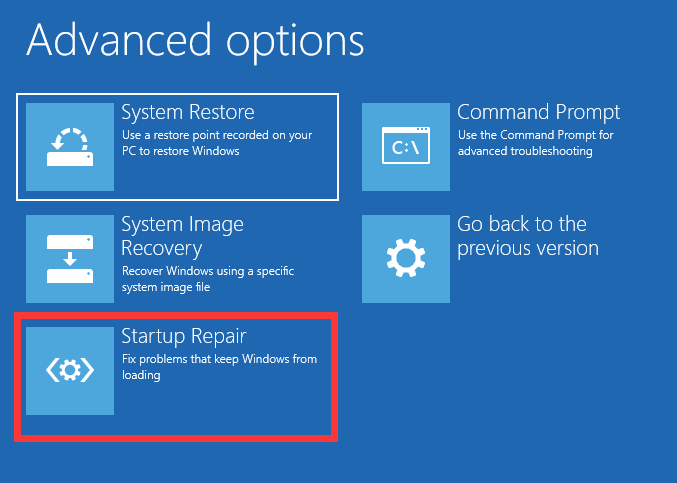
  • In the Advanced options screen, select Startup Repair
startup repair
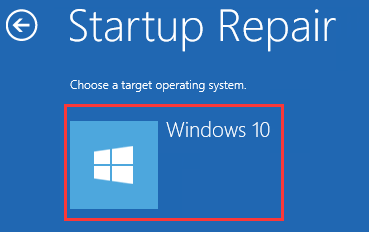
  • Select Windows 10
click windows 10
  • The Automatic repair starts immediately. Wait for the process to finish

Start your computer and see if the problem is resolved. If the error persists, try next solution

Solution Two    – Resolving unmountable boot volume error by fixing Master Boot Record (MBR)

MBR refers to information stored in the first sector of hard drive.  It identifies how and where the Windows 10 operating system is located on the hard drive so that it can be loaded in the computer’s RAM.  By fixing the MBR, you can get rid of unmountable boot volume error.

  • Perform steps in Solution one until you reach Advanced options screen
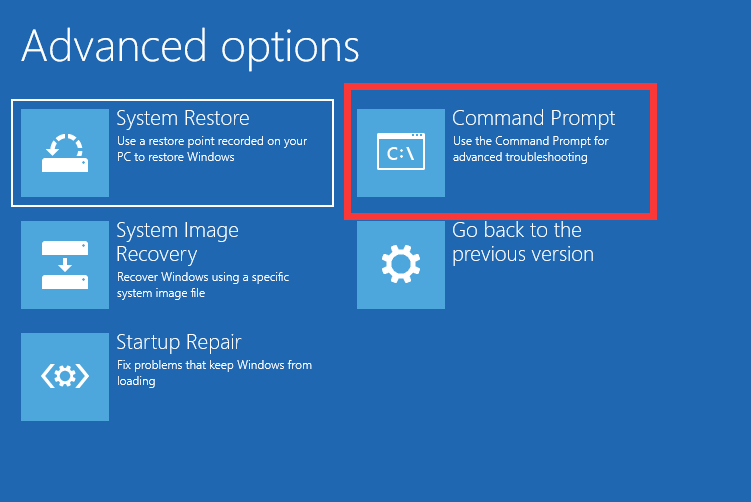
  • Select Command Prompt
command prompt
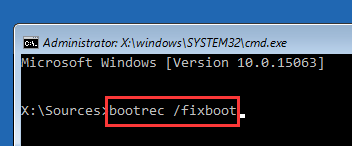
  • In the command prompt window, type bootrec /fixboot and then press Enter on the keyboard
bootrec
  • Wait for the process to finish and restart the computer to see if the error is resolved

Solution Three – Resolving unmountable boot volume error by using CHKDSK command

Bad sectors or corrupt boot files could be one of the reasons behind unmountable boot volume error. Windows has an inbuilt check disk utility that can fix hard drive errors and resolve the unmountable boot volume error. Here are the steps to follow.

  • Perform steps in Solution One until you reach Advanced options screen
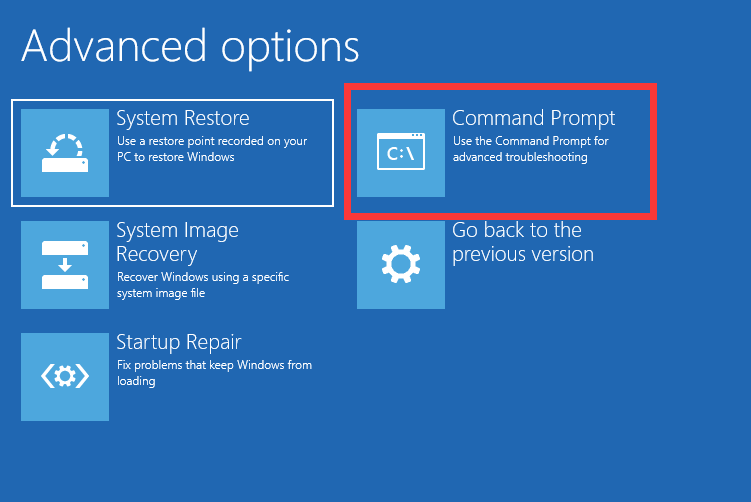
  • Select Command Prompt
command prompt
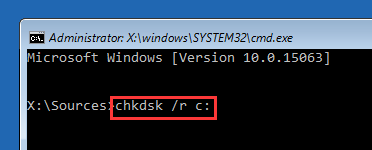
  • In the command prompt window, type chkdsk /r c: and hit Enter. Note- here the c: refers to the partition where Windows operating system is installed. If the drive letter where Windows operating system is different in your case then substitute c:  with relevant driver letter.
chkdsk
  • Wait for the process to finish and restart the computer to see if the error is resolved

If the issue still persists, try next solution

Solution Four – Resolving unmountable boot volume error by reinstalling Windows

If none of the above solutions have worked for you, the last resort is reinstalling Windows. Here are the steps to follow.

  • Perform steps in Solution one until you reach Windows Setup screen
  • Select Install Now

<insert ubv – install now>

  • Follow on-screen instructions to install Windows 10

Filed Under: PC Fix Tips Tagged With: boot volume error

This app can’t run on your PC error

By Susan C on June 3, 2018

This app can’t run on your PC error

Although Windows 10 is an amazing operating system, it has some flaws that surface in form of different errors.  A common error reported by many users is “this app can’t run on your PC” error.

error message

You can get “this app can’t run on your PC” error in different scenarios like when you are trying to install an application, when you are running an application after a very long time or when you are trying to run an updated version of the app.

This problem is not related to any specific application and many times it is hard to tell why such error is generated. Windows may pop up this message on the screen because it thinks the application might be harmful or not appropriate for the system.

Annoying as it seems, this error can be fixed by the solutions given below.  We have presented four different solutions that might fix the issue. You don’t need to try all solutions, start with the first solution and work your way downwards trying other solutions until the issue is fixed. Let’s get started.

Solution One – Download and install the right version of programs

The first thing you should know that you can run 32-bit apps on 64-bit Windows operating system but cannot run a 64-bit app on 32-bit Windows operating system. One of the reasons you are getting this error is you are trying to install a 64-bit application on 32-bit Windows OS.

You can find out whether the Windows operating system is 32-bit or 64-bit by following these simple steps:

  • Go to Desktop
  • Right-click This PC and then click Properties.
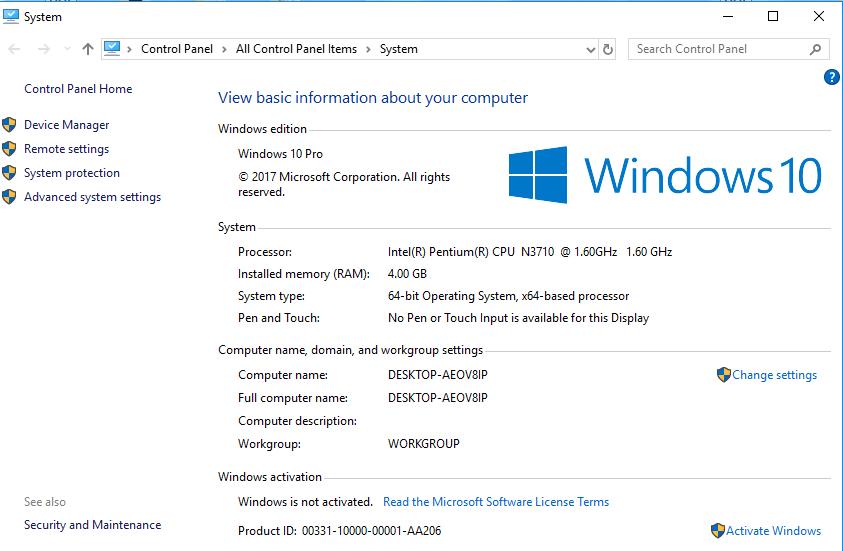
  • In the System window that opens, look for System Type where the bit-architecture of Windows OS is mentioned

system

Download and install the right version of the program to get rid of the error. If the error still persists, try next solution.

Solution Two – Use a different administrator account

 If you are using a guest account, you need to first log off and log through an administrator account.  If you are already logged through administrator account and getting this error, you need to create a new administrator account following the steps given below.

  • On the keyboard, press Windows logo key and I simultaneously to bring up the Settings window
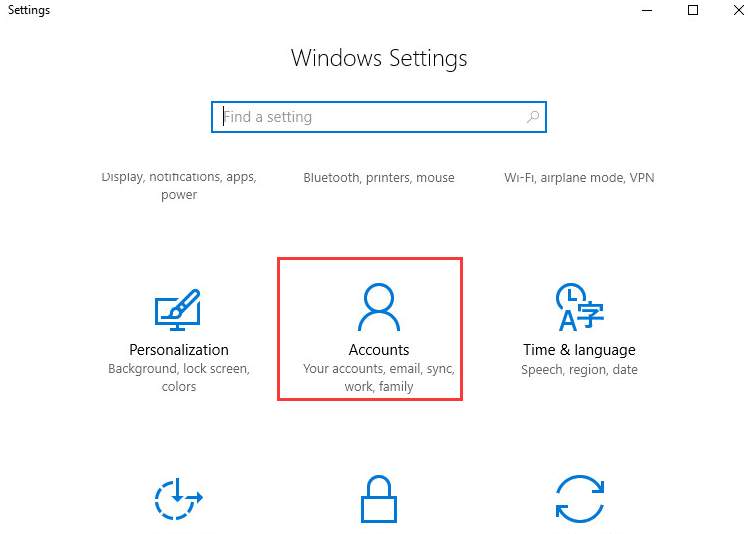
  • In the Settings window, click Accounts

accounts

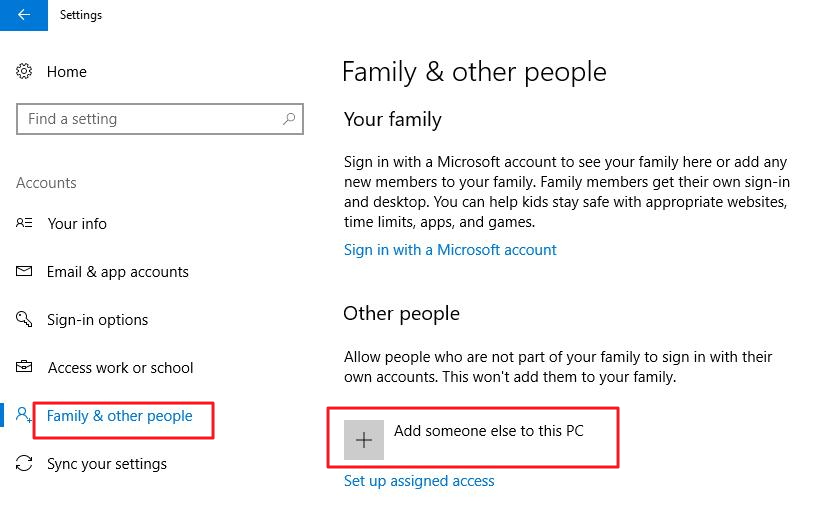
  • On the left side of the pane, click Family & other people. On the right side pane, look for Other People section and click Add someone else to this PC

add someone

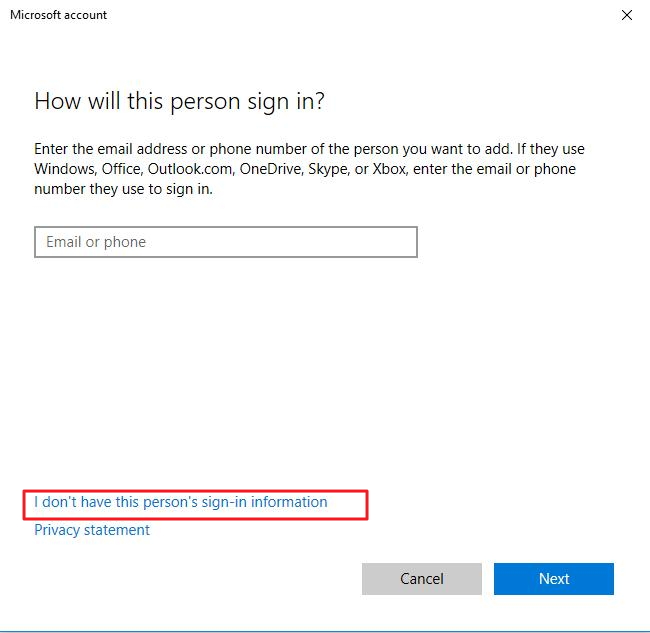
  • In the Microsoft Account window, click I don’t have this person’s sign-in information

don't have sign-in

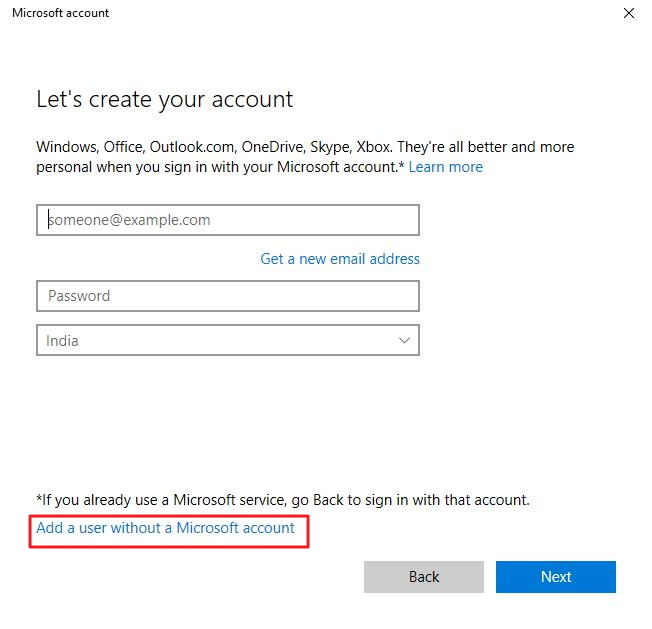
  • In the next window, click Add a user without a Microsoft account

without microsoft acct

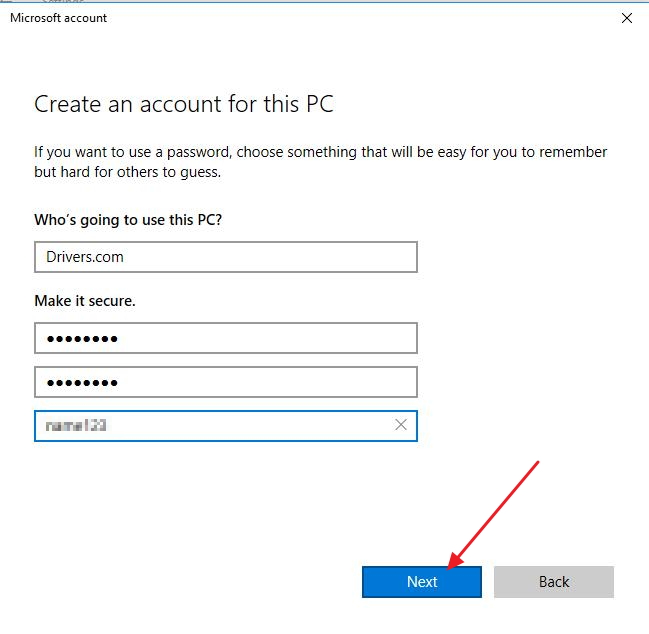
  • Type in the user name, password and password hint in relevant fields and click Next

create account

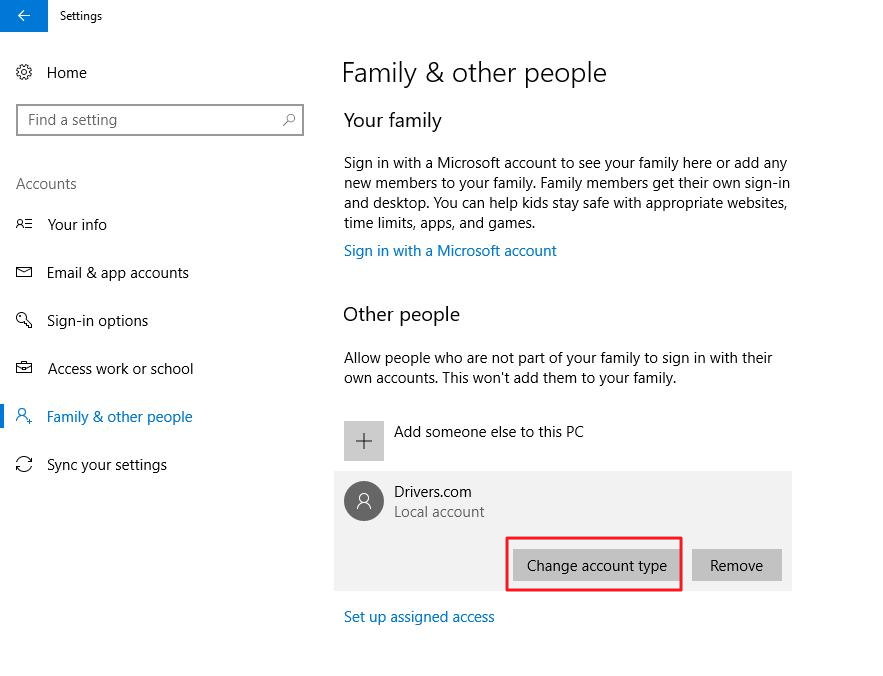
  • Now go to Settings window again and click Family & other people. In the right pane, you should see the new account created. We have created a user namecom
  • Click on the account name to reveal change the account type option and click on it

change acct type

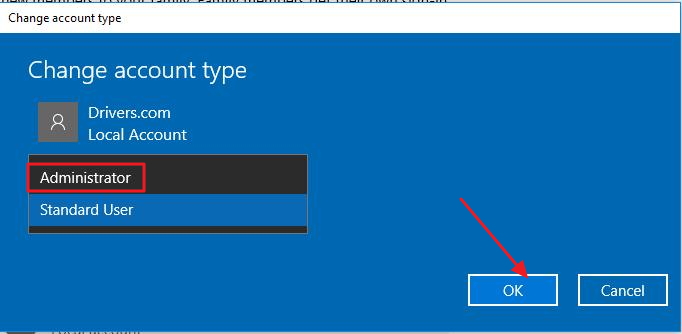
  • In the change account type window, click Administrator from the list  and click OK

admin acct

  • Switch to the new administrator account and see if it solves the problem. If the problem is resolved, move all folders and files to this new account and use this account now on.

If the problem persists, try the next solution

Solution Three – Disable SmartScreen feature

The SmartScreen feature in Windows 10 is designed to protect your computer from malware and phishing attacks.  There is a possibility the SmartScreen feature is preventing you from installing or using certain apps even when you feel they are safe.

In such case, disabling SmartScreen feature could get the apps working again. However, this is only a temporary workaround and you need to enable SmartScreen feature if it does not resolve the issue. You need to be logged in to your administrator account to perform these steps. Here are the steps to disable SmartScreen feature.

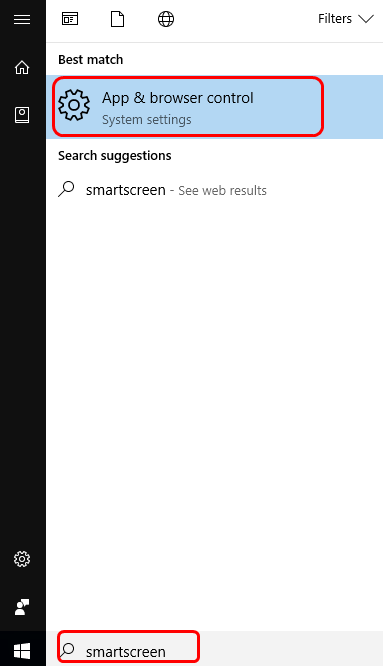
  • Press Windows logo key and S simultaneously on the keyboard to bring up Cortana search
  • Type smartscreen in the search box

smartscreen

  • Click App & browser control
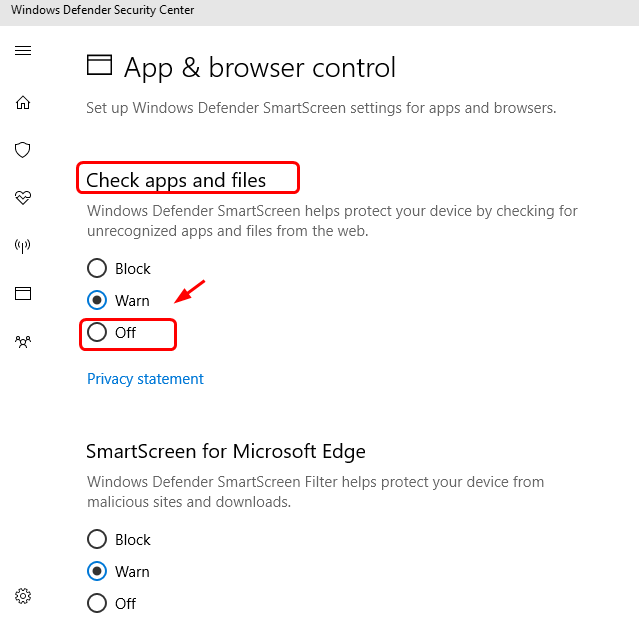
  • In the Windows Defender Security center window, click Off under Check apps and files

check apps

  • Click Yes in User account control window to proceed

Try installing the app now and see if you get the “this app can’t run on your PC” error. If the error persists, enable SmartScreen and try the next solution.

Solution Four – Enable Sideload apps option

If the app you are trying to install is not from Windows Store, you need to enable Sideload apps option that allows you install apps from other sources you trust. Here are the steps to enable Sideload apps option,

Note: you need to use this option only if you have 100% trust in the app publisher. 

  • On your keyboard, press the Windows logo key and I simultaneously to bring up the Settings window
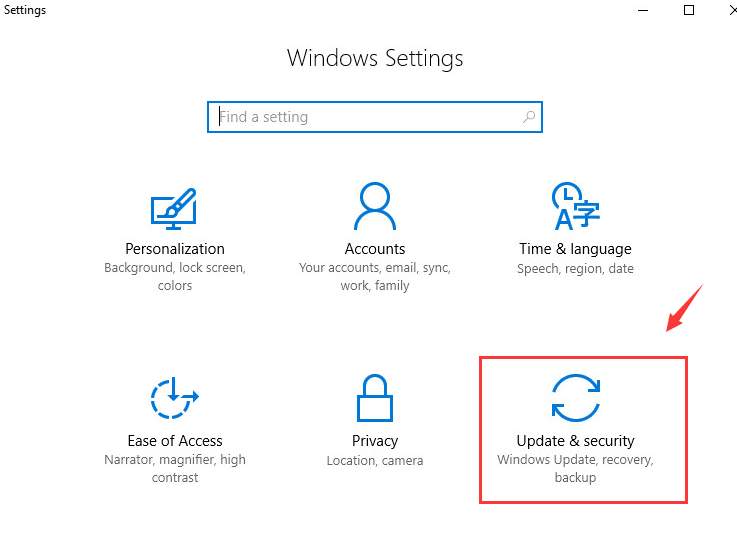
  • In the Settings window, click Update & security

update & security

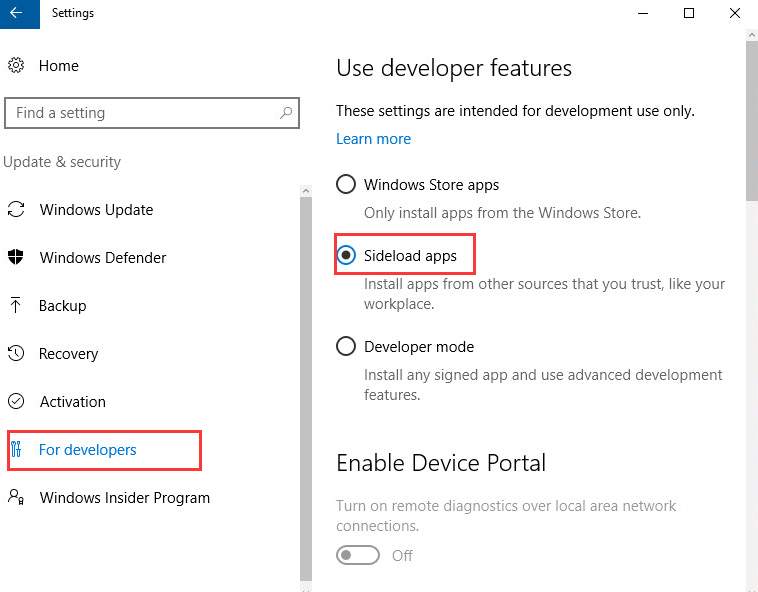
  • On the left side of the pane, click For developers. On the right side, click Sideload apps

sideload apps

Now try installing the app. In most cases, “This app can’t run on your PC” error should be fixed.

Filed Under: PC Fix Tips Tagged With: application error

  • « Previous Page
  • 1
  • …
  • 165
  • 166
  • 167
  • 168
  • 169
  • …
  • 189
  • Next Page »


  • Recent Posts
  • Popular Posts
        

Read More Posts


Read More Posts

Drivers.com Sites

  • Software Drivers
  • Drivers Ed

About Us

  • Advertise
  • About Drivers
  • Drivers Support
  • Drivers.com Privacy Policy
  • Disclaimer
  • Software Drivers
  • Mac Fixes and Tips
  • PC Fix Tips
  • Security/ Backup
  • Tablets & Smartphones
  • Tech News

© Copyright 2026 PDE Publications Ltd. End User License Agreement (EULA)