Drivers.com

follow us:

facebook twitter
  • Home
  • Download Drivers
  • Drivers Help
  • PC/Mac Resources
  • Software Drivers
  • Mac Fixes and Tips
  • PC Fix Tips
  • Security/ Backup
  • Tablets & Smartphones
  • Tech News
  • Software Drivers
  • Mac Fixes and Tips
  • PC Fix Tips
  • Security/ Backup
  • Tablets & Smartphones
  • Tech News

Windows 10 Taskbar Not Hiding

By Susan C on June 10, 2018

Windows 10 Taskbar Not Hiding

Hiding the taskbar is a great way to add some extra space to the desktop. Windows 10 features an auto-hide taskbar option that can help you claim every bit of monitor space.

However, many Windows 10 users have reported the auto-hide taskbar feature does not work as intended.  If you are facing the same issue, we have provided some troubleshooting steps that can get the auto-hide taskbar feature working again.

Here are the instructions to fix the auto-hide taskbar not working issue.

First Verify the Settings

The auto-hide taskbar feature is not enabled by default and you need to activate that setting. Even if you had activated it some time back, there is always a possibility that the auto-hide taskbar feature has got disabled because of some reason.

Here are the steps to verify and activate the auto-hide taskbar settings.

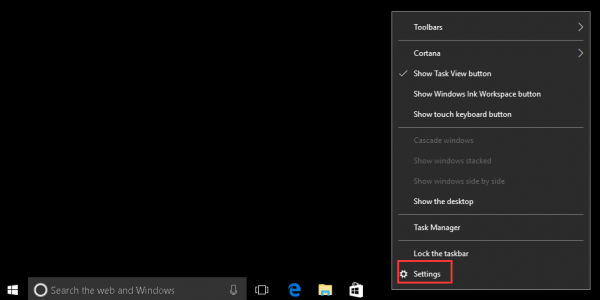
  • Right-click on the taskbar and click Settings(gear icon) on the context menu
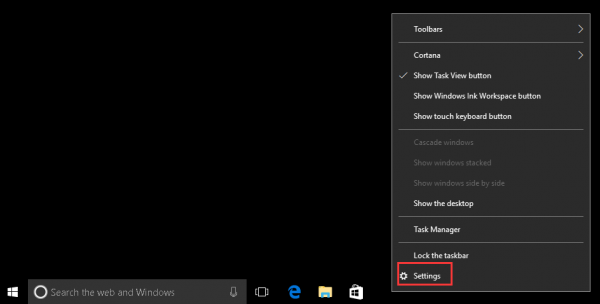
settings

  • In the Settings window, click Personalization
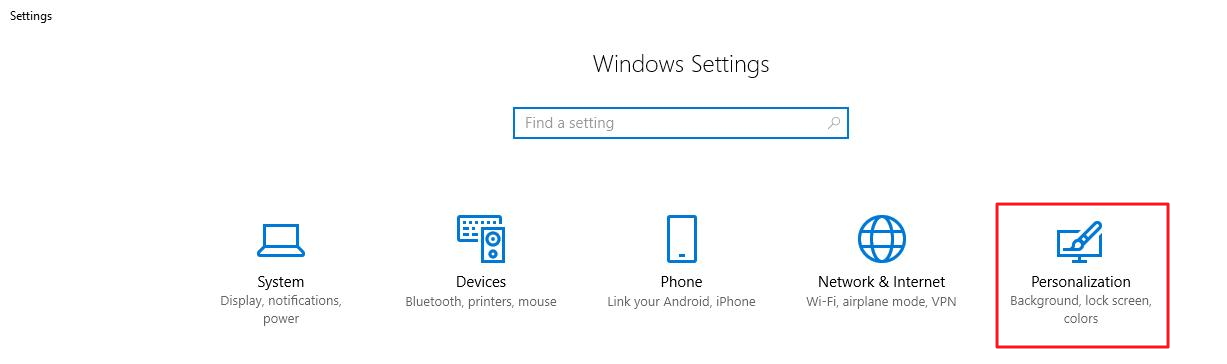
personalization

  • In the next window, click Taskbar that appears at the bottom of the list in the left pane
  • Look for Automatically hide the taskbar option in the right pane and ensure the toggle switch is at On position
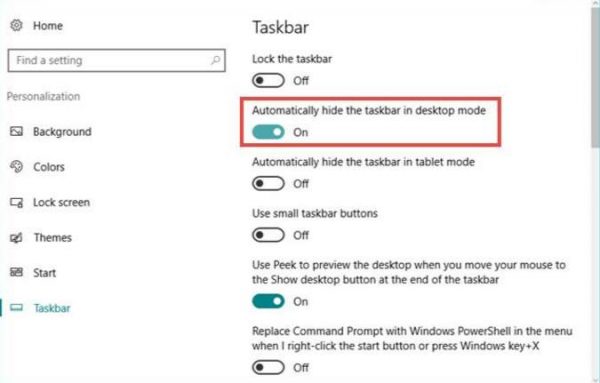
automatically hide taskbar

  • If you see the toggle switch at Off position, click the toggle switch to shift it at On position
  • Now look for Automatically hide the taskbar in tablet mode and click the toggle switch to move it to On position
  • Close the Settings window

You have to restart the Windows Explorer to let the changes take effect. Here are the steps you need to follow.

  • Right-click on the taskbar and click Settings(gear icon) on the context menu
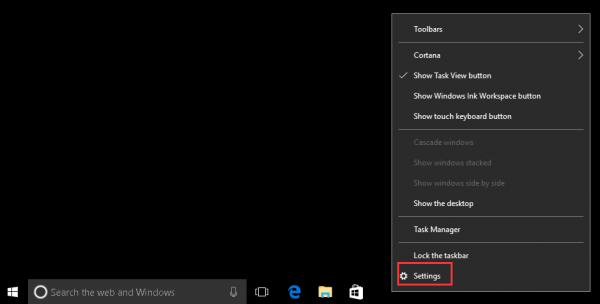
settings

  • In the Settings window, click Task Manager
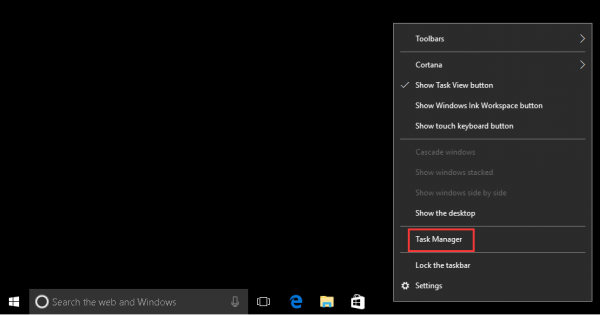
task manager

  • In the Task Manager window, click the Processes tab
  • Select Windows Explorer in the list and click Restart
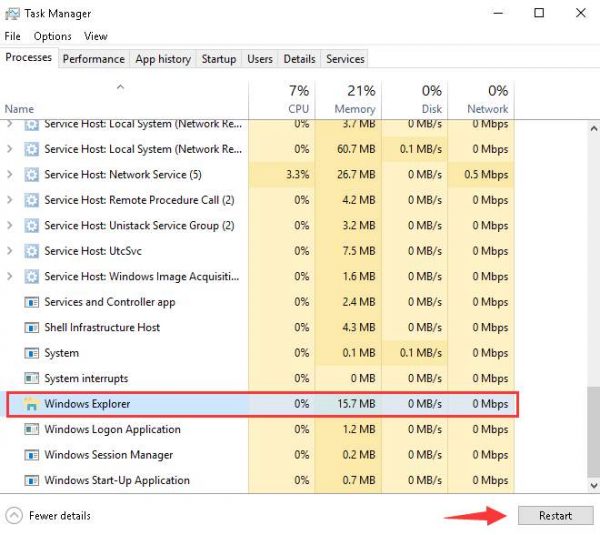
windows explorer

  • After Windows Explorer process is re-spawned, close the Task Manager window
  • Now click somewhere (empty space) on the desktop to hide the Taskbar

In most case, the auto-hide taskbar feature should work well now. If the taskbar does not auto-hide, try workaround given below.

Try this workaround

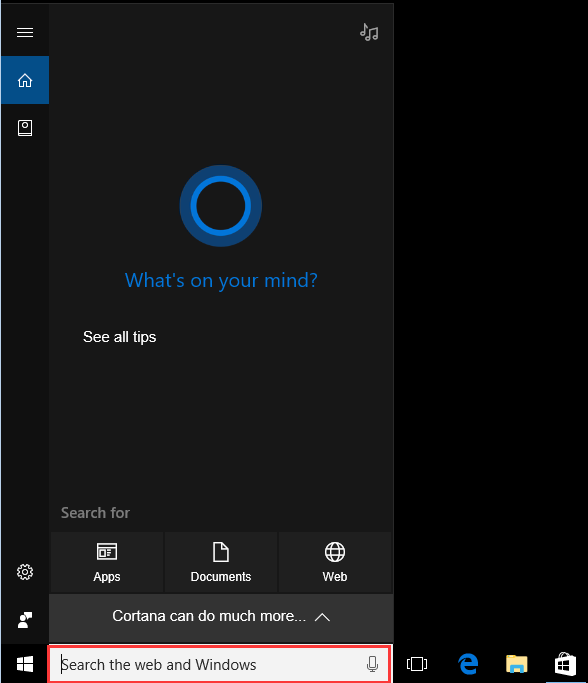
  • Click Search box in the Start Menu

cortana search

  • When the Cortana assistant pops up, click somewhere (empty space) on the desktop. The taskbar should auto-hide. This workaround has worked for many users.

If the taskbar does not auto-hide after following the above steps and workaround, try next solution. But before that, you need to find out the reason why auto-hide taskbar feature is not working.

Why the taskbar does not auto-hide?

In general, the taskbar will continue to hide unless some app needs your attention. The taskbar also appears when there is change in the app icon in the system tray. For example, if you receive a new Skype message, it will cause the taskbar to appear on the screen and it won’t hide until you read the message and the app notification disappears.

Also, the taskbar will stick to the screen and won’t auto-hide if there are any unread pop messages in the system tray. In many cases, Windows sends a popup message on the screen to notify you about something or when you are required to take some action. In that case, the taskbar won’t auto-hide until you dismiss the message.
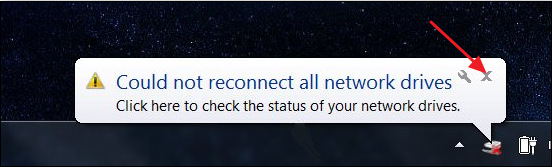
message popup

To resolve this issue, you need to customize app notification settings. In simple words, keep only the important notifications enabled in the system tray.  Here are the steps you need to follow to customize notifications

Customize Notifications

Before proceeding further you need to first decide which notifications are important and which are not.  Only the app notifications which are enabled will cause the taskbar to appear on the screen. Here are the steps to follow.

  • Right-click on the taskbar and click Settings(gear icon) on the context menu
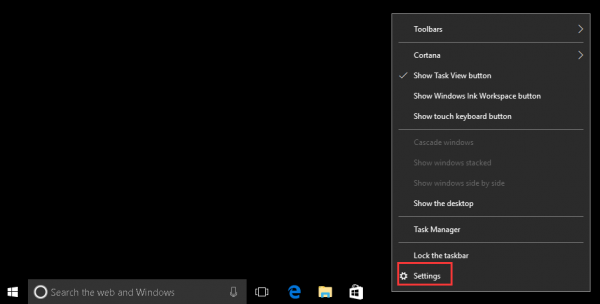
settings

  • In the Settings window, click Personalization
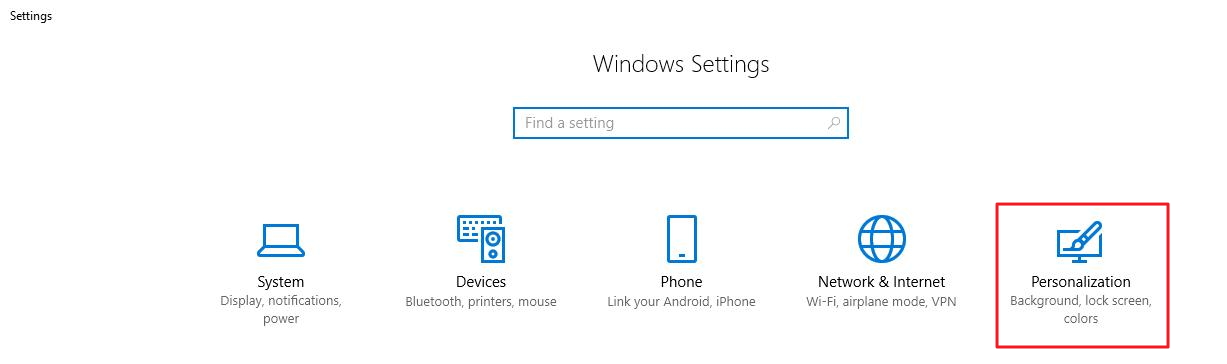
personalization

  • In the next window, click Taskbar that appears at the bottom of the list in the left pane
  • In the right pane, scroll down and click Select which icons appear in the taskbar under Notification area
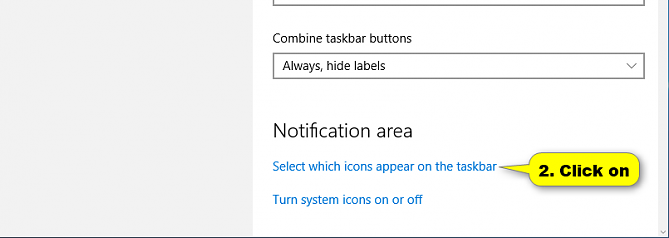
select which icons

  • In the next window, move the toggle switch to Off  position for Always show all icons in the notification area
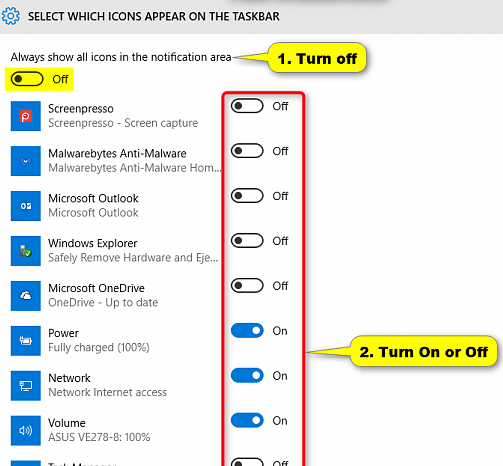
show notifications

  • Now turn on important notifications only
  • Close the Settings window and restart the Windows Explorer by following steps given earlier.
  • Click somewhere (empty space) on the desktop to see if the taskbar auto-hides.

In most cases, the auto-hide taskbar feature should work without any problem.
Filed Under: PC Fix Tips Tagged With: taskbar not hiding

Connection Failed with Error 651 in Windows

By Susan C on June 8, 2018

Connection Failed with Error 651 in Windows

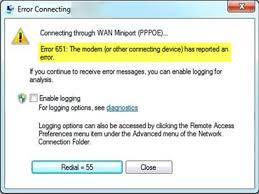
Connection failed with error 651 occurs when Windows faces some problem while establishing network connections. It is one of the common Windows errors that can be resolved easily. If you are frequently getting error 651 while using your Windows computer, try the solutions given here to resolve connectivity problems.

error image

What is Connection Failed with Error 651?

The connection failed with error 651 is mostly related to PPPoE (Point to Point Protocol over Ethernet) connection; your dialup Broadband connection. There can be several reasons for this error such as wrong internet connection settings or IP configuration or faulty network drivers.

It would be difficult to know the exact cause of the error but the solutions given here have helped users to resolve the connectivity issue successfully. We have given five solutions in this post but you may not be required to try all solutions.

Start with the first solution and work your way downwards until the connectivity issue gets fixed.

Solution One- Restart your PC and modem

Many times the error 651 is temporary and occurs because the internet connection with the computer is not established in the right manner in the first attempt. You can resolve this by restarting PC and modem which will force the computer and modem to re-establish the internet connection. Here are the steps to follow.

  • Turn off your Windows PC after saving work and closing all programs
  • Turn off the modem and unplug its power cord from the electrical socket
  • Remove all connections between modem and computer
  • Wait for 30 seconds and plug the power chord of the modem into an electrical socket
  • Plug-in all connections between modem and computer in right manner
  • Power on the PC and wait for some time until everything is running normally. For example, your Windows has successfully booted and the modem seems to work fine.
  • Now try dialing the broadband connection and see if the internet connection with your ISP server is established. If the error persists, try next solution

Solution Two- Update Network Drivers

You can get this error when your network device drivers are either corrupt or outdated. Updating the network drivers will help resolve the issue.

You can update drivers manually through the Device Manager window. However, you’ll need to have some time on your hands for this as the process is time-consuming. But that is not the biggest problem. Even after spending time and effort, you might not be able to download the correct drivers.

Automatic driver update tools offer many benefits, the most important ones being:

  • You can update device drivers automatically
  • The software scans and updates all outdated or missing drivers at one go
  • The tool picks the right drivers for your device and operating system, so you won’t have to worry about installing an incorrect driver by mistake
  • Automatic driver updates are 100% safe

Driver Updater is one of the best driver update tools out there. Outbyte Driver Updater will give you access to a database of over 1 million drivers. It will regularly scan your PC, suggesting new driver versions to install. Driver Updater contains drivers for a variety of Windows devices. With just one click, you can update drivers in your system.

Step 1
Click here to Install and launch the app

Step 2
Scan all devices

Step 3
Install or update drivers automatically


Start Download


Solution Three – Making changes to settings in Networking and Sharing center

Majority of the network problems arise due to wrong network settings. Many users were able to resolve the error 651 after disabling IPv6 for Internet connections. IPv6 is an advanced protocol used to connect websites but many ISPs have a difficult time working with IPv6 addresses leading to several internet connectivity problems at the user end.

You can see if the error 651 can be resolved by disabling IPv6 in your network connections. Here are the steps to follow.

Disable IPv6 for your Internet connection

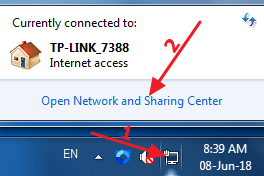
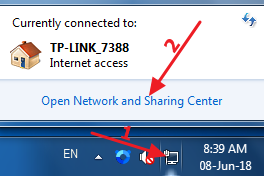
  • Right-click on the network icon in the system tray(bottom-right corner of the screen) and click Open Network and Sharing Center
network and sharing
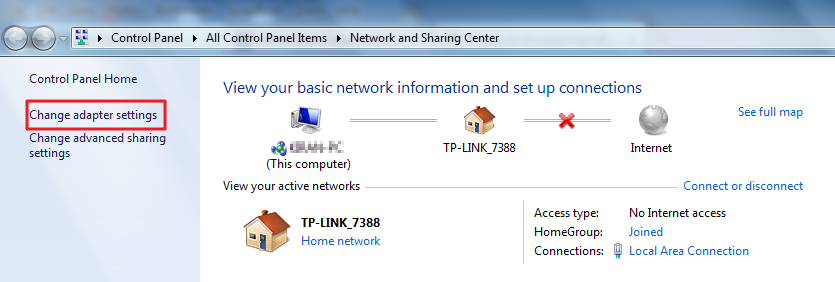
  • In the Network and Sharing Center window, click Change adapter settings
change adapter settings
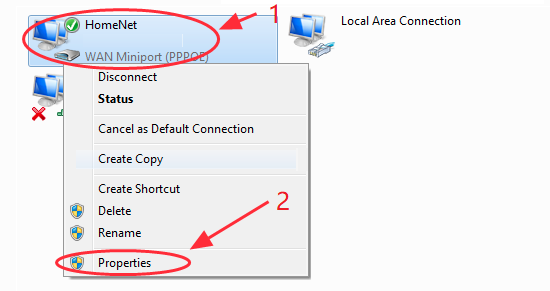
  • Right-click on your Network connection and click Properties
properties
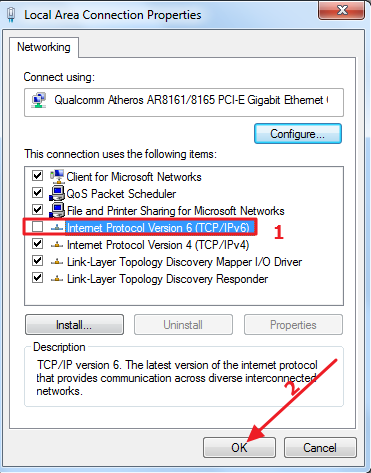
  • Uncheck the box next to Internet Protocol Version 6 (TCP/IPv6)
ipv6
  • Click OK to save changes and close the properties window

Try reconnecting to the network to see if the error 651 issue is resolved. If the error still persists, perform next troubleshooting steps given below.

Create a new dial-up connection

There is a possibility the existing dial-up connection existing has some wrong settings or configuration. To ensure there is no problem with the dial-up connection, you can create a new dial-up connection to sort out any issues with existing dial-up connection. Here are the steps to follow.

  • Right-click on the network icon in the bottom-right corner of the screen and click Open Network and Sharing Center
network and sharing
  • In the Network and Sharing Center window, click Change adapter settings
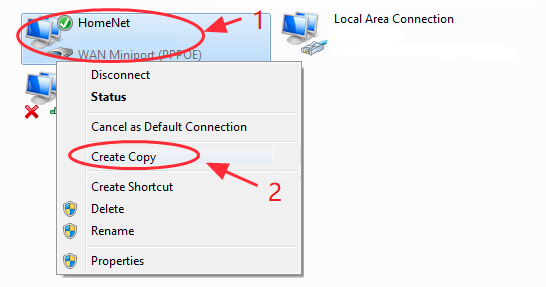
  • Right-click on your Network connection and click Create Copy
create copy
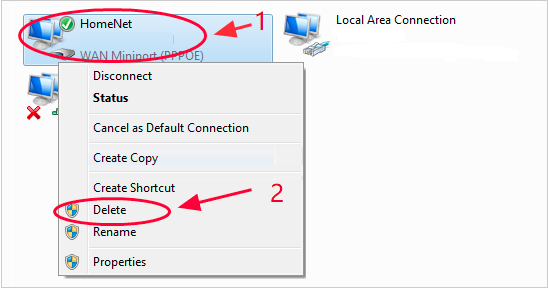
  • Now, right-click on original dial-up connection and click Delete
delete
  • Use the newly created dial-up connection to connect to Internet and see if the issue is resolved. If the issue persists, try next solution

This step is provided for users who have been using router between modem and computer to connect to ISP. To resolve any internet connectivity errors, you need to directly connect your computer to modem. In that case, you need to create a new dial-up connection following the steps given below.

  • Plug in the Ethernet cable in LAN port of your computer
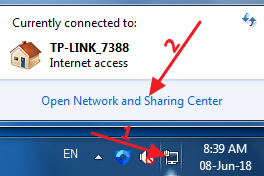
  • Right-click on the network icon in bottom-right corner of the screen and click Open Network and Sharing Center
network and sharing
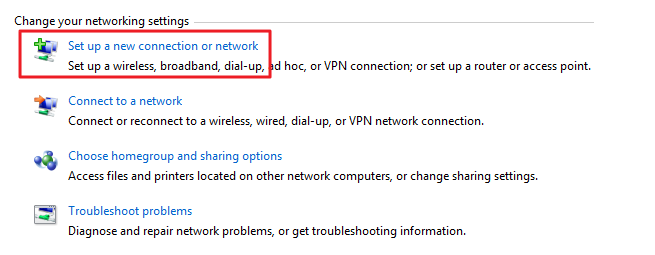
  • In the Network and Sharing Center window, click Set up a new connection or network
setup new connection
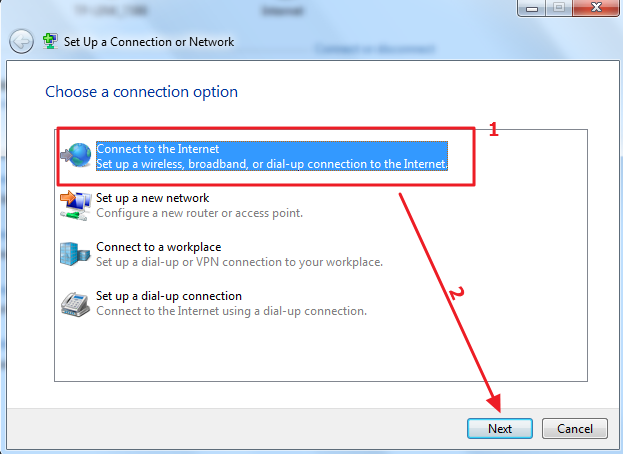
  • Select Connect to the Internet in the connection wizard and click Next
connect to internet
  • Click Set up a new connection anyway
setup connection anyway
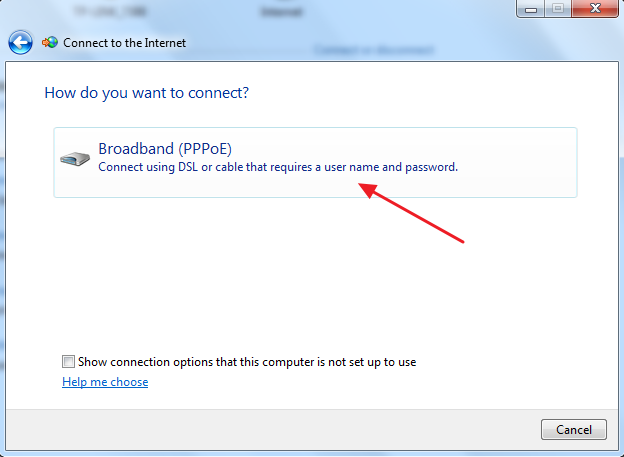
  • In the next window, click Broadband (PPPoE)
broadband
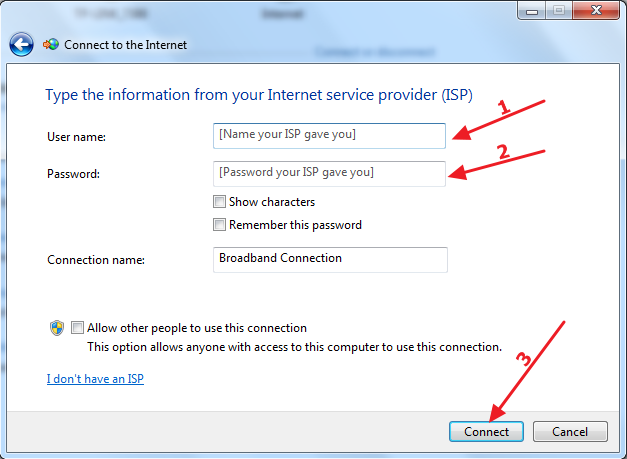
  • In the next window, enter user name and password given by your ISP and click Connect
click connect

If the internet connection is established, the error 651 is resolved. If you still get the error 651, try next solution.

Solution Four – Reset TCP/IP settings

TCP/IP settings on your computer are important. TCP/IP stands for Transmission Control Protocol/Internet Protocol which is an important communication protocol used by networks to communicate with each other.

TCP defines how the data packets travel over the network. If there is any problem in TCP/IP settings, your computer would not be able to establish a network connection with your ISP server resulting in error 651. Resetting TCP/IP could resolve the issue. Here are the steps to follow.

  • Click Start and type cmd in Cortana search box
  • Right-click command prompt in search results and click Run as administrator
  • In the User Account Control pop-up, click Yes
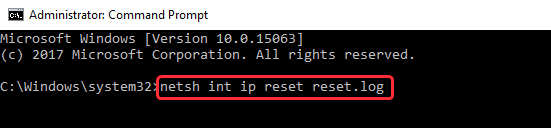
  • In the command prompt window, type the following command and hit Enter on the keyboard
netsh
netsh
  • After the command is executed successfully, close the command prompt window and restart your PC

Try connecting to the Internet and see if the issue is resolved. If you still get error 651, try next solution

Solution Five – Disable the auto-tuning feature

Windows has an auto-tuning feature that enhances the performance of the application that receives TCP data over the network. In some cases, the auto-tuning feature may reduce the data transfer rates or also lead to loss of connectivity.

The auto-tuning feature could be the reason behind error 651. To rule out this possibility, disable the auto-tuning feature and see if it helps. Here are the steps to follow.

  • Click Start and type cmd in the search box
  • Right-click command prompt in search results and click Run as administrator
  • In the User Account Control pop-up, click Yes
  • In the command prompt window, type Netsh interface tcp set global autotuning=disabled and press Enter on the keyboard
netsh interface
  • Wait for the command to execute successfully.
  • Close the command prompt window and restart your PC

Try connecting to the Internet and see if the issue is resolved. In most cases, the error 651 should be resolved now.

Filed Under: PC Fix Tips Tagged With: Error 651

Ntoskrnl.exe BSOD error

By Susan C on June 8, 2018

Ntoskrnl.exe BSOD error

Whether you are a novice or an experienced Windows user, you are likely experience frustration upon receiving Blue Screen of Death errors as they prevent you from using your computer normally. What’s worse is that whenever you get a BSOD, the PC crashes in dramatic fashion without giving you an opportunity to save anything you are doing.

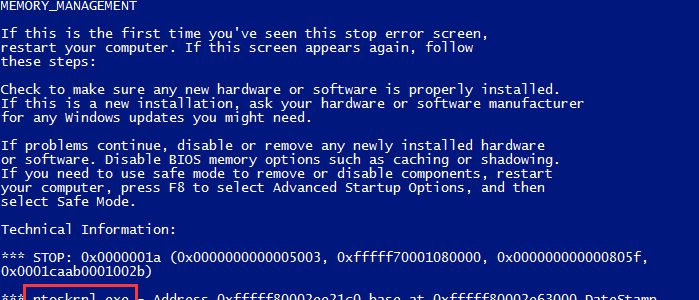
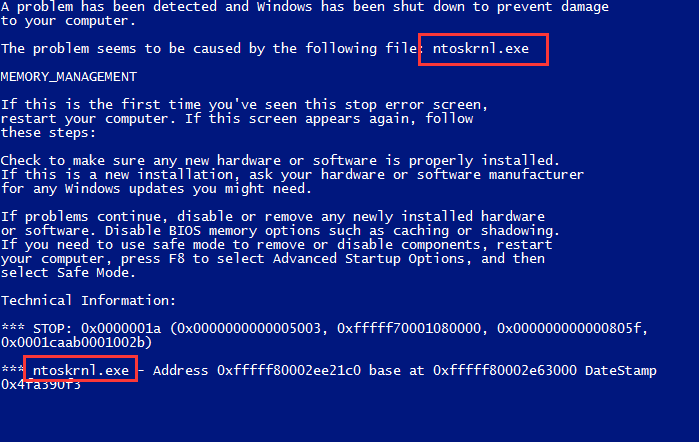
error image

If you are troubled by dreaded ntoskrnl.exe BSOD error and looking for a solution to fix it, this post is for you.

We have provided three simple solutions to fix the ntoskrnl.exe BSOD error and we are sure one of them might just work for you.

What is Ntoskrnl.exe BSOD error?

The ntoskrnl.exe (Short for Windows NT operating system kernel) refers to a system application file that plays important role in various system services like the process and memory management and hardware virtualization.

It is an important part of the system that contains cache manager, the scheduler, the security reference monitor, the kernel, and the memory manager. If there is any problem with ntoskrnl.exe, your system will restart frequently after BSOD error.

There can be many reasons behind ntoskrnl.exe BSOD error like a problem with physical RAM, faulty drivers or over-clocking.

Whatever the reason, you can fix the error by following solutions given below. You need not try all solutions. Start with the first solution and work your way downwards until the ntoskrnl.exe BSOD error is fixed.

You need to be logged into Windows to perform troubleshooting steps given below. If you are unable to boot into Windows normally, boot Windows in Safe mode by following steps given below.

  • Power on and off PC three times to force Windows operating system into hard reboot.
  • Select the option to Enter in Safe Mode and perform the troubleshooting steps given below.

Solution One – Update Drivers

One of the most common reasons behind this BSOD error is outdated or corrupt device drivers. It is important to keep your drivers up-to-date. If your drivers are outdated or corrupt, you might fail to get the best performance from your hardware. Worse, you might random errors such as ntoskmle.exe BSOD and face PC performance issues.

You can update drivers manually or through an automatic driver update tool. We recommend the second method because it is not only quick but also accurate. Plus you don’t require any computer knowledge.

To update your device drivers, we recommend you use a Driver Update Tool.

Download the software

Automatic driver update tools offer many benefits, the most important ones being:

  • You can update device drivers automatically
  • The software scans and updates all outdated or missing drivers at one go
  • The tool picks the right drivers for your device and operating system, so you won’t have to worry about installing an incorrect driver by mistake
  • Automatic driver updates are 100% safe

Driver Updater is one of the best driver update tools out there. Outbyte Driver Updater will give you access to a database of over 1 million drivers. It will regularly scan your PC, suggesting new driver versions to install. Driver Updater contains drivers for a variety of Windows devices. With just one click, you can update drivers in your system.

Step 1
Click here to Install and launch the app

Step 2
Scan all devices

Step 3
Install or update drivers automatically


Start Download


Solution Two – Reset overclocking settings

Overclocking your system pushes the hardware to its limit and sometimes it does not go well with Windows operating system and the result is random BSOD errors including ntoskrnl.exe error.

To resolve this, you need to reset overclocking settings by following steps given below.

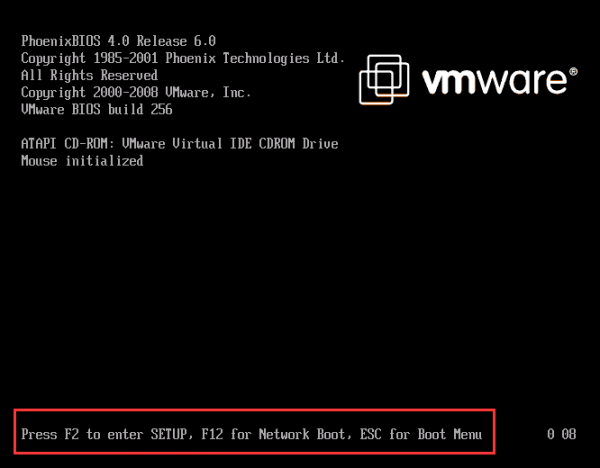
  • Power on your PC and when you see the first logo screen, press the correct key to enter BIOS. If you look at the bottom of the screen, you can see the key you need to press to access BIOS settings. The key to access BIOS settings differs with BIOS manufacturers. In general, F1, F2, Del, F10 or Esc are one of the keys to access the BIOS settings.
BIOS notification

Note- the keys to move around and select BIOS settings differ with each BIOS manufacturer. You will see the keys mentioned to select, change BIOS settings at the bottom of the screen in BIOS Settings page.

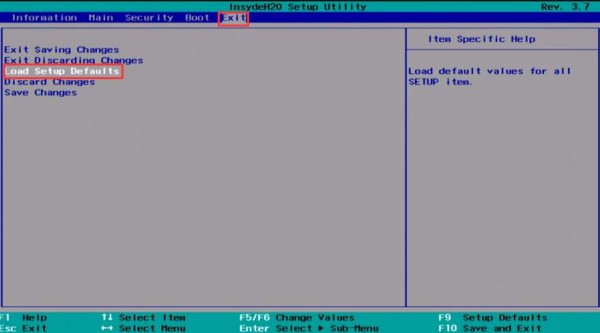
  • Use the arrow key to go to Exit tab in BIOS settings. Look for option – Load Setup Defaults

Note- the name of the setting to load BIOS defaults can be different in BIOS menu. In general, you need to look for a setting that mentions loading of BIOS defaults or anything with similar meaning.

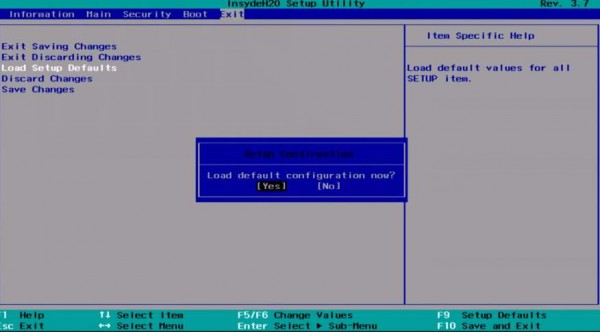
  • After you have selected the Load Setup Defaults, press Enter key and you should see two options- Yes and No.
load setup defaults
  • Use the arrow key to select Yes and hit Enter on the keyboard
select yes
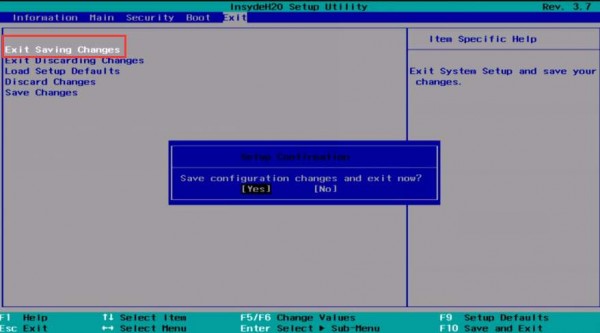
  • You should see the Exit Saving Changes highlighted now. If it is not highlighted, use arrow keys to highlight and press Enter twice to save the BIOS configuration settings and exit the BIOS menu.
exit-saving-changes
  • Your computer will restart. See if the issue persists. If the error is not resolved, try next solution.

Note- The BIOS menu may appear different than screenshots shown above. The purpose behind these troubleshooting steps is loading the BIOS defaults that will override any overclocking settings that you have done. Use the images and steps as a reference to navigate and select right option to load BIOS defaults.  

 Solution Three-Run Windows Memory Diagnostic Tool

Windows has inbuilt Windows Memory Diagnostic Tool that can detect any problems in physical RAM module. If the memtest (short for memory test) returns any errors, you need to replace the RAM module with a new one. Here are the steps to run memtest.

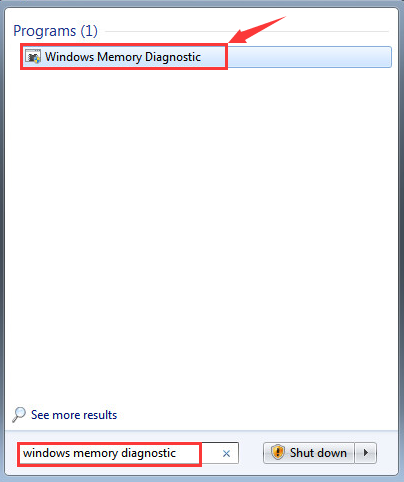
  • On your keyboard, press the Windows logo key and type  Windows memory diagnostic in the box
memory-diagnostic
  • Select Windows Memory Diagnostic from the list of results
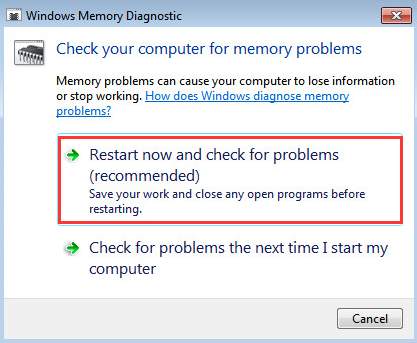
  • In the WindowsMemory Diagnostic pop up box, you get two options -1) Restart now and check for problems (recommended). If you choose this option, the computer would reboot immediately and the  Windows Memory Diagnostic tool runs at startup
restart-now
  • The 2nd option reads Check for problems the next time I start my computer. if you select this option, Windows will run the WindowsMemory Diagnostic tool during next system restart.
  • We have selected 1st option – Restart now and check for problems (recommended) which leads to computer restarting immediately and running the memory test
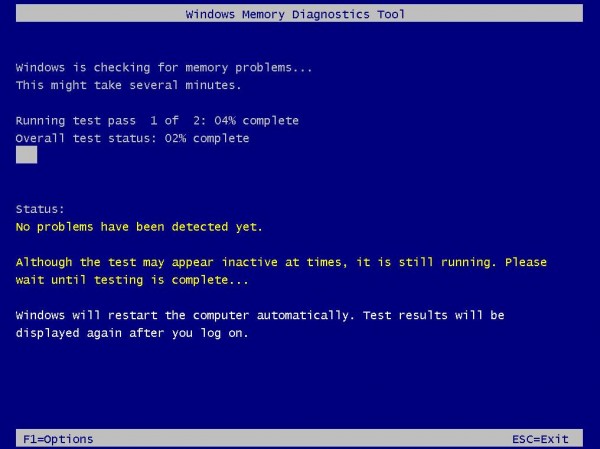
  • You should see a similar screen like the one below which is WindowsMemory Diagnostic tool in action. It may take some time for the test to complete. You can see the progress of the memtest and also see if any errors are detected by the Windows Memory Diagnostic tool.
memtest running

After the memtest process is completed, Windows will boot normally. In most cases, the ntoskrnl.exe BSOD error should be resolved by now.

Filed Under: PC Fix Tips Tagged With: Ntoskrnl.exe error

  • « Previous Page
  • 1
  • …
  • 164
  • 165
  • 166
  • 167
  • 168
  • …
  • 189
  • Next Page »


  • Recent Posts
  • Popular Posts
        

Read More Posts


Read More Posts

Drivers.com Sites

  • Software Drivers
  • Drivers Ed

About Us

  • Advertise
  • About Drivers
  • Drivers Support
  • Drivers.com Privacy Policy
  • Disclaimer
  • Software Drivers
  • Mac Fixes and Tips
  • PC Fix Tips
  • Security/ Backup
  • Tablets & Smartphones
  • Tech News

© Copyright 2026 PDE Publications Ltd. End User License Agreement (EULA)