


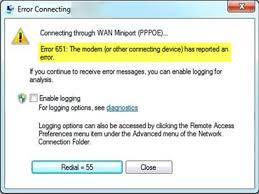
Connection failed with error 651 occurs when Windows faces some problem while establishing network connections. It is one of the common Windows errors that can be resolved easily. If you are frequently getting error 651 while using your Windows computer, try the solutions given here to resolve connectivity problems.
What is Connection Failed with Error 651?
The connection failed with error 651 is mostly related to PPPoE (Point to Point Protocol over Ethernet) connection; your dialup Broadband connection. There can be several reasons for this error such as wrong internet connection settings or IP configuration or faulty network drivers.
It would be difficult to know the exact cause of the error but the solutions given here have helped users to resolve the connectivity issue successfully. We have given five solutions in this post but you may not be required to try all solutions.
Start with the first solution and work your way downwards until the connectivity issue gets fixed.
Solution One- Restart your PC and modem
Many times the error 651 is temporary and occurs because the internet connection with the computer is not established in the right manner in the first attempt. You can resolve this by restarting PC and modem which will force the computer and modem to re-establish the internet connection. Here are the steps to follow.
- Turn off your Windows PC after saving work and closing all programs
- Turn off the modem and unplug its power cord from the electrical socket
- Remove all connections between modem and computer
- Wait for 30 seconds and plug the power chord of the modem into an electrical socket
- Plug-in all connections between modem and computer in right manner
- Power on the PC and wait for some time until everything is running normally. For example, your Windows has successfully booted and the modem seems to work fine.
- Now try dialing the broadband connection and see if the internet connection with your ISP server is established. If the error persists, try next solution
Solution Two- Update Network Drivers
You can get this error when your network device drivers are either corrupt or outdated. Updating the network drivers will help resolve the issue.
You can update drivers manually through the Device Manager window. However, you’ll need to have some time on your hands for this as the process is time-consuming. But that is not the biggest problem. Even after spending time and effort, you might not be able to download the correct drivers.
Automatic driver update tools offer many benefits, the most important ones being:
- You can update device drivers automatically
- The software scans and updates all outdated or missing drivers at one go
- The tool picks the right drivers for your device and operating system, so you won’t have to worry about installing an incorrect driver by mistake
- Automatic driver updates are 100% safe
Driver Updater is one of the best driver update tools out there. Outbyte Driver Updater will give you access to a database of over 1 million drivers. It will regularly scan your PC, suggesting new driver versions to install. Driver Updater contains drivers for a variety of Windows devices. With just one click, you can update drivers in your system.
Step 1
Click here to Install and launch the app
Step 2
Scan all devices
Step 3
Install or update drivers automatically
Solution Three – Making changes to settings in Networking and Sharing center
Majority of the network problems arise due to wrong network settings. Many users were able to resolve the error 651 after disabling IPv6 for Internet connections. IPv6 is an advanced protocol used to connect websites but many ISPs have a difficult time working with IPv6 addresses leading to several internet connectivity problems at the user end.
You can see if the error 651 can be resolved by disabling IPv6 in your network connections. Here are the steps to follow.
Disable IPv6 for your Internet connection
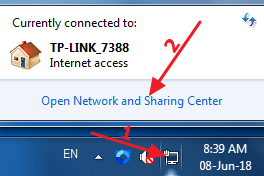
- Right-click on the network icon in the system tray(bottom-right corner of the screen) and click Open Network and Sharing Center
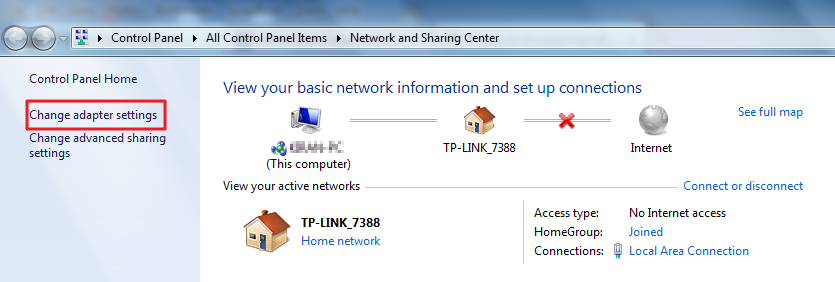
- In the Network and Sharing Center window, click Change adapter settings
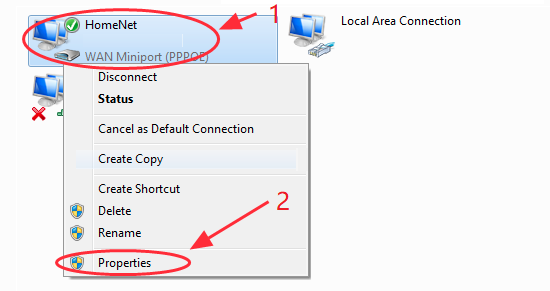
- Right-click on your Network connection and click Properties
- Uncheck the box next to Internet Protocol Version 6 (TCP/IPv6)
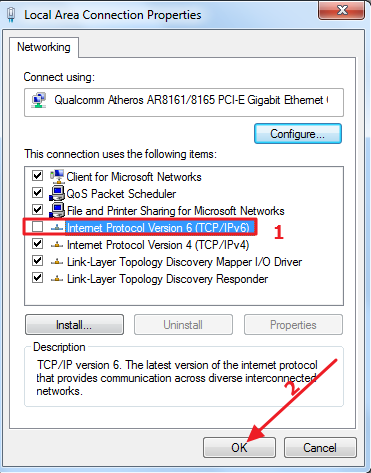
- Click OK to save changes and close the properties window
Try reconnecting to the network to see if the error 651 issue is resolved. If the error still persists, perform next troubleshooting steps given below.
Create a new dial-up connection
There is a possibility the existing dial-up connection existing has some wrong settings or configuration. To ensure there is no problem with the dial-up connection, you can create a new dial-up connection to sort out any issues with existing dial-up connection. Here are the steps to follow.
- Right-click on the network icon in the bottom-right corner of the screen and click Open Network and Sharing Center
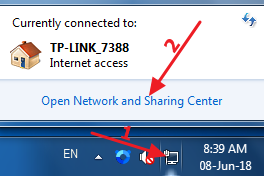
- In the Network and Sharing Center window, click Change adapter settings
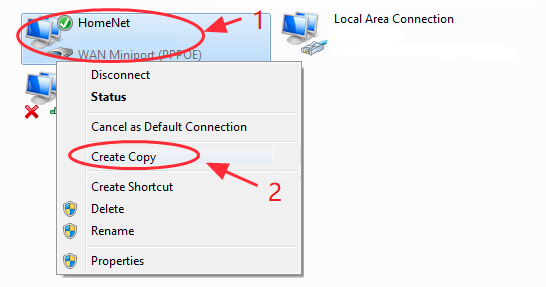
- Right-click on your Network connection and click Create Copy
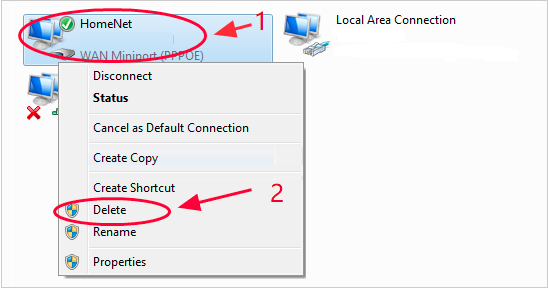
- Now, right-click on original dial-up connection and click Delete
- Use the newly created dial-up connection to connect to Internet and see if the issue is resolved. If the issue persists, try next solution
This step is provided for users who have been using router between modem and computer to connect to ISP. To resolve any internet connectivity errors, you need to directly connect your computer to modem. In that case, you need to create a new dial-up connection following the steps given below.
- Plug in the Ethernet cable in LAN port of your computer
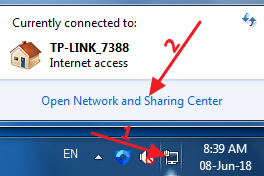
- Right-click on the network icon in bottom-right corner of the screen and click Open Network and Sharing Center
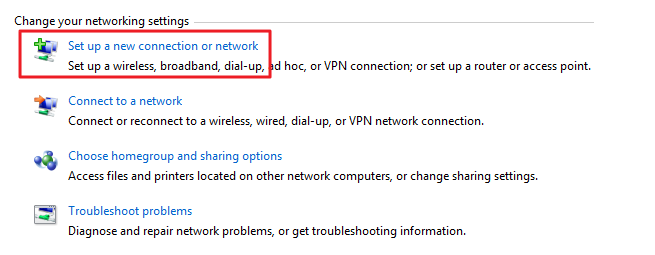
- In the Network and Sharing Center window, click Set up a new connection or network
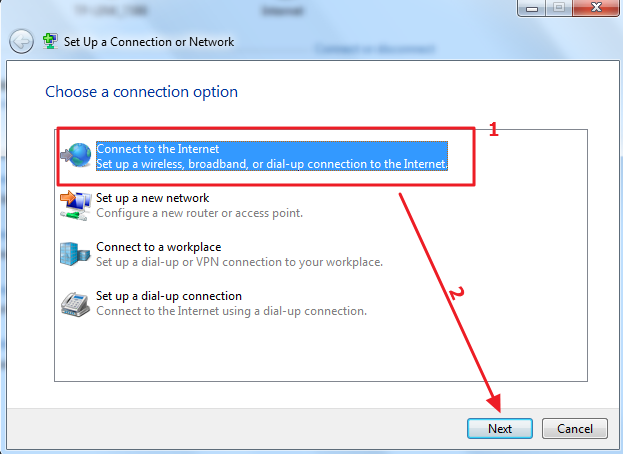
- Select Connect to the Internet in the connection wizard and click Next
- Click Set up a new connection anyway

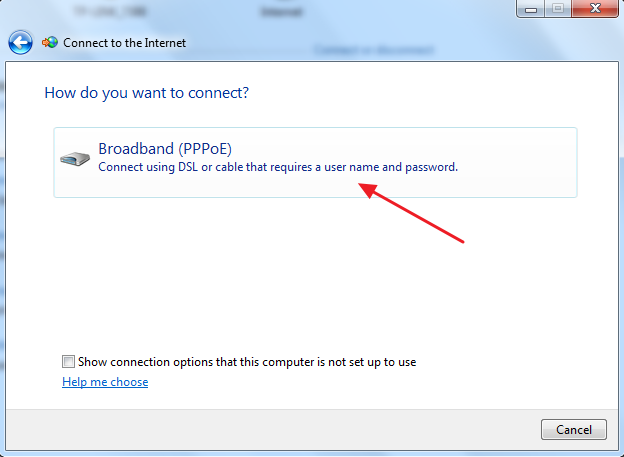
- In the next window, click Broadband (PPPoE)
- In the next window, enter user name and password given by your ISP and click Connect
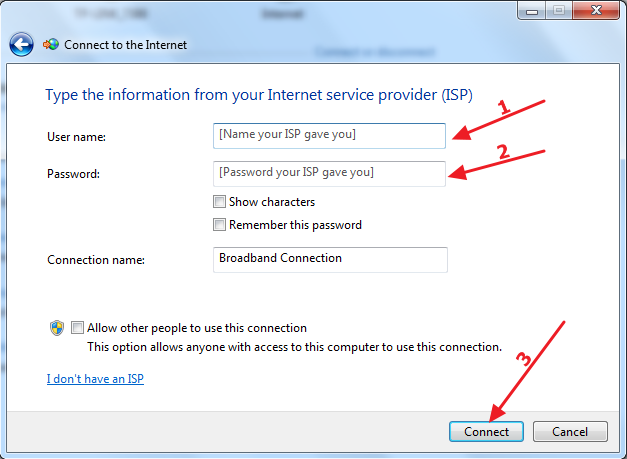
If the internet connection is established, the error 651 is resolved. If you still get the error 651, try next solution.
Solution Four – Reset TCP/IP settings
TCP/IP settings on your computer are important. TCP/IP stands for Transmission Control Protocol/Internet Protocol which is an important communication protocol used by networks to communicate with each other.
TCP defines how the data packets travel over the network. If there is any problem in TCP/IP settings, your computer would not be able to establish a network connection with your ISP server resulting in error 651. Resetting TCP/IP could resolve the issue. Here are the steps to follow.
- Click Start and type cmd in Cortana search box
- Right-click command prompt in search results and click Run as administrator
- In the User Account Control pop-up, click Yes
- In the command prompt window, type the following command and hit Enter on the keyboard

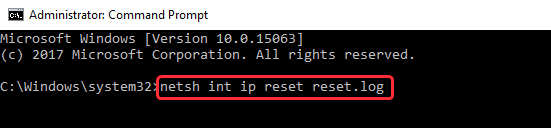
- After the command is executed successfully, close the command prompt window and restart your PC
Try connecting to the Internet and see if the issue is resolved. If you still get error 651, try next solution
Solution Five – Disable the auto-tuning feature
Windows has an auto-tuning feature that enhances the performance of the application that receives TCP data over the network. In some cases, the auto-tuning feature may reduce the data transfer rates or also lead to loss of connectivity.
The auto-tuning feature could be the reason behind error 651. To rule out this possibility, disable the auto-tuning feature and see if it helps. Here are the steps to follow.
- Click Start and type cmd in the search box
- Right-click command prompt in search results and click Run as administrator
- In the User Account Control pop-up, click Yes
- In the command prompt window, type Netsh interface tcp set global autotuning=disabled and press Enter on the keyboard

- Wait for the command to execute successfully.
- Close the command prompt window and restart your PC
Try connecting to the Internet and see if the issue is resolved. In most cases, the error 651 should be resolved now.
Leave a Reply