Drivers.com

follow us:

facebook twitter
  • Home
  • Download Drivers
  • Drivers Help
  • PC/Mac Resources
  • Software Drivers
  • Mac Fixes and Tips
  • PC Fix Tips
  • Security/ Backup
  • Tablets & Smartphones
  • Tech News
  • Software Drivers
  • Mac Fixes and Tips
  • PC Fix Tips
  • Security/ Backup
  • Tablets & Smartphones
  • Tech News

What is Rundll32.exe

By Susan C on June 28, 2018

What is Rundll32.exe

Rundll32.exe is a common process running on your windows computer. If you are curious about it or if you are wondering whether it is harmful or not, this post is just for you.

In this post, we provide all relevant information about rundll32.exe that you need. By the time you finish reading, you’ll have the right answers to questions like:

  • What is rundll32.exe?
  • Why are they running in the background?
  • Are they harmful to your system?
rundll32.exe

What is rundll32.exe?

If you have been using Windows for a long time, you must have seen hundreds/thousands of dll files in every application folder. The dll files are used to store pieces of application logic that can be accessed by different applications.

Since there is no way to directly launch DLL file, the system uses the rundll32.exe program to launch DLL files. The Rundll32.exe is a command line utility program that is responsible for running dynamic linked libraries (DLLs) and placing its libraries in the memory.

The rundll32.exe process is invoked by a function that is exported from a specific 64-bit or 32-bit DLL module. Though the rundll32.exe is a system process, malicious programs can use the name rundll32.exe to disguise their process to escape visual detection of the user.

To ensure that no malicious program is using rundll32.exe for backdoor entry, you need to access the Task Manager and find out the programs that are related to different rundll32.exe processes in the Processes tab. Here are the steps to follow.

  • Press Windows logo key and type cmd in the search box
  • Click Command Prompt from the list of results
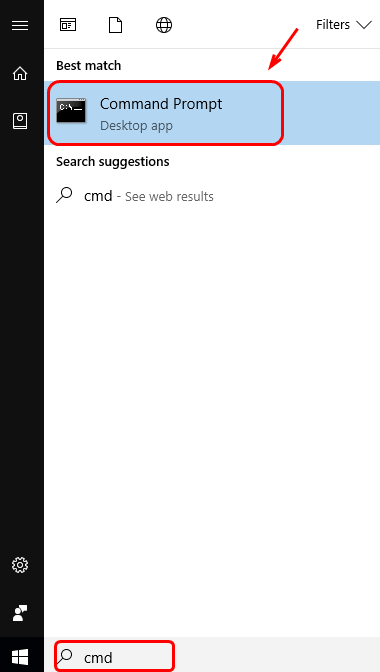
command prompt
  • In the command prompt window, type tasklist /m /fi “imagename eq rundll32.exe” and press Enter
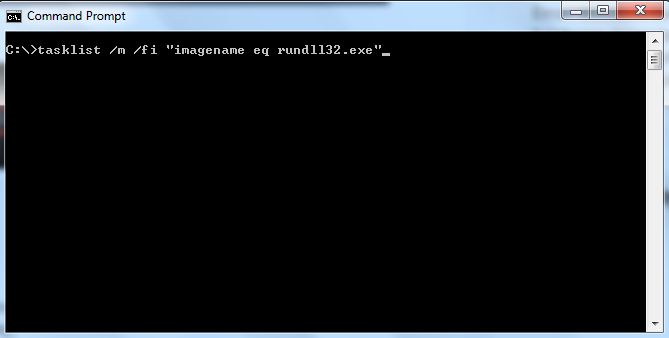
tasklist
  • You will see the list of programs/services that are run by the exe program. If you find anything suspicious, you can locate the program in the system folder and delete it.

How to ensure the rundll32.exe is not a threat to your Window system?

As mentioned earlier, spyware and malware can use the rundll32.exe as a cover to prevent raising an alarm in user’s mind.

Before deleting any suspicious you need to ensure your fears are not misplaced.

Here are the steps you need to follow to find out information about rundll32.exe.

  • Right-click taskbar to open the Start menu and click Task Manager from the list
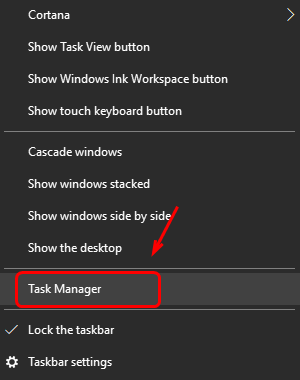
task manager
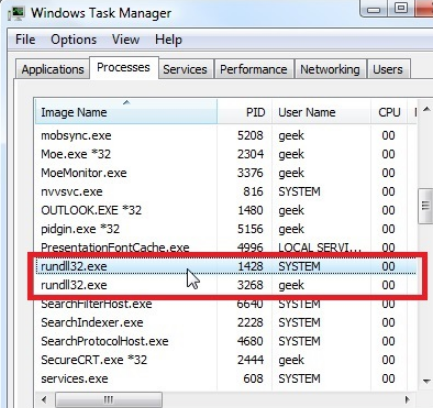
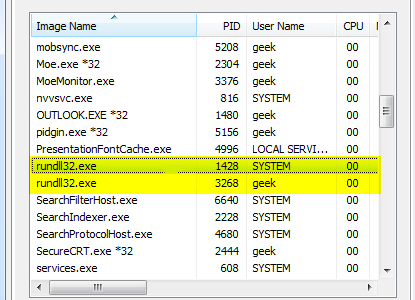
  • In the Windows Task Manager window, click Processes Here you will be able to see the different rundll32.exe processes running in the background.
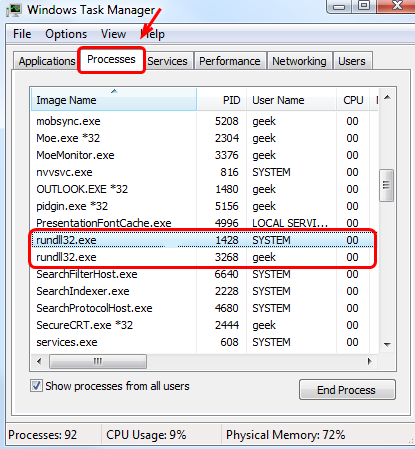
processes tab
  • Right-click on any rundll32.exe process and click Open file location
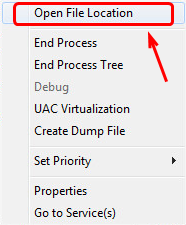
open file location
  • The above action should take you to following location C:\Windows\System32\rundll32.exe.
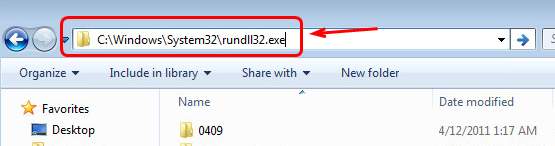
system 32 folder
  • if any other folder opens, it could be malicious program disguised as rundll32.exe

Many times malicious programs use different instances of rundll32.exe and you might see processes with names such as rundl132.exe. If you notice closely the last “l” alphabet is replaced by “1”. This trick is generally used to avoid visual detection and give the user an impression that there is nothing wrong with the rundll32.exe file.

What should you do if the rundll32.exe is a virus?

Getting rid of a virus is not easy and many times deleting folders of the program won’t help. In some cases, you won’t be able to delete the malicious program folder. The solution to this problem is updating virus definitions of your anti-virus and running a complete scan to get rid of viruses or malicious programs disguising as rundll32.exe
Filed Under: PC Fix Tips Tagged With: rundll32.exe
Driver Power State Failure error in Windows
By Susan C on June 26, 2018

Driver Power State Failure error in Windows
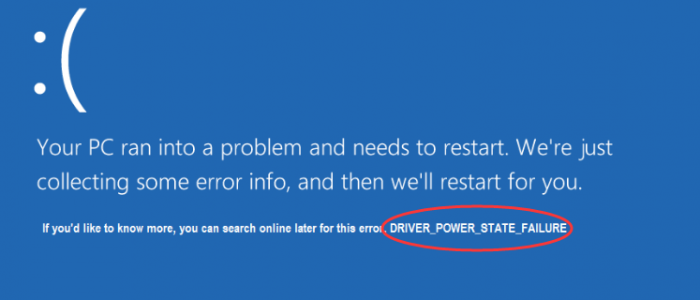
error image

The Driver Power State failure is a Blue Screen of death error mainly caused by corrupt, incompatible or incorrect drivers for any hardware device that your computer might have. But there can be other reasons too including power settings.

If you are frequently getting this BSOD error, the solutions given in this post would help you resolve the error easily. We have provided three solutions to resolve the Driver Power State failure error. You need not try all solutions given in this post.

Start with the first solution and move on to the next one and so on, until the issue gets fixed.  You need to be logged in Windows to try the solutions. If your system crashes frequently due to this error or you are not able to boot normally, we suggest you log your computer in Safe Mode and then perform the troubleshooting steps. Let’s get started.

Solution One- Change Power Settings

As mentioned above, power settings could be the reasons behind the Driver Power State failure BSOD error.  To ensure power settings are not causing any problem, you need to make some changes to the power settings. Here are the steps to follow.

  • Press Windows logo key and R simultaneously on the keyboard to invoke Run command
  • In Run command box, type control panel and click OK
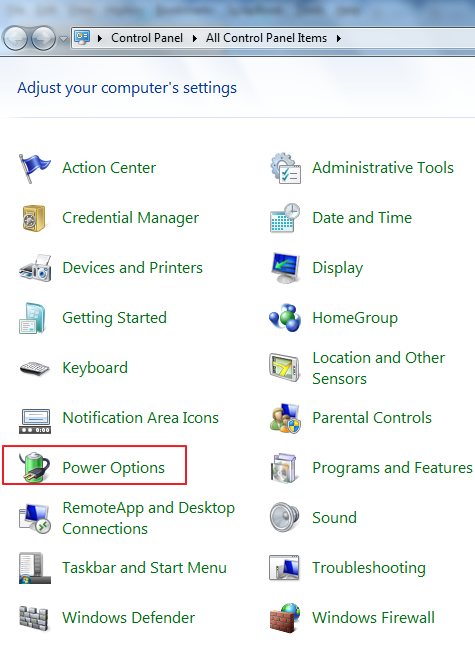
  • In the Settings window, click Power Options
power options
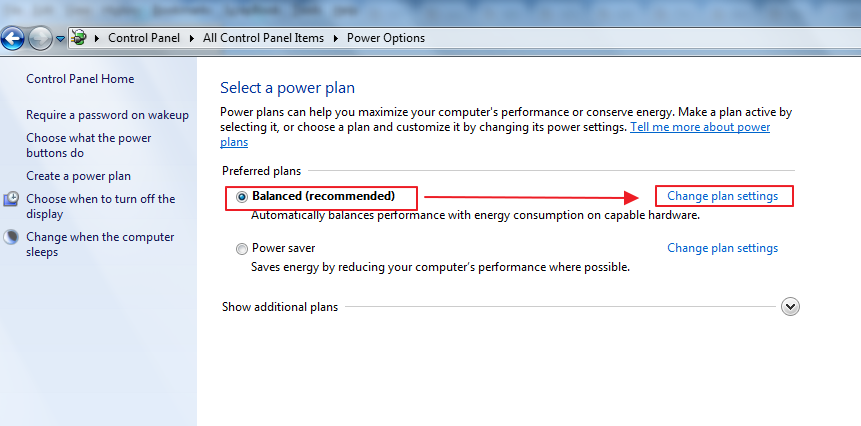
  • Ensure balanced (recommended) option is selected then click Change plan settings next to it
change plan settings
  • Click Change advanced power settings
advanced pwr settings
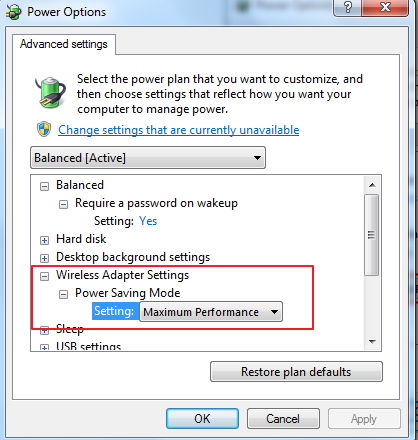
  • In Power Options window, go to Wireless Adapter Settings -> Power Saving Mode and change the setting to Maximum Performance
power saving mode
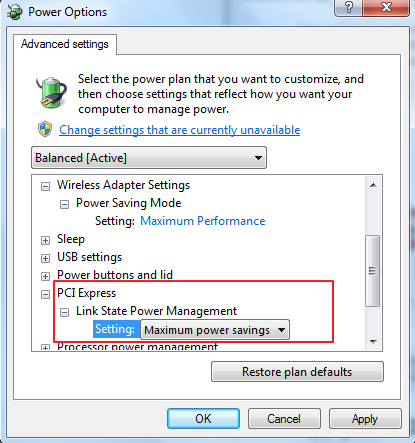
  • Scroll down and expand PCI Express -> Link State Power Management and change the setting to Maximum Performance
PCI express
  • Click Apply and then OK
  • Reboot your computer and see if you get the driver power state failure error.

If the error persists, try next solution.

Solution Two- uninstall problematic drivers

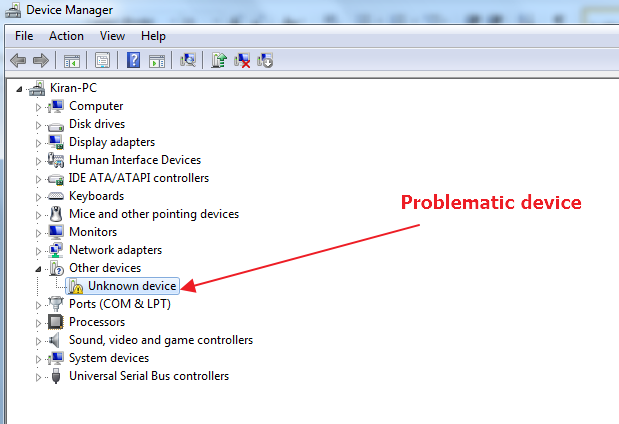
You need to access the Device Manager to know about problematic drivers. The problematic drivers are marked by a yellow exclamation mark.  You need to update drivers for problematic devices. Here are the steps to follow.

  • Press Windows logo key and R simultaneously on the keyboard to bring up the Run command
  • In Run command box, type devmgmt.msc panel and click OK
  • In the Device Manager window, expand categories and look for devices with a yellow exclamation mark
yellow exclamation mark
  • Right-click problematic device and click Update driver software
update driver software
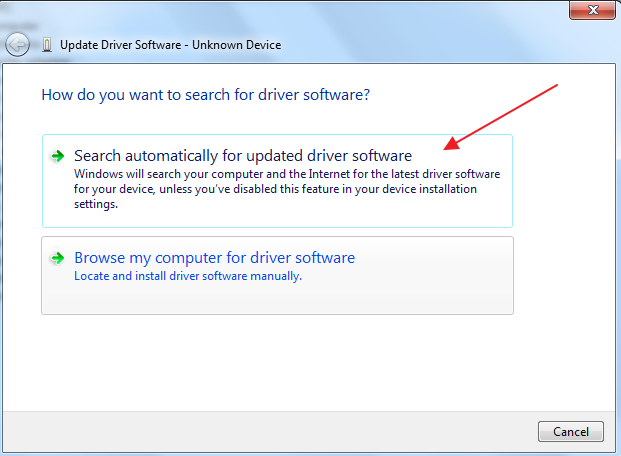
  • In the next window, click Search automatically for updated driver software
search automatically
  • Wait for some time till Windows searches driver update on the Internet. if Windows finds driver update, it will install the driver update automatically
  • if you get a message which says “Windows could not find driver software for your device”, close device manager window and move on Solution 3
unable to find driver

Solution 3 – Update Drivers

You can update drivers manually or automatically. The first method is time-consuming and not always 100% correct.

On the other hand, when you update drives automatically using a top-rated drivers update tool, all your outdated drivers are updated quickly and easily. Chances of installing an incompatible or old driver are practically non-existent.

We recommend you to use a Driver Update Tool. It is fast, accurate and easy to use. You can install and get a driver report for free. However, to get automatic driver updates, you would need to register the driver software.

Updating Drivers Automatically

Automatic driver update tools offer many benefits, the most important ones being:

  • You can update device drivers automatically
  • The software scans and updates all outdated or missing drivers at one go
  • The tool picks the right drivers for your device and operating system, so you won’t have to worry about installing an incorrect driver by mistake
  • Automatic driver updates are 100% safe

Driver Updater is one of the best driver update tools out there. Outbyte Driver Updater will give you access to a database of over 1 million drivers. It will regularly scan your PC, suggesting new driver versions to install. Driver Updater contains drivers for a variety of Windows devices. With just one click, you can update drivers in your system.

Step 1
Click here to Install and launch the app

Step 2
Scan all devices

Step 3
Install or update drivers automatically


Start Download


Filed Under: PC Fix Tips Tagged With: driver issues

How to Install Covenant add-on in Kodi

By Susan C on June 25, 2018

How to Install Covenant add-on in Kodi

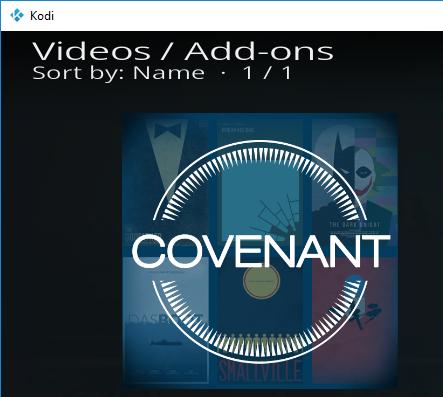
Covenant is one of the most popular add-ons for Kodi users. It has one of the best user interfaces that give you easy access to different content categories. The covenant add-on has the power to unlock the Koid’s potential by offering you access to a huge library of entertainment content.

covenant add-on

After being offline for few months, the Covenant add-on is now available for installation on Kodi again.

If you want to install covenant add-on in Kodi, this post is for you. Here we have discussed three different methods to install Covenant add-on in Kodi player. If you are facing any errors while installing the add-on, you need to update your Kodi Player before installing Covenant add-on. If you already have covenant add-on installed but are facing difficulties in using it, you need to update the Covenant add-on to get rid of errors.

The Pre-requisites/Before installing the Covenant add-on

Before you follow any methods given below to install Covenant add-on in Kodi, you need to ensure you have the latest version of the Kodi player (Kodi 17.6 Krypton).

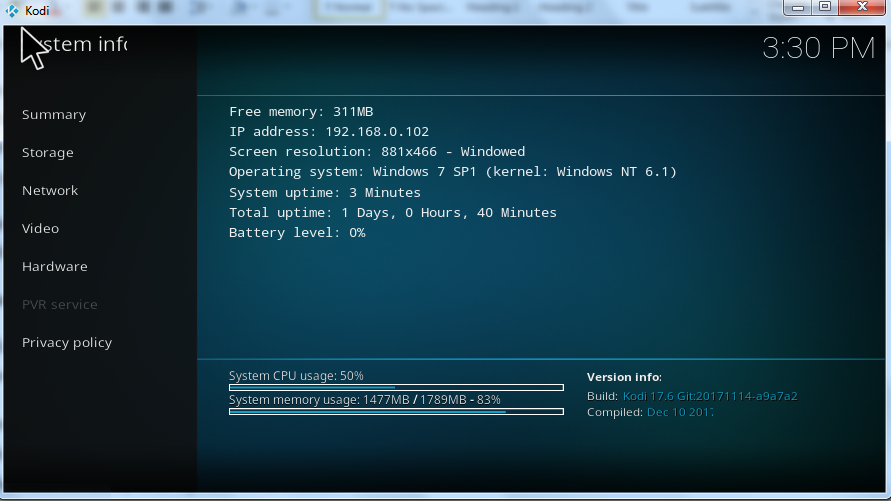
Here are the steps to check Kodi version:

  • Open Kodi Player
  • Click the Settings (gear icon)
  • In the next window, click System information
  • In the left-hand panel, look for Build number under Version info
build info

If the build number is Kodi 17.6, you can straightway go ahead and follow any of the listed methods to install covenant add-on.

However, if your Kodi player version is older than 17.6, you must first update Kodi player and only then proceed to install the Covenant add-on.

Allow installation from unknown sources in Kodi

Kodi is an open-source player and it does not encourage users to install add-ons from unknown sources. This restriction is specifically put in place to secure the Kodi player from malicious programs. However, you can override this security feature by enabling the option to allow installation from unknown sources.

Here are the steps to follow:

  • Open Kodi Player
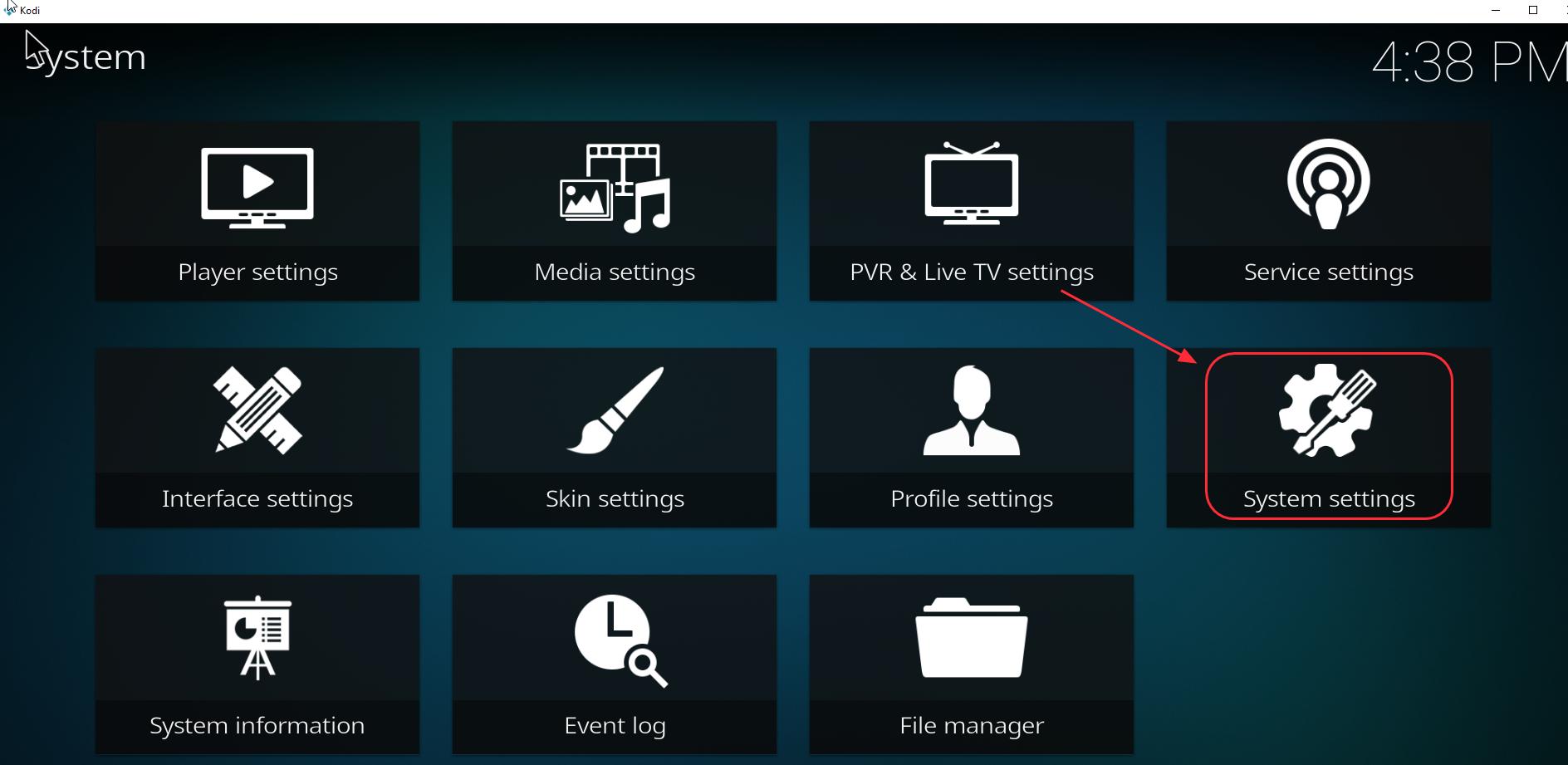
  • Click the Settings(gear icon)
  • In the next window, click System Settings
system settings
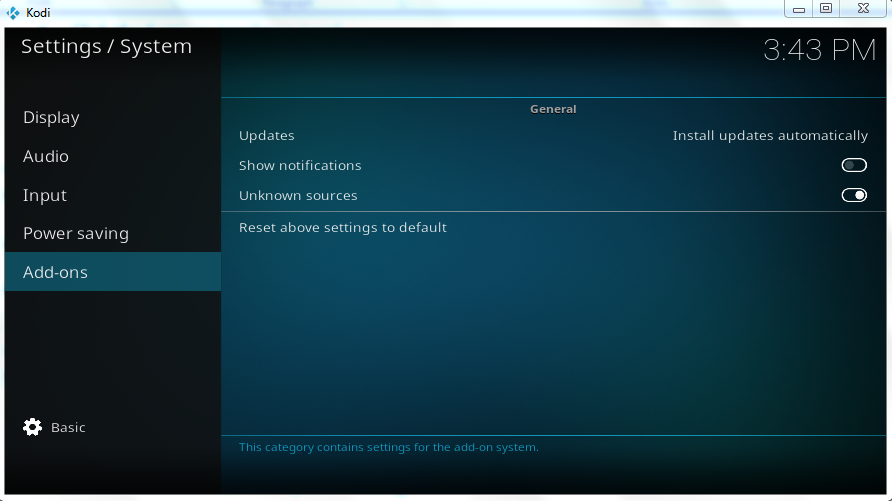
  • Click Add-ons
  • In the left pane, click the toggle switch Unknown sources. (the color of the dot in the toggle switch turns white which indicates the features is activated)
  • addons unknown sources

Once you have activated the option to install add-ons from unknown sources, you can go ahead and follow any method to install Covenant add-on in Kodi player.

Method One- Install Covenant on Kodi from the Kodil Zip file

One of the methods to install covenant add-on is using Kodil zip file. Here are the steps to follow.

  • Download the Kodil zip file to your computer
  • Launch Kodi player
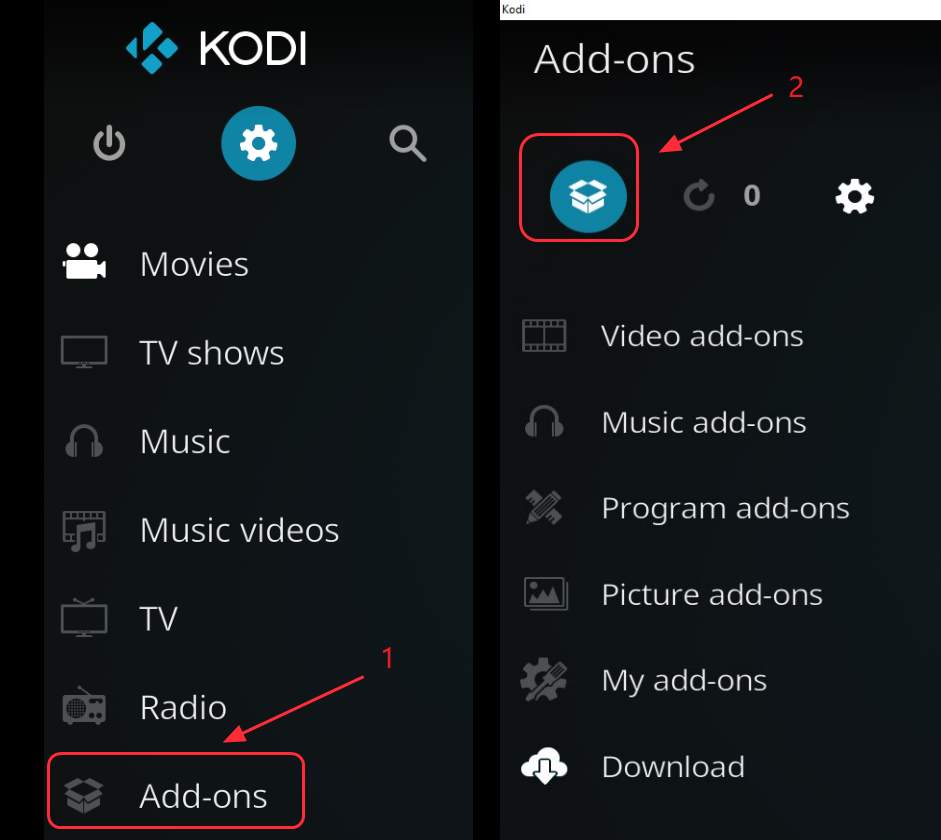
  • Click Add-ons and then click Package icon in the upper left corner in the left panel
addons-package icon
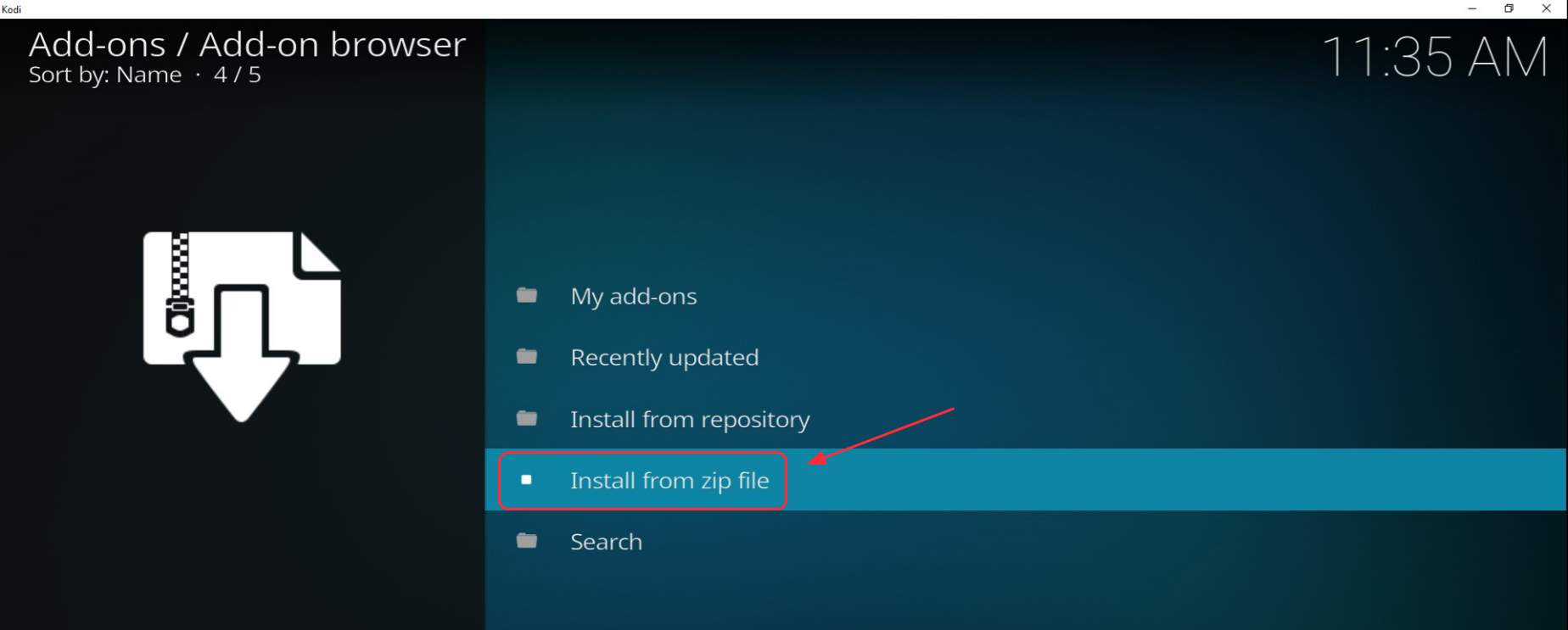
  • In the next window, click Install from zip file
install from zip
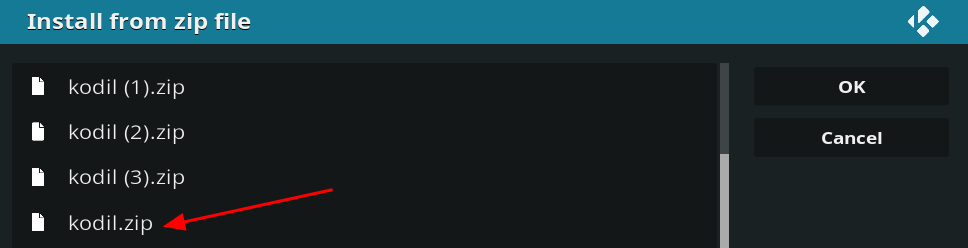
  • Browse to the folder/location where you saved the Kodil zip file and select the Kodil.zip file
kodi zip
  • Wait for some time until the Kodi Player uploads the zip file and install the Kodil repository. Once it is uploaded you can see Kodil Repository installed in the upper right corner.
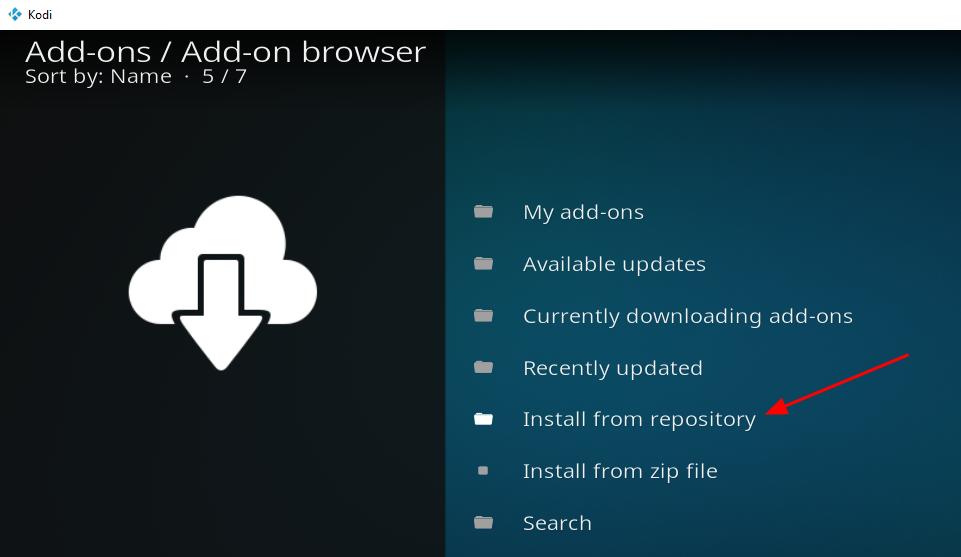
  • go back to the Add-on / Add-on Browser page and click Install from repository
install from repository
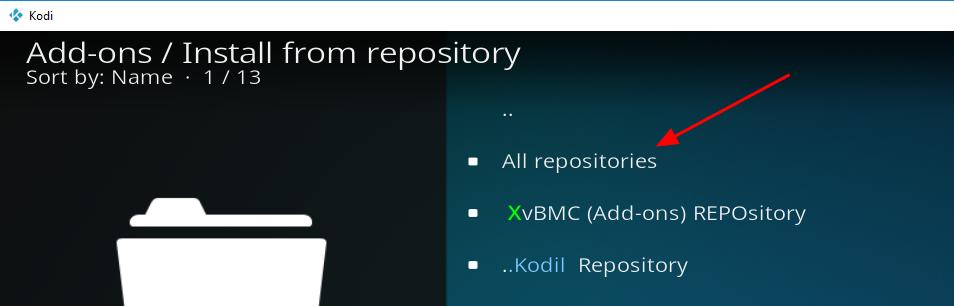
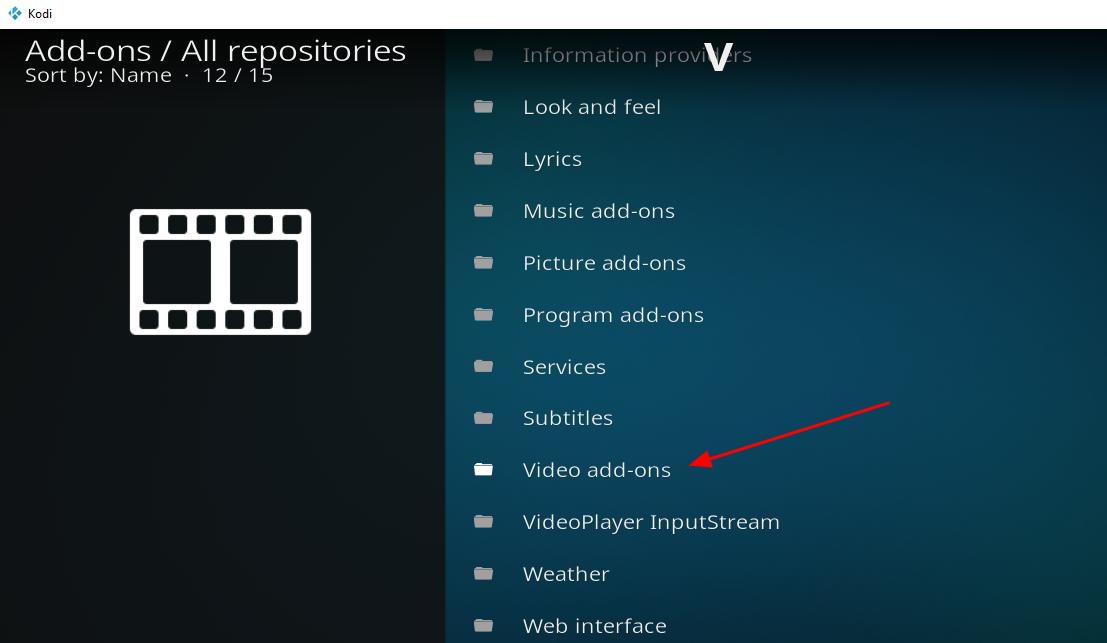
  • Click All repositories
all repositories
  • Select Video add-ons
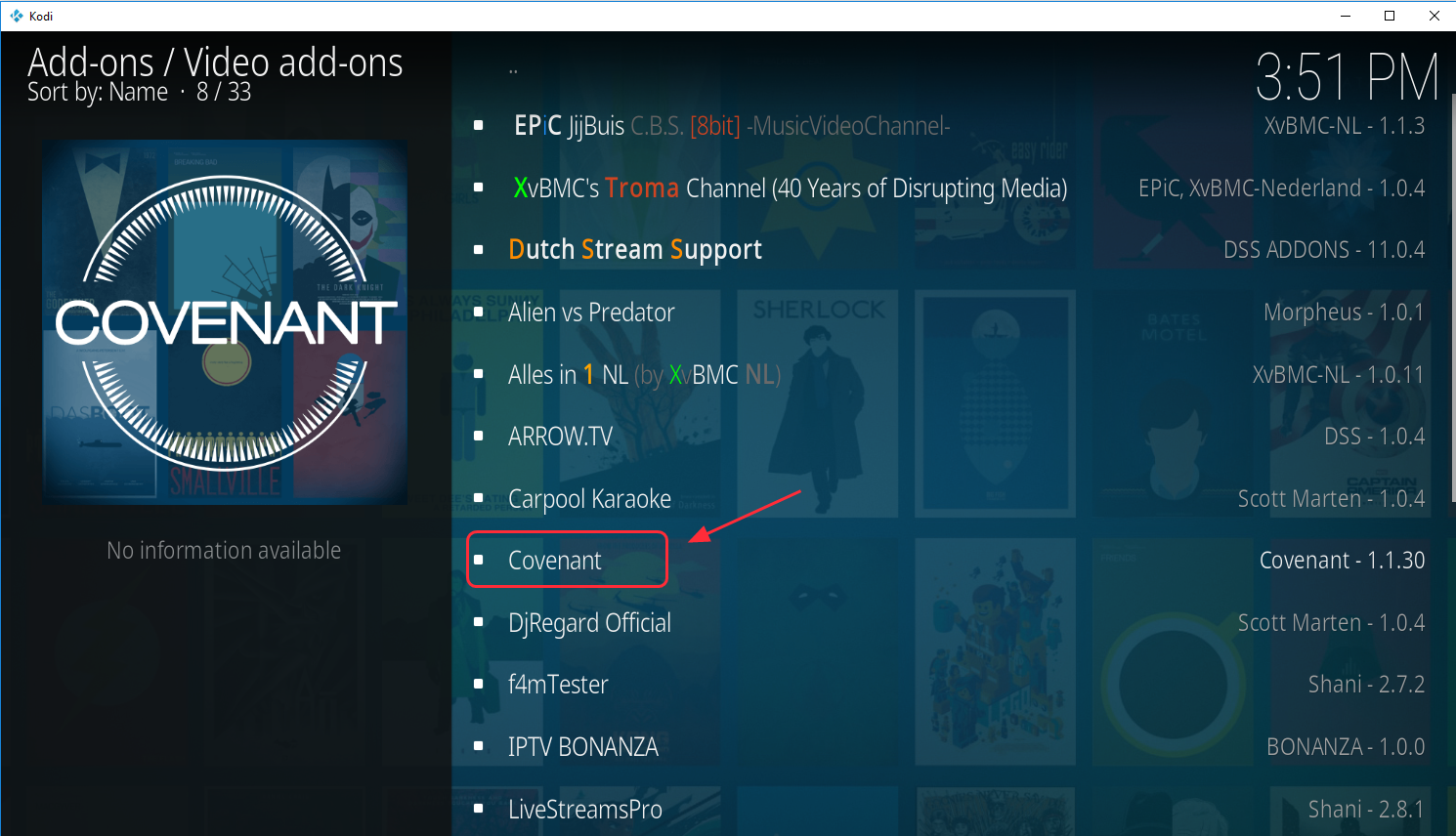
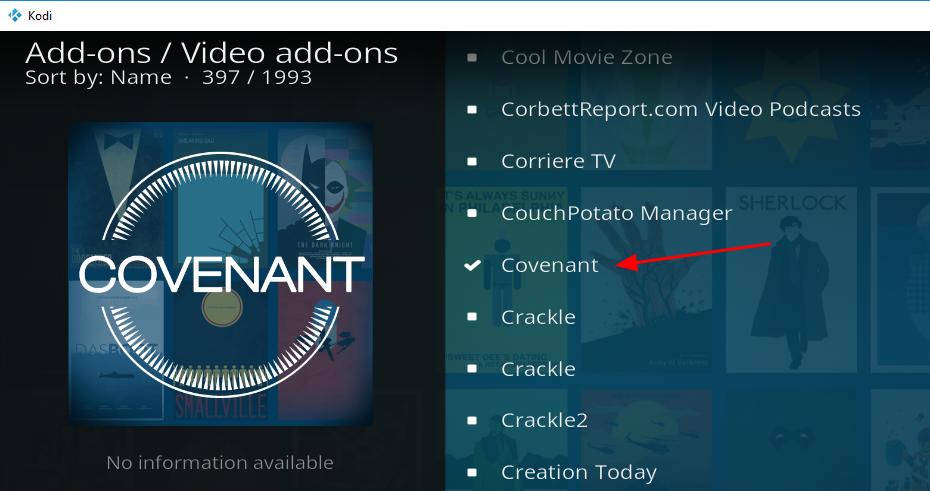
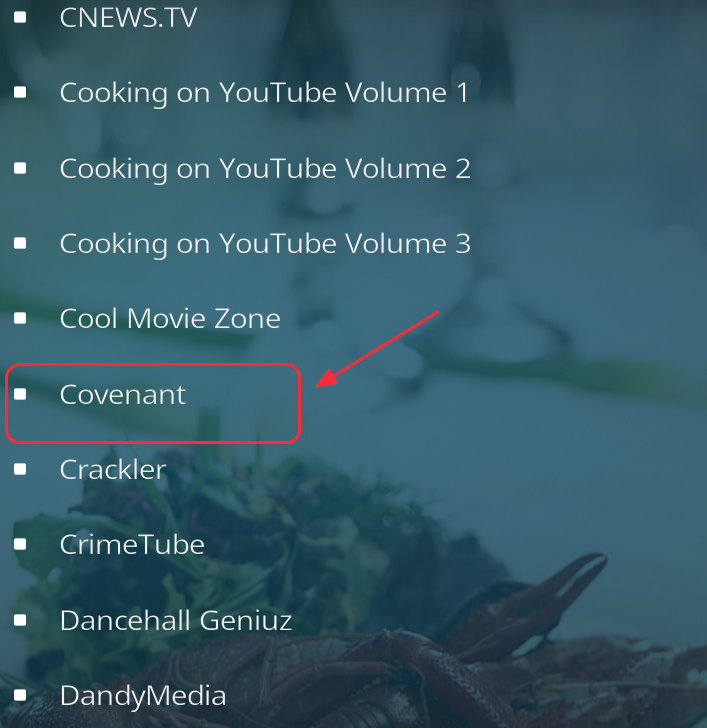
  • Scroll down the list and select Covenant
covenant 3
  • Wait for some time, the Kodi player will now download and install Covenant add-on. After the Covenant add-on is installed, you will see a notification mentioning successful installation in the right-hand corner.
  • Now go to Kodi home page and click in the following order – Add-ons-> Video add-ons -> Covenant

Many users have complained of Kodil zip link being offline and getting an error “404 not found”. If you face a similar issue, you can use the XvBMC repository to install Covenant add-on in Kodi player.

Method Two – Install Covenant on Kodi with the XvBMC repository

The Covenant add-on is also available through XvBMC repository, which is one of the more stable repositories and has many Kodi add-ons. The software repository refers to a central place to keep software resources.

Users can access these repositories and download and install software from repositories. To install Covenant add-on in Kodi with the XvBMC, follow the steps given below.

  • Open Kodi Player
  • Click the Settings(gear icon)
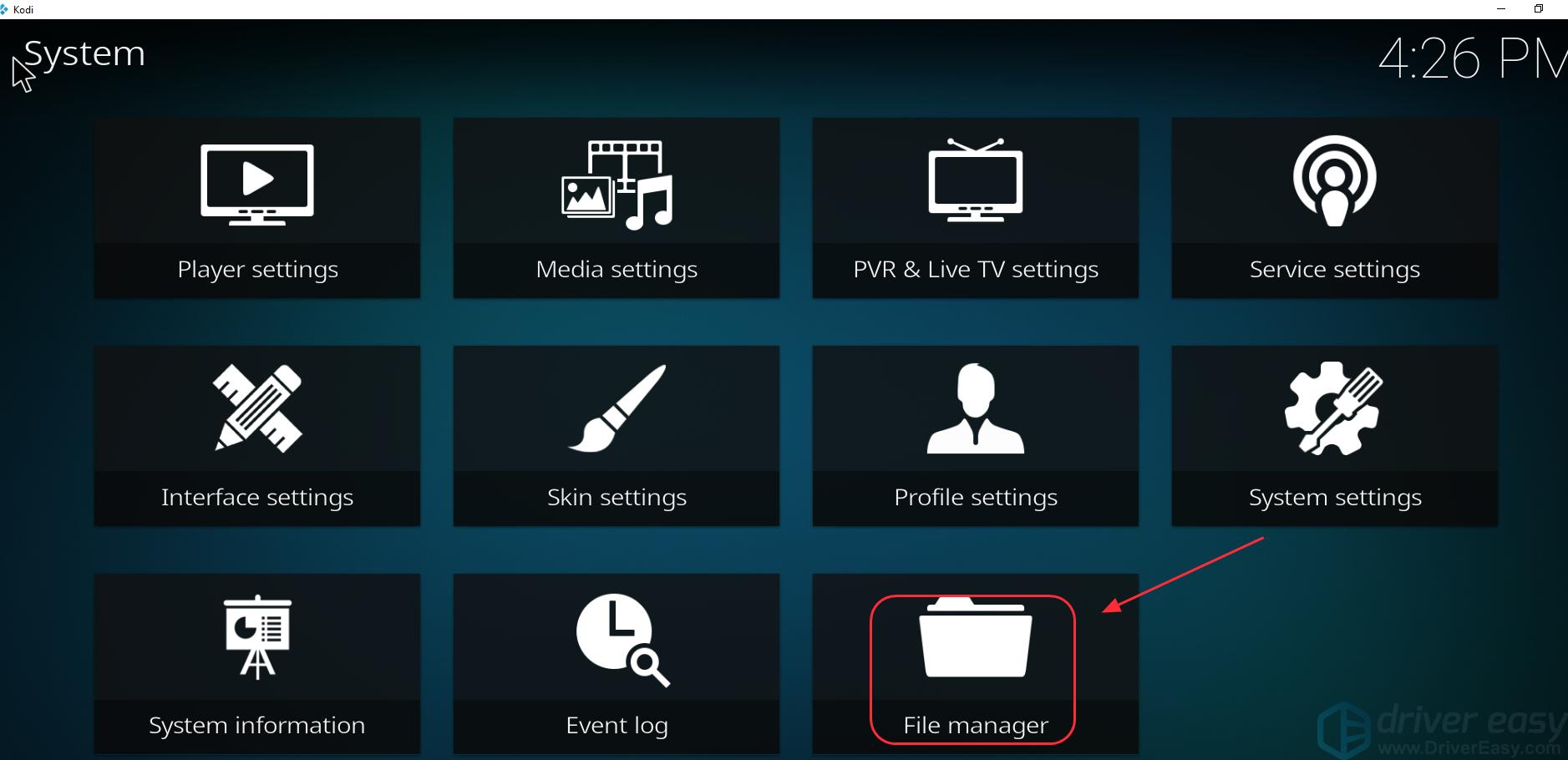
  • Click File Manager
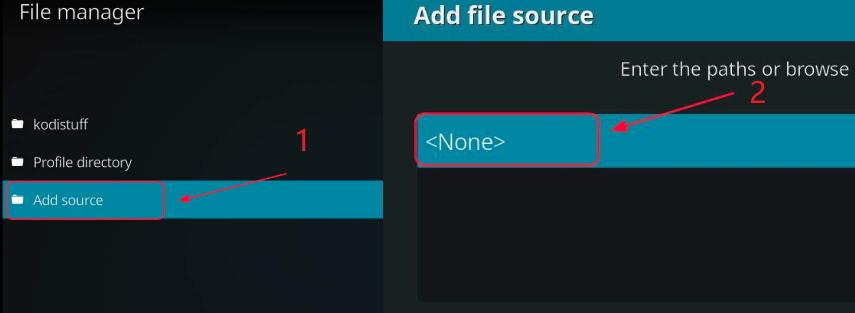
  • Double click Add Source and then click None
add source none
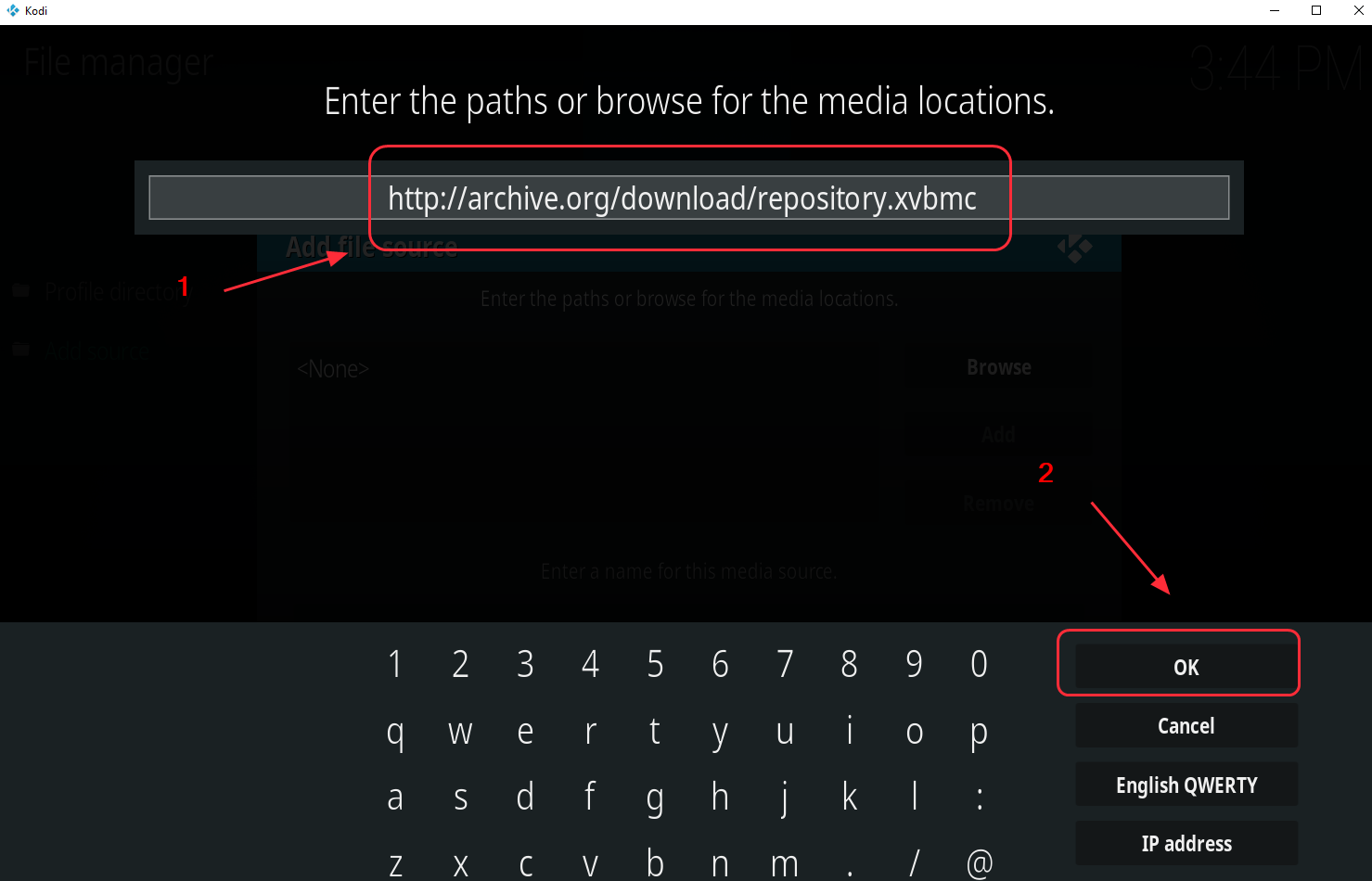
  • Type the following URL – http://archive.org/download/repository.xvbmc and click OK
xvbmc repository
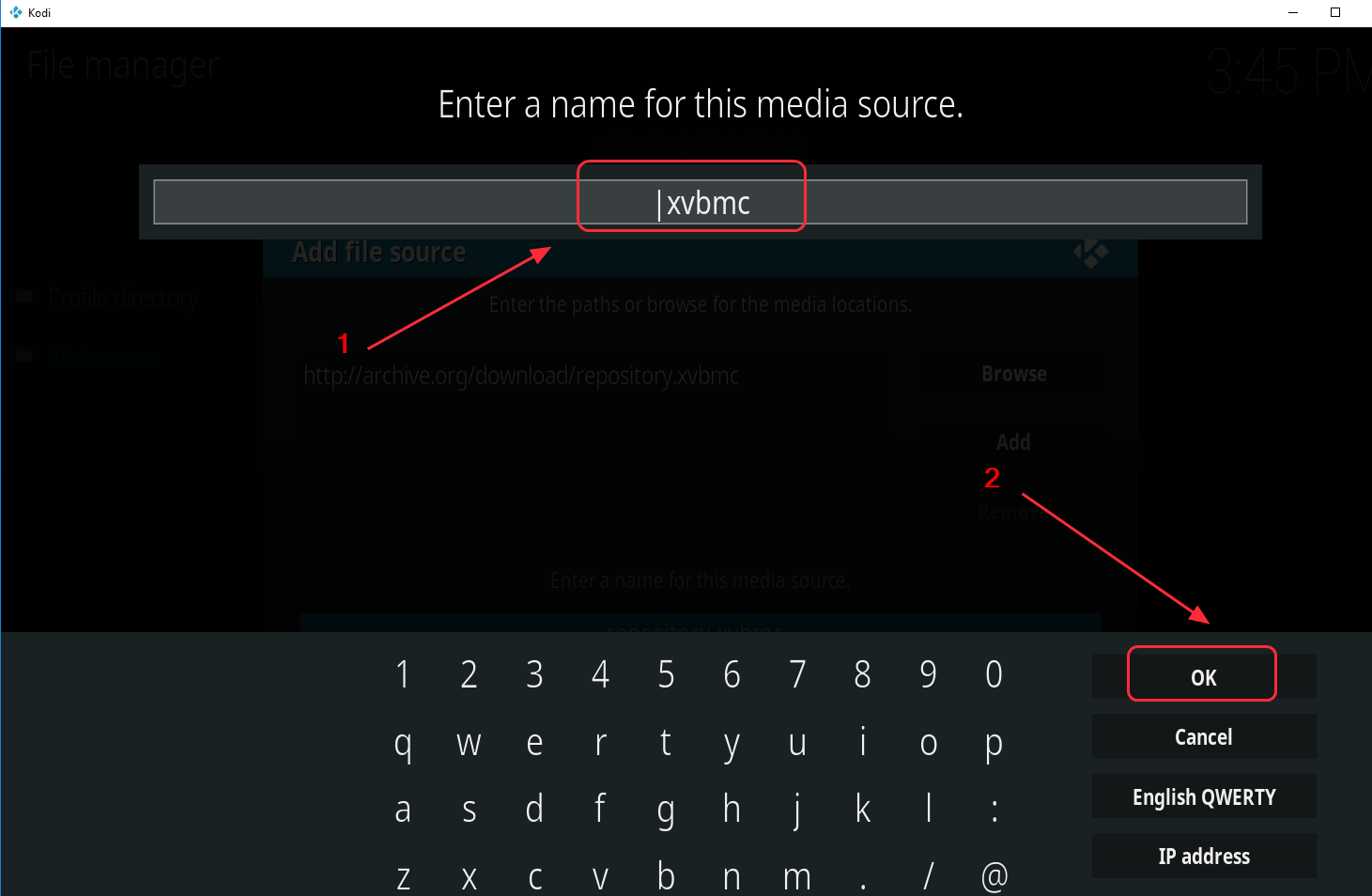
  • Enter any relevant name to save the source. I have typed xvbmc for easy identification and click OK twice to save it.
xvbmc
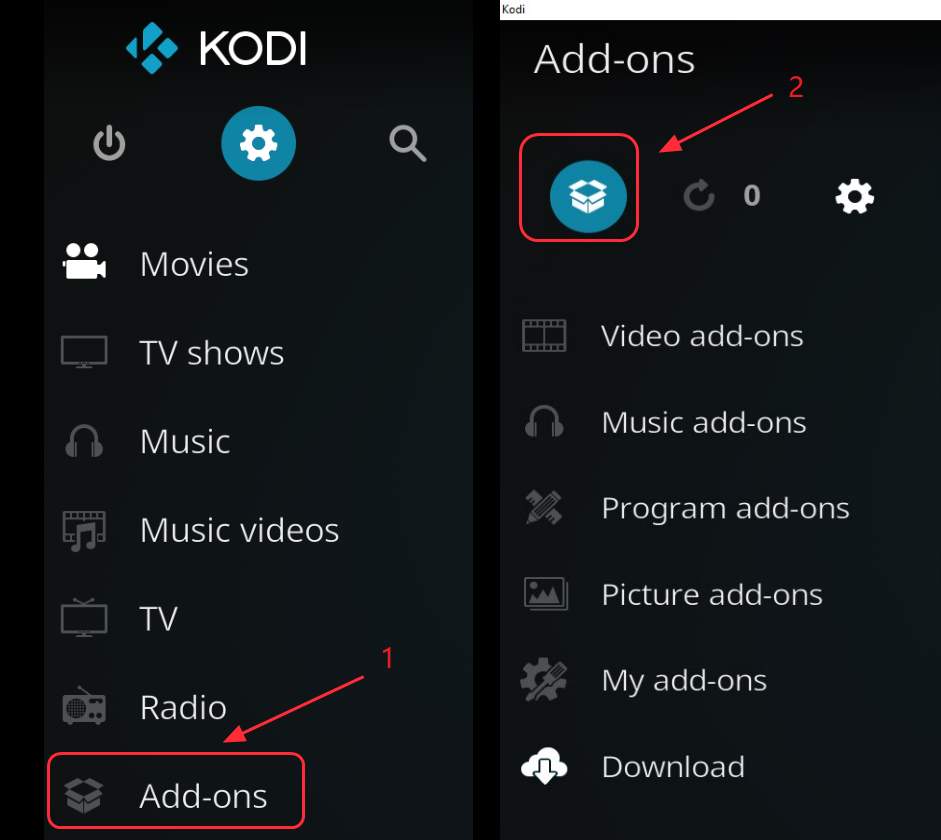
  • go back to Kodi player home page and click Add-ons and then click Package icon on the upper left
addons-package icon
  • Click Install from zip file
install from zip
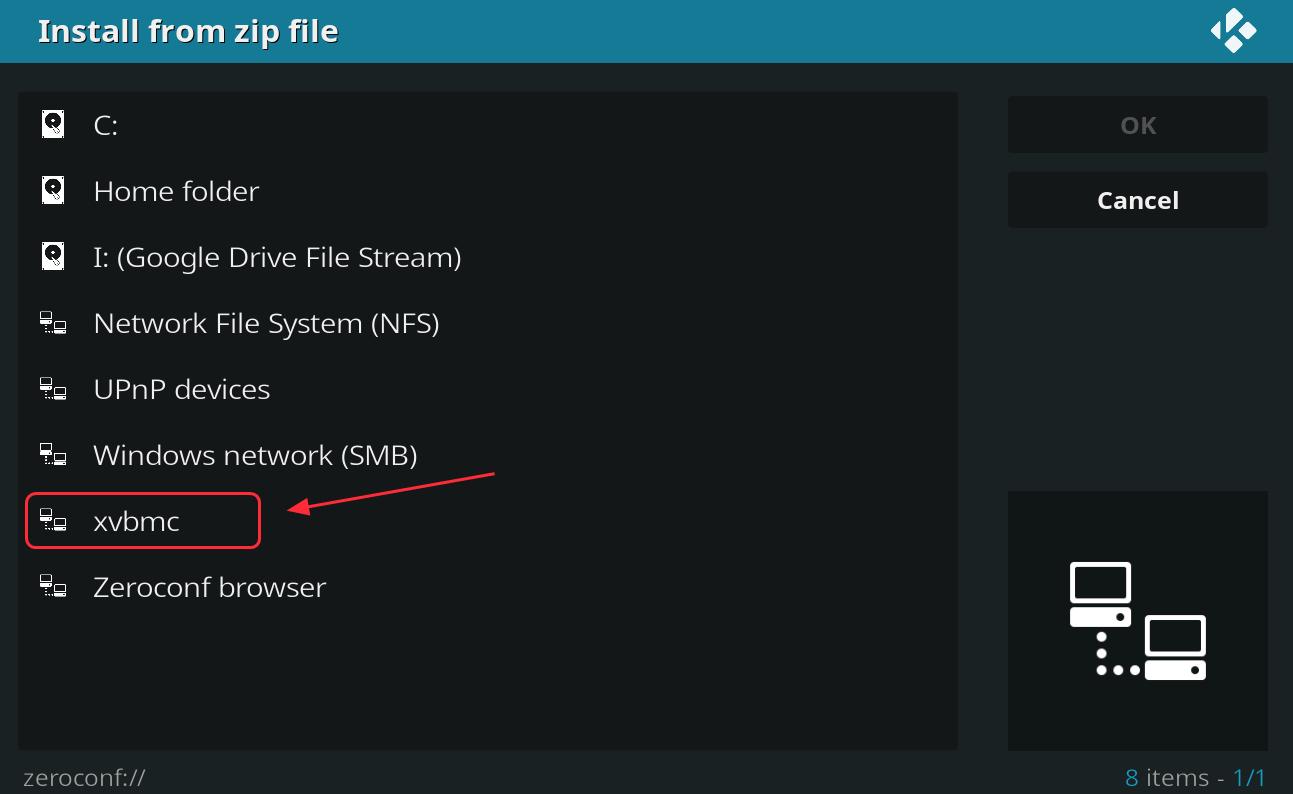
  • Select the file you just saved, I have selected xvbmc
install zip
  • Select repository.xvbmc-x.x.x.zip, so I clicked repository.xvbmc.4.2.0.zip
  • Click
  • Wait for the add-on enabled notification
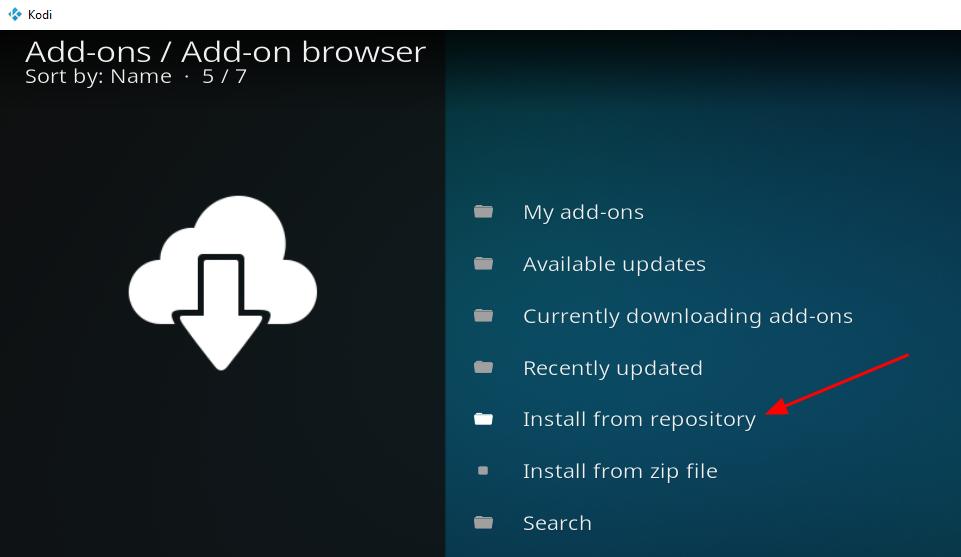
  • Click Install from repository
install from repository
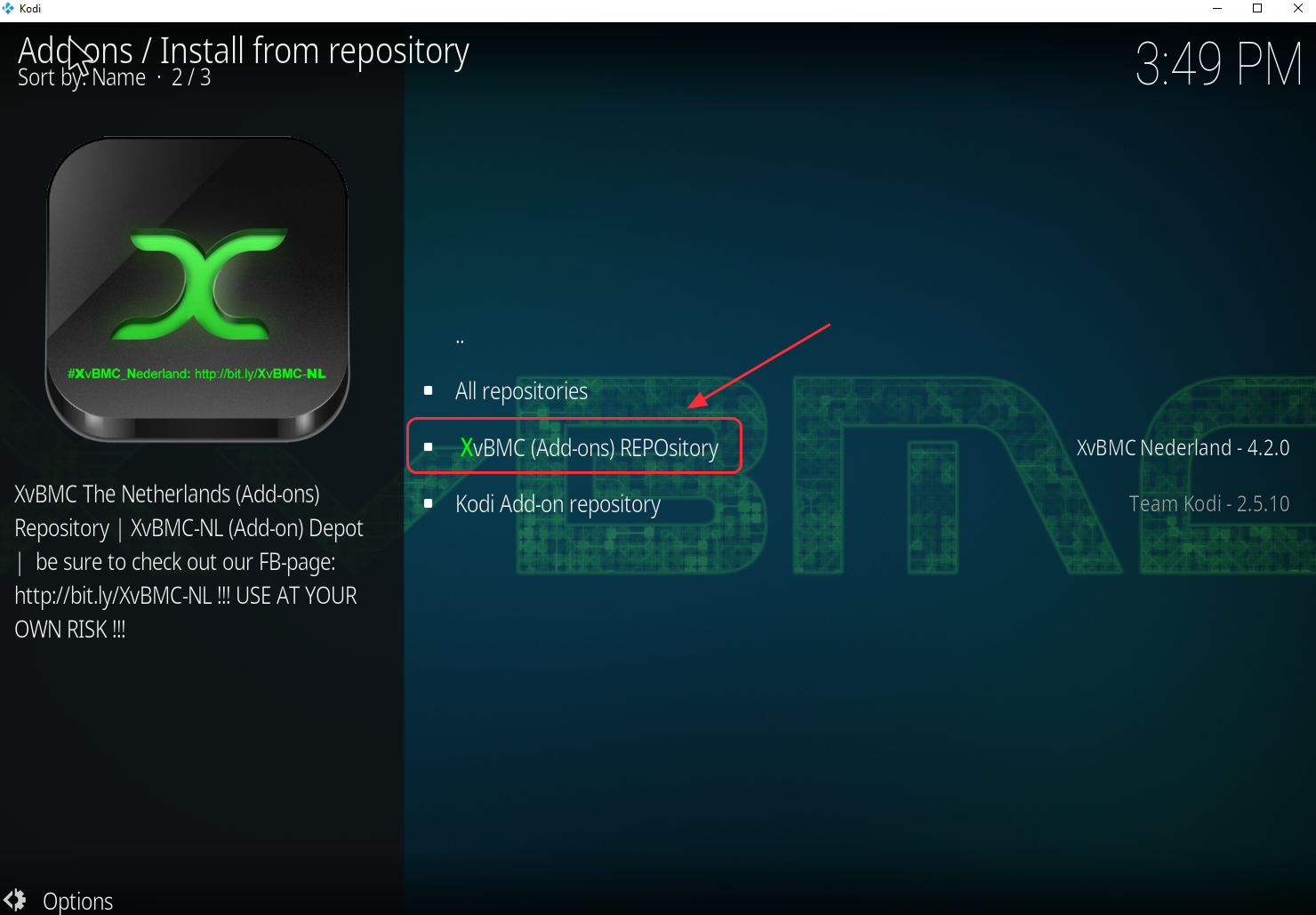
  • Click XvBMC (Add-ons) REPOsitory
XVBMC addons REPOsitory
  • Click the type of add-on. Since Covenant is a video add-on, you need to Click Video add-ons
  • Click Covenant from the list
covenant
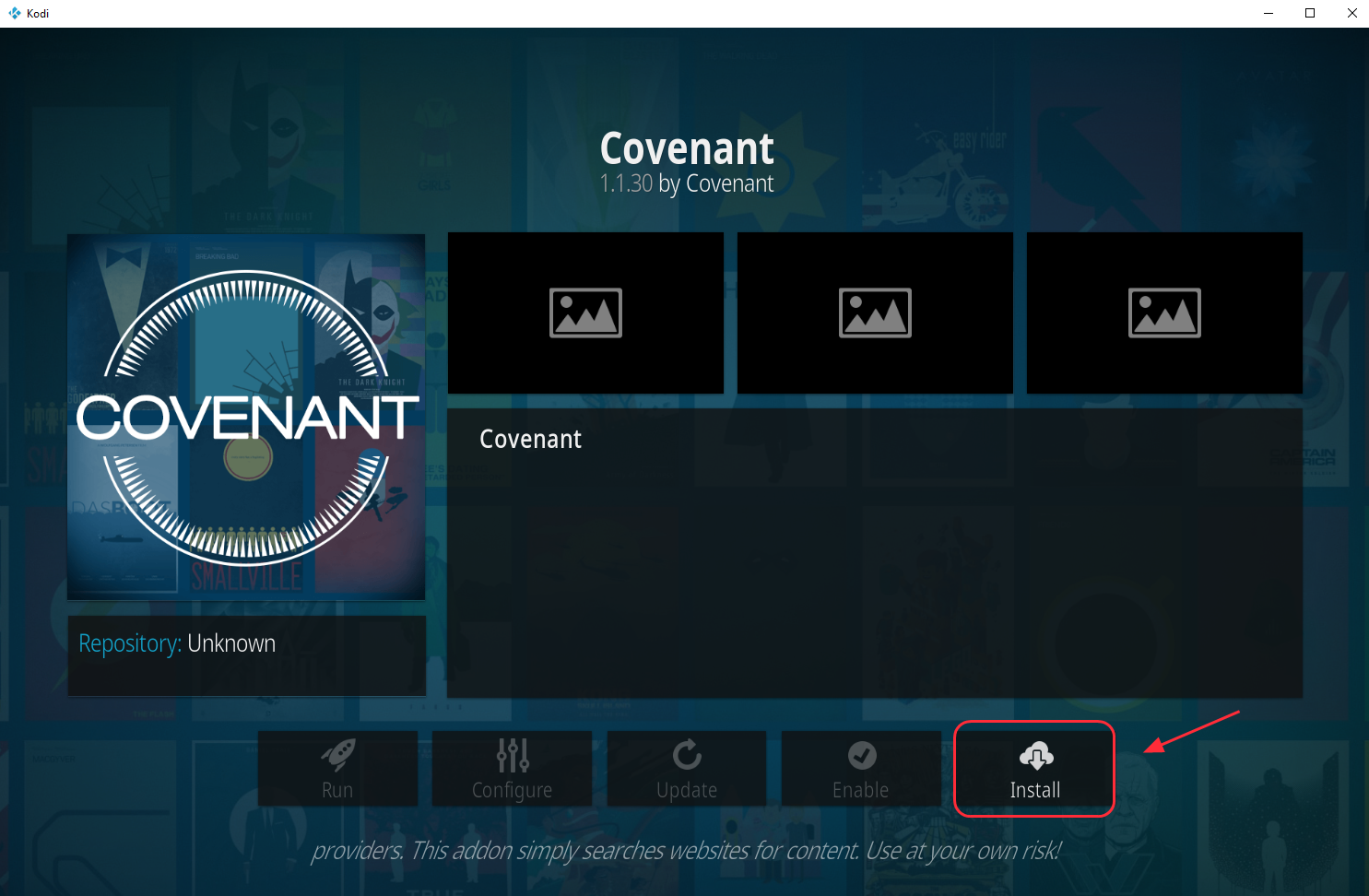
  • Click Install at the bottom right
install
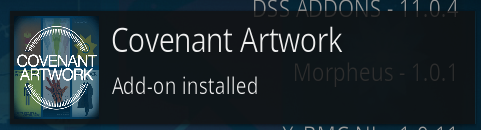
  • Wait for the Add-on installed notification. When you see the notification, it indicates covenant add-on is successfully installed
add on installed
  • Now go back to Kodi home page and click in the following order to enjoy Covenant- Add-ons-> Video add-ons -> Covenant

If you are not able to install covenant add-on through XvBMC repository, you can try the next installation method.

Method 3 – Install Covenant on Kodi through the Kodil repository

Kodil repository stores different add-ons that can be installed in Kodi player. Here are the steps to follow to install Covenant add-on through Kodil repository.

  • Open Kodi Player
  • Click the Settings(gear icon)
  • Click File Manager
file manager
  • Double click Add Source and then click None.
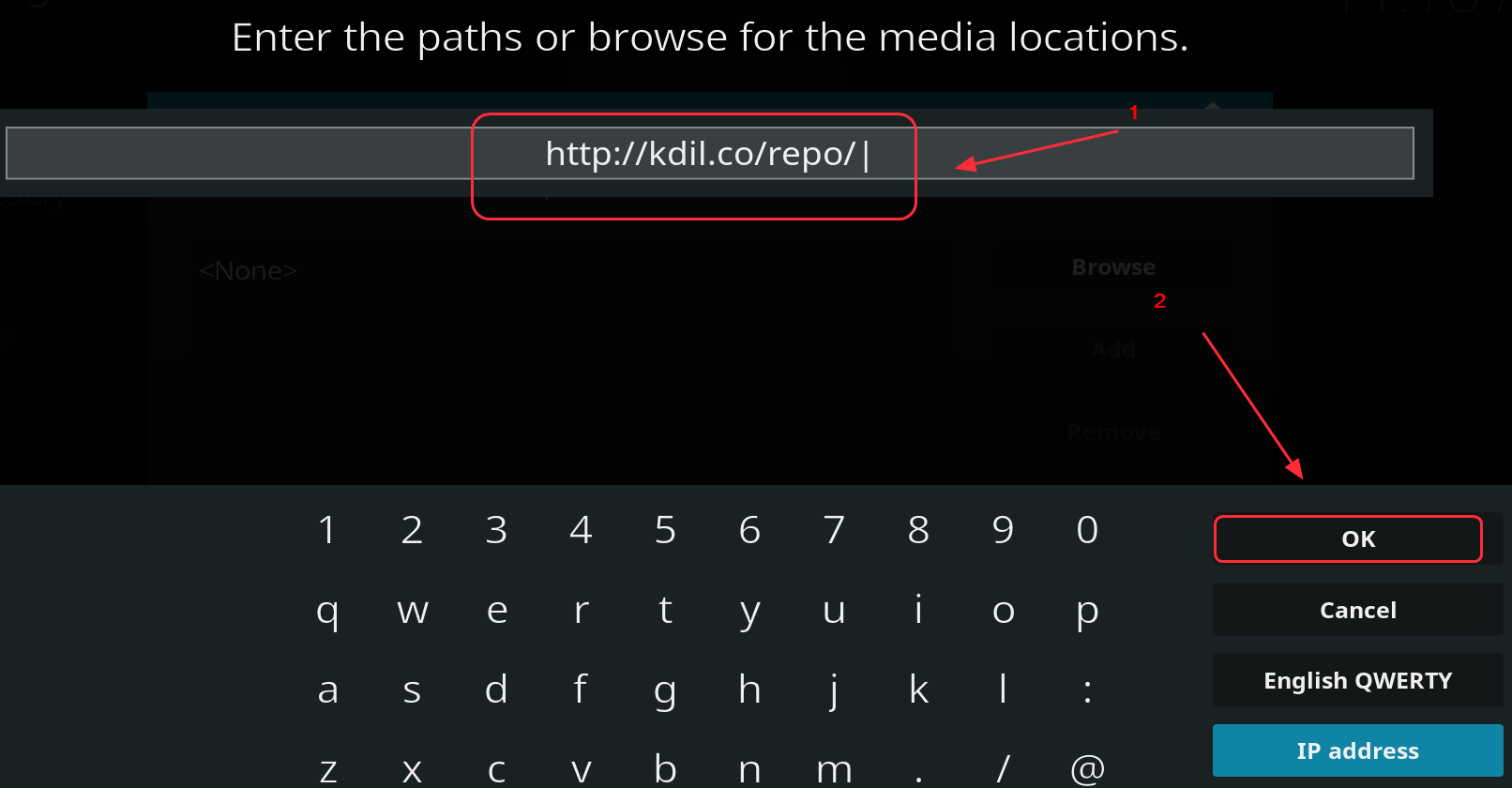
  • Type the following URL – http://kdil.co/repo/ and click OK. Alternatively, you can also paste the URL and click OK
kdil.co-repository
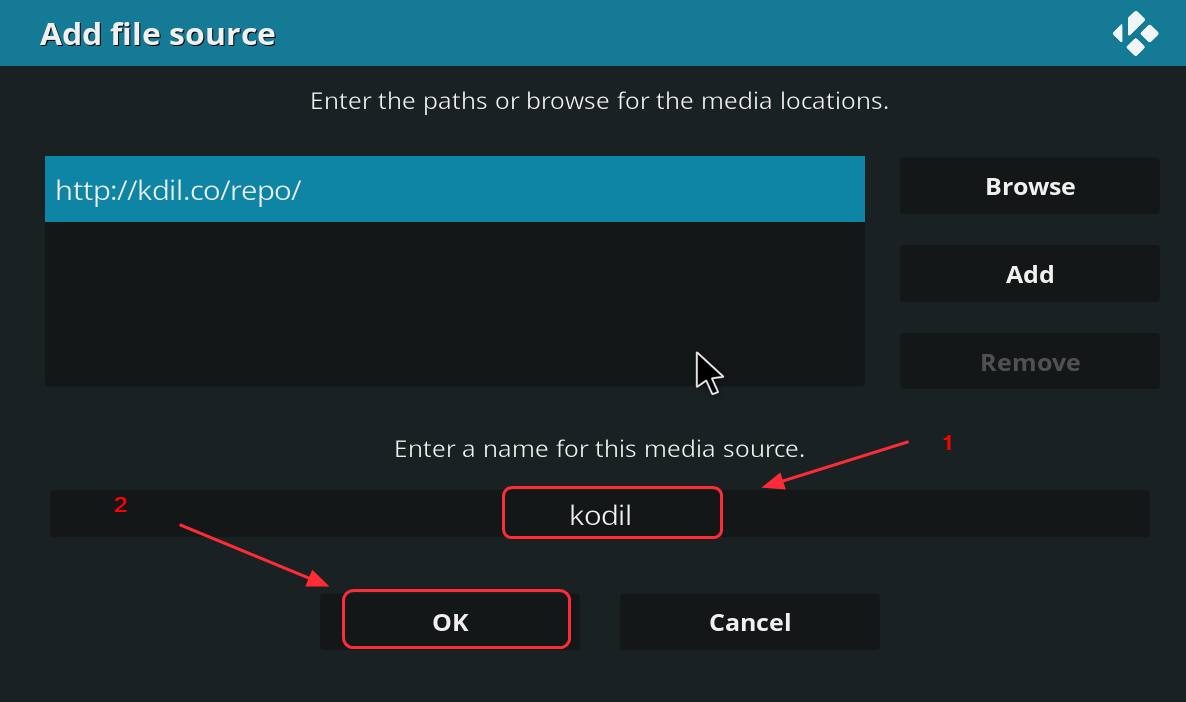
  • Type a relevant name for the source. I have typed kodil for easy identification. Click OK twice to save the source
http-kdil.co-repo
  • Press Esc until you go back to Kodi home page
  • On the Kodi home page, click Add-ons and then click Package icon on the upper left
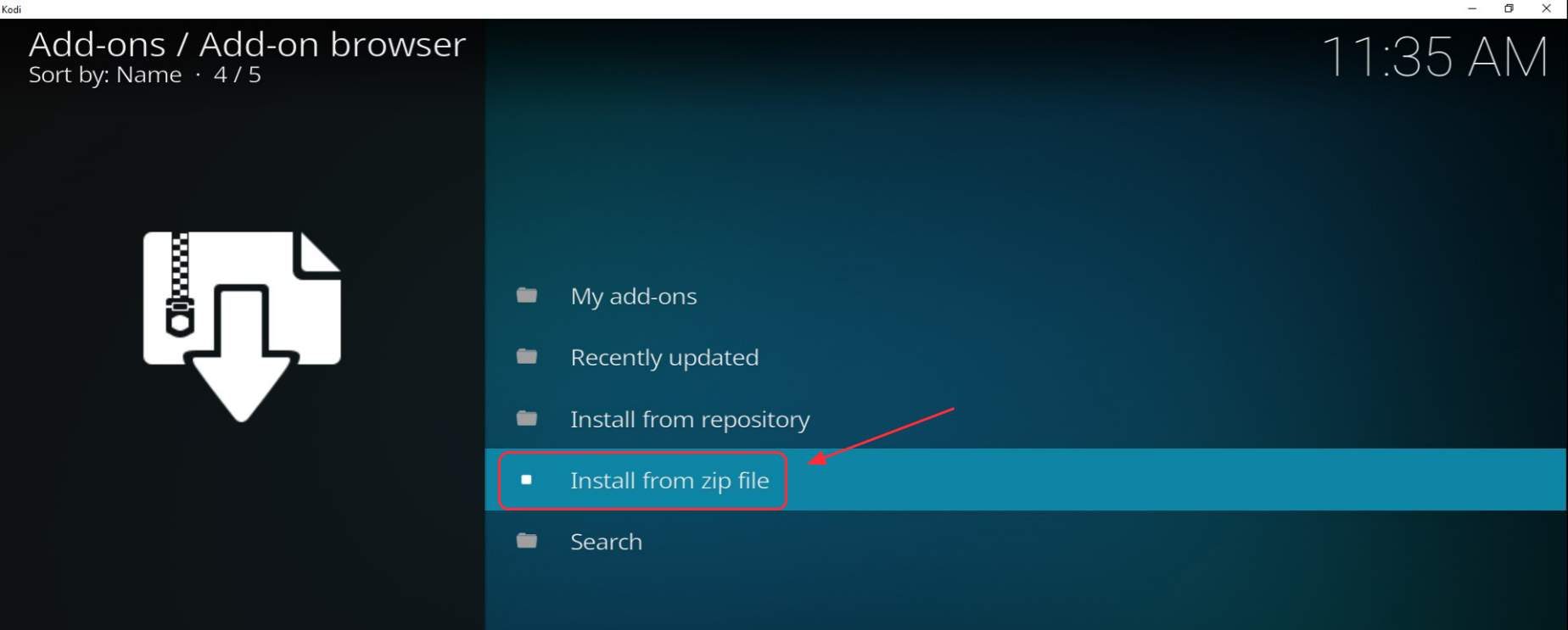
  • click Install from zip file
install from zip
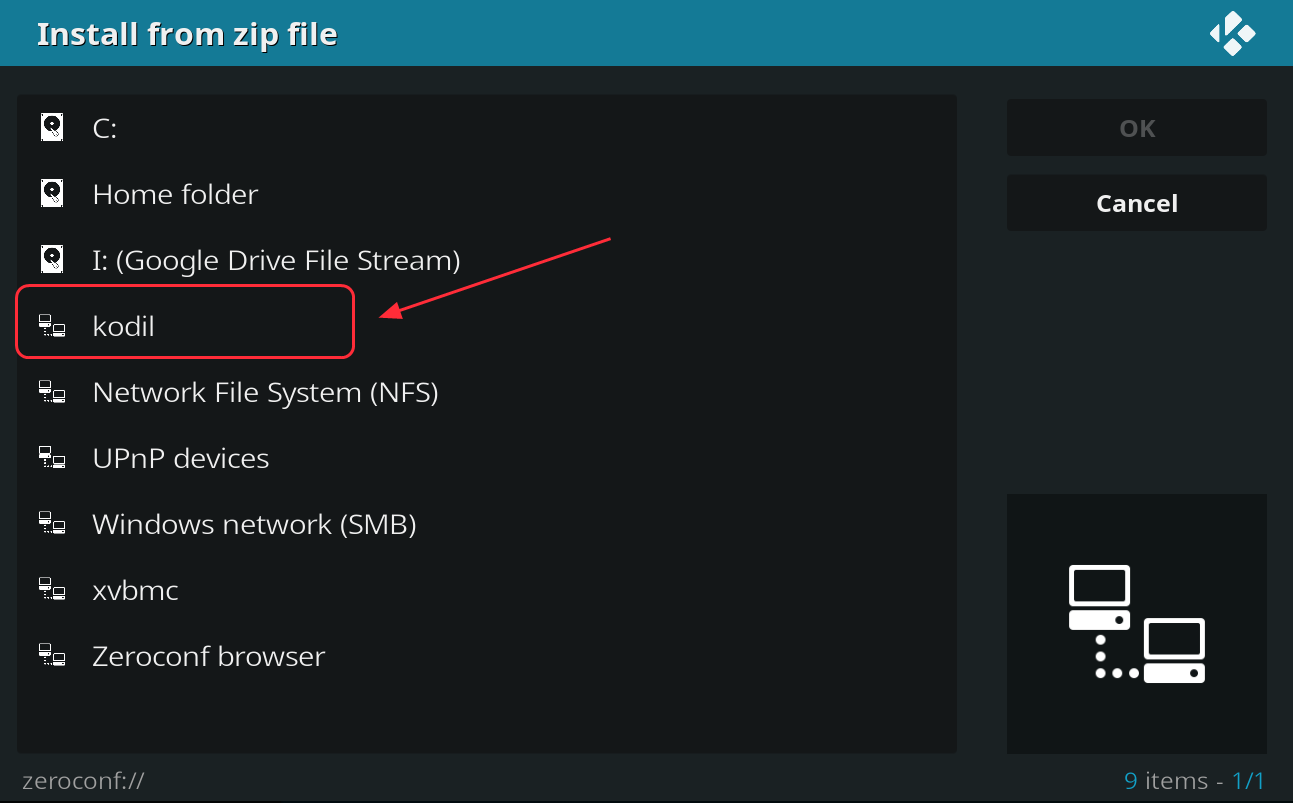
  • Select the source file you just saved, I have selected kodil
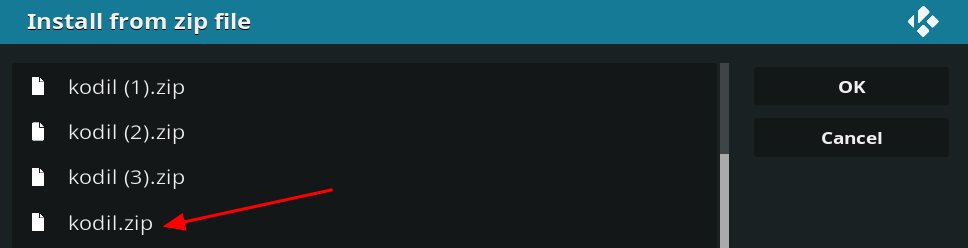
  • Click zip
kodil zip
  • Click OK
  • Wait for the add-on enabled notification
  • go to the Add-ons page and click Install from repository
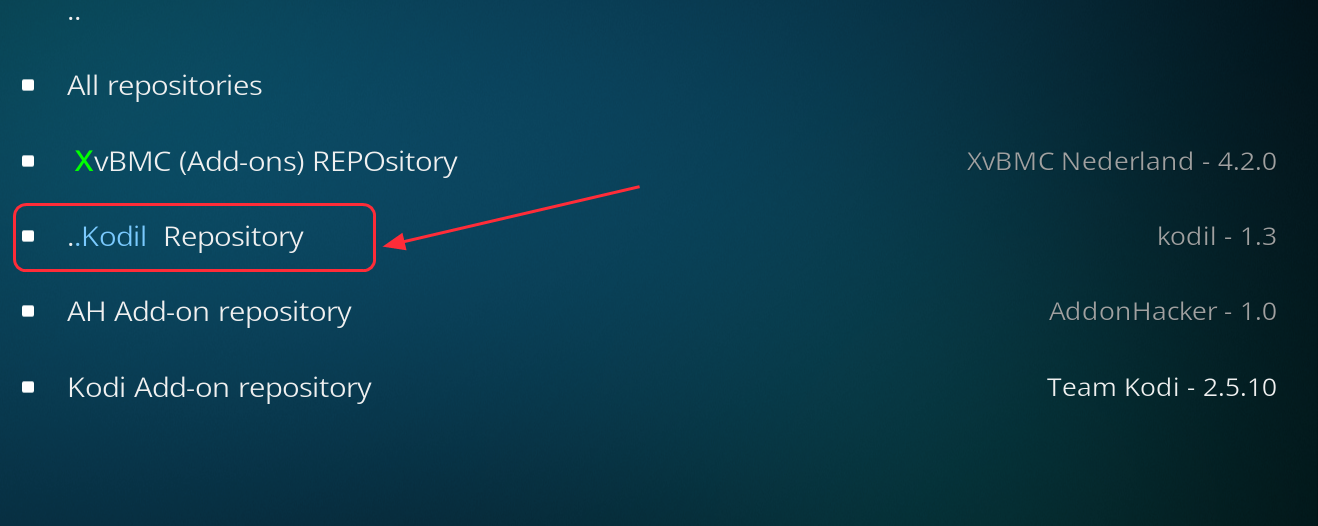
  • Click Kodil Repository
kodil repository
  • Click Video add-ons
video add-ons
  • Click Covenant from the list
Kodi repo covenant
  • Click Install at the bottom right
  • Wait for the Add-on installed notification. The notification indicates covenant add-on is successfully installed
  • Now go back to Kodi home page and click in the following order to access Covenant add-on library- Add-ons-> Video add-ons -> Covenant

Now that you have installed Covenant add-on, you need to also ensure you update it periodically. Here’s how to do it.

How to update Covenant add-on in Kodi player?

As with other add-ons, you need to update Covenant add-on to access the latest features and updated library. There are two ways to update covenant add-on in Kodi player: manually or automatically.

In this post, we have shown both methods of updating Covenant add-on in Kodi player. Here are the steps to follow.

  • Open Kodi
  • Click Add-ons
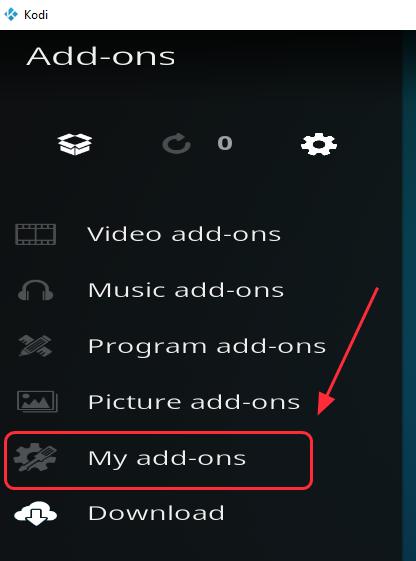
  • Click My add-ons
my add-ons
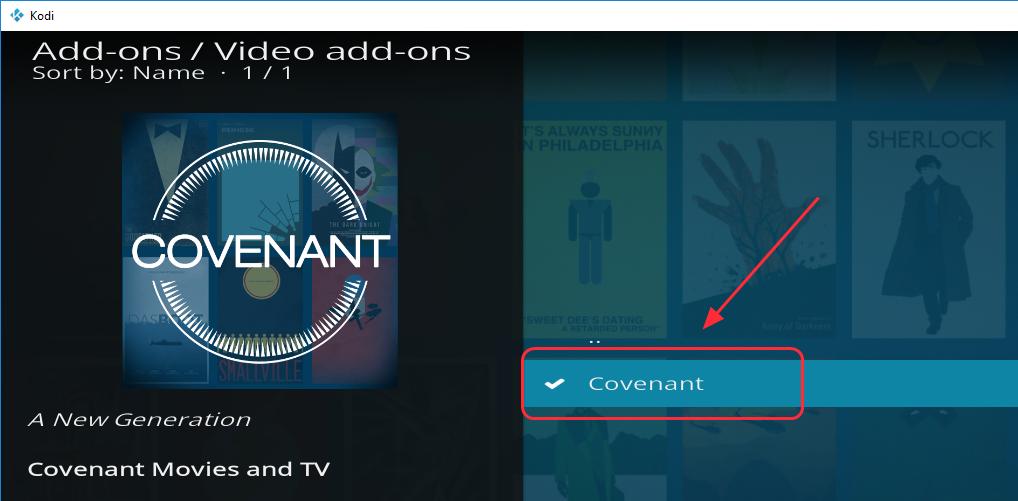
  • Click Video add-ons
  • Click the Covenant add-on.
select covenant
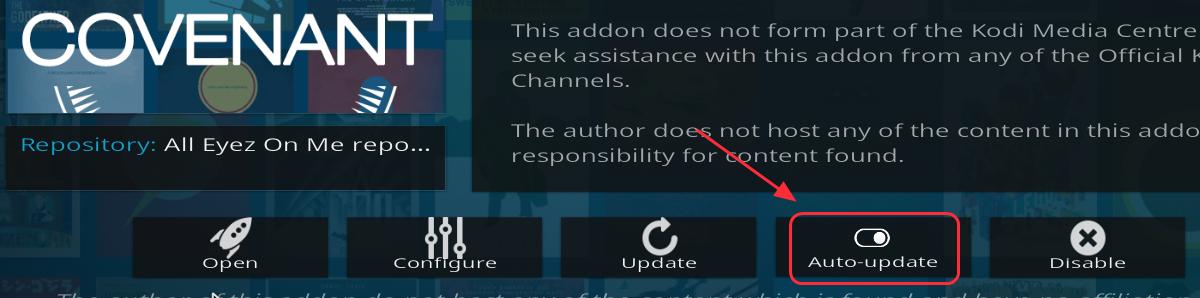
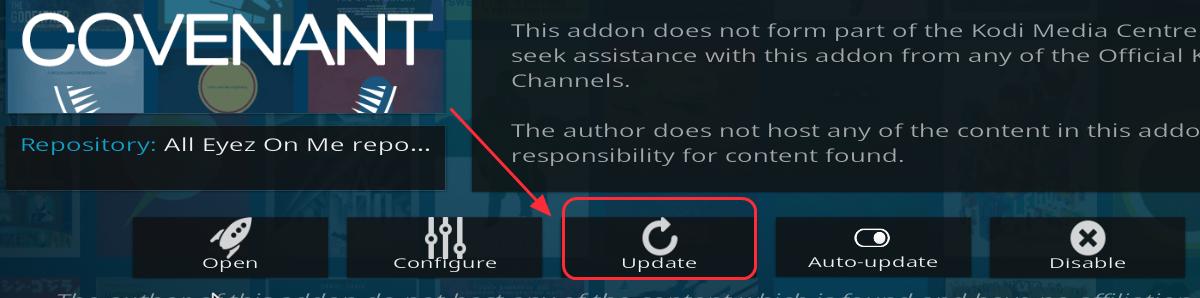
  • Find the menu list at the bottom.
  • To set up the covenant add-on to update automatically, click Auto-update toggle switch to On position
auto-update

Or

  • To update the covenant add-on manually, click Update
update

If you want to uninstall covenant add-on due to some reason, follow the instructions given below.

How to uninstall Covenant add-on from Kodi player?

  • Open Kodi
  • Click in the following order: Add-ons-> My add-ons -> Video add-ons ->Covenant add-on.
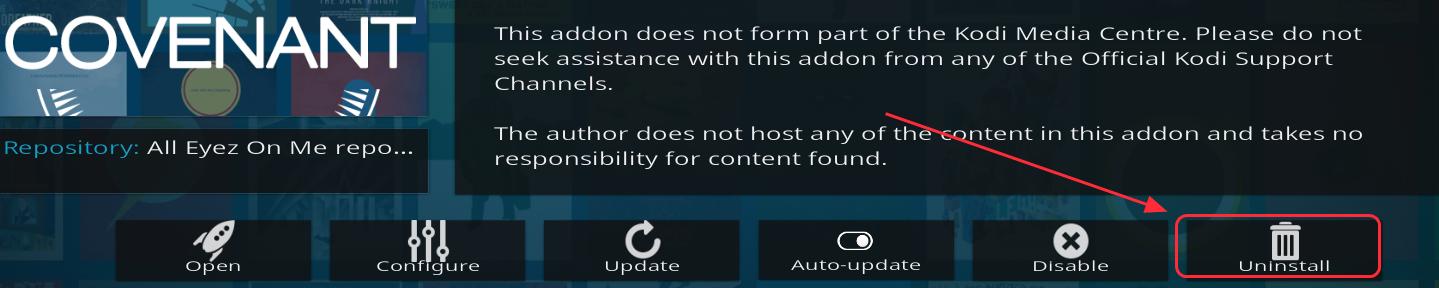
  • Find the menu list at the bottom and click Uninstall
uninstall

Follow the on-screen wizard instructions to remove Covenant add-on from Kodi player

Filed Under: Tech News Tagged With: Install Covenant add-on

  • « Previous Page
  • 1
  • …
  • 162
  • 163
  • 164
  • 165
  • 166
  • …
  • 189
  • Next Page »


  • Recent Posts
  • Popular Posts
        

Read More Posts


Read More Posts

Drivers.com Sites

  • Software Drivers
  • Drivers Ed

About Us

  • Advertise
  • About Drivers
  • Drivers Support
  • Drivers.com Privacy Policy
  • Disclaimer
  • Software Drivers
  • Mac Fixes and Tips
  • PC Fix Tips
  • Security/ Backup
  • Tablets & Smartphones
  • Tech News

© Copyright 2026 PDE Publications Ltd. End User License Agreement (EULA)