


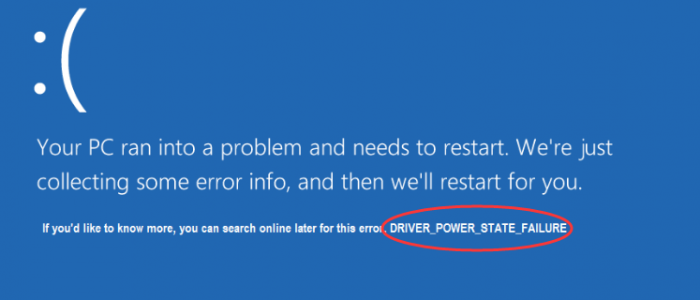

The Driver Power State failure is a Blue Screen of death error mainly caused by corrupt, incompatible or incorrect drivers for any hardware device that your computer might have. But there can be other reasons too including power settings.
If you are frequently getting this BSOD error, the solutions given in this post would help you resolve the error easily. We have provided three solutions to resolve the Driver Power State failure error. You need not try all solutions given in this post.
Start with the first solution and move on to the next one and so on, until the issue gets fixed. You need to be logged in Windows to try the solutions. If your system crashes frequently due to this error or you are not able to boot normally, we suggest you log your computer in Safe Mode and then perform the troubleshooting steps. Let’s get started.
Solution One- Change Power Settings
As mentioned above, power settings could be the reasons behind the Driver Power State failure BSOD error. To ensure power settings are not causing any problem, you need to make some changes to the power settings. Here are the steps to follow.
- Press Windows logo key and R simultaneously on the keyboard to invoke Run command
- In Run command box, type control panel and click OK
- In the Settings window, click Power Options
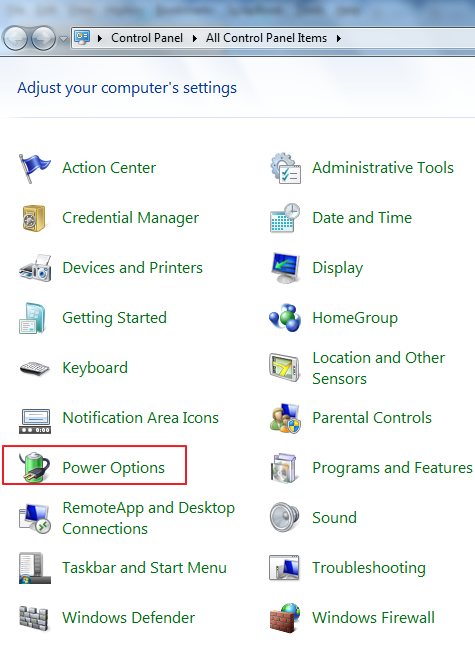
- Ensure balanced (recommended) option is selected then click Change plan settings next to it
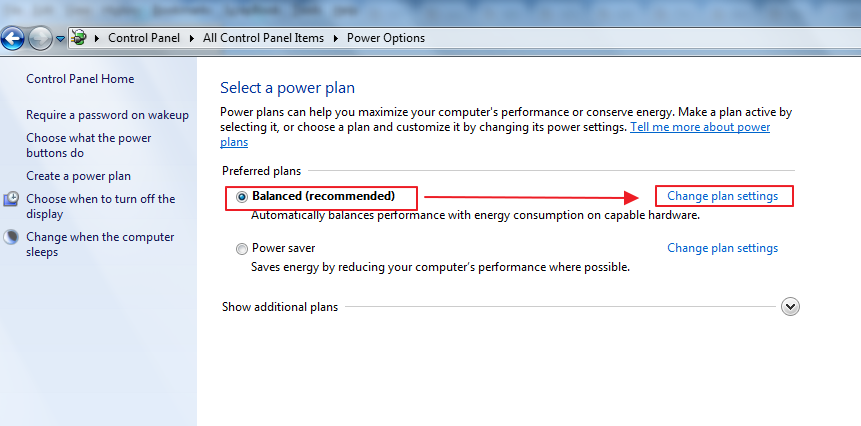
- Click Change advanced power settings

- In Power Options window, go to Wireless Adapter Settings -> Power Saving Mode and change the setting to Maximum Performance
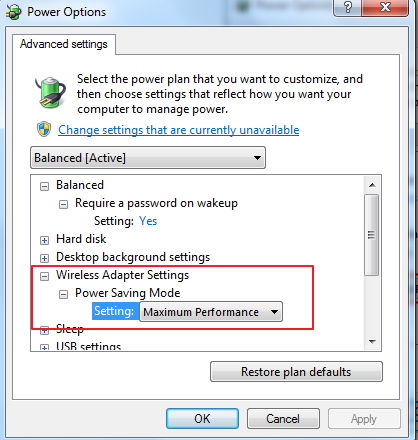
- Scroll down and expand PCI Express -> Link State Power Management and change the setting to Maximum Performance
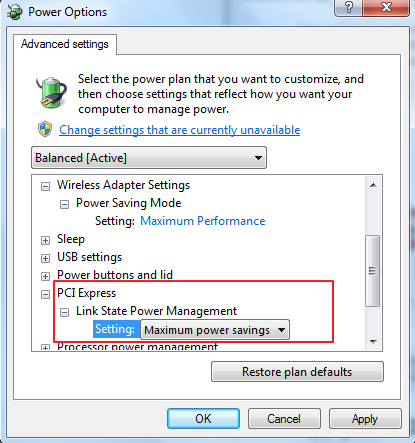
- Click Apply and then OK
- Reboot your computer and see if you get the driver power state failure error.
If the error persists, try next solution.
Solution Two- uninstall problematic drivers
You need to access the Device Manager to know about problematic drivers. The problematic drivers are marked by a yellow exclamation mark. You need to update drivers for problematic devices. Here are the steps to follow.
- Press Windows logo key and R simultaneously on the keyboard to bring up the Run command
- In Run command box, type devmgmt.msc panel and click OK
- In the Device Manager window, expand categories and look for devices with a yellow exclamation mark
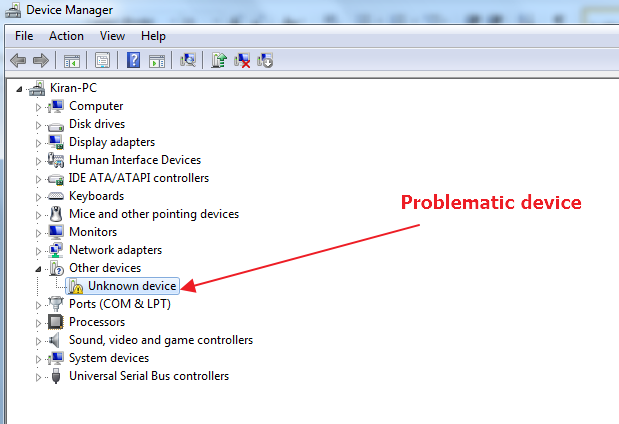
- Right-click problematic device and click Update driver software

- In the next window, click Search automatically for updated driver software
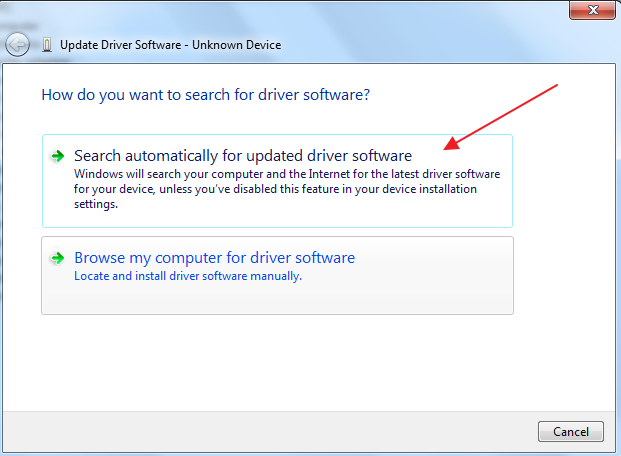
- Wait for some time till Windows searches driver update on the Internet. if Windows finds driver update, it will install the driver update automatically
- if you get a message which says “Windows could not find driver software for your device”, close device manager window and move on Solution 3

Solution 3 – Update Drivers
You can update drivers manually or automatically. The first method is time-consuming and not always 100% correct.
On the other hand, when you update drives automatically using a top-rated drivers update tool, all your outdated drivers are updated quickly and easily. Chances of installing an incompatible or old driver are practically non-existent.
We recommend you to use a Driver Update Tool. It is fast, accurate and easy to use. You can install and get a driver report for free. However, to get automatic driver updates, you would need to register the driver software.
Updating Drivers Automatically
Automatic driver update tools offer many benefits, the most important ones being:
- You can update device drivers automatically
- The software scans and updates all outdated or missing drivers at one go
- The tool picks the right drivers for your device and operating system, so you won’t have to worry about installing an incorrect driver by mistake
- Automatic driver updates are 100% safe
Driver Updater is one of the best driver update tools out there. Outbyte Driver Updater will give you access to a database of over 1 million drivers. It will regularly scan your PC, suggesting new driver versions to install. Driver Updater contains drivers for a variety of Windows devices. With just one click, you can update drivers in your system.
Step 1
Click here to Install and launch the app
Step 2
Scan all devices
Step 3
Install or update drivers automatically
Leave a Reply