Drivers.com

follow us:

facebook twitter
  • Home
  • Download Drivers
  • Drivers Help
  • PC/Mac Resources
  • Software Drivers
  • Mac Fixes and Tips
  • PC Fix Tips
  • Security/ Backup
  • Tablets & Smartphones
  • Tech News
  • Software Drivers
  • Mac Fixes and Tips
  • PC Fix Tips
  • Security/ Backup
  • Tablets & Smartphones
  • Tech News

How to Connect an Xbox One Controller with Console When It’s Not Syncing?

By Susan C on June 21, 2018

How to Connect an Xbox One Controller with Console When It’s Not Syncing?

Many Xbox users aren’t sure about how to connect Xbox One Controller when the console is not syncing. Unless the Xbox One Controller is connected to console, you cannot play games. While this issue is annoying, you can fix it easily—and we will show you how to do that.

In this post, we’ll discuss several solutions. The solutions given here have helped many users fix the Xbox One Controller not connecting issue. You don’t need to try all solutions given below. Start from the first solution and work your way downwards until the issue gets fixed. Let’s get started.
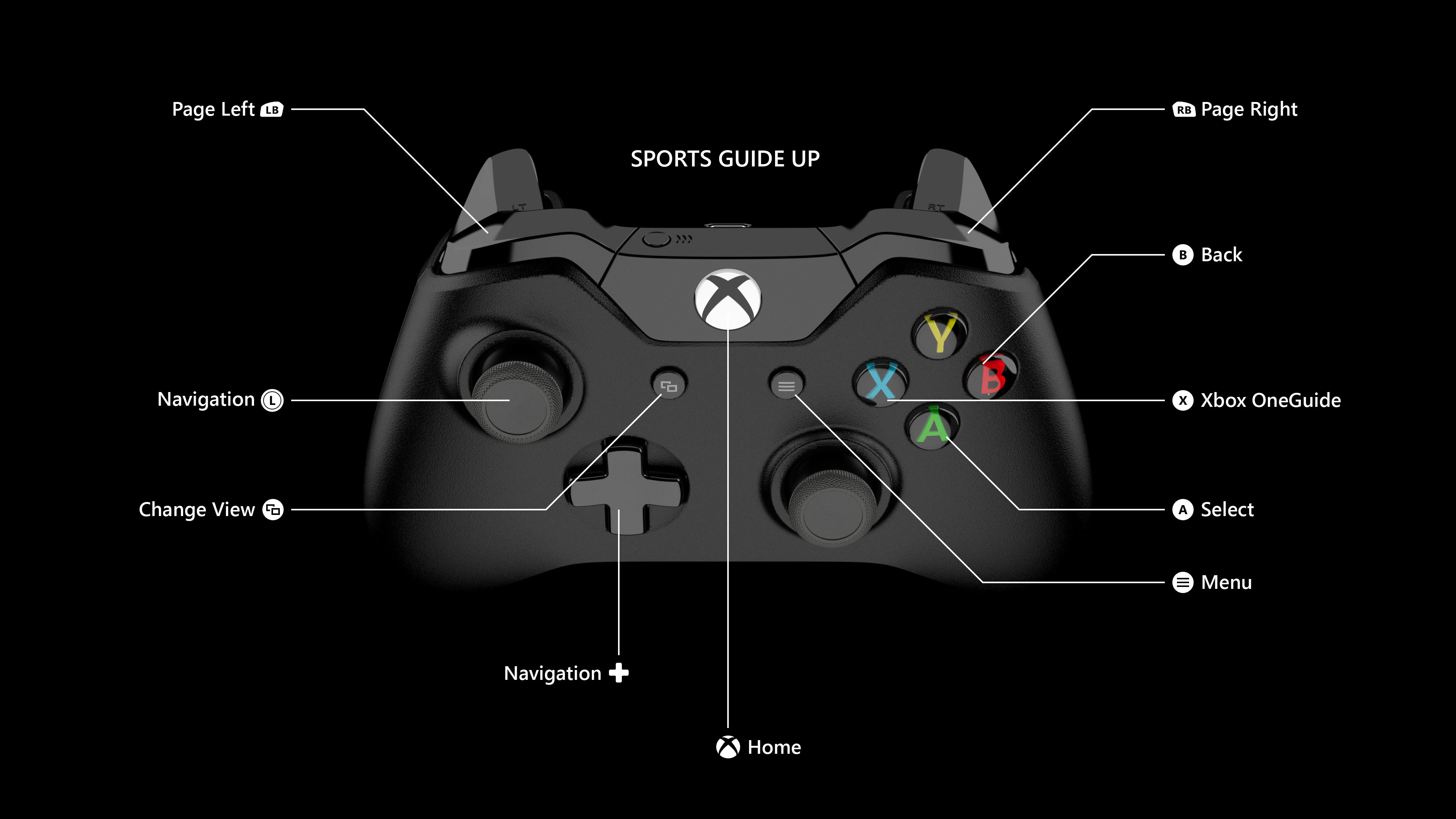
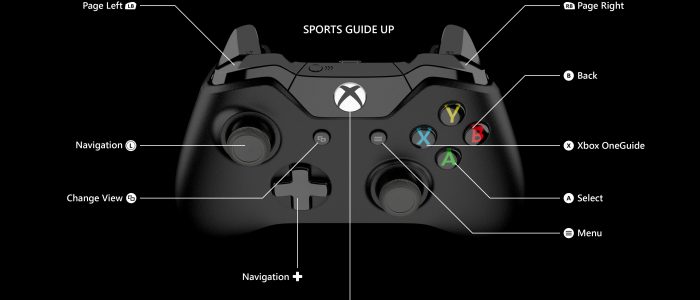
controller buttons

Solution One – Check the status of Xbox One Controller

You need to ensure the basic conditions needed to connect the Xbox One Controller to console are fulfilled. Here are some things to watch for:

  • The Xbox controller should be on to establish connection with the console. The power saving feature in Xbox One Controller switches off the device automatically after 15 minutes of inactivity. Check the power lights on controller and see if they are on.
  • The Xbox One Controller connects wirelessly with the console and it should be close enough for detection. The range for Xbox One Controller is around 19-28 ft. The range may get reduced due to interferences or if the Xbox One Controller unit is in the cabinet. Make sure the Xbox One Controller in in front of console when establishing the connection.
  • Check the space between Xbox One Controller and console for things that might interfere with the wireless connection. For example, laptops, microwave oven, wireless routers, cordless phones, shelves, doors, metal dividers, and so on. If you find anything mentioned above, remove them.
  • Check the battery status on the Xbox One Controller. If the batteries are low, the controller might get switched on but won’t connect to the console. Replace the batteries and try connecting to console again.

If you are not able to connect the controller to console even after basic conditions to connect the Xbox One Controller and console are fulfilled, try solutions given below.

Solution Two- Restart the Xbox console

Sometimes there is no reason behind the connecting issue between Xbox One Controller and console and simply restarting the Xbox resolves the issue.

Here are the steps to follow

Press the Xbox button to open the guide and then select System -> Settings -> Power & startup ->Turn off or restart -> Restart now.

Solution Three- Power Recycle your Xbox console

Since restarting Xbox console has not worked for you, can try power recycling the Xbox  console which has helped many users to resolve the connecting issue. Here are the steps to follow.

  • Press and hold the power button on the front of the console for 10 seconds until the device shuts down.
  • Press the power button to turn on the console
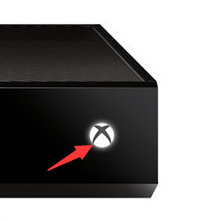
power cycle console
  • Check if the Xbox One Controller is able to connect with the console

If the connection issue still persists, try next solution.

Solution Four- Re-sync your Xbox One Controller

 Some users were able to resolve the connection issue by re-syncing the Xbox One Controller.

Here are the steps to follow

  • Press the connect button on your console

Note – On the Xbox S, the connect button is in the form of small circular button located at the front of the console. On other versions of Xbox, the connect button is located on the side around the corner from the disc tray
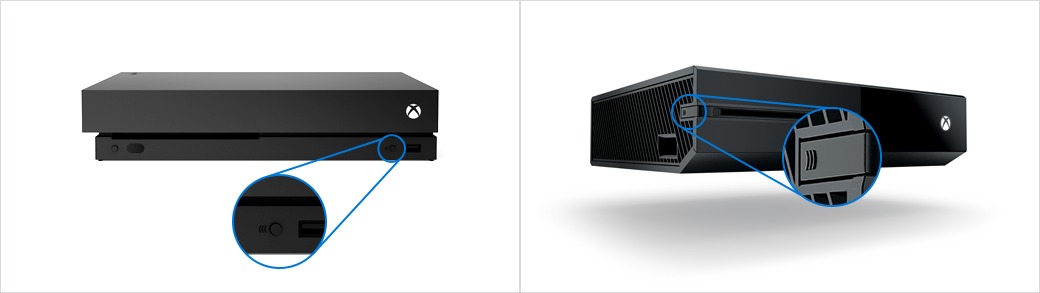
xbox connect button
  • Now press and hold the connect button on the back of the Xbox One Controller till the Xbox button flashes. Release the connect button when you see Xbox button light stabilizes to a solid light (no flashing). It means the Xbox One Controller has been re-synced.
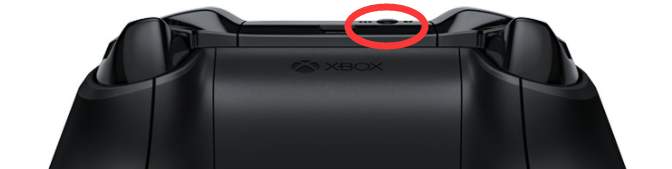
controller re-sync

If this method did not work for you, try the next solution.

Solution Five- Update Xbox One Controller software

The connecting issue may also occur if the controller software is outdated. Updating controller software is the solution to resolve the connection issue. Here are the steps to follow.

  • Connect Xbox One Controller to console with a USB cable
  • Sign into Xbox live
  • On your controller, press Menu button and then select Settings
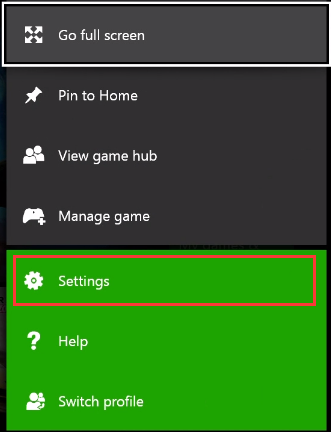
settings
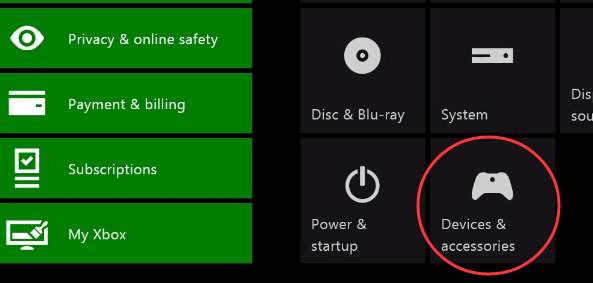
  • Next select Devices & accessories
device & acessories
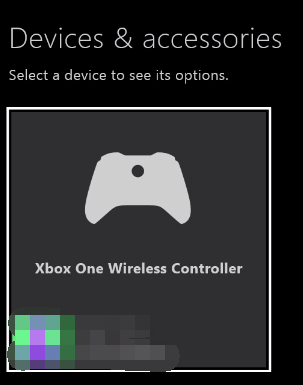
  • Select your Xbox One Controller
select controller
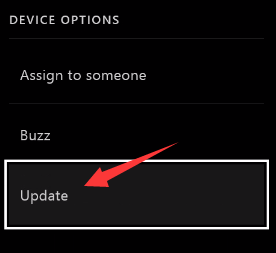
  • Select Update
update
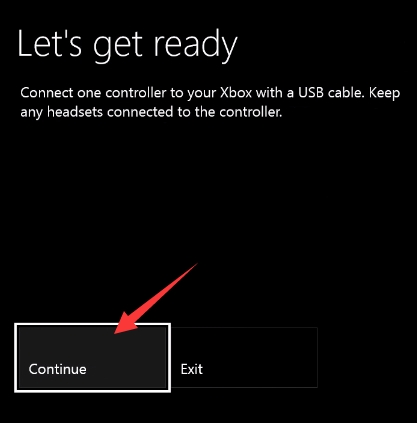
  • Select Continue
click continue
  • Wait for the updating process to complete. Try to connect the Xbox One Controller to console to see if the connection issue is resolved.
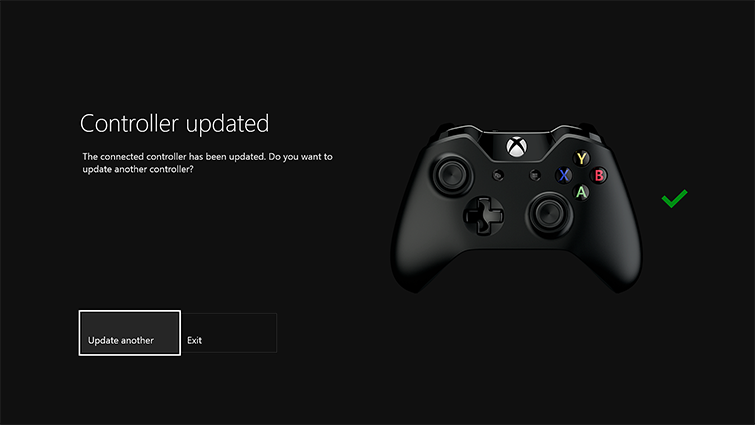
controller updated

In most cases, you should be able to connect the Xbox one controller to the console.
Filed Under: PC Fix Tips Tagged With: Xbox issues

DNS Probe finished bad config error

By Susan C on June 13, 2018

DNS Probe finished bad config error
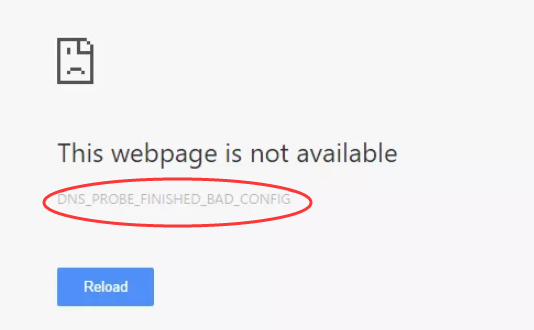
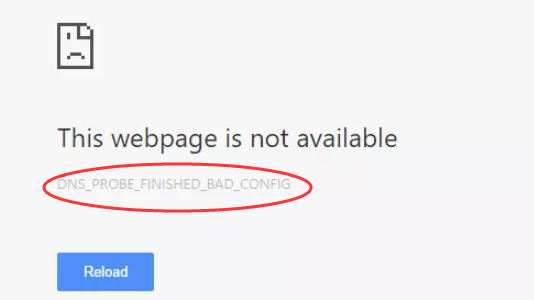
error image

The DNS Probe finished bad config error is a common Internet-related error in Google Chrome. The error occurs when there is a problem with the default DNS server that is being used by your computer.

As you might know, the DNS server plays the important role of converting human-readable hostnames into machine-readable IP addresses. If the DNS server is not functioning properly, you cannot surf the Internet.

If you are getting DNS Probe finished bad config error, there is nothing to worry about as it can be easily fixed. We have provided some simple solutions which have helped many users resolve the DNS related error successfully. Let’s get started.

Solution One – Release & Renew IP Address

Windows stores the IP addresses of web servers that contain pages you recently viewed.  If the IP address of the web server changes before Windows updates its DNS cache, you can no longer view the webpage or may not be able to access website too.

This can be one of the reasons behind DNS Probe finished bad config error. The simple solution to this problem is flush the DNS cache that will force the Windows operating system to rebuild its DNS cache. Here are the steps to follow.

  • Press Windows logo key and R simultaneously on the keyboard to invoke run command console
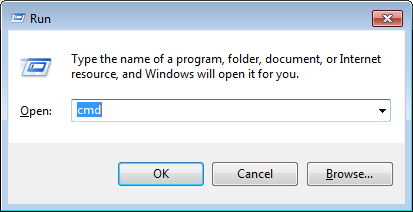
  • Type cmd in the run command box and click OK
cmd
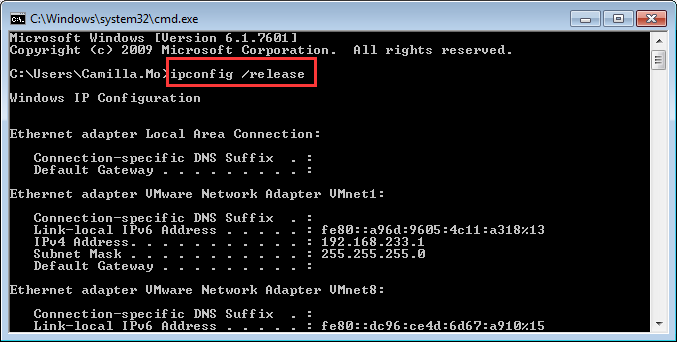
  • In the command prompt window, type ipconfig /release and hit Enter on the keyboard
ipconfig release
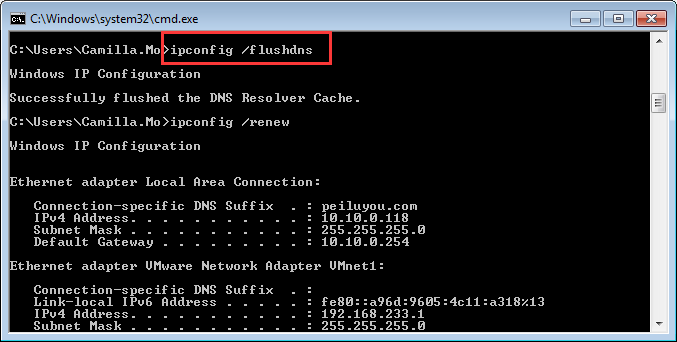
  • Next type ipconfig /flushdns and press Enter on the keyboard
flushdns
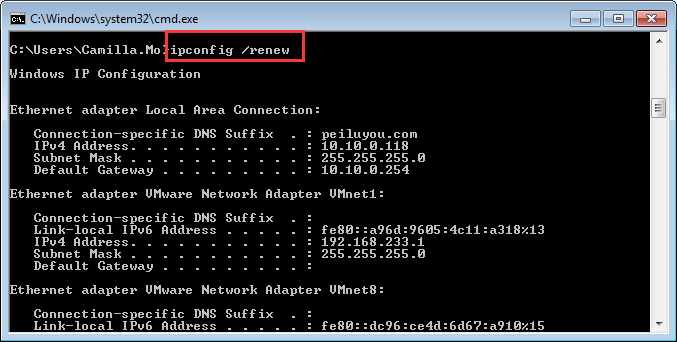
  • Then type ipconfig /renew and press Enter on the keyboard
ipconfig renew
  • After you have completed the above actions, close the command prompt window. Open Chrome browser and try accessing any website.

If you are still getting DNS Probe finished bad config error, try next solution

Solution Two – Change DNS Server Settings

When you connect to the Internet, your ISP provider assigns a DNS server to your computer. There is a possibility the DNS server of the ISP is experiencing some problems which is resulting in DNS Probe finished bad config error on your end.  The simple solution to this problem is changing DNS server settings. Here are the steps to follow.

  • Press Windows logo key and R simultaneously on the keyboard to bring up the Run command console
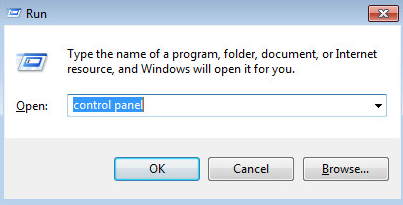
  • Type control panel in the run command box and click OK
control panel
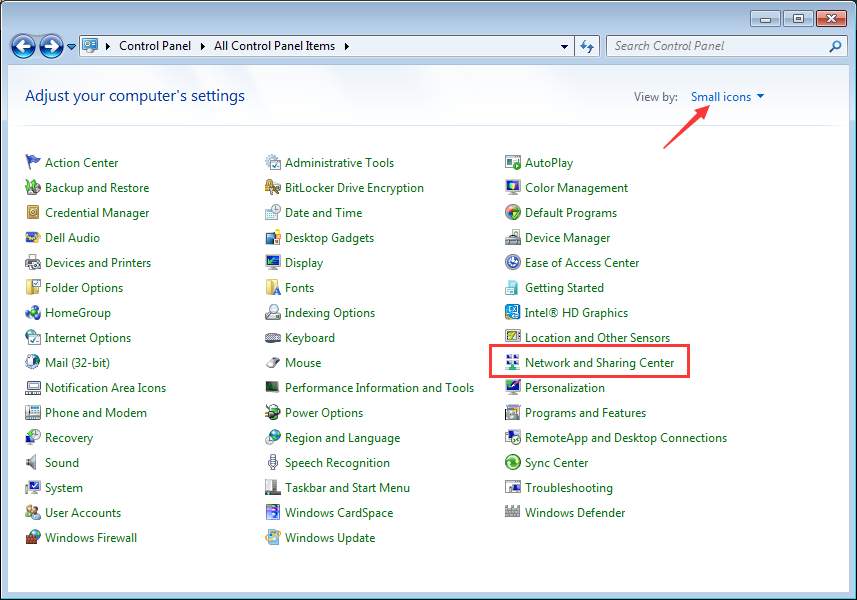
  • In the Control Panel window, set the view – By small icons and click Network and Sharing Center
network and sharing
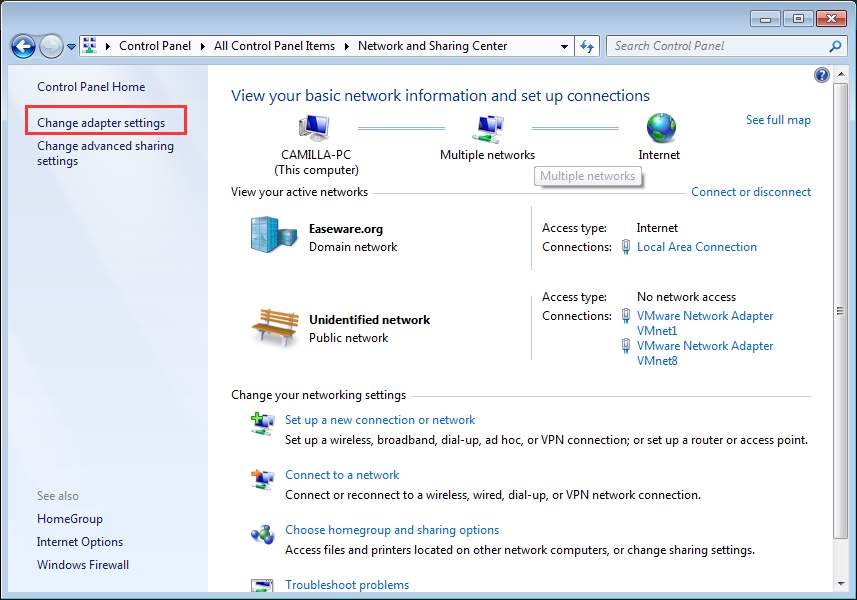
  • In the next window, click Change adapter settings in the left pane
adapter settings
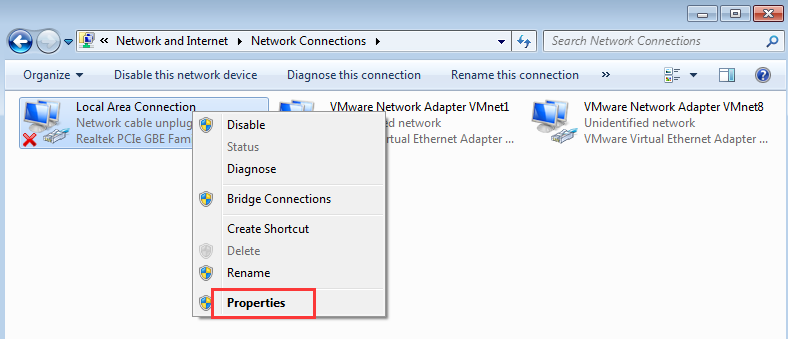
  • Right-click on problem network( with Red X mark or yellow ! mark) and click Properties
properties
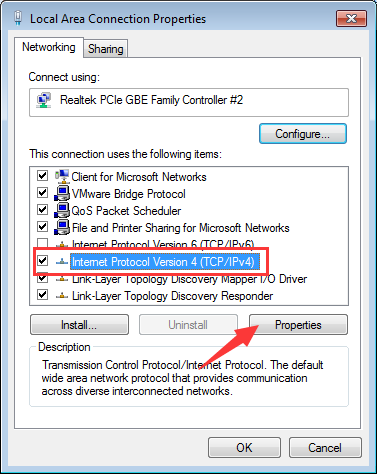
  • In the Local Area connection properties window, go to Networking tab
  • Highlight the Internet Protocol Version 4 (TCP/IPv4) and then click Properties
dpfb - IPv4 properties
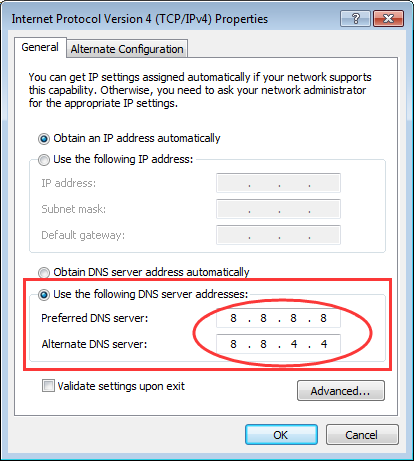
  • In the next window, click Use the following DNS server addresses option and enter following DNS server addresses.
use dns addresses
  • Preferred DNS server: 8.8.8
  • Alternate DNS Server: 8.4.4

(Note- these are Google public DNS server addresses)

  • After you have entered the DNS server addresses, click OK
  • Open chrome browser and try accessing any website. If you are still not able to access the Internet, you need to change the DNS server addresses again by following steps given above
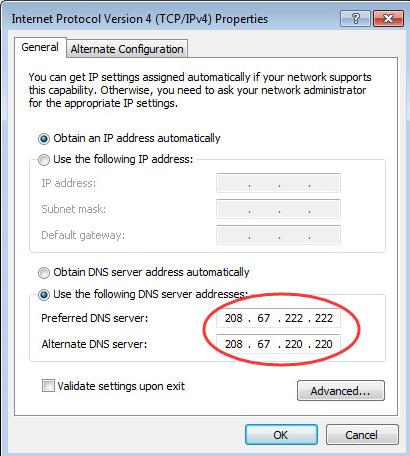
  • This time try the DNS server addresses given below
use dns addresses
  • Preferred DNS. server: 67.222.222
  • Alternate DNS Server: 67.220.220

In most cases, the DNS Probe finished bad config error should be resolved. Don’t forget to mention which solution worked for you in the comments.

Filed Under: PC Fix Tips Tagged With: dns error

USB device not Recognized error in Windows 10

By Susan C on June 13, 2018

USB device not Recognized error in Windows 10

Windows 10 is designed to support various USB PC accessories like portable hard drives, thumb drives, USB mouse and keyboard, camera, phone, printer, and many devices at once. Modern laptops and desktops have 3-4 USB ports to support these devices.

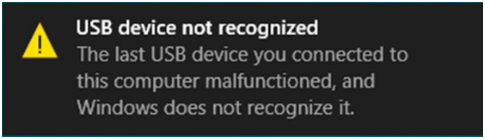
Most of the times you are able to connect USB devices successfully to your Windows 10 computer but sometimes your computer stops recognizing USB devices that you have connected earlier and you see an error that says “USB device not recognized”.

error image

If you are getting this error, there is nothing to worry about as it can be easily resolved. We have provided some simple solutions that would fix the “USB device not recognized” error and help you connect USB device successfully as earlier.  Let’s get started.

Solution One – Restart Computer

This is the simplest solution you need to try first and if it works, you will save a lot of time. All you need to do is unplug the USB device from the port and restart the computer. After the Windows operating system is loaded and everything is running normally, plug the USB device again and see if it is recognized this time.

If you still get “USB device not recognized” error, try different USB port on your computer and see if the issue is resolved.  If none of your attempts yield success, try next solution.

Solution Two – Try another computer

There is a possibility that USB device is non-functional. You can check this by connecting the USB device to another computer. If you get “USB device not recognized” error on another computer as well, you can conclude the fault lies in the USB device

If the USB device is recognized in another computer, you can conclude the problem lies in your computer. Then, you need to try the solutions given below one after another until the USB issue is resolved.

Solution Three – Unplug other USB devices

If there are too many USB devices connected to your computer, Windows might not be able to recognize the new USB device plugged in due to conflicts, resulting in “USB device not recognized” error. To resolve this problem, unplug other USB devices and then plug in the USB device which was not getting recognized.

If the USB device is recognized, the problem is solved. If you still get “USB device not recognized” error, try next solution.

Solution Four- Make changes to the Power Management setting for the USB Root Hub

Windows has Power Management feature that allows making incremental power savings to help the battery last longer. If your computer has been set to save power, Windows will shut down to USB Root hub that could lead to errors like “USB device not recognized”.

You need to make changes to the Power Management setting for the USB Root hub to resolve the “USB device not recognized” error. Here are the steps to follow.

  • Press Windows logo and R key simultaneously to bring up the Run command console
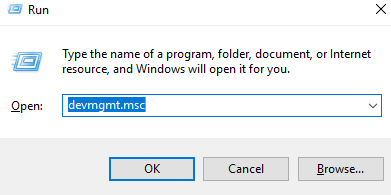
  • In the Run command box, type devmgmt.msc and click OK
devmgmt
  • In the Device Manager window, go to Universal Bus Controllers category and double-click on it to expand the category
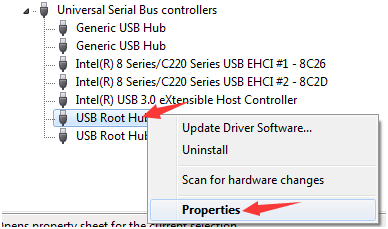
  • Right-click USB Root Hub option and click Properties.
properties
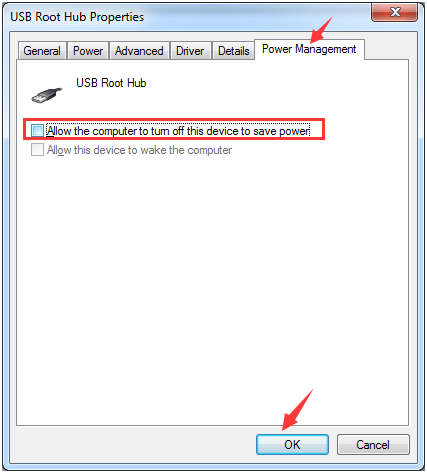
  • In the USB Root Hub properties window, click Power Management tab and uncheck the Allow the computer to turn off this device to save power option
turn off device
  • Click OK
  • Repeat the above three steps for every USB Root Hub entry in the list
  • Close the Device Manager window

Try connecting a USB device to any port. If the USB device is recognized, the problem is resolved. If you still get the USB device not recognized error, move to next solution.

Solution Five – Update Drivers

You might get this error if you have outdated or corrupt device drivers on your computer. To resolve the issue you would need to update your device drivers. The easiest way to update device drivers is by using a reliable driver update tool.

Automatic driver update tools offer many benefits, the most important ones being:

  • You can update device drivers automatically
  • The software scans and updates all outdated or missing drivers at one go
  • The tool picks the right drivers for your device and operating system, so you won’t have to worry about installing an incorrect driver by mistake
  • Automatic driver updates are 100% safe

Driver Updater is one of the best driver update tools out there. Outbyte Driver Updater will give you access to a database of over 1 million drivers. It will regularly scan your PC, suggesting new driver versions to install. Driver Updater contains drivers for a variety of Windows devices. With just one click, you can update drivers in your system.

Step 1
Click here to Install and launch the app

Step 2
Scan all devices

Step 3
Install or update drivers automatically


Start Download


Solution Six – Make changes to the USB Selective Suspend Settings

The USB Selective Suspend feature is a power saving option in Windows that stops power supply to selected USB port in an idle state without affecting other USB operations and USB ports. This power saving feature might be the reason behind the USB device not recognized error.

The simple solution to this issue is making changes to the USB Selective Suspend settings. Here are the steps to follow.

  • Go to Start and type control in Cortana search box
  • Select Control Panel from the list of results
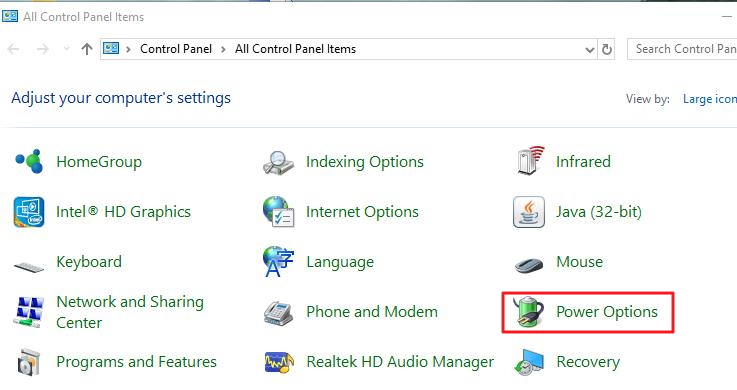
  • On control panel window, select Power Options
power options
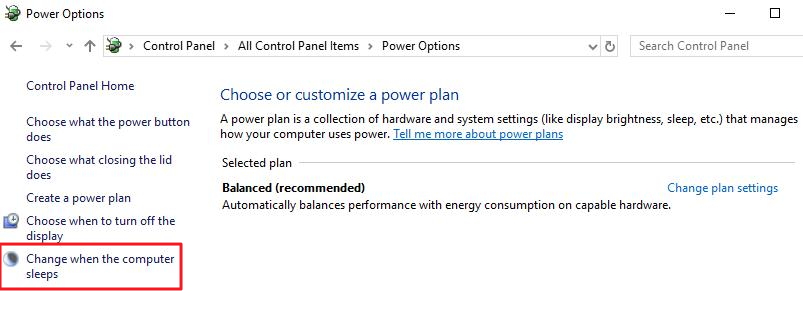
  • In the next window, select Change when the computer sleeps  that appears in the left pane
change computer sleeps
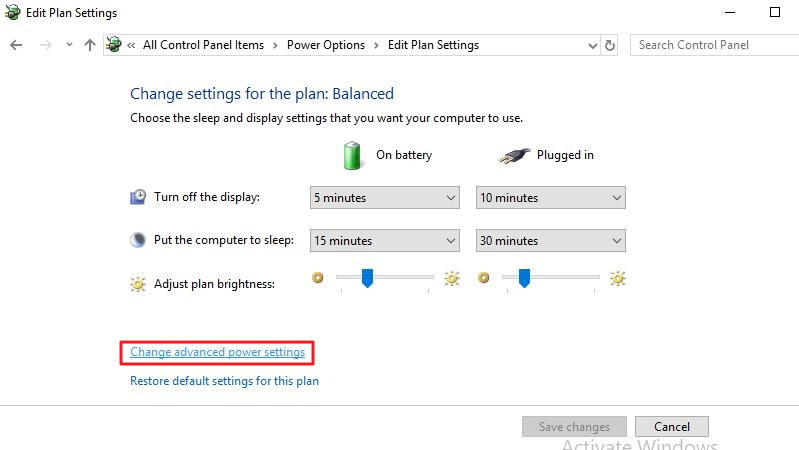
  • Click Change advanced power settings
advanced power settings
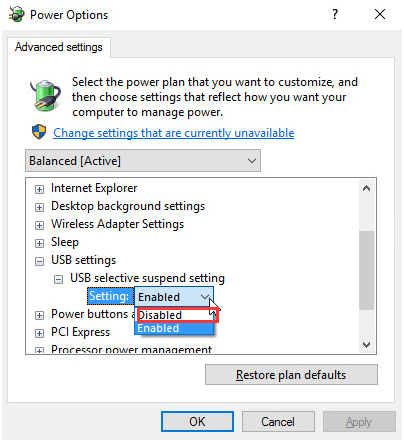
  • Find USB settings and expand it
  • <insert udnr – usb selective suspend>
  • Expand USB selective suspend setting and disable On Battery and Plugged in options
disabled
  • Click Apply and then click OK
  • Close all settings windows and restart your computer

Try connecting USB device to any USB port and see if the USB not recognized issue is resolved. If you are still getting the error, try next solution.

Solution Seven- Disable Fast Startup

The Fast Startup option in Windows is designed to speed up booting and save time. When Fast Startup is enabled Windows does not shut down normally, it saves the state of the system in a hibernation file which is used to load Windows during next reboot.

The Fast Startup could be the reason behind USB not recognized issue. There is a possibility Windows only remembers the USB devices that were attached to the computer prior restart. And that could be the reason Windows is not recognizing the newly attached USB device to the computer.

To rule out this possibility, disable Fast startup option which would force the Windows to load everything from scratch.  Here are the steps to follow,

  • Click Start and type control panel in the search box
  • Click Control Panel from the list of search results
  • In the Control Panel window, set the view by to Large Icons
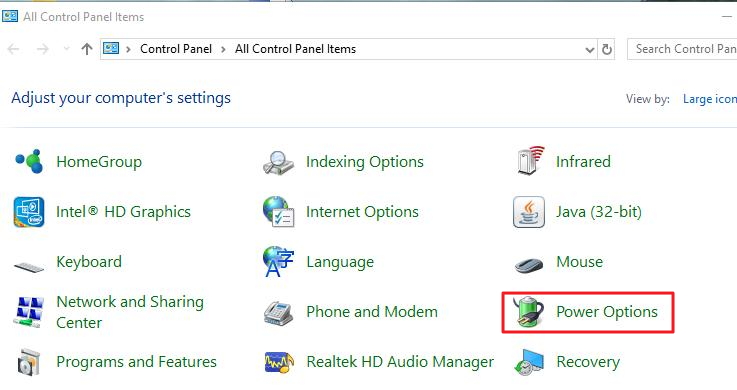
  • Click Power Options
power options
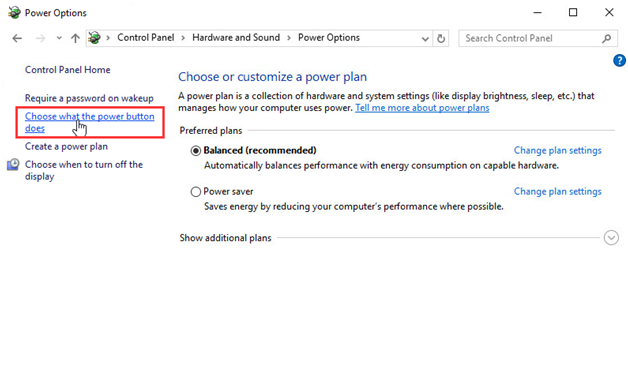
  • In the Power Options window, click Choose what the power button does
choose power button
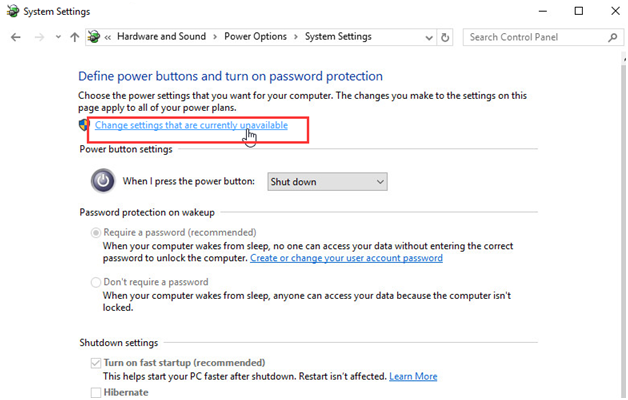
  • Click Change settings that are currently unavailable
change settings unavailable
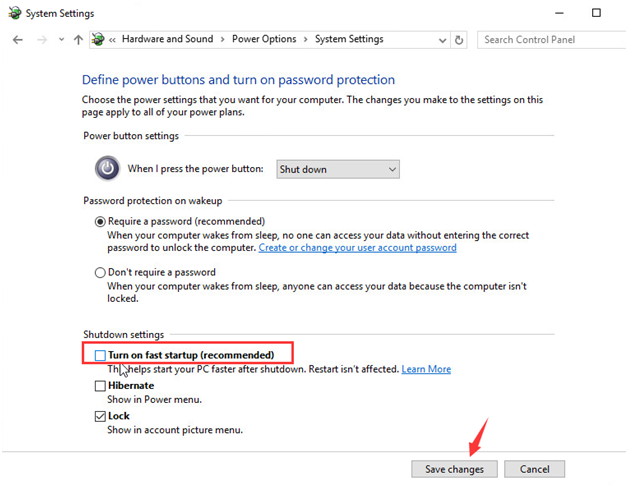
  • Un-check the box corresponding to Turn on fast startup (recommended)
uncheck fast startup
  • Click Save changes to save and exit.
  • Restart your computer and try connecting the USB you intend to any USB port.

In most cases, you should see the “USB device not recognized” issue is resolved.

Filed Under: PC Fix Tips Tagged With: USB Device Error

  • « Previous Page
  • 1
  • …
  • 163
  • 164
  • 165
  • 166
  • 167
  • …
  • 189
  • Next Page »


  • Recent Posts
  • Popular Posts
        

Read More Posts


Read More Posts

Drivers.com Sites

  • Software Drivers
  • Drivers Ed

About Us

  • Advertise
  • About Drivers
  • Drivers Support
  • Drivers.com Privacy Policy
  • Disclaimer
  • Software Drivers
  • Mac Fixes and Tips
  • PC Fix Tips
  • Security/ Backup
  • Tablets & Smartphones
  • Tech News

© Copyright 2026 PDE Publications Ltd. End User License Agreement (EULA)