Windows operating systems have many dynamic linked libraries that are used by different applications. The DLL files are an essential part of the Windows operating system. For example, applications take less space by using DLLs and are not required to write the same code repeatedly.
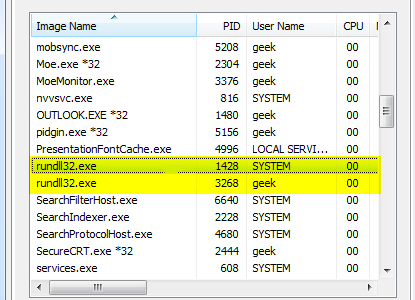
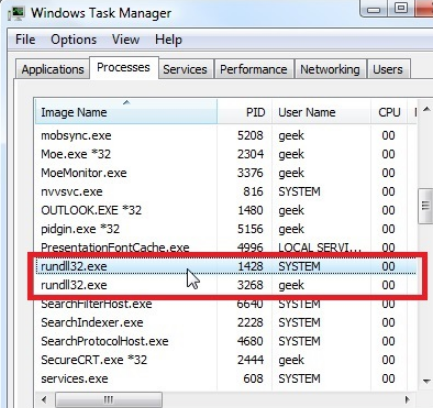
If you have been using Windows for some time and regularly access the Task Manager, you might have seen rundll2.exe as one of the processes. Many users are not aware of what the file does and which process uses it. As a result, they may think rundll32.exe is a threat to their PC — but that’s not the case.
Having said that, malware programs often disguise themselves as genuine programs and files. And it is not unheard of malware programs masquerading as rundll32.exe, so it pays to be a little extra careful.
Which raises an important question — how can you ensure if the rundll32.exe running on your computer is genuine?
Continue reading to learn what rundll32.exe does, how to ensure it is not a virus, and a bonus tip to keep your Windows computer in a great shape.
What is rundll32.exe?
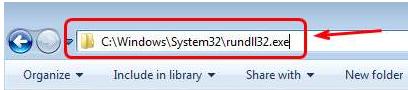
As mentioned earlier it is a dynamic linking library used by several applications. By default, it resides in the system32 folder in your C drive. Though it is an executable, you cannot launch it by double-clicking the file. The rundll32.exe contains routines needed by Windows operating system and you will find it in the Task Manager most of the time. If you want to know which applications are using rundll32.exe, follow the steps given below.
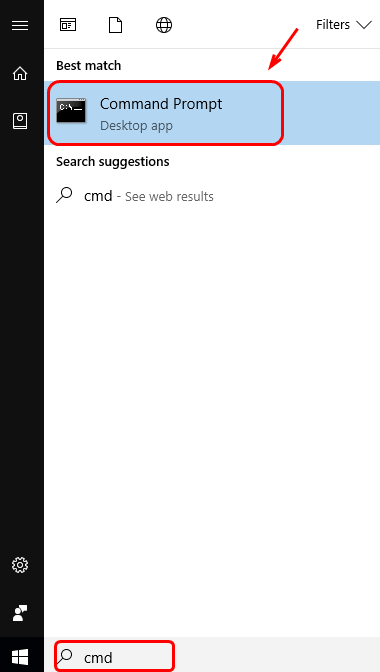
- Press the Windows logo key on your keyboard and type cmd in the search bar
- From the list of results, right-click command prompt and select
Run as administrator.

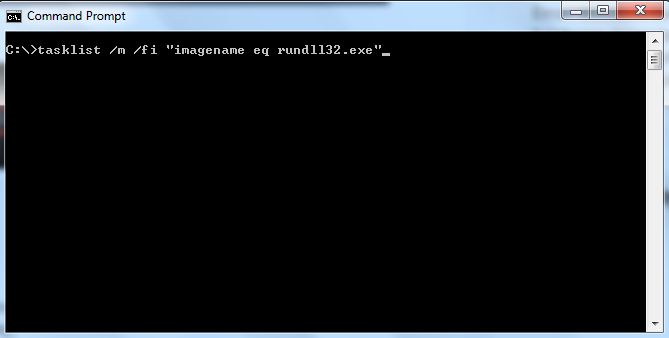
- In the command prompt window, type the following command
- tasklist /m /fi “imagename eq rundll32.exe”
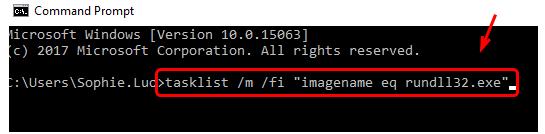
- Hit enter on your keyboard
- You will see a list of applications or Windows services is using rundll32.exe. If you suspect any malicious program using rundll32.exe, you can locate the program file and delete it.
Alternatively, you can also use Microsoft’s Process Explorer utility to find which applications or services are using rundll32.exe. Here are the steps to follow:
- Download process explorer utility from the Microsoft website
- The program is available in a zip folder. Unzip the folder and click on process explorer.exe to run the program
- In the Process Explorer window, click File
- Next, click Show Details for All Processes. It will show all processes running on your Windows computer with details
How to ensure the rundll32.exe is not a virus?
Check the file’s location to determine whether it is a virus or no. As said earlier, the rundll32.exe is executed by the system and its default location is the system32 folder. If the rundll32.exe is located in any other place, there is a good chance it is a virus.
Here are the steps to find the location of the rundll32.exe program:
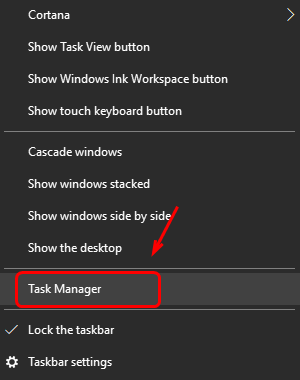
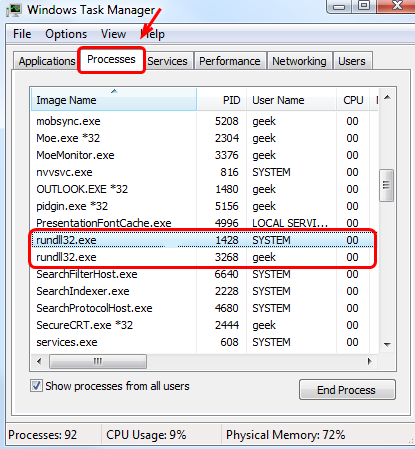
- Open Task Manager and go to the Processes tab.
There may be more than one instance of rundll32.exe running on your computer. You need to find the file location of each one by the steps given below
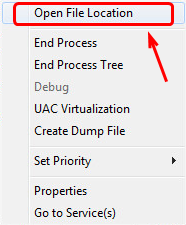
- Right-click on rundll32.exe in the processes list
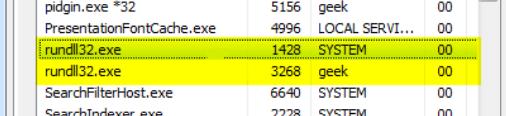
- Click Open File Location.

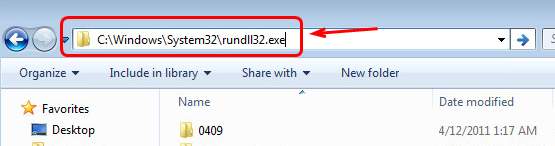
- Windows OS will open the folder where the rundll32.exe is located.
If the folder is system32, there is no reason to worry. If the file location is some user folder, there is a probability your computer is infected with a virus. In that case, you need to update your antivirus and scan your PC to remove virus infection.
Keep your device drivers up-to-date
Is your computer running slow? Does it hang often> Are you repeatedly encountering issues and errors while working on your Windows 10 computer?
The most common cause of these problems is out-of-date device drivers. While you can update them manually, the process is time-consuming and requires a certain level of technical know-how. If you are lacking in either or don’t want to go through all the hoops entailed in the manual driver update process, use a reliable and advanced driver update software.
Automatic driver update tools offer many benefits, the most important ones being:
- You can update device drivers automatically
- The software scans and updates all outdated or missing drivers at one go
- The tool picks the right drivers for your device and operating system, so you won’t have to worry about installing an incorrect driver by mistake
- Automatic driver updates are 100% safe
Driver Updater is one of the best driver update tools out there. Outbyte Driver Updater will give you access to a database of over 1 million drivers. It will regularly scan your PC, suggesting new driver versions to install. Driver Updater contains drivers for a variety of Windows devices. With just one click, you can update drivers in your system.
Step 1
Click here to Install and launch the app
Step 2
Scan all devices
Step 3
Install or update drivers automatically