


Hiding the taskbar is a great way to add some extra space to the desktop. Windows 10 features an auto-hide taskbar option that can help you claim every bit of monitor space.
However, many Windows 10 users have reported the auto-hide taskbar feature does not work as intended. If you are facing the same issue, we have provided some troubleshooting steps that can get the auto-hide taskbar feature working again.
Here are the instructions to fix the auto-hide taskbar not working issue.
First Verify the Settings
The auto-hide taskbar feature is not enabled by default and you need to activate that setting. Even if you had activated it some time back, there is always a possibility that the auto-hide taskbar feature has got disabled because of some reason.
Here are the steps to verify and activate the auto-hide taskbar settings.
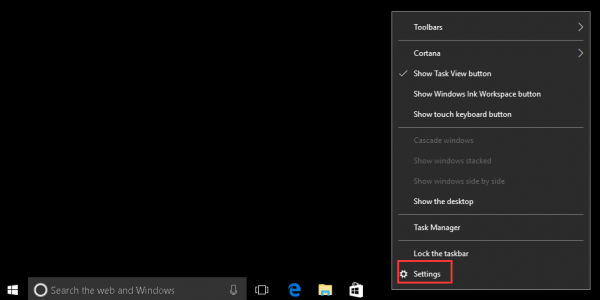
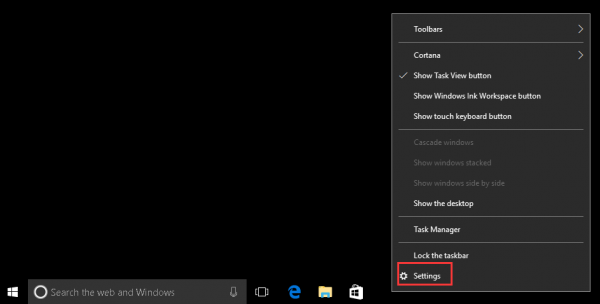
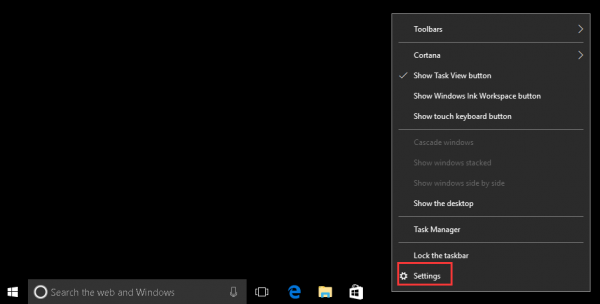
- Right-click on the taskbar and click Settings(gear icon) on the context menu
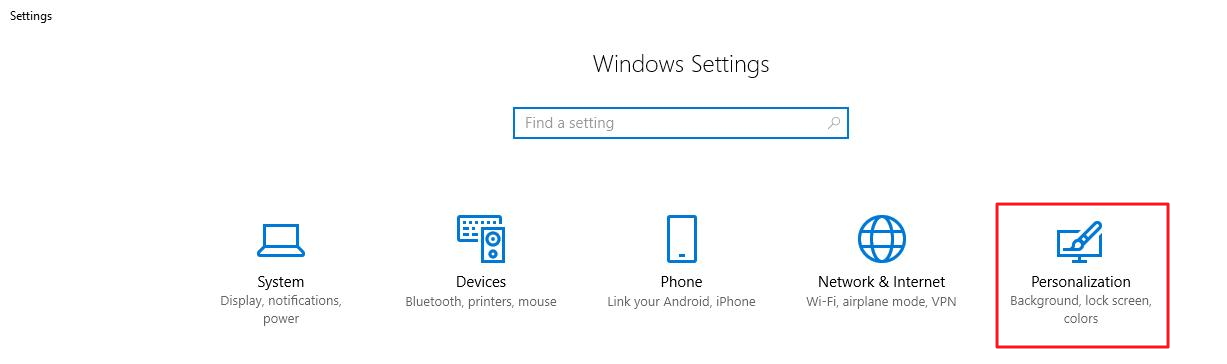
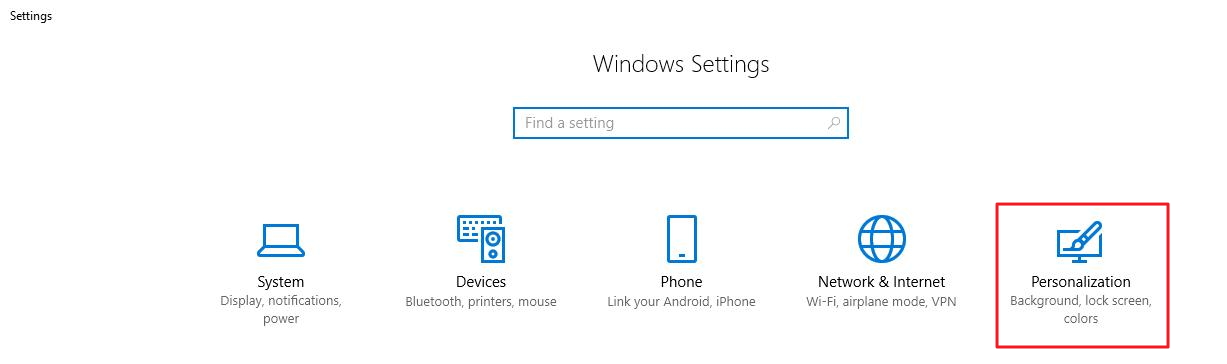
- In the Settings window, click Personalization
- In the next window, click Taskbar that appears at the bottom of the list in the left pane
- Look for Automatically hide the taskbar option in the right pane and ensure the toggle switch is at On position
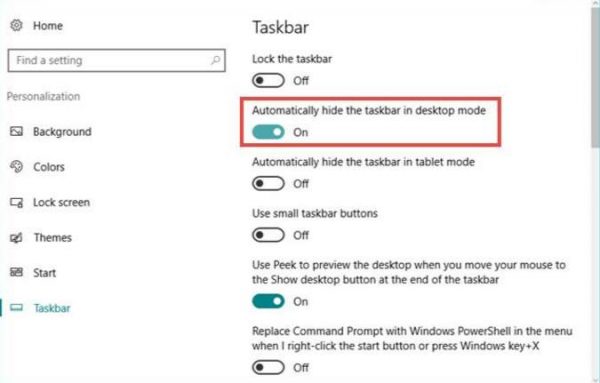
- If you see the toggle switch at Off position, click the toggle switch to shift it at On position
- Now look for Automatically hide the taskbar in tablet mode and click the toggle switch to move it to On position
- Close the Settings window
You have to restart the Windows Explorer to let the changes take effect. Here are the steps you need to follow.
- Right-click on the taskbar and click Settings(gear icon) on the context menu
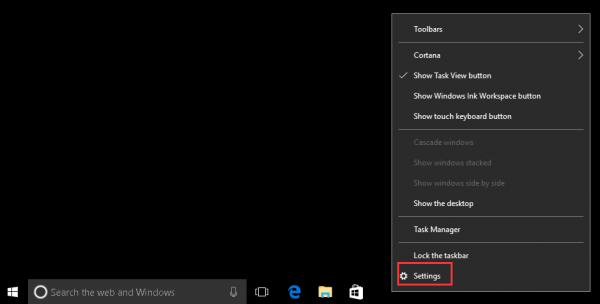
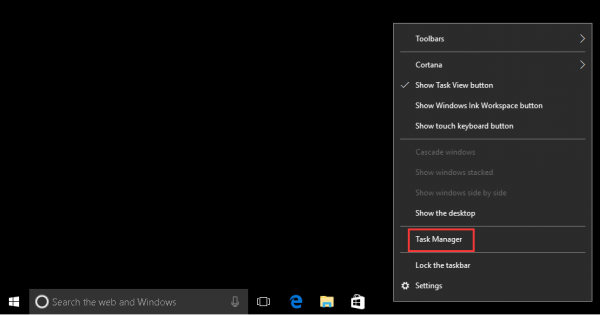
- In the Settings window, click Task Manager
- In the Task Manager window, click the Processes tab
- Select Windows Explorer in the list and click Restart
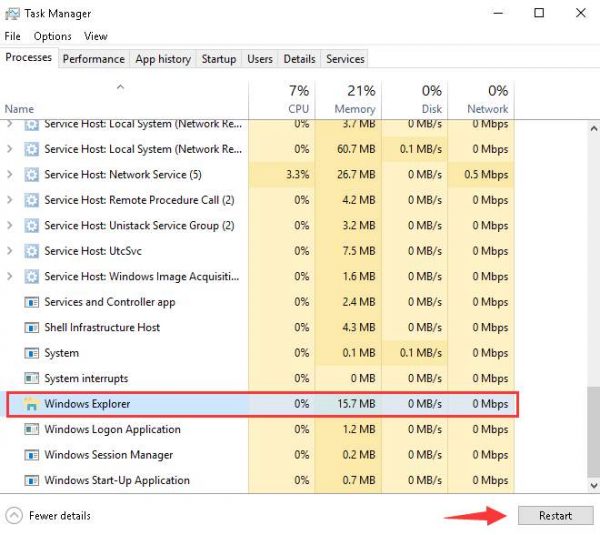
- After Windows Explorer process is re-spawned, close the Task Manager window
- Now click somewhere (empty space) on the desktop to hide the Taskbar
In most case, the auto-hide taskbar feature should work well now. If the taskbar does not auto-hide, try workaround given below.
Try this workaround
- Click Search box in the Start Menu
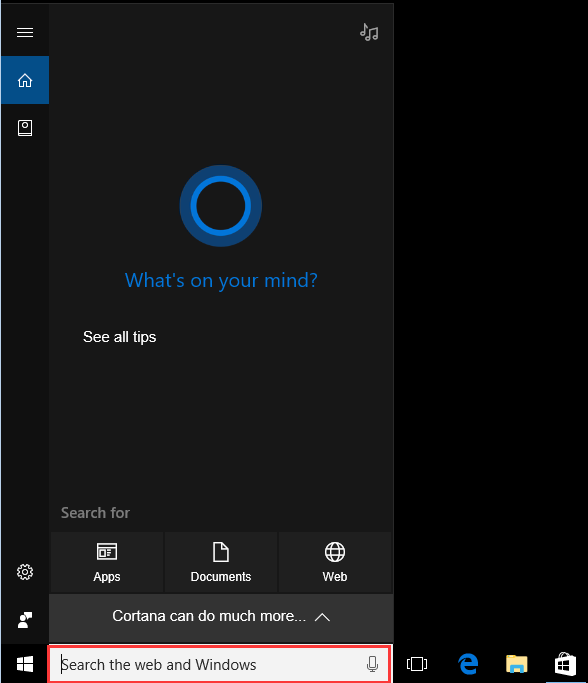
- When the Cortana assistant pops up, click somewhere (empty space) on the desktop. The taskbar should auto-hide. This workaround has worked for many users.
If the taskbar does not auto-hide after following the above steps and workaround, try next solution. But before that, you need to find out the reason why auto-hide taskbar feature is not working.
Why the taskbar does not auto-hide?
In general, the taskbar will continue to hide unless some app needs your attention. The taskbar also appears when there is change in the app icon in the system tray. For example, if you receive a new Skype message, it will cause the taskbar to appear on the screen and it won’t hide until you read the message and the app notification disappears.
Also, the taskbar will stick to the screen and won’t auto-hide if there are any unread pop messages in the system tray. In many cases, Windows sends a popup message on the screen to notify you about something or when you are required to take some action. In that case, the taskbar won’t auto-hide until you dismiss the message.
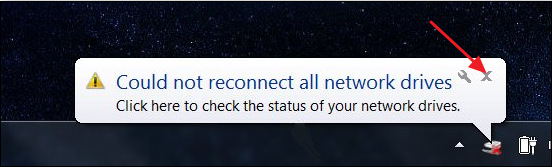
To resolve this issue, you need to customize app notification settings. In simple words, keep only the important notifications enabled in the system tray. Here are the steps you need to follow to customize notifications
Customize Notifications
Before proceeding further you need to first decide which notifications are important and which are not. Only the app notifications which are enabled will cause the taskbar to appear on the screen. Here are the steps to follow.
- Right-click on the taskbar and click Settings(gear icon) on the context menu
- In the Settings window, click Personalization
- In the next window, click Taskbar that appears at the bottom of the list in the left pane
- In the right pane, scroll down and click Select which icons appear in the taskbar under Notification area
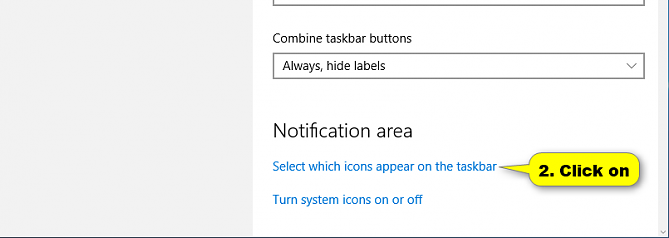
- In the next window, move the toggle switch to Off position for Always show all icons in the notification area
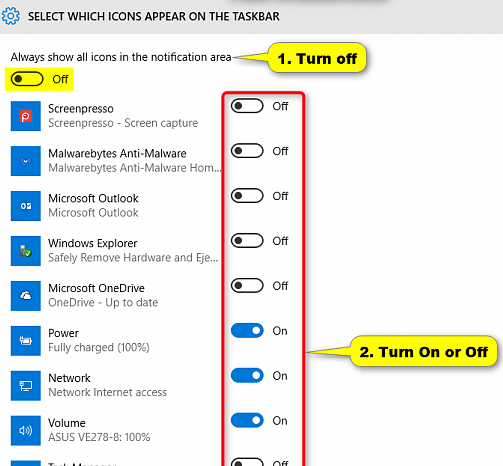
- Now turn on important notifications only
- Close the Settings window and restart the Windows Explorer by following steps given earlier.
- Click somewhere (empty space) on the desktop to see if the taskbar auto-hides.
In most cases, the auto-hide taskbar feature should work without any problem.
Leave a Reply