Drivers.com

follow us:

facebook twitter
  • Home
  • Download Drivers
  • Drivers Help
  • PC/Mac Resources
  • Software Drivers
  • Mac Fixes and Tips
  • PC Fix Tips
  • Security/ Backup
  • Tablets & Smartphones
  • Tech News
  • Software Drivers
  • Mac Fixes and Tips
  • PC Fix Tips
  • Security/ Backup
  • Tablets & Smartphones
  • Tech News

System Service Exception BSOD error in Windows 10

By Susan C on June 3, 2018

System Service Exception BSOD error in Windows 10

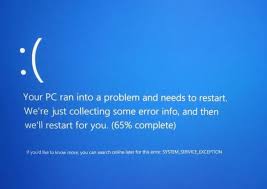
The last thing a Windows user wants is see a Blue Screen of Death error on his screen.  In case you are looking for answers to system service exception BSOD error, this post is just for you.

error image

The system service exception BSOD error is quite common and we have presented here five solutions to fix the issue. The System Service Exception error is generated due to corrupt drivers or software incompatibility. The solutions given below target both causes and helps resolve the issue.

Since, you are not aware of the reason behind system service exception BSOD error, you can start with the first solution given here and then work your way downwards trying other solutions until the issue is fixed.  Let’s get started.

Solution One – Update Drivers

When you get the system service exception BSOD error, the first thing you should do is ensure that all your device drivers are updated. To update device drives, we recommend you use a Driver Update Tool.

Automatic driver update tools offer many benefits, the most important ones being:

  • You can update device drivers automatically
  • The software scans and updates all outdated or missing drivers at one go
  • The tool picks the right drivers for your device and operating system, so you won’t have to worry about installing an incorrect driver by mistake
  • Automatic driver updates are 100% safe

Driver Updater is one of the best driver update tools out there. Outbyte Driver Updater will give you access to a database of over 1 million drivers. It will regularly scan your PC, suggesting new driver versions to install. Driver Updater contains drivers for a variety of Windows devices. With just one click, you can update drivers in your system.

Step 1
Click here to Install and launch the app

Step 2
Scan all devices

Step 3
Install or update drivers automatically


Start Download


Solution Two – Run System File Checker

Corrupt system files could be one of the reasons behind the system service exception BSOD error in Windows 10. You need to run system file checker to resolve any issues with system files. The System File Checker is command line tool that is executed from an elevated command prompt.

The System File Checker   utility checks the integrity of all protected system files. If it finds any corruptions, it replaces the corrupt file with the most recent cached version to fix the issue. Here are the steps to follow.

  • On your keyboard, press the Windows logo key and X same time to bring up Start Menu
  • Click Command Prompt(admin) from the list
  • In the command prompt window, type sfc /scannow and press the Enter key on your keyboard.
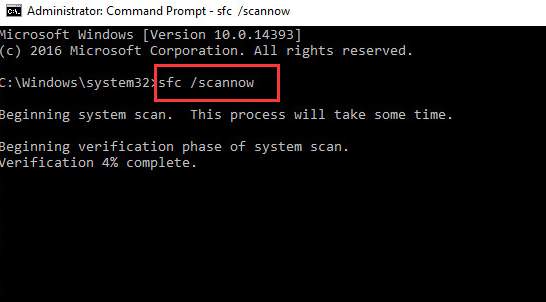
sfc-scannow
  • You will see the System File Checker tool running in the command prompt window and scanning system file for corruptions and restore corrupted files. Wait for the program to finish.
  • Close the command prompt window

Check if the issue has been resolved. If you still get the system service exception BSOD error, try the next solution.

Solution Three- Run Check Disk

The Windows 10 system might also throw up system service exception error on the screen if there are bad sectors on the hard drive or if the NTFS volume is corrupt. The CHKDSK utility marks bad sectors and isolates them and also fixes errors in NTFS volume.

To resolve any problems in hard drive, you need to run Check Disk by following steps given below. Here are the steps to run chkdsk.

  • Press Windows key + S simultaneously on the keyboard to bring up Cortana search
  • In the search box, type cmd and click OK
  • Right-click Command Prompt from the list of results and select Run as administrator
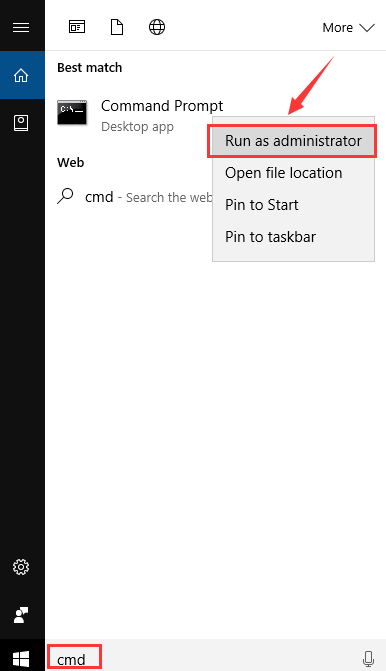
cmd run as admin
  • In the command prompt window, type chkdsk /f /r, and press Enter on your keyboard.
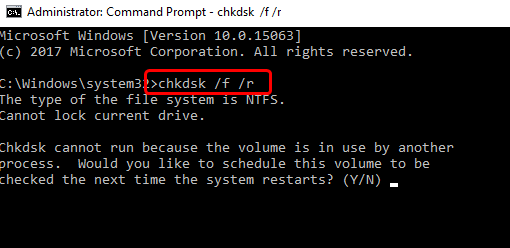
chkdsk
  • When the system asks “Would you like to schedule this volume to be checked next time the system restarts?”, press Y on the keyboard
  • Close the command prompt window and restart your computer.
  • When the computer reboots, Windows will run the check disk program to fix any issues with hard drive.
  • Use your computer for some time and see if the error is generated. If the issue persists, try next solution.

Solution Four -Run Windows memory diagnostic test

When your Windows 10 system throws up system service exception BSOD error, you cannot rule out the possibility of some problem with physical RAM installed in your computer.  Windows memory diagnostic tool is an in-built program that checks physical RAM for any faults. Here are the steps to run memory test.

  • Press Windows key + R simultaneously on the keyboard to bring up the Run command console
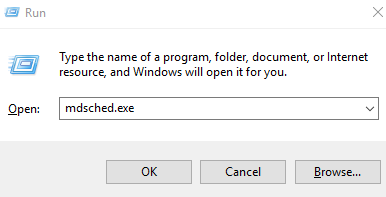
  • In the Run command window, type mdsched.exe and click OK
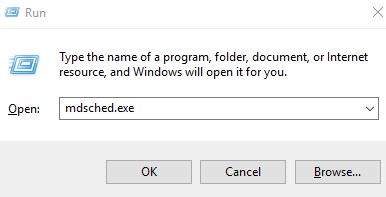
mdsched
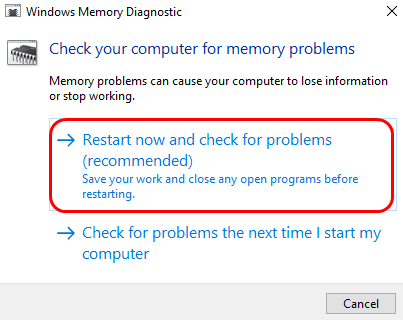
  • Windows will provide two options – Restart now and check for problems (recommended)or Check for problems the next time I start my computer
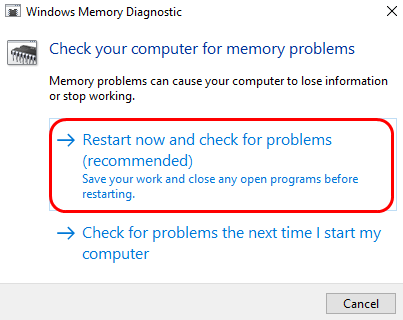
restart now
  • If you want to run Windows memory diagnostic tool immediately, select Restart now and check for problems (recommended)

OR

  • If you want to schedule memory test later, select Check for problems the next time I start my computer
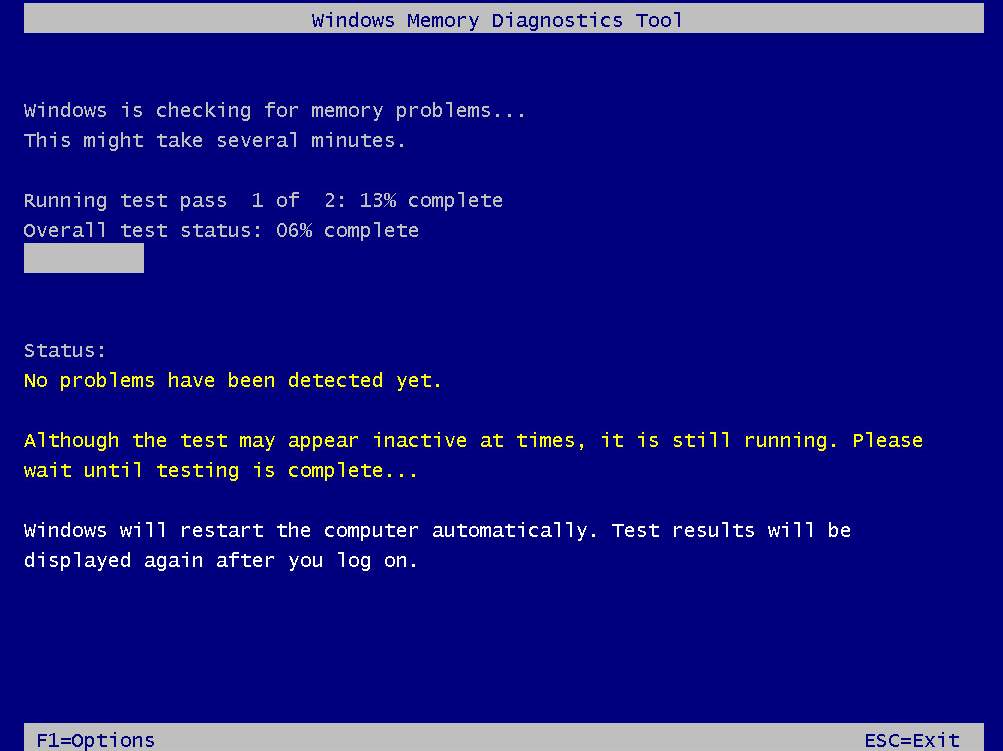
  • When the Windows OS runs Windows memory diagnostic tool, you will see the progress and also the errors that Windows memory diagnostic tool may find.
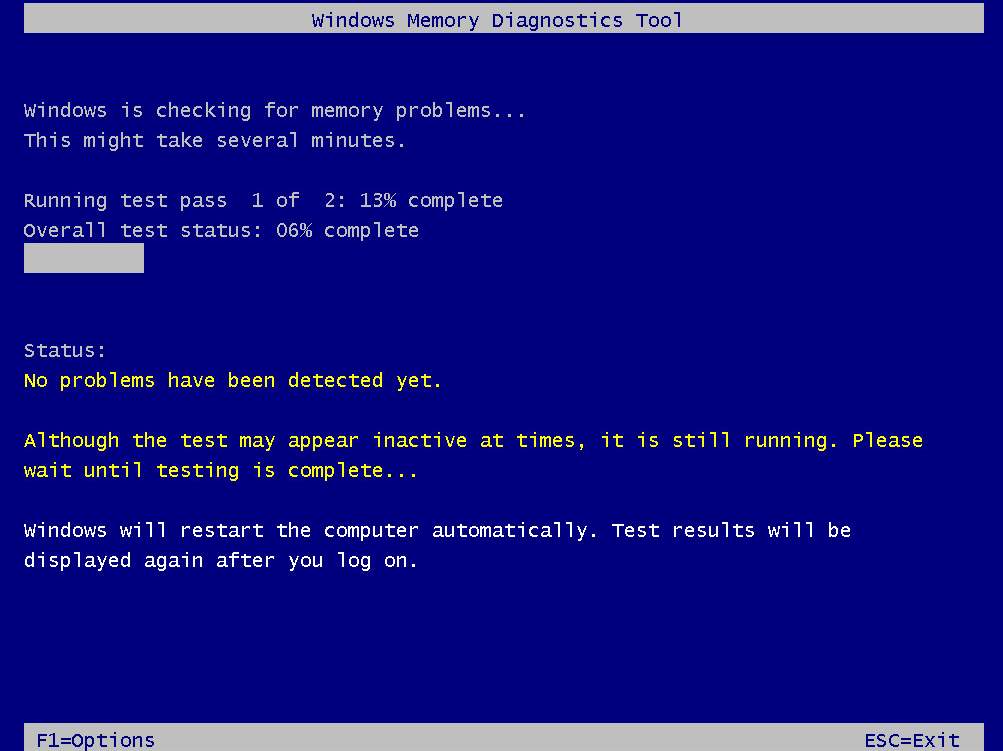
memtest running
  • Wait for the program to finish. After the memory test is completed, the computer will reboot and you can see the test results when you log on

If the Windows memory diagnostic test results show no errors, you can draw a conclusion that RAM is not the cause behind system service exception BSOD error.  In that case, you need to move to next solution to resolve the issue.

Solution Five- Uninstall 3rd party anti-virus programs

Many users have found out that 3rd party anti-virus programs could be the reason behind system service exception BSOD error. To rule out this possibility, you need to uninstall any 3rd party anti-virus program that you have installed in Windows 10 system.

Windows 10 has in-built Windows Defender anti-virus program that can protect your computer from Internet threats, viruses and malware. All you need to do is uninstall the 3rd party anti-virus completely and activate the Windows Defender protection by following steps given below.

  • Press Windows logo key and I simultaneously on the keyboard to bring up the Settings window
  • In the Settings window, click Update & Security
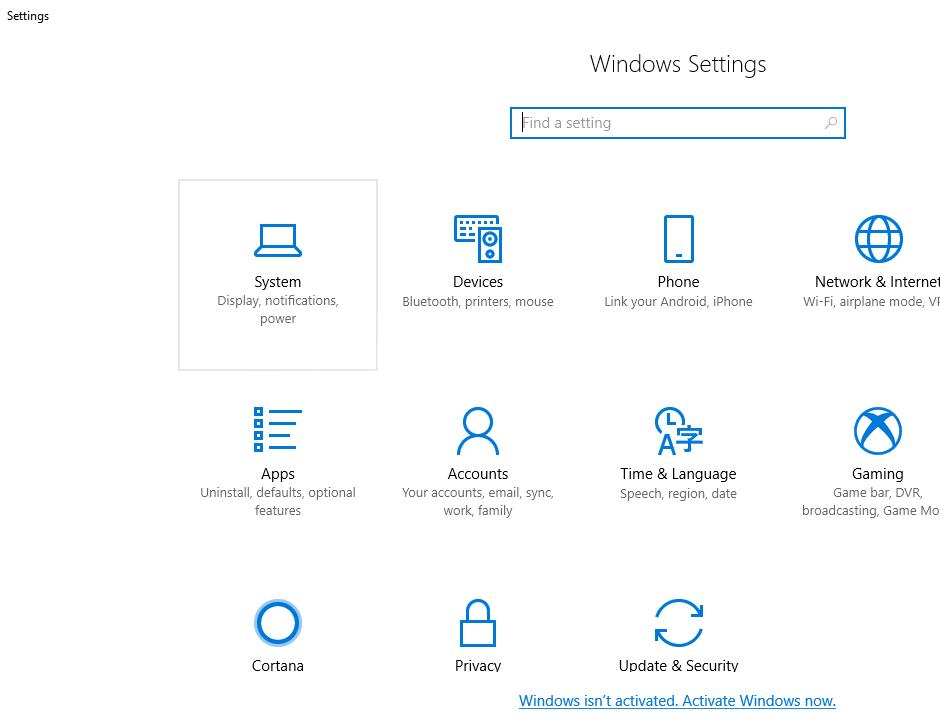
update & security
  • Click Windows Defender in the left pane
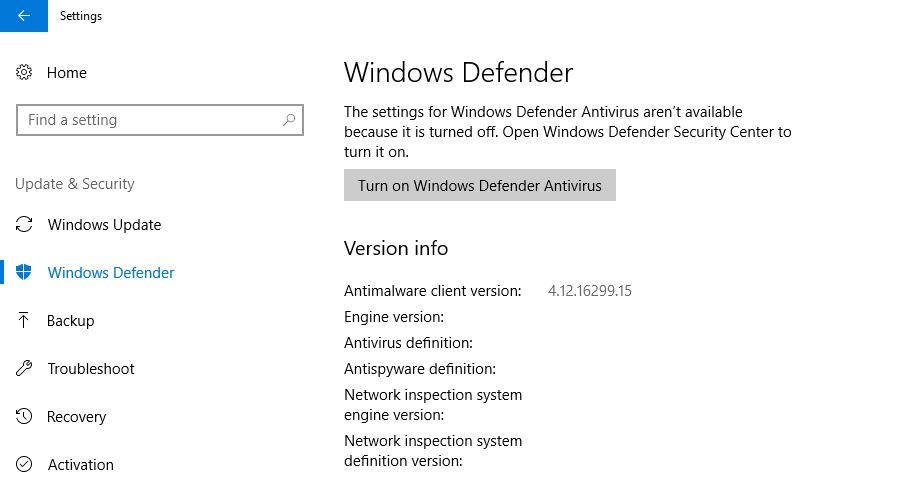
activate windows defender
  • Click Turn on Windows Defender antivirus
Filed Under: PC Fix Tips Tagged With: BSOD error

Faulty Hardware Corrupted Page BSOD error

By Susan C on May 31, 2018

Faulty Hardware Corrupted Page BSOD error

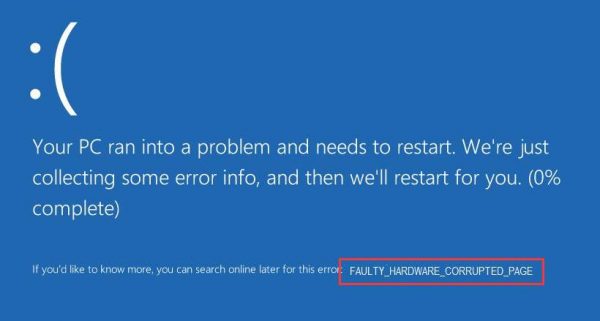
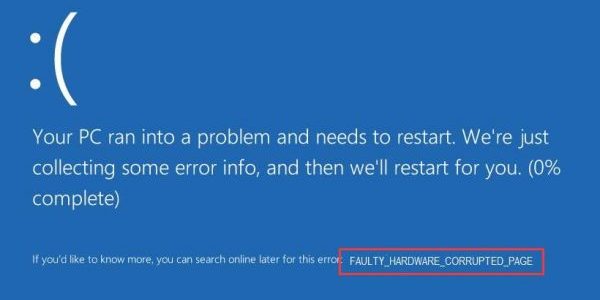
Are you getting a “faulty hardware corrupted page” BSOD error at the startup or while working in Windows?

error image

If yes, this post is for you. The faulty hardware corrupted page BSOD error indicates some problem at the hardware level. Faulty RAM could be one of the reasons, but other reasons also exist. We have provided you three solutions that have helped many Windows users to fix the issue.

You don’t have to try all solutions given in this post. Start with the first solution and work your way downwards until the issue is fixed.

Solution One – Disable Fast Startup

The Fast Startup option is designed to save time while booting. When Fast Startup is enabled Windows does not shut down normally, it saves the state of the system in a hibernation file which is used to restore Windows during next reboot.

In Fast Startup, Windows does not reload kernel and system drivers individually. It just refreshes the image from memory and flashes it on the screen. It could be the cause of the faulty hardware corrupted error.

  • Click Start and type control panel in the search box
  • Click Control Panel from the list of search results
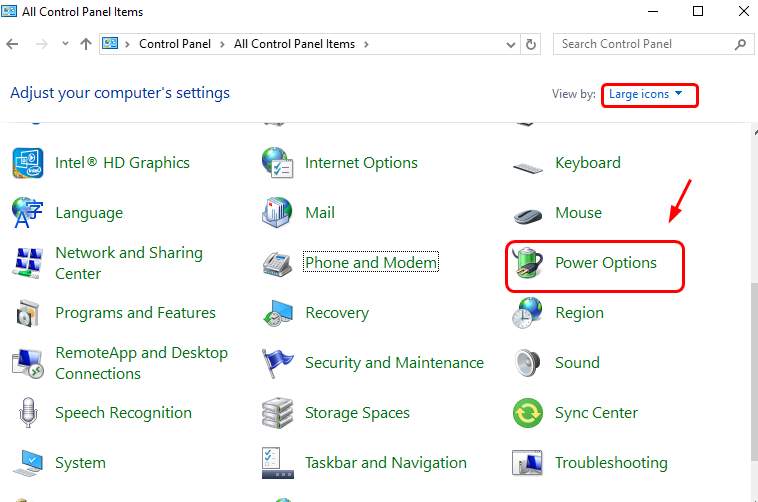
  • In the Control Panel window, set the view by to Large Icons
  • Click Power Options
power options
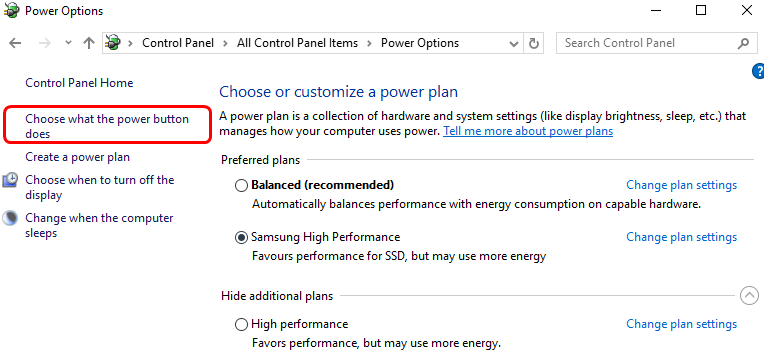
  • In the Power Options window, click Choose what the power button does
choose power button
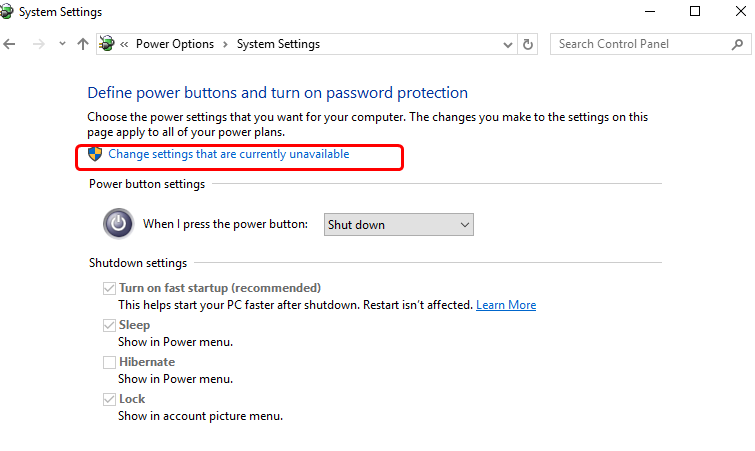
  • Click Change settings that are currently unavailable
change settings unavailable
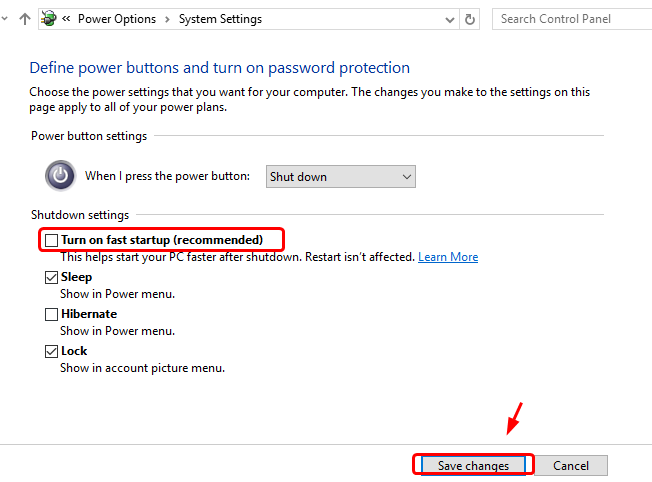
  • Un-check the box corresponding to Turn on fast startup (recommended)
uncheck fast startup
  • Click Save changes to save and exit.

See if the issue is resolved. If you are still getting the error, try next solution.

Solution Two – Run Windows Memory diagnostic tool and System File Checker

Run Windows Memory diagnostic tool

As mentioned earlier, faulty RAM could be one of the reasons behind the faulty hardware corrupted error.  Windows has an inbuilt Windows Memory diagnostic tool that can check the physical RAM for any problems and report them to you. Here are the steps to run Windows Memory diagnostic tool.

  • Press Windows logo key and R simultaneously on the keyboard to invoke Run command console
  • In the Run command box, type mdsched.exe, and press Enter
mdsched
  • In the Window Memory Diagnostic window, click Restart now and check for problems (recommended). This will restart the PC immediately and the Windows Memory diagnostic tool will run at the restart.
restart now
  • If you don’t want to run the memory test immediately, select Check for problems the next time I start my computer
  • When the Windows restarts, you will see Windows Memory diagnostic tool running and checking RAM for faults. You can see the progress of the memory test on the screen along with errors that are detected. Wait for the program to finish.
memtest running
  • When the system reboots after running Windows Memory diagnostic tool, you can see the errors found (if any) in the log file.

If there are any errors greater than 0, you have to change the physical RAM Module. If the Windows Memory diagnostic tool does not report any errors, you can conclude the physical RAM is in good condition. In that case, check the system files by following steps given below.

Run System File Checker

Corrupt system files could be one of the reasons behind the faulty hardware corrupted page BSOD error, so you need to run system file checker to resolve any issues. The System File Checker command line tool checks the integrity of all protected system files.

If it finds any corrupted file, it replaces it with the most recent cached version to resolve the issue.

Here are the steps to follow.

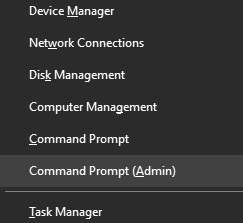
  • On your keyboard, press the Windows logo key and X same time to bring up Start Menu
  • Click Command Prompt(admin) from the list
cmd admin
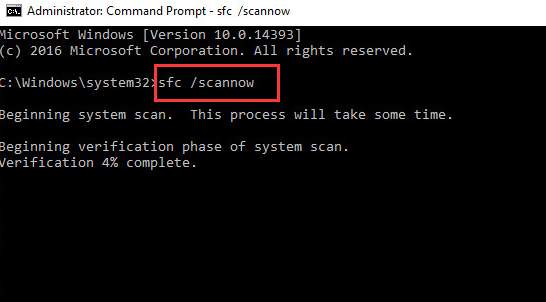
  • In the command prompt window, type sfc /scannow and press the Enter key on your keyboard.
sfc-scanow
  • You will see the System File Checker tool running in the command prompt window and scanning system file for corruptions and restore corrupted files. Wait for the program to finish

Check if the issue has been resolved. If you still get the error, try the next solution.

Solution Three – Update Intel Management Engine Interface driver

An outdated or corrupt IMEI driver could be one of the reasons behind the faulty hardware corrupted error. Updating IMEI driver is the simple solution to resolve the issue.

Here are the steps to follow.

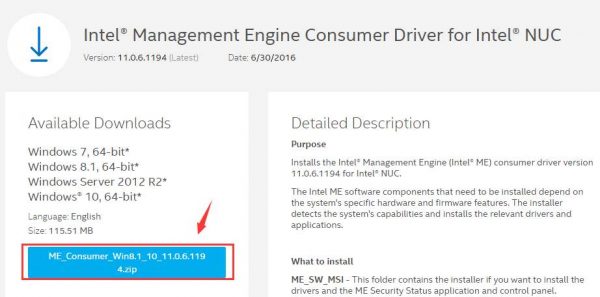
  • Go to Intel Download Center page
  • Click the blue button to download
IMEI driver download
  • After the file is downloaded, unzip the contents to a designated folder

(Note- there are several files in the package, the MEI-Only installer MSI exe file is only intended to be used in this case)

  • Browse to the folder where you have unzipped the contents and double-click on the MEI-Only Installer MSI executable file to start the driver installation. Follow on-screen instructions to install IMEI driver.

If the issue still exists, you need to update drivers that might fix the issue.

Solution Four – Update Drivers

Outdated or corrupt drivers, too, can cause this issue. To resolve the issue, you would need to update all outdated or corrupt drivers.

Automatic driver update tools offer many benefits, the most important ones being:

  • You can update device drivers automatically
  • The software scans and updates all outdated or missing drivers at one go
  • The tool picks the right drivers for your device and operating system, so you won’t have to worry about installing an incorrect driver by mistake
  • Automatic driver updates are 100% safe

Driver Updater is one of the best driver update tools out there. Outbyte Driver Updater will give you access to a database of over 1 million drivers. It will regularly scan your PC, suggesting new driver versions to install. Driver Updater contains drivers for a variety of Windows devices. With just one click, you can update drivers in your system.

Step 1
Click here to Install and launch the app

Step 2
Scan all devices

Step 3
Install or update drivers automatically


Start Download


Filed Under: PC Fix Tips Tagged With: BSOD error

Windows Update Error 80072EE2

By Susan C on May 30, 2018

Windows Update Error 80072EE2

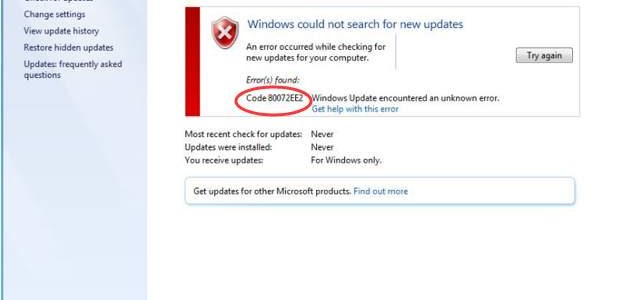
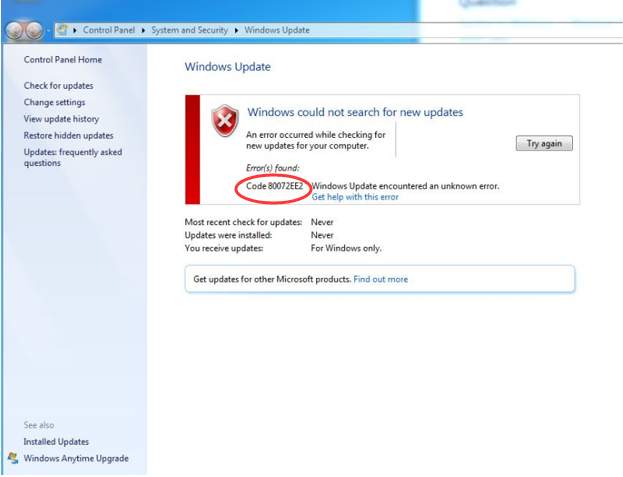
Microsoft offers regular updates to make Windows more secure and fix any bugs that affect the performance of the Windows system. Though Windows updates are designed to run smooth, there is no guarantee that this will be the case. Many Windows users have encountered error 80072EE2 while attempting to update Windows. Look at the reference image shown below.

error image

We have provided you with two simple fixes that can resolve the Windows update error 80072EE2 and update Windows without any hiccups. Here are the solutions you need to try.

Solution One – Run Windows Update Troubleshooter

Windows has an inbuilt update troubleshooter that can fix issues related to Windows updates. When you run the Window update troubleshooter, it will detect any problems in updating Windows and resolve the issue. Here are the steps you need to follow.

  • Click Start and type Control Panel in the search box
  • Click Control Panel from the list of results
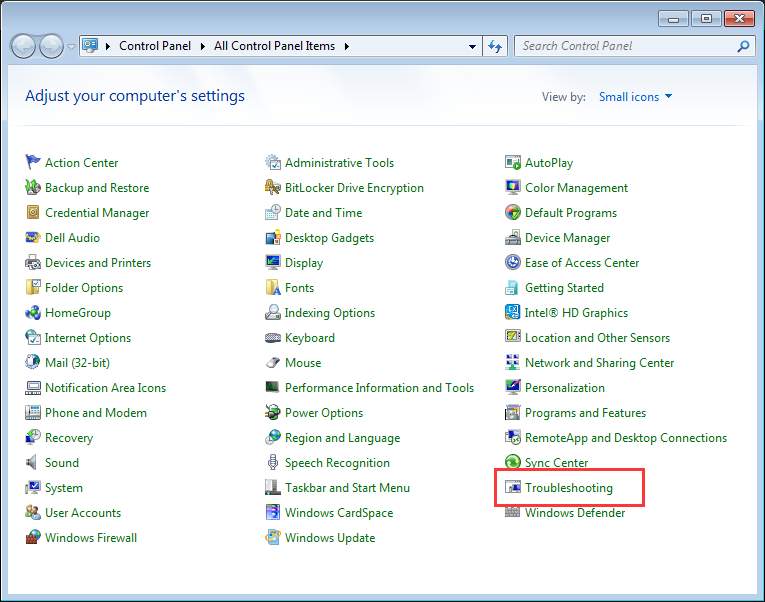
  • In the control panel window, scroll down and click Troubleshooting
troubleshooting
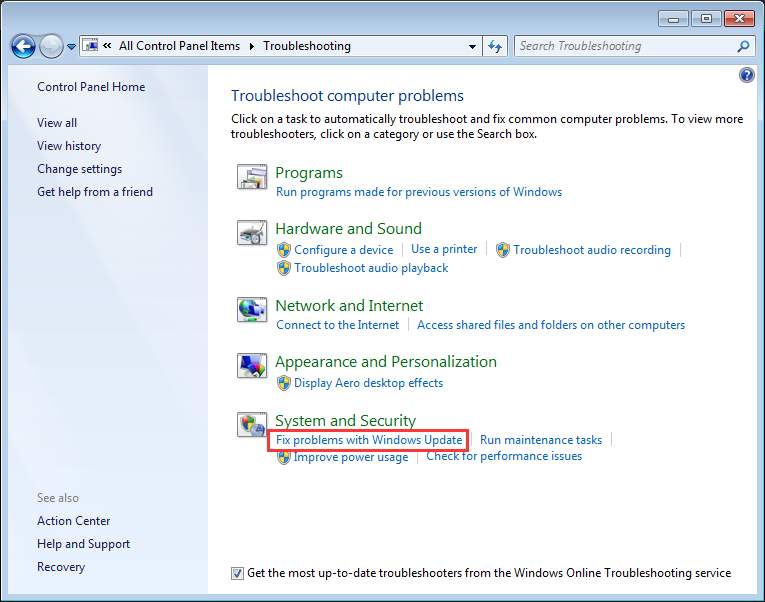
  • Under System and Security, click Fix problems with Windows Update
Fix problems
  • Click Next
click next
  • You should see Windows Update Troubleshooter launched on the screen. The troubleshooter will detect problems and fix them
detecting problems
  • If the Windows Update Troubleshooter is not able to fix the Windows update error 80072EE2, try the next solution.

Solution Two – Delete problematic Windows update content and registry keys

 Corrupt Windows updates files and registry keys could be the reason behind Windows update error 80072EE2. To resolve this problem, you need to delete problematic Windows update content and registry keys.

Deleting wrong registry keys can cause a serious problem that can make Windows unstable or even non-bootable in some cases. We recommend to backup registry before making any changes.

Here are the steps to make registry backup.

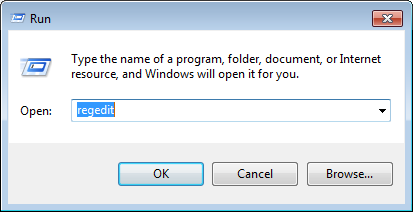
  • Click Start and type regedit in the search box
regedit
  • Click Registry Editor from the list of results
  • In the Registry Editor window, click File -> Export
registry export
  • Type an appropriate name for the Registry backup and click Save
save registry backup

Now that you have backed up Registry, you can go ahead and perform the troubleshooting steps given below

  • Press Windows logo key and R simultaneously on the keyboard to bring up the Run command console
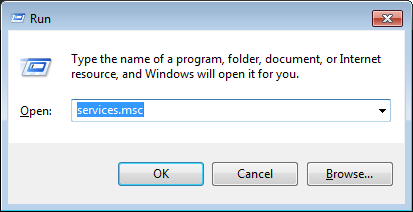
  • In the Run command box, type msc and click OK
services
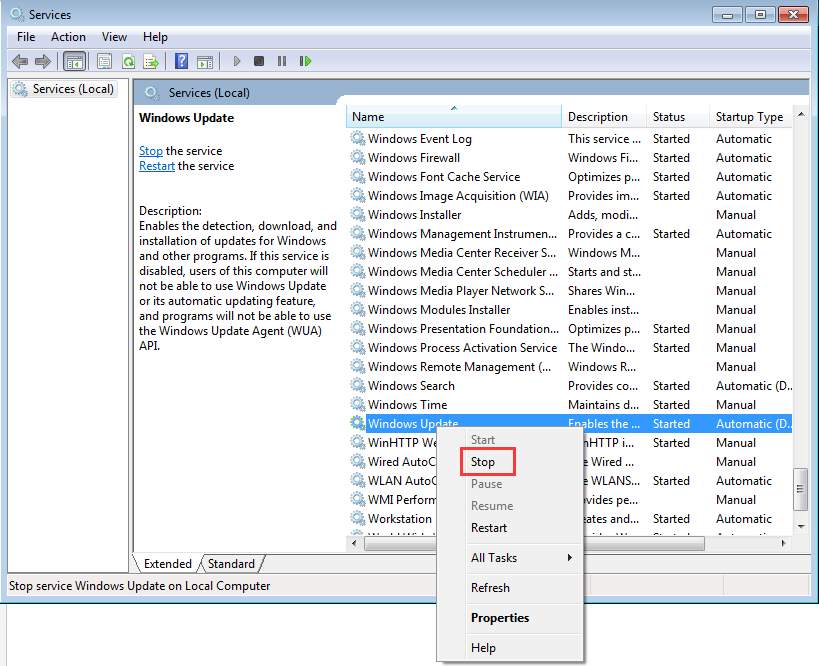
  • Find Windows Update service. Right-click on it and click Stop on the context menu
stop windows update
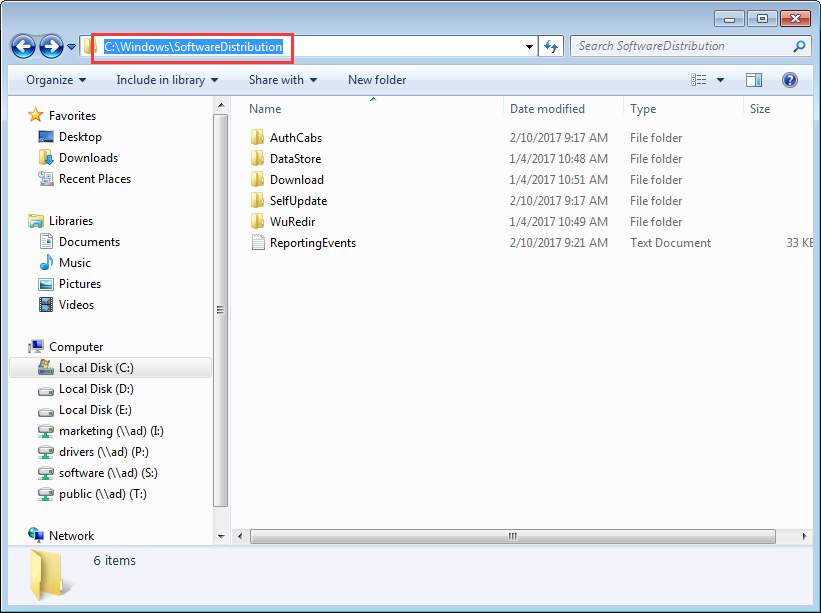
  • Open C:\Windows\SoftwareDistribution folder and delete all contents in the folder
Software distribution folder
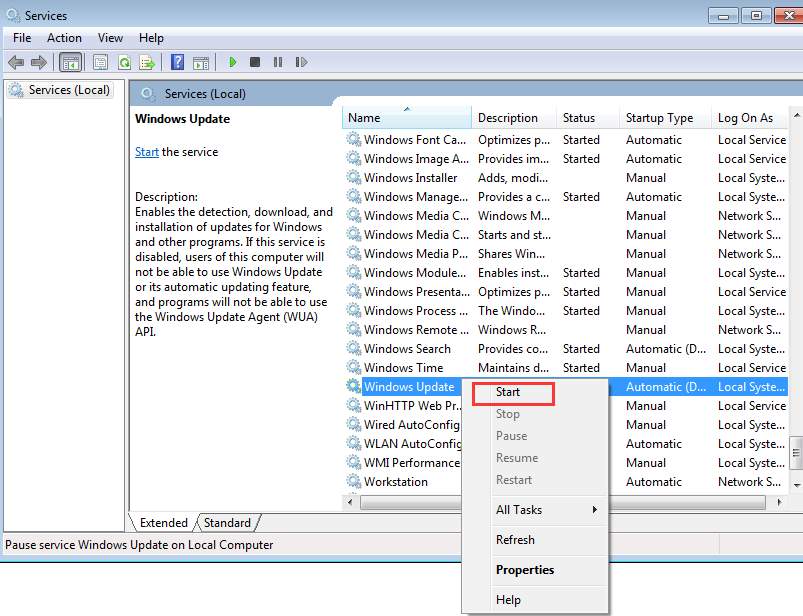
  • Come back to the Services window and right-click on Windows Update Service and click Start on the context menu
start windows update
  • Open Registry Editor. You can refer the steps given above to open the Registry Editor
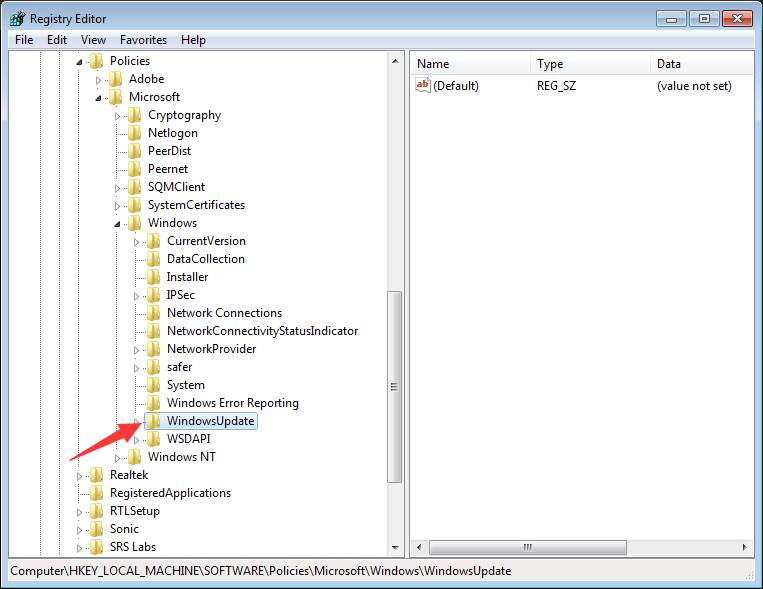
  • In Registry Editor, navigate to HKEY_LOCAL_MACHINE\SOFTWARE\Policies\Microsoft\Windows\WindowsUpdate.
registry windows update
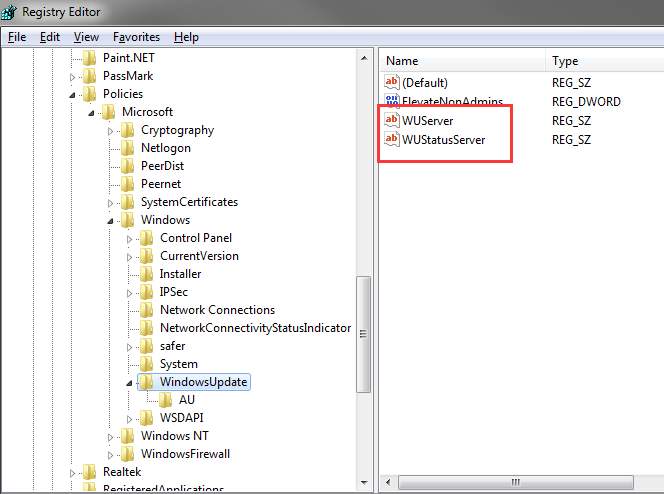
  • In the right-pane, you will find keys WUServer and WUStatusServer
registry wuserver
  • Right-click on each key and click Delete
  • Go back to Services window and see if the Windows Update Service is started.
  • If the Windows Service is stopped, right-click on it and click Start
Registry Errors: Causes and Solution

Filed Under: PC Fix Tips Tagged With: windows update issue

  • « Previous Page
  • 1
  • …
  • 166
  • 167
  • 168
  • 169
  • 170
  • …
  • 189
  • Next Page »


  • Recent Posts
  • Popular Posts
        

Read More Posts


Read More Posts

Drivers.com Sites

  • Software Drivers
  • Drivers Ed

About Us

  • Advertise
  • About Drivers
  • Drivers Support
  • Drivers.com Privacy Policy
  • Disclaimer
  • Software Drivers
  • Mac Fixes and Tips
  • PC Fix Tips
  • Security/ Backup
  • Tablets & Smartphones
  • Tech News

© Copyright 2026 PDE Publications Ltd. End User License Agreement (EULA)