


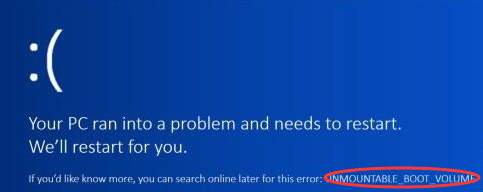
Windows 10 is a successful and user-friendly operating system, but it is far from perfect. One of the bugs reported by many users is “Unmountable boot volume” error. Just like other Blue Screen of Death errors, this error prevents you from using your Windows computer normally, but the good part is that you can resolve it on your own.
What is unmountable boot volume error?
The boot volume in the error message refers to disk volume that has Windows operating system and supporting files. Windows loads the files in boot volume in the RAM during startup. The Windows system throws up unmountable boot volume error when it can’t access the file needed to start Windows.
Until the unmountable boot volume error is fixed, you cannot boot into Windows and the system enters an indefinite loop of reboots until you fix the issue.
How to resolve unmountable boot volume error?
We have provided four different solutions that might fix the issue. You may not be required to try all solutions. You can start with the first solution and then work your way downwards to fix the issue.
However, you will need Windows 10 installation media to perform troubleshooting steps in given solutions.
Solution One – Resolving unmountable boot volume error with Automatic Repair
Windows 10 has a recovery feature known as Automatic repair. You can use this method to allow Windows to repair itself. Here are the steps to follow.
- Insert bootable media in your computer and restart your PC. When you see the BIOS flash screen press the function specified by your device/motherboard manufacturer to bring up the boot Select the device which has bootable media and boot from it
- On the window setup screen after you select language, click Repair your computer that appears at the bottom left
- <insert ubv – repair computer>
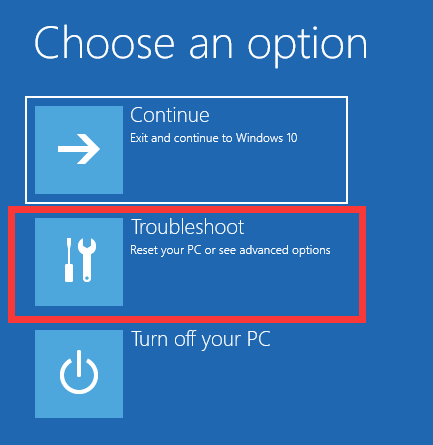
- In the next screen, select Troubleshoot
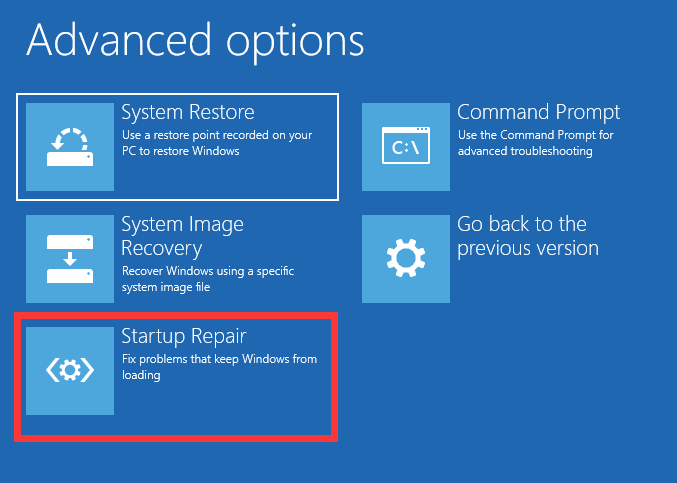
- In the Advanced options screen, select Startup Repair
- Select Windows 10
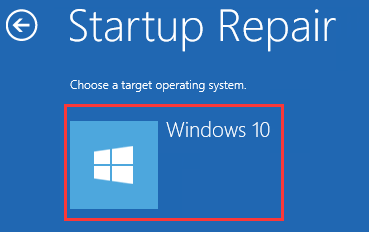
- The Automatic repair starts immediately. Wait for the process to finish
Start your computer and see if the problem is resolved. If the error persists, try next solution
Solution Two – Resolving unmountable boot volume error by fixing Master Boot Record (MBR)
MBR refers to information stored in the first sector of hard drive. It identifies how and where the Windows 10 operating system is located on the hard drive so that it can be loaded in the computer’s RAM. By fixing the MBR, you can get rid of unmountable boot volume error.
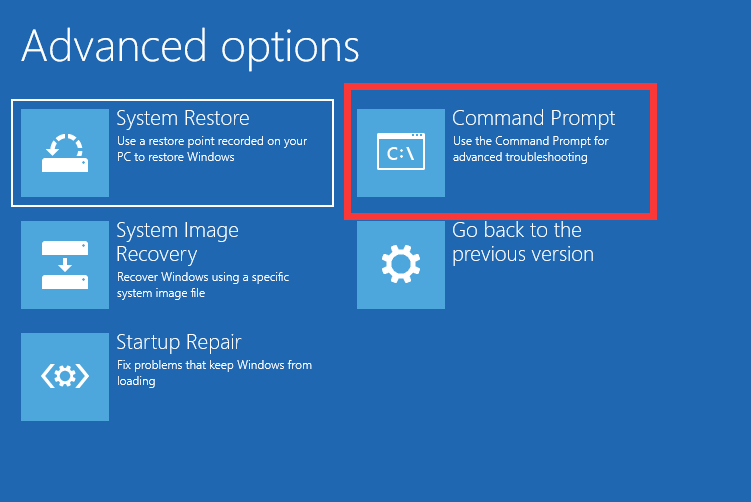
- Perform steps in Solution one until you reach Advanced options screen
- Select Command Prompt
- In the command prompt window, type bootrec /fixboot and then press Enter on the keyboard
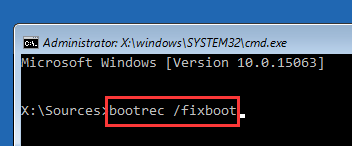
- Wait for the process to finish and restart the computer to see if the error is resolved
Solution Three – Resolving unmountable boot volume error by using CHKDSK command
Bad sectors or corrupt boot files could be one of the reasons behind unmountable boot volume error. Windows has an inbuilt check disk utility that can fix hard drive errors and resolve the unmountable boot volume error. Here are the steps to follow.
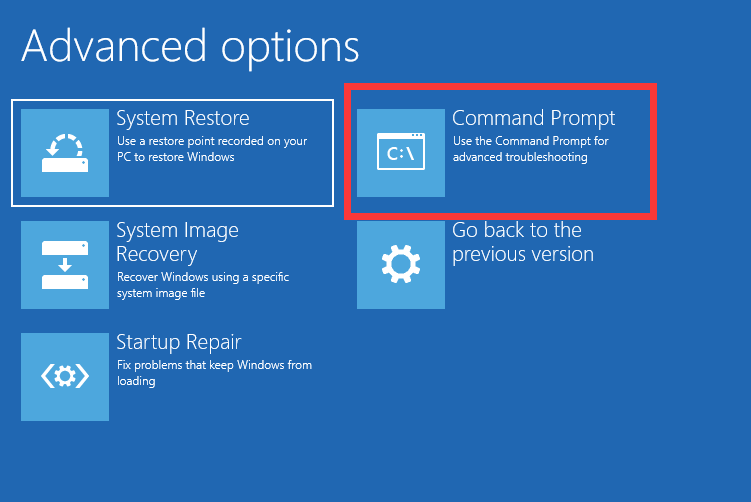
- Perform steps in Solution One until you reach Advanced options screen
- Select Command Prompt
- In the command prompt window, type chkdsk /r c: and hit Enter. Note- here the c: refers to the partition where Windows operating system is installed. If the drive letter where Windows operating system is different in your case then substitute c: with relevant driver letter.
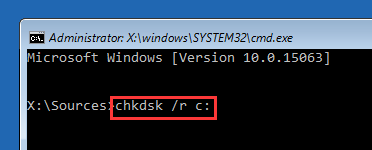
- Wait for the process to finish and restart the computer to see if the error is resolved
If the issue still persists, try next solution
Solution Four – Resolving unmountable boot volume error by reinstalling Windows
If none of the above solutions have worked for you, the last resort is reinstalling Windows. Here are the steps to follow.
- Perform steps in Solution one until you reach Windows Setup screen
- Select Install Now
<insert ubv – install now>
- Follow on-screen instructions to install Windows 10