If you are facing a no sound issue on your Windows 7, this post is for you. Sound issues are common in Windows computer. Sometimes there could be the simple reason behind no sound issue like you have muted the sound on your PC or speakers or the audio wire between computer and speaker is not properly connected.
Here, we offer six simple solutions that could resolve the issue.
You don’t have to try all the solutions given here. The best approach would start with the first solution and try the next one in the list if the previous one has not worked for you and so on.
Before Trying Anything Else
Before you go ahead and try the troubleshooting steps given below, make sure the sound connection is firm and audio jack are well seated in their respective slots. Computers have 3 audio jacks in the motherboard:
- a microphone jack
- a line-in jack
- a line-out jack
All the above mentioned jacks are connected to sound processor on your motherboard. The speaker or sound system cable should be connected to line-out jack. If you are using a headphone without a mic, it should be plugged to line-out jack. After checking the connections, you need to also check whether the sound system is on (receiving power) and there are no other problems with the sound connection.
Solution One- Run the Microsoft Sound Troubleshooter
Windows has an in-built sound troubleshooter tool that can fix sound related issues. Here are the steps to follow.
- Click on Start – > Control Panel
- Make sure the View by option is set to Category
- go to System and Security and click on Find and fix problems
- In the next window, go to Hardware and Sound
- Click Troubleshoot audio playback
- The Playing audio troubleshooting tool starts working, click Next
- Follow on-screen instructions to resolve the no sound issue.
If the Microsoft Sound Troubleshooter fails to identify and fix the no sound issue, move to next solution.
Solution Two– Check the default sound device
Windows has a default audio playback device which is primarily used for sound output. Your Windows computer can have several audio playback devices configured like headphones, speakers and other devices.
When we say other devices we also point towards the sound cards installed in your computer that appear in the default audio playback device list. If any of the devices are removed or not connected at the moment or the current audio device is not set as default, it can lead to no sound problem. Hence, you need to check whether the right default sound device is selected. Here are the troubleshooting steps to follow.
- Go to system tray and right-click on the speaker icon
- Select Playback devices from the menu
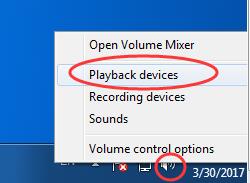
- In the Sound settings dialog box, make sure you are at Playback tab
- Check the list of sound devices and see whether your current sound device selected as default
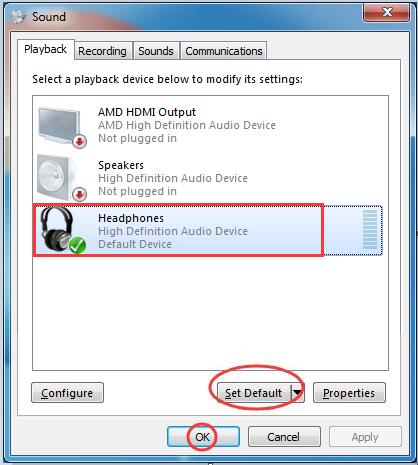
- If not select the device you want to use and click Set Default
- Click OK to close the window
Play a song or video in media player and see whether no sound problem is resolved. If the no sound issue still persists, go to the next solution
Solution Three- Make changes to the audio format
Windows supports various audio formats. Today, the audio files and video files support different audio formats like 16-bit at 48 KHz format, CD quality, DVD quality. There is a possibility your computer does not support the sampling and the bit rate of the audio or video file you are trying to play. In that case, your Windows computer may not be able to produce sound.
To overcome this issue, you can try changing the audio format and see if it works. Here are the steps to follow.
- Go to the right bottom corner of the desktop and click on the sound icon
- Click on Playback devices option

- when the sound settings window opens, select the default audio device
- Click Properties
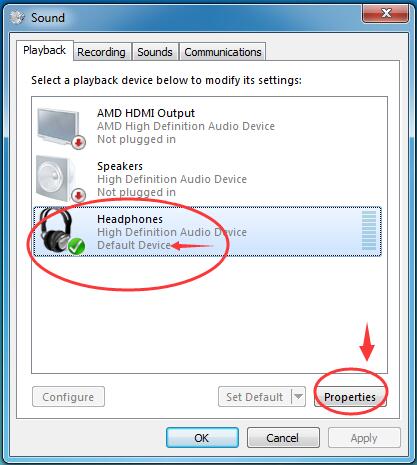
- In the Properties window, click Advanced tab
- Click on down arrow to reveal all options under Default format
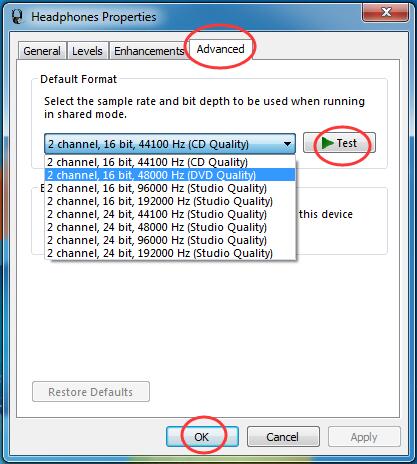
- Select a different audio rate than earlier and click Test
- Open an audio and video file and check whether you can hear the sound
- If you find out the selected format works, confirm your selection by clicking OK
- If you find out the selected format does not resolve the issue, try another format from the list and see if it works
If the “no sound” issue is not resolved even after trying all audio formats in the list, move to the next solution.
Solution Four – Disable all enhancements
Your Windows computer has several advanced sound settings. If any of these settings have changed or wrong selections exist, it could lead to “no sound” issue. Sound enhancements refer to different sound effects that make the audio sound much rich.
Some of the sound enhancements available in Windows 7 are Virtual Surround, Loudness Equalization, and many more. In this solution, we need to ensure the sound enhancements are not the cause of “no sound” issue. Here are the steps to follow.
- You need to access sound settings to perform troubleshooting steps. Perform first four steps (till Properties)
- In the Properties window, click on Enhancement tab
- Check the box Disable all sound effects or you can disable one sound effect at a time and see if the issue is resolved
Play an audio or video file and see if the no sound problem is resolved. If the issue still persists, move to next solution.
Solution Five – Reinstall sound drivers
In many cases, corrupt or incompatible sound drivers are the cause behind “no sound” issue. In that case, reinstalling sound drivers seems to be an easy solution to resolve the no sound problem in windows 7.
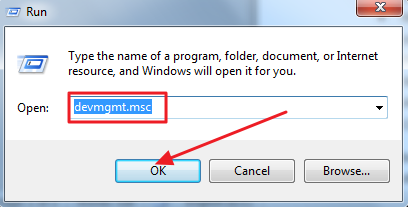
- Press Windows key+ R on the keyboard simultaneously to bring up a Run command box
- In the Run command box, type devmgmt.msc
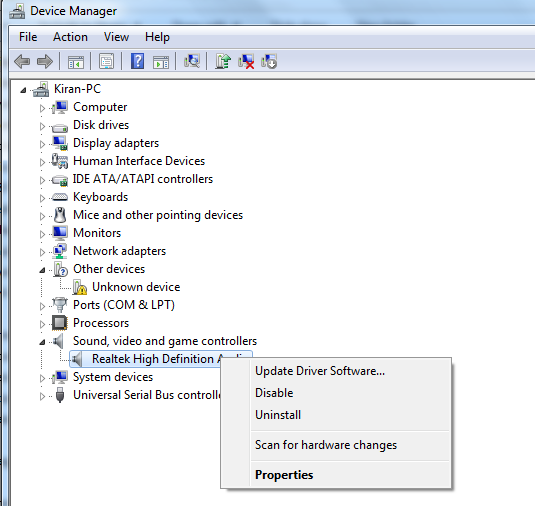
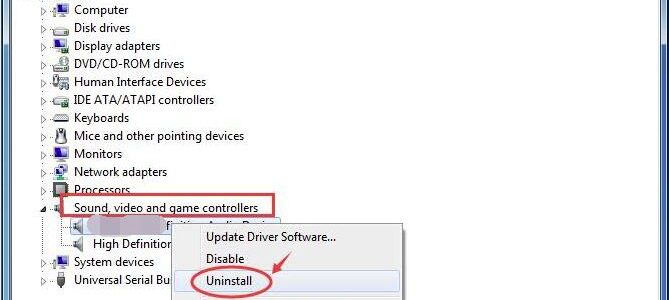
- In the Device Manager window, go to Sound, Video, and Game controllers category and expand it
- Right-click on the audio device in the list and click on Uninstall
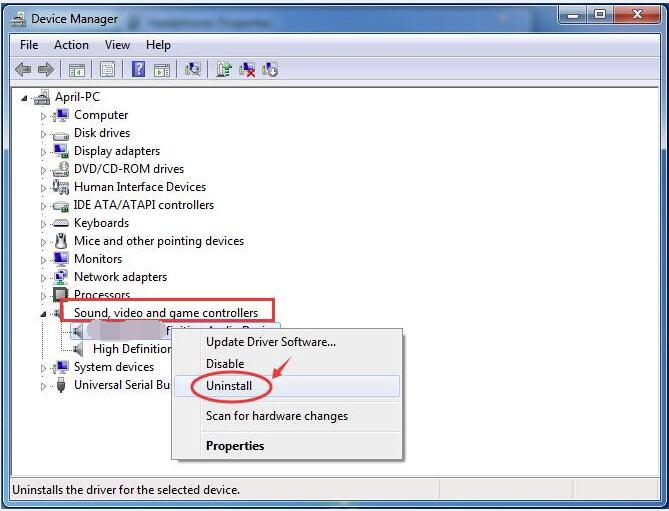
- Allow the uninstallation process to complete
- Reboot your computer
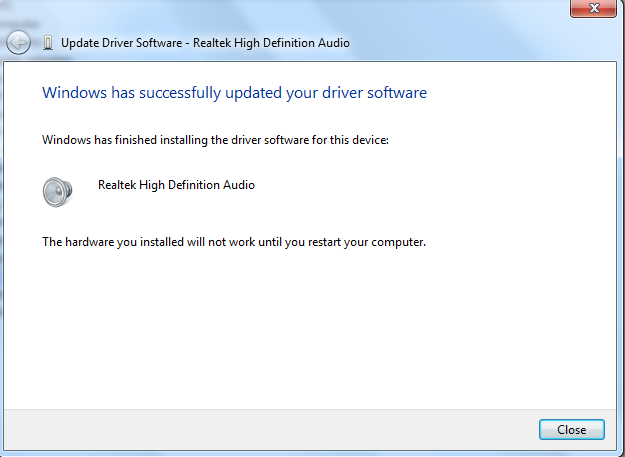
- Upon restart, Windows will automatically install the sound driver
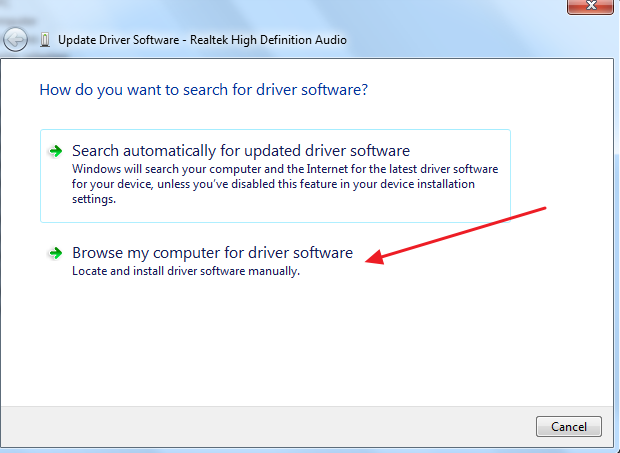
Play an audio or video file and see if the problem persists. If you see the no sound issue remains unresolved, you’ll have to update your sound card drivers.
Solution Six – Update Drivers Automatically
The best way to update sound device drivers, or any other device driver for that matter, is to use a fast, advanced driver update tool.
Automatic driver update tools offer many benefits, the most important ones being:
- You can update device drivers automatically
- The software scans and updates all outdated or missing drivers at one go
- The tool picks the right drivers for your device and operating system, so you won’t have to worry about installing an incorrect driver by mistake
- Automatic driver updates are 100% safe
Driver Updater is one of the best driver update tools out there. Outbyte Driver Updater will give you access to a database of over 1 million drivers. It will regularly scan your PC, suggesting new driver versions to install. Driver Updater contains drivers for a variety of Windows devices. With just one click, you can update drivers in your system.
Step 1
Click here to Install and launch the app
Step 2
Scan all devices
Step 3
Install or update drivers automatically