



Sometimes you hear a catchy video song on YouTube and might want to extract the song as an audio file. To help you do just that, we have listed two easy ways to extract audio from YouTube videos.
The first option here shows you how to extract audio from YouTube video using an online audio extraction service. The second option discussed here shows how to extract audio from YouTube video using video converter applications.
The first option needs less time as you are not required to download the YouTube video. However, in online audio extraction, the quality of the audio might not be great.
The second option requires you to download the video first and then use the video converter to extract the audio file. The advantage of using a converter is that you get a higher quality audio.
Option One- Use online audio extractor service
There are many online audio extractor services that can help you extract audio from YouTube video. You can use any online audio extractor website you trust.
However, if you are unable to decide which website to use, you can go to www.onlinevideoconverter.com and follow the steps given below to extract audio from YouTube video and download the audio file.
- Go to onlinevideoconverter.com
- Click Convert a Video Link/URL option
- In the next screen, enter the YouTube video link that you want to extract audio
- The default audio format selected is mp3. You can select other audio formats like aac, ogg, m4a, wav audio formats from the drop-down list.
- Click More settings to select the bit-rate. The default bit-rate is 192 kbps. You can select a higher or lower bit-rate as per your preference. The bit-rate is related to audio-quality; higher the bit-rate, better the audio quality
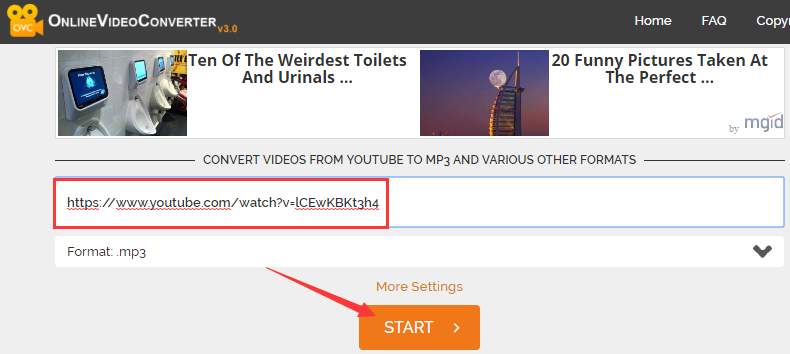
- Click Start
- After the audio is extracted, you will get an option to Download the file, click Download to download the audio
If you want to extract audio from several YouTube videos, we would suggest you use video converters for the purpose.
Option Two- use video converter to extract audio stream from YouTube video
There are several 3rd party video converters that allow you to extract audio file from YouTube videos. Here we have discussed two video converters – Audials One and VLC Media player which are popular video converters.
Below you will find steps to extract audio file from YouTube videos using both video converters.
Note: You will need to have the video file (YouTube video) on your local drive.
Steps to extract the audio file using Audials One
Audials One is an easy to use video converter that allows you to extract audio file from video files in different formats. Some of the audio formats supported in Audials One are MP3, WMA, AAC, and many others. Here are the steps to extract audio file from YouTube video
- Download and install Audials One
- Open Audials One
- In the left pane, under Universal Converter, click Converter
- Click File and then click Add files
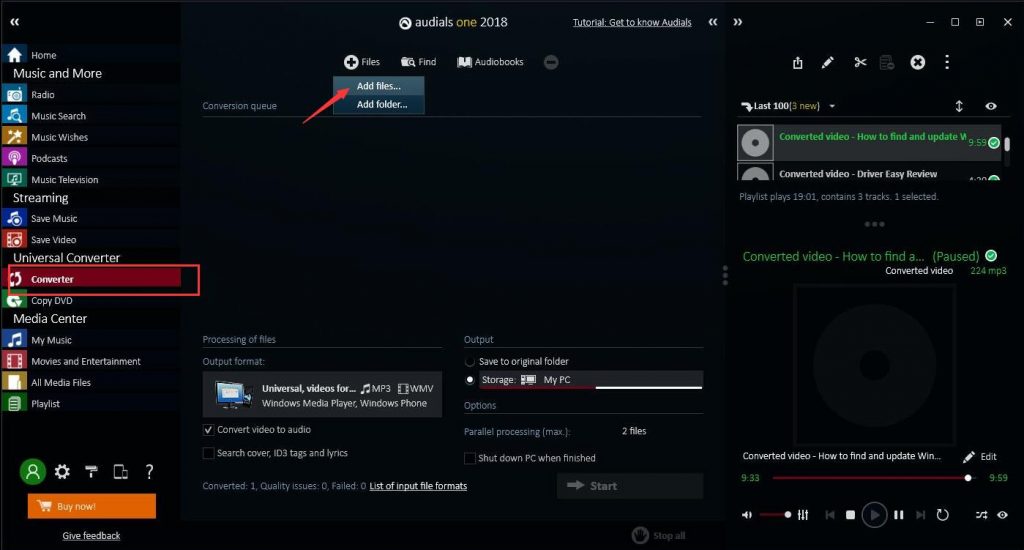
- Select the downloaded YouTube file
- Click Close when you are promoted to add more files
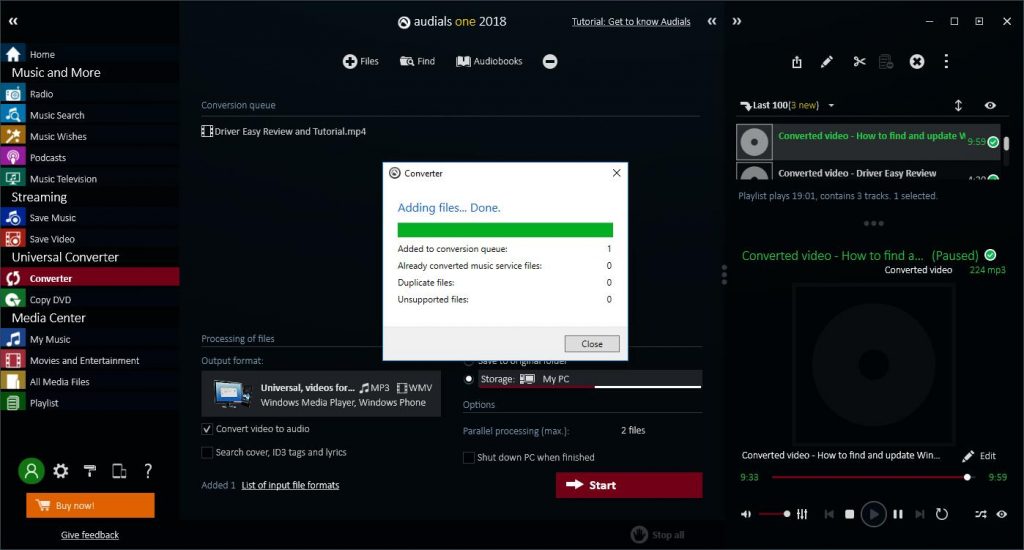
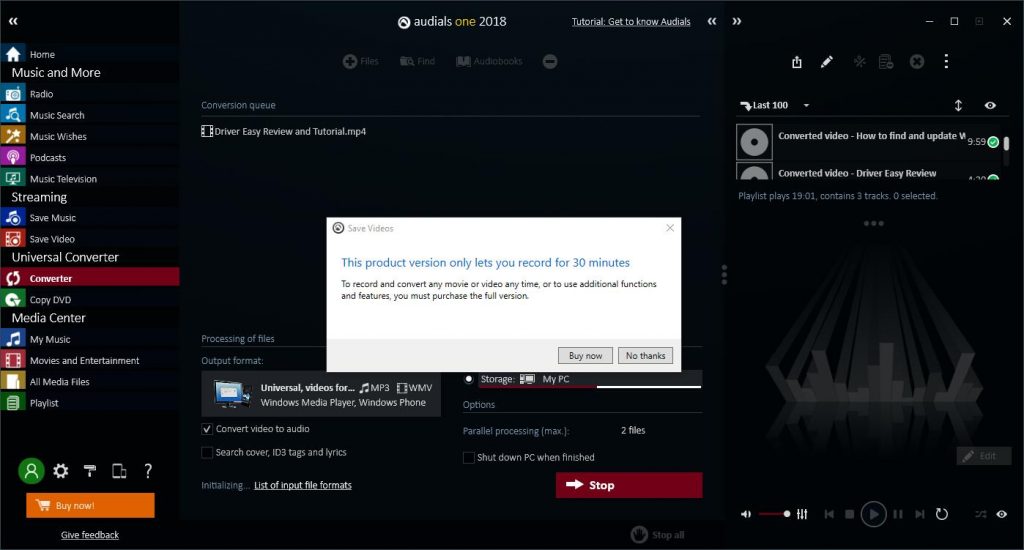
- Check the box – convert video to audio
- Click Start
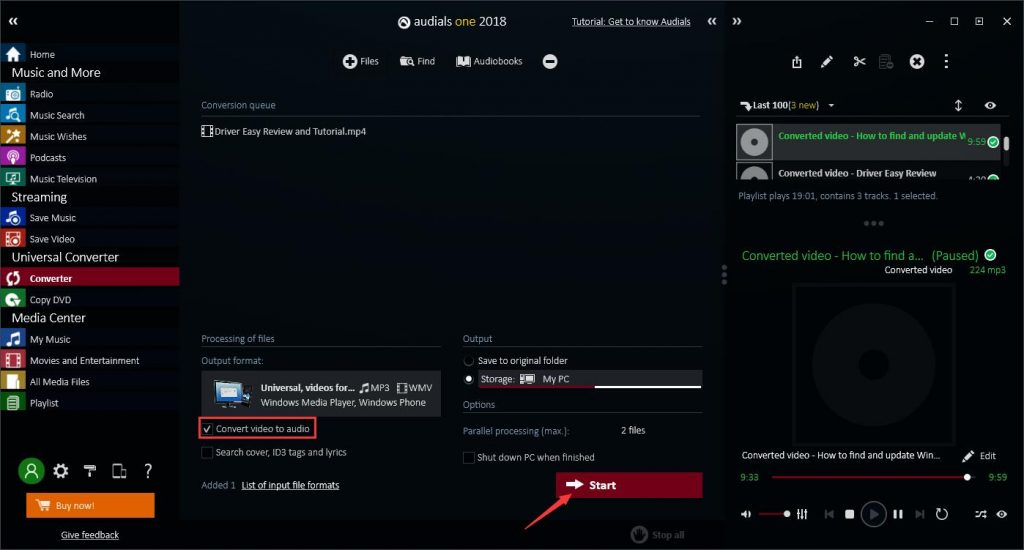
- The Free version of Audials One only allows you to convert YouTube videos having duration of 30 minutes or less. Before the conversion, the software presents you with an option to Buy Pro version. If the YouTube video duration is less than30 minutes, click No Thanks option which will start the conversion. If the YouTube video duration is more than 30 minutes, click Buy Now to upgrade to Pro version
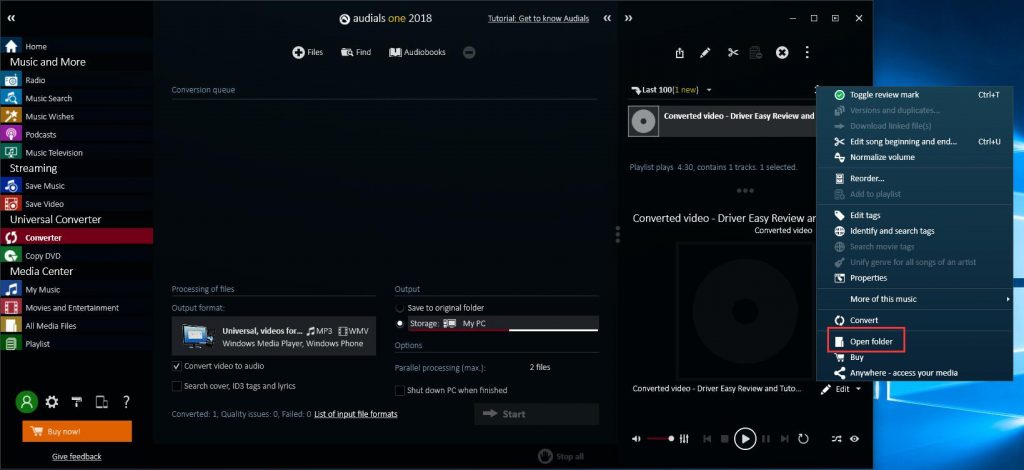
- After the audio file is converted, click Edit in the right corner
- Select Open folder to see the converted audio file
Steps to extract audio file using VLC Media player
- Download and install VLC Media player
- Launch VLC media player
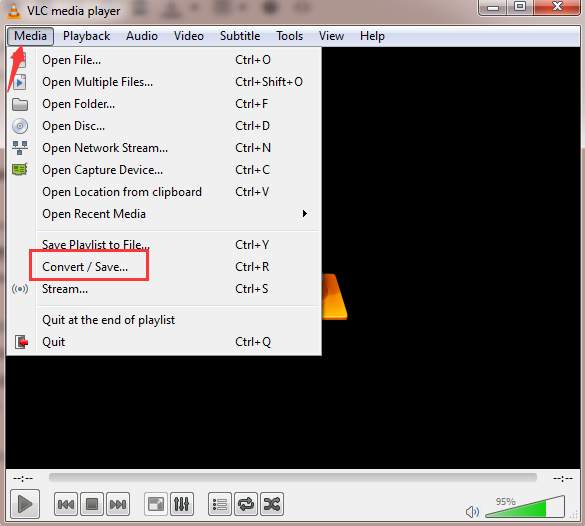
- Click Media in top menu bar and select Convert/Save
- Click Add button
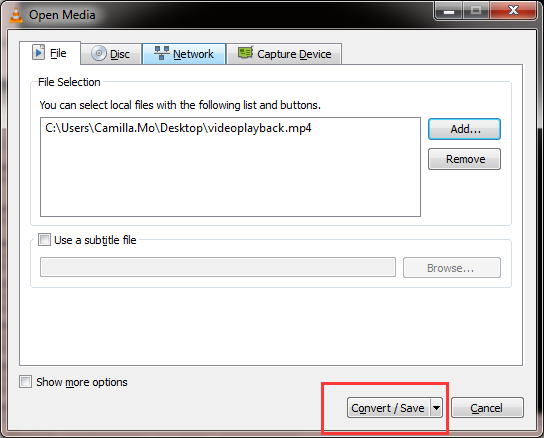
- Browse and select the YouTube video file that you have downloaded and click Open
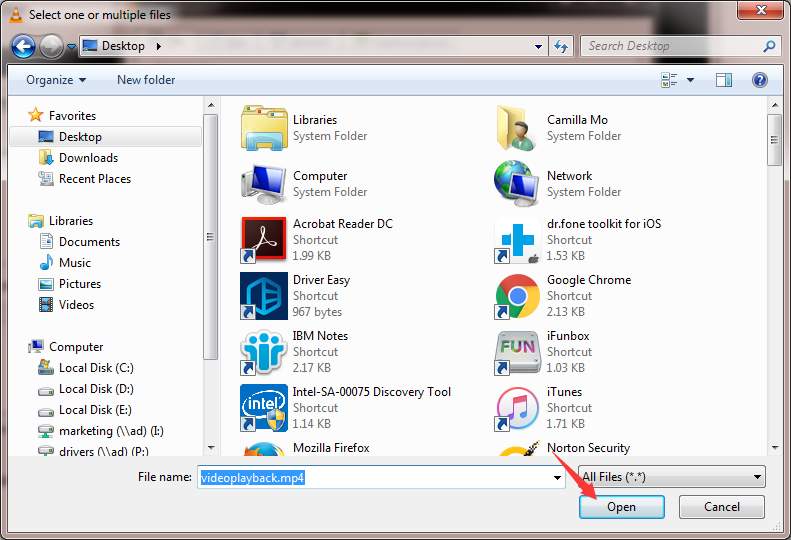
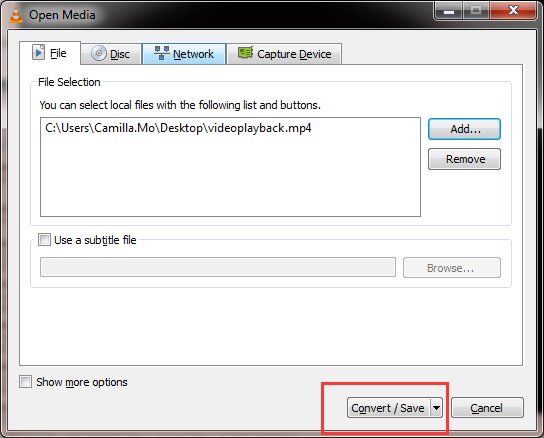
- Click Convert/Save button
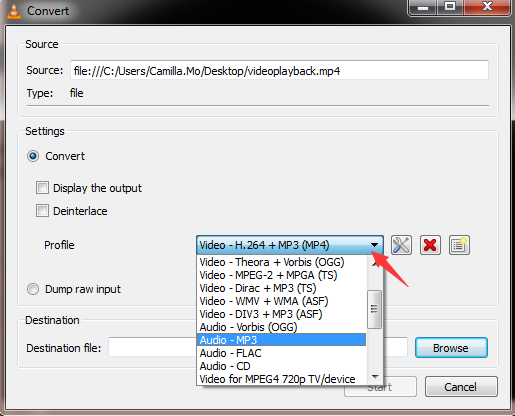
- Select the audio profile you want. We have selected MP3
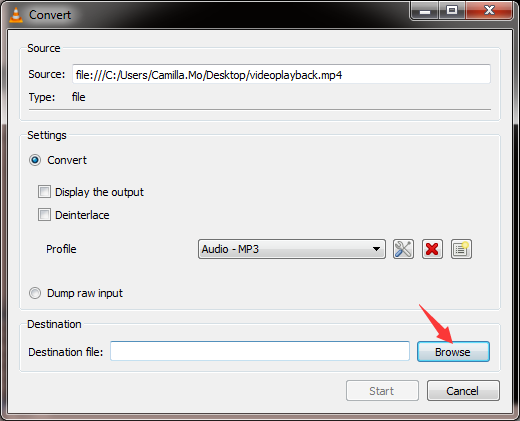
- Click Browse to select the destination folder for the converted audio file
- Click Start to initiate the conversion
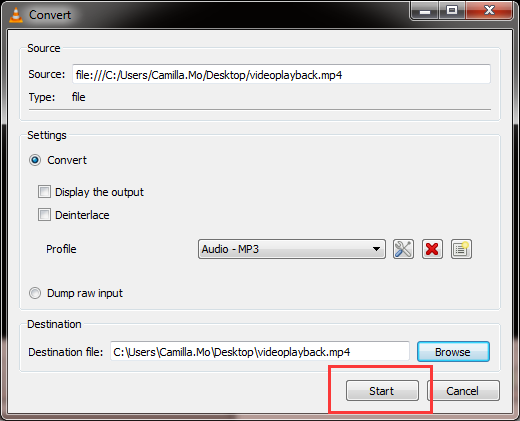
- The file conversion starts and audio will be extracted and saved as an audio file in the destination folder
Leave a Reply