Drivers.com

follow us:

facebook twitter
  • Home
  • Download Drivers
  • Drivers Help
  • PC/Mac Resources
  • Software Drivers
  • Mac Fixes and Tips
  • PC Fix Tips
  • Security/ Backup
  • Tablets & Smartphones
  • Tech News
  • Software Drivers
  • Mac Fixes and Tips
  • PC Fix Tips
  • Security/ Backup
  • Tablets & Smartphones
  • Tech News

Windows Resource Protection could not perform the requested operation error

By Susan C on May 7, 2018

Windows Resource Protection could not perform the requested operation error

When Windows operating system crashes, the operating system runs system file checker (SFC) to analyze all system files for damage or corruption and fix any issues with files by replacing them with fresh, cached versions.

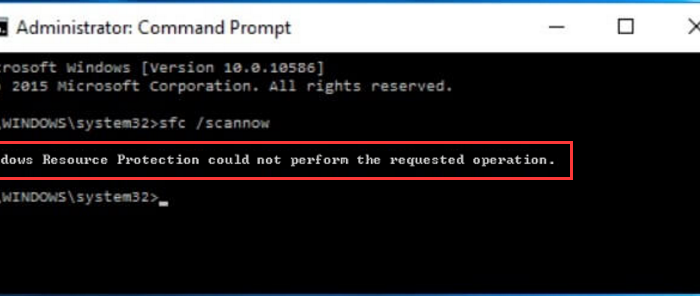
A successful SFC scan can fix many issues in Windows operating system but SFC can also fail at times and cause “Windows resource protection could not perform the requested operation” error to appear on the screen.
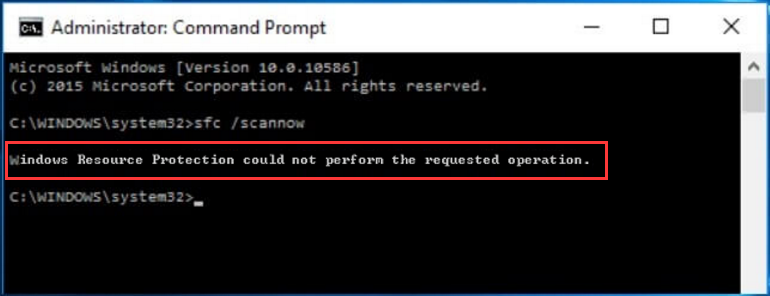
error image

When you get this error, you can be certain that some corrupt files needed by Windows couldn’t be fixed. This in turn could lead to other problems.

Thankfully, there are some simple solutions to fix the “Windows resource protection could not perform the requested operation” error. Read on to know more about them.

Solution One – Run SFC in Safe Mode

  • Press Windows logo key and R simultaneously on the keyboard to bring up Run command tool on the screen
  • Type msconfig in the Run command box and click OK
cmd admin
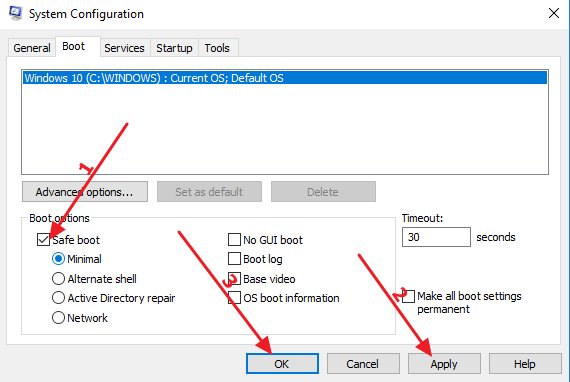
  • In the system configuration window, go to Boot tab
safe boot
  • Tick Safe boot option
  • Click Apply -> OK
  • Click Restart when prompted by System configuration
  • Windows will now boot into Safe mode
  • Open command prompt with admin rights
  • In the command prompt windows that opens, type sfc /scannow and hit Enter
sfc-scannow
  • See if the SFC completes the process without any errors.

Solution Two – Run CHKDSK

If your hard drive is corrupt or has bad sectors, SFC would fail even in Safe Mode. You can use the CHKDSK utility to check the integrity of the hard disk and fix any file system errors. Here are the steps to follow.

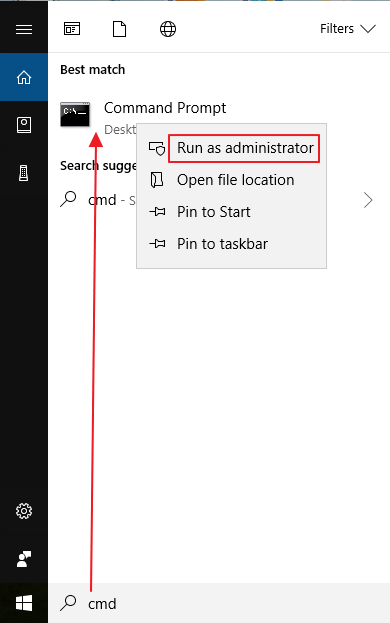
  • Type cmd in the search box
  • Right-click on command prompt in the list of results and select Run as administrator
  • In user account control pop-up, click Yes
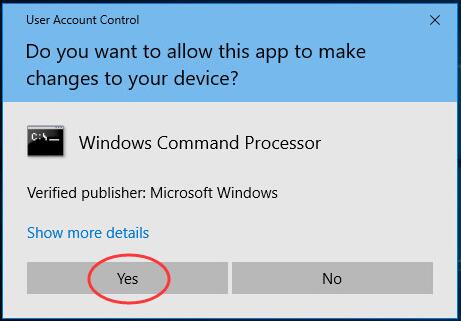
user account control
  • In the command prompt window, type chkdsk /r
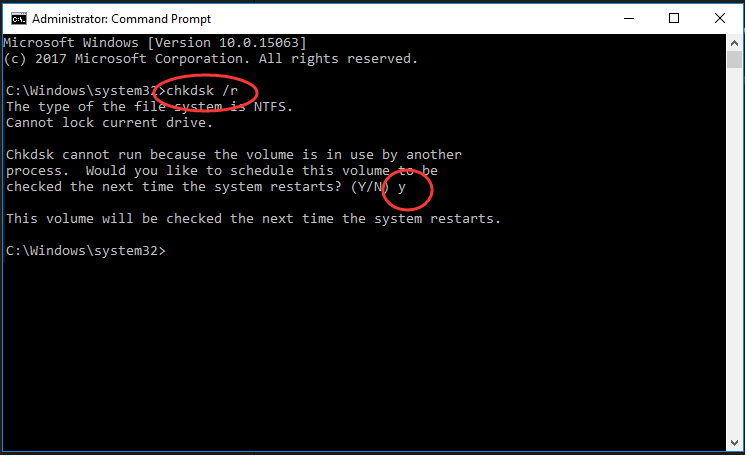
chkdsk
  • When the system asks you to schedule CHKDSK during next restart, type y as an answer
  • Close the command prompt window and restart PC
  • CHKDSK can take a long time which depends on the size of the disk and data stored in it. When the chkdsk process is completed, windows will boot normally.
  • Once you are logged in windows, open command prompt with admin rights
  • In the command prompt windows that opens, type sfc /scannow and hit Enter
  • See if the SFC completes the process without any errors.

Solution Three – Make changes in security descriptors for the winsxs folder

One of the reasons for SFC failing is the System file checker utility is not able to access contents in winsxs folder. The winsxs folder contains important files for your Windows installation and backups and updates of those files.

Sometimes security descriptors of the folder prevent SFC utility from accessing the contents of the folder and that might be the cause of error. Here are the steps to fix the issue

  • Open command prompt window with administrator rights
  • In the command prompt window, type ICACLS C:\Windows\winsxs and hit Enter
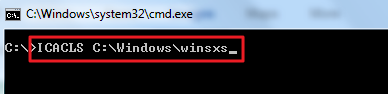
winsxs1
  • After the command is executed, close command prompt window
  • Restart your PC and see if the SFC issue has been resolved
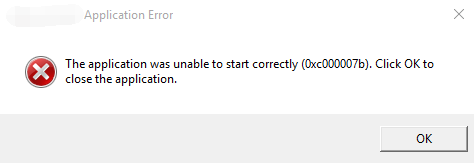
Filed Under: PC Fix Tips Tagged With: SFC error

The Application was Unable to Start Correctly (0xc000007b) error

By Susan C on May 7, 2018

The Application was Unable to Start Correctly (0xc000007b) error

If you are seeing “The Application was Unable to Start Correctly (0xc000007b)” error on your screen, it means something is not right with the application you are trying to run.

0xc000007b  error

The error generally appears when you attempt to launch an application, especially after having upgraded Windows. For example, you might experience this error when you launch an application after migrating from Windows 7 to Windows 8.1 or Windows 10.

In this post, we discuss some easy solutions to fix the 0xc000007b error.

Solution One – Reboot your PC

Many times a simple reboot fixes many problems and it could also solve “The Application was Unable to Start Correctly (0xc000007b)” error.

Some of the causes for this error can be

  • Windows is running too slow
  • Some misbehaving program is using too much memory

Rebooting wipes away the current state of the computer including the software. Any code that was not executed properly earlier will be reloaded again, which might resolve the issue. When you reboot the computer, the operating system loads from scratch and all application and their dependencies are also freshly loaded. So the application might work well like it worked before the error appeared.

Solution Two – Run the application with administrator rights

Some applications might throw up the error and refuse to start when they can’t access the files they need. The simple solution to this problem is running the application with administrator rights and see if it helps.

When you run an application with administrator rights, you are actually notifying the windows operating system that the application is safe and it is ok for the application to access any files it needs.

Here are the steps to run the application with admin rights.

  • Right-click on the application you are trying to run
  • Select Properties
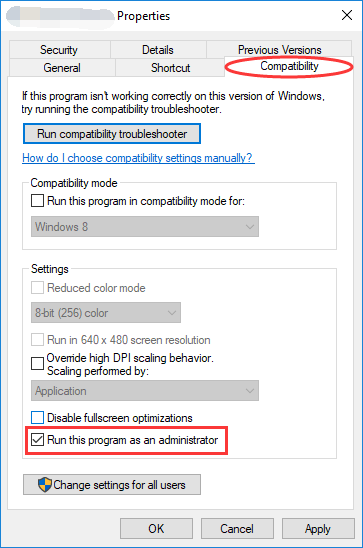
  • Go to Compatibility tab and check the option Run this program as an administrator
app properties
  • Click OK
  • Try launching the application now and see if the issue has been resolved.

Solution Three -Reinstall application

The system and application files change as you use your PC. Sometimes installing and uninstalling any application or making some system changes leads to corruption of some files. There is a possibility the files of the application you are trying to run are corrupted and as a result of which you are getting “The Application was Unable to Start Correctly (0xc000007b)” error.

A simple solution to this problem is to fresh install the application in question. Doing so would ensure all files required by the application are newly created which in turn would resolve the issue.

Solution Four – Reinstall Microsoft .NET Framework

Microsoft .NET Framework is required by many applications. “The Application was Unable to Start Correctly (0xc000007b)” error might be related to Microsoft .NET Framework. Installing/Reinstalling the .NET framework might resolve the issue.

Note- Since Windows 8, Microsoft .NET framework is an integral part of Windows operating system. Hence, Windows 8/8.1/10 users cannot uninstall and reinstall .NET framework manually. They need to update Windows to get the latest version of .NET framework. The steps given below are applicable to Windows 7 and earlier versions.

  • Press Windows key and R simultaneously to bring up the Run command tool
  • Type control in Run command box and click OK
  • In the Control panel window, select Programs and Features
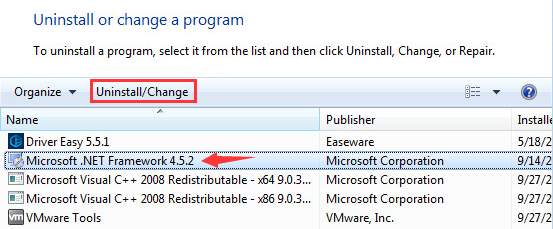
  • Click on Microsoft .NET framework entry in the list and click on Uninstall/Change option
uninstall .NET
  • Repeat the above step to uninstall all Microsoft .NET framework versions install in your PC
  • Go to Microsoft.com website and download the latest .NET framework
  • Click on the setup file and follow the on-screen instruction to install the .NET framework

Solution Five – Reinstall Microsoft Visual C++ Redistributable Packages

Visual C++ Redistributable Packages install runtime components on a computer that does not have Visual C++ installed. Applications that are built using the corresponding Visual C++ version need these Visual C++ runtime components.

The application that you are trying to run might be looking for Microsoft Visual C++ runtime components

. If your computer does not have Visual C++ Redistributable Packages or the latest version is not installed, the application might throw up “The Application was Unable to Start Correctly (0xc000007b)” error.

Another reason could be that the Visual C++ Redistributable Packages files are corrupt. The simple solution to this problem is reinstalling the latest version of Microsoft Visual C++ Redistributable Packages.

Here are the steps to follow.

  • Press Windows key and R simultaneously to bring up the Run command tool
  • Type control in Run command box and click OK
  • In the Control panel window, select Programs and Features
  • Select item with “Microsoft Visual C++ 2*** Redistributable (*** refers to Version number)
  • Click Uninstall/Change to remove the Microsoft Visual C++ 2*** Redistributable package
  • Repeat the above steps to uninstall all versions of Microsoft Visual C++ Redistributable packages.
uninstall visual C++ redistributable
  • Go to Microsoft.com website and download latest Microsoft Visual C++ Redistributable packages.
  • If your computer is running 32-bit Windows OS version, you need to download the x86.exe file.
  • If your computer is running 64-bit Windows OS version, you need to download the x64.exe file.
  • Click on the downloaded file and follow on-screen instructions to install Visual C++ Redistributable packages.

Solution Six – Update Windows

As mentioned earlier, Windows 8/8.1/10 users need to install all pending updates to get the latest version of the .NET framework and DirectX as it might be required by the application. Many times installing updates also helps in fixing bugs that might resolve “The Application was Unable to Start Correctly (0xc000007b)” error.

We recommend users to install all pending Windows updates and see if the issue is fixed. Here are the steps to follow

  • In Cortana search box, type Windows update
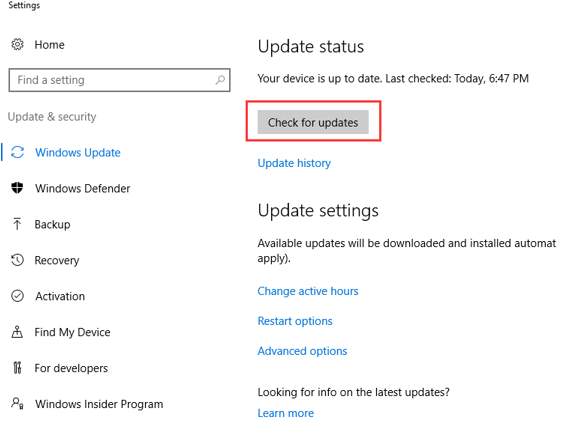
  • Click check for updates from the list of results
check updates
  • If you see any pending updates, install them

Solution Seven – Run Check Disk

Bad sectors in your hard drive can be one of the reasons behind “The Application was Unable to Start Correctly (0xc000007b)” error. There is a possibility the application is not able to recover data from some bad sectors which is the reason behind the error.

The simple solution to fix this problem is running check disk which will mark bad sectors and also recover data from these bad sectors. CHKDSK also fixes logical file system errors that might help in resolving the issue. Here are the steps to follow

  • Click Start and type cmd in the search box
  • Right-click command prompt the list of results and select Run as administrator
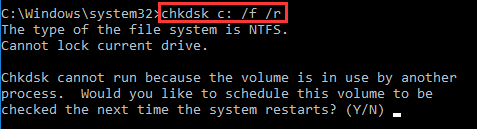
  • In the command prompt window, type chkdsk c: /f /r“ and hit Enter. The command means you want to check the C drive.
command prompt chkdsk
  • If you want to check other partitions, just replace C with the drive letter and press Enter

Filed Under: PC Fix Tips Tagged With: 0xc000007b error

Bad Pool Caller Error

By Susan C on May 5, 2018

Bad Pool Caller Error

Blue screen of Death error, like bad pool caller, is the last thing you want to see on your computer screen because it completely disrupts what you are doing.

Irritating as bad pool caller error and other BSODs are, the good news is they are often not hard to resolve. The case in point is bad pool caller error, which an average user can resolve fairly quickly by himself.

In this post we’ve provided several solutions to bad pool caller error. You don’t have to try each of these. Start with the first solution in the list and move on to the next one and so on, till the issue is fixed. (And yes, don’t forget to leave a comment telling us which solution worked for you.)

 What is bad pool caller error?

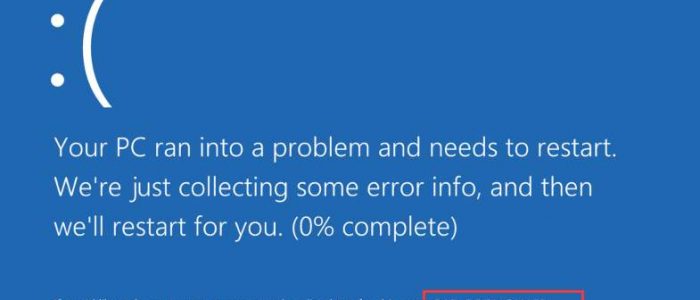
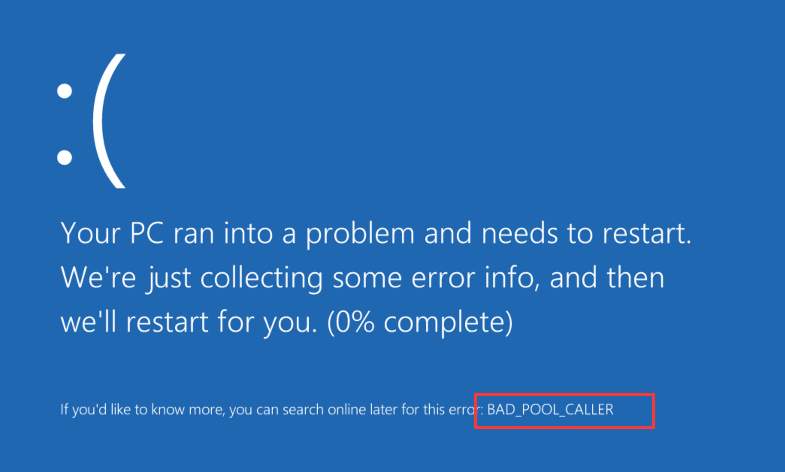
BPC error message

The Bad pool caller error is mostly caused by over-clocking or faulty drivers.  The pool in the error refers to memory allocated to drivers.  The Pool errors are generated by the system when a piece of data referred does not exist in memory or the allocated memory cannot be released.

The bad pool caller error generally results in Blue Screen of Death and you see memory dumps after the error is generated.

Before Doing Anything

Before performing any troubleshooting steps, we recommend users to install all pending updates.

This is because Windows 10 is not a perfect system yet and Microsoft provides updates to fix any bugs or performance issues that can hamper user experience.

To install updates, perform the steps given below.

  • Click Start
  • Select Settings- > Updates and Security
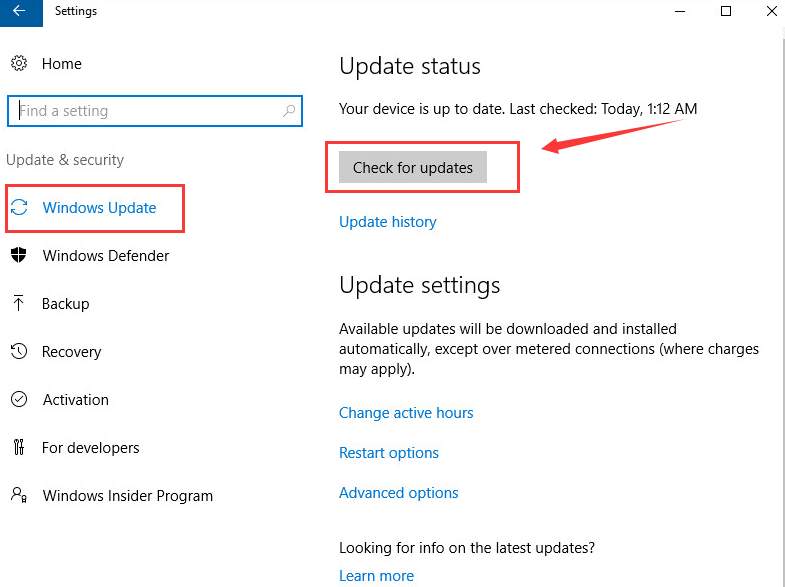
  • On the right side of the pane, click Check for updates
check updates
  • If you see there are any available updates, install them before you perform any troubleshooting steps given in this post.
  • Also, run the antivirus program scan and ensure your system is free from virus and malware.

Once you have completed these two steps you can proceed to try solutions given below.

Solution One – Revert any system changes

If you have installed any hardware or software recently, we suggest you remove them and revert the system to the previous state.  See if the problem is fixed. If you still get the BSOD error, move on to next solution.

Solution Two- Update drivers

Corrupt or incompatible device drivers account for the majority of BSOD errors.  In such cases, updating device drivers might resolve the issue.

There are two ways to update device drivers – manually and automatically.

Updating drivers manually involve many steps and it might be difficult for you if you haven’t done it earlier.  You are required to visit device manufacturer (for laptops) and hardware manufacturer website (for assembled PC’s) to find driver updates. In addition to these, you need to know some other details too, like your Windows architecture (32-bit or 64-bit). Plus there’s always a risk of downloading wrong drivers.

That’s why a much better way is to use a driver update tool. With it, you can update all your drivers with a single click. Moreover, there’s no risk of downloading wrong drivers.

Automatic driver update tools offer many benefits, the most important ones being:

  • You can update device drivers automatically
  • The software scans and updates all outdated or missing drivers at one go
  • The tool picks the right drivers for your device and operating system, so you won’t have to worry about installing an incorrect driver by mistake
  • Automatic driver updates are 100% safe

Driver Updater is one of the best driver update tools out there. Outbyte Driver Updater will give you access to a database of over 1 million drivers. It will regularly scan your PC, suggesting new driver versions to install. Driver Updater contains drivers for a variety of Windows devices. With just one click, you can update drivers in your system.

Step 1
Click here to Install and launch the app

Step 2
Scan all devices

Step 3
Install or update drivers automatically


Start Download


Solution Three-Run a memory check

Faulty RAM can be one of the causes of bad pool caller error. You can check whether the RAM is at fault by using the Windows Memory Diagnostics tool. Here are the steps to follow.

  • Press Windows key and R simultaneously on the keyboard to invoke Run command tool
  • Type mdsched.exe in the Run command box and click OK
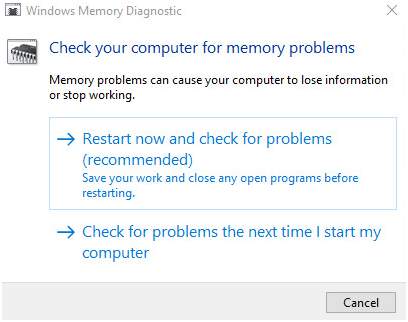
  • You get two options- Restart now and check for problems (recommended) and Check for problems the next time I start my computer
memory problems check
  • If you select the first option, the Windows will reboot immediately and run the Windows Memory Diagnostics If you don’t want to run the Windows Memory diagnostics tool immediately and want to schedule it later, choose the second option.
  • When the PC restarts, you will see Windows Memory diagnostics tool running tests and checking RAM for any faults. The test may take around 10 minutes to complete. If the Windows Memory diagnostics tool does not show any error, you can draw a conclusion the RAM is not at fault and the bad pool caller BSOD error is occurring because of some other reasons.

Solution Four- check the hard drive for errors

Besides faulty RAM, corrupt hard drive or bad sectors on the hard drive can be one of the causes of bad pool caller error.

Here are the steps to determine whether the hard drive is at fault.

  • Click Start-> File Explorer -> This PC
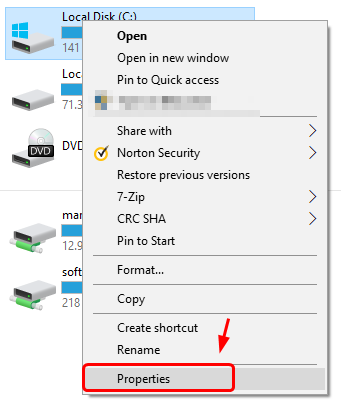
  • Right-click on the hard drive partition you want to check and click Properties
hard drive properties
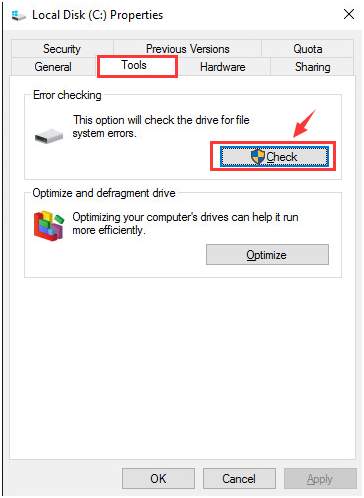
  • Go to Tools tab and click Check
hard drive check
  • Repeat the above steps to check other hard drive partitions
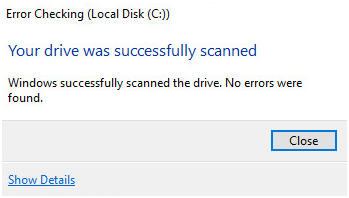
  • If your hard drive is in good health, you will see a message like this.
hard drive scanned

Other solutions

In case none of the above-mentioned solutions work for you, we recommend you try the additional solutions given below. Several users have reported that they have been able to fix the issue using these solutions, so in our opinion they are definitely worth a try.

Update BIOS

Updating BIOS might help resolve the issue. However, you must understand there is some degree of risk involved when you update BIOS. A wrong step here could cause further complications. Therefore, try this step only if you feel confident. The steps to update BIOS can vary from one PC to another, depending on the brand or motherboard manufacturer. Therefore, visit your device manufacturer website or your motherboard manufacturer website to know the steps you need to perform to update your BIOS.

Uninstall third-party anti-virus program

Some times 3rd party anti-virus programs might cause bad pool caller error. Uninstall 3rd party anti-virus program and use the inbuilt Windows Defender program to protect your PC. If the issue is resolved, you should contact your antivirus manufacturer and tell its customer support about your problem. Alternative, you can also shift to another 3rd party antivirus program or continue using just Windows Defender, which is a perfectly capable virus and malware protection tool, particularly for independent users.

Use Driver Verifier

Windows provides a Driver Verifier diagnostic tool to find problems with drivers. The Driver Verifier tool is readily available in all Windows operating system except for Windows 10 S.

Here are the steps to use Driver Verifier.

  • Open Command prompt window (with administrator rights)
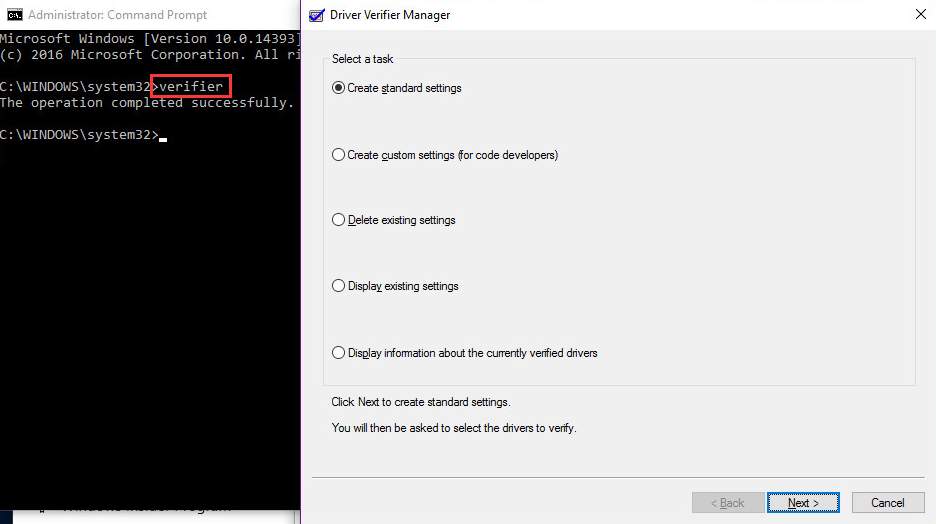
  • Type verifier to open the Driver Verifier Manager
driver verifier
  • Type verifier /? to view different command line options

Reset Windows

If nothing has worked for you, the last option you have is to Reset Windows.

Note: Before you reset Windows, ensure you backup your files and applications.

Here are the steps you need to follow to reset Windows 10.

  • Go to Settings and click Update & Security
  • Among the various options in the left pane, click Recovery
  • You’ll have three options in front of you: Reset this PC, Go back to an earlier build, and Advanced Startup. You should select Reset this PC
  • Click Get Started
  • Here you’ll have two options in front of you: Keep my files and Remove Everything. Which one you should choose depends solely on whether you wish to keep your files or not. Pick the one that’s suitable for you
  • Again you’ll have two options in front of you: Just remove my files and Remove files and clean the drive. We suggest you click Just remove my files
  • Click the Next button
  • Click on the Reset button
  • Click Continue

Filed Under: PC Fix Tips Tagged With: bad pool caller

  • « Previous Page
  • 1
  • …
  • 174
  • 175
  • 176
  • 177
  • 178
  • …
  • 189
  • Next Page »


  • Recent Posts
  • Popular Posts
        

Read More Posts


Read More Posts

Drivers.com Sites

  • Software Drivers
  • Drivers Ed

About Us

  • Advertise
  • About Drivers
  • Drivers Support
  • Drivers.com Privacy Policy
  • Disclaimer
  • Software Drivers
  • Mac Fixes and Tips
  • PC Fix Tips
  • Security/ Backup
  • Tablets & Smartphones
  • Tech News

© Copyright 2026 PDE Publications Ltd. End User License Agreement (EULA)