Drivers.com

follow us:

facebook twitter
  • Home
  • Download Drivers
  • Drivers Help
  • PC/Mac Resources
  • Software Drivers
  • Mac Fixes and Tips
  • PC Fix Tips
  • Security/ Backup
  • Tablets & Smartphones
  • Tech News
  • Software Drivers
  • Mac Fixes and Tips
  • PC Fix Tips
  • Security/ Backup
  • Tablets & Smartphones
  • Tech News

No Bootable Device error

By Susan C on April 22, 2018

No Bootable Device error

The “no bootable device” error is like a nightmare for Windows users. Many users who get this error find themselves helpless and unable to understand what is wrong with their computer that worked well until yesterday.

With that said, you don’t have to worry about this error anymore. On this page, you’ll find easy-to-do solutions for no bootable device error.

Note: The 2nd, 3rd, and 4th solution given in the list would require Windows installation media such as DVD or USB drive with Windows installation files.

BIOS Drivers – Common Errors and Fixes

Solution One- Check the boot order in BIOS

Every time you start windows computer, it checks the BIOS for the boot order. It looks for files like NTLDR and other boot files in the volume boot record before it can start Windows OS. If it does not find files in the first boot device or the second, it throws up an error, like no bootable device.

To resolve the error, you need to ensure the hard drive is the first bootable device in the BIOS.

Here are the steps to check the boot order in BIOS and make changes if necessary.

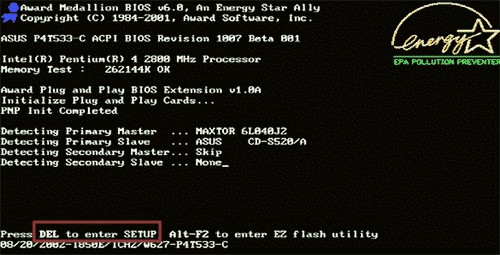
When your computer starts, the BIOS flash screen/POST screen shows the keys that allow access to BIOS and other features.

BIOS flash screen

Here are the steps to follow to fix the issue.

  • Depending on your device or motherboard make and model, press the right key to access BIOS Setup
  • Once you enter the BIOS Setup, look for Boot or Advanced options and press the right key to access that tab. (Note- the navigation keys are shown at the bottom of the BIOS screen)
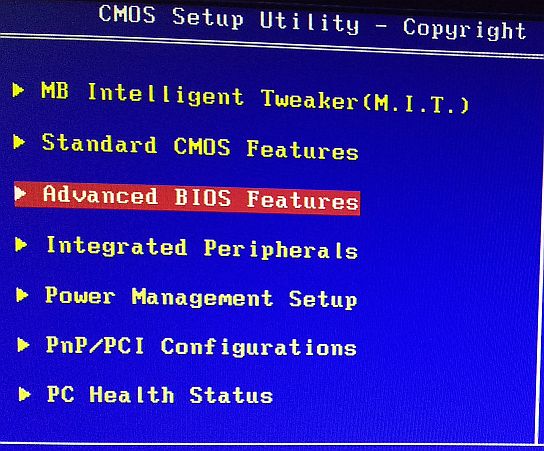
advanced BIO options
  • Check the first boot device. If you see first boot device as USB CD-ROM, Flash drive or any other option other than hard drive, you need to change it
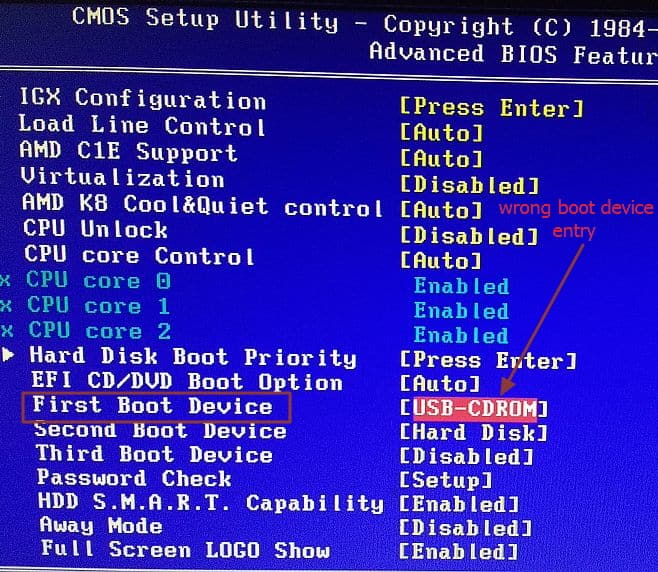
wrong first boot device
  • Select the first boot device using the suggested navigation keys and select Hard Drive as the first boot device.
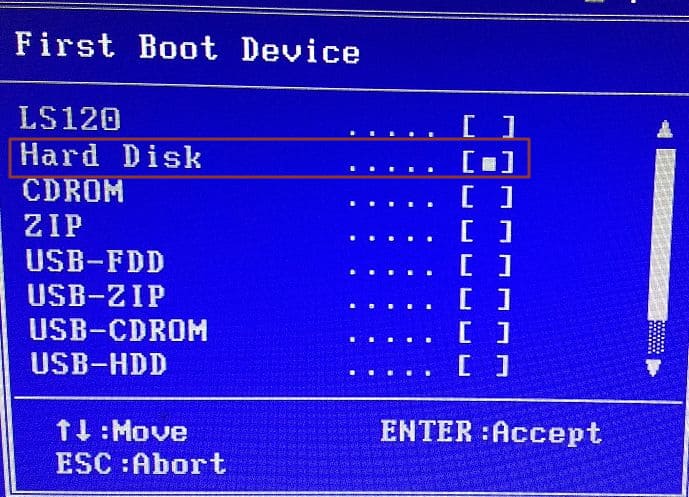
select first boot device
  • Press F10 or any other key as suggested in BIOS setup to save the changes and exit BIOS setup

The Windows system should reboot normally which indicates the “no bootable device” error is resolved. If you still get the error, perform the steps in Solution two

Solution Two – Rebuild boot information

If the Master Boot Record (MBR) or BCD (Boot Configuration Data) is corrupted, your Windows system can throw up an error like “no bootable device”. The solution to this problem is rebuilding boot information.

However, you will need Windows installation disc to perform steps given below.

  • Insert the installation media (USB/CD) in your computer and boot from it. You need to check the BIOS Flash/POST screen to know the right key to access Boot menu
  • Select the right bootable device (USB/CD-ROM) depending on the type of windows installation you have.
  • When the Windows 10 boot media loads, you will see a screen with the option to Repair your computer, click it
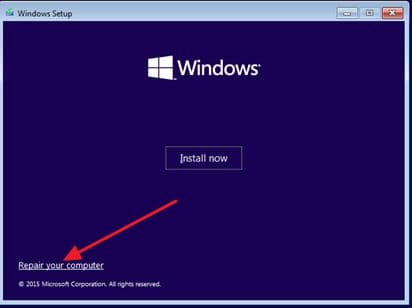
repair your computer
  • In the next screen, select Troubleshoot
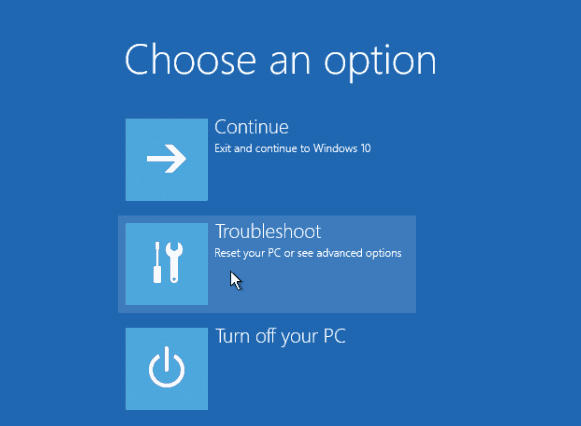
troubleshoot
  • In the next screen, select Advanced options
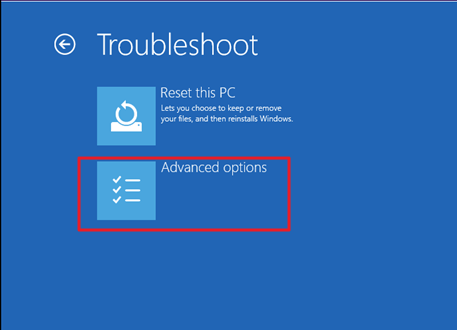
troubleshoot adv optns
  • In the Advanced options screen, select Command prompt
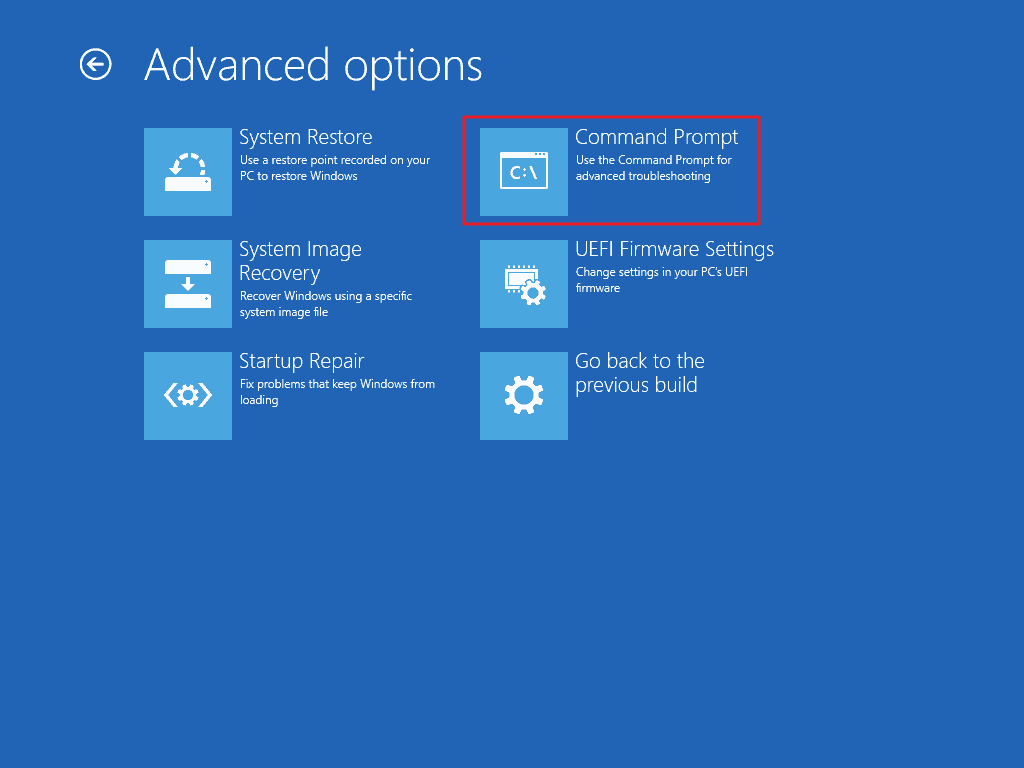
advanced options cmd prompt
  • If you are using Windows 7 computer, follow the steps given below
  • When the Windows 7 boot media loads, you will get a window with system recovery options
  • Select the option –Use recovery tools that can help fix problems starting Windows
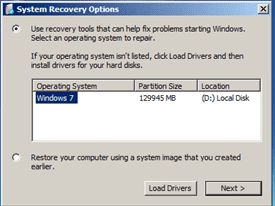
Windows-7-select drive
  • Select the drive where Windows 7 is installed and click Next
  • In the next screen, select Command Prompt
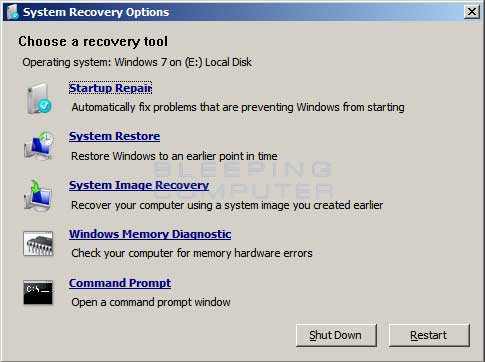
win 7 command prompt

The steps given below are the same for Windows 7 and Windows 10 users

  • In the command prompt window, type the following commands one after another and press Enter after each command. If you are prompted to add a new installation to boot list, press Y on the keyboard
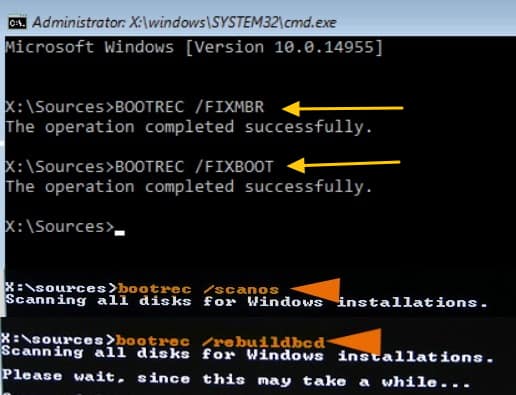
boot rec commands
  • bootrec /fixmbr
  • bootrec /fixboot
  • bootrec /scanos
  • bootrec /rebuildbcd
  • Type Exit in command prompt window and restart your computer

The no bootable device error should be gone and the computer should boot normally.

If the no bootable device error persists, try the steps in Solution Three.

Solution Three – Set the primary partition as active

For the windows to boot normally, the primary partition in which installation files are stored should be set as active. It is quite possible you made some accidental changes when making new partitions or modifying partitions on your computer. This can lead to no bootable device error.

The solution to this problem is set the primary partition as active.

Here are the steps to follow.

  • Refer the steps given in Solution Two to boot from installation media and perform steps until you get access to the command prompt
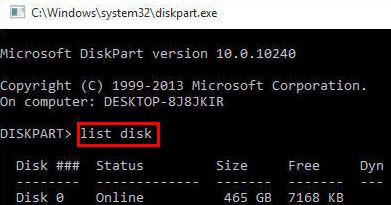
  • In the command prompt window, type the following commands in the given order and press Enter after typing each command

diskpart
list disk
  • diskpart
  • list disk
  • In the list of disks, you need to select the disk where Windows is installed. If you have only one hard drive, you will only see one disk in the list which is labeled as 0(zero)
  • Type select disk 0 and press Enter
  • Type list partition and press Enter
  • You should see all partitions on your hard drive. You need to select the partition that has Windows installed that is your system partition
  • Type select partition 1 or whatever is applicable in your case and press Enter

select partition 1
  • Type active and press Enter
  • Type Exit in command prompt
  • Restart the computer

The system partition is now set active which would resolve the “no bootable device” error. If the error is still not resolved, the last option is to Reset the PC which would fix the issue.

Solution Four- Reset PC

One of the reasons behind “no bootable device” error is corrupted windows installation files. To fix the problem, try resetting your system.

To reset your computer, you will need Windows installation media.

Here are the steps to follow

  • Insert Windows installation in your computer and boot your computer from installation media
  • When the windows loads from installation media, select Repair your computer
  • In the next screen, select Troubleshoot
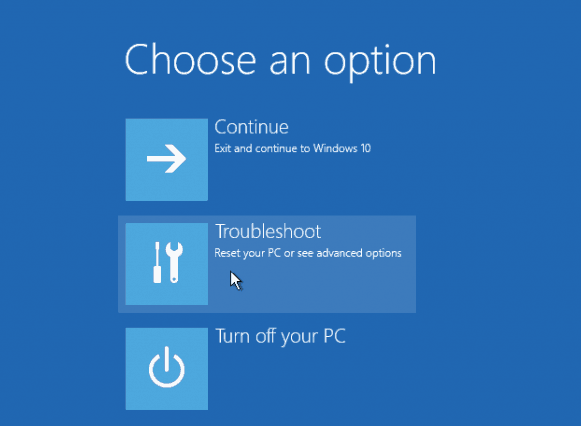
troubleshoot
  • In the Troubleshoot screen, select Reset this PC
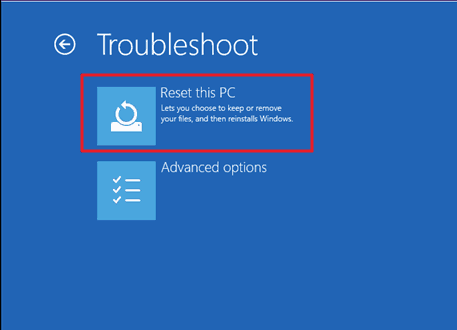
troubleshoot reset pc
  • In Reset this PC screen, select the desired option
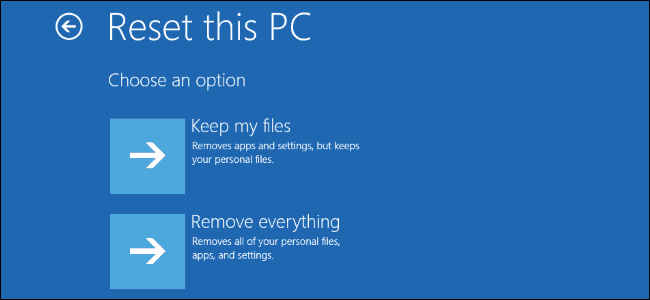
reset this PC
  • Follow on-screen instructions to Reset your computer.
Filed Under: PC Fix Tips Tagged With: no bootable device

DNS Server not responding Error

By Susan C on April 20, 2018

DNS Server not responding Error

Are you getting an error “The DNS server isn’t responding”?

Do you frequently get an error message which says “your computer appears to be correctly configured, but the device or resource (DNS server) is not responding”?

We know it can be difficult when you get such errors because they prevent you from accessing the Internet.

But don’t worry; we offer some easy solutions to solve such errors.

However, let’s first learn more about this issue and its impact.

Why DNS server not responding error doesn’t let you from accessing the Internet?

The username and password provided by ISP to connect to the Internet are only part of the process of Internet connectivity.

There are a host of other things working in the backdrop that make internet connectivity possible, and DNS server is one of the more important part of the whole process.

DNS stands for Domain Name Server.  The DNS server translates the web address you type in the browser to IP address and help your browser to connect to that website.

For example, when you type drivers.com in your Chrome address bar, the DNS server translates it to the public IP address of 192.XXX.XXX.18 and connects your browser to drivers.com website.

So, if the DNS server is not functioning properly, you won’t be able to visit sites like you normally do.

In this post, we have provided you with four solutions to fix this error.

 How to fix DNS server not responding issue?

The solutions given below are based on different causes that lead to DNS server not responding issue.

Unless you know the exact cause, it would be hard to predict which solution would work for you. Hence we suggest you try the first solution and then the next and so on until the DNS server issue is resolved.

Solution One – Select right settings for DNS server address

One of the reasons behind the DNS server not responding could be wrong DNS server address.

The simplest solution to this problem is to select right settings for DNS server addresses.

  • Press Windows key and R simultaneously on the keyboard to invoke Run command
  • Type control in the Run command box and hit Enter
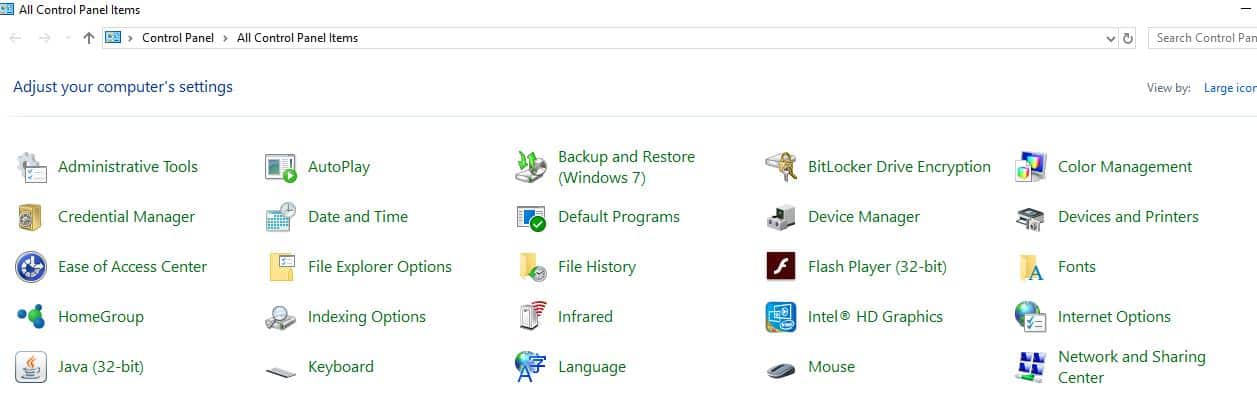
  • Set the View by Large Icons and select Network and Sharing center
network & sharing center
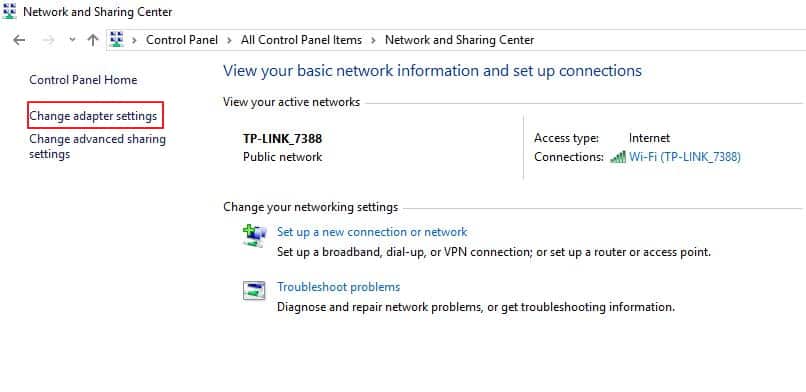
  • In the left-hand pane, click Change adapter settings
change adapter settings
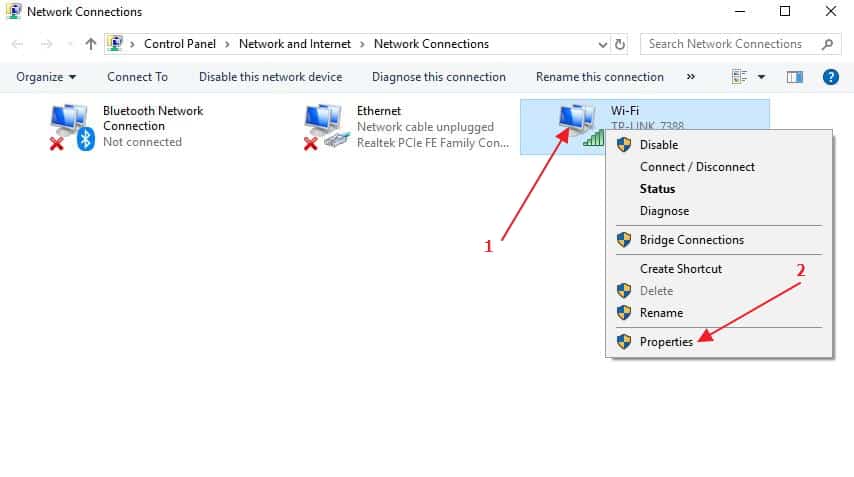
  • Right-click on Wi-Fi or Ethernet as per your Internet connection and click Properties
wi-fi properties
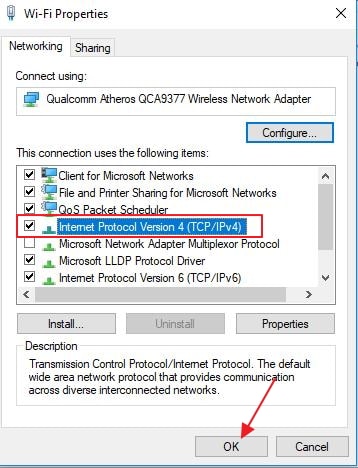
  • In the Wi-Fi properties window, select Internet Protocol Version 4(TCP/IPv4)
IPV4 properties
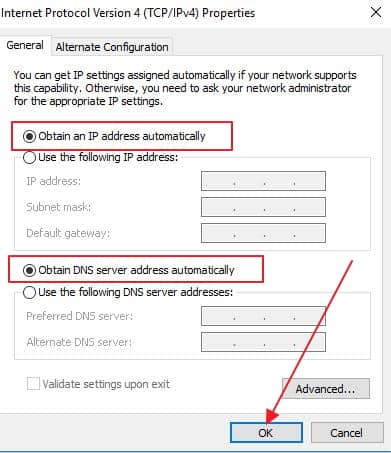
  • Select Obtain an IP address automatically and Obtain DNS server address automatically options
  • Click OK
IPv4 obtain IP auto
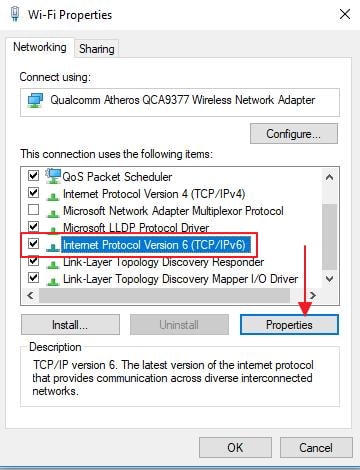
  • Now go to Wi-Fi properties window again, select Internet Protocol Version 6(TCP/IPv6) this time and click Properties
IPV6 properties
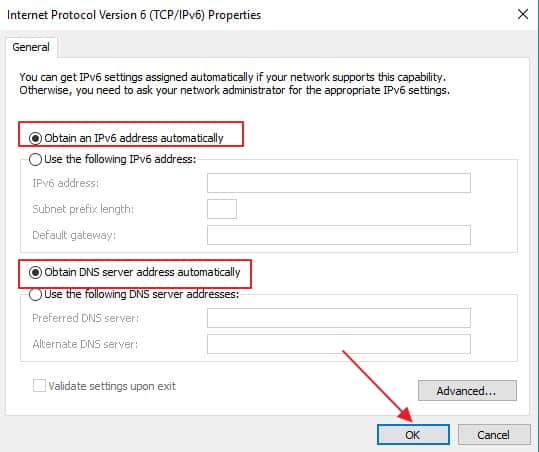
  • Select Obtain an IP address automatically and Obtain DNS server address automatically options
IPv6 obtain IP auto
  • Click OK
  • Close all windows
  • Try accessing some websites and see if the DNS server not responding issue is resolved.

Solution Two – Clear DNS Cache and Reset IP

By default, Windows stores DNS cache for 1 day for all websites you visit.  It also includes negative DNS responses which are stored for around 5 minutes.

Clearing DNS cache forces the Windows to retrieve fresh IP addresses for websites you want to visit.

Here are the steps to clear DNS cache.

  • Go to Desktop
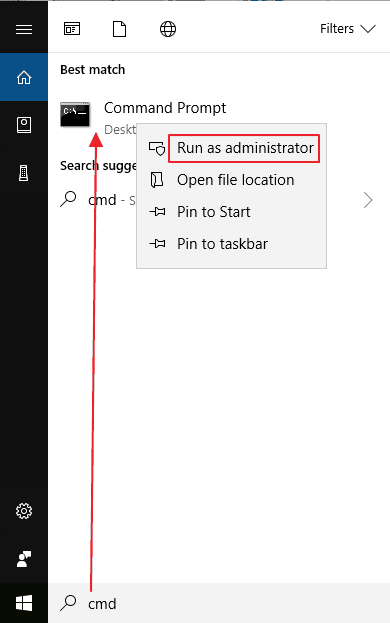
  • Type cmd in the search box
  • In the list of results, right-click Command Prompt and select Run as administrator
cmd admin
  • In the User Account Control window, click Yes
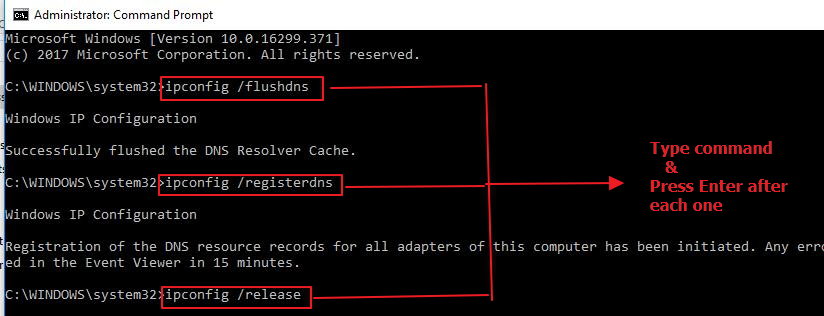
  • In the command prompt window, type the following command and press Enter on the keyboard after every command
ipconfig 1
  • ipconfig /flushdns
  • ipconfig /registerdns
  • ipconfig /release
  • ipconfig /renew
ipconfig release
  • Close the command prompt window
  • Try to access some websites and see if the DNS server not responding issue is resolved

Solution Three – Update Drivers

Many times corrupt or incompatible network drivers trigger networking problems in Windows 10. In such cases, updating network drivers is the only remedy.

The easiest way to update drivers is to use a fast, efficient driver update tool.

Automatic driver update tools offer many benefits, the most important ones being:

  • You can update device drivers automatically
  • The software scans and updates all outdated or missing drivers at one go
  • The tool picks the right drivers for your device and operating system, so you won’t have to worry about installing an incorrect driver by mistake
  • Automatic driver updates are 100% safe

Driver Updater is one of the best driver update tools out there. Outbyte Driver Updater will give you access to a database of over 1 million drivers. It will regularly scan your PC, suggesting new driver versions to install. Driver Updater contains drivers for a variety of Windows devices. With just one click, you can update drivers in your system.

Step 1
Click here to Install and launch the app

Step 2
Scan all devices

Step 3
Install or update drivers automatically


Start Download


Solution Four – Restart your modem and router

Since router and modem are running all the time, they may sometime cause connectivity issues which in turn can lead to DNS Server not responding error.

Restarting the modem and router will force these devices to establish a fresh connection with ISP that may resolve the DNS server not responding issue.

Here are steps to restart modem and router

  • Press the power button on Router and modem to switch off the devices
  • Press the power button on Router and modem to switch On the devices
  • Wait for some time until the modem and router establishes a stable Internet connection
  • Try accessing some websites and see DNS Server not responding error is resolved.

Filed Under: PC Fix Tips Tagged With: DNS server error

Windows Modules Installer Worker High CPU Usage issue

By Susan C on April 19, 2018

Windows Modules Installer Worker High CPU Usage issue

Are you troubled by high CPU usage by the Windows Modules Installer Worker process?

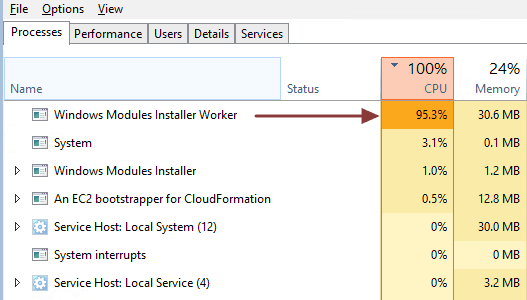
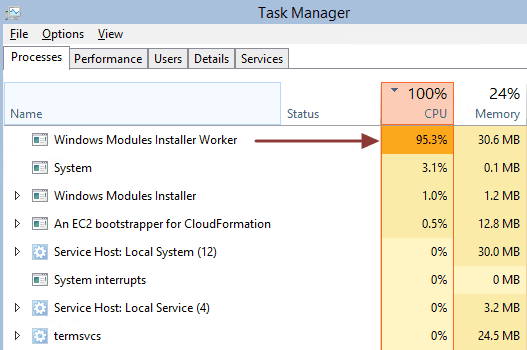
Does your task manager shows you a picture like the one below?

Windows-Installer-error

If yes, it means your PC performance has been compromised by the Windows Modules Installer Worker process. It is notorious for hogging CPU power leaving very little CPU processing power for other Windows components and critical services.

Many Windows 10 users have complained about this issue. Thankfully there are some easy fixes available to resolve the issue.

In this post, we will show you two ways to solve the Windows Modules Installer Worker high CPU usage issue.

Task Manager Disk 100% Usage on Windows 10 (Solved)

Information about Windows Modules Installer Worker

Also known as Tiworker.exe, Windows Modules Installer Worker is not a malware or virus as thought by many users. In fact, it is an important Windows update service that looks for new updates and installs them in your Windows 10 system.

If you have been checking for updates, it is more likely you will see the Windows Modules Installer Worker in the processes column in Task Manager. The process is related to Windows update process and it is started automatically.

How to fix the Windows Modules Installer Worker high CPU usage issue?

Here, we have provided you with two solutions. You need not try both of them.  You can start with the Solution One and if it doesn’t work, go ahead and perform the steps in Solution Two.

Solution One – Change Windows update process to manual mode

This solution has worked for many users and it might also work for you.  In most cases, Windows 10 is set to update automatically and this results in activation of the Windows Modules Installer Worker service.

By changing the windows update process to manual mode, you prevent activation of the Windows Modules Installer Worker service and the high CPU usage issue is fixed. Here are the steps to follow.

  • Press Windows key and R on the keyboard at the same time to bring up the Run command
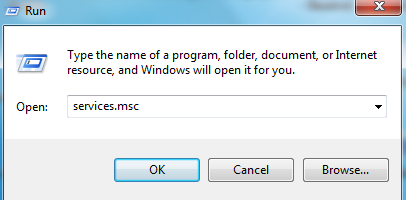
  • In the Run command box, type services.msc and click OK
services.msc
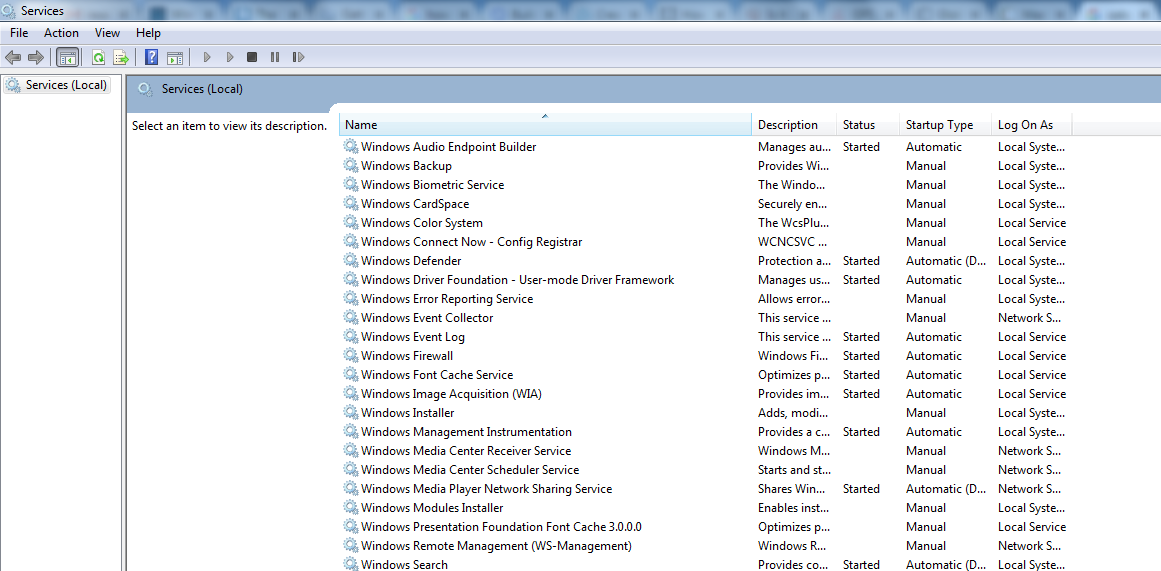
  • In Services window, look for windows modular installer service and double-click on it
windows modular installer service
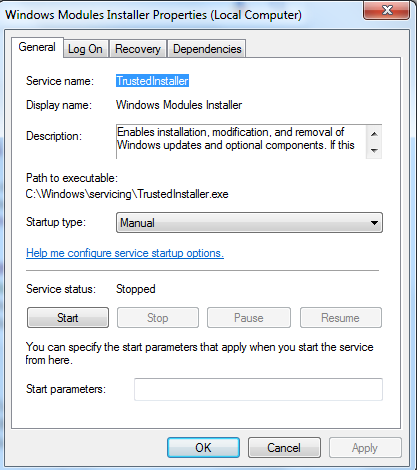
  • In the windows modular installer properties window, go to Startup Type section  and select Manual from the drop-down list
windows modular installer manual
  • Click Apply followed by OK
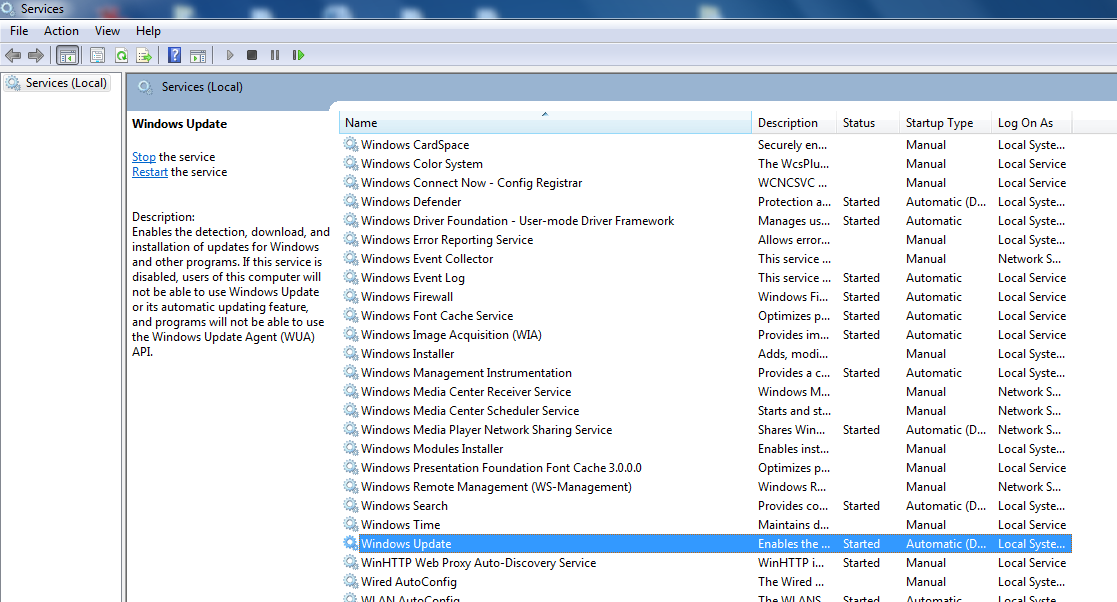
  • Go to the Services window again and this time double-click windows update
windows update service
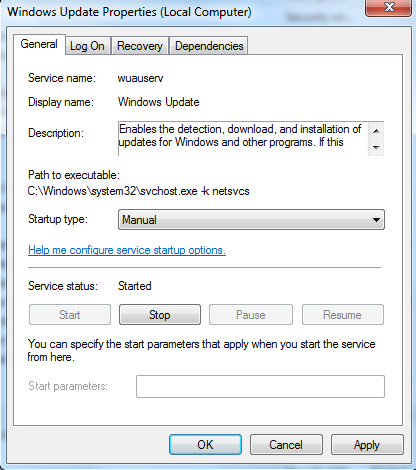
  • In the windows update properties window, go to Startup Type section  and select Manual from drop-down list
windows update manual

Now open Task Manager and go to the Processes tab, you should see the CPU usage return to normal now. If you still see high CPU usage in the Processes window, you need to try Solution Two.

If you see the CPU usage is normal, it indicates high CPU usage of windows modules installer worker has been resolved.  But to prevent Windows 10 to download updates automatically, you need to perform some additional steps.

Case 1 -Using Wi-Fi

If you are using Wi-Fi, perform the steps given below

  • Click Start and click Settings
  • In Settings window, click Network & Internet
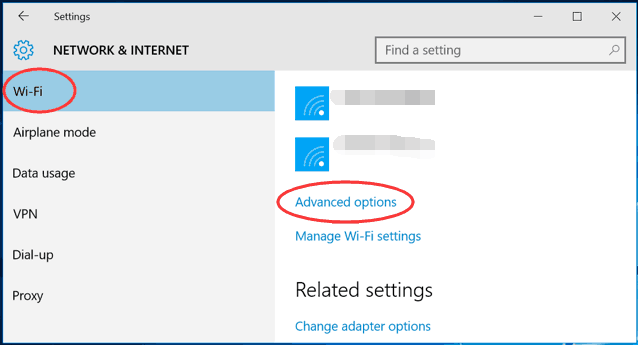
  • In the Network & Internet window, click Wi-Fi -> Advanced Options
Wi-fi advanced options
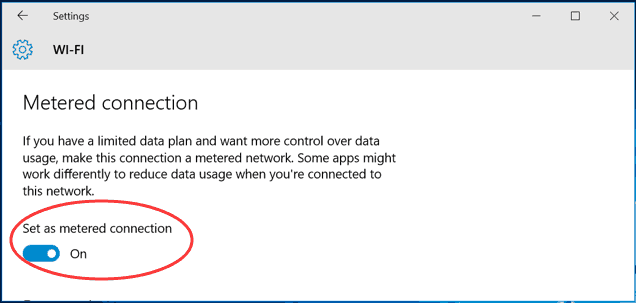
  • Click Set as metered connection toggle switch to On position
wi-fi metered connection

Case 2 – Using Ethernet connection

If you are using Ethernet (cable) connection, perform the steps given below

  • Press Windows key and R on the keyboard together to bring up the Run command
  • In the Run command box, type regedit and click OK
  • In user account control pop-up, click Yes
  • In the registry editor window navigate to the following path
  • HKEY_LOCAL_MACHINE > SOFTWARE > Microsoft > Windows NT > CurrentVersion > NetworkList > DefaultMediaCost
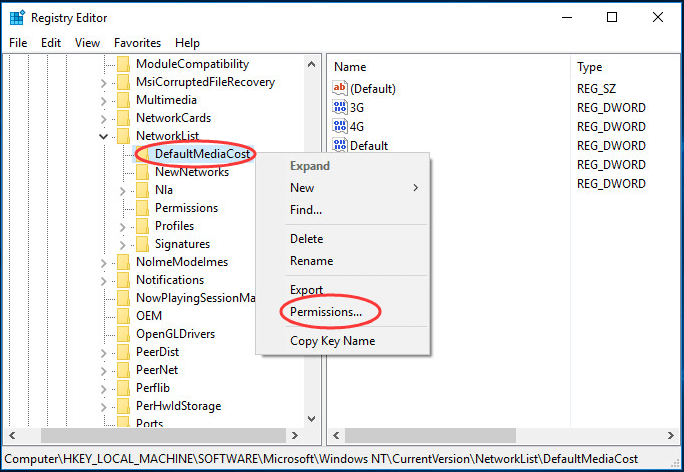
  • In the left-hand pane, right-click DefaultMediaCost and select Permissions
defaultmedia permissions
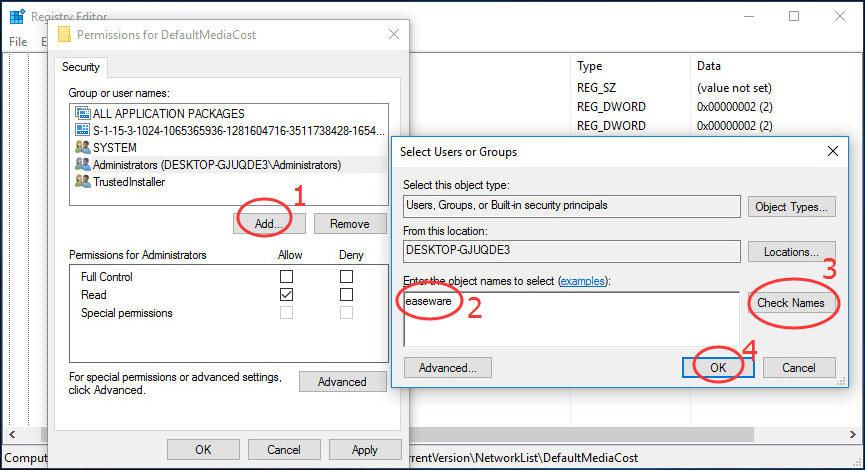
  • Click Add
defaultmediacost add user
  • Type your username in Enter the object names box
  • Click Check names
  • Click OK
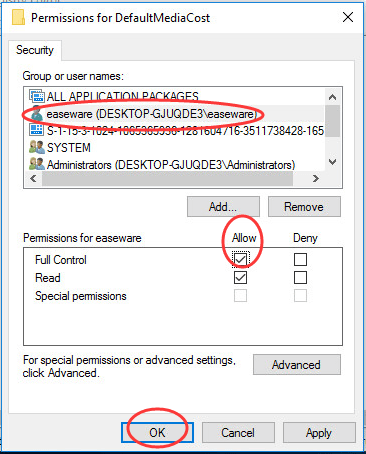
  • In the Group or user names, select the username you just added
  • In the Permissions for < username>, tick the box Allow for Full control
defaulmediacost permissions allow
  • Click Apply and then click OK
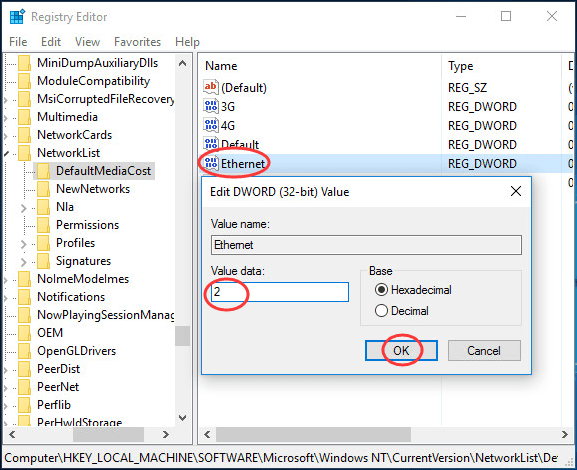
  • Now double-click Ethernet in the right-hand pane
ethernet change value
  • Change the data value to 2
  • Click Ok
  • Reboot computer

Now Windows 10 would not download updates automatically which will ensure the Windows Modules installer worker does not hog CPU power and degrade the performance of your system.

Solution Two – Update Drivers

Most of the Windows 10 problems are related to incompatible or corrupt drivers.   To keep the windows system optimized for performance, you need to update all drivers for your Windows system. You can update drivers manually or automatically.

Manually updating drivers requires some technical knowledge. To update the driver manually, you need to visit device or hardware manufacturer website to download drivers. You also need to have information about the Windows version and the architecture (32-bit or 64-bit). In manual drivers update, there is always a hidden risk of downloading wrong drivers that might cause problems with your computer.

Automatic driver update tools offer many benefits, the most important ones being:

  • You can update device drivers automatically
  • The software scans and updates all outdated or missing drivers at one go
  • The tool picks the right drivers for your device and operating system, so you won’t have to worry about installing an incorrect driver by mistake
  • Automatic driver updates are 100% safe

Driver Updater is one of the best driver update tools out there. Outbyte Driver Updater will give you access to a database of over 1 million drivers. It will regularly scan your PC, suggesting new driver versions to install. Driver Updater contains drivers for a variety of Windows devices. With just one click, you can update drivers in your system.

Step 1
Click here to Install and launch the app

Step 2
Scan all devices

Step 3
Install or update drivers automatically


Start Download


Filed Under: PC Fix Tips Tagged With: Modules Installer Issue

  • « Previous Page
  • 1
  • …
  • 177
  • 178
  • 179
  • 180
  • 181
  • …
  • 189
  • Next Page »


  • Recent Posts
  • Popular Posts
        

Read More Posts


Read More Posts

Drivers.com Sites

  • Software Drivers
  • Drivers Ed

About Us

  • Advertise
  • About Drivers
  • Drivers Support
  • Drivers.com Privacy Policy
  • Disclaimer
  • Software Drivers
  • Mac Fixes and Tips
  • PC Fix Tips
  • Security/ Backup
  • Tablets & Smartphones
  • Tech News

© Copyright 2026 PDE Publications Ltd. End User License Agreement (EULA)