


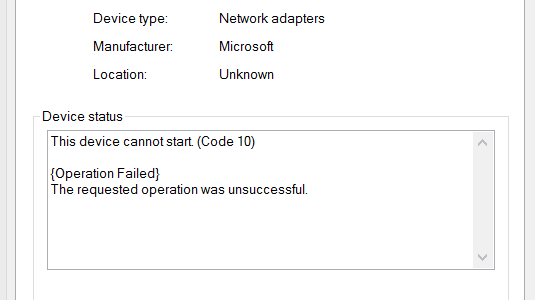
Do you see a yellow exclamation mark in Device Manager next to the device Teredo Tunneling Pseudo-Interface?
Does the status of Teredo Tunneling Pseudo-Interface say “The device cannot start (Code 10)?
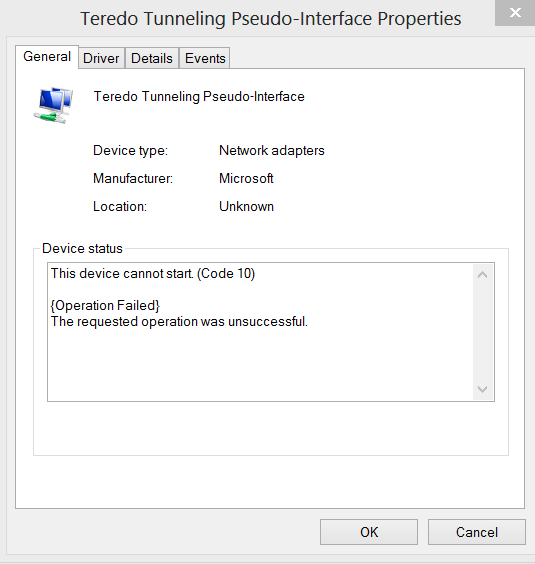
We have provided you with quick solutions that will resolve the issue with Teredo Tunneling Pseudo-Interface.
What is Teredo Tunneling Pseudo-Interface and why it is important?
Teredo is a transition technology that enables IPv6 connectivity with hosts that are on the IPv4 Internet but are IPv6 capable.
This tunneling technology allows the IPv4 hosts to enjoy IPv6 connectivity even when they do not have a direct connection with IPv6 network.
A host on IPv4 network uses Teredo Tunneling protocol to access the IPv6 Internet. The Teredo Tunneling Pseudo-interface needs to work properly to ensure your PC is able to access all sites on IPv6 and IPv4 network.
How to fix the Teredo Tunneling Pseudo-Interface issue?
We have listed four solutions to fix the issue. You need not try all of them. We suggest you start with Solution one and work your way downwards trying other solutions until the Teredo Tunneling Pseudo-Interface issue is fixed.
Solution One – Remove all Teredo Tunneling Adapters & Interfaces
- Press Windows key and R on the keyboard simultaneously to bring up the Run command
- In the Run command box, type devmgmt.msc and press Enter on the keyboard
- In the Device Manager window, go to Network adapters and expand the category
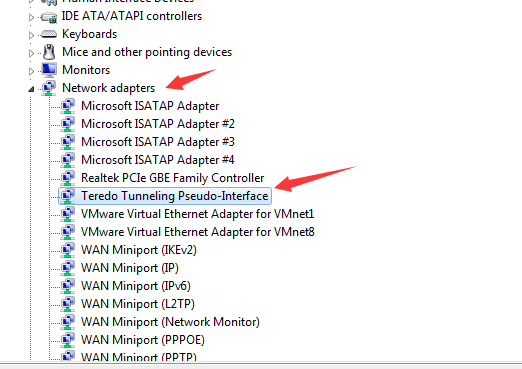
- Locate Teredo Tunneling Pseudo-Interface in the list of network adapters
- Right-click Teredo Tunneling Pseudo-Interface and select Uninstall
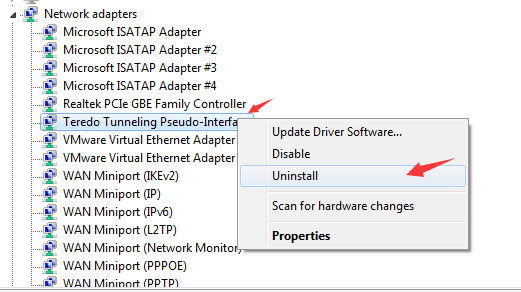
Note: some users might see additional Teredo Tunneling Pseudo-Interface entries like Microsoft Teredo Tunneling Adapter no. 2, no. 3, no. 4 and so on. You need to uninstall all of them
- Click Action at the top of Device Manager Window
- Click Add Legacy Hardware
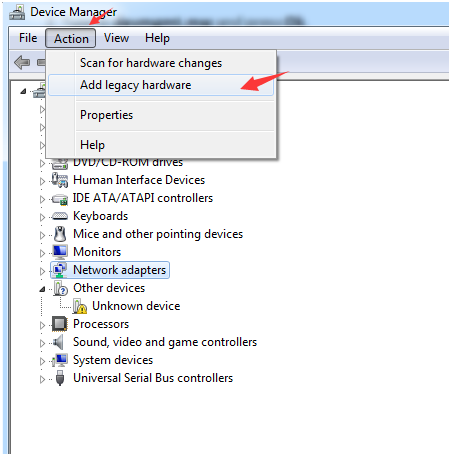
- Click Next in all windows until you see the panel will following options
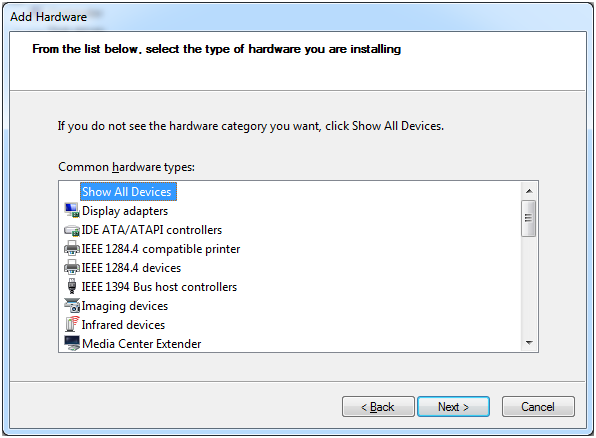
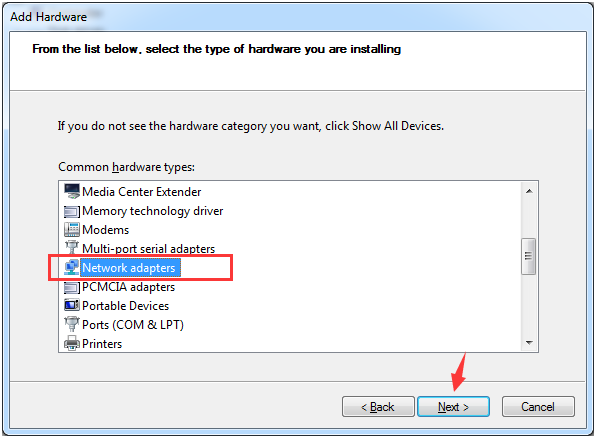
- Click Network Adapter and click next
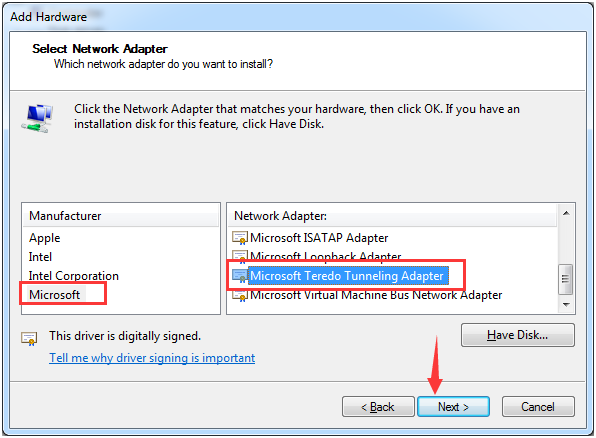
- In the left panel, click Microsoft and in the right panel, click Microsoft Teredo Tunneling Adapter and then click Next
Solution Two- Update Drivers
You can fix this issue in Windows by updating drivers. You have two options when it comes to updating drivers for Windows 10: manual update and automatic update.
The method of updating driver manually is time-consuming as you need to visit device manufacturer’s website and sometimes also hardware manufacturer website to download latest drivers.
Before you go these websites to download driver updates, you need to find the version of Windows running on your computer and also information about Windows architecture (64-bit or 32-bit). Thus, you can see updating drivers manually needs some technical expertise otherwise you are more likely to download wrong drivers which can cripple your system.
Updating Drivers Automatically
Automatic driver update tools offer many benefits, the most important ones being:
- You can update device drivers automatically
- The software scans and updates all outdated or missing drivers at one go
- The tool picks the right drivers for your device and operating system, so you won’t have to worry about installing an incorrect driver by mistake
- Automatic driver updates are 100% safe
Driver Updater is one of the best driver update tools out there. Outbyte Driver Updater will give you access to a database of over 1 million drivers. It will regularly scan your PC, suggesting new driver versions to install. Driver Updater contains drivers for a variety of Windows devices. With just one click, you can update drivers in your system.
Step 1
Click here to Install and launch the app
Step 2
Scan all devices
Step 3
Install or update drivers automatically
Solution Three – Use Command Prompt
- Go to Cortana search box and type cmd
- Right-click on Command prompt in the list of results and select Run as administrator
- Type the following commands in command prompt window and hit Enter after each command
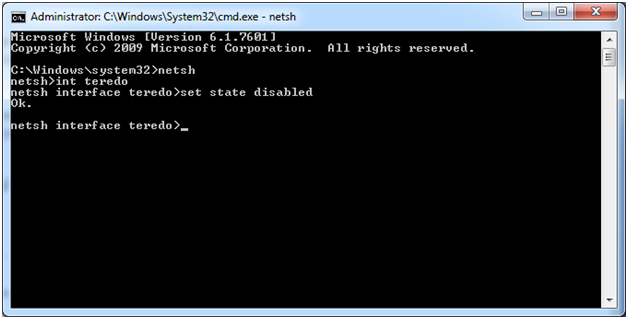
- netsh
- int teredo
- set state disabled
- Press Windows key and R simultaneously on the keyboard to bring up the Run command
- In the Run command box, type devmgmt.msc and press Enter on the keyboard
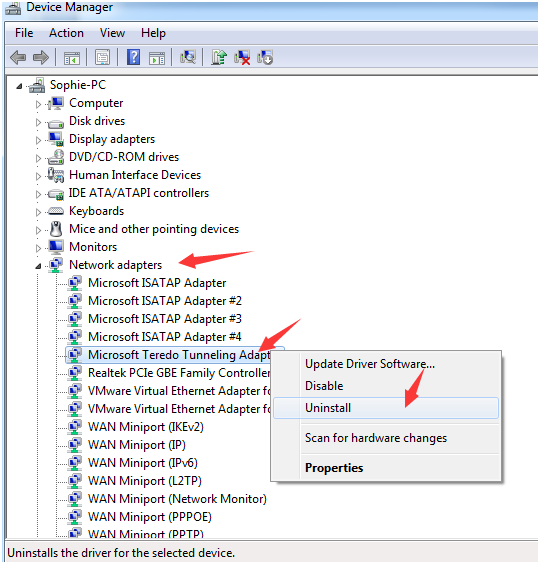
- When the Device Manager opens, go to Network adapters and expand the category
- Look for Teredo Tunneling Pseudo-Interface in the list of network adapters
- Right-click Teredo Tunneling Pseudo-Interface and select Uninstall
- Now go back to the command prompt windows again
- Type the following commands in command prompt window and press Enter on the keyboard after each command
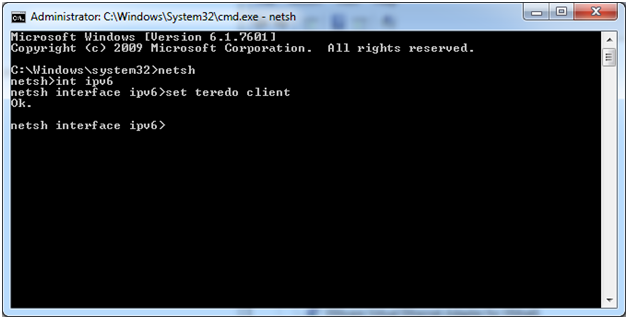
- netsh
- int ipv6
- set teredo client
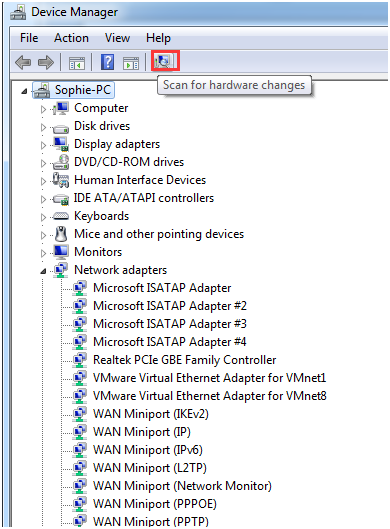
- Go back to the Device Manager window again and click on Scan for hardware changes option at the top
- From the view menu, select Show Hidden Devices
- You should see the Teredo Tunneling Pseudo-Interface is now present with no errors.
Solution Four – From the Registry
- Go to the search bar in the Start menu and type regedit to open the Registry editor
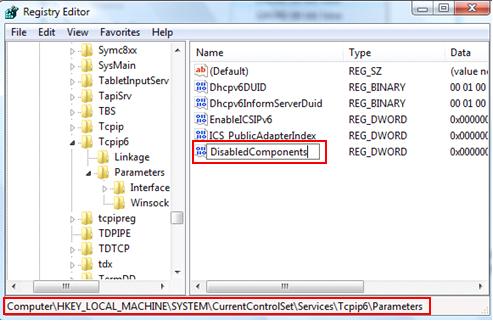
- When the registry editor window opens navigate to
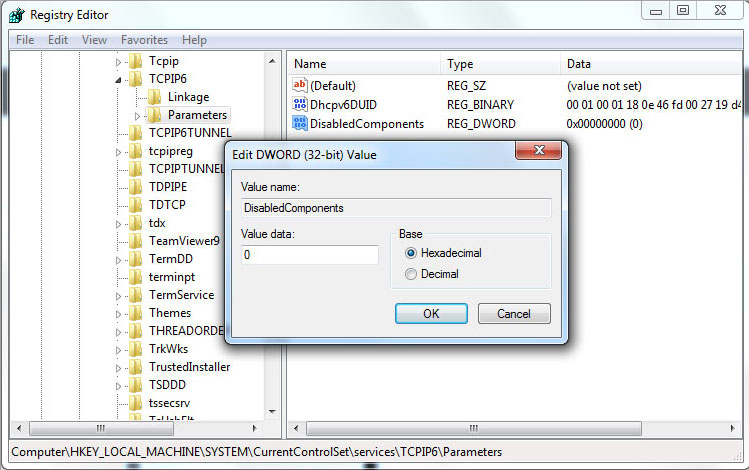
HKEY_LOCAL_MACHINE\SYSTEM\CURRENTCONTROLSET\SERVICES\TCPIP6\PARAMETERS
- In the right-hand pane, select Parameters and you will see an option of DisabledComponents
- Right-click on DisabledComponents
- Set the DWORD value to 0(zero)
- Close the Registry editor window and reboot system
Leave a Reply