
Drivers.com

follow us:

facebook twitter
  • Home
  • Download Drivers
  • Drivers Help
  • PC/Mac Resources
  • Software Drivers
  • Mac Fixes and Tips
  • PC Fix Tips
  • Security/ Backup
  • Tablets & Smartphones
  • Tech News
  • Software Drivers
  • Mac Fixes and Tips
  • PC Fix Tips
  • Security/ Backup
  • Tablets & Smartphones
  • Tech News

Fix USB drive issues in Windows 8

By Sushant Mehta on October 7, 2016

USB drives are primarily used to transfer data from one PC to another. A common USB problem in Windows 8 systems presents with the error “USB Device Not Recognized”.  You may get this error even when you are trying to connect other USB devices like a Mouse, Keyboard, external hard drive, etc.

There are several ways of fixing USB Driver issues in Windows 8. Let’s look at all these methods one by one.

Method 1 for fixing USB Driver errors in Windows 8

  1. from Desktop and click Start Menu > Run
  2. Type devmgmt.msc and it will open Device Management (Device Manager)
  3. If the USB drive is not recognized, you will see a yellow exclamation mark beside an entry Unknown Device which refers to your Unrecognized USB device
  4. Select the first entry in Device Manager that is the name of your computer
  5. Click on Action and select Scan for hardware changes

This should resolve the problem, if it still persists, follow the steps set out in Method 2 below.

Method 2 for fixing USB Driver errors in Windows 8

  1. Click Start Menu > Run
  2. Type device manager and select Device Manager from the list of search results
  3. In the Device Manager window, go to Universal Serial Bus controllers and expand it
  4. Right-click on Unknown Device in the list
  5. Select Properties from the menu
  6. In the Properties dialog popup, go to the Power Management tab
  7. Uncheck the box – Allow the computer to turn off this device to save power
  8. Go to the Action Menu above and select Scan for hardware changes
  9. Close the Device Manager

If the above method also fails to solve the USB Driver issue, follow the steps in Method 3

Method 3 for fixing USB Driver errors in Windows 8

  1. Click Start Menu > Run
  2. Type device manager and select Device Manager from the list of search results
  3. In the Device Manager window, go to Universal Serial Bus controllers and expand it
  4. Right-click on Unknown Device in the list
  5. Select Properties from the menu
  6. Select the Drivers tab
  7. Click Update Driver and see if any driver update is available
  8. Close Device Manager
  9. Restart your PC

If none of the above methods works, you need to run the Windows USB troubleshooter by following the steps set out below:

  1. Click the Start Menu
  2. Type USB troubleshooter in the Search Box
  3. Click Windows USB Troubleshooter from the list of search results
  4. Run the Troubleshooter and follow on-screen instructions

In most cases, the Windows USB troubleshooter fixes the USB problems.  The troubleshooter removes the upper and lower filters for portable devices and checks the system for outdated drivers. To be on safe side install all important Windows updates. You can easily keep your drivers up to date all the time using a reliable driver update tool.

Updating Drivers Automatically

Automatic driver update tools offer many benefits, the most important ones being:

  • You can update device drivers automatically
  • The software scans and updates all outdated or missing drivers at one go
  • The tool picks the right drivers for your device and operating system, so you won’t have to worry about installing an incorrect driver by mistake
  • Automatic driver updates are 100% safe

Driver Updater is one of the best driver update tools out there. Outbyte Driver Updater will give you access to a database of over 1 million drivers. It will regularly scan your PC, suggesting new driver versions to install. Driver Updater contains drivers for a variety of Windows devices. With just one click, you can update drivers in your system.

Step 1
Click here to Install and launch the app

Step 2
Scan all devices

Step 3
Install or update drivers automatically
 

Start Download


Filed Under: PC Fix Tips Tagged With: Solve USB issues in Windows 8, usb, windows 8

3 easy ways to fix Camera Not Working Issue in Windows 10

By Sushant Mehta on October 7, 2016

Many users have complained of their camera not working after upgrading to Windows 10.  If you are facing the same issue, try the troubleshooting steps set out below.

“Something went wrong” error

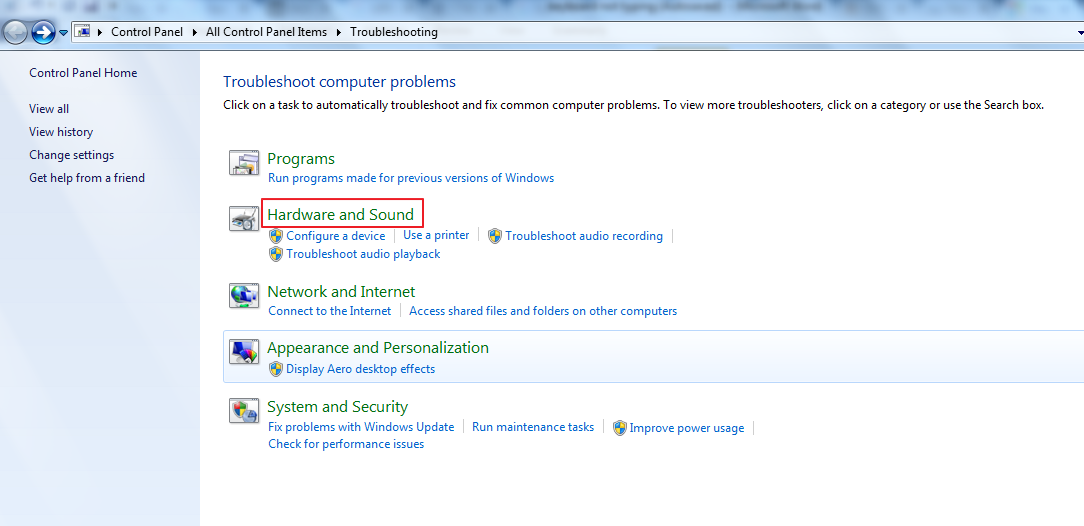
If you are receiving this error, the first thing to do is run the Hardware Troubleshooter by following the steps set out below:

hardware and sound
  1. Go to the Start Menu
  2. Type troubleshooting in the Search Box
  3. Select Hardware and Sound option
  4. Click Hardware and Devices and follow the on-screen instructions

If the above method does not work, there are two ways to resolve the issue. The first method is to roll back the Camera Driver and force Windows to use the previous version of the Driver.

The second method involves uninstalling the Camera Driver and letting Windows install a generic Camera Driver for the device.

Method 1: back to previous Driver version

Before rolling back the Camera Driver, you need to check the version of the Camera Driver you are using. Follow the steps below to help find this information.

  1. Go to the Start Menu
  2. Type Device Manager in the Search Box
  3. Click Device Manager from the list of search results
  4. In the Device Manager window, go to Imaging Devices
  5. Select the camera in the list. Right-click on the camera entry and select Properties
  6. Go to the General tab and note down the Camera Driver manufacturer and model. You can use this option to search for updated camera drivers if the rollback driver option is not available
  7. Go to the Driver tab
  8. Select Rollback driver option
  9. Click Yes when asked for confirmation
  10. Click OK
  11. Close Device Manager
  12. Reboot the system

If the above method does not resolve your camera issue, you need to uninstall the Camera Drivers by following the steps below:

Method 2: uninstall and reinstall Camera Drivers

  1. Open Device Manager
  2. Go to Imaging Devices
  3. Select your camera in the list and right-click on it
  4. Select Properties
  5. Go to Driver tab
  6. Click Uninstall
  7. Click OK
  8. Windows will ask for confirmation to uninstall the device. In the Confirm Device Uninstall pop-up, check the box “Delete the driver software for this device”
  9. Click OK
  10. After Windows completes the uninstall of your Camera Drivers, go to the Action Menu
  11. Click Scan for hardware changes
  12. Windows will install a generic version of the Camera Driver
  13. Close Device Manager

If none of the above methods work, you need to download the latest Camera Drivers from the manufacturer’s website or use a  reliable driver update tool. Driver Update Tool to do the Driver Updates for you.

Method 3: Download updated Drivers

  1. Open the Device Manager
  2. Expand the Imaging Device list
  3. Right-click on the camera you want to fix
  4. Select Properties
  5. Select Update Driver Software
  6. Select “Browse my computer for driver software”
  7. Select “Let me pick from a list of device drivers on my computer”
  8. Select the camera from the device list. If it is camera connected through USB – Select “USB Video Device”
  9. Click Next and follow the on-screen instructions to install the Camera Drivers

You can also automatically download the latest camera or other Drivers using a reliable driver update tool.

Filed Under: Software Drivers Tagged With: camera, Solve Camera Issue Windows 10, Windows 10

How to fix Ethernet controller driver issue in Windows 7?

By Sushant Mehta on October 3, 2016

An Ethernet controller manages a computer’s connection to a wired network such as an internet connection. The Ethernet Controller is the hardware element while the Driver is the software element enabling communication between the Ethernet Controller and your computer

If there is any problem with the Ethernet Controller Drivers, you will have problems connecting to the Internet. In this post, we are going to discuss common errors related to Ethernet Controller Drivers and the best ways to resolve these errors.

Network adapter suddenly stopped working

If there is any issue with Ethernet Controller Drivers, the system will not display any error. You will need to check the device manager and see if there is any issue with Ethernet Controller Drivers.

  1. Click on Start Menu
  2. Type Device Manager in the search box
  3. Select Device Manager from the list of search results
  4. In the Device Manager window, go to Other Devices and expand it

You may see the Ethernet Controllers entry has a yellow exclamation mark beside it. This indicates your system does not have Ethernet Controller Drivers or they have become corrupt. To resolve this problem, reinstall the Drivers in the Safe Mode. Follow the steps set out below to log into Safe Mode.

Steps to log in Safe Mode

  1. Restart the computer if it is powered on
  2. Press F8 several times while the PC boots up
  3. You can stop pressing the F8 button when you see Advanced Boot options on the screen
  4. Use the up/down arrow keys to highlight your selection
  5. Select Safe Mode with Networking option and press Enter
  6. You will see the Drivers loading and eventually the Welcome screen
  7. Log in to your computer using the Administrator account
Windows 7 Ethernet Drivers

Once you have logged in in Safe Mode with Networking, you can go ahead and uninstall Ethernet Network Controller Drivers through the Device Manager.

  1. Open Device Manager
  2. Go to Other Devices and right-click on Ethernet Controllers and select uninstall
  3. Once the adapter has been uninstalled, go to the Action Menu
  4. Click Scan for hardware changes
  5. If the device is successfully reinstalled, you will see an entry under Network Adapter

If the Driver’s re-installation fails, you will need to access another computer with a working Internet connection to download the latest Ethernet Controller Drivers. You can download Drivers by using hardware ID. Below are the steps you need to follow on your system

  1. Open the Device Manager
  2. Go to Other Devices and right-click on Ethernet Controllers and select Properties
  3. In the Properties window, go to the Details tab
  4. Under Property, select Hardware Ids from the drop-down list
  5. Note down the first value which looks something like PCI\VEN_XXXX&DEV_XXXX&SUBSYS_E0001458&REV_10 (where X represents a number)

Next, open the other laptop, download the relevant Drivers, copy them onto an external drive and then transfer them to your first laptop, and finally install the Drivers. If you wish you can use a driver update tool to automate this process for you.

Automatic driver update tools offer many benefits, the most important ones being:

  • You can update device drivers automatically
  • The software scans and updates all outdated or missing drivers at one go
  • The tool picks the right drivers for your device and operating system, so you won’t have to worry about installing an incorrect driver by mistake
  • Automatic driver updates are 100% safe

Driver Updater is one of the best driver update tools out there. Outbyte Driver Updater will give you access to a database of over 1 million drivers. It will regularly scan your PC, suggesting new driver versions to install. Driver Updater contains drivers for a variety of Windows devices. With just one click, you can update drivers in your system.

Step 1
Click here to Install and launch the app

Step 2
Scan all devices

Step 3
Install or update drivers automatically


Start Download


Filed Under: PC Fix Tips Tagged With: ethernet, Resolve Ethernet controller driver issue Windows 7, windows 7

  • « Previous Page
  • 1
  • …
  • 20
  • 21
  • 22
  • 23
  • 24
  • …
  • 88
  • Next Page »


  • Recent Posts
  • Popular Posts
        

Read More Posts


Read More Posts

Drivers.com Sites

  • Software Drivers
  • Drivers Ed

About Us

  • Advertise
  • About Drivers
  • Drivers Support
  • Drivers.com Privacy Policy
  • Disclaimer
  • Software Drivers
  • Mac Fixes and Tips
  • PC Fix Tips
  • Security/ Backup
  • Tablets & Smartphones
  • Tech News

© Copyright 2026 PDE Publications Ltd. End User License Agreement (EULA)