
Drivers.com

follow us:

facebook twitter
  • Home
  • Download Drivers
  • Drivers Help
  • PC/Mac Resources
  • Software Drivers
  • Mac Fixes and Tips
  • PC Fix Tips
  • Security/ Backup
  • Tablets & Smartphones
  • Tech News
  • Software Drivers
  • Mac Fixes and Tips
  • PC Fix Tips
  • Security/ Backup
  • Tablets & Smartphones
  • Tech News

4 smartphones on a budget

By Sushant Mehta on November 22, 2016

The Smartphone market is flooded with choices and many users get confused when it comes to picking the right phone. Here are 4 budget smartphones, two phones under $300 and two for under $200.

Best phones under $300

Moto G4 plus

The Moto G series was a big hit with users and the Moto G4 Plus is a new entrant in this series. It has some impressive specs such as 5.5 inch IPS display with a pixel density of 401ppi and screen resolution equal to 1920 x 1080. The phone is powered by an octa-core processor from Snapdragon. the Moto G4 Plus is available in various configurations such as 16Gb storage variant has 2GB RAM, 32GB storage has 3GB RAM and 64GB storage has 4GB RAM.  The phone also supports external storage up to 256GB.  The primary camera is a 16MP one while the secondary is a 5MP camera. It has a non-removable 3000 mAh battery. The phone comes pre-loaded with Android Marshmallow OS.

Nexus 5X

The Nexus phones are quite popular with Android fans. The Nexus 5X is powered by a 1.8 GHz hexacore CPU belonging to the Snapdragon family of CPU’s. It features a 5.2-inch IPS LCD display with 423 PPI pixel density and 1920 x 1080 resolution.  The phone has 2 GB RAM and offers 2 internal storage options- 16GB and 32 GB. The phone does not support external storage. The primary camera has 12.3MP resolution while the front camera has 5MP resolution. It comes pre-loaded with Android Marshmallow OS and has a non-removable 2700 mAh battery.

Best Phones under $200

Moto G4 Play

Though it has a lower price tag, the specification of this device will surprise you.  It is powered by the Snapdragon 410 processor and 2GB RAM. It sports a 5-inch display offering a resolution of 1280X720. It comes pre-loaded with Android Marshmallow OS and has 16GB onboard storage. It also supports external storage up to 256 GB. The rear camera has 8MP resolution while the front camera has 5MP resolution.

Honor 5X

The Honor 5X offers good dual-SIM budget phones and Honor 5X is one of them. Despite a low price, it has an all metal build and a rear-mounted fingerprint sensor.  It features a big 5.5 inch full HD display and a Snapdragon 616 processor. The phone has 16GB onboard storage and also supports external storage space up to 128 GB.  It comes with a 5MP front camera and 16MP rear camera.  It has a non-removable 3000 mAh battery
Filed Under: Tablets & Smartphones Tagged With: best smartphones under $300, budget smartphones, smartphones under $200

Tips to save mobile data in Android

By Sushant Mehta on November 17, 2016

If you are on a limited data plan, it can be very helpful to know ways to save mobile data, otherwise you may be faced with substantial phone bills. Here are a few tips to save mobile data on an Android device.

Use Chrome’s Data Saver option

If you are using Chrome to surf the web on your phone, this tip may help you save 30-35% on mobile data.  When you use the Data Saver option in Chrome, the browser compresses pages before loading them. Here are the steps you need to follow to enable Data Saver:

  1. Open Chrome
  2. Tap on the 3 vertical dots near the address bar
  3. Go to Settings
  4. Scroll down and Tap on Data Saver
  5. Toggle the Data Saver switch to On position

Restrict background data

The best way to save mobile data is to restrict background data for apps.  Background data refers to all Internet traffic that happens when you are not using the app. Some of the internet traffic that is categorized under background data is updating feeds, syncing emails, updating the weather widget and similar automatic updates. To restrict background data follow the steps given below:

  1. Go to Settings > Data usage > Restrict Background data
  2. You now have to go to individual apps and switch the Restrict Background Data toggle switch to the On position

Disable auto-updating of Apps

If the Google Play store is set to update apps even on data connection, your mobile data usage will add up very quickly. Change the settings to ensure the auto updating of Apps happens only when you are connected to a WiFi network. Here are the steps to follow:

  1. Open the Google Play Store
  2. Tap on the three horizontal bar navigation icon
  3. Scroll down and tap Settings
  4. Tap on Auto-update apps
  5. Select Auto-update apps over WiFi only

Identify and remove/limit high data consuming apps

You can limit the data usage of apps through app settings. Apps like Gmail use a significant amount of data as it downloads emails which may have images and other attachments.  You can limit the data consumption of the app by tweaking some settings. Here are steps to follow:

  1. Go to Settings > Data usage
  2. Tap on Gmail app
  3. Tap on App settings
  4. Check the box – Auto download attachments to recent messages via WiFi

Set mobile data limit

You can set the data mobile limit and data usage warning limit to ensure you do not cross the limits of free data allocation every month. Here are the steps to follow:

  1. Go to Settings > Data usage
  2. Switch on mobile data
  3. To set a data usage warning – Simply drag the black line by its right side to the level where you want to receive warning (When your data usage reaches this level, you will receive a notification to cut down data usage)
  4. To set a data usage limit – Simply drag the Red line by its right side to the level where you want to receive a notification (when the data usage reaches this level, you will receive a notification and the mobile data will be switched off )

Filed Under: Tablets & Smartphones Tagged With: android, Save mobile data on Android

Fix Epson printer problems in Windows 10

By Sushant Mehta on November 14, 2016

One of the more common problems faced by Windows 10 users is old software not working with the new operating system. Many Epson printer users have reported that their old printer doesn’t work after upgrading to Windows 10. In this post, we will look at some common Epson printer problems in Windows 10 and the solutions to these problems

Epson Stylus Photo R200 doesn’t work after Windows 10 upgrade

One of the reasons the old Epson printer doesn’t work with Windows 10 is that the operating system tries to use old drivers and associated Epson packages from your previous installation.

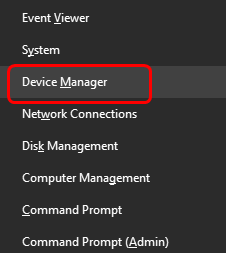
device manager

You need to uninstall the printer using the Add/Remove programs option. Also, remove any Epson related software package from your Windows 10 system. To be on safe side, check the Device Manager for any reference to Epson software by following the steps below:

  1. Go to Desktop
  2. Click on the Start Menu
  3. Type device manager in the Search Box
  4. Click Device Manager from the list of search results
  5. In the Device Manager window, click View > Show Hidden Devices
  6. Check for any Epson related entry and if found, delete it
  7. Disconnect the Epson Printer
  8. Reboot your PC

The basic objective behind these troubleshooting steps is to remove all obsolete Epson software from your Windows 10 system. According to Epson, they have not released any Windows 10 compatible driver for the Epson Stylus Photo R200. However, the printer works well with the native drivers in Windows 10. All you need to do is force Windows 10 to install the native driver instead of using the old driver. Follow the steps given below to install native drivers for Epson Stylus Photo R200.

  1. Restart the PC
  2. Connect the Epson Stylus Photo R200 to your PC through USB
  3. Switch on the printer
  4. Windows 10 will detect the new printer and install native drivers from its database

Windows 10 doesn’t install printer driver when I connect printer

If Windows 10 does not install the printer driver after connecting your printer, you have to manually add the printer by following the steps given below:

  1. Turn your printer on and ensure it is connected to Windows 10 system
  2. Go to Desktop and click Start Menu
  3. Click All apps and scroll down to the Windows system folder
  4. Click on the Windows System folder that reveals Control Panel
  5. Click Control Panel
  6. Select Hardware and Sound > Devices and Printers > Add a Printer
  7. If your printer model does not appear, select The printer that I want isn’t listed
  8. Click Add a local printer or network with manual settings > Next
  9. Follow the on-screen instructions to install the printer
How to get Epson printer online?
Apple HP & Epson printer drivers updates

Filed Under: PC Fix Tips Tagged With: epson, fix Epson printer issue in windows 10, printer, Windows 10

  • « Previous Page
  • 1
  • …
  • 18
  • 19
  • 20
  • 21
  • 22
  • …
  • 88
  • Next Page »


  • Recent Posts
  • Popular Posts
        

Read More Posts


Read More Posts

Drivers.com Sites

  • Software Drivers
  • Drivers Ed

About Us

  • Advertise
  • About Drivers
  • Drivers Support
  • Drivers.com Privacy Policy
  • Disclaimer
  • Software Drivers
  • Mac Fixes and Tips
  • PC Fix Tips
  • Security/ Backup
  • Tablets & Smartphones
  • Tech News

© Copyright 2026 PDE Publications Ltd. End User License Agreement (EULA)