Drivers.com

follow us:

facebook twitter
  • Home
  • Download Drivers
  • Drivers Help
  • PC/Mac Resources
  • Software Drivers
  • Mac Fixes and Tips
  • PC Fix Tips
  • Security/ Backup
  • Tablets & Smartphones
  • Tech News
  • Software Drivers
  • Mac Fixes and Tips
  • PC Fix Tips
  • Security/ Backup
  • Tablets & Smartphones
  • Tech News

Solution to clock watchdog timeout error in Windows

By Susan C on April 25, 2019

Solution to clock watchdog timeout error in Windows

Many Windows users have complained about clock watchdog timeout BSOD error that causes the system to crash.

If you are looking for a solution to clock watchdog timeout BSOD error, this post is for you.

Here we will look at the solutions to resolve the issue.
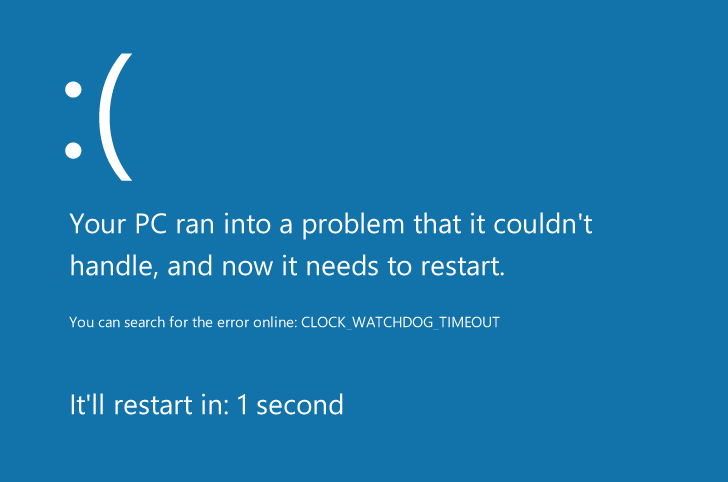
clock watchdog timeout error

What is clock watchdog timeout BSOD error?

Clock watchdog timeout BSOD error is related to the processor in your computer.

The processor is the raw power behind all Windows operations. The system throws a clock watchdog timeout BSOD error when the processor is facing problem in managing the threads.

As you might know, the processor manages every operation in the form of threads.

Sometimes one thread is waiting for a response from another thread. When the processor does not receive a response in stipulated time for any thread, the operating system generates the clock watchdog timeout BSOD error.

Reasons behind clock watchdog timeout BSOD error

One of the reasons behind clock watchdog timeout BSOD error is drivers.

There is a possibility some drivers are incompatible, missing or have become corrupt.

Another possibility is some newly installed device is not compatible and causing the problem.

Now let’s look at the solutions.

Solution One – Update Drivers

As mentioned above, the clock watchdog timeout BSOD might be related to drivers.

A simple solution to this problem is updating drivers.

There are two methods to update display drivers – Manual and Automatic. Here we have provided both ways to update drivers.

Method One- Update Drivers Manually

  • Press Windows logo key and R simultaneously on the keyboard to invoke Run command box
  • In the Run command box, type devmgmt.msc and hit Enter on the keyboard
  • In the Device Manager window, look for yellow exclamation mark beside devices
  • Right-click on the problematic device and click Properties
  • In the properties window, go to General tab
  • Note down the name of the manufacturer name of the problematic device. Also, note down other details
  • Now go to Driver tab and note down the driver version
  • Close Device Manager
  • Open Internet browser
  • Go to device manufacturer website and type the name of the device in the search box.
  • You will see the list of downloads available for the device. You need to be careful when downloading drivers. For example, if your computer has Windows 32-bit OS installed, you need to download and install 32-bit device drivers. Similarly, if you have 64-bit OS, you need to download 62-bit device drivers.
  • Make sure you download the latest device drivers. For example, if you have driver version 11.24.09.5601 installed for the problematic device, you need to download higher version of the driver.
  • After the latest device drivers are downloaded, double-click on the setup (.exe) file and follow on-screen instructions to install device drivers. If the driver setup file is in .zip format, unzip the file contents to a folder and then double-click on the setup(.exe file)
  • Restart PC after installing device drivers

Run your computer for some time and see if the clock watchdog timeout BSOD error is generated.

If you feel the method of manually updating drivers is complicated, you can use a driver update software tool to update drivers automatically.

Method Two- Update Drivers Automatically

Automatic driver update tools offer many benefits, the most important ones being:

  • You can update device drivers automatically
  • The software scans and updates all outdated or missing drivers at one go
  • The tool picks the right drivers for your device and operating system, so you won’t have to worry about installing an incorrect driver by mistake
  • Automatic driver updates are 100% safe

Driver Updater is one of the best driver update tools out there. Outbyte Driver Updater will give you access to a database of over 1 million drivers. It will regularly scan your PC, suggesting new driver versions to install. Driver Updater contains drivers for a variety of Windows devices. With just one click, you can update drivers in your system.

Step 1
Click here to Install and launch the app

Step 2
Scan all devices

Step 3
Install or update drivers automatically


Start Download


Solution Two- Install Windows updates

A large number of problems can be kept at bay or resolved by installing Windows updates.

Microsoft provides updates to Windows 10 to fix bugs and various issues crippling the operating system.

We recommend users to install all pending Windows updates that could resolve the issue.

Here are the steps to follow.

  • Click Start button
  • Click Settings(gear icon)
  • In Windows settings, click Update & Security
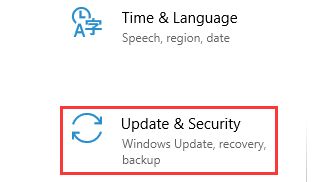
update & security
  • In the next window, click Windows updates in the left pane
  • In the right pane, click Check for updates
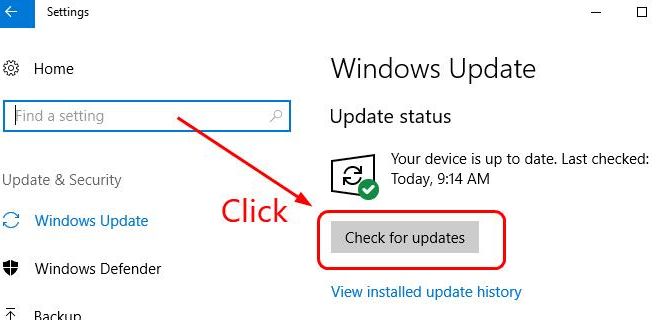
check for updates

Windows will now connect to Update server and download and install all pending updates.

The whole process may take some time. Wait until the Windows completes the update process. Your computer may restart to install updates.

Solution Three- Disconnect new hardware

Can you recall when the lock watchdog timeout BSOD error started appearing?

Many users complained they started getting this error after installing new hardware.

Have you installed any new hardware recently? If the answer is Yes, disconnect new hardware and run your computer.

If you do not get lock watchdog timeout BSOD error after disconnecting new hardware, you can conclude the new hardware is not compatible with your computer.

However, if the lock watchdog timeout BSOD error is generated even after disconnecting new hardware, move to the next solution.

Solution Four – Uninstall 3rd party anti-virus software

Some antivirus software tools are known to cause BSOD error.

There is a possibility the 3rd party antivirus software installed in your system is causing some problem that leads to clock watchdog timeout BSOD error.

You can disable the antivirus temporarily and see if the clock watchdog timeout BSOD error is generated.

If the BSOD does not appear after disabling the 3rd party antivirus software, you can conclude the anti-virus program is the culprit behind clock watchdog timeout BSOD error.

You can either contact the software manufacturer and explain the problem and wait for a solution. Alternately, you can use Windows Defender antivirus that is in-built in Windows 10.

Here are steps to turn on Windows Defender in Windows 10.

  • Click Start-> Settings(gear icon)
  • In Windows settings, select Update & Security
  • In the next window, click Windows Security in the left pane
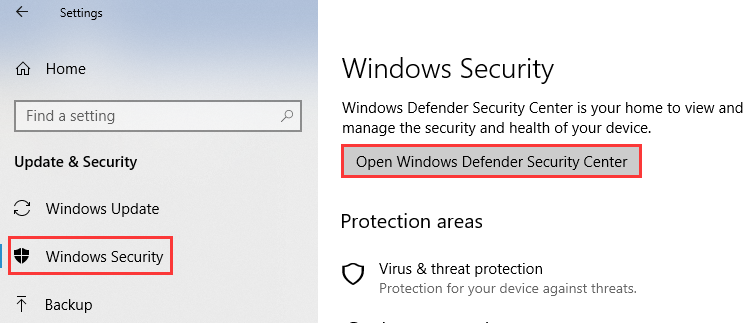
windows security
  • Click Open Windows Defender Security Center in the right pane
  • In the Windows Defender Security Center dialog, click virus and threat protection setting
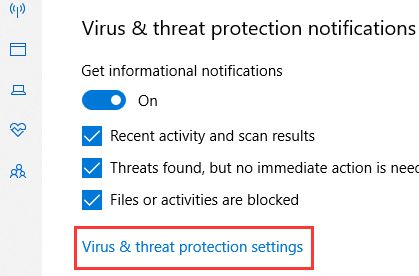
virus and threat protection
  • In the next window, click the slider under Real Protection to turn on Windows Defender
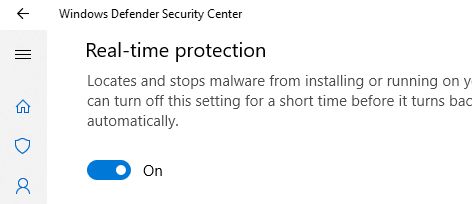
realtime protection
  • Close all windows

If the solution does not help resolve the clock watchdog timeout error, move to next solution.

Solution Five-Run System File Checker

You cannot ignore the possibility of corrupt system files behind clock watchdog timeout BSOD error.  Windows operating system has a built-in system file checker tool that checks the integrity of the system file and replaces any corrupt system file it finds.

Here are the steps to run the system file checker tool.

  • On your keyboard, press the Windows logo key and X same time to bring up Start Menu
  • Click Command Prompt(admin) from the list of results
  • In the command prompt window, type sfc /scannow and hit Enter on your keyboard.
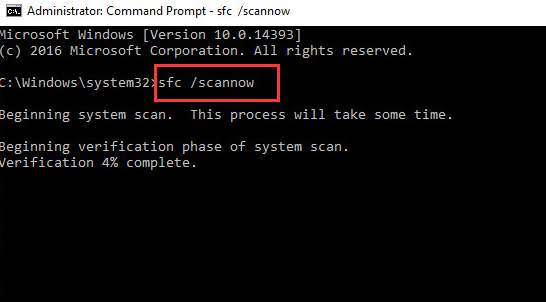
sfc-scanow
  • The System File Checker tool scans system files and repairs any corrupt files it finds.
  • Wait for the SFC tool to complete its task.

Check if the issue has been resolved. If you still get the error, try the next solution

Solution Six- Set the BIOS settings to default

Many Windows users overclock the processor for optimal performance.

If you have tweaked BIOS settings, it might be causing clock watchdog timeout BSOD error. In that case, resetting BIOS settings to default can help resolve the issue.  H

ere are the steps to reset BIOS settings to default.

Note- You need to press a specific key or key combination to enter BIOS settings and it might be different for every motherboard manufacturer. Read your motherboard documentation or computer manual to know the exact key or key combination to enter BIOS settings.

  • When your system is booting, press the right key to enter BIOS
  • When you enter BIOS settings, you will see a list of keys at the bottom of the screen. One of the keys will read Setup Defaults or something similar( it will have word “default “)

set to defaults
  • Press the right key to reset BIOS settings
  • If prompted for confirmation, press Y
  • Wait for the BIOS reset to complete
  • Save BIOS settings and exit BIOS
  • Restart your computer

Run your computer to see if the issue is resolved. If you still get the clock watchdog timeout error, move to the next solution.

Solution Seven-Run Windows MemTest

Several BSOD errors are linked to memory and you cannot ignore the possibility of clock watchdog timeout error related to memory.

Luckily, Windows comes with an in-built tool that can check the memory for errors.

If the memtest reports any errors, the only solution available is replacing the faulty memory module.

Here are the steps to run Windows MemTest

  • On your keyboard, press the Windows logo key and type  Windows memory diagnostic in the box
  • Select Windows Memory Diagnostic from the list of results
  • In the WindowsMemory Diagnostic pop up dialog, you will get two options -1) Restart now and check for problems (recommended). If you choose the 1st is an option, the computer would reboot immediately and the  Windows Memory Diagnostic tool runs at startup
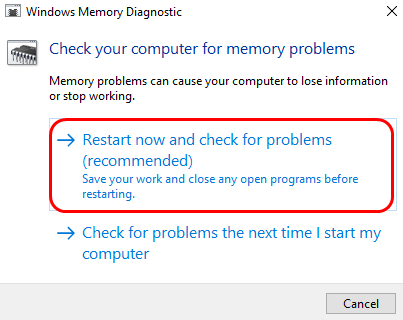
restart now
  • The 2nd option says Check for problems the next time I start my computer. If you select the 2nd option, Windows will run the WindowsMemory Diagnostic tool during the next system restart.
  • Here we have chosen the 1st option – Restart now and check for problems (recommended) which restart the computer immediately and you will see memory test running at booting.
  • You would see a similar screen like the one below which is WindowsMemTest tool running on your PC.  Have patience as it may take some time for the test to complete. You can see the progress of the memtest and also see if any errors are detected by the Windows Memory Diagnostic tool.

After the memtest process is completed, Windows will boot normally.

In most cases, the clock watchdog timeout BSOD error should be resolved now.
Filed Under: PC Fix Tips Tagged With: clock watchdog timeout

Solution to Err_Internet_disconnected error in Windows

By Susan C on April 21, 2019

Solution to Err_Internet_disconnected error in Windows

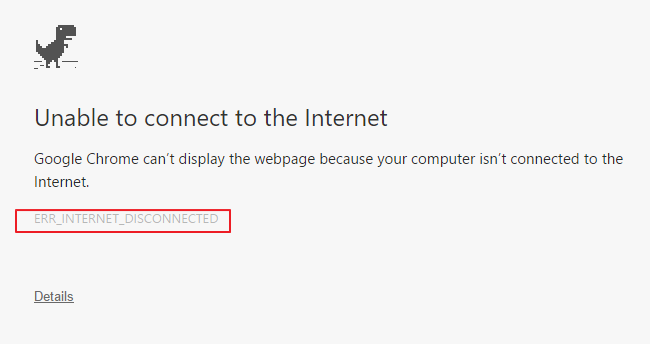
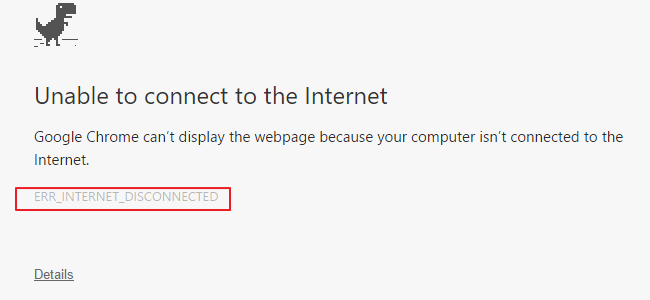
Err_Internet_disconnected is one of the common Internet-related errors.

When you get this error, it means your computer Internet connectivity is disrupted.

err-internet-disconnected-error

There can be many reasons behind this error.

We have provided 7 solutions to resolve the err_internet_disconnected error.

You can start with the first solution, and if it does not work for you, move to the next solution and so on.

Solution One – Check your Internet connection

Before you try other solutions, you need to ensure there is no problem with Internet connection.

The err_internet_disconnected issue crops up when your computer’s Internet connection is not active.

Check the status of the Internet connection and also check the cables.

Make sure the Internet connection is enabled on your computer. If the Internet connection is disabled, enable the Internet connection and then try to surf the Internet.

If there is no problem with an Internet connection, move ahead to the next solution.

Solution Two- Fix LAN Settings

Wrong LAN settings can also be the reason behind the err_internet_disconnected issue.

In that case, making necessary changes to the LAN can get rid of the error.

Here are the steps to fix LAN settings.

  • Press Windows logo key on the keyboard
  • Type Internet options in the search box
  • Click Internet options from the list of results
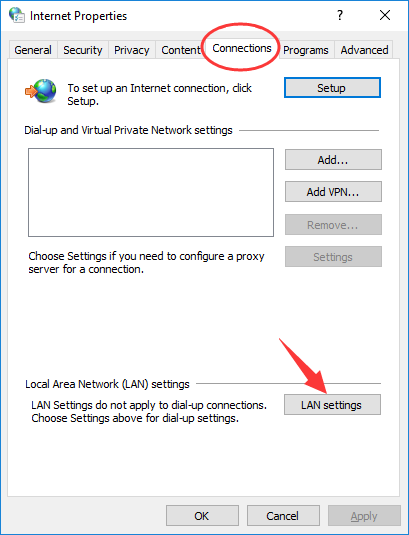
  • In the Internet Properties window, go to Connections tab
check connections
  • Click LAN settings that appear below
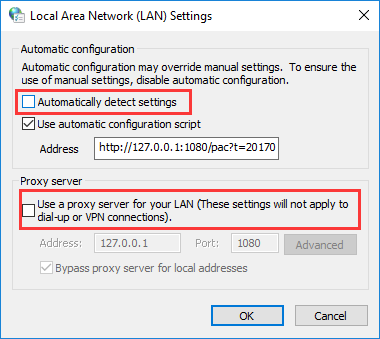
  • In the Local Area Network(LAN) Settings window, make sure the options – Use a proxy server for your LAN and Automatically detect settings are unchecked
proxy server
  • Click OK to save changes
  • Close all Windows

Open Google Chrome and see if Internet connectivity is restored. If you still get the err_internet_disconnected message, move to next solution.

Solution Three- Delete Browsing Data

When you surf the Internet, your browser saves Internet files and cookies to load the pages faster next time you revisit the pages.

If you don’t remove browsing data from time to time, the size of the browsing data can grow enormously (1GB or more).

Sometimes browsing data becomes corrupt, which triggers the err_internet_disconnected issue.

The reason is the browser tries to load Internet files from its storage cache.

To overcome this issue, you need to delete browsing data. This will force the browser to download the data again that could resolve the err_internet_disconnected issue.

Here are the steps to delete browsing data.

For Google Chrome-

  • Open Chrome
  • Click the menu button (three vertical dots) that appears on the top right corner of the browser.
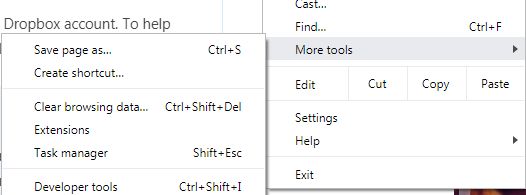
  • Click More tools
click more tools
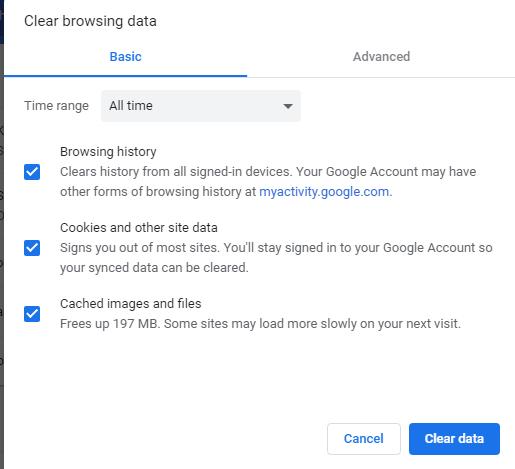
  • Click Clear browsing data
clear browsing data
  • In the Clear browsing data window, select All-time in the Time range
  • Ensure the options Browsing history, Cookies and other site data, and Cached images and files are checked
  • Click Clear data

For Firefox

  • Open Firefox
  • Click the Library button
  • Click History
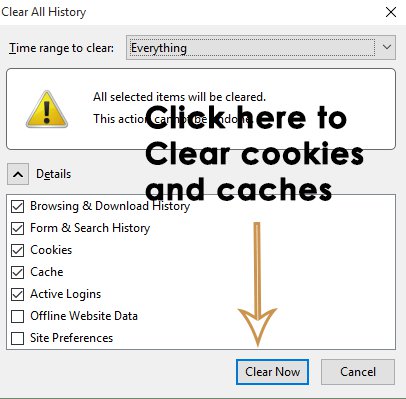
  • Click Clear recent history
  • In the Clear recent history window, select Everything in Time range to clear
delete firefox browsing data
  • Check the following boxes- Browsing and download history, Cookies, Cache, Active logins, Form and search history
  • Click Clear now

With the browsing data cleared, check whether the err_internet_disconnected issue is resolved. If the issue still persists, move to next solution.

Solution Four – Check Anti-virus settings

There is a possibility your anti-virus is blocking the Internet connection.

You need to check the anti-virus settings to ensure it is not the root cause of the problem.

A good way to find out is disabling the anti-virus temporarily and sees if that resolves the err_internet_disconnected issue.

If the Internet connectivity is restored after disabling the anti-virus, you can conclude the security software was the problem.

You need to contact the software developers, explain the issue and seek a solution.

Another solution is using other anti-virus software.

Solution Five- Make changes to network settings

There is a possibility there is some problem with network settings that is causing the err_internet_disconnected issue.

Resetting network settings could help resolve the issue. Here are the steps to follow.

  • Press Windows logo key and type cmd in the search box
  • Right-click command prompt from the list of search results and select Run as administrator
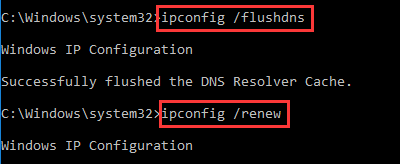
  • In the command prompt window, type following commands one after another. After typing the first command, press Enter. Wait for the command execution to complete before typing next command in line.  Follow the above instructions for other commands too.
ipconfig
  • ipconfig /flushdns
  • ipconfig /renew
  • netsh int ip set dns
  • netsh winsock reset

After you have completed executing all four commands given above, restart the computer.  Check whether Internet connectivity is restored.

If the issue remains unresolved, move to the next solution.

Solution Six- Power cycle your modem/router

Power recycling your network devices means resetting it.  There is a possibility the problem lies with your networking device.

To rule this out, you need to reset the networking devices.

Here are the steps to follow

  • Turn off your router and modem
  • Unplug the power cord of both devices from the wall socket
  • Wait for some time
  • Plug back the power cord of both devices in the wall socket
  • Start both devices
  • Wait for the devices to establish an Internet connection
  • Open an Internet browser and see if you are able to surf the Internet.

If you are still getting an err_internet_disconnected error, move to next solution.

Solution Seven- Reinstall network adapter

You can try reinstalling network adapter and see if it helps resolve the err_internet_disconnected issue.

Here are the steps to follow.

  • Press Windows logo key and R simultaneously to launch Run command box
  • In Run command box, type devmgmt.msc
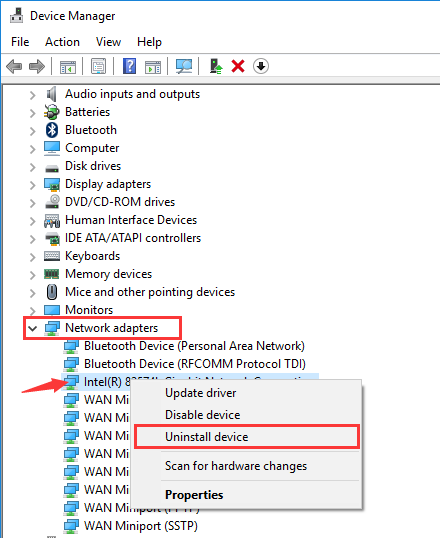
  • In the Device Manager window, go to the Network adapters category and expand it
  • Right-click on the network adapter and click Uninstall
network adapters uninstall
  • If you are prompted for confirmation, click Yes to continue
  • Close all Windows and restart your computer

When the computer boots, the operating system will automatically install the network adapter.

Check whether the err_internet_disconnected issue is resolved.

In most cases, the err_internet_disconnected error would be resolved by one of the solutions given in this post.

Filed Under: PC Fix Tips Tagged With: Internet error

5 top fixes for “No sound on YouTube” issue in Windows

By Susan C on April 19, 2019

5 top fixes for “No sound on YouTube” issue in Windows

Can’t hear when you play YouTube videos?

If yes, then this post will help you fix the problem.

YouTube is a popular video streaming website. Millions of people worldwide use it every day.

Sometimes when you play videos, there’s no sound. This is a common issue.

We have provided 5 solutions that can fix the no sound on YouTube issue.

You need not try all of them, just start with the first solution and if it does not work for you, move on to the next solution and so on.

Solution 1 – Check volume settings

There is always the possibility you have muted sound for YouTube video.

In that case, even if you open other YouTube videos, the new video will also be muted.

Check the speaker icon that appears at the bottom left corner of the video player.

See if you can see “\” sign on the speaker icon. If yes, click the speaker icon to unmute the YouTube video.

unmute youtube

If this solution does not work for you, move to the next solution.

Solution 2 – Use a different browser

There is a possibility that there is some problem with your browser.

To rule out this possibility, try opening the YouTube video link in another browser.

For instance, if you use Google Chrome, use Firefox to play YouTube video.

If you can hear sound when you play the YouTube video in another browser, you can conclude the problem lies in the first browser you used.

You may be able to fix the issue by updating the first browser.

If you cannot hear sound on YouTube on another browser also, move to the next solution.

Solution 3 – Check the sound settings for browser and Flash plugin

Do you know your browser also has sound settings?

If the browser sound is muted, you will not be able to sound from any multimedia tab.

Here are the tabs to check the sound settings of browser and Flash player.

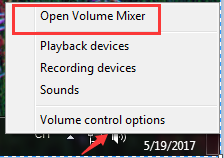
  • Right-click on the speaker icon in the system tray(bottom right corner of the desktop)
  • Click Volume mixer
open volume mixer
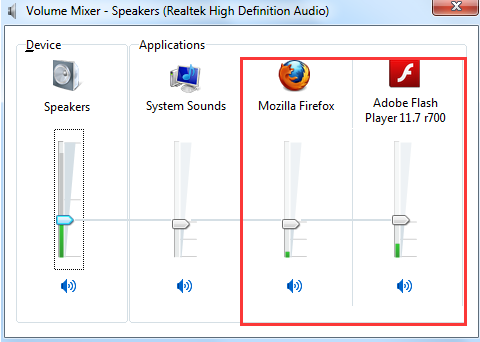
  • Make sure the volume control slider for the browser and plugins is not at a lower level
browser sound settings
  • Also, check there is no “\” sign on the speaker icon for browser and Flash plugin

If everything seems ok in sound settings and you still cannot hear sound on YouTube, move to next solution.

Solution 4 – Uninstall Adobe Flash Player and install its latest version

Many users were able to resolve the no sound on YouTube issue by uninstalling the Adobe flash player and installing the latest version of Adobe flash player.

Here are the steps to follow.

  • Click the Start button
  • Click Control Panel
  • Make sure the View by is set to small icons
  • Click Programs and features
programs and features
  • In the list of installed programs, locate Adobe Flash player
  • Right-click on Adobe flash player and click Uninstall
  • Wait for the un-installation to complete
  • Open browser
  • Go to Adobe Flash player download link
  • Under Optional offers, uncheck the options for McAfee Security Scan Plus and McAfee Safe Connect
  • Click Install now
  • You will see an exe file is downloaded to your computer
  • Navigate to the folder where the Adobe flash player setup file is downloaded and double-click on it
  • Follow the on-screen instructions to install Adobe flash player.
  • After installing the latest Adobe flash player, restart the browser

Now try playing the YouTube video in the browser. If you are still experiencing no sound on YouTube, move to next solution.

Solution 5 – Update Sound Drivers

You cannot ignore the possibility of corrupt or missing sound drivers behind the no sound on YouTube issue.

In that case, updating the sound driver is the easiest solution available to resolve the issue.

There are two ways to update sound drivers – Manual update and Automatic update.

Here we have provided instructions for both methods to update sound drivers.

Method 1 – Updating sound drivers manually

  • Click the Start button
  • Press the Windows logo button and R simultaneously on the keyboard to invoke Run command box
  • In Run command, type devmgmt.msc and click OK
  • In the Device Manager window, go to Sound, video and game controllers category and expand it
  • Go to the audio device for which you want to update driver
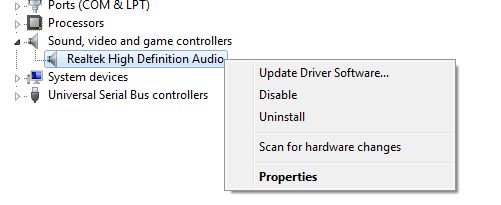
  • Right-click on audio device and click Update driver software
update driver software
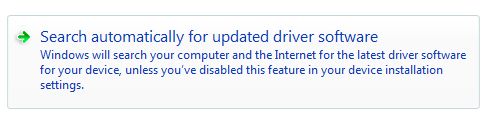
  • In the Update Driver software dialog, select search automatically for updated driver software.
search automatically
  • Follow-on screen instructions to update sound drivers.

Updating Realtek sound drivers

A large number of motherboard manufacturers use Realtek sound chip on their motherboards.

If your computer also has a Realtek chip, you can download and install the latest sound drivers from the Realtek website.

Here are the steps to follow.

  • Go to Realtek sound drivers link
  • Download the right sound drivers for your computer. Pay attention to Windows version and system architecture(32-bit/64-bit)
  • If the driver’s file is in exe format, you can double-click on the exe file to install sound drivers. If the driver’s file is in zip format, you need to unzip the contents to one folder and then double-click on the exe file in the folder.
  • Follow on-screen instructions to install sound drivers
  • Restart your computer

Now try playing YouTube videos in the browser.

In most cases, the no sound on YouTube issue would be resolved by one of the solutions given above.

If you find the manual sound driver update method difficult, you can use a driver update software tool to update the sound driver automatically.

Method 2 – Updating sound drivers automatically

The easiest, fastest, and most convenient way to update drivers is by using a driver update software tool.

Automatic driver update tools offer many benefits, the most important ones being:

  • You can update device drivers automatically
  • The software scans and updates all outdated or missing drivers at one go
  • The tool picks the right drivers for your device and operating system, so you won’t have to worry about installing an incorrect driver by mistake
  • Automatic driver updates are 100% safe

Driver Updater is one of the best driver update tools out there. Outbyte Driver Updater will give you access to a database of over 1 million drivers. It will regularly scan your PC, suggesting new driver versions to install. Driver Updater contains drivers for a variety of Windows devices. With just one click, you can update drivers in your system.

Step 1
Click here to Install and launch the app

Step 2
Scan all devices

Step 3
Install or update drivers automatically


Start Download


Filed Under: PC Fix Tips Tagged With: no sound YouTube

  • « Previous Page
  • 1
  • …
  • 120
  • 121
  • 122
  • 123
  • 124
  • …
  • 189
  • Next Page »


  • Recent Posts
  • Popular Posts
        

Read More Posts


Read More Posts

Drivers.com Sites

  • Software Drivers
  • Drivers Ed

About Us

  • Advertise
  • About Drivers
  • Drivers Support
  • Drivers.com Privacy Policy
  • Disclaimer
  • Software Drivers
  • Mac Fixes and Tips
  • PC Fix Tips
  • Security/ Backup
  • Tablets & Smartphones
  • Tech News

© Copyright 2026 PDE Publications Ltd. End User License Agreement (EULA)