


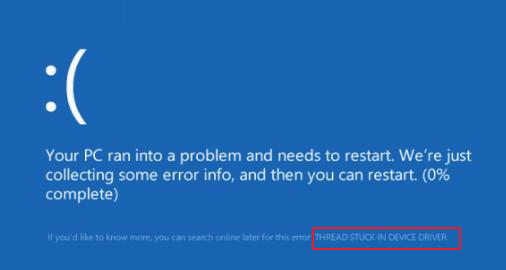
Blue screen errors are generally due to hardware issues or problems with the driver.
Many users have complained about Thread Stuck in Device Driver BSOD error which leads to Windows crashing. If you are facing a similar issue and looking for a solution, then read on.
What causes Thread Stuck in Device Driver blue screen of death error?
The name of the error clearly suggests the BSOD is related to some device driver.
The error code is (0x100000ea) and it is mainly related to display drivers.
However, you cannot rule out the possibility of other device drivers related to this error.
You will encounter the Thread Stuck in Device Driver error when your display device driver enters an infinite loop and waits for the hardware to enter an idle state.
When such a situation occurs, Windows terminates the process and stops the booting process.
The Thread Stuck in Device Driver error generally occurs during booting process or within a few minutes following it.
However, many users have complained about encountering Thread Stuck in Device Driver error when playing games or multimedia files. This happens because the error is related to a display device driver.
This error can also occur after installation of a driver, OS, and updates. The Thread Stuck in Device Driver error usually occurs on a computer with NVIDIA or AMD graphics chip.
Now that you have enough information about the error, let’s look at the solutions.
Solution One – Update Graphics Card Drivers
As mentioned earlier, the video card driver could be the culprit behind the Thread Stuck in Device Driver error.
The solution to this issue is updating the outdated/corrupt driver.
There are two ways to update graphics card driver – manual update and automatic update.
Here we have provides steps for both driver update methods.
Method One – Manual Driver Update
- Click Start
- Press Windows logo key and R simultaneously to invoke the Run dialog box
- In the Run dialog box, type devmgmt.msc and click OK
- In the Device Manager window, go to the Display adapter category and expand it
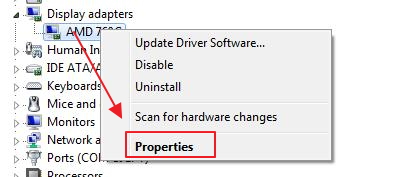
- Right-click on the graphics device in the list and click Properties
- In the graphics card properties window, go to Driver tab
- Note down the name of the graphics adapter, the Driver provider, and driver version
- Now open an Internet browser and go to Driver provider website
- Most driver provider sites have search functionality to find the right device drivers. Type the name of the graphics adapter in the search box
- In the search results, you will find links to download the latest graphics driver for your computer. On most driver provider websites, you have a Download section which lists different versions of drivers available for a particular graphics card.
- You need to be careful while selecting the graphics cards driver. Make sure you select the right operating system and system architecture (32-bit or 64-bit) when downloading the graphics adapter driver.
If you have a 32-bit Windows OS, make sure you download 32-bit graphics card driver for your Windows OS.
Similarly, if you have a 64-bit Windows OS, make sure you download 64-bit graphics card driver.
After downloading the driver file, double-click on the executable file to start the installation and follow on-screen instructions to install the graphics driver.
If the driver file is in zip format, you need to unzip the contents in a folder and then double-click on the executable file and then follow on-screen instructions to install the graphics driver.
After installing the graphics card driver, reboot your system and see if you encounter the Thread Stuck in Device Driver error.
If you’re still getting the Thread Stuck in Device Driver error, move to the next solution.
If you find the manual driver update difficult, you can use a Driver Update Tool to update your graphics card driver automatically.
Method Two- Automatic Driver Update method
Many people prefer to update drivers automatically. You should give it a try as well. This is because it is fast, reliable, and easy. Plus, you don’t need any technical knowledge to update drivers automatically.
Automatic driver update tools offer many benefits, the most important ones being:
- You can update device drivers automatically
- The software scans and updates all outdated or missing drivers at one go
- The tool picks the right drivers for your device and operating system, so you won’t have to worry about installing an incorrect driver by mistake
- Automatic driver updates are 100% safe
Driver Updater is one of the best driver update tools out there. Outbyte Driver Updater will give you access to a database of over 1 million drivers. It will regularly scan your PC, suggesting new driver versions to install. Driver Updater contains drivers for a variety of Windows devices. With just one click, you can update drivers in your system.
Step 1
Click here to Install and launch the app
Step 2
Scan all devices
Step 3
Install or update drivers automatically
Solution Two – Update Sound card drivers
There is a possibility the sound card driver is the cause behind the Thread Stuck in Device Driver error.
To rule out this possibility, you need to update sound drivers. As mentioned above, you can update the sound driver manually or automatically.
The steps to manually update the sound driver are quite similar to those of graphics drivers. Just substitute the word “display adapter” or “graphics card driver” with “sound card” or “audio device.”
To make things simple for you we have mentioned important steps.
- Open Device Manager
- Go to Sound, video, and game controller category and expand it
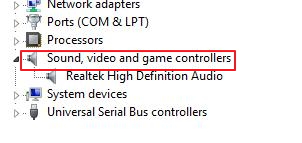
- Right-click on audio device and select Properties
- In the properties window, note down audio device name, driver provider, and driver version number
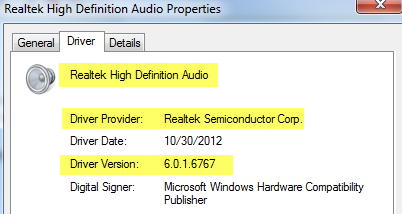
- Use this information to search and download the right sound drivers
- If you are not comfortable with updating sound drivers manually, you can use a Driver Update Tool to update sound drivers
Solution Three-Run SFC Scan
Blue screen error might also occur due to the corruption of system files. In that case, repairing system files is the best option to resolve the error.
SFC is short for System File Checker. It does not have a graphical interface and the commands are executed through a command prompt window with admin rights.
Here are the steps to follow.
- Press Windows logo key and R simultaneously on the keyboard to invoke Run command dialog
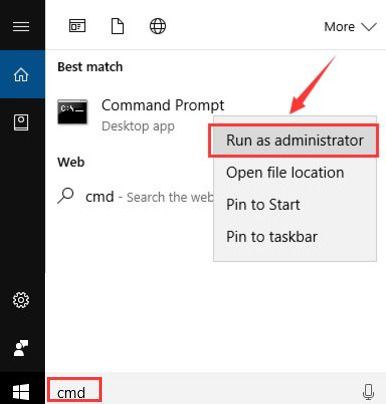
- In the Run command box, type cmd
- Right-click command prompt from the list of results and select Run as administrator
- In the User Account control pop-up, click Yes
- In the command prompt window, type sfc /scannow and hit Enter
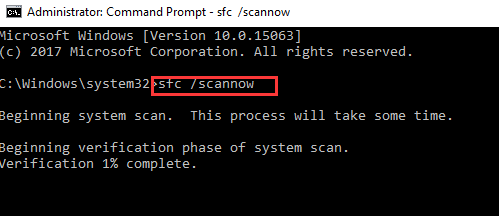
The System File Checker tool checks the integrity of system files and finds the corrupted files, which are then replaced with the right versions of the corrupt file.
If the tool does not find any problem with system files, the scan results will be without any errors.
In that case, you need to move to the next solution.
Solution Four – Set the Hardware Acceleration to None
Hardware acceleration is a feature to get optimal performance from hardware like graphics cards.
By setting the hardware acceleration to None, you can reduce the video card’s functionality.
See if this helps resolve the issue.
Here are the steps to follow.
- Click Start
- Type display in the search box
- Click Display from the list
- Go to Change Display Settings
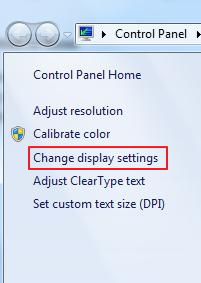
- Click Advanced Settings
- Go to Troubleshoot
- Click Change Settings
- Move the Hardware Acceleration slider to None
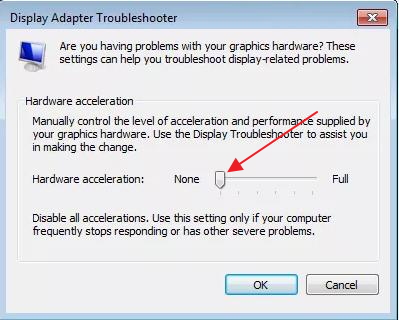
- Click OK
- Restart your PC
Check whether you are getting Thread Stuck in Device Driver BSOD error.
If the issue remains unresolved, move to the next solution.
Solution Five- Keep the graphics card and CPU cool
Overclocking the CPU or graphics card causes heating issues that might cause the Thread Stuck in Device Driver BSOD error.
Make sure the system fans and other cooling components are working fine.
For better results, clean your computer and ensure nothing is blocking the exhaust ports.
Solution Six – Change the power supply
As the power supply gets older, it might not be able to satisfy the power requirements of different hardware components.
This could be the cause of Thread Stuck in Device Driver BSOD error. To rule out this possibility, get another power supply and see if it helps to resolve the issue.
Now check if the Thread Stuck in Device Driver BSOD error is generated.
If your issue remains unresolved, the last resort is replacing the graphics card.
Solution Seven- Replace the graphics card
Since none of the above solutions has worked, there is a possibility that the graphics card has some problem. You need to get a new graphics card and replace it with the old one.
Leave a Reply