Drivers.com

follow us:

facebook twitter
  • Home
  • Download Drivers
  • Drivers Help
  • PC/Mac Resources
  • Software Drivers
  • Mac Fixes and Tips
  • PC Fix Tips
  • Security/ Backup
  • Tablets & Smartphones
  • Tech News
  • Software Drivers
  • Mac Fixes and Tips
  • PC Fix Tips
  • Security/ Backup
  • Tablets & Smartphones
  • Tech News

How to Enable Flash in Chrome

By Susan C on May 25, 2019

How to Enable Flash in Chrome

If you surf the internet and visit video streaming websites, you will need the flash player to be enabled on your browser.

Though HTML5 has become more popular now, there are several sites which use Flash to play video content.

In such cases, you will not be able to view video content if the flash plug-in is not installed and enabled.

In this post, we will show you how to enable flash in popular internet browsers like Google Chrome, Mozilla Firefox, Microsoft Edge, and Opera.

Steps to enable Flash in Google Chrome

  • Open Google Chrome
  • In the address bar, type chrome://settings/content and hit Enter on the keyboard
  • In the Settings tab, scroll down to locate Flash settings
  • Click Flash option
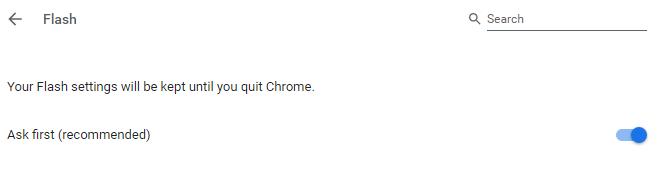
  • Make sure the option – Ask first (recommended) option is selected. This will ensure you will be able to use Flash on specific websites.

flash ask first

  • Open a new tab
  • Open a website where you want to enable Flash.
  • Click the lock icon that appears on the right of the URL
  • From the drop-down menu, click Site Settings
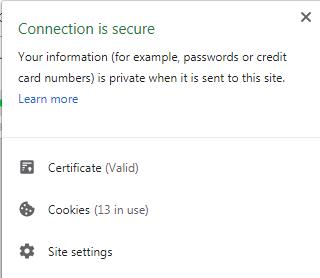
site settings

  • On the Site setting page, click the drop-down menu on the right of Flash and select Allow

chrome flash allow

  • After you have enabled flash for the website, go back to the page and refresh it. Now you can see Flash content is automatically loaded in the page

Steps to enable Flash in Mozilla Firefox

  • Launch Mozilla Firefox
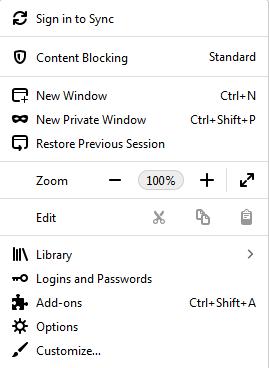
  • Click the menu option(three horizontal bars) that appear on the extreme right side of the address bar
  • Click Add-ons

firefox addons

  • In the Add-ons tab, click Plugins in the left column
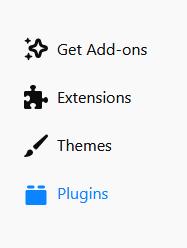
firefox plugins

  • Go to Shockwave Flash plugin and click the drop-down menu and select Always Activate

activate flash

  • Close all tabs

Steps to enable Flash in Microsoft Edge

  • Launch Microsoft Edge browser
  • Click the three horizontal dots that appear on the top right-hand corner of the address bar
  • From the menu that appears, click Settings
  • Under the Advanced Settings header, click View Advanced settings
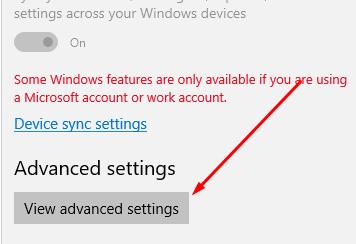
view advanced settings

  • Toggle the switch Use Adobe Flash Player to On position
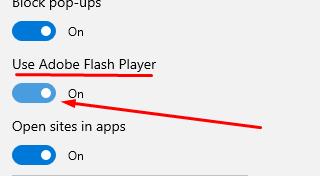
use adobe flash

After you have enabled Flash in Microsoft Edge, you need to perform additional steps to view flash content on a specific website.

  • Open the website with missing flash content in Microsoft Edge
  • When the site is loaded, you will see a puzzle piece on the right side of the URL. This indicates Adobe Flash is enabled in Microsoft Edge but the browser needs your permissions to play Flash content on the website
  • Click the puzzle piece icon
  • From the drop-down menu, click Allow once
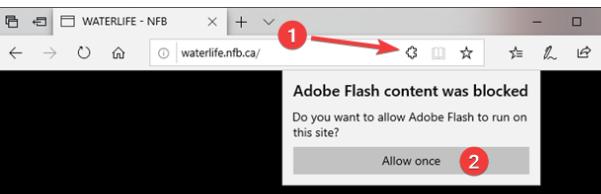
allow once

  • Now you can enjoy the Flash content on the website

Steps to enable Flash in Opera

  • Launch Opera browser
  • In the address bar, type opera://settings and hit Enter on keyboard
  • On the settings page, type Flash in the search box to locate Flash settings quickly
  • Click the radio button next to Allow sites to run Flash
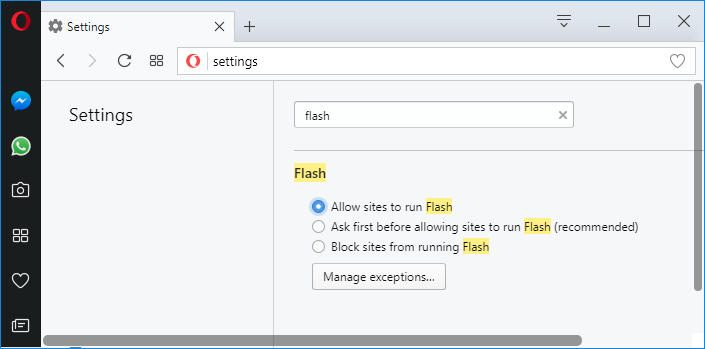
enable flash

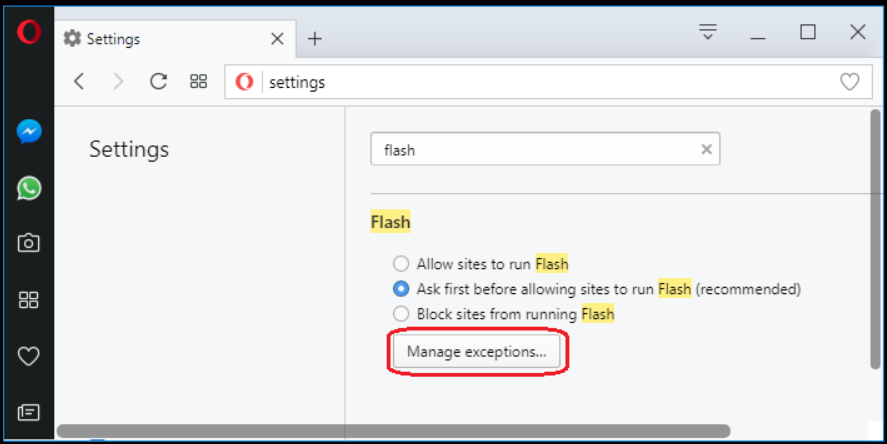
  • Next, click Manage exceptions button

manage exceptions

  • In the Flash exceptions screen, type the name of the domain and then select Allow
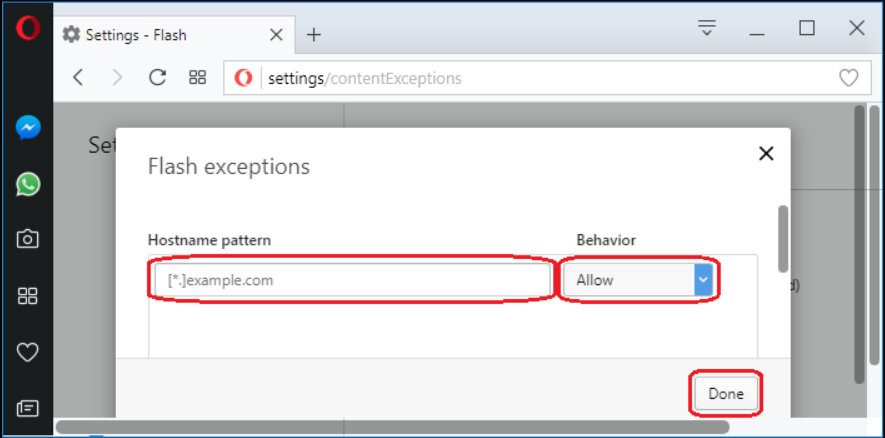
opera enter domain

  • Click Done
  • Restart browser


Filed Under: PC Fix Tips Tagged With: enable flash

How to connect an Xbox One Wireless Controller to a Windows PC

By Susan C on May 21, 2019

How to connect an Xbox One Wireless Controller to a Windows PC

There are several PC games that allow you to use the Xbox wireless controller in place of keyboard and mouse.

If you have been wondering how to connect Xbox one controller to PC, this post is for you.

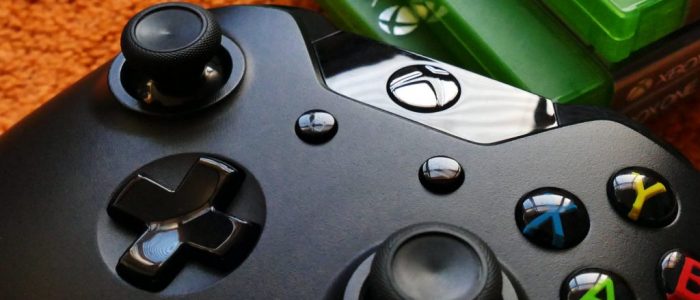
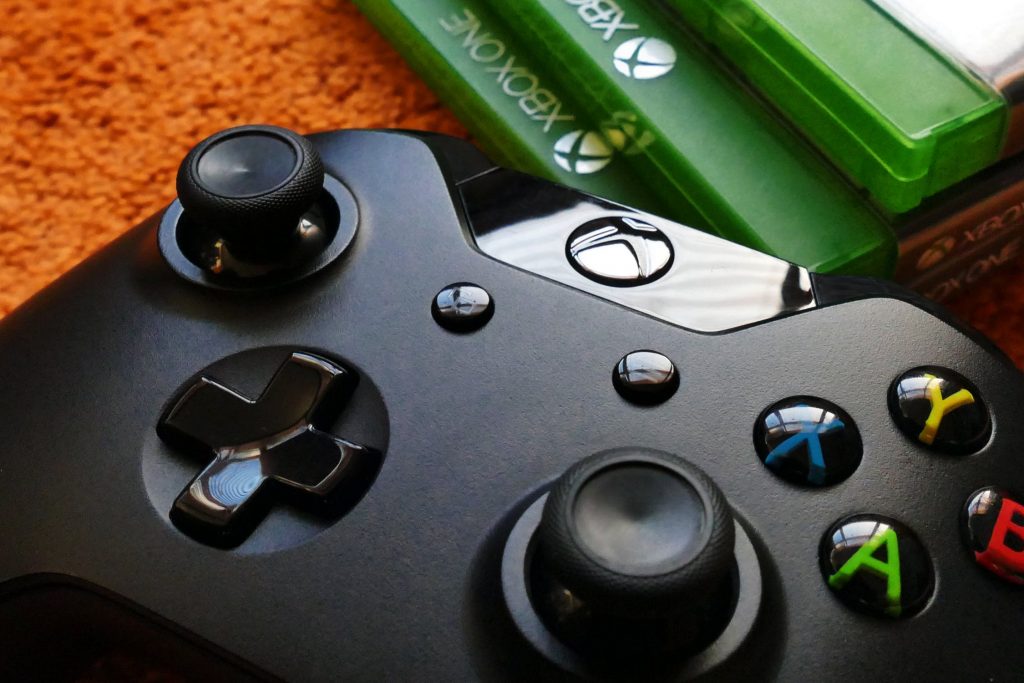
xbox image

Here we have discussed different ways to connect your Xbox one controller to PC. You are free to follow any method that seems suitable to you.

The post is also useful to people who have been facing problems connecting Xbox one controller to PC.

Just follow the instructions given below and you would be able to overcome any problems related to connecting Xbox one controller to PC.

Method One- Connect Xbox Controller to PC using USB

You can connect wired or wireless Xbox One controller to your PC.

If you have a wired Xbox one controller, you can just connect it to the USB port of your computer.

To connect your wireless Xbox One controller, you will need a USB charging cable that is generally used to charge smartphones.

Here are the steps to follow.

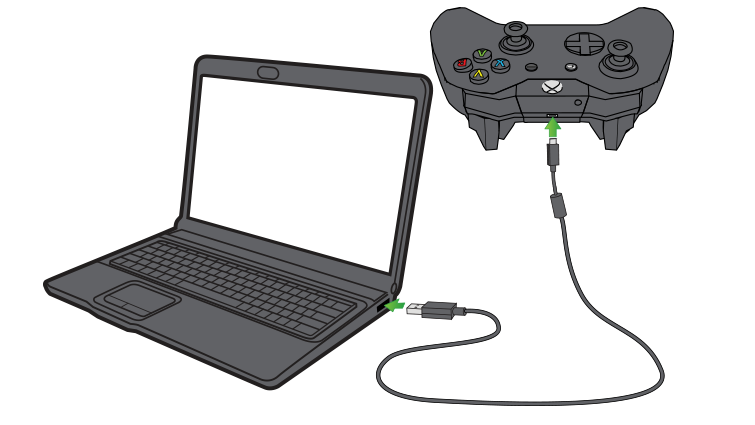
  • Plug the USB cable into the front of the Xbox One controller
USB connection
  • Plug the other end into one of the USB ports on your PC
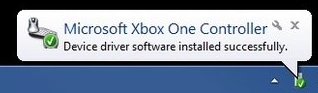
  • Wait for Windows to recognize the new hardware. After some time you will see a message in the system tray that says “ Microsoft Xbox One Controller, Device driver software installed successfully”
device driver software

The message indicates the Xbox one controller is successfully connected to your PC and can be used to play games.

If you see an error which says device driver software installation failed, you need to update Xbox One controller driver on your computer.

Method Two- Connect Xbox One Controller to PC using Bluetooth

The PC needs to have Bluetooth capability to connect Xbox One Controller to PC using Bluetooth.

For example, laptops have in-built Bluetooth functionality, and you can use this method to connect Xbox One Controller to the laptop using Bluetooth.

Here are the steps to follow.

On your Xbox One Controller

  • Turn on the Xbox One controller by pressing the button with Xbox logo
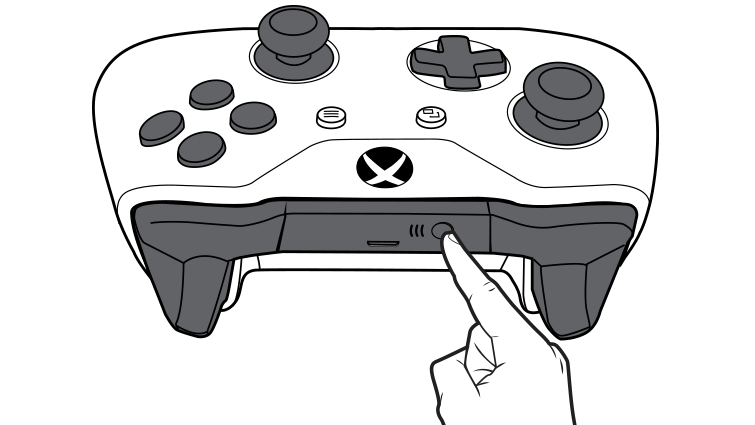
  • Press the controller Connect button for three seconds and then release.
Xbox one connector button

On your PC

  • Click Start -> Settings
  • Click Devices-> Bluetooth and other devices
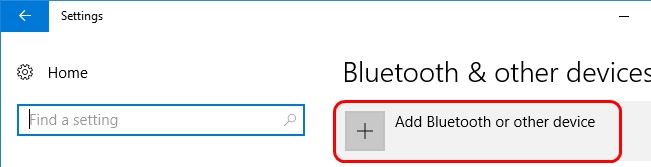
  • Click Add Bluetooth or other device
add bluetooth device
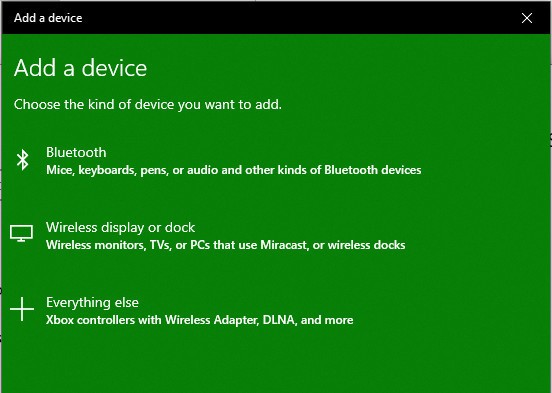
  • Click Everything else
everything else
  • Allow your PC to detect other Bluetooth devices in the range
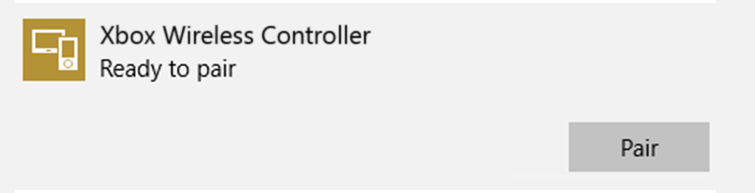
  • When your PC detects the Xbox One Controller, select Xbox wireless controller and click Pair
wireless controller pair
  • Wait for pairing to complete.

Once the Xbox one controller is successfully paired, you can go ahead and play games on your PC using the Xbox one controller.

Method Three – Connect Xbox Controller to PC wirelessly

For this method, you will need an Xbox wireless adapter.

Here are the steps to follow:

  • Plug in the Xbox wireless adapter to one of the USB ports on your PC
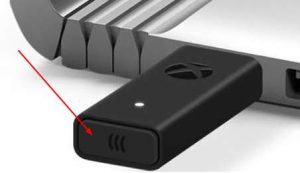
xbox wireless adapter
  • Press the button on its edge and Windows will install the driver for the Xbox wireless adapter
  • Make sure there are batteries inside the Xbox One controller. After confirming the presence of batteries, turn on the Xbox One controller by pressing the button with Xbox logo
  • Press the Connect button located on the top of the controller.
  • The LED light on the Xbox One controller and adapter will blink a few times. When the lights become steady(stay illuminated), the process of connecting Xbox one controller to PC wirelessly is complete

Now, you can go ahead, and play your favorite games on PC using the Xbox One controller.

If none of the methods are working for you, the Microsoft Xbox One Controller driver on your device might be outdated.

A simple solution to this problem is updating Microsoft Xbox One Controller driver on your PC.

How to update Xbox One Controller on your PC?

You can update Xbox One Controller on your PC manually or automatically. Here we have provided instructions for both methods

Steps to update Microsoft Xbox One Controller driver manually

  • Click Start
  • Type Device Manager in Cortana search
  • Select Device Manager from search results
  • In Device Manager window, locate and expand Microsoft Xbox One Controller
  • Right-click Microsoft Xbox One Controller and select Update Driver Software
  • Click Search Automatically for Updated Software
  • Wait for Windows to update Microsoft Xbox One Controller software on your PC
  • Close all windows

If you want an easy method to update Microsoft Xbox One Controller driver, use a Driver Update Tool, driver update software that updates all driver automatically.

Steps to update Microsoft Xbox One Controller driver automatically

There’s no easier method to update drivers than using an automatic driver update tool.

Automatic driver update tools offer many benefits, the most important ones being:

  • You can update device drivers automatically
  • The software scans and updates all outdated or missing drivers at one go
  • The tool picks the right drivers for your device and operating system, so you won’t have to worry about installing an incorrect driver by mistake
  • Automatic driver updates are 100% safe

Driver Updater is one of the best driver update tools out there. Outbyte Driver Updater will give you access to a database of over 1 million drivers. It will regularly scan your PC, suggesting new driver versions to install. Driver Updater contains drivers for a variety of Windows devices. With just one click, you can update drivers in your system.

Step 1
Click here to Install and launch the app

Step 2
Scan all devices

Step 3
Install or update drivers automatically


Start Download


Filed Under: PC Fix Tips Tagged With: connect Xbox

Cast to Device Not Working on Windows 10

By Susan C on May 20, 2019

Cast to Device Not Working on Windows 10

The Cast to Device is an important feature in Windows 10. If the feature stops working, you won’t be able to use Windows Media Player for streaming content to any device.

If the Cast to Device is not working on your computer, this post is just for you.

We have provided 3 solutions that could fix the issue — but you need not try all of them.

Start with the 1st solution. If it does not resolve the issue, move on to the next solution and so on.

Now, let’s look at the solutions.

Solution One- Turn On Network Discovery and File and Printer sharing

The network sharing feature should be enabled for the Cast to device feature to work.

Also, the Cast to Device also needs the Network Discovery feature to work flawlessly.

You need to check the status of file and printing sharing feature and network discovery and ensure both options are enabled.

Here are the steps to follow.

  • Click Start
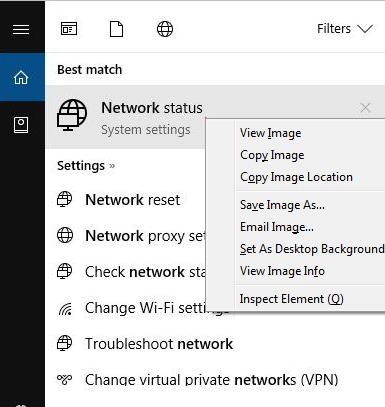
  • Type network in Cortana search box
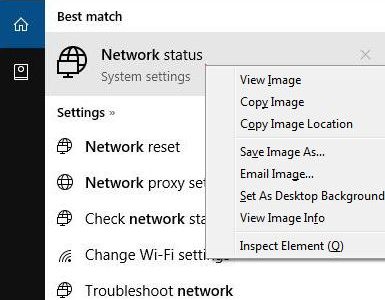
  • From the list of results, click Network status
network status
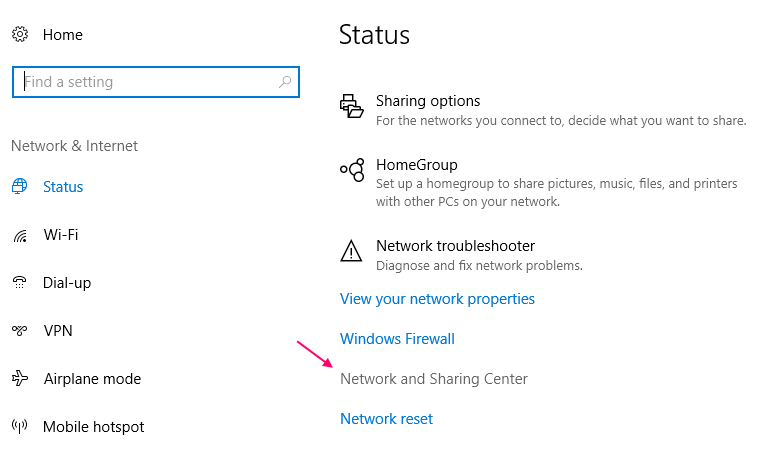
  • In the next window, click Networking and Sharing Center
networking-sharing-centre
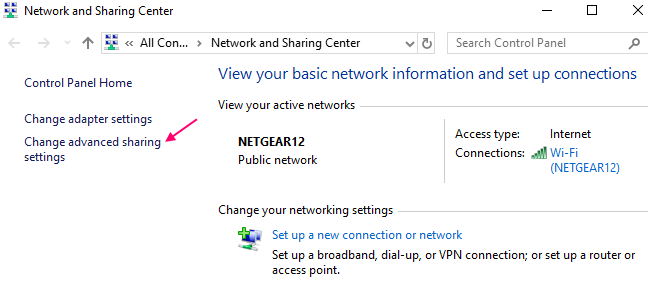
  • In the Networking and Sharing Center window, click Change advanced sharing settings
change-advanced-sharing-settings
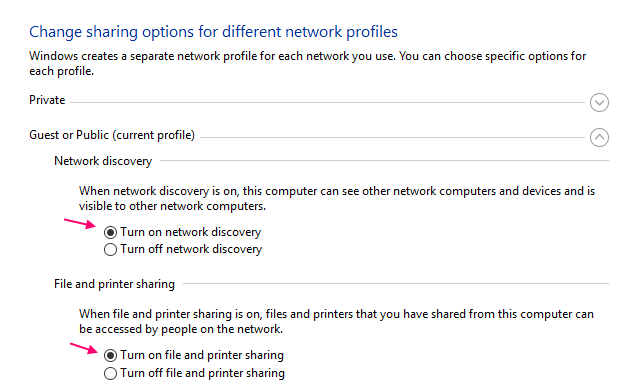
  • In the Advanced sharing settings window, make sure the two items mentioned below are checked
turn-on-network-discovery
  • Turn on network discovery
  • Turn on file and printer sharing
  • Close all windows

Check whether Cast to Device feature is working. If the problem remains unresolved, move to next solution

Solution Two- Reset Stream Permissions for Windows Media Player

Windows 10 has specific streaming options that allow the user to decide which media would be shared.

If the Stream permissions are not set right, the Cast to device feature won’t work properly.

A simple solution to this problem is resetting Stream permissions. This will set the stream permissions to default settings and help fix the problem once and for all.

Here are steps to reset stream permissions for Windows Media Player.

  • Click Start
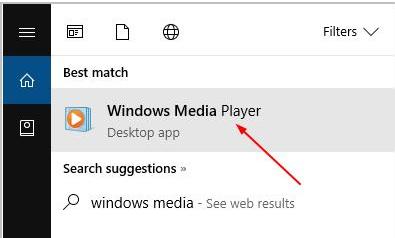
  • Type windows media player in the Cortana search box and hit Enter on the keyboard
windows media player
  • Click Windows media player from the list of results
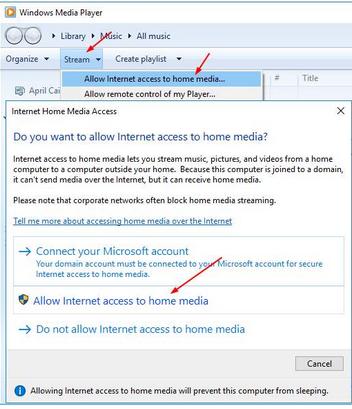
  • In the Media Player window, click Stream
  • Click Allow Internet access to home media…
allow internet access
  • In the pop windows, click Allow Internet access to home media in the pop-up window
  • In the User Account Control pop-up dialog, click Yes
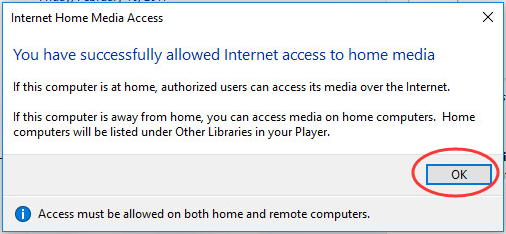
  • In the pop-up dialog of Internet Home Media Access, click OK
internet home media
  • Go to Windows Media Player again
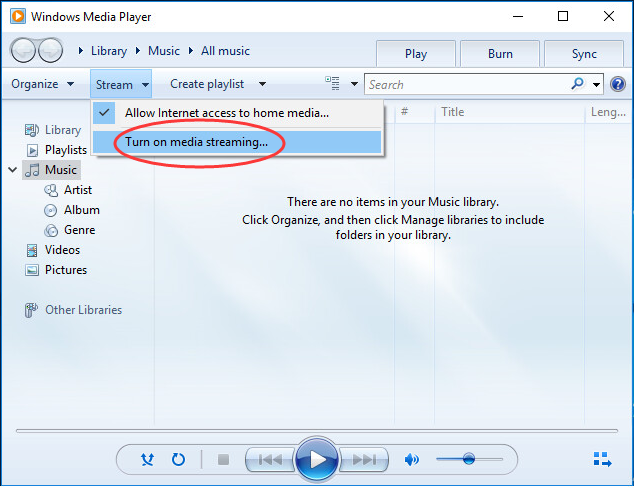
  • Click Stream
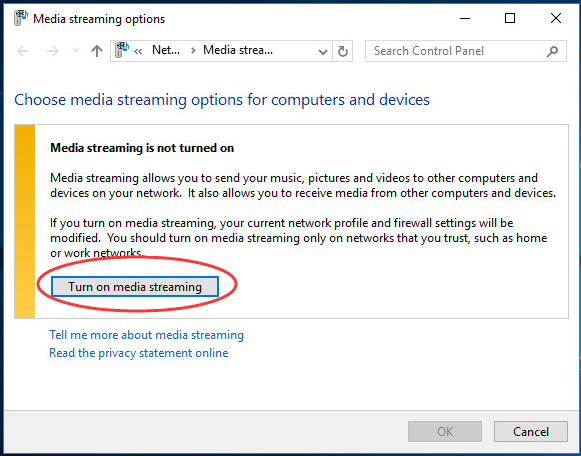
  • Click Turn on Media Streaming
turn on media sharing
  • Click OK
turn on media sharing
  • Go back to Windows Media player again
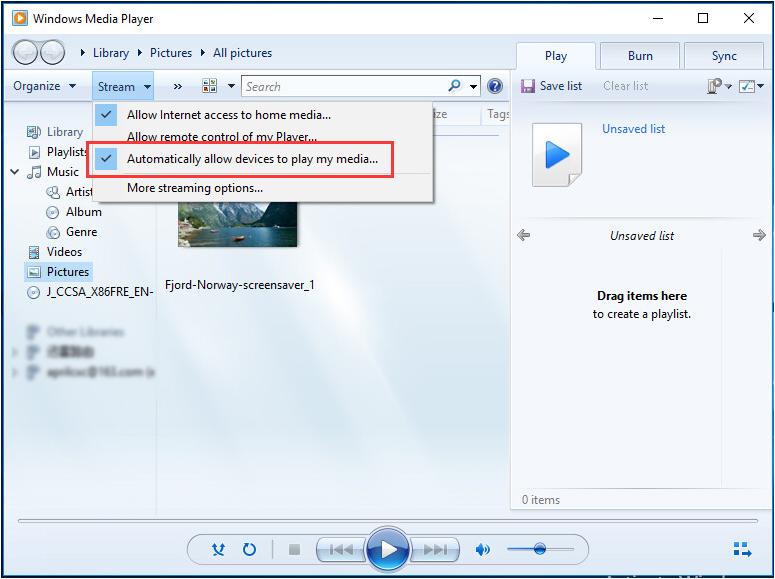
  • Click Stream
  • You should see the Automatically allow devices to play my media option checked. If you do not see a tick in the box, click on the box so that the option is checked
automatically allow devices
  • Close Windows Media player

Now check whether Cast to Device feature is working properly.

If the problem remains unresolved, move to next solution.

Solution Three- Update Network Drivers

A large number of problems in Windows 10 are related to drivers. If network drivers are older or outdated, it could cause problems like Cast to device feature not working.

There are two ways to update network drivers- manually and automatically.

Method One- Update Network Drivers Manually

  • Press the key combinations – Windows logo key and R on the keyboard to bring up Run command box
  • In the Run command, type devmgmt.msc and click OK
  • In the Device Manager window, go to Network adapter category and expand it
  • Right-click on the Ethernet controller and click Properties
  • In the properties window, go to General tab
  • Note down the name of the Ethernet controller, manufacturer name and other details
  • Now go to Driver tab and write down the driver version
  • If you are using Wireless connection, follow the same procedure for a Wi-Fi adapter or Wireless adapter in the list to get the details of the network adapter
  • (Note-Laptop users who connect to the Internet through Wi-Fi need to download latest drivers for Wireless adapter)
  • Close Device Manager
  • Open Internet browser
  • Go to Network adapter manufacturer website and type the name of the network adapter in the search box.
  • You will see the list of downloads available for the network adapter. You need to be careful when downloading network drivers. For example, if the system architecture of Windows 10 installed on your computer is 32-bit, you need to download and install 32-bit network drivers. Similarly, if you have 64-bit Windows 10 OS, you need to download 62-bit network drivers.
  • Once the network drivers are downloaded, double-click on the setup (.exe) file and follow on-screen instructions to install network drivers.
  • If the driver setup file is in .zip format, unzip the file contents to a folder and then double-click on the setup(.exe file)
  • Restart PC after installing network drivers

Check whether Cast to Device feature is working on your computer. If the issue remains unresolved, move to next solution.

If you feel the method of manually updating drivers is difficult, you can choose to update drivers automatically.

Method Two- Update Network Drivers automatically

As you can see for yourself, updating drivers manually can be quite time-consuming.

You can save time and energy and keep your PC safe by downloading driver files automatically.

Automatic driver update tools offer many benefits, the most important ones being:

  • You can update device drivers automatically
  • The software scans and updates all outdated or missing drivers at one go
  • The tool picks the right drivers for your device and operating system, so you won’t have to worry about installing an incorrect driver by mistake
  • Automatic driver updates are 100% safe

Driver Updater is one of the best driver update tools out there. Outbyte Driver Updater will give you access to a database of over 1 million drivers. It will regularly scan your PC, suggesting new driver versions to install. Driver Updater contains drivers for a variety of Windows devices. With just one click, you can update drivers in your system.

Step 1
Click here to Install and launch the app

Step 2
Scan all devices

Step 3
Install or update drivers automatically


Start Download


Filed Under: PC Fix Tips Tagged With: Cast to Device error

  • « Previous Page
  • 1
  • …
  • 118
  • 119
  • 120
  • 121
  • 122
  • …
  • 189
  • Next Page »


  • Recent Posts
  • Popular Posts
        

Read More Posts


Read More Posts

Drivers.com Sites

  • Software Drivers
  • Drivers Ed

About Us

  • Advertise
  • About Drivers
  • Drivers Support
  • Drivers.com Privacy Policy
  • Disclaimer
  • Software Drivers
  • Mac Fixes and Tips
  • PC Fix Tips
  • Security/ Backup
  • Tablets & Smartphones
  • Tech News

© Copyright 2026 PDE Publications Ltd. End User License Agreement (EULA)