Drivers.com

follow us:

facebook twitter
  • Home
  • Download Drivers
  • Drivers Help
  • PC/Mac Resources
  • Software Drivers
  • Mac Fixes and Tips
  • PC Fix Tips
  • Security/ Backup
  • Tablets & Smartphones
  • Tech News
  • Software Drivers
  • Mac Fixes and Tips
  • PC Fix Tips
  • Security/ Backup
  • Tablets & Smartphones
  • Tech News

How to update Kodi player on different platforms

By Susan C on June 15, 2019

How to update Kodi player on different platforms

Kodi is a free and open-source media player available for different hardware platforms and operating systems.

It is designed to look great on your big screen TV, but it also looks equally good on small home screens too. 

The media player streams content from the Internet and offers users’ fantastic viewing experience.

The Kodi player is updated regularly to fix bug and offer improvements.

 In this post, we will look at the methods of updating Kodi on different platforms.

Here you will learn about steps to update Kodi on Windows, MacOS, FireStick, Android, and iOS devices.

How to update Kodi Player on Windows?

If you are using Windows 10 operating system, you can update Kodi in three different ways.

You don’t need to use every method but can select the one that looks simplest and easiest to you.

Method One- Updating Kodi from Official website

  • Open Kodi official website in your Internet browser
  • Scroll down the home page and click Windows icon

On the pop-up dialog, you get three options- Windows Store, 32-bit installer, and 64-bit installer
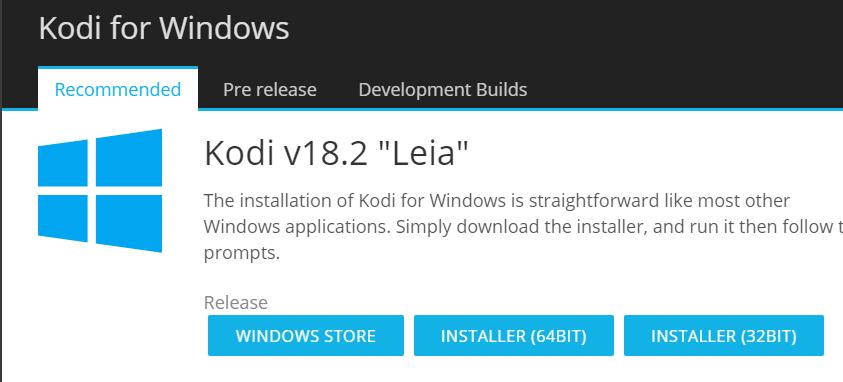
(Note- if you have 64-bit Windows 10 OS, you can download the 32-bit installer or 64-bit installer. However, if you have 32-bit Windows 10 OS, the only 32-bit installer will work for you)

  • Select the right Kodi installer
  • After you click the right Kodi installer, the download starts automatically.
  • Wait for the download to complete.
  • Double-click on the downloaded setup file to install Kodi
  • When you are prompted for confirmation, click Yes
  • In the first screen of Kodi setup, click Next
  • In the License Agreement screen, click I Agree
  • In the Choose Components screen, check the components you want to install. The components are selected by default and you do not have to make any changes.
  • Click Next in Choose Components screen
  • By default, Kodi player is installed in the C Drive programs folder. If you want to install it in another location, click Browser and choose the installation path
  • Click Next
  • If you do not want any shortcuts for Kodi( Start menu, Desktop shortcuts), uncheck the box- Do not create shortcuts.
  • Click Install
  • Wait for the installation process to complete. When you see the Completing Kodi setup screen, click Finish

Now you can launch Kodi player and stream content from the Internet

Method Two – Update Kodi Player from Microsoft Store

Latest Kodi Player is available in the Microsoft app store, and you can update/install it directly from Microsoft store.

Here are the steps to follow.

  • Open Microsoft Store app on your Windows PC
  • Type Kodi in the search box  and hit Enter on the keyboard
  • Select Kodi and click Get to install latest Kodi player on your Windows PC
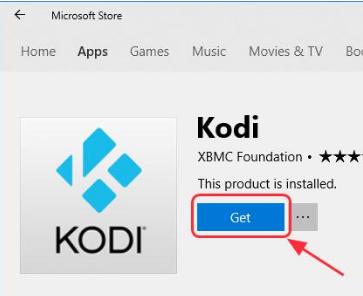
  • Wait for the download to complete
  • After Kodi is installed on your computer, you will see a Launch button, click on it
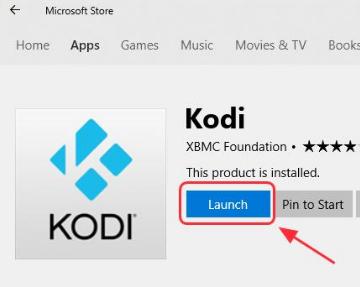
  • Now you can stream content from the Internet and watch it on Kodi player

Method Three- Update Kodi from its repository

Kodi can be also updated from within the application(from its repository). Here are the steps to follow.

  • Launch Kodi on your PC
  • Click Add-ons and then click Package icon that appears on the left
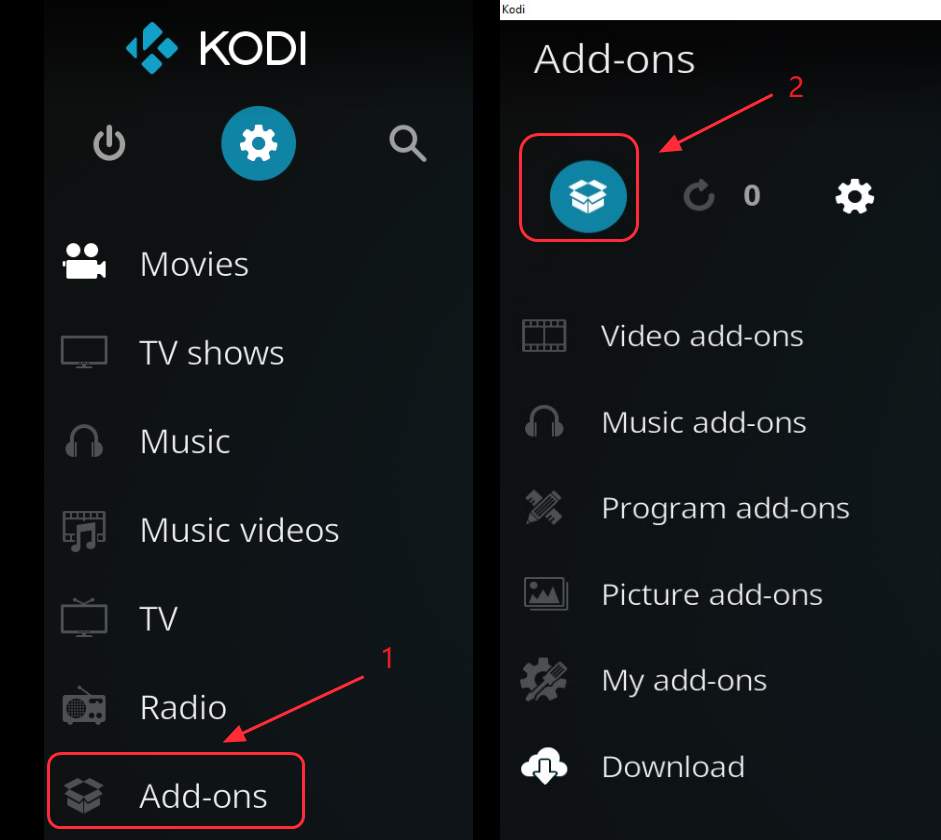
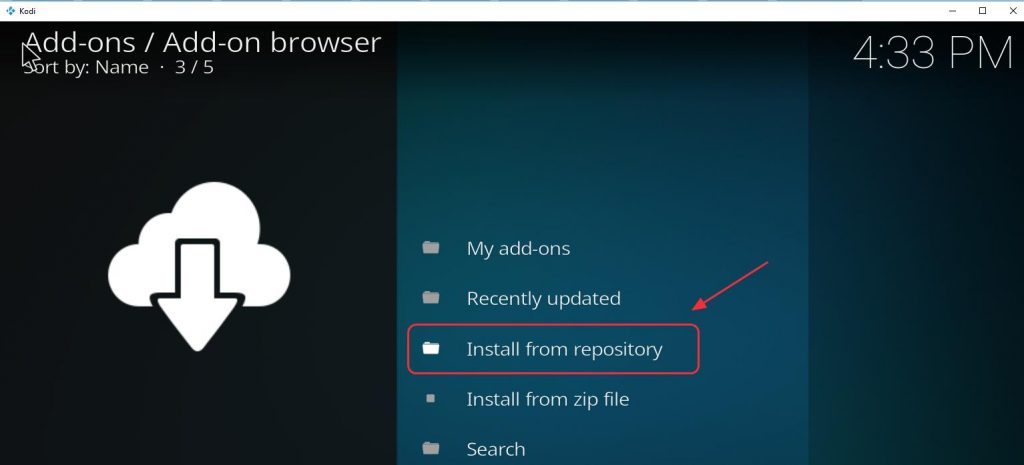
  • Click Install from repository
  • In the next window, you will see a list of repositories. Click Kodi add-on repository
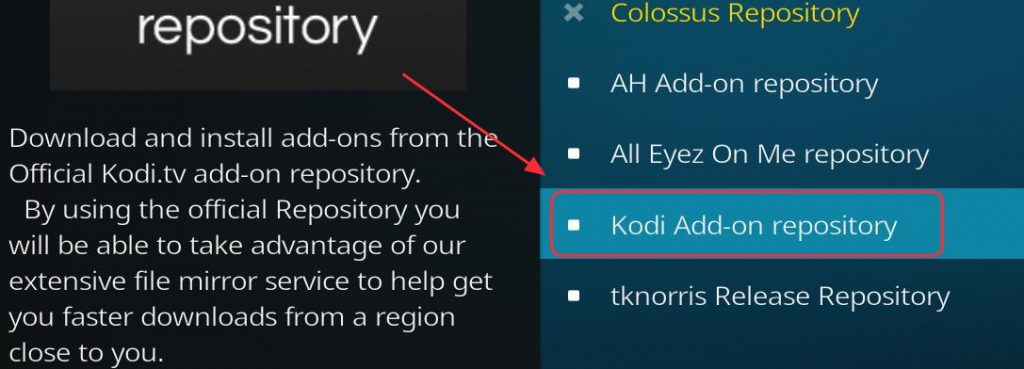
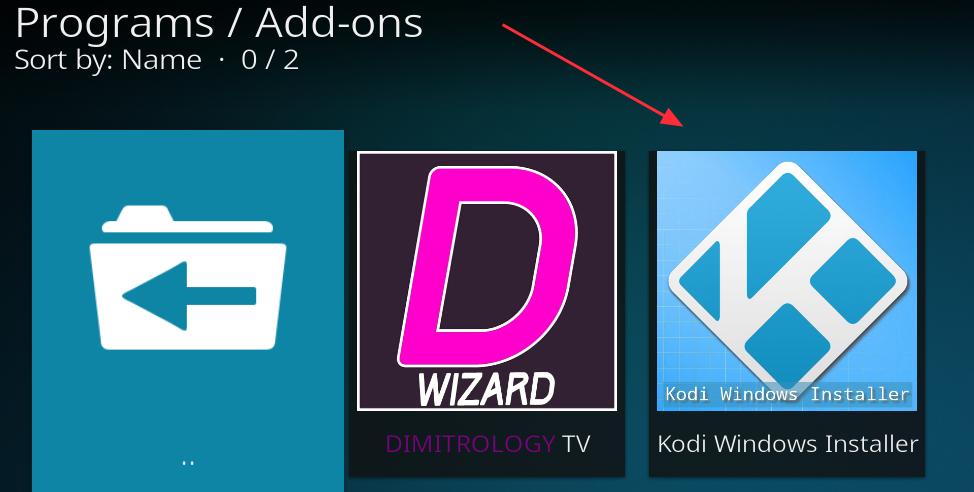
  • Click Program add-ons
  • In the next window, click Kodi windows installer from the list
  • Navigate to the bottom of the page and click Install

After downloading  Kodi’s windows installer, you need to perform a few steps to update the Kodi player to its latest version.

Here are the steps to follow.

  • Click Esc or Backspace key on the keyboard to go back to Kodi player homepage
  • Click Add-ons
  • Click Program add-ons
  • Click Kodi Windows installer

In the pop-up window, select the latest Kodi player version that is Kodi 17.6.

Now Kodi will start downloading the latest version of Kodi player 

How to update Kodi Player on MacOS?

The steps to update Kodi player on MacOS are quite easy.

All you have to do is follow the steps given below. 

You do not have to make any changes to settings after updating Kodi player, as the settings and user data are stored in a separate folder named UserData.

Now let’s look at the steps to update Kodi player on MacOS.

  • Launch an Internet browser and go to the official website of Kodi
  • Scroll down the home page and click MacOS icon
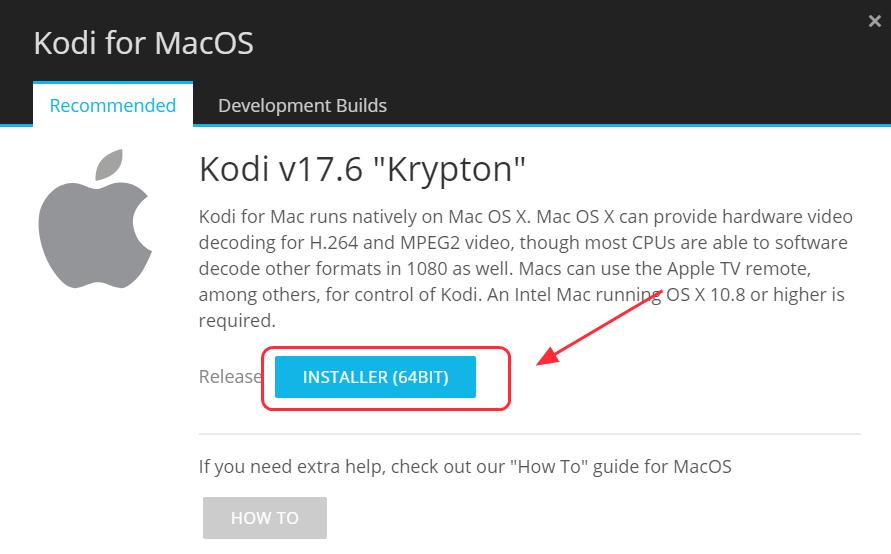
In the next page, click Installer(64-bit)
  • The download starts automatically. Wait for the download to complete
  • Open the package file
  • Follow the on-screen wizard instructions to complete the installation

After the latest Kodi player is installed, open Kodi player and enjoy content from the Internet.

How to update Kodi Player on FireStick?

You can update Kodi player on FireStick in two different ways.

 You are free to follow any method listed below.

Method One – Use Downloader App on your FireStick to update Kodi Player

  • On your FireStick, go to Home Screen and then scroll to Settings
  • Scroll to the right and then select Device
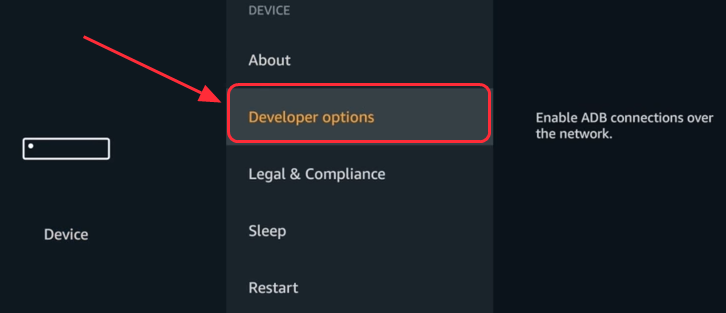
  • Scroll down and select Developer options
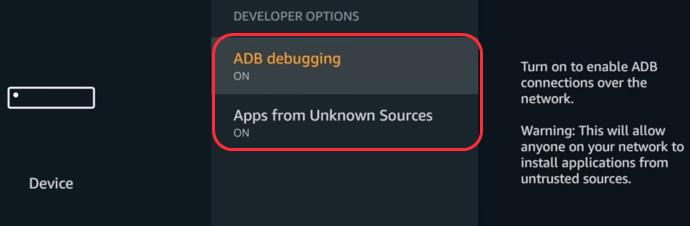
  • Select Apps from Unknown Sources and turn the option ON
  • Select ADB debugging and turn the option ON
  • Go back to Preference and select Advertising ID
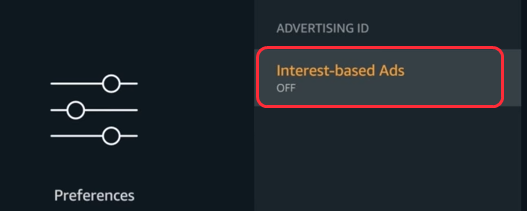
  • Select Interest-based Ads and turn OFF the option
  • Go back to Home Screen and select the Search button
  • Type downloader in search box

<insert-update Kodi-type downloader>
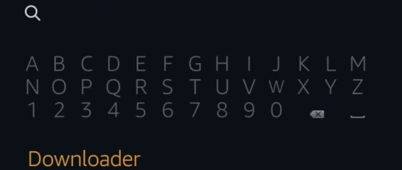
  • From the list of results, select Downloader and click Install option
  • The Downloader app will now be installed on your FireStick
  • Open Downloader app on your FireStick
  • Type http://bit.ly/kodi174 in the search box and click Go
  • The Downloader  app will now download Kodi Player’s latest version on FireStick
  • After the downloading of Kodi player is completed, click Install option that appears at the bottom of the screen.
  • Wait for the installation process to complete, you will see a message App installed appear on the screen and Kodi app icon
  • Click Kodi app icon to launch the player

Method Two- Use ES Explorer app to update Kodi player on FireStick

  • On your FireStick, go to Home Screen and then go to Main Menu-> Search
  • Type ES File Explorer in Search box

Note – If you don’t have ES File Explorer app installed on your FireStick, you will get install option to install ES File Explorer.

  • Select Tools and then select Download Manager
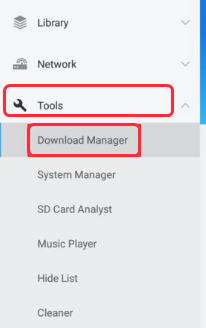
  • Select New+ that appears at the bottom of the screen
  • Type the following address in the box http://bit.ly/Kodi-17_6-Krypton-APK and click OK
  • Enter a name for the path. For example – type Kodi 17.6
  • Select Download now.
  • The download will start automatically and latest Kodi player  version will be downloaded on your FireStick
  • After the file is downloaded, select Open File to install the latest version of Kodi player on your FireStick

After Kodi player is installed, you can use it to stream content from the Internet

How to update Kodi Player on Android Device?

You can update Kodi player to the latest version on Android in two different ways.

Here we have given detailed steps for both methods, and you are free to follow any method you prefer.

Method One – Update Kodi Player through Google Play Store

  • Launch the Google Play Store app on your Android device
  • Sign in your Google Play account
  • Type Kodi is a search box and you will see Kodi player is listed in the search result
  • Select Kodi Player from the list of search results
  • If you have Kodi installed on your Android device, you will have an update option. Select update option to update Kodi player to the latest version
  • If you do not have Kodi installed on your Android device, you will have an install option. Select Install option to install the latest version of Kodi player

After installing/updating Kodi player, open Kodi player and enjoy audio and video content from the Internet.

Method Two- Download APK from the official website to update Kodi Player

  • Launch the Internet browser on your Android device and go to the official website of Kodi
  • Scroll down the home page and click Android icon
  • In the next pop-up dialog, you can see three options Google Play, ARMV7A(32-bit) and ARMV8A(64-bit)
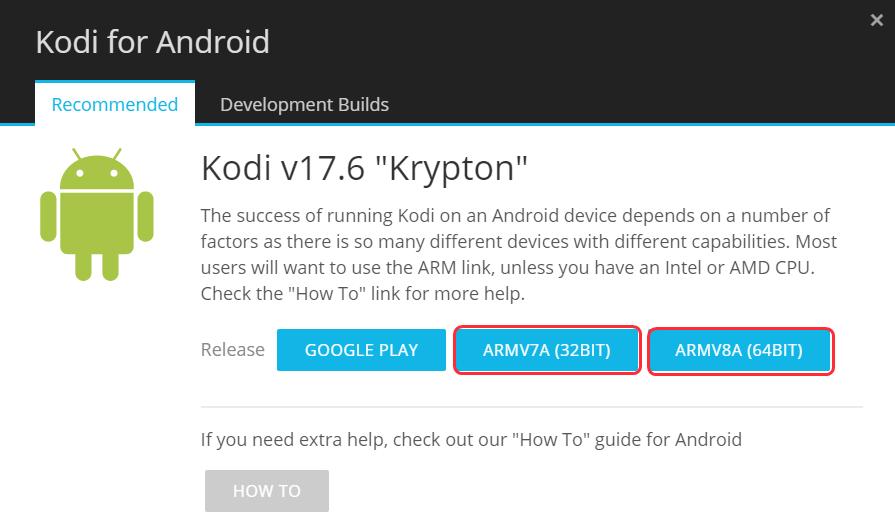
Note-You can find whether your Android device is running 32-bit or 64-bit OS by checking the Kernel version.

  • Open Settings on your Android device
  • Go to Settings-> About Phone-> Software Information-> Kernel version
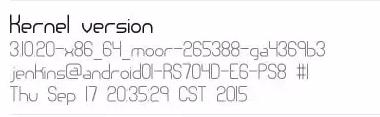
  • After you have found the bit architecture of Android OS on your device, select the ARM installer accordingly
  • After selecting the right ARM apk installer, the download starts immediately. Wait for the download to complete
  • Click the downloaded .apk file and follow on-screen instructions to install latest Kodi player on your Android device

After installing Kodi player on your Android device, you can enjoy audio and video content streamed from the Internet on your Android device.

How to update Kodi Player on iOS Device?

Earlier it was difficult to install or update Kodi player on iOS devices like iPad or iPhone.

However, now the procedure is quite simple.

Here are the steps to follow

Note- you will need a Mac or Windows PC/laptop and USB cable to follow this method

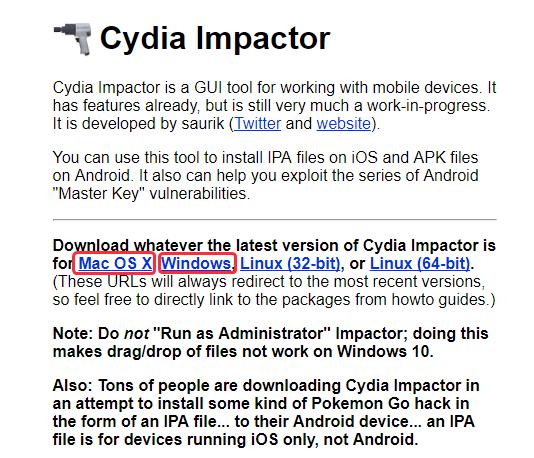
  • You need to download Cydia Impactor on your Windows computer or Mac. Click the link to go to website
  • If you are using Windows, click Windows link on the page. If you are using Mac click Mac link on the page
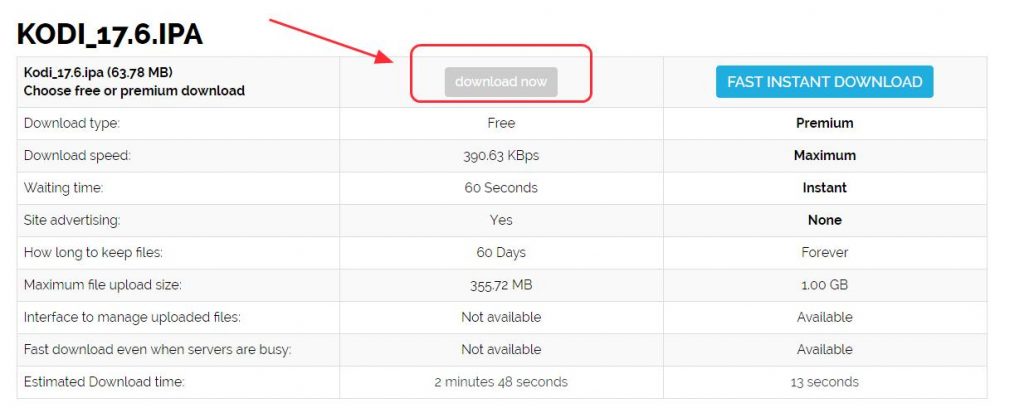
  • In the next page, click Download now. This will download  Kodi 17.6 IPA on your Mac or computer
  • Connect your iOS device to Mac or computer through USB cable
  • Create a new folder on your computer or Mac and move the Cydia Impactor to this new folder
  • Click the Impactor.exe to run the program
  • Drag and drop the Kodi 17.6 IPA file in the Cydia Impactor program
  • Enter your Apple ID when prompted
  • Now you can see the latest version of Kodi player is installed on your computer

After Kodi player is installed, you can enjoy audio and video content on the player
Filed Under: PC Fix Tips Tagged With: update kodi

Solution to “No Wi-Fi” issue in Windows laptop

By Susan C on June 14, 2019

Solution to “No Wi-Fi” issue in Windows laptop

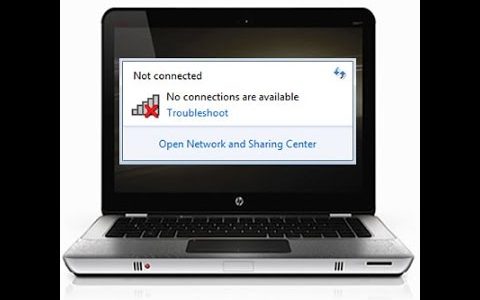
Wireless connection problems can be frustrating, especially when they crop up when you are busy doing something important, like preparing a new business proposal.

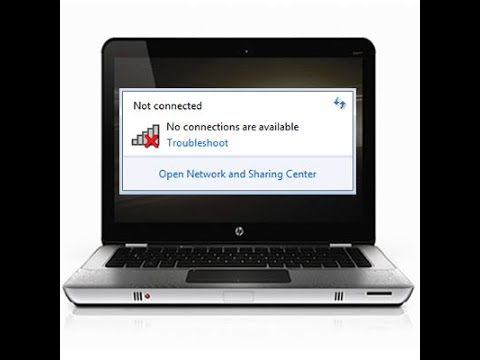
If you are facing the “No Wi-Fi” issue, then this post is for you.

Here we have presented 5 solutions to fix error.

You don’t have to try all these solutions. Start with the first one, work your way down until you resolve the issue.

Solution One- Reboot your laptop

Sometimes the No Wi-Fi issue is temporary and gets resolved when you reboot your laptop.

When you reboot the laptop, all drivers and services are started afresh, which could help resolve the error.

So reboot your laptop without any further ado.

If the No Wi-Fi error remains, move to the next solution.

Solution Two- Check the Wi-Fi Mode on your laptop

Many laptops have a physical button/key to turn on/off the Wi-Fi.

If your laptop has one, make sure the Wi-Fi switch is turned on.

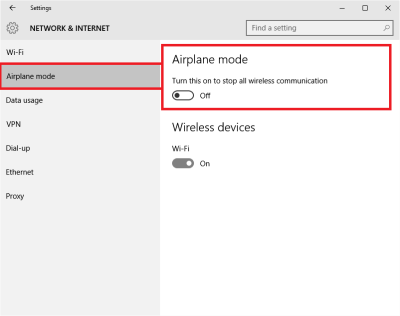
If it is on, you need to check whether the Airplane Mode is not “On” in your laptop.

Here are the steps to follow.

  • Click Start
  • Click Settings(gear icon)
  • In the Settings window, click Network and Internet
  • In the left pane, you will see an Airplane Mode as the second option. Make sure the slider is at Off position

Solution Three – Power cycle your router

There is a possibility there is some problem with the router, which might be causing the error.

Many users were able to resolve the “No Wi-Fi” problem by power cycling the router.

Here are the steps to follow.

  • Switch off your router
  • Remove the router power cable from the wall socket and leave the router in the same state for a few minutes
  • Plug-in the router power cable in the wall socket
  • Switch on the router

Check whether “No Wi-Fi” problem is resolved. If the issue persists, move to the next solution.

Solution Four-Run Network Troubleshooter

Windows operating system feature a Network troubleshooter that can diagnose and repair problems with Network connections.

Here are the steps you need to follow.

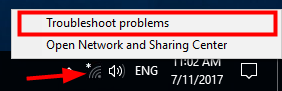
  • Right-click on the network icon in the taskbar and click Troubleshoot problems

  • Wait for the Network troubleshooter to appear on the screen
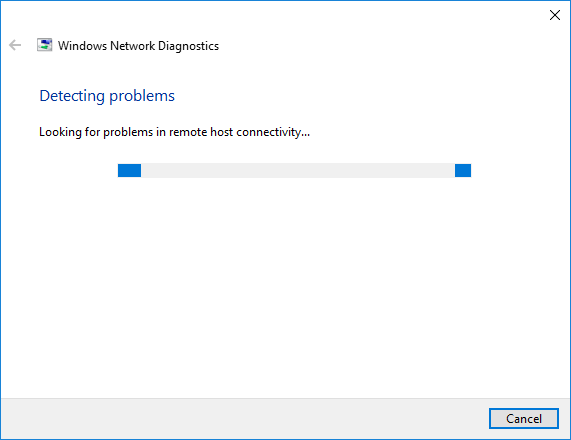
  • The Windows Network Diagnostics window will appear and run the detection scan to find out the issue.

  • Wait for the detection to complete. Based on the problem detected, the troubleshooter will fix the issue automatically or you will be required to perform some troubleshooting steps manually
  • Follow on-screen instructions to resolve the Wi-Fi issue

If the Network troubleshooter is not able to fix the “No Wi-Fi” issue, move to next solution.

Solution Five- Update Wireless Adapter drivers

The “No Wi-Fi” issue could be related to Wireless Adapter drivers.

There is a possibility the wireless adapter drivers are outdated. A simple solution to this problem is updating Wireless adapter drivers.

There are two ways to update Wireless adapter drivers- Manual driver update and Automatic driver update.

Here we have provided steps for both methods.

Steps to manually update Wireless adapter drivers

  • Press the key combination Windows logo key + R to invoke the Run command
  • In Run command, type devmgmt.msc and hit Enter on the keyboard
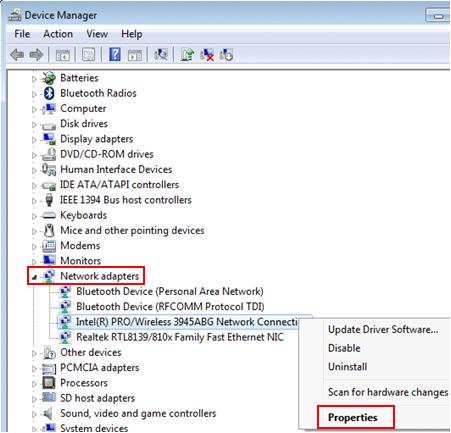
  • In the Device Manager window, go to Network adapters and expand it
  • Right-click Wireless adapter from the list and select Properties

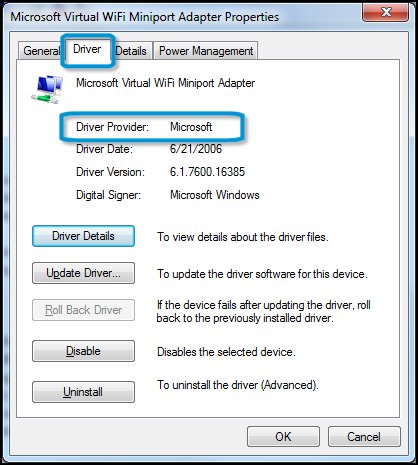
  • In the Properties window, click Driver tab

  • In the Driver tab, note down the Wireless adapter name, driver provider and driver version. You will need these details to download latest Wireless adapter drivers for your laptop
  • Close all windows

Open the browser and go to the driver provider website. Look for driver update offered for your Wireless adapter. Download latest Wi-Fi adapter driver compatible with your system. Besides the Windows version (7/8/8.1/10), you need to also pay attention to bit architecture (32-bit/64-bit).

If your laptop has 32-bit windows, download Wireless adapter driver recommended for 32-bit Windows. The same rule applies to 64-bit Windows OS. After downloading the wireless driver setup file, double-click on it to initiate installation. If the driver file is in zip format, you need to unzip the contents and then click on the setup file. Follow on-screen instructions to install wireless adapter drivers. Then reboot your laptop.

Updating Drivers Automatically

Automatic driver update tools offer many benefits, the most important ones being:

  • You can update device drivers automatically
  • The software scans and updates all outdated or missing drivers at one go
  • The tool picks the right drivers for your device and operating system, so you won’t have to worry about installing an incorrect driver by mistake
  • Automatic driver updates are 100% safe

Driver Updater is one of the best driver update tools out there. Outbyte Driver Updater will give you access to a database of over 1 million drivers. It will regularly scan your PC, suggesting new driver versions to install. Driver Updater contains drivers for a variety of Windows devices. With just one click, you can update drivers in your system.

Step 1
Click here to Install and launch the app

Step 2
Scan all devices

Step 3
Install or update drivers automatically


Start Download


Filed Under: PC Fix Tips Tagged With: no Wi-Fi

IPv6 No Internet Access Error Solved

By Susan C on June 11, 2019

IPv6 No Internet Access  Error Solved

IPv4 is the original Internet addressing system. It uses 32 bits, which means there can be 4.2 billion addresses.

Given the pace at which Internet connections have increased over the years, we’ve nearly exhausted IPv4 addresses.

To combat this problem, a new addressing system was launched called IPv6, which is virtually exhaustible.

Popular websites like Google.com, Youtube.com, Facebook.com have long been using IPv6. Today, many websites and users use IPv6.

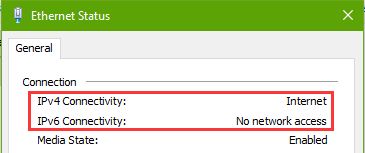
At times such users have come across the “IPv6 no network access”.  When this error occurs, you may experience a problem in internet connectivity or may not be able to access specific sites.

If you are also getting this error, this post is just for you.

Here we have discussed 4 solutions that could fix the issue.

Solution One- Reset Winsock catalog and IPv6 on your computer

There is a possibility the IPv6 settings are faulty, and hence the error.

A simple solution to this problem is to reset IPv6. This will take you back to default settings when everything was working fine.

Here are the steps to reset IPv6 settings on your computer.

  • Click Start
  • Type cmd in the search box
  • From the list of results, right-click cmd and click Run as administrator
  • In the User Account control pop-up, click Yes
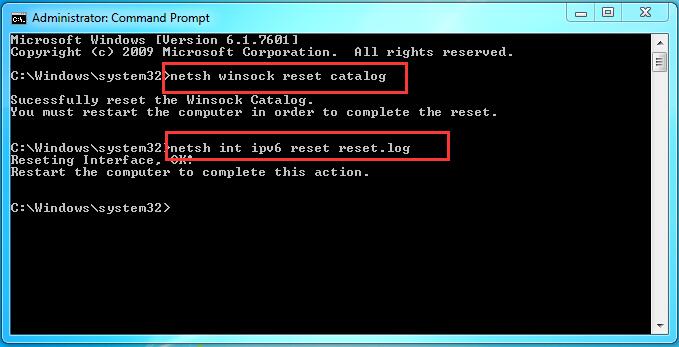
  • In the command prompt window, type the following commands. After typing each command hit Enter on keyboard. Wait for the command operation to complete. Then type next command in the line.
  • netsh winsock reset catalog
  • netsh int ipv6 reset reset.log

After successful execution of both commands, close the command prompt window.

Check whether you are still getting the error or not.

If the issue persists, move to the next solution.

Solution Two- Release and renew your IP

There is a possibility your device was not allocated IP address properly.

In that case, releasing and renewing the IP address could resolve the issue.

Here are the steps to follow.

  • Press Windows logo key and R together to launch the Run command
  • In Run command, type cmd and click Ok
  • In the command prompt window, type ipconfig /release and hit Enter on keyboard

  • Wait for the command operation to complete. Now, type ipconfig /renew and then hit Enter

Once you are done with typing both commands, close command prompt window. See whether the issue is resolved. If the error still exists, move to next solution.

Solution Three – Disable the IP Helper service

The IP Helper service provides tunnel connectivity using IPv6 transition technologies.

Disabling IP Helper service could help in resolving the “IPv6 no network access” error.

Here are the steps to follow.

  • Press Windows logo key and R simultaneously to invoke the Run command
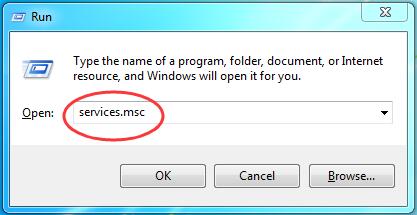
  • In Run command window, type services.msc and hit Enter on the keyboard

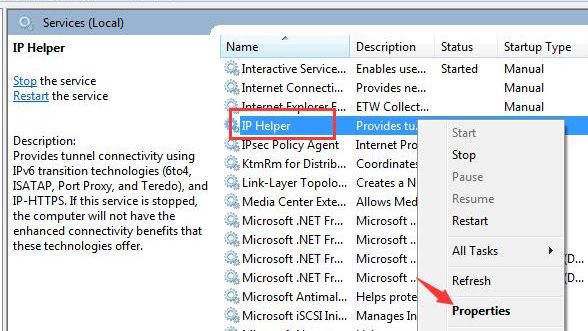
  • In the Services window, scroll down and locate IP helper service
  • Right-click on IP helper service and click Properties

  • In the IP helper properties window, go to General tab
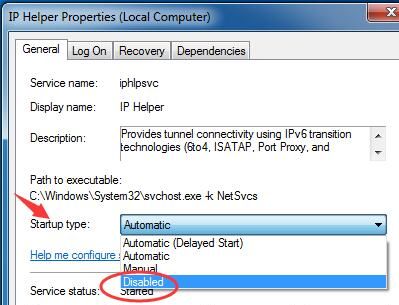
  • In the Startup type section, click the down arrow to open the drop-down list
  • From the list, select Disabled

  • Click OK
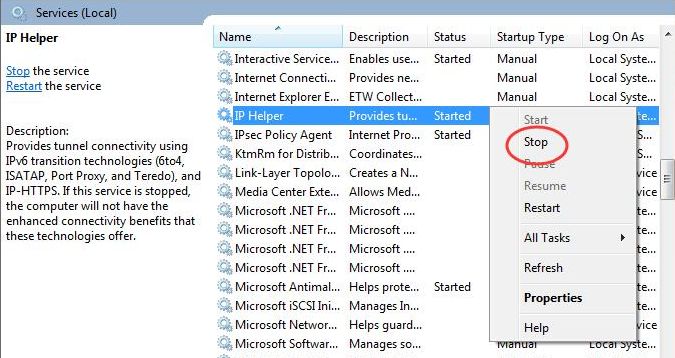
  • Go back to Services window again and right-click IP helper service

  • Click Stop
  • Close the Services window

Check whether the issue has been resolved. If the error still persists, move to next solution.

Solution  Four – Disable Antivirus software

There is a possibility your antivirus is preventing Internet access and causing error“IPv6 no network access”.

In that case, try disabling anti-virus temporarily and see if it helps.

The steps to disable anti-virus temporarily are unique for each security software. Refer the software documentation to know exact steps to disable anti-virus temporarily.

If the issue is resolved after disabling anti-virus, you can conclude the anti-virus is the problem.

You can uninstall your antivirus tool and use the in-built Windows Defender. Alternately, you can use another 3rd party anti-virus.

You can also contact technical support of your current anti-virus software, explain the problem and seek a solution.

If your problem does not get resolved even after disabling 3rd party antivirus, enable the anti-virus and move to next solution.

Solution Five – Update Ethernet drivers

According to networking experts, the “IPv6 no network access” error could be the result of corrupt or outdated Ethernet drivers.

 In that case, updating Ethernet drivers could resolve the issue.

There are two ways to update drivers: Manual and Automatic.

Here we have provided you steps for both methods.

Steps to manually update Ethernet drivers

  • Press Windows logo key and R together to launch the Run command
  • In Run command, type devmgmt.msc and click Ok
  • In the Device Manager window, go to Network adapters and expand it
  • Right-click Ethernet controller from the list and select Properties
  • In the Properties window, click Driver tab
  • In the Driver tab, note down the Ethernet device name, device manufacturer name, driver version. You will need these details to download latest Ethernet driver for your PC
  • Close all windows

Open the browser and go to the device manufacturer website. Look for driver update offered for your Ethernet adapter.

 Download latest Ethernet driver compatible to your system. Besides the Windows version (7/8/8.1/10), you need to also pay attention to bit architecture (32-bit/64-bit).

If your PC has 32-bit windows, download Ethernet driver recommended for 32-bit Windows. The same rule applies to 64-bit Windows.

After downloading the driver setup file, double-click on it to start the installation.

If the driver file is in zip format, you need to unzip the contents and then click on the setup file.

Follow on-screen instructions to install Ethernet drivers. Then reboot your PC.

If you are not comfortable with the manual method of updating Ethernet drivers, you can use a driver update tool.

Steps to update Ethernet drivers automatically

This is the easiest way to update drivers.

Automatic driver update tools offer many benefits, the most important ones being:

  • You can update device drivers automatically
  • The software scans and updates all outdated or missing drivers at one go
  • The tool picks the right drivers for your device and operating system, so you won’t have to worry about installing an incorrect driver by mistake
  • Automatic driver updates are 100% safe

Driver Updater is one of the best driver update tools out there. Outbyte Driver Updater will give you access to a database of over 1 million drivers. It will regularly scan your PC, suggesting new driver versions to install. Driver Updater contains drivers for a variety of Windows devices. With just one click, you can update drivers in your system.

Step 1
Click here to Install and launch the app

Step 2
Scan all devices

Step 3
Install or update drivers automatically


Start Download


In most cases, the “IPv6 no network access” error would be resolved by one of the solutions given in this post.

Filed Under: PC Fix Tips Tagged With: IPv6 error

  • « Previous Page
  • 1
  • …
  • 116
  • 117
  • 118
  • 119
  • 120
  • …
  • 189
  • Next Page »


  • Recent Posts
  • Popular Posts
        

Read More Posts


Read More Posts

Drivers.com Sites

  • Software Drivers
  • Drivers Ed

About Us

  • Advertise
  • About Drivers
  • Drivers Support
  • Drivers.com Privacy Policy
  • Disclaimer
  • Software Drivers
  • Mac Fixes and Tips
  • PC Fix Tips
  • Security/ Backup
  • Tablets & Smartphones
  • Tech News

© Copyright 2026 PDE Publications Ltd. End User License Agreement (EULA)