Drivers.com

follow us:

facebook twitter
  • Home
  • Download Drivers
  • Drivers Help
  • PC/Mac Resources
  • Software Drivers
  • Mac Fixes and Tips
  • PC Fix Tips
  • Security/ Backup
  • Tablets & Smartphones
  • Tech News
  • Software Drivers
  • Mac Fixes and Tips
  • PC Fix Tips
  • Security/ Backup
  • Tablets & Smartphones
  • Tech News

Solution to “NVIDIA installer cannot continue” error in Windows

By Susan C on June 8, 2019

Solution to “NVIDIA installer cannot continue” error in Windows
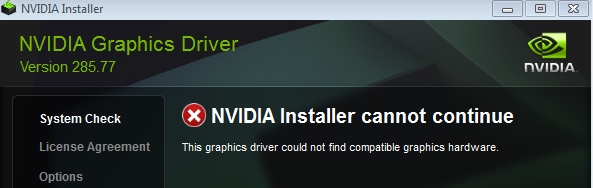
NVIDIA Error Message

Many users have complained of receiving the error message “NVIDIA installer cannot continue” when they try to install NVIDIA graphics driver.

Are you facing this issue as well?

If the answer is “Yes”, this post is for you.

The error can occur for variety of reasons, and it might be difficult to pinpoint a specific cause. 

Fortunately we have found 5 solutions to the”NVIDIA installer cannot continue” error. We’re sure at least one of them will work for you.

You don’t have to try every solution in this post.  Start with the first solution. If it does not work for you, move to the next solution and so on.

Steps to Install NVIDIA Drivers

Solution One – Check the status of NVIDIA graphics card

 If the NVIDIA graphic card is disabled for any reason, you will receive the error”NVIDIA installer cannot continue”.

This happens because the installer would search for the NVIDIA graphic card on your PC and when it does not find it, it will return an error and close its operation. 

Here are the steps to follow to fix the problem.

  • Press Windows  logo key and R simultaneously on the keyboard to invoke Run command
  • In Run command, type devmgmt.msc and click OK
  • In the Device Manager, go to display adapters category and expand it
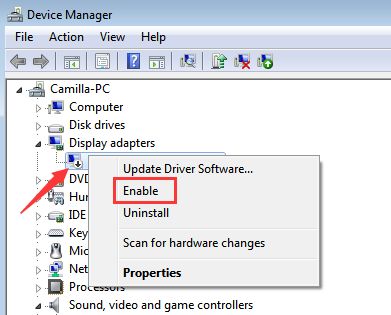
  • Look at the NVIDIA graphic cars item. Does it have a down arrow icon? If the answer is Yes, it is disabled
  • Right-click on NVIDIA graphic card and click Enable from the menu
Reboot your computer

After rebooting run the NVIDIA installer.

If you are still getting the error ”NVIDIA installer cannot continue”, move to the next solution.

Solution Two- Check whether NVIDIA graphics card is detected

If the Windows OS does not detect NVIDIA graphics card, it could lead to errors like”NVIDIA installer cannot continue”.

Hence, you need to ensure whether the error is generated due to Windows not detecting NVIDIA graphics card.

Here are the steps to follow.

  • Open Device Manager
  • Go to Display adapters category and expand it
  • Do you see NVIDIA graphics card listed there? If the answer is yes, you can skip the steps below and move to next solution
  • If you do not see NVIDIA graphics card listed, you can conclude there is problem with hardware detection. In most case, unrecognized hardware is listed under Other Devices in Device Manager. 

Go to Other Device category and look for device name.

Since the NVIDIA graphics card is not detected, the device in the list won’t have its real name. For example, the NVIDIA graphics card may be listed as Base System Device.

Before you proceed to downloading driver, you need to confirm the device that you are looking under other devices is actually a NVIDIA graphic card.

Here are the steps to follow to do this.

  • Open Device Manager
  • Go to Other Devices and right-click the device you think might be the NVIDIA graphics card
  • Select Properties from the menu

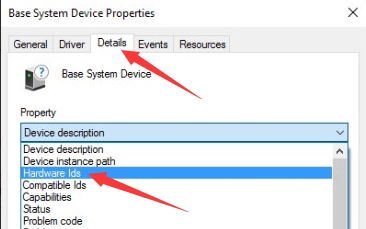
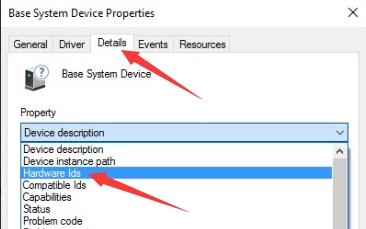
  • In the Properties dialog box, go to Details tab
  • Under Property heading, select Hardware ids
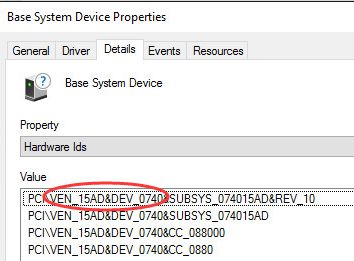
  • The Hardware value would be the like the one shown in image below. Copy or write down hardware id.
In the hardware id- VEN stands for Vendor and Device.
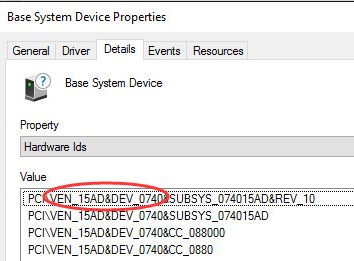
As per image above, the Vendor code is 15AD and Device code is 0740. You need to use this information to find out the device manufacturer and the device name.

  • Open a browser and go to https://devicehunt.com/

  • Enter the Vendor Code and Device Id in respective fields and click on search

If the Vendor name is NVIDIA and Device type is graphics card, you can go ahead and update drivers manually

Solution Three- Update NVIDIA drivers

Since the NVIDIA installer is not working, you should try updating the NVIDIA drivers manually through Device Manager.

Here are the steps to follow.

  • Open Device Manager
  • In the Device Manager window,  go to Display adapter category and expand it
  • Right-click on NVIDIA graphic card and click Uninstall
  • Wait for the uninstallation process to complete and then reboot your system
  • Now open Device Manager again
  • Right-click on NVIDIA graphic card and click Update Driver Software
  • In the next screen, click  Browse my computer for driver software
  • Now navigate to the NVIDIA folder where the setup had extracted files
  • Make sure Include subfolders box is checked
  • Click Next and wait for the process to finish
  • Reboot your system

(Note- the above steps only installs display driver)

  • Now go to the NVIDIA folder where the setup had extracted files and double-click on exe file(setup)
  • Accept the terms and conditions
  • Click Custom Install
  • Check the box- Perform a clean install

The above steps will install all NVIDIA graphics features that were not installed in earlier installation.

If the manual driver update method is not working, you can use a driver update utility to update NVIDIA graphics driver. Here are the steps to follow.

Updating Drivers Automatically

Automatic driver update tools offer many benefits, the most important ones being:

  • You can update device drivers automatically
  • The software scans and updates all outdated or missing drivers at one go
  • The tool picks the right drivers for your device and operating system, so you won’t have to worry about installing an incorrect driver by mistake
  • Automatic driver updates are 100% safe

Driver Updater is one of the best driver update tools out there. Outbyte Driver Updater will give you access to a database of over 1 million drivers. It will regularly scan your PC, suggesting new driver versions to install. Driver Updater contains drivers for a variety of Windows devices. With just one click, you can update drivers in your system.

Step 1
Click here to Install and launch the app

Step 2
Scan all devices

Step 3
Install or update drivers automatically
 

Start Download


Filed Under: PC Fix Tips Tagged With: nvidia installer error

Solution to “This site can’t be reached” error in Chrome

By Susan C on June 4, 2019

Are you getting “This site can’t be reached” error?

It is a common error that appears while you’re surfing the Internet.

When you get this error in Chrome or any other browser, it means the browser fails to load the page. Hence, you see the message “This site can’t be reached”.

Thankfully, resolving this error is easier than you think — and by the end of the article, you’ll discover how it’s done.

In this post, we have given 11 solutions to fix the “This site can’t be reached” error in Chrome.

Of course, you need not try all of them. Start with the first solution, and if it doesn’t help, then move on to the next one and so on.

So let’s dig in.

Solution One – Use Public DNS servers

DNS servers play an important role in helping you access the site you want.

Generally, the DNS servers for your Internet connection are provided by the ISP provider.

There is a possibility the DNS server of your ISP is having some problems, which in turn is causing the error like “This site can’t be reached”.

In such a situation, you can change the DNS settings that will force the browser to use recommended DNS servers.

Here are the steps to follow.

  • Press the key combination Windows logo key and R together to bring up Run Command Console
  • In the Run command console, type control panel and click OK
  • In the Control Panel window, set the view by to small icons
  • Click Network and Sharing center
  • In the Network and Sharing Center window, click Change adapter settings
  • In the Network Connections window, right-click on the network you use
  • Select Properties from the menu
  • In the Ethernet properties window, click Internet Protocol Version 4 (TCP/IPv4)
  • Click Properties
  • In the Internet Protocol Version 4 (TCP/IPv4) Properties window, click the option Use the following DNS server addresses
  • In the Preferred DNS Server, type the following value – 8.8.8.8
  • In the Alternate DNS server, type the following value – 8.8.4.4
  • Click OK
  • Close all windows
  • Open a browser and try accessing any website

If you are still getting “This site can’t be reached” error, move to the next solution

Solution Two- Use Command prompt to execute networking commands

Every website has an IP address, and the DNS servers find the IP address of the website from its database.

Whenever you visit any website, the IP address of the website is stored in the DNS cache of your computer.

You cannot rule out the possibility of a change in the IP address of the website you want to access while your computer is still using IP address stored in DNS cache.

To resolve this issue, you need to flush the DNS cache by executing commands from a command prompt.

Here are the steps you need to follow.

  • Click Start
  • Type command prompt in the Search box
  • Right-click command prompt from the list and click Run as administrator
  • In the command prompt window, type the following commands in a sequence as mention. After typing every command, press Enter.
  • Before typing next command in the list, let the operation of the earlier command. Do not type any text within brackets
  • ipconfig /release                
  • ipconfig /flushdns              
  • ipconfig /renew               
  • netsh int ip set dns           
  • netsh winsock reset          
  • After you have executed all commands, close command prompt window

Open a browser and check whether the issue is resolved. If the issue persists, move to the next solution.

Solution Three – Enable Automatically detect settings Option

When you enable Automatically detect settings, windows will configure right settings on its own that could resolve the “This site can’t be reached” issue in Chrome.

Here are the steps to follow.

  • Press key combination- Windows logo key + R to open the Run command
  • In Run command, type inetcpl.cpl and click OK
  • In the Internet properties windows, go to the Connections tab
  • Click LAN settings
  • Make sure that Automatically Detect Settings Option is Checked. If the option is not checked, click in the empty box to place a check in the box.
  • Click OK
  • Close all windows

Launch Chrome and try loading a webpage. If the “This site can’t be reached” issue persists, move to the next solution.

Solution Four- Allow DNS Prefetching

DNS prefetching is useful to resolve domain names before users follow any link.

Many users were able to resolve the facing “This site can’t be reached” issue in Chrome by allowing DNS prefetching.

Here are the steps to follow.

  • Launch Google Chrome
  • Click three vertical dots that appear at the far right end of the address bar to open Chrome menu
  • Click Settings
  • In the Settings page, click Advanced that appears at the bottom of the Settings page
  • In the Advanced Chrome menu, check the box – Use a prediction service to load pages more quickly. Activating this option allows DNS prefetching in Chrome
  • Restart Chrome browser

Check whether the solution has worked for you. If you still get “This site can’t be reached” error, move to the next solution

Solution Five- Run Windows Network Diagnostic

Windows has a Network diagnostic tool that can resolve many network issues.

You can run the Windows Network diagnostic and see if it resolves the “This site can’t be reached” issue.

Here are the steps to follow.

  • Press Windows logo key and R together to launch the Run command
  • In Run command, type ncpa.cpl and click OK
  • In the next window, double-click on the Network connection
  • In the Internet Connection Status window, click Diagnose
  • Wait for the diagnosis to complete.
  • Connect and reconnect your Internet connection

Open Chrome and try loading a webpage. If the “This site can’t be reached” error remains unresolved, move to next solution

Solution Six- Disable Experimental QUIC Protocol

Disabling Experimental QUIC Protocol has also worked for some users who were facing “This site can’t be reached” issue in Chrome.

Here are the steps to follow

  • Launch Google Chrome
  • Open new tab
  • In the address bar, type chrome://flags and press Enter on the keyboard
  • Press Ctrl+F to evoke Find tool in Chrome
  • Type Experimental QUIC Protocol to find the Chrome flag
  • The Experimental QUIC Protocol is set to default. Change the value of the Experimental QUIC Protocol flag from Default to Disabled
  • Restart Chrome

Try opening a website in Chrome. If the solution did not work for you, move to the next solution.

Solution Seven – Change Value of Maximum TLS Version Enabled

Tweaking Chrome flag – Maximum TLS Version can also help resolve the error.

Here are the steps to follow.

  • Launch Google Chrome
  • Open new tab
  • In the address bar, type chrome://flags and press Enter on the keyboard
  • Press Ctrl and F keys together to activate Find tool in Chrome
  • Type TLS in the search box to find Maximum TLS Version
  • Go to Maximum TLS Version and select TLS 1.3 instead of the Default value
  • Restart Chrome browser

Try loading a webpage in the Chrome browser. If you are still getting the error, move to the next solution

Solution Eight- Update Network Driver

Microsoft offers regular updates for Windows 10 which also contains driver updates. There is a possibility the problem with Chrome browser is due to outdated network drivers.

 In that event, a simple solution is updating Network drivers.

There are two ways to update the Network driver- Manually and Automatically.

Here we have given steps to both methods

Method One – Update Driver Manually

  • Press key combination- Windows logo key and R together on your keyboard to invoke the Run command
  • In Run command window, type devmgmt.msc and click OK
  • In the Device Manager window, navigate to the Network Adapters category and expand it
  • Right-click on Network Card in the list and note down its name

Note- Since your browser is not loading any website; you need to perform the step below on computer where you can download network drivers. After downloading the network driver, copy the driver setup file to your computer and then perform steps given below.

  • Launch an Internet browser and go to the Network card manufacturer website and find driver updates for network card installed in your PC

While downloading a driver update, make sure you download the right network driver file. Find out which version of Windows 10 your computer is running – 32 bit OS or 64-bit OS. Here are the steps to find out system architecture.

  • Click Start->Settings
  • Click System->About
  • Note down the System type info

If your computer is running Windows 32-bit OS, you need to download a network driver file intended for 32-bit Windows only. Same rule applies for 62-bit Windows. Just like the system architecture, make sure the driver file you are downloading is compatible with your Windows version (Windows 7/8.1/10).

  • Download the right network driver to your computer
  • Copy the network driver file to the computer for which you want to update the network driver

(Note- The steps given below should be performed on the computer for which you want to update network driver)

  • Open Device Manager window again
  • Go to the Network Adapters category and expand the category
  • Right-click the network card and click Uninstall
  • Wait for the un-installation process to complete
  • Close Device Manager
  • Now navigate to the drive/folder where you have copied the network driver file
  • If the file is in zip format, you need to unzip the contents. After unzipping the contents, double-click on the Driver setup file to start the installation
  • If the file is in exe format, double-click on the setup file to start the installation
  • Follow on-screen instructions to install the latest network drivers.
  • Wait for the process to complete and then restart your computer

If you find the manual driver update option difficult, you can use driver update software to update drivers automatically.

Method Two- Use a Driver Update Tool to update Network Driver automatically

Updating drivers manually can be quite a hassle.

Automatic driver update tools offer many benefits, the most important ones being:

  • You can update device drivers automatically
  • The software scans and updates all outdated or missing drivers at one go
  • The tool picks the right drivers for your device and operating system, so you won’t have to worry about installing an incorrect driver by mistake
  • Automatic driver updates are 100% safe

Driver Updater is one of the best driver update tools out there. Outbyte Driver Updater will give you access to a database of over 1 million drivers. It will regularly scan your PC, suggesting new driver versions to install. Driver Updater contains drivers for a variety of Windows devices. With just one click, you can update drivers in your system.

Step 1
Click here to Install and launch the app

Step 2
Scan all devices

Step 3
Install or update drivers automatically
 

Start Download


Solution Nine – Reset Chrome Settings

Some users were able to resolve the “This site can’t be reached” error by resetting the Chrome settings. Here are the steps to reset Chrome settings

  • Launch Google Chrome
  • Open new tab
  • In the address bar, type chrome://flags/ and press Enter on keyboard
  • Click Reset all to default
  • Reboot your PC
  • Launch Google Chrome and try to load a webpage

If you still get “This site can’t be reached” error, move to next solution.

Solution Ten- Restart DNS Client service

In most cases, the cause behind the“this site can’t be reached” error is related to DNS.

Many users were able to resolve the error by restarting the DNS client service.

Here are the steps to follow.

  • Click Start
  • Press key combination- Windows logo key +R to invoke the Run command
  • In the Run command window, type services.msc and click OK
  • In the Services window, locate DNS client service and select it
  • Click Restart
  • Close all windows

Open Chrome and try opening a website. If the error persists, move to next solution

Solution Eleven- Reinstall Chrome

If the above solutions have not worked for you, reinstall Chrome and see if it helps.

  • Click Start
  • Type feature in the Cortana Search box
  • Click Apps and Features from the list of results
  • Find Google Chrome in the list of programs and click on it
  • Click Uninstall
  • After Chrome is uninstalled
  • Launch any other browser and download the latest Google Chrome and install it

In most cases, the “This site can’t be reached” error would be resolved by one of the solutions given in this post.

Filed Under: Software Drivers

The RPC Server is Unavailable

By Susan C on May 31, 2019

The RPC Server is Unavailable

“The RPC Server is Unavailable” is a common networking error in Windows that occurs in a variety of situations, like when two computers try to communicate with each other on a local network.

The error is generated by the client machine when it is trying to communicate on a network.

If you are looking for a solution to “The RPC Server is Unavailable” error, this post is for you.

Let’s look at the error in detail and different solutions.

What is RPC?

RPC stands for Remote Procedural Call.

It is a mechanism that enables Windows processes to communicate with each other.

RPC is used by numerous Windows components. Remote Procedural Call mechanism uses a dynamic port for communications between systems.

However, the RPC needs to use a static port (TCP Port 135) to initiate communication.

Why you are getting “The RPC Server is Unavailable” error?

Some of the possible reasons for the error “The RPC Server is Unavailable” include the following:

  • Connectivity issues
  • RPC service is not running
  • The firewall is blocking traffic
  • Name resolution issues

Now that you know the possible causes, let’s take a look at the solutions that could resolve “The RPC Server is Unavailable” error.

Solution One- Check RPC service

The RPC service should be running for the RPC mechanism to work properly.

You can get this error when the RPC service is not running or there is some problem with the RPC service.

You must check the RPC service to ensure everything is fine.

Here are the steps to follow.

  • While holding the Windows logo key down, press R on the keyboard to invoke Run command box
  • In the Run command box, type services.msc and click OK
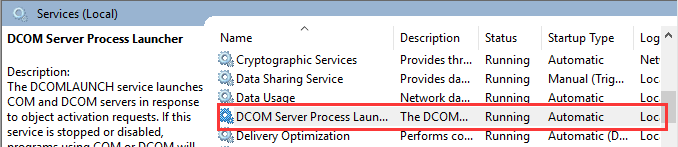
  • In the Services window, you need to look for following services in the list Remote Procedure Call (RPC), COM Server Process Launcher, and RPC Endpoint Mapper
services
  • You need to ensure all the above-mentioned services are running and their startup type is set to Automatic.

If you do not find these services running or their Startup Type is not set to automatic, move to Solution 4.

If you do not see any problem with Services, move to the next solution.

Solution Two-Configure the Firewall on your PC

Sometimes, the Firewall can block the connections requested by RPC, which in turn can lead to the aforementioned error message.

In that case, you need to configure the firewall in a way that it does not block RPC connections.

Here are the steps to follow.

  • While holding the Windows logo key down, press R on the keyboard to bring up the Run command box
  • In the Run command box, type control and click OK
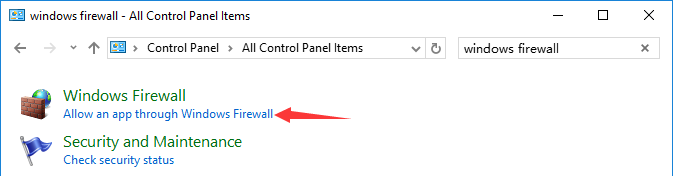
  • In the Control Panel window, under Windows Firewall, click Allow an app through Windows Firewall
allow an app
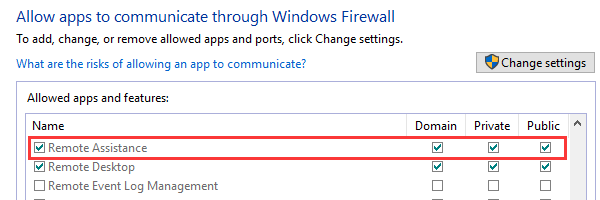
  • In the next window of Firewall communications permissions, scroll down and locate Remote Assistance
remote assitance
  • Make sure the options like Remote Assistance and Remote Desktop are checked
  • Also ensure there is a check mark in boxes for Domain, Private, and Public for Remote Assistance and Remote Desktop
  • If these options are not checked, make the necessary changes(check the options mentioned above)
  • Save changes and close all windows

Check whether the issue is resolved.

If you are still getting “The RPC Server is Unavailable” error, move to the next solution.

Solution Three – Check Network Connection

Sometimes the network connection is not configured properly, leading to issues like “The RPC Server is Unavailable”.

To check your network connection, follow the steps given below.

  • Press Windows key and R at the same time to bring up the Run command console
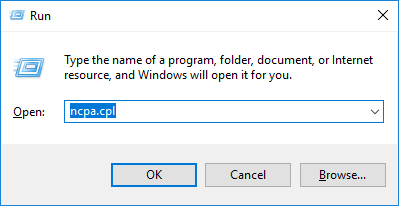
  • In the Run command box, type ncpa.cpl and click OK
ncpa
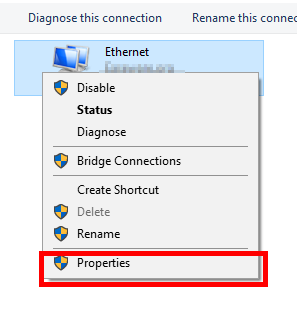
  • In the network connection window, right-click on the network connection that is active
  • Click Properties
network connection properties
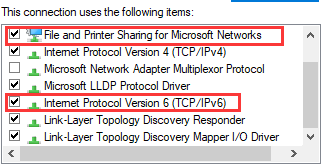
  • In the Properties window, check the following options – Printer Sharing for Microsoft Networks and Internet Protocol Version 6 (TCP/IPv6)
file and printer sharing
  • Close all windows

Check if “The RPC Server is Unavailable” error is resolved. If you are still getting the error, move to the next solution.

However, before that you can try resetting file and printer sharing by reinstalling network adapter driver, because this solution has worked for some users in the past.

There are two ways to reinstall/update network adapter driver – Manual update method and Automatic update method.

Here we have given steps to update the network adapter driver both ways.

How to update Network adapter driver manually?

  • Press Windows logo key and R to bring up the Run command console
  • In Run command box, type devmgmt.msc and click OK
  • In the Device Manager window, go to the Network adapters category and expand it
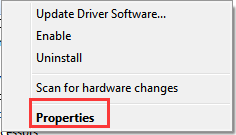
  • Right-click on Network Adapter item in the list and click Properties
  • In the Network Adapter properties window, go to Driver tab
  • Note down details like Driver Provider, Driver version and name of the Network adapter
  • Open Internet browser
  • Go to Device manufacturer website and find the latest driver for Network adapter
  • Check the latest driver update and download

You need to check the compatibility of the driver in terms of operating system and system architecture. For example, you have Windows 7, 32-bit OS installed, you need to download a network adapter driver suggested for 32-bit Windows 7. If you have Windows 10, 64-bit OS, you need download network adapter driver suggested for Windows 10 64-bit OS.

The driver file is either available in exe format or zip format.

If the driver file is in exe format, you can straightway double-click on the downloaded file to start the driver installation.

If the driver file in zip format, you’ll need to first unzip the contents in one folder and then double-click on the .exe file to install the network adapter driver.

If you find the manual driver update method lengthy and difficult, you can use a driver update tool that can update the network adapter driver with a click of a button.

How to update the network adapter driver automatically?

Automatic driver update tools offer many benefits, the most important ones being:

  • You can update device drivers automatically
  • The software scans and updates all outdated or missing drivers at one go
  • The tool picks the right drivers for your device and operating system, so you won’t have to worry about installing an incorrect driver by mistake
  • Automatic driver updates are 100% safe

Driver Updater is one of the best driver update tools out there. Outbyte Driver Updater will give you access to a database of over 1 million drivers. It will regularly scan your PC, suggesting new driver versions to install. Driver Updater contains drivers for a variety of Windows devices. With just one click, you can update drivers in your system.

Step 1
Click here to Install and launch the app

Step 2
Scan all devices

Step 3
Install or update drivers automatically
 

Start Download


Solution Four- Modify registry entries

If the RPC service is not running properly, it could lead to errors like “The RPC Server is Unavailable”.

In Solution One, we mentioned the RPC service startup type should be set to Automatic.

If the Solution One was not able to resolve the error, you’ll need to make some changes in the registry.

Here are the steps to follow

(Note- Make sure you are logged in as an administrator before performing the steps and take a registry backup before making these changes. )

  • Open the Run dialog( Refers steps given in above solution)
  • In the Run dialog box, type regedit and click OK
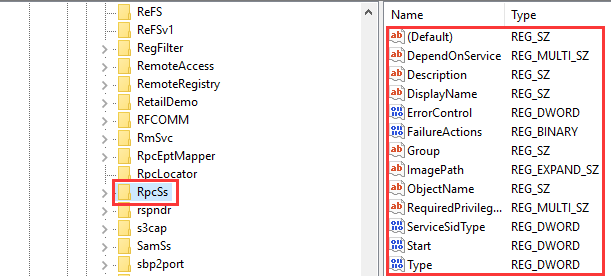
  • In the Registry window, navigate to following registry key- HKEY_LOCAL_MACHINE\SYSTEM\CurrentControlSet\services\RpcSs
  • Look at the image below and check whether all items marked in the red box of the left column also exists in your Registry. If any item is missing, you need to re-install Windows.
RpcSs
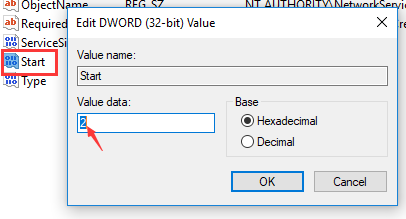
  • If you had seen Remote Procedure Call service was not set to start automatically in Solution One. You need to make changes to the registry key Start
  • In the left pane, double-click on Start key
start value 2
  • Type 2 in its Value Data box and click OK
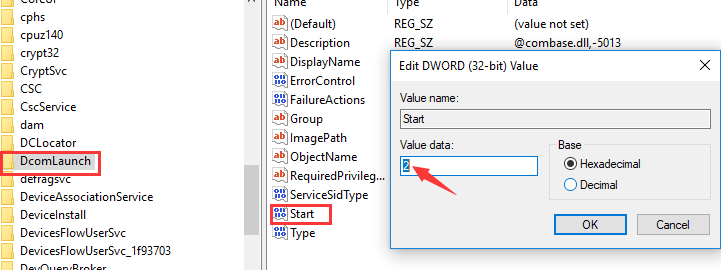
  • Now go to following key – KEY_LOCAL_MACHINE\SYSTEM\CurrentControlSet\services\DcomLaunch
  • If the Com Process Launcher process was not set to start automatically in Solution One, you need to make some changes to the registry key
  • With DcomLaunch highlighted in the right pane, look for Start key in the left pane and double-click on it
dcomlaunch start value
  • Type 2 in its Value data box and click OK
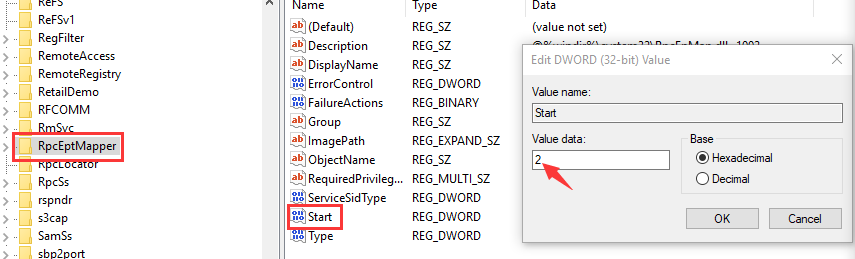
  • Now go to HKEY_LOCAL_MACHINE\SYSTEM\CurrentControlSet\services\RpcEptMapper
  • If the RPC Endpoint Mapper was not set to start automatically in solution One, you need to make changes to its registry key
RpcEptMapper Start
  • Click RpcEptMapper and then double-click Start key in the left pane
  • Type 2 in the value data field and click OK
  • Close Registry editor

Check if the issue is resolved.

In most cases, “The RPC Server is Unavailable” would be resolved by one of the solutions given above.

Filed Under: PC Fix Tips Tagged With: RPC Server unavailable

  • « Previous Page
  • 1
  • …
  • 117
  • 118
  • 119
  • 120
  • 121
  • …
  • 189
  • Next Page »


  • Recent Posts
  • Popular Posts
        

Read More Posts


Read More Posts

Drivers.com Sites

  • Software Drivers
  • Drivers Ed

About Us

  • Advertise
  • About Drivers
  • Drivers Support
  • Drivers.com Privacy Policy
  • Disclaimer
  • Software Drivers
  • Mac Fixes and Tips
  • PC Fix Tips
  • Security/ Backup
  • Tablets & Smartphones
  • Tech News

© Copyright 2026 PDE Publications Ltd. End User License Agreement (EULA)