Drivers.com

follow us:

facebook twitter
  • Home
  • Download Drivers
  • Drivers Help
  • PC/Mac Resources
  • Software Drivers
  • Mac Fixes and Tips
  • PC Fix Tips
  • Security/ Backup
  • Tablets & Smartphones
  • Tech News
  • Software Drivers
  • Mac Fixes and Tips
  • PC Fix Tips
  • Security/ Backup
  • Tablets & Smartphones
  • Tech News

Resources by Tag

nvidia installer error

Solution to “NVIDIA installer cannot continue” error in Windows

Solution to “NVIDIA installer cannot continue” error in Windows
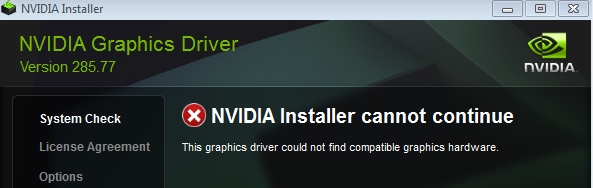
NVIDIA Error Message

Many users have complained of receiving the error message “NVIDIA installer cannot continue” when they try to install NVIDIA graphics driver.

Are you facing this issue as well?

If the answer is “Yes”, this post is for you.

The error can occur for variety of reasons, and it might be difficult to pinpoint a specific cause. 

Fortunately we have found 5 solutions to the”NVIDIA installer cannot continue” error. We’re sure at least one of them will work for you.

You don’t have to try every solution in this post.  Start with the first solution. If it does not work for you, move to the next solution and so on.

Steps to Install NVIDIA Drivers

Solution One – Check the status of NVIDIA graphics card

 If the NVIDIA graphic card is disabled for any reason, you will receive the error”NVIDIA installer cannot continue”.

This happens because the installer would search for the NVIDIA graphic card on your PC and when it does not find it, it will return an error and close its operation. 

Here are the steps to follow to fix the problem.

  • Press Windows  logo key and R simultaneously on the keyboard to invoke Run command
  • In Run command, type devmgmt.msc and click OK
  • In the Device Manager, go to display adapters category and expand it
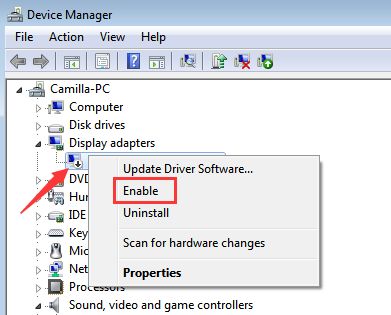
  • Look at the NVIDIA graphic cars item. Does it have a down arrow icon? If the answer is Yes, it is disabled
  • Right-click on NVIDIA graphic card and click Enable from the menu
Reboot your computer

After rebooting run the NVIDIA installer.

If you are still getting the error ”NVIDIA installer cannot continue”, move to the next solution.

Solution Two- Check whether NVIDIA graphics card is detected

If the Windows OS does not detect NVIDIA graphics card, it could lead to errors like”NVIDIA installer cannot continue”.

Hence, you need to ensure whether the error is generated due to Windows not detecting NVIDIA graphics card.

Here are the steps to follow.

  • Open Device Manager
  • Go to Display adapters category and expand it
  • Do you see NVIDIA graphics card listed there? If the answer is yes, you can skip the steps below and move to next solution
  • If you do not see NVIDIA graphics card listed, you can conclude there is problem with hardware detection. In most case, unrecognized hardware is listed under Other Devices in Device Manager. 

Go to Other Device category and look for device name.

Since the NVIDIA graphics card is not detected, the device in the list won’t have its real name. For example, the NVIDIA graphics card may be listed as Base System Device.

Before you proceed to downloading driver, you need to confirm the device that you are looking under other devices is actually a NVIDIA graphic card.

Here are the steps to follow to do this.

  • Open Device Manager
  • Go to Other Devices and right-click the device you think might be the NVIDIA graphics card
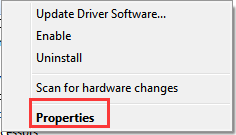
  • Select Properties from the menu

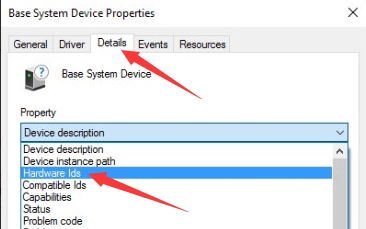
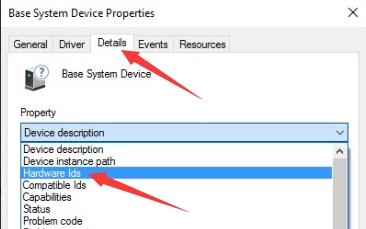
  • In the Properties dialog box, go to Details tab
  • Under Property heading, select Hardware ids
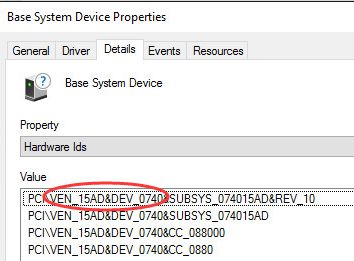
  • The Hardware value would be the like the one shown in image below. Copy or write down hardware id.
In the hardware id- VEN stands for Vendor and Device.
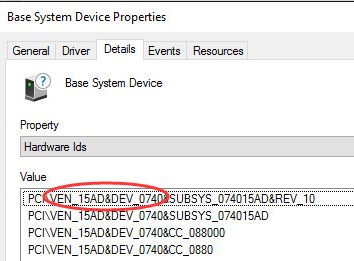
As per image above, the Vendor code is 15AD and Device code is 0740. You need to use this information to find out the device manufacturer and the device name.

  • Open a browser and go to https://devicehunt.com/

  • Enter the Vendor Code and Device Id in respective fields and click on search

If the Vendor name is NVIDIA and Device type is graphics card, you can go ahead and update drivers manually

Solution Three- Update NVIDIA drivers

Since the NVIDIA installer is not working, you should try updating the NVIDIA drivers manually through Device Manager.

Here are the steps to follow.

  • Open Device Manager
  • In the Device Manager window,  go to Display adapter category and expand it
  • Right-click on NVIDIA graphic card and click Uninstall
  • Wait for the uninstallation process to complete and then reboot your system
  • Now open Device Manager again
  • Right-click on NVIDIA graphic card and click Update Driver Software
  • In the next screen, click  Browse my computer for driver software
  • Now navigate to the NVIDIA folder where the setup had extracted files
  • Make sure Include subfolders box is checked
  • Click Next and wait for the process to finish
  • Reboot your system

(Note- the above steps only installs display driver)

  • Now go to the NVIDIA folder where the setup had extracted files and double-click on exe file(setup)
  • Accept the terms and conditions
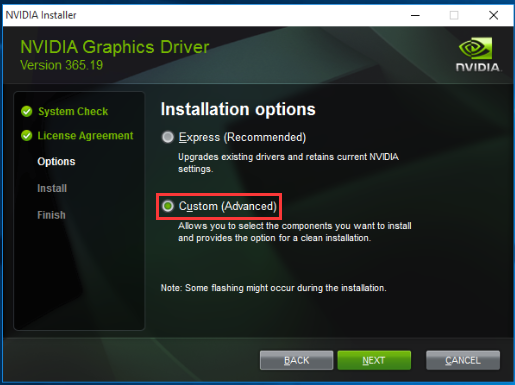
  • Click Custom Install
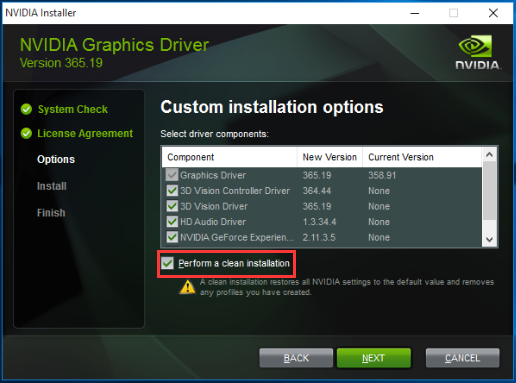
  • Check the box- Perform a clean install

The above steps will install all NVIDIA graphics features that were not installed in earlier installation.

If the manual driver update method is not working, you can use a driver update utility to update NVIDIA graphics driver. Here are the steps to follow.

Updating Drivers Automatically

Automatic driver update tools offer many benefits, the most important ones being:

  • You can update device drivers automatically
  • The software scans and updates all outdated or missing drivers at one go
  • The tool picks the right drivers for your device and operating system, so you won’t have to worry about installing an incorrect driver by mistake
  • Automatic driver updates are 100% safe

Driver Updater is one of the best driver update tools out there. Outbyte Driver Updater will give you access to a database of over 1 million drivers. It will regularly scan your PC, suggesting new driver versions to install. Driver Updater contains drivers for a variety of Windows devices. With just one click, you can update drivers in your system.

Step 1
Click here to Install and launch the app

Step 2
Scan all devices

Step 3
Install or update drivers automatically
 

Start Download


Filed Under: PC Fix Tips Tagged With: nvidia installer error

“NVIDIA installer failed” error in Windows 10

“NVIDIA installer failed” error in Windows 10

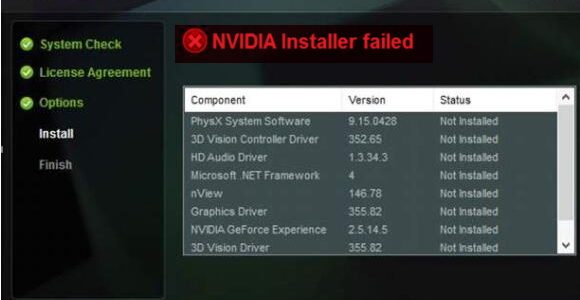
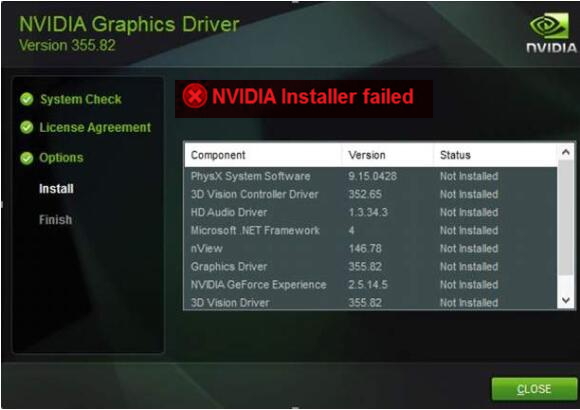
Many Windows 10 users have reported of getting the “NVIDIA installer failed” error on various forums.

This error mainly occurs when you are installing graphics drivers for the first time after upgrading to Windows 10 or updating NVIDIA drivers on your Windows 10 system.

error image

For many gamers, it is a frustrating issue as the computer would not be able to use the GPU until the drivers are installed.

If you are encountering “NVIDIA installer failed” error, there is nothing to worry about as we have listed some simple solutions that could fix the issue.

Let’s get started.

Why do you get the “NVIDIA installer failed” error?

When this error occurs, many users are quick to reach a conclusion that there is some problem with the NVIDIA installer file. But this is not true.

After you upgrade to Windows 10, the Windows Update tool springs into action and starts downloading latest drivers for all components in your computer. The Windows update also tries to attempt to download and install latest GPU drivers in the background. The update process generally runs for 10-15 minutes.

If you try to install NVIDIA drivers during that period, you will get the “NVIDIA installer failed” error, as Windows update is trying to update GPU drivers and does not allow other GPU drivers update process to run at the same time.

Thus, you can see the “NVIDIA installer failed” error occurs because of a clash between two update processes. This issue can be resolved easily.

How to fix the “NVIDIA installer failed” error?

After you have upgrade to Windows 10, let your system sit idle for 15-20 minutes which will allow the Windows update to complete all its background update processes. Restart your computer and try to install the NVIDIA drivers by following the steps given below.

  • Double-click on the NVIDIA installer file
  • Select Custom advanced option in the first window and click Next
custom advanced
  • In the next window, check the box – Perform a clean installation and click Next
perform clean installation

Follow the on-screen instructions to install NVIDIA drivers. In most cases, the NVIDIA installer is able to install drivers without any problem. If you encounter the “NVIDIA installer failed” error again, you need to try the solutions given below.

We have given four solutions that could fix the “NVIDIA installer failed” error. You are not required to try every solution given in this post. Start with the first solution and see if it fixes the issue. If it doesn’t fix the issue, try the next solution. Keep on trying the next solution in the list until the issue gets fixed.

Solution One – Update Drivers

Automatic driver update tools offer many benefits, the most important ones being:

  • You can update device drivers automatically
  • The software scans and updates all outdated or missing drivers at one go
  • The tool picks the right drivers for your device and operating system, so you won’t have to worry about installing an incorrect driver by mistake
  • Automatic driver updates are 100% safe

Driver Updater is one of the best driver update tools out there. Outbyte Driver Updater will give you access to a database of over 1 million drivers. It will regularly scan your PC, suggesting new driver versions to install. Driver Updater contains drivers for a variety of Windows devices. With just one click, you can update drivers in your system.

Step 1
Click here to Install and launch the app

Step 2
Scan all devices

Step 3
Install or update drivers automatically
 

Start Download


Solution Two- Temporarily disable Antivirus and Firewall

Many times antivirus and firewall block installation on Windows computer to protect your system from malicious programs.  Sometimes it can be a false alarm like in the case of NVIDIA installer which is safe to run.

To prevent antivirus and firewall from interfering with the installation process, you need to turn off Antivirus and Firewall temporarily by following the steps given below.

The steps to disable antivirus and firewall can differ from one antivirus to another. The steps give below are general and for reference purpose only. Read the antivirus documentation to know the exact steps to disable it temporarily.

  • Go to system tray and click on anti-virus icon to launch its user interface
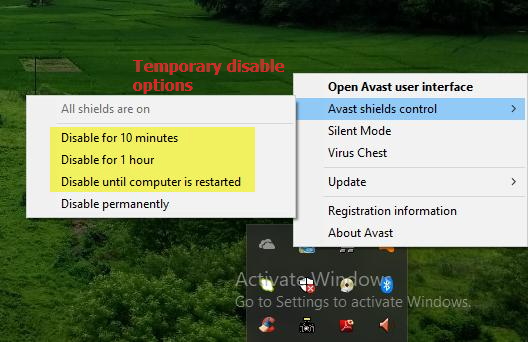
  • Look for the option to temporarily disable the software for 10 minutes, 30 minutes, 1 hour or until next restart
antivirus disable
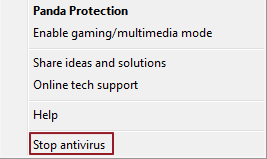
  • For some anti-virus software, you just need to right-click its icon in the system tray and select option like Stop<anti-virus software>
stop antivirus

After you have disabled the anti-virus and firewall temporarily, you need to also ensure there are no processes of anti-virus running in the background that might block the NVIDIA installer. Here are the steps to follow.

  • Press Ctrl+Alt+Delete key combination together to bring up the window that allows you to start Task Manager. Click Task Manager or Start Task Manager(Windows 7)
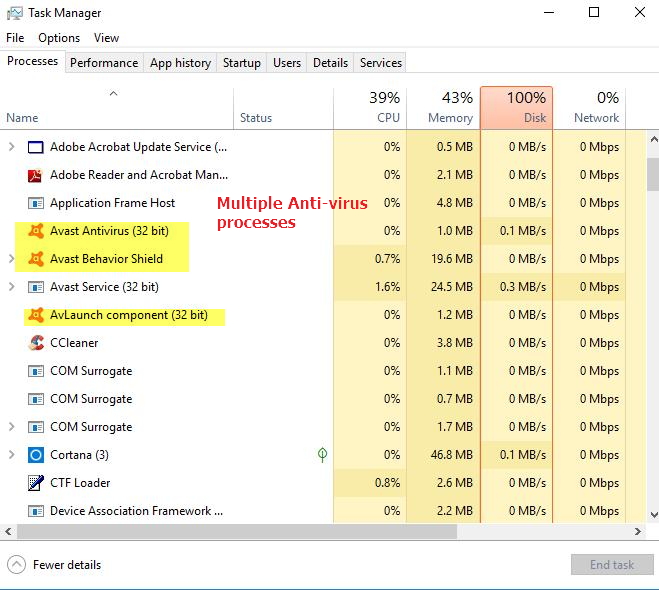
  • In the Task Manager window, go to Processes tab and look for processes related to Antivirus software
antivirus processes
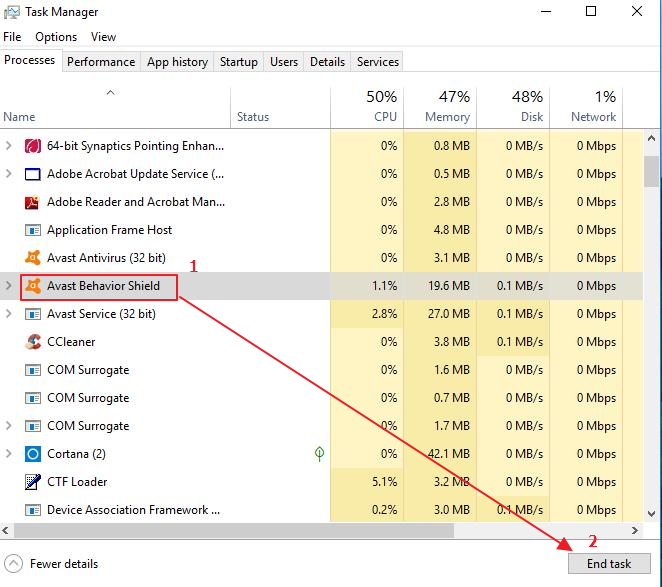
  • Click on the process and then click on End process to terminate the process.
antivirus processes end task
  • Repeat the above steps for all antivirus related processes
  • Now try running the NVIDIA installer with custom installation and perform a clean installation options
  • If you encounter the “NVIDIA installer failed” error again, try next solution

Solution Three- Terminate all NVIDIA related processes in Task Manager and delete NVIDIA related files from your computer

There is a possibility that the old installation of NVIDIA drivers is creating problems for NVIDIA installer. In that case, you need to delete all NVIDIA related files and also kill NVIDIA related processes before running the NVIDIA installer next time. Here are the steps to follow.

  • Open Task Manager(refer to the steps given in Solution Two)
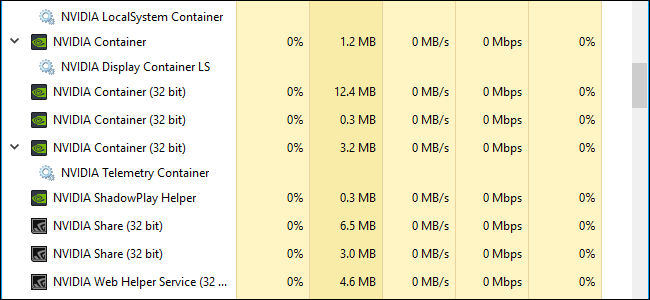
  • Go to Processes tab and look for processes related to NVIDIA software
nvidia processes
  • Click on NVIDIA related processes and terminate them
  • Now delete the files listed below (if they exist). You might be required to log in as administrator to delete the following files.
  • C:\Windows\System32\DriverStore\FileRepository\nvdsp.inf file
  • C:\Windows\System32\DriverStore\FileRepository\nv_lh file
  • C:\Windows\System32\DriverStore\FileRepository\nvoclock file
  • You need to delete all files from the following folder
  • C:\Program Files\NVIDIA Corporation\
  • C:\Program Files (x86)\NVIDIA Corporation\
  • Reboot your PC and then try running the NVIDIA installer. Make sure you select custom installation and perform clean installation options during installation
  • If you still encounter “NVIDIA installer failed” error, the last resort is reinstalling Windows again.

Last Resort – Reinstall Windows operating system

There is a possibility that some of the windows components are corrupt which in turn might be causing the “NVIDIA installer failed” error. In such cases, reinstalling Windows is the only option left for you. Kindly note reinstalling windows will lead to the removal of all files and software. Hence, you need to back up all your documents and files before you reinstall windows.

After reinstalling Windows operating system, run the NVIDIA installer with custom installation and perform clean installation options. In most cases, you would be able to install GPU drivers without any problem.

Filed Under: Software Drivers Tagged With: nvidia installer error


  • Recent Posts
  • Popular Posts
        

Read More Posts


Read More Posts

Drivers.com Sites

  • Software Drivers
  • Drivers Ed

About Us

  • Advertise
  • About Drivers
  • Drivers Support
  • Drivers.com Privacy Policy
  • Disclaimer
  • Software Drivers
  • Mac Fixes and Tips
  • PC Fix Tips
  • Security/ Backup
  • Tablets & Smartphones
  • Tech News

© Copyright 2026 PDE Publications Ltd. End User License Agreement (EULA)