Drivers.com

follow us:

facebook twitter
  • Home
  • Download Drivers
  • Drivers Help
  • PC/Mac Resources
  • Software Drivers
  • Mac Fixes and Tips
  • PC Fix Tips
  • Security/ Backup
  • Tablets & Smartphones
  • Tech News
  • Software Drivers
  • Mac Fixes and Tips
  • PC Fix Tips
  • Security/ Backup
  • Tablets & Smartphones
  • Tech News

Solution to GeForce Experience won’t open issue in Windows

By Susan C on May 4, 2019

Solution to GeForce Experience won’t open issue in Windows

NVIDIA’s GeForce Experience is used with the GeForce GTX card. The application automatically optimizes your game settings and keeps drivers up to date.

Many users have complained of the issue where GeForce Experience not opening. If you are facing a similar problem, this post should help you out.
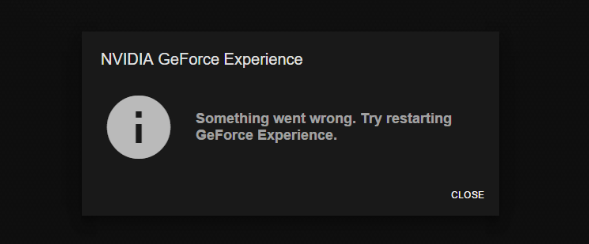
geforce-experience-error

We have provided 7 solutions that could fix the GeForce Experience issues.

You probably won’t need to try all of these fixes – start with the first solution and if it doesn’t work then move to the next solution and so on.

NVIDIA GeForce Series Drivers Links

Solution 1: Check the GeForce Experience Service

The GeForce Experience service is responsible for running programs associated with GeForce GTX card.

If you are having a problem with GeForce Experience program, there is a possibility the GeForce Experience service is not running.

In that case, a simple solution to fix the GeForce Experience issue is starting the GeForce Experience service manually.

To manually start the GeForce Experience:

  • Open Run command by pressing the key combination Windows logo key and R on the keyboard
  • In the Run command, type services.msc and click OK
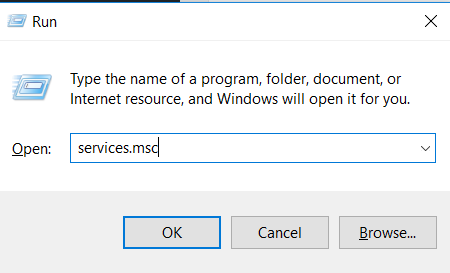
services.msc
  • In the Services window, locate NVIDIA GeForce Experience service and right-click
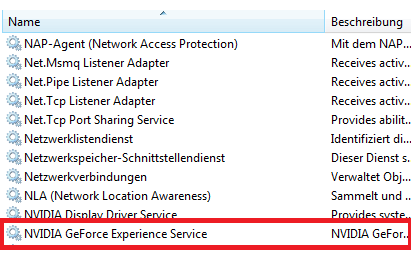
geforce experience service
  • If the service is not running, click Start. If the service is running, click Restart
  • Close all windows
  • Check if the GeForce Experience program starts without any error

After starting or restarting the GeForce Experience service, the problem should get resolved. If the issue still remains unresolved, try the next solution.

Solution 2: Restart NVIDIA Telemetry Container service

  • Open Services window
  • Locate the service – NVIDIA Telemetry Container and double-click it
  • Click Properties
  • Click on “Log on” Tab
  • Change the option here as Log on as: Local System account
  • Click General tab
  • If the service is not running, click Start. If the service is running, click Restart.
  • Try to open GeForce Experience now

If the above solution does not work for you, move to the next solution.

Solution 3: Check Graphics card driver

 If the graphics card driver is missing or corrupt, it could affect the working of GeForce Experience.

To rule out this possibility, you need to uninstall the existing graphics card driver and install the latest graphics card driver.

You can update the graphics card driver manually or automatically. Here we have given steps for both methods.

Method 1: Update graphics card driver manually

  • Press Windows logo key and R together to invoke Run command dialog
  • In the Run command dialog, type devmgmt.msc and click OK
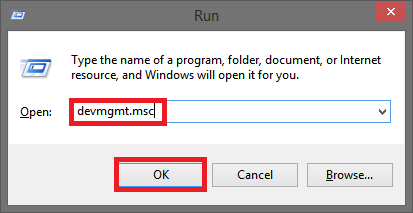
devmgmt.msc
  • In the Device Manager window, go to the Display adapters category and expand it
  • Right-click on GeForce and click Uninstall
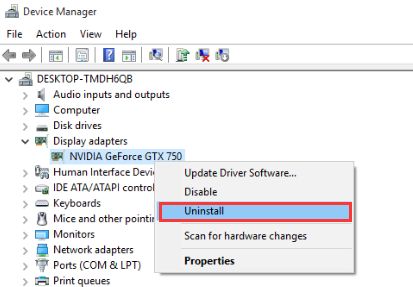
uninstall geforce
  • Now go to the official website of GeForce
  • Download the latest version of the driver
  • Install the driver and restart your PC

Try launching GeForce Experience to see if the issue is resolved. If you are still getting an error, try the next solution.

If you find the manual driver update method difficult, you can use software to update graphics card driver automatically.

Method Two- Update Graphics card driver automatically

Automatic driver update tools offer many benefits, the most important ones being:

  • You can update device drivers automatically
  • The software scans and updates all outdated or missing drivers at one go
  • The tool picks the right drivers for your device and operating system, so you won’t have to worry about installing an incorrect driver by mistake
  • Automatic driver updates are 100% safe

Driver Updater is one of the best driver update tools out there. Outbyte Driver Updater will give you access to a database of over 1 million drivers. It will regularly scan your PC, suggesting new driver versions to install. Driver Updater contains drivers for a variety of Windows devices. With just one click, you can update drivers in your system.

Step 1
Click here to Install and launch the app

Step 2
Scan all devices

Step 3
Install or update drivers automatically


Start Download


Solution Four- Reinstall GeForce Experience

There is a possibility the GeForce Experience installation has become corrupt.

In that case, you need to reinstall GeForce Experience by following the steps given below.

  • Download the latest GeForce Experience application on your computer
  • Click Start-> Settings
  • Navigate to Control Panel -> Programs and Features
  • Find GeForce Experience in the list
  • Right-click on GeForce Experience and click Uninstall
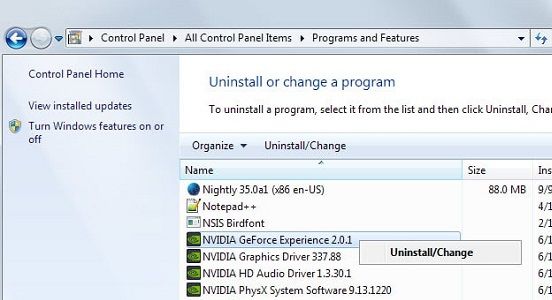
geforce-experience
  • Restart your PC
  • Now install the latest GeForce Experience software on your PC

Solution Five- Update Operating system

The latest graphics driver won’t work well with an obsolete operating system.

Hence, you need to install all pending updates and see if it resolves the issue. Here are the steps to follow.

For Windows 7

  • Click Start
  • Click Control Panel->System and Security -> Windows update
  • Click Check for updates
  • Restart your PC after all updates are installed

For Windows 10

  • Click Start and click on Settings(gear icon)
  • Go to Update and Security -> Windows update
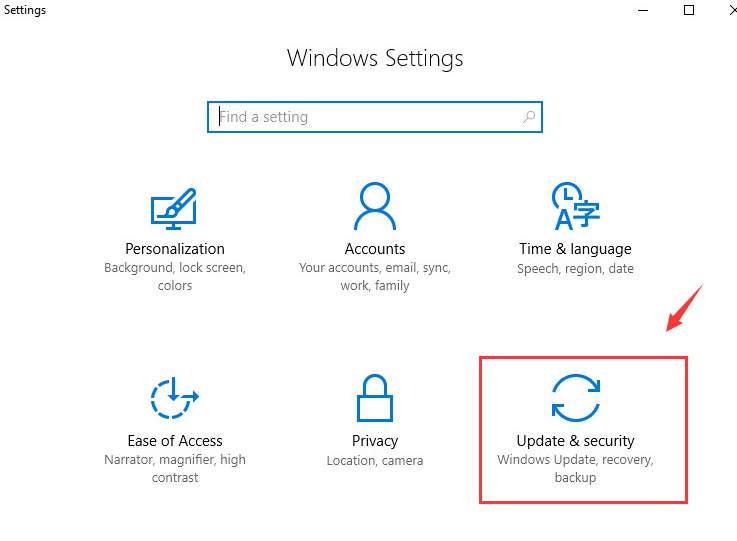
update and security
  • Click Check for updates to prompt Windows OS to check for latest updates
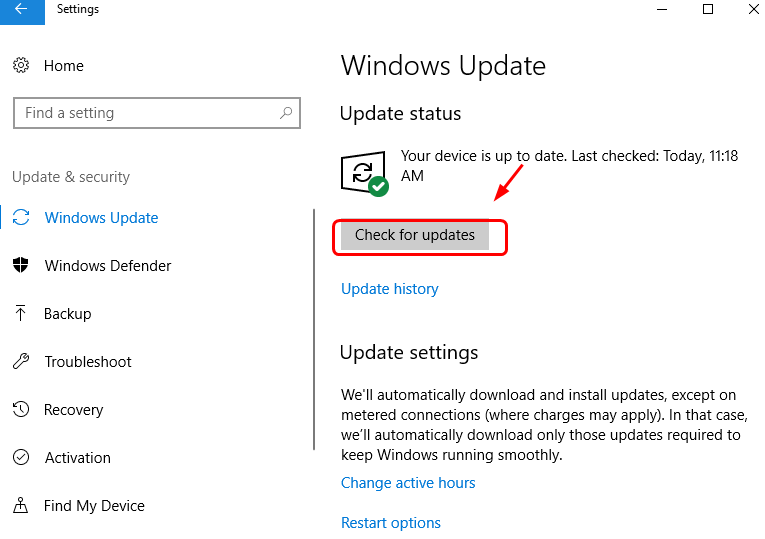
check for updates
  • Windows OS will download the updates automatically
  • Restart your PC to install updates

Solution Six- Check hardware issues

Have you installed any new hardware recently?

If the new hardware is not compatible with program, it can lead to errors while launching GeForce Experience.

To keep your PC hale and hearty, you should always use compatible hardware.

Check the specification of the new hardware and ensure it matches with your graphics card.

Solution Seven- Disable antivirus program

Some anti-virus programs are known to cause problems with GeForce Experience.

To rule out this possibility, disable anti-virus temporarily.

The steps to disable anti-virus are unique to each antivirus software. Read the software documentation to know about exact steps.

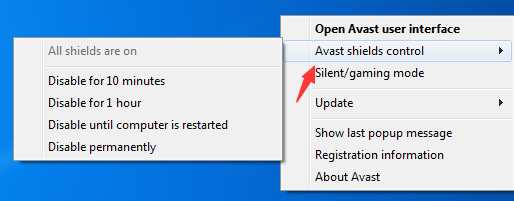
Here we have shared steps to disable Avast antivirus software temporarily.

  • Right-click on Avast antivirus icon
  • Click Avast Shields control
  • Select any disable option you want.
disable Avast

After disabling antivirus, launch GeForce Experience on your computer.

In most cases, the GeForce Experience issue would be resolved by one of the solutions given in the post.
How to Update Nvidia Drivers in Windows 10

Filed Under: PC Fix Tips Tagged With: geoforce experience issue

Solution for Disabling Windows 10 update

By Susan C on May 1, 2019

Solution for Disabling Windows 10 update

Every Windows user knows Microsoft is pushy about Windows updates and there is nothing wrong in it.

Even in Windows 10, the default setting is to install updates automatically. Though this is good for your Windows PC, it does cause inconvenience many times.

One bad thing about Windows updates is there is no guarantee the Windows update that gets installed will improve performance of your Computer. There are several instances when the updates have not worked well and Microsoft had to recall those updates.

Also, the windows updates are automatically installed in the background and some updates require a system reboot.

There is so much time wasted in installing and configuring updates which irks many users especially when they have some urgent work to do.

Disabling Windows update is a good way to get some respite from the inconvenience caused by automatic installation of updates.

Different ways to disable windows update

There are four ways to disable windows update

  • Making your internet connection a metered one to disable Windows update
  • Changing Group Policy to disable Windows update
  • Disabling Windows update service to disable Windows update
  • Make Changes to the Device installation settings to disable Windows update

Uninstall Windows Update Assistant

Windows Update Assistant is a native update management tool that is designed to upgrade your Windows 10 to latest version. The Windows update assistant is automatically deployed to Windows PCs that do not have latest Windows updates.

According to experts, the different ways to disable Windows update won’t work if you have Windows Update Assistant installed on your PC.

Hence, before proceeding to any method given below, you need to uninstall Windows Update Assistant completely.

Steps to uninstall Windows Update Assistant

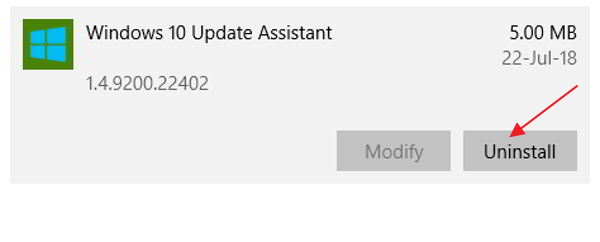
  • Click start
  • Click settings
  • In the settings window, click apps
  • In the left pane, click apps & features
  • Look for windows update assistant program in the right pane and click on it
windows update assistant
  • Click Uninstall

After you have uninstalled Windows update assistant, you are also required to delete folders related to Windows update. Here are the steps to follow.

  • Go to Desktop
  • Double-click This PC
  • In Windows Explorer window, double-click C Drive
  • Navigate to Windows folder and then go to Windows10Upgrade folder
  • Delete the Windows10Upgrade folder

If you have migrated to Windows 10 from lower Windows version, you need to delete some additional folders too that are related to Windows Update Assistant. Here are the steps to follow.

  • Go to Desktop
  • Double-click This PC
  • In the Windows Explorer- double-click C Drive
  • Navigate to Windows folder
  • Delete the following folders -UpdateAssistant. UpdateAssistantV2, and Windows10Upgrade

Windows users who don’t want to remove Windows Update Assistant can disable it and then proceed to any methods of disabling Windows update. Here are the steps to follow.

  • Click Start
  • Type task scheduler in Cortana search box
  • Select Task Scheduler from the list of results
  • In the Task Scheduler window, click Task Scheduler Library
  • Next click Microsoft > Windows > UpdateOrchestrator
  • In the right pane find Update Assistant
  • Go to Triggers tab
  • Disable each trigger in the list

After you have uninstalled or disabled Windows Update Assistant, you can go ahead and follow any method to disable Windows Update.

Method One – Using the metered connection trick

As you know Windows downloads updates automatically when the computer is having a working Internet connection. You can disable the Windows update by fooling the operating system.  This trick only worked with Wi-Fi connection, earlier but from version 1703, even Ethernet connection can be set as a metered connection.

A metered connection refers to an Internet connection where you can download limited number of bit per month without increasing the monthly internet bill.

When you set the Internet connection as metered one, Windows will not download updates automatically to ensure your monthly ISP bill does not increase.

In Windows 10, Internet connections are set non-metered by default and you need to make the Internet connection you use as metered one to disable windows update.

However, if you connect to Internet through different Internet connection, this trick will not work, unless you make other Internet connection too as metered one.

Here are the steps to make you Internet connection a metered one.

  • Click Start -> Settings
  • In the Settings window, click Network & Internet
  • If you are using Wi-Fi, click on Wi-Fi in the left pane
click on wi-fi
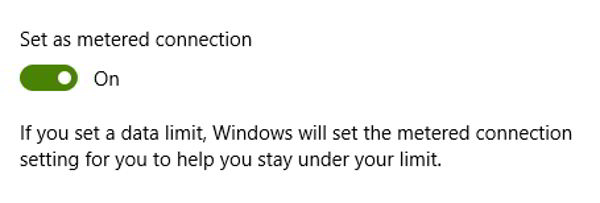
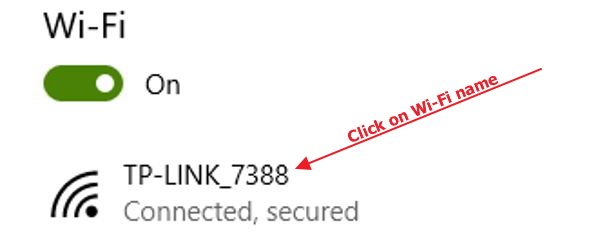
  • Now, click on the name of your Wi-Fi connection and click the grey toggle switch to turn metered connection on (the toggle switch color changes to blue which indicates the connection is set as metered
set metered connection
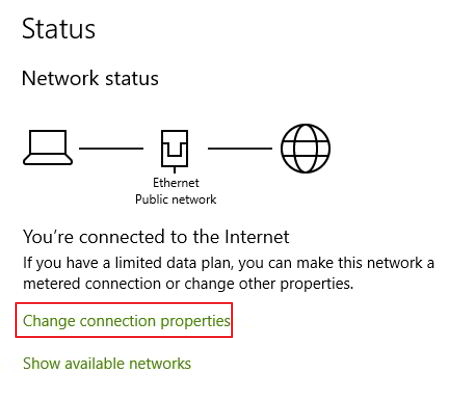
  • If you are using Ethernet, click on Ethernet in the left pane
ethernet
  • Now, click Change connection properties. Now click the grey toggle switch to turn metered connection on.

When you set the Internet connection as metered one, Windows 10 will assume you have a limited data plan and will not download updates automatically.

Also, Windows will not search for any updates until your computer uses an Internet connection that is not set as a metered one.

Method Two – Change Group Policy settings to disable Windows update

Group Policy is an important feature in Windows which allows the administrator to control the working environment of user accounts and computer account.

The Group Policy is available in top editions of Windows 10 like the Windows 10 Pro, Windows 10 Enterprise. It is not available in Windows 10 Home edition. Hence, this method would not work for Windows 10 Home users.

We can use this Group Policy feature to disable Windows update. Here are the steps to follow.

  • Press Windows logo and R keys simultaneously on the keyboard to invoke Run command console
  • In the run command box, type gpedit.msc
  • Hit Enter on the keyboard
  • In the Local Group Policy editor window, click Computer Configuration and then click Administrative Templates
  • Now click Windows Components
  • Next, click Windows Update.
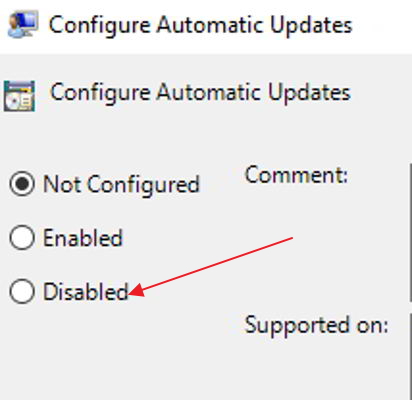
  • Double-click Windows update and click Configure automatic updates
disable auto updates
  • In the left pane, click Disabled
  • click Apply and then click OK

Note – When you perform the steps given above Windows will not check nor install Windows updates. This can prevent you from having newer version of Windows 10 that might have some new exciting features.  If you want to upgrade to newer version of Windows 10, just follow the steps above and in the 2nd last step you just have to click Enabled instead of Disabled and your Windows update will start working again.

Method Three – Disabling Windows update service to disable Windows Update

Windows update is managed by Windows update service which runs in background. By default, the Windows update service start automatically every time you boot your PC.

The Windows update service connects to the Windows update server every day to check for updates. If its finds any updates, it downloads Windows updates automatically.

You may never know how many Windows updates have been downloaded and installed unless you are prompted to restart to apply Windows update or unless you check the update history in Windows 10.

The idea behind this method is to disable Windows update service that will disable Windows 10 update. Here are the steps to disable Windows update service

  • Press Windows logo and R keys simultaneously on the keyboard to bring up Run command box
  • In the run command box, type services.msc
  • Click OK
  • In the Services window, double-click Windows update
windows update service
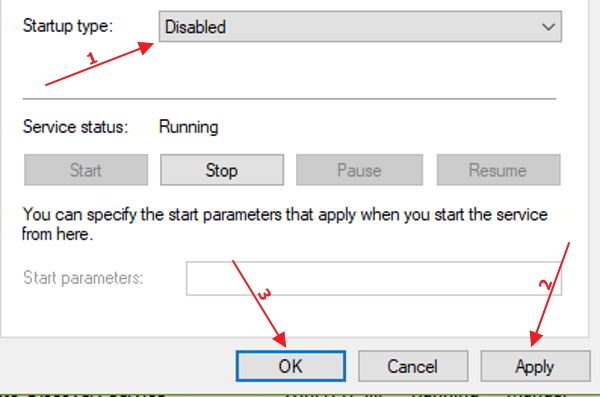
  • In the Windows update properties box, go to the General tab and set the Startup type to Disabled by selecting the option from the drop-down list
windows service disabled
  • Now click Apply and then click OK
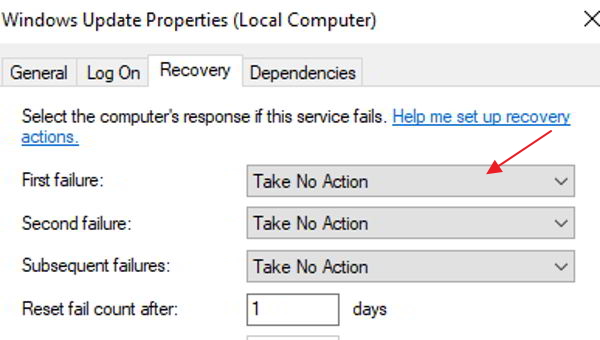
  • If you are disabling Windows update service for the first time, you need to perform one more step to stop Windows update.
  • Go back Windows Update Properties dialog and go to Recovery tab
windows update recovery
  • Now click the drop-down list adjacent to the First failure and choose Take No Action
  • Click Apply->OK
  • Close all windows
  • Restart your computer to apply changes

Method Four – Modify Device Installation settings

Windows 10 updates are not all about bug fixes or improving system performance. A large number of driver updates are also provided through Windows updates.  Windows 10 also download driver’s updates automatically. If you do not want to this happen, you need to make changes to device installation settings.

  • Click Start
  • In the Cortana search box, type control
  • Click Control Panel from the list of results
  • In the Control Panel window, click System
  • In the Systems window, click Advanced system settings
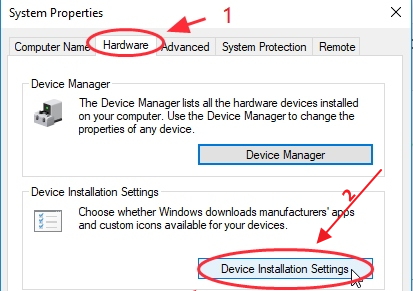
  • In the System properties window, click Hardware tab
  • Click Device Installation settings
device installation settings
  • In the Device Installation settings window, choose the option No(your device might not work as expected)
  • Click Save Changes
  • Close all windows and restart your computer.

After performing these steps Windows will not download driver updates. Now that you have disabled Windows update, you need to find an alternative way to update drivers for optimal performance of Windows 10.  Without right drivers, you are more likely to face different problems in form of errors and your Windows will be less responsive.

Also over the time some drivers get corrupt or become outdated. In that case, updating drivers become critical for Windows stability and overcome performance issues. We suggest you use a driver update tool to update drivers automatically.

Automatic driver update tools offer many benefits, the most important ones being:

  • You can update device drivers automatically
  • The software scans and updates all outdated or missing drivers at one go
  • The tool picks the right drivers for your device and operating system, so you won’t have to worry about installing an incorrect driver by mistake
  • Automatic driver updates are 100% safe

Driver Updater is one of the best driver update tools out there. Outbyte Driver Updater will give you access to a database of over 1 million drivers. It will regularly scan your PC, suggesting new driver versions to install. Driver Updater contains drivers for a variety of Windows devices. With just one click, you can update drivers in your system.

Step 1
Click here to Install and launch the app

Step 2
Scan all devices

Step 3
Install or update drivers automatically


Start Download


Filed Under: PC Fix Tips Tagged With: Disable Windows Updates

Solution to Thread Stuck in Device Driver BSOD error

By Susan C on April 28, 2019

Solution to Thread Stuck in Device Driver BSOD error

Blue screen errors are generally due to hardware issues or problems with the driver.

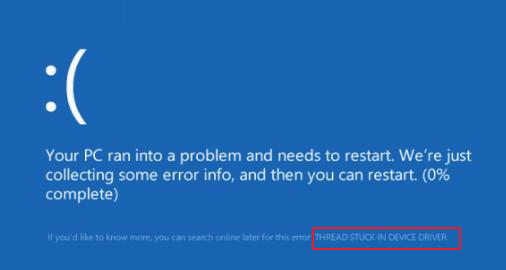
Many users have complained about Thread Stuck in Device Driver BSOD error which leads to Windows crashing. If you are facing a similar issue and looking for a solution, then read on.

thread stuck device driver error

What causes Thread Stuck in Device Driver blue screen of death error?

The name of the error clearly suggests the BSOD is related to some device driver.

The error code is (0x100000ea) and it is mainly related to display drivers.

However, you cannot rule out the possibility of other device drivers related to this error.

You will encounter the Thread Stuck in Device Driver error when your display device driver enters an infinite loop and waits for the hardware to enter an idle state.

When such a situation occurs, Windows terminates the process and stops the booting process.

The Thread Stuck in Device Driver error generally occurs during booting process or within a few minutes following it.

However, many users have complained about encountering Thread Stuck in Device Driver error when playing games or multimedia files. This happens because the error is related to a display device driver.

This error can also occur after installation of a driver, OS, and updates. The Thread Stuck in Device Driver error usually occurs on a computer with NVIDIA or AMD graphics chip.

Now that you have enough information about the error, let’s look at the solutions.

Solution One – Update Graphics Card Drivers

As mentioned earlier, the video card driver could be the culprit behind the Thread Stuck in Device Driver error.

The solution to this issue is updating the outdated/corrupt driver.

There are two ways to update graphics card driver – manual update and automatic update.

Here we have provides steps for both driver update methods.

Method One – Manual Driver Update

  • Click Start
  • Press Windows logo key and R simultaneously to invoke the Run dialog box
  • In the Run dialog box, type devmgmt.msc and click OK
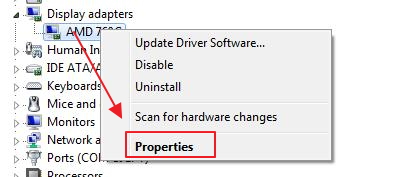
  • In the Device Manager window, go to the Display adapter category and expand it
display adapter properties
  • Right-click on the graphics device in the list and click Properties
  • In the graphics card properties window, go to Driver tab
  • Note down the name of the graphics adapter, the Driver provider, and driver version
  • Now open an Internet browser and go to Driver provider website
  • Most driver provider sites have search functionality to find the right device drivers. Type the name of the graphics adapter in the search box
  • In the search results, you will find links to download the latest graphics driver for your computer. On most driver provider websites, you have a Download section which lists different versions of drivers available for a particular graphics card.
  • You need to be careful while selecting the graphics cards driver. Make sure you select the right operating system and system architecture (32-bit or 64-bit) when downloading the graphics adapter driver.

If you have a 32-bit Windows OS, make sure you download 32-bit graphics card driver for your Windows OS.

Similarly, if you have a 64-bit Windows OS, make sure you download 64-bit graphics card driver.

After downloading the driver file, double-click on the executable file to start the installation and follow on-screen instructions to install the graphics driver.

If the driver file is in zip format, you need to unzip the contents in a folder and then double-click on the executable file and then follow on-screen instructions to install the graphics driver.

After installing the graphics card driver, reboot your system and see if you encounter the Thread Stuck in Device Driver error.

If you’re still getting the Thread Stuck in Device Driver error, move to the next solution.

If you find the manual driver update difficult, you can use a Driver Update Tool to update your graphics card driver automatically.

Method Two- Automatic Driver Update method

Many people prefer to update drivers automatically. You should give it a try as well. This is because it is fast, reliable, and easy. Plus, you don’t need any technical knowledge to update drivers automatically.

Automatic driver update tools offer many benefits, the most important ones being:

  • You can update device drivers automatically
  • The software scans and updates all outdated or missing drivers at one go
  • The tool picks the right drivers for your device and operating system, so you won’t have to worry about installing an incorrect driver by mistake
  • Automatic driver updates are 100% safe

Driver Updater is one of the best driver update tools out there. Outbyte Driver Updater will give you access to a database of over 1 million drivers. It will regularly scan your PC, suggesting new driver versions to install. Driver Updater contains drivers for a variety of Windows devices. With just one click, you can update drivers in your system.

Step 1
Click here to Install and launch the app

Step 2
Scan all devices

Step 3
Install or update drivers automatically


Start Download


Solution Two – Update Sound card drivers

There is a possibility the sound card driver is the cause behind the Thread Stuck in Device Driver error.

To rule out this possibility, you need to update sound drivers. As mentioned above, you can update the sound driver manually or automatically.

The steps to manually update the sound driver are quite similar to those of graphics drivers. Just substitute the word “display adapter” or “graphics card driver” with “sound card” or “audio device.”

To make things simple for you we have mentioned important steps.

  • Open Device Manager
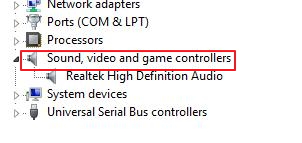
  • Go to Sound, video, and game controller category and expand it
sound video game controllers
  • Right-click on audio device and select Properties
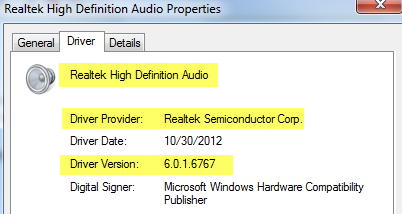
  • In the properties window, note down audio device name, driver provider, and driver version number
sound driver details
  • Use this information to search and download the right sound drivers
  • If you are not comfortable with updating sound drivers manually, you can use a Driver Update Tool to update sound drivers

Solution Three-Run SFC Scan

Blue screen error might also occur due to the corruption of system files. In that case, repairing system files is the best option to resolve the error.

SFC is short for System File Checker. It does not have a graphical interface and the commands are executed through a command prompt window with admin rights.

Here are the steps to follow.

  • Press Windows logo key and R simultaneously on the keyboard to invoke Run command dialog
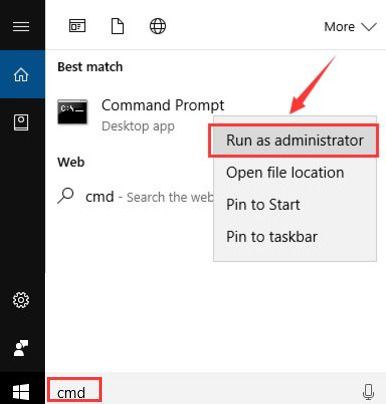
  • In the Run command box, type cmd
  • Right-click command prompt from the list of results and select Run as administrator
cmd run as admin
  • In the User Account control pop-up, click Yes
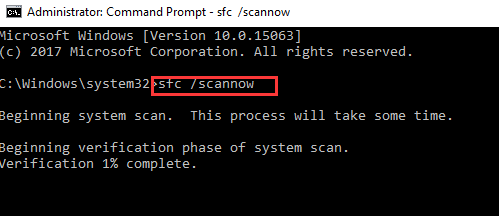
  • In the command prompt window, type sfc /scannow and hit Enter
cmd sfc

The System File Checker tool checks the integrity of system files and finds the corrupted files, which are then replaced with the right versions of the corrupt file.

If the tool does not find any problem with system files, the scan results will be without any errors.

In that case, you need to move to the next solution.

Solution Four – Set the Hardware Acceleration to None

Hardware acceleration is a feature to get optimal performance from hardware like graphics cards.

By setting the hardware acceleration to None, you can reduce the video card’s functionality.

See if this helps resolve the issue.

Here are the steps to follow.

  • Click Start
  • Type display in the search box
  • Click Display from the list
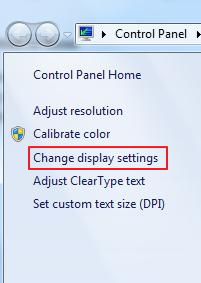
  • Go to Change Display Settings
change display settings
  • Click Advanced Settings
  • Go to Troubleshoot
  • Click Change Settings
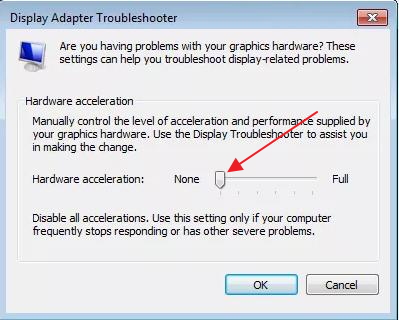
  • Move the Hardware Acceleration slider to None
hardware acceleration
  • Click OK
  • Restart your PC

Check whether you are getting Thread Stuck in Device Driver BSOD error.

If the issue remains unresolved, move to the next solution.

Solution Five- Keep the graphics card and CPU cool

Overclocking the CPU or graphics card causes heating issues that might cause the Thread Stuck in Device Driver BSOD error.

Make sure the system fans and other cooling components are working fine.

For better results, clean your computer and ensure nothing is blocking the exhaust ports.

Solution Six – Change the power supply

As the power supply gets older, it might not be able to satisfy the power requirements of different hardware components.

This could be the cause of Thread Stuck in Device Driver BSOD error. To rule out this possibility, get another power supply and see if it helps to resolve the issue.

Now check if the Thread Stuck in Device Driver BSOD error is generated.

If your issue remains unresolved, the last resort is replacing the graphics card.

Solution Seven- Replace the graphics card

Since none of the above solutions has worked, there is a possibility that the graphics card has some problem. You need to get a new graphics card and replace it with the old one.

Filed Under: PC Fix Tips Tagged With: thread struck BSOD

  • « Previous Page
  • 1
  • …
  • 119
  • 120
  • 121
  • 122
  • 123
  • …
  • 189
  • Next Page »


  • Recent Posts
  • Popular Posts
        

Read More Posts


Read More Posts

Drivers.com Sites

  • Software Drivers
  • Drivers Ed

About Us

  • Advertise
  • About Drivers
  • Drivers Support
  • Drivers.com Privacy Policy
  • Disclaimer
  • Software Drivers
  • Mac Fixes and Tips
  • PC Fix Tips
  • Security/ Backup
  • Tablets & Smartphones
  • Tech News

© Copyright 2026 PDE Publications Ltd. End User License Agreement (EULA)