Drivers.com

follow us:

facebook twitter
  • Home
  • Download Drivers
  • Drivers Help
  • PC/Mac Resources
  • Software Drivers
  • Mac Fixes and Tips
  • PC Fix Tips
  • Security/ Backup
  • Tablets & Smartphones
  • Tech News
  • Software Drivers
  • Mac Fixes and Tips
  • PC Fix Tips
  • Security/ Backup
  • Tablets & Smartphones
  • Tech News

Solution for Windows 10 Search Not Working issue

By Susan C on April 13, 2019

Solution for Windows 10 Search Not Working issue

The Windows 10 search allows you to easily search files in your computer.

However, sometimes the Windows search does not function as intended.

If your Windows search is not working and you are looking for a solution, this post is for you.

There can be many reasons as to why the Windows search is not working.

Here are 5 solutions which target different underlying causes of Windows 10 search not working.

Since you do not know the exact cause for Windows 10 search not working, you can start with the first solution in this post.

If it does not work for you move to next solution and so on, until you’re able to solve the problem.

Solution One – Restart your PC

The “Windows Search not working” issue might be a temporary one. Restarting windows might fix it.

If you used the hibernate option, there is a possibility your PC did not shut down the last time.

In such a case, when you start the PC, it only wakes from hibernation (not regular booting of Windows) and that might trigger this error.

You need to shut down or restart the PC by pressing the restart button on your desktop.

Laptop users can follow the steps below.

  • Click Start
  • Click the Power Options
  • Click Restart

After rebooting your PC, check whether Windows 10 search is working.

If your issue remains unresolved, move to next solution.

Solution Two- Restart Cortana Process

If you look at the Windows architecture, each functionality in Windows is controlled by one or more Windows process.

In Windows 10, the Cortana process is related to Windows search.

In some cases, even though the Cortana process is running in the background, the Windows search does not function normally.

In such event, restarting the Cortana process can get Windows 10 search up and running.

Here are steps to restart Cortana process.

  • Go to Desktop
  • Right-click on empty space on the taskbar
  • From the menu, click Task Manager
  • Go to Processes tab
  • Press C on the keyboard and search for Cortana process in the list
  • Right-click on Cortana and click End Task
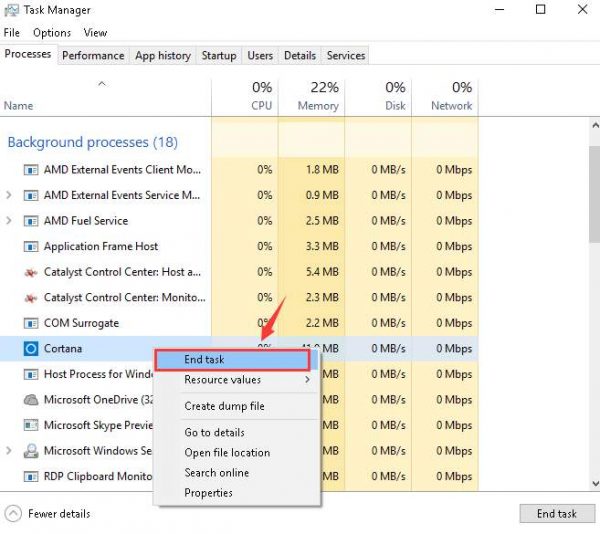
end-task-cortana
  • Now press S on the keyboard and search for the Search process
  • If you find Search process, right-click on it and click End Task
  • Close Task Manager and return to the desktop

After you manually end the Cortana and Search process, Windows OS will start these processes almost instantly.

Now check whether Windows 10 search is working.

If this solution has not worked for you, move to the next solution.

Solution Three – Check Windows search service

The Windows search service should be running for Windows 10 search to work.

You need to check the status of the Windows search service and make necessary changes.

Here are the steps to follow.

  • Press Windows logo key and R simultaneously on the keyboard to invoke Run command box
  • In the Run command box, type services.msc and click OK
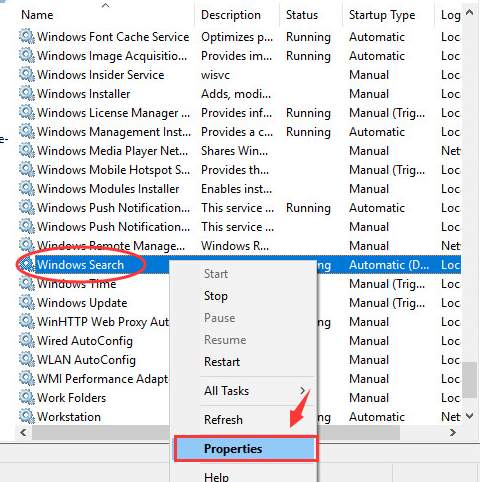
  • In the Services window, look for Windows search service and right-click on it
  • Click Properties
win search properties
  • In the Properties window, go to Startup type section and select Automatic from the drop-down list
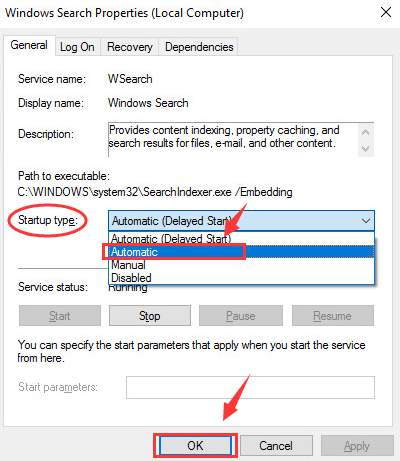
startup type auto
  • Click OK to save changes
  • Close all windows and restart your computer

After rebooting check Windows search service.

If it is still not working, move to the next solution.

Solution Four- Rebuild Search Index

Windows indexes your files so that Windows search functionality can search and present you the files you need.

While you use your computer, the operating system continues to index files you create.

There is a possibility the search index might have become corrupt, which might explain the error.

In such cases, rebuilding windows search index is an easy solution.

Here are the steps to follow.

  • Right-click Start Menu and select Control Panel
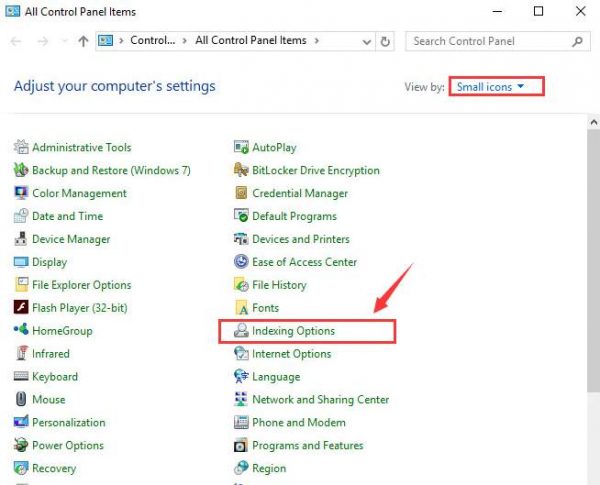
  • In the Control Panel window, set the View by to Small icons
  • Click Indexing Options
indexing options
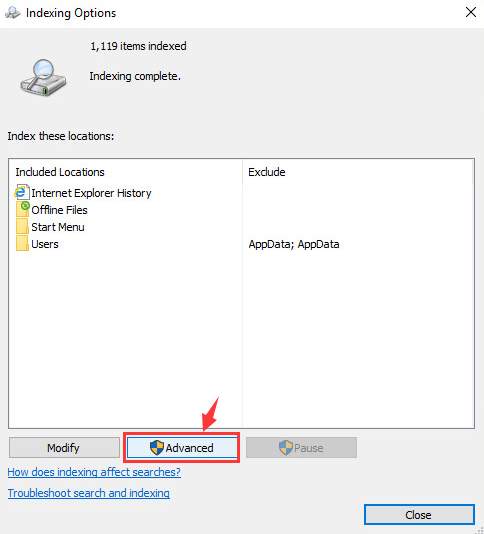
  • In the next window, click Advanced
indexing adv
  • In the Advanced options window, go to Troubleshooting section and click Rebuild
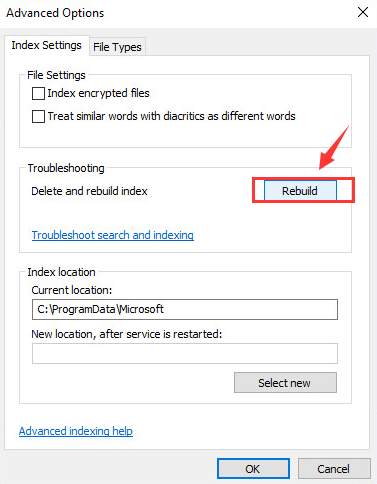
indexing rebuild
  • When you see the notification pop-up of Rebuild Index, click OK to continue

rebuild index ok

Windows will now start building the Windows search index from scratch.

It is difficult to tell the time required to complete the rebuilding of the Windows search index. This depends on how many files the system need to index.

Check if the Windows search is working. If the issue persists, move to the last solution.

Solution Five- Run Troubleshooter

Windows has in-built Troubleshooter tool that can fix most Windows functionality related issues.

Here are the steps to run Windows Troubleshooter.

  • Press Windows logo key and R together on the keyboard to invoke Run command box
  • In the Run command box, type control and click OK
  • In the Control Panel window, make sure the View by is set to Small icons. If not make click the down arrow beside View by and select Small icons from the list
  • Click Troubleshooting
  • In the next window, look for View all option in the left pane and click on it
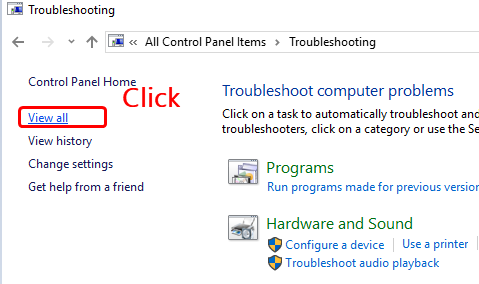
click view all
  • In the next window, click Search and indexing
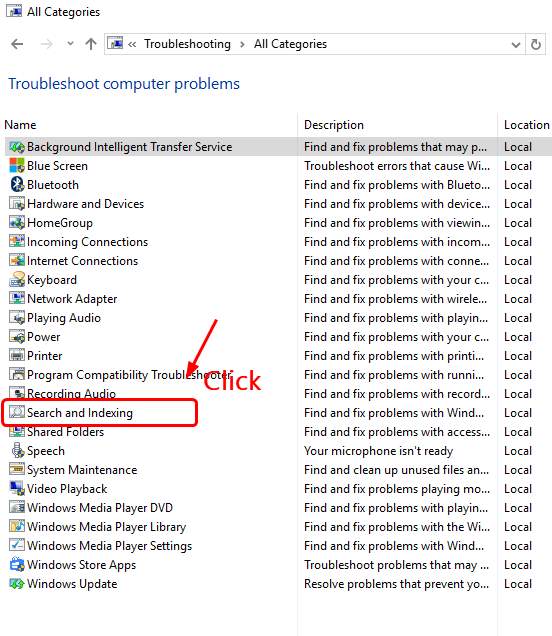
search and indexing
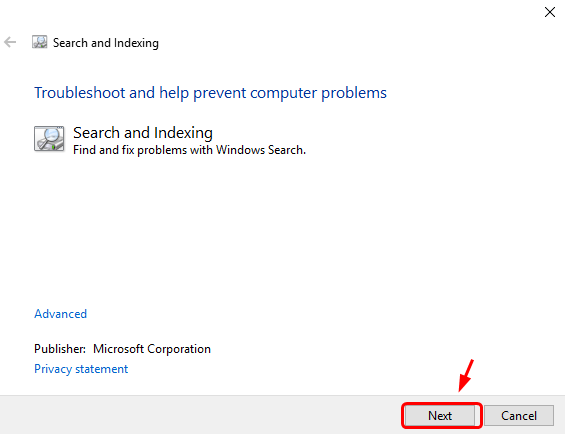
  • Click Next
click next
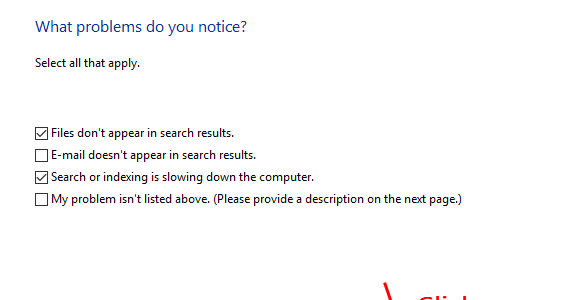
  • In the next window, you will see a list of problems related to Windows search. Select the ones that apply in your case
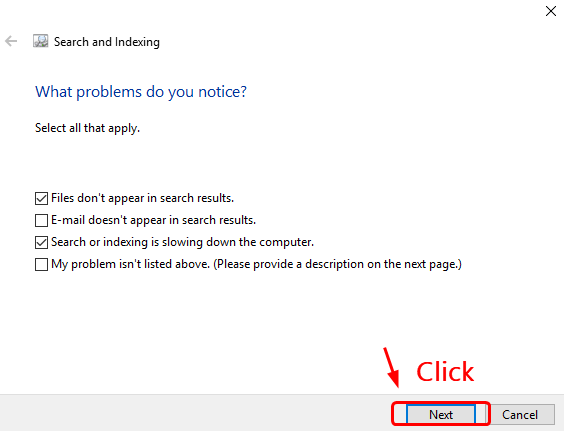
indexing problems
  • After ticking the option, click Next
  • Wait for the troubleshooting process to complete.

We are confident you would be able to resolve the Windows search not working issue by following one of the solutions given below.

If none of the solutions has worked for you, we suggest you update Windows 10 drivers.

The easiest way to update Widows drivers is by using a reliable driver update tool.

Automatic driver update tools offer many benefits, the most important ones being:

  • You can update device drivers automatically
  • The software scans and updates all outdated or missing drivers at one go
  • The tool picks the right drivers for your device and operating system, so you won’t have to worry about installing an incorrect driver by mistake
  • Automatic driver updates are 100% safe

Driver Updater is one of the best driver update tools out there. Outbyte Driver Updater will give you access to a database of over 1 million drivers. It will regularly scan your PC, suggesting new driver versions to install. Driver Updater contains drivers for a variety of Windows devices. With just one click, you can update drivers in your system.

Step 1
Click here to Install and launch the app

Step 2
Scan all devices

Step 3
Install or update drivers automatically
 

Start Download


Filed Under: PC Fix Tips Tagged With: Windows search issue

Solution to Access Denied error in Windows

By Susan C on April 9, 2019

Solution to Access Denied error in Windows

You may get the “Access denied” error when you access certain folders and files.

This is a pretty common Windows error. It is also relatively easier to solve.

If you are getting similar error and looking for a solution, this post is for you.

Why do you get “Access denied” error?

You can get this error both as a standard user or an administrator user.

One of the main reasons behind the error is lack of access permissions. That is, when you try to access a file that you’re not authorised to, you get this error.

If the files or folders that you’re trying to open are corrupt, then also you’ll get this error.

Some users who have reported this error had recently upgraded to Windows 8 or higher version.

Following the upgrade, they no longer had access to certain files and folders.  As a result, they received the error when they tried to open them.

How to fix the “Access denied” error?

It might be an irritating issue for you as you are not able to access important data stored in the folders.

If you are getting this error after upgrading Windows, the solution to problem is to restore the ownership of the files and folders.

Here we have discussed three different solutions to fix the “Access denied” error.

Solution One- Change or Restore Ownership of the files and folder

If you have not upgrade Windows and still getting this error, it is more likely the error is because you don’t have appropriate permissions to access the files and folders.

To resolve this error, you need to change ownership of the files and folder.

(Note – the steps to change ownership of the files and folders are different for Windows 7 and Windows 10/8. Kindly follow the steps as per the windows version installed in your computer)

You should be logged in as administrator to perform the troubleshooting steps given below.

Remember, only the administrator account has the rights to make changes to the access permissions for the files and folder.

If you don’t know whether the account you are logged in currently has admin rights, follow the steps to find the user account type.

  • For Windows 10- Click Start and type account in the Cortana search box

account

  • For Windows 7 – Click Start button and type account in search box
  • Click User account or Manage your account in the list of results
  • You will see a window pop-up with the current user name details. If you see “Administrator” label below the user name, the account has admin rights and you can go ahead and perform the steps to change ownership of the files.

account admin

  • If you are logged in a guest or Standard User, log out of the account and log in as administrator.

Steps to Change /Restore Ownership of the files and folders in Windows 10/8

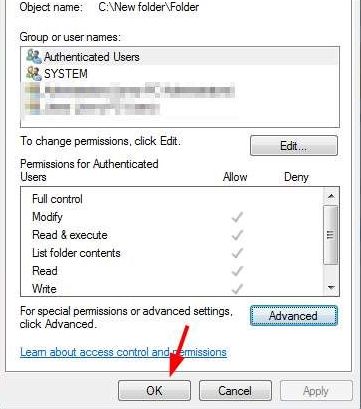
  • Right-click on problematic folder or file and click Properties
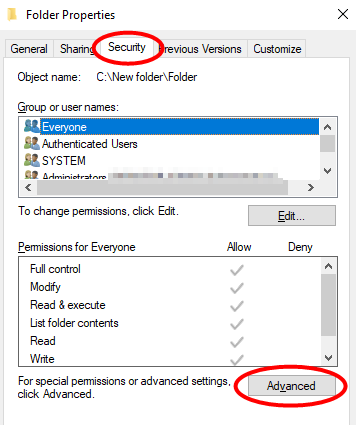
  • In the Properties window, go to Security tab

folder properties advanced

  • Click Advanced button
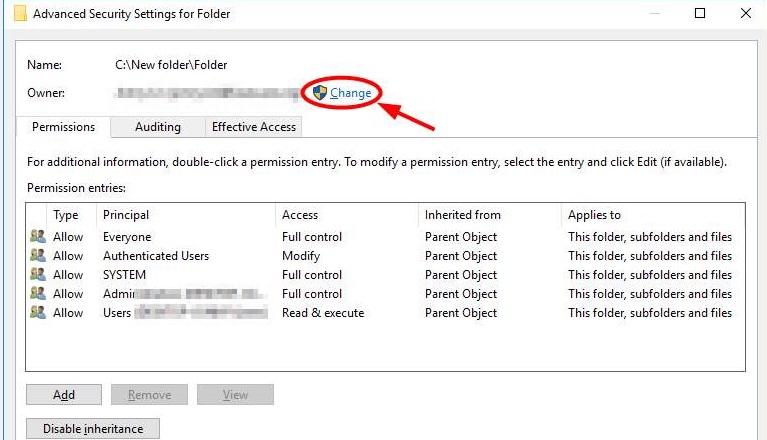
  • In the Advanced Security Settings window, click Change

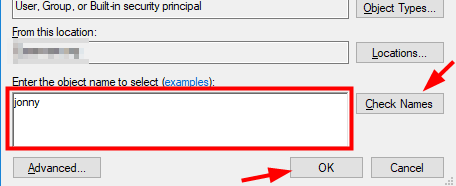
  • In the Select use window, go to the box titled- Enter the object name to select and type the username of currently logged in user. You don’t need to type complete name of the user, Windows will complete the username for you
  • Click Check Names

check names

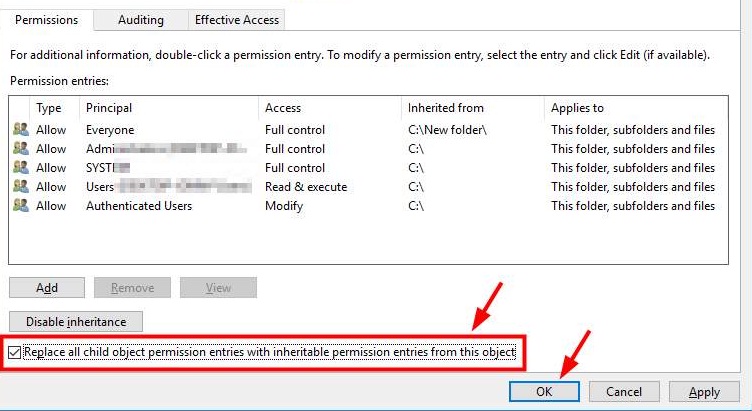
  • In the Advanced Security settings window, you need to check the box “Replace all child object permission entries with inheritable permission entries from this object”. Do this only if you want to take ownership of the folder, its subfolders, and files in it.

change permissions

  • Click OK
  • Now go to Folder properties dialog box and click OK

folder properties

  • Close all dialog boxes

Try opening the file or folder which gave out “Access Denied” error.  If the error is not resolved, move to next solution.

Steps to Change /Restore Ownership of the files and folders in Windows for Windows 7

  • Right-click on problematic file or folder and select properties
  • In the folder/file properties window, go to security tab
  • Click advanced to access advanced security options of the folder
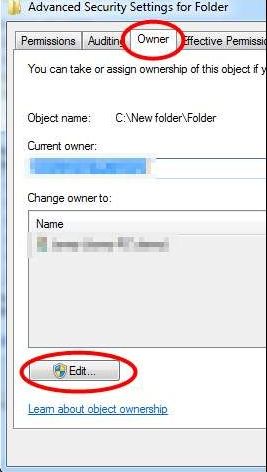
  • In the advances security settings window, go to owner tab
  • Click Edit

owner-edit

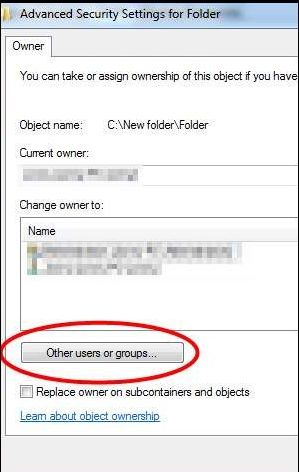
  • In the next window, click Other users and groups

other users

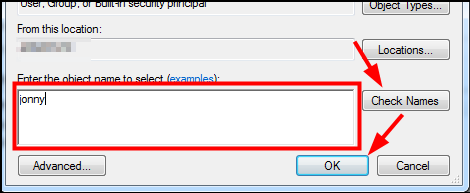
  • In the select user or group window, go to box named enter the object name to select
  • Type the current username. You don’t need to type full username; windows will complete it for you.
  • Click Check Names

check names

  • Click ok
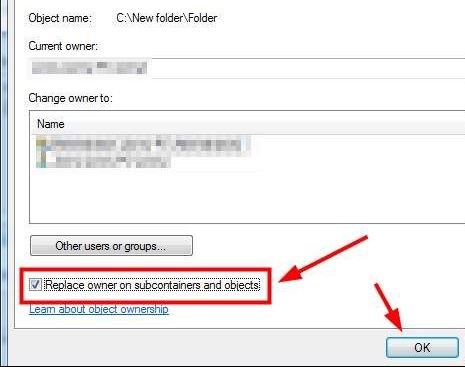
  • In the advanced security settings window, check the box- replace owner on subcontainers and objects

replace owner

  • Click ok
  • Now go to file properties dialog box, click ok

Now try opening the folder and file and see if the “access denied” error is displayed. If the error persists, move to next solution.

Solution Two- Get Appropriate Permissions

If you have upgraded Windows, it is more likely some permission for files and folders may have changed.

In that case, you need to get appropriate permissions in order to access the problematic files and folders. Here are the steps to follow.

(Note- In order to grant yourself appropriate permissions, you need to be logged in as administrator)

  • Right-click on folder or file for which you want appropriate permissions
  • Click Properties
  • In the Properties window, go to Security tab
  • Click Edit button
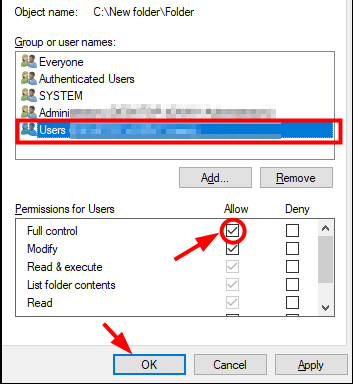
  • In the Permissions for the folder dialog, select your username in “Group or users names” box
  • Under Permissions for folder box, place a tick in Allow box  for Full control

users- allow

  • Click OK to close the Permissions dialog box
  • Now go to file/folder properties dialog box and click OK
  • Close all dialog box

Now check whether you are able to access the files and folders that weren’t earlier accessible.  If the problematic persists, go to next solution.

Solution Three – Recover your data

If the above two solutions have not worked for you, there is a possibility the folders and files you are trying to access are corrupt.  In most cases, these files cannot be recovered unless you have a backup copy.

If you have made a backup, you can delete the problematic files and folders and restore the files/folders from the backup.

Filed Under: PC Fix Tips Tagged With: access denied

Solution to updating drivers in Windows 10

By Susan C on April 8, 2019

Solution to updating drivers in Windows 10

Drivers are critical for the smooth functioning of Windows. If there’s some problem with an installed device driver, all sorts of errors or issues can crop up.

As a matter of fact, a lot of time the root cause of various hardware or software issues is corrupt, missing, or incompatible driver.

Thankfully, it doesn’t take—or cost—much to fix driver errors.

All you have to do is update the relevant driver or drivers.

Windows 10 updates drivers automatically. The driver updates are provided with Windows updates that are pushed by Microsoft periodically.

However, the process is not flawless and sometimes you may have to wait for a long time to get driver updates.

This is because the device manufacturer has to go through the long process of getting their drivers digitally signed by Microsoft. Only after this can they be included or pushed through Windows updates.

If you don’t like waiting, you have the option of updating drivers manually or automatically.

Now, let’s look at different methods of updating drivers in Windows 10.

Method One – Updating Drivers through Windows update

This is one of the safest ways to update drivers, as the drivers are digitally signed by Microsoft.

Here are the steps to update drivers through Windows update.

  • Click the Start button
  • Click Settings (gear icon)
  • Click Update & Security
  • In the left pane, click Windows update
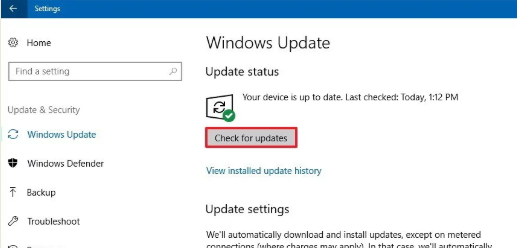
  • In the right pane, click Check for updates
check for updates

If the hardware manufacturer has published the driver updates through Windows update, the driver update will automatically get installed when the update is made available by Microsoft.

According to experts, in most cases, this method is only useful if you are using Microsoft hardware.

For other hardware manufacturers, you need to install driver updates manually or automatically.

Method Two- Updating driver manually (through Device Manager)

You can use this method to update drivers for printers, Wi-Fi adapter, sound cards, graphics card, monitor and any other components.

Here are the steps to update drivers through Device Manager in Windows 10.

  • Click Start
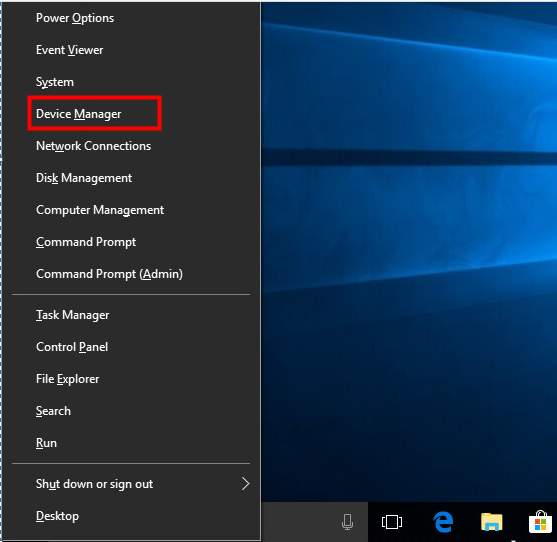
  • Type Device Manager in Cortana search
device manager
  • Click Device Manager from the list of results
  • In the Device Manager window, expand the category of hardware for which you want to update drivers

(Note- here we are updating network drivers)

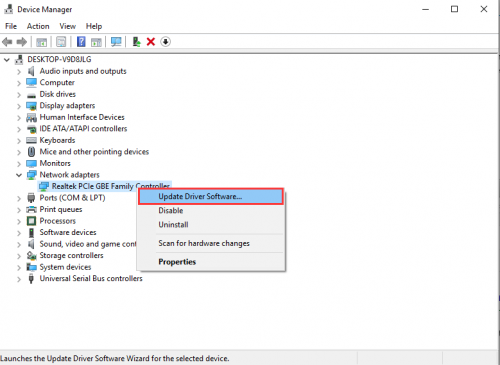
  • Right-click on the device and click update driver
update driver software
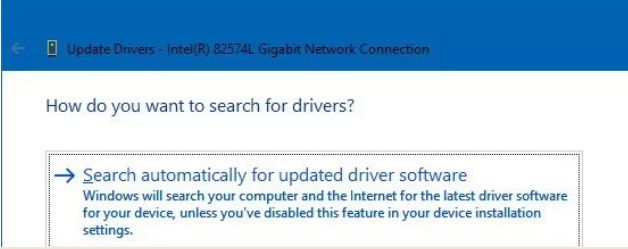
  • In the next window, click Search automatically for updated driver software
search drivers automatically
  • Once the process is completed, you will have the latest drivers for the device.

If this method does not work for you, go to the device manufacturer website and look for driver updates and download the latest driver available for Windows 10.

You need to be careful when downloading drivers from the Internet. Pay attention to the Windows architecture (32-bit or 64-bit).

If you have 32-bit Windows 10 installed, you need to download drivers provided for 32-bit Windows 10.

Similarly, you need to download 64-bit drivers for 64-bit Windows 10.

After you have downloaded the drivers, double-click the setup file to start the driver installation.

Follow on-screen instructions to install driver update. If the driver file is in zip format, unzip the contents to one folder and then double-click setup file (.exe) in the folder.

Alternatively you can also update drivers (that you’ve downloaded from the Internet) through Device Manager.

Here are the steps to follow:

  • Open Device Manager
  • Expand the desired hardware category and right-click the device
  • Click Update driver
  • In the next window, click Browse my computer for driver software
  • Navigate to the folder where the drivers are downloaded
  • Click Next
  • Follow on-screen instructions to install driver updates.

If you find this method cumbersome and want something simple, go with automatic driver update method—discussed next.

Method Three- Update Driver Automatically

The fastest way to update drivers is by using a driver update tool.

Automatic driver update tools offer many benefits, the most important ones being:

  • You can update device drivers automatically
  • The software scans and updates all outdated or missing drivers at one go
  • The tool picks the right drivers for your device and operating system, so you won’t have to worry about installing an incorrect driver by mistake
  • Automatic driver updates are 100% safe

Driver Updater is one of the best driver update tools out there. Outbyte Driver Updater will give you access to a database of over 1 million drivers. It will regularly scan your PC, suggesting new driver versions to install. Driver Updater contains drivers for a variety of Windows devices. With just one click, you can update drivers in your system.

Step 1
Click here to Install and launch the app

Step 2
Scan all devices

Step 3
Install or update drivers automatically

 

Start Download


Filed Under: PC Fix Tips Tagged With: windows 10 update

  • « Previous Page
  • 1
  • …
  • 121
  • 122
  • 123
  • 124
  • 125
  • …
  • 189
  • Next Page »


  • Recent Posts
  • Popular Posts
        

Read More Posts


Read More Posts

Drivers.com Sites

  • Software Drivers
  • Drivers Ed

About Us

  • Advertise
  • About Drivers
  • Drivers Support
  • Drivers.com Privacy Policy
  • Disclaimer
  • Software Drivers
  • Mac Fixes and Tips
  • PC Fix Tips
  • Security/ Backup
  • Tablets & Smartphones
  • Tech News

© Copyright 2026 PDE Publications Ltd. End User License Agreement (EULA)