Drivers.com

follow us:

facebook twitter
  • Home
  • Download Drivers
  • Drivers Help
  • PC/Mac Resources
  • Software Drivers
  • Mac Fixes and Tips
  • PC Fix Tips
  • Security/ Backup
  • Tablets & Smartphones
  • Tech News
  • Software Drivers
  • Mac Fixes and Tips
  • PC Fix Tips
  • Security/ Backup
  • Tablets & Smartphones
  • Tech News

Solution to “Your network settings are blocking party chat” error on Xbox

By Susan C on March 28, 2019

Solution to “Your network settings are blocking party chat” error on Xbox

error

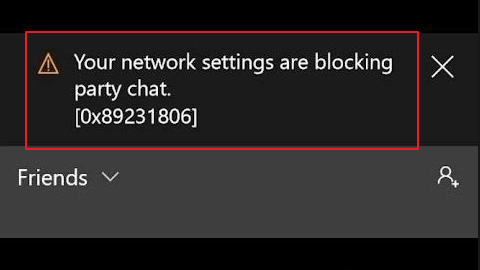
When playing multiplayer games online, gamers use the party chat feature for communication. Many Xbox users have reported problems with party chat. The error they receive is “Your network settings are blocking party chat”. I

If you are facing similar problem and looking for solution, this post is for you.

Here we have discussed 6 easy to follow solutions that would resolve the party chat issue in your Xbox.

You can start with the first solution and if does not work for you, move to the next solution and so on.

Let’s look at the solutions now.

Solution One- Restart the party chat app

The problem with party chat might be temporary and many users were able to resolve the issue by restarting the party chat app.

Here are the steps to follow

  • Close the party chat app
  • Launch the Xbox One app installed on your Windows PC
  • Click on the right section and switch to 2nd option called Parties
  • Click on Start Party

If you are still getting “Your network settings are blocking party chat” error, move to next solution.

Solution Two- Check the NAT Type

NAT stands for Network Address Translation. If the NAT Type is not set to Open, you might get the “Your network settings are blocking party chat” error.

There are three NAT options available – Open, Moderate, and Strict.

In order to enjoy multiplayer games online and use the Party Chat feature, the NAT Type should be set to Open and nothing else.

To see the NAT type, follow the steps below

  • Press the Xbox button on your Xbox Controller
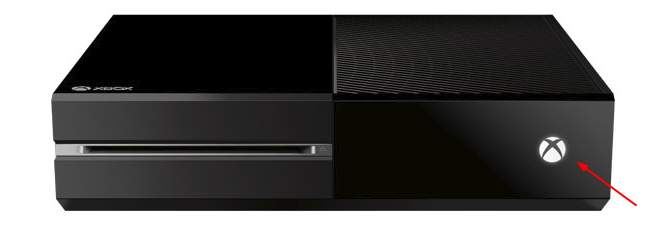
xbox button

  • Click Settings and then click on Network
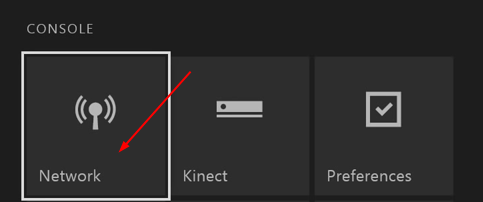
network

  • In the Network settings page, check the NAT Type under Current Network status
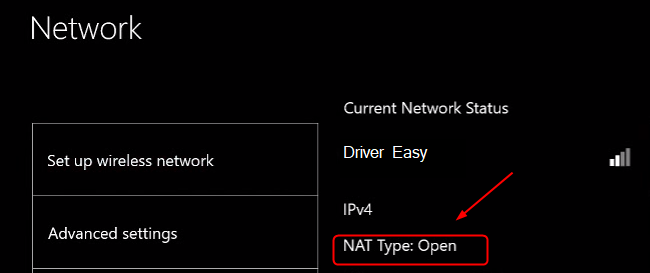
NAT type

If the NAT Type is set to Open, launch the party chat app and see if the error has been resolved.

If the NAT Type is set to Strict or Moderate, you need to move to next solution.

Solution Three – Restart IP Helper Service

Internet Protocol Helper service helps in network administration of local computer by assisting applications to retrieve information about network configuration and modifying the network configuration if necessary.

If the IP Helper service is not working properly, it can prevent Xbox from retrieving important network configuration important.

This could lead to error like “Your network settings are blocking party chat”.

Restarting the IP Helper service might set things right and resolve the issue.

Here are the steps to follow.

  • Press Windows logo key and R simultaneously on the keyboard to bring up Run command console
  • In the Run command console, type services.msc and click the OK button
  • In the Services window, locate IP Helper in the list and click on Restart service
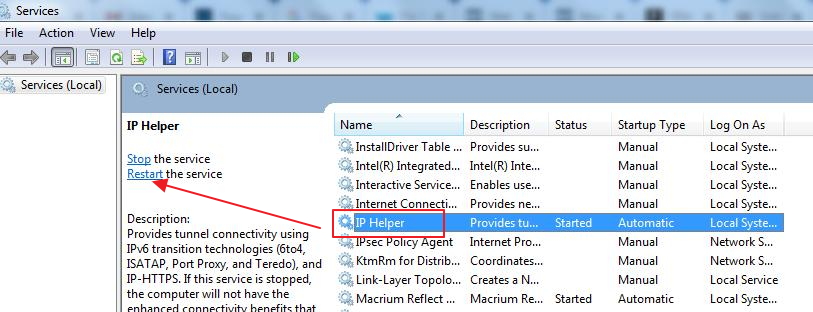
IP helper restart

  • Now right-click IP Helper again and select Properties
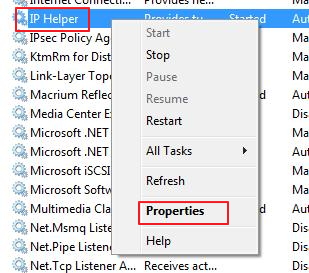
ip helper properties

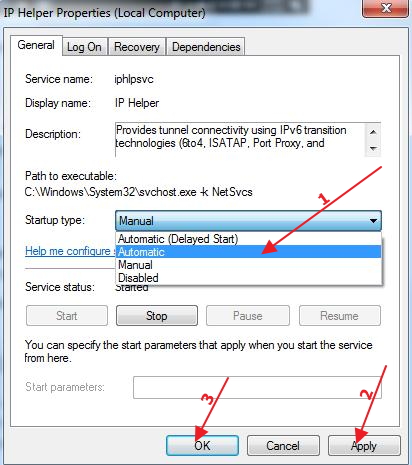
  • In the Properties window, go to Startup type
  • If the Startup type is set to Automatic, don’t make any changes.
  • If the Startup type is set to Manual, click the down arrow button to see all options in drop-down list
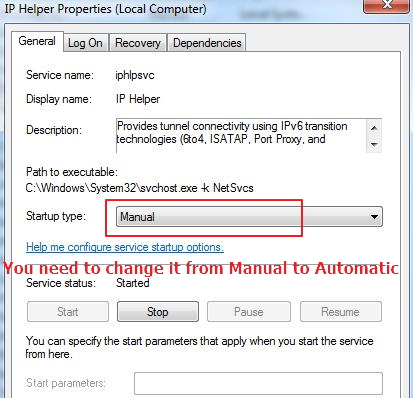
ip helper manual

  • Select Automatic as Startup type
  • ip helper change
  • Click Apply and then click OK to save changes
  • Close all windows
  • Restart your PC
  • Launch Xbox One app and try to join any party chat

If the above solution has not helped you, move to the next solution.

Solution Four – Restart Modem and Router

Some users were able to resolve the “Your network settings are blocking party chat” error by restarting the modem and router.

If you do not have a modem, restart the router only.

Here are the steps to follow.

  • Press the Power button on your modem and router to turn off both devices
  • Wait for 30 seconds
  • Press the Power button on your modem and router to switch on both devices

Check whether you are able to join any party chat or start party chat.

If the issue remains unresolved, move to the next solution.

Solution Five- Restart your Xbox console

You cannot ignore the possibility of something wrong with Xbox console or the network connection.

A simple restart might make things right and resolve the issue and get the party chat feature working again.

Here are the steps to follow.

  • Press and hold the Xbox button on the console until the device turns off.
  • After switching off the Xbox console, remove the power cable from the wall socket
  • Wait for at least one minute or more and then insert the power cable in the wall socket
  • Press and hold the Xbox button on the console until the device turns on.

Start the Xbox One app and check whether you are able to join or start party chat.

If the network connection issue persists, move to the next solution.

Solution Six – Change your privacy settings and clean persistent storage

Every user account on Xbox has some privacy settings. The privacy settings decide the type of data collected from Xbox console.

Sometimes the privacy settings may also interfere with party chat feature.

In that situation, you need to make some changes to privacy settings to allow participation in party chat.

Here are the steps to follow.

Steps to change privacy settings

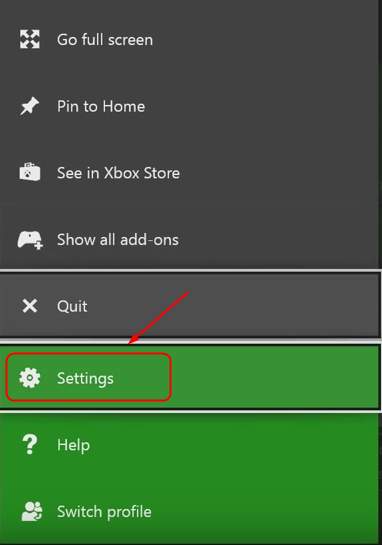
  • Press the Xbox one button on the Xbox One controller
  • Click on Settings

settings

  • In the Settings window, select the Privacy and Online safety option
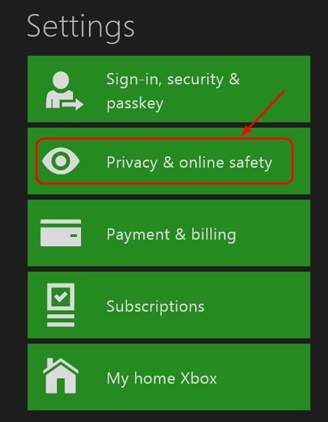
online safety

  • In the Privacy and Online safety, click on Xbox live privacy
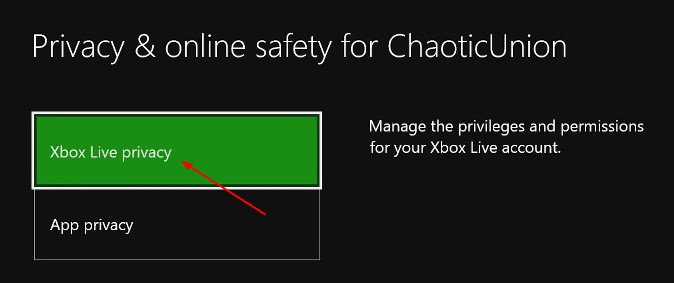
Xbox live privacy

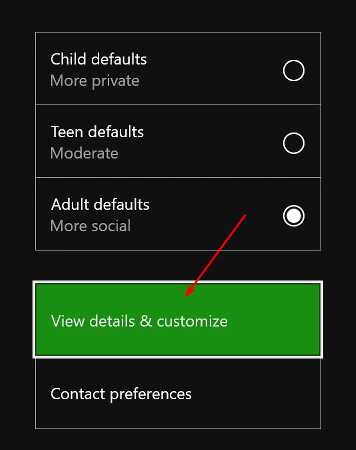
  • Click on View details & customize

view details

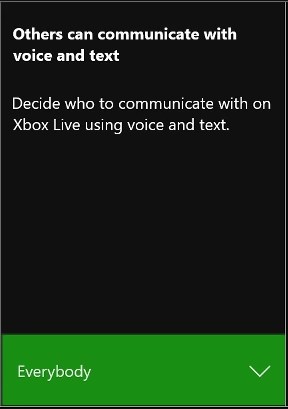
  • You will see several columns on the screen. Make sure every setting is set to Allow or Everybody
settings

After making changes to privacy settings, you need to also clear persistent storage.

Steps to clean persistent storage

Persistent storage refers to data storage that is retained even after device is turned off.

The data in persistent storage may become corrupt and cause the “Your network settings are blocking party chat” error.

Clearing persistent storage might help resolve the party chat issue.

Here are the steps to follow.

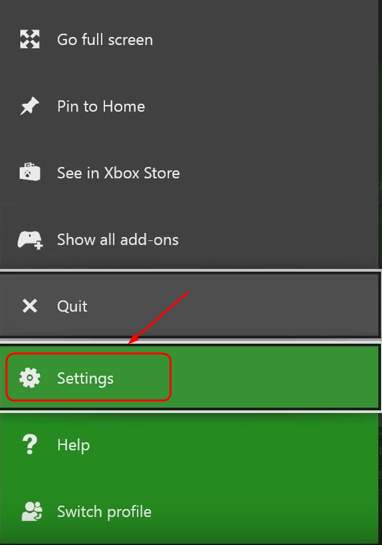
  • On the Xbox One controller, press the Xbox one button
  • Click on Settings

settings

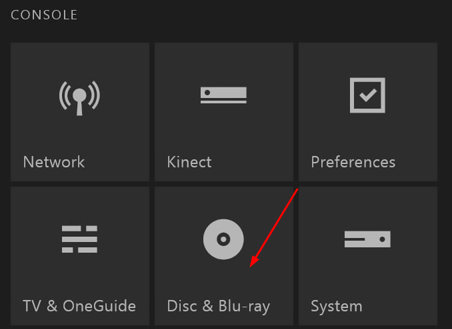
  • Click on Disc & Blu-ray

blu-ray

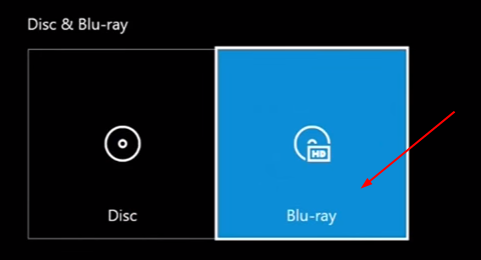
  • Click on Blu-ray

blu-ray

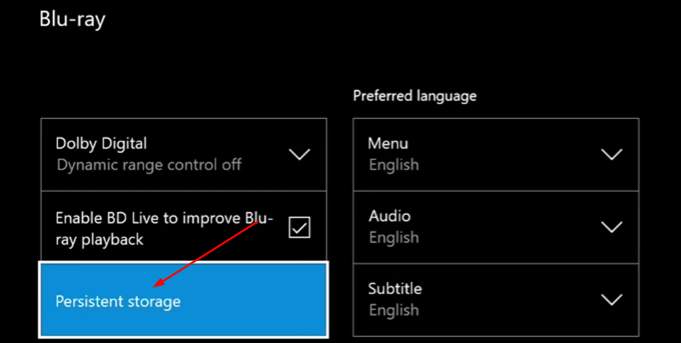
  • Click on Persistent Storage

persistent storage

  • Click on Clear Persistent Storage

clear persistent storage

Now check whether you are able to start party chat or join party chat.

We are confident “Your network settings are blocking party chat” error would be resolved by one of the solutions given above.


Filed Under: PC Fix Tips Tagged With: Xbox party chat

Solution to “Kernel Security Check Failure” BSOD error in Windows

By Susan C on March 24, 2019

Solution to “Kernel Security Check Failure” BSOD error in Windows
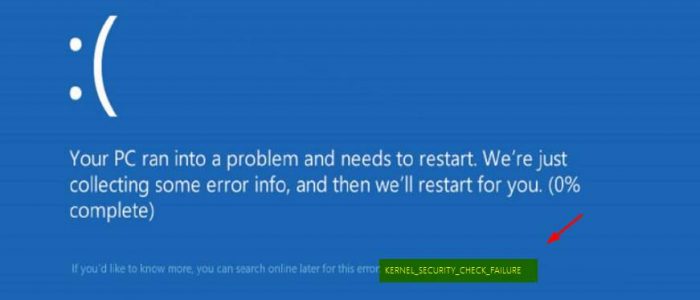
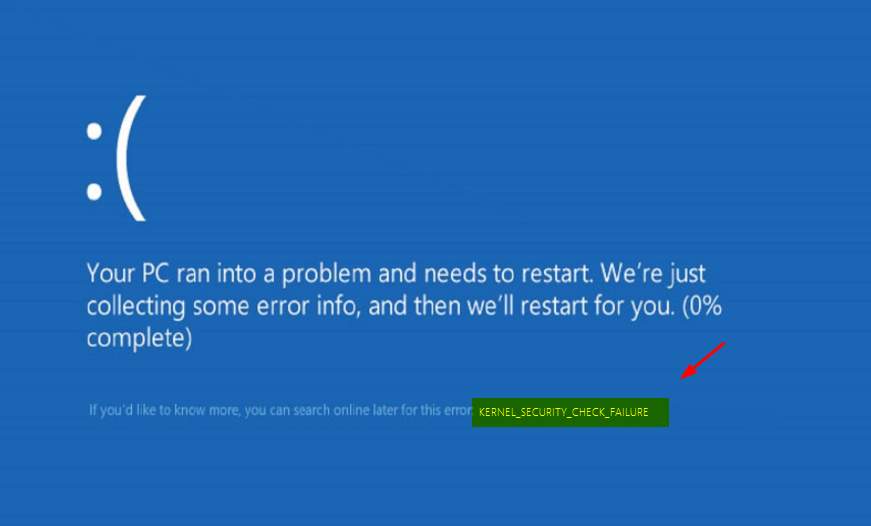
kernel-security check-error

The Blue Screen of Death error can shut down your PC without warning. When a BSOD appears, you are more likely to lose all unsaved work.

Many users have complained of Kernel security check failure BSOD error.  If you are looking for solution to this BSOD error, this post is for you.

Here we have provided four solutions that could fix the issue.

Since there can be several reasons behind this BSOD, it is difficult to tell which solution will work for you.  You can start with the first solution and if it does not work for you, move to next solution and so on.

Solution One- Undo Any Recent Changes

Try to recall when Kernel security check failure BSOD error started appearing. Did you install any hardware or software recently? Did you make any changes to Windows settings?  If you did, undo any recent changes and see if the issue is resolved.

Solution Two- Update Drivers

A large number of BSOD are related to drivers and the Kernel security failure in your case may well be occurring because of some driver-related issue.

According to some experts, Kernel security check failure is related to display adapter driver.

A simple solution to this problem is updating display drivers.  There are two methods to update display drivers – Manual and Automatic.

Here we have provided both ways to update drivers.

Method One- Update Drivers Manually

  • Press Windows logo key and R simultaneously on the keyboard to invoke Run command box
  • In the Run command box, type devmgmt.msc and hit Enter on the keyboard
  • In the Device Manager window, go to Display adapter category and expand it
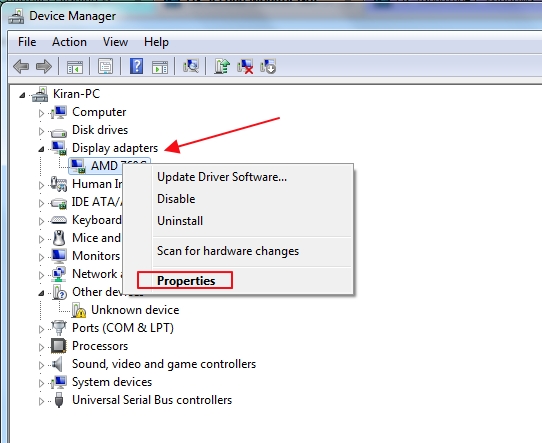
  • Right-click on the Display adapter and click Properties
display adapter driver
  • In the properties window, go to General tab
  • Note down the name of the Display adapter, manufacturer name, and other details
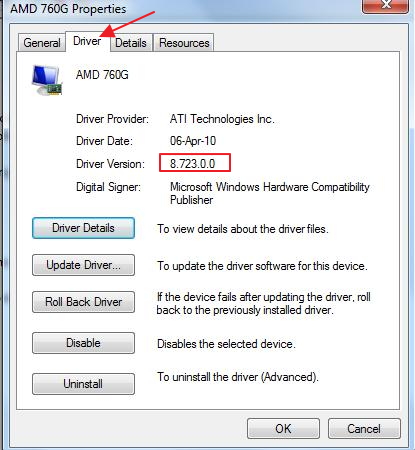
  • Now go to Driver tab and note down the driver version
display adapter properties
  • Close Device Manager
  • Open Internet browser
  • Go to Display adapter manufacturer website and type the name of the display adapter in search box.
  • You will see the list of downloads available for display adapter. You need to be careful when downloading display adapter drivers. For example, if your computer has Windows 32-bit OS installed, you need to download and install 32-bit display adapter drivers. Similarly, if you have 64-bit OS, you need to download 62-bit display adapter drivers.
  • Make sure you download the latest display adapter driver version. For example, if you have display driver version 21.21.13.4201 installed, you need look for higher version of the driver.
  • After the latest display adapter drivers are downloaded, double-click on the setup (.exe) file and follow on-screen instructions to install network drivers. If the driver setup file is in .zip format, unzip the file contents to a folder and then double-click on the setup(.exe file)
  • Restart PC after installing display adapter drivers

Run your computer and see if the Kernel security check failure BSOD appears on the screen.  If the issue remains unresolved, move to next solution.

If you feel the method of manually updating drivers is cumbersome, you can consider updating drivers automatically.

Method Two- Update Drivers Automatically

Automatic driver update tools offer many benefits, the most important ones being:

  • You can update device drivers automatically
  • The software scans and updates all outdated or missing drivers at one go
  • The tool picks the right drivers for your device and operating system, so you won’t have to worry about installing an incorrect driver by mistake
  • Automatic driver updates are 100% safe

Driver Updater is one of the best driver update tools out there. Outbyte Driver Updater will give you access to a database of over 1 million drivers. It will regularly scan your PC, suggesting new driver versions to install. Driver Updater contains drivers for a variety of Windows devices. With just one click, you can update drivers in your system.

Step 1
Click here to Install and launch the app

Step 2
Scan all devices

Step 3
Install or update drivers automatically


Start Download


Solution Three – Check Memory

There is a possibility some memory fault is the cause behind the Kernel security check failure.

You need to check the memory slots and also check the RAM modules for any problem.

The troubleshooting steps in this solution are divided into two sections. Here are the steps to follow.

Step One – Check Memory Slot

Make sure the RAM module is placed firmly in the socket and it is functioning correctly.

To ensure there is no problem with memory slot, insert the RAM module in a different memory slot on the motherboard.

After you have confirmed there is no problem with memory slot, you need to check the RAM modules for any faults

Step Two – Run Memtest

Windows has an in-built memory diagnostic tool that scans RAM for any faults and reports any error it finds.

Here are the steps to follow.

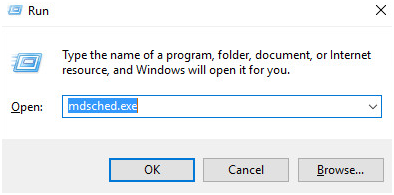
  • Press Windows logo key and R button together on the keyboard to access Run command console
  • In the Run command window, type mdsched.exe
mdsched
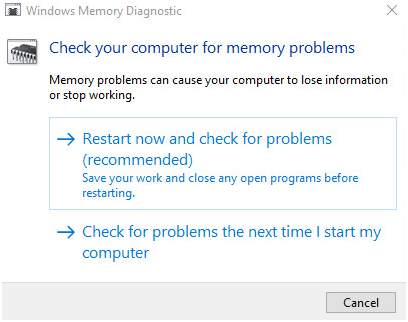
  • You will see two options- 1) Restart now and check for problems (recommended) and 2) Check for problems the next time I start my computer.
memory check
  • If you want to immediately run Memtest, select option one else select option two
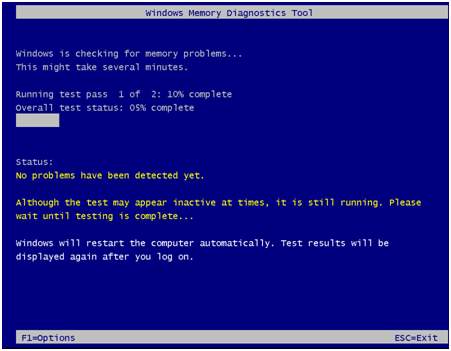
  • If you have selected the first option, the computer will restart and you will see Windows Memory Diagnostic tool in action checking RAM module for any faults
memtest running
  • If you select the second option, the Windows Memory Diagnostic tool would run when the computer reboots next time.

If Memtest comes across any faults, it will report an error.

If Memtest completes without reporting any error, you can draw a conclusion the RAM modules are in good condition.

Start the PC and see if the issue is resolved. If the issue remains unresolved, try next solution.

Solution Four – Check Hard drive for any errors

With time hard drive sectors can go bad and this in turn results in corruption of NTFS volume and file system.

When that happens, Windows can’t access files it need to run the operating system normally.

Windows has a disk check and repair tool known as Chkdsk. It checks the file system and file system metadata of a volume for logical and physical errors.

Chkdsk is a command-line tool and you need to run the command from a command prompt window (with admin rights).

Here are the steps to follow.

  • For Windows 10 users – Click Start and type cmd prompt in Cortana Search
  • For Windows 7 users – type cmd prompt in search box
  • Right-click on Command prompt from the list of results and select Run as administrator
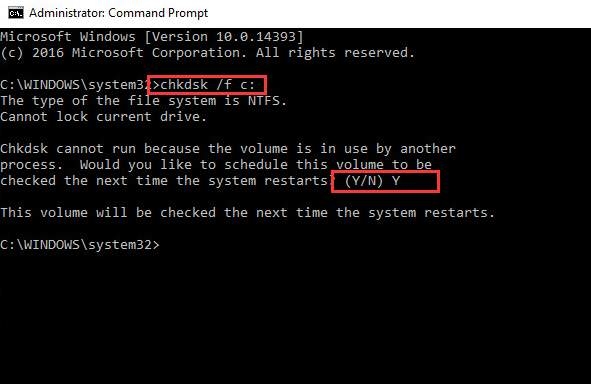
  • In the command prompt window, type chkdsk /f /r.
chkdsk
  • Hit enter on the keyboard
  • Windows will prompt you question about scheduling chkdsk at next restart. Type Y for an answer
  • Press Enter on the keyboard
  • Windows will run Chkdsk tool at next restart. The tool will report any errors it comes across and fix them

Note – you need to be patient and wait until process is completed. Chkdsk can take a longer time to complete and it depends on the capacity of the hard drive.

  • After the Chkdsk complete its operation, the system will reboot

Boot into Windows and see if you encounter “Kernel Security Check Failure” BSOD error again.

In most cases, the “Kernel Security Check Failure” BSOD error would get resolved by one of the solutions given in this post.

Filed Under: PC Fix Tips Tagged With: kernel security failure

Solution to Windows update not working

By Susan C on March 14, 2019

Solution to Windows update not working

Windows OS is meant to update automatically (recommended option) and the process should go smoothly.

However, the Windows update does not always work as intended and many users have complained of Windows update not working.

If you are facing similar issues, this post is for you.

Here we have discussed 4 easy-to-follow solutions that could fix the issue.

Solution One- Run Windows Update Troubleshooter

Windows OS features an in-built Windows update troubleshooter that can fix various issues related to Windows update. Here are the steps to follow.

  • Click Start
  • In the search box, type troubleshooting
  • Select Troubleshooting from list of results
  • In the Troubleshooting window, go to System and Security section
  • Click Fix problems with Windows update
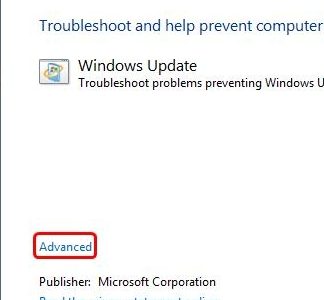
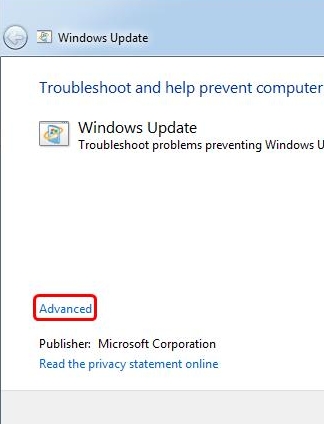
  • In the Windows update dialog box, click Advanced
click advanced
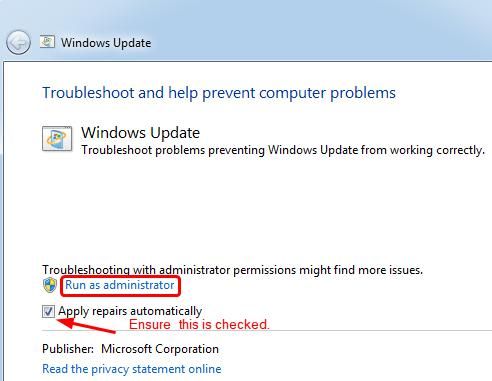
  • In the next window, click Run as administrator
run as admin
  • Make sure Apply repairs automatically box is checked
  • Click Next
  • Windows Update Troubleshooter will scan for update related issues and fix them automatically. This process may take longer so have patience.

Alternatively, you can also download Windows Update Troubleshooter from Microsoft website and run it on your computer.

After Windows Update Troubleshooter process is completed, check whether Windows update is working now. If the issue is not resolved, move to next solution.

Solution Two- Update Network Drivers

A large number of problems in Windows are related to drivers. If network drivers are corrupt, broken, or missing, it can lead to issue like Windows update not working. There are two ways to update network drivers- manually and automatically.

Method One- Update Network Drivers Manually

  • Press Windows logo key and R simultaneously on the keyboard to bring up Run command box
  • In the Run command box, type devmgmt.msc and click OK
  • In the Device Manager window, go to Network adapter category and expand it
  • Right-click on the Ethernet controller and click Properties
  • In the properties window, go to General tab
  • Note down the name of the Ethernet controller, manufacturer name and other details
  • Now go to Driver tab and note down the driver version
  • Follow the same procedure for Wi-Fi adapter or Wireless adapter in the list to get the details of the network adapter
  • (Note-Laptop users who connect to Internet through Wi-Fi need to download latest drivers for Wireless adapter)
  • Close Device Manager
  • Open Internet browser
  • Go to Network adapter manufacturer website and type the name of the network adapter in search box.
  • You will see the list of downloads available for network adapter. You need to be careful when downloading network drivers. For example, if your computer has Windows 32-bit OS installed, you need to download and install 32-bit network drivers. Similarly, if you have 64-bit OS, you need to download 62-bit network drivers.
  • Once the network drivers are downloaded, double-click on the setup (.exe) file and follow on-screen instructions to install network drivers. If the driver setup file is in .zip format, unzip the file contents to a folder and then double-click on the setup(.exe file)
  • Restart PC after installing network drivers

Check whether windows update is working. If the issue remains unresolved, move to next solution

If you feel the method of manually updating drivers is cumbersome, you can opt to update drivers automatically.

Method Two- Update Network Drivers automatically

Automatic driver update tools offer many benefits, the most important ones being:

  • You can update device drivers automatically
  • The software scans and updates all outdated or missing drivers at one go
  • The tool picks the right drivers for your device and operating system, so you won’t have to worry about installing an incorrect driver by mistake
  • Automatic driver updates are 100% safe

Driver Updater is one of the best driver update tools out there. Outbyte Driver Updater will give you access to a database of over 1 million drivers. It will regularly scan your PC, suggesting new driver versions to install. Driver Updater contains drivers for a variety of Windows devices. With just one click, you can update drivers in your system.

Step 1
Click here to Install and launch the app

Step 2
Scan all devices

Step 3
Install or update drivers automatically


Start Download


Solution Three- Restart Windows Update Service

Windows update service is an important software component in downloading and installing Windows update.

There is a possibility the Windows update service is not working as intended and restarting the Windows Update service can make things right.

The troubleshooting steps for this solution are divided into three steps.

Step One – Stop Windows Update Service

  • Click Start
  • Type cmd in search bar
  • From the list of results, right-click cmd and click Run as administrator
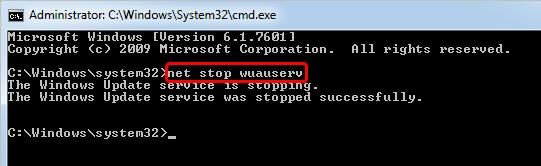
  • In the Command prompt window, type net stop wuauserv and hit Enter on keyboard
net stop
  • Wait for the command execution to complete. After some time, you will see a message that says” The Windows Update service was stopped successfully”

Step Two- Delete Two Folders

  • Open Windows Explorer
  • Navigate to C:\Windows\SoftwareDistribution folder
  • Delete all files in Download and DataStore folder

Step Three- Start Windows Update Service Manually

  • Open Command prompt with admin rights
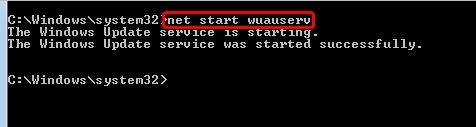
  • Type net start wuauserv and hit Enter on your keyboard
net start
  • Wait for the command execution to complete. After some time you will see a message which says ” The Windows Update service was started successfully”
  • Close Command Prompt window

Check whether Windows update has started working. If the issue remains unresolved, move to next solution.

Solution Four- Install Patches

  • If you have missed some important Windows patches, it might cause issues like Windows update not working. A simple solution to this issue is downloading and installing these patches manually. Here are the steps to follow.
  • Click Start and then click Control Panel
  • In the Control Panel window, set the View by – Large Icons
  • Click Windows Update
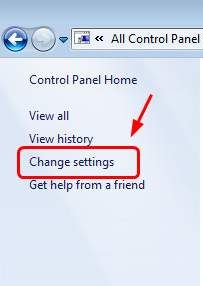
  • In the next window, click Change Settings in the left-hand column
change settings
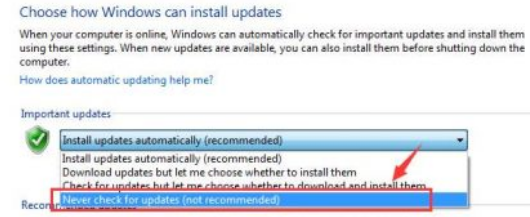
  • Go to Important updates section, click the down arrow button to see all options
  • Choose Never check for updates (not recommended)
never check updates
  • Click OK
  • Restart your PC
  • After booting the PC, open Internet browser and go to Microsoft website
  • Download following updates – KB3102810, KB3083710, KB3020369, KB3050265, KB3172605
  • Before installing the updates, you need to stop the Windows update service. Refer the Step One in Solution Three. After stopping the Windows Update service, navigate to C: \Windows and right-click SoftwareDistribution folder and select Delete.
  • Now, double-click on the downloaded update file to install. After installing all updates, restart your PC.
  • You need to restart the Windows update service. Refer the Step Three in Solution Three to restart Windows update service.

Check whether Windows update is working now. In most cases, the Windows update working problem must be solved by one of the solutions given above.
Filed Under: PC Fix Tips Tagged With: Windows update

  • « Previous Page
  • 1
  • …
  • 123
  • 124
  • 125
  • 126
  • 127
  • …
  • 189
  • Next Page »


  • Recent Posts
  • Popular Posts
        

Read More Posts


Read More Posts

Drivers.com Sites

  • Software Drivers
  • Drivers Ed

About Us

  • Advertise
  • About Drivers
  • Drivers Support
  • Drivers.com Privacy Policy
  • Disclaimer
  • Software Drivers
  • Mac Fixes and Tips
  • PC Fix Tips
  • Security/ Backup
  • Tablets & Smartphones
  • Tech News

© Copyright 2026 PDE Publications Ltd. End User License Agreement (EULA)