


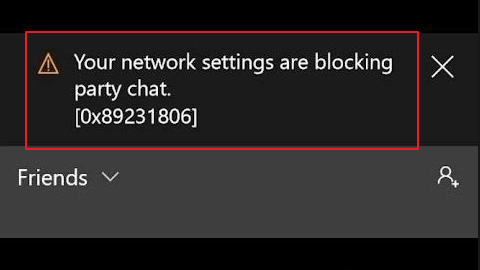
When playing multiplayer games online, gamers use the party chat feature for communication. Many Xbox users have reported problems with party chat. The error they receive is “Your network settings are blocking party chat”. I
If you are facing similar problem and looking for solution, this post is for you.
Here we have discussed 6 easy to follow solutions that would resolve the party chat issue in your Xbox.
You can start with the first solution and if does not work for you, move to the next solution and so on.
Let’s look at the solutions now.
Solution One- Restart the party chat app
The problem with party chat might be temporary and many users were able to resolve the issue by restarting the party chat app.
Here are the steps to follow
- Close the party chat app
- Launch the Xbox One app installed on your Windows PC
- Click on the right section and switch to 2nd option called Parties
- Click on Start Party
If you are still getting “Your network settings are blocking party chat” error, move to next solution.
Solution Two- Check the NAT Type
NAT stands for Network Address Translation. If the NAT Type is not set to Open, you might get the “Your network settings are blocking party chat” error.
There are three NAT options available – Open, Moderate, and Strict.
In order to enjoy multiplayer games online and use the Party Chat feature, the NAT Type should be set to Open and nothing else.
To see the NAT type, follow the steps below
- Press the Xbox button on your Xbox Controller
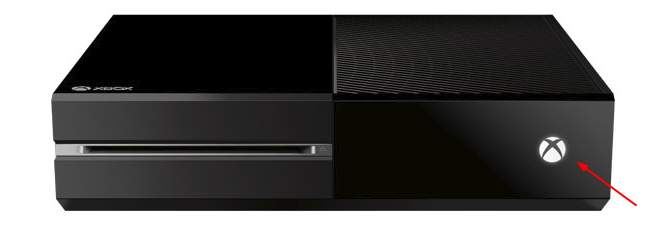
- Click Settings and then click on Network
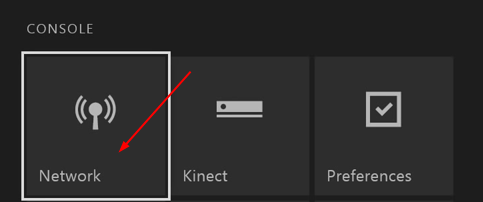
- In the Network settings page, check the NAT Type under Current Network status
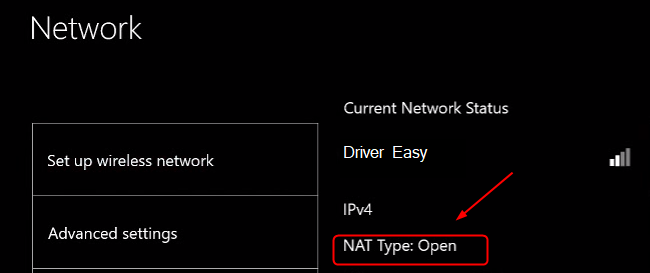
If the NAT Type is set to Open, launch the party chat app and see if the error has been resolved.
If the NAT Type is set to Strict or Moderate, you need to move to next solution.
Solution Three – Restart IP Helper Service
Internet Protocol Helper service helps in network administration of local computer by assisting applications to retrieve information about network configuration and modifying the network configuration if necessary.
If the IP Helper service is not working properly, it can prevent Xbox from retrieving important network configuration important.
This could lead to error like “Your network settings are blocking party chat”.
Restarting the IP Helper service might set things right and resolve the issue.
Here are the steps to follow.
- Press Windows logo key and R simultaneously on the keyboard to bring up Run command console
- In the Run command console, type services.msc and click the OK button
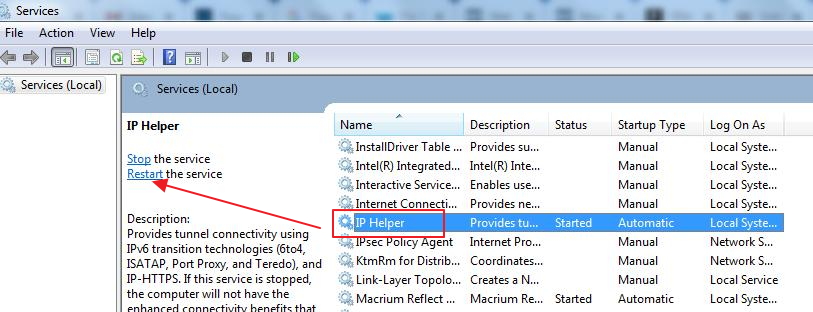
- In the Services window, locate IP Helper in the list and click on Restart service
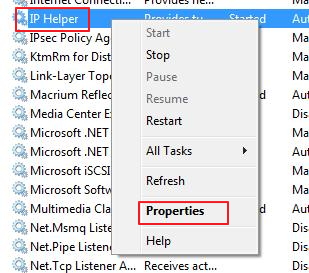
- Now right-click IP Helper again and select Properties
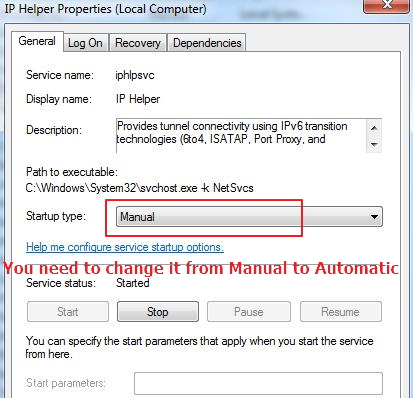
- In the Properties window, go to Startup type
- If the Startup type is set to Automatic, don’t make any changes.
- If the Startup type is set to Manual, click the down arrow button to see all options in drop-down list
- Select Automatic as Startup type
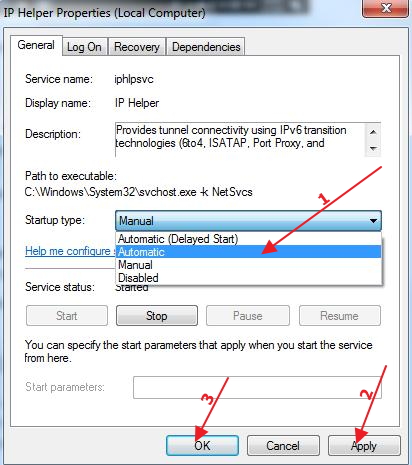
- Click Apply and then click OK to save changes
- Close all windows
- Restart your PC
- Launch Xbox One app and try to join any party chat
If the above solution has not helped you, move to the next solution.
Solution Four – Restart Modem and Router
Some users were able to resolve the “Your network settings are blocking party chat” error by restarting the modem and router.
If you do not have a modem, restart the router only.
Here are the steps to follow.
- Press the Power button on your modem and router to turn off both devices
- Wait for 30 seconds
- Press the Power button on your modem and router to switch on both devices
Check whether you are able to join any party chat or start party chat.
If the issue remains unresolved, move to the next solution.
Solution Five- Restart your Xbox console
You cannot ignore the possibility of something wrong with Xbox console or the network connection.
A simple restart might make things right and resolve the issue and get the party chat feature working again.
Here are the steps to follow.
- Press and hold the Xbox button on the console until the device turns off.
- After switching off the Xbox console, remove the power cable from the wall socket
- Wait for at least one minute or more and then insert the power cable in the wall socket
- Press and hold the Xbox button on the console until the device turns on.
Start the Xbox One app and check whether you are able to join or start party chat.
If the network connection issue persists, move to the next solution.
Solution Six – Change your privacy settings and clean persistent storage
Every user account on Xbox has some privacy settings. The privacy settings decide the type of data collected from Xbox console.
Sometimes the privacy settings may also interfere with party chat feature.
In that situation, you need to make some changes to privacy settings to allow participation in party chat.
Here are the steps to follow.
Steps to change privacy settings
- Press the Xbox one button on the Xbox One controller
- Click on Settings
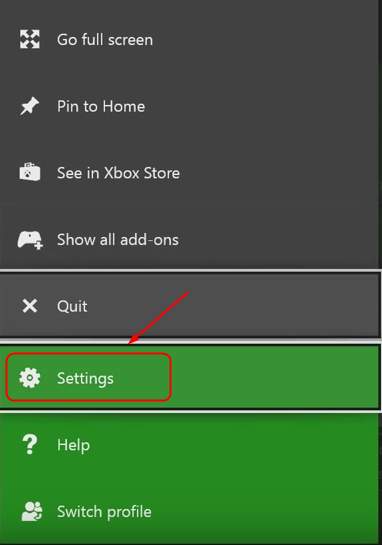
- In the Settings window, select the Privacy and Online safety option
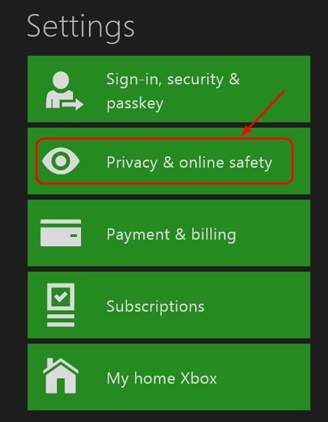
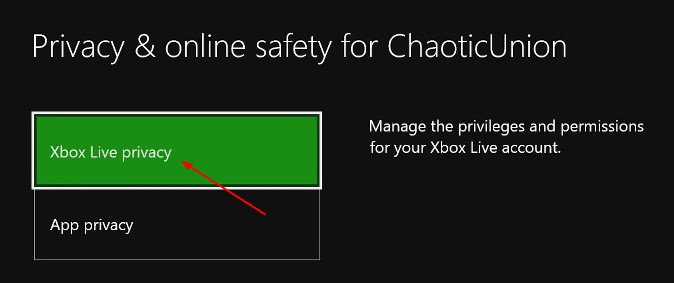
- In the Privacy and Online safety, click on Xbox live privacy
- Click on View details & customize
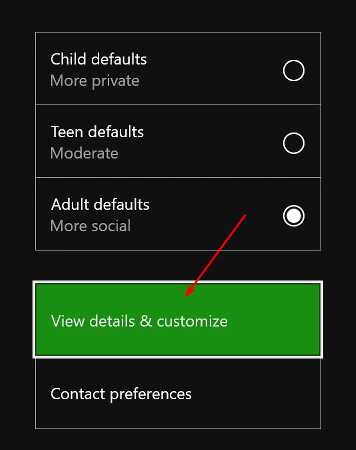
- You will see several columns on the screen. Make sure every setting is set to Allow or Everybody
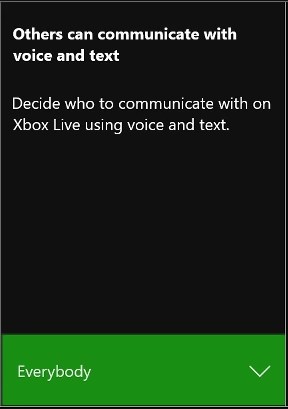
After making changes to privacy settings, you need to also clear persistent storage.
Steps to clean persistent storage
Persistent storage refers to data storage that is retained even after device is turned off.
The data in persistent storage may become corrupt and cause the “Your network settings are blocking party chat” error.
Clearing persistent storage might help resolve the party chat issue.
Here are the steps to follow.
- On the Xbox One controller, press the Xbox one button
- Click on Settings
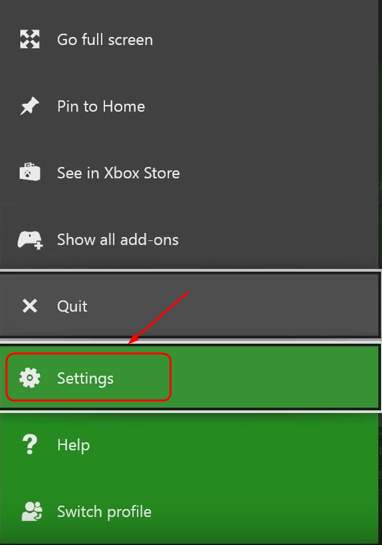
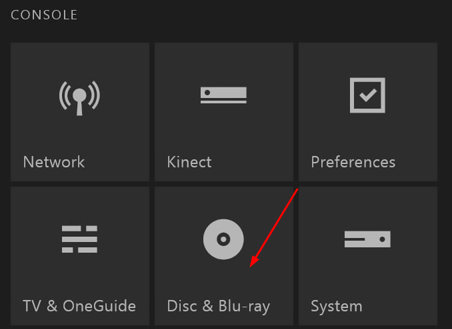
- Click on Disc & Blu-ray
- Click on Blu-ray
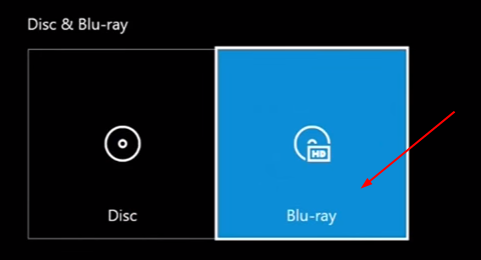
- Click on Persistent Storage
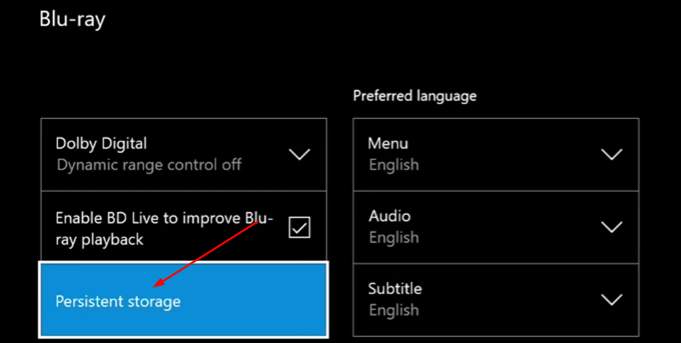
- Click on Clear Persistent Storage

Now check whether you are able to start party chat or join party chat.
We are confident “Your network settings are blocking party chat” error would be resolved by one of the solutions given above.
Leave a Reply