Drivers.com

follow us:

facebook twitter
  • Home
  • Download Drivers
  • Drivers Help
  • PC/Mac Resources
  • Software Drivers
  • Mac Fixes and Tips
  • PC Fix Tips
  • Security/ Backup
  • Tablets & Smartphones
  • Tech News
  • Software Drivers
  • Mac Fixes and Tips
  • PC Fix Tips
  • Security/ Backup
  • Tablets & Smartphones
  • Tech News

Solution to Alt Tab not working in Windows

By Susan C on March 3, 2019

Solution to Alt Tab not working in Windows
alt-tab-not-working

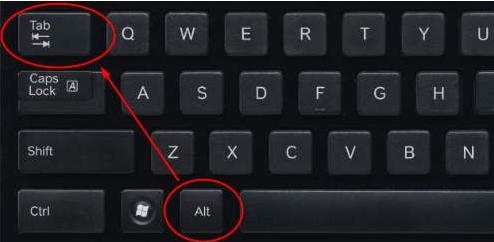
The Alt+ Tab is a useful key combination that users can use to switch between windows. However, sometimes nothing may happen when press the two keys or the windows will appear but at the same instant disappear.

What’s the solution, then?

Well, in this post we’ve shared solutions to resolve the Alt+Tab key combination not working in Windows.

The Alt +Tab not working issue can arise in any Windows OS starting from XP, Windows 7 to Windows 10.

There can different causes for this Alt +Tab not working problem including wrong windows settings, conflict between devices or files or a bad keyboard.

Here we have given eight easy to follow solutions and one of them might work for you. Let’s look at the solutions now.

Solution One – Turn off the PC and unplug peripheral devices and cables

This might be a temporary issue. Turn off the PC and unplug peripheral devices and cables. Also, remove the power cable of monitor and CPU from the power socket. Wait for some time. Plug back the keyboard, mouse, monitor cable in their respective slots in the motherboard. Don’t plug other peripheral devices yet.

Start the PC and see if the Alt+Tab key combination is working. If the issue is not resolved, move to next solution.

Solution Two- Check Keyboard

There is a possibility the problem is in the keyboard. Did you spill any water or liquid on the keyboard? If the answer is “Yes”, you need to replace the keyboard. If the answer is No, you need to ensure the keyboard is in good condition. Use the keyboard with another computer and see if it works perfectly.

Alternatively, you can connect another keyboard to your PC and see if the Alt+Tab key combination works. If you did not find problem with your old keyboard, there is a possibility the keyboard driver is corrupt. In that case, you need to reinstall keyboard driver. Here are the steps to follow.

  • Hold down Windows logo key and R simultaneously to invoke Run command window
  • In Run command window, type devmgmt.msc and click OK
  • In the Device Manager window, go to Keyboards category and expand it
  • Right-click on keyboard in the list and click Uninstall device
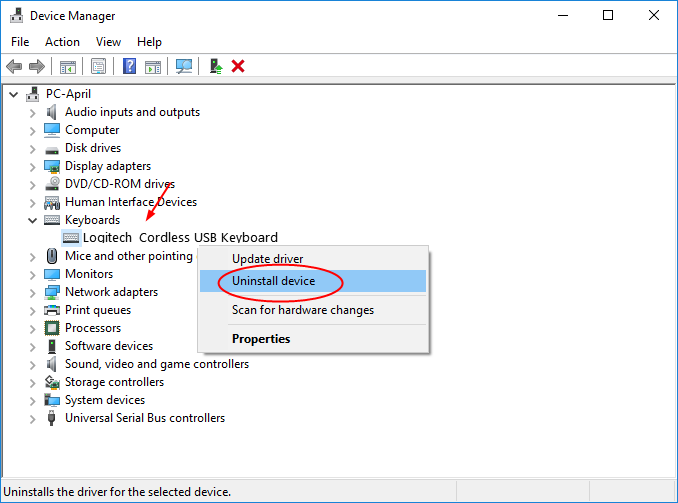
keyboard-uninstall
  • Close all windows
  • Restart your computer

Windows will install new keyboard drivers after rebooting. If Windows is not able to install keyboard drivers, you have to go to keyboard manufacturer website and download latest keyboard drivers for Windows OS.

If you find the manual keyboard update process lengthy and complicated, you can use a Driver Update Tool to reinstall latest keyboard drivers.

Update Keyboard Drivers Automatically

Automatic driver update tools offer many benefits, the most important ones being:

  • You can update device drivers automatically
  • The software scans and updates all outdated or missing drivers at one go
  • The tool picks the right drivers for your device and operating system, so you won’t have to worry about installing an incorrect driver by mistake
  • Automatic driver updates are 100% safe

Driver Updater is one of the best driver update tools out there. Outbyte Driver Updater will give you access to a database of over 1 million drivers. It will regularly scan your PC, suggesting new driver versions to install. Driver Updater contains drivers for a variety of Windows devices. With just one click, you can update drivers in your system.

Step 1
Click here to Install and launch the app

Step 2
Scan all devices

Step 3
Install or update drivers automatically


Start Download


Solution Three- Change AltTabSettings Registry values

Sometimes registry values change when you install new applications or when you make changes to Windows settings. You need to ensure the AltTabSettings Registry values are OK and they are not causing the problem. If needed, you can also change the AltTabSettings Registry values to make things right. Here are the steps to follow.

  • Press Windows logo key and R simultaneously to invoke Run command window
  • In Run command window, type regedit and click OK
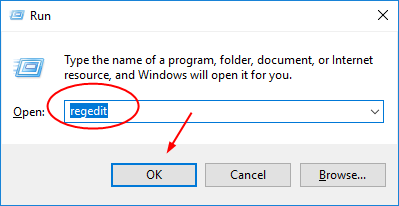
regedit
  • In the Registry window, expand the following key
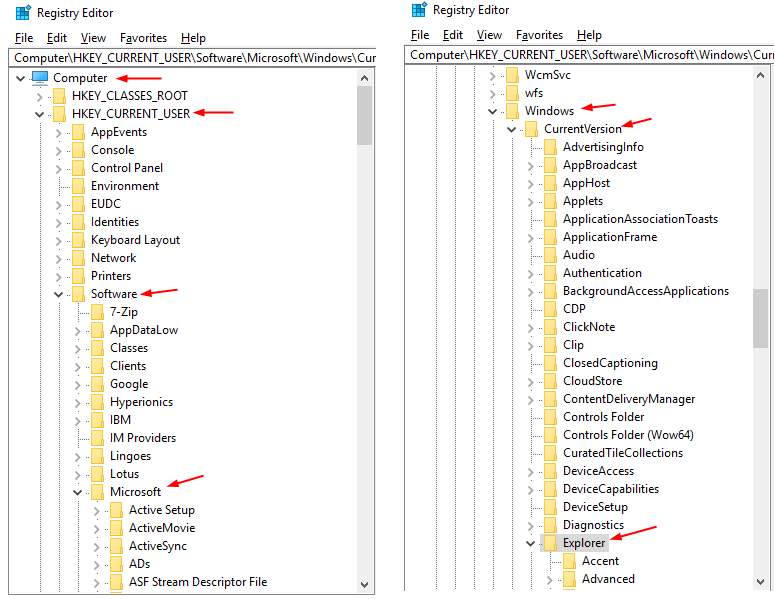
Registry editor
  • Computer > HKEY_CURRENT_USER > Software > Microsoft > Windows > CurrentVersion > Explorer.
  • Click Explorer in the left-hand column
  • In the right-hand column, double-click AltTabSettings
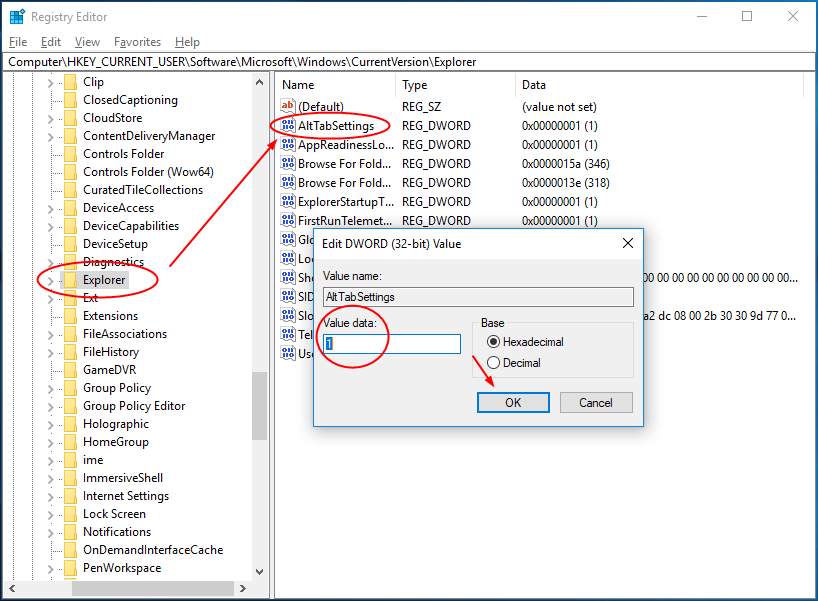
alttabsettings
  • In the Edit DWORD (32-bit) Value window, set the Value data to 1
  • Click OK to save changes
  • Close Registry editor window

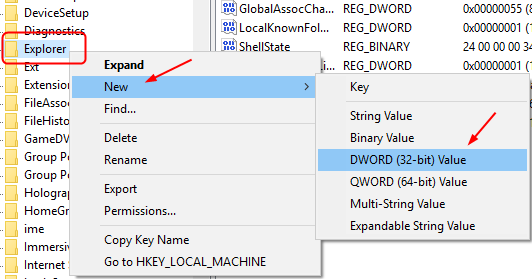
If there is no AltTabSettings in the Explorer registry key, you have to create one by following steps given below.

  • Right-click on Explorer key in the left-hand column
  • Click New > DWORD (32-bit) Value
create alttabsettings
  • Set the key name as AltTabSettings and set the Value Data to 1
  • Click OK to save changes
  • Close Registry editor window

Now check if the Alt+Tab key combination works. If the problem is not resolved, move to next solution.

Solution Four – Update Display adapter drivers

Outdated, incompatible, or corrupt display adapters might be the reason behind Alt+Tab not working.

You can easily update drivers using a Driver Update Tool, which we’ve discussed above. With a few clicks, the software can update your display driver.

This is the best way to update drivers. Although for your reference, we’ve also discussed the manual driver update process below.

Steps to update Display Adapter Drivers manually

  • Press Windows logo key and R to bring up Run command window
  • In the Run command window, type devmgmt.msc
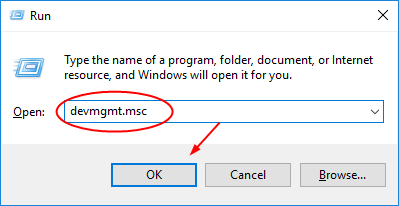
devmgmt.msc
  • In the Device Manager window, go to Display adapter category and expand it

(Note- Write down the display adapter name, you will need it to download drivers)

  • Right-click on the Display adapter and click Uninstall device
  • Close Device Manager
  • Open Internet browser and go to Display adapter manufacturer website and look for driver updates for the Display adapter
  • The Driver Downloads section lists 32-bit and 64-bit Display adapter drivers. In the Driver Downloads section, make sure you choose right display adapter drivers. For example, if your computer is running 32-bit Windows, download 32-bit display adapter drivers. If your computer is running 64-bit Windows, download 64-bit display adapter drivers.
  • Once the drivers are downloaded, double-click on the exe file and follow on-screen instructions to install latest display adapter drivers.
  • If the driver file is in zip format, you need to unzip the contents to one folder and then double-click on the exe file to install drivers

After installing latest graphics adapter drivers, restart your PC and see if the Alt+Tab key combination is working.  If the issue remains unresolved, go to next solution.

Solution Five- Close Sidebar.exe process

(Note- this solution is only applicable to Windows Vista and Windows 7 users)

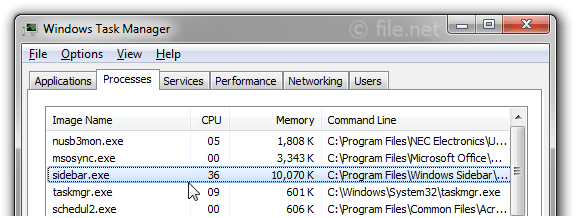
According to some users, closing sidebar.exe process got their Alt+Tab key combination working again. Sidebar.exe process is related Windows Desktop Gadgets or Windows Sidebar.

There is no harm in disabling the sidebar.exe process and doing it will not affect Windows stability or important functionalities. Here are the steps to follow.

  • Press Ctrl + Alt + Del together to launch Task Manager
  • In the Task Manager window, click Processes tab
  • Locate sidebar.exe process
sidebar-exe
  • Right click on sidebar.exe process and select End task
  • Close all windows

Check whether Alt+Tab key combination is working. If the problem is not resolved, go to next solution.

Solution Six- Uninstall Alternate Keyboard

(Note- This solution is applicable only to users using alternate keyboard software like Comfort On-Screen Keyboard Pro)

  • Press Windows key and R to launch Run command window
  • In Run command window, type appwiz.cpl and click OK
  • In the Programs and Features window, locate Comfort On-Screen Keyboard Pro or any other Alternate keyboard software you are using
  • Right-click on the Comfort On-Screen Keyboard Pro and click Uninstall
  • Wait for the un-installation process to complete
  • Close all windows

Use 2-3 applications and see if the Alt+Tab key combination is working. If the Alt+Tab key combination is not working, move to next solution

Solution Seven- Install recommended Windows updates

To keep your Windows running smoothly, you need to install all recommended Windows updates. This is particularly true for Windows 10 users as Microsoft is offering patches and updates very often to fix different bugs in Windows 10 OS. Here are the steps to follow.

  • On your keyboard, hold down Windows logo key and I simultaneously to open Settings Window
  • In the Settings Window, click Update & Security
  • Click Windows updates and look for any pending updates in the right-hand column
  • Click Check for updates. Windows will look for any pending updates, download them and install updates automatically
  • Wait for the Windows Update process to complete
  • Restart your PC

Now check whether Alt+Tab key combination is working. In most case, the Alt+Tab not working would be resolved by one of the solutions given in this post.
Filed Under: PC Fix Tips Tagged With: alt tab not working

Solution to Windows button not working in Windows 10

By Susan C on March 1, 2019

Solution to Windows button not working in Windows 10

Many Windows 10 users have complained of Start Menu not working after installing Windows update (Windows 10 Fall Creators Update, version 1709).

When users press the Windows logo button on keyboard, it does not invoke the Start Menu. The Start Menu also doesn’t show up when users click the Start button on Taskbar. Additionally, Cortana search fails to give the desired result.

If you are facing a similar problem of Windows logo button not working, this post is for you.

Start Menu is a useful feature in Windows, and if your Windows button is not working you may find it difficult to access various Windows functions.

Here we have provided 8 different solutions that might get Windows button working again.

The exact cause of the problem is likely to differ from one Windows environment to another. So it can be difficult to pinpoint which solution might work for you.

We suggest you to start with first solution and if it does not work move to next solution and so on.

Solution One- Logout and login again into your user account

The Start button not working might be a temporary issue which might just get resolved by re-logging into your user account. Here are the steps to follow.

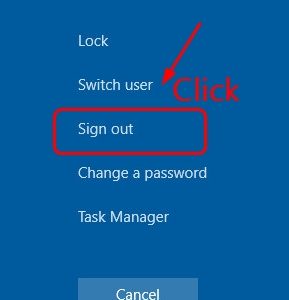
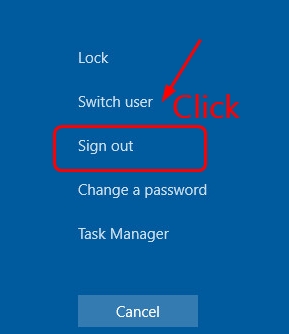
  • Press Ctrl+Alt+Delete keys simultaneously on your keyboard
  • From the list, click Sign out
sign out
  • Select your user account
  • Type the password and login into your user account

Click on Start Menu and check whether the issue is resolved. If the problem persists, move to next solution

Solution Two- Create a new local administrator user account

Since Start button is not working, you won’t be able to create a new user account through Windows settings or Cortana. Here are the steps to create new user account.

  • Go to Desktop
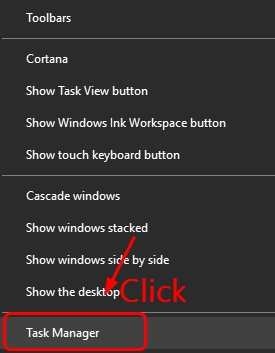
  • Right-click on empty space in Taskbar
  • From the menu, click Task Manager
task manager
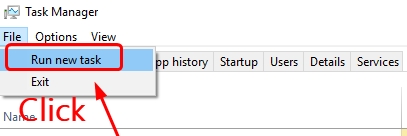
  • In the Task Manager window, click File
  • Click Run new task
  • In the Create new task window, type cmd
  • Check the box- Create this task with administrative privileges.
  • Click OK
  • In the Command Prompt window, type net user admin2 password2 /add

(Note- You can replace the admin1 and password2 with your desired username and password)

  • Press Enter on the keyboard and wait for the command operation to complete
  • Close the command prompt window
  • Restart your PC
  • Login into your new account

Check whether Start Menu is working. If the problem is not resolved, move to next solution

Solution Three- Run Start Menu Troubleshooter

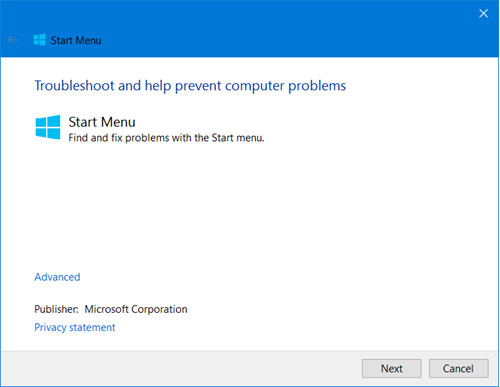
Microsoft offers a Start Menu Troubleshooter that might resolve the issue. You need to download the Start Menu Troubleshooter from Microsoft website and run it on your Windows 10 system.
The tool will scan your system and detect potential issues.

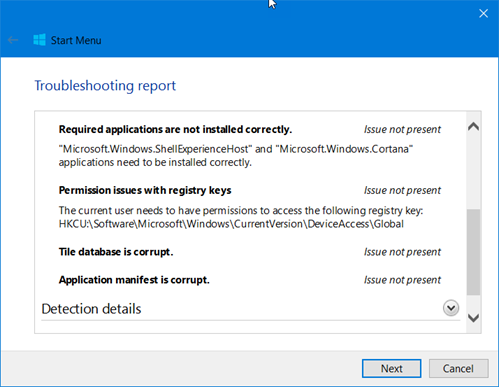
If it finds any problems, it might fix them or provide you directions to fix these problems manually. The Start Menu Troubleshooter will check for following problems.

  • Application manifest corruption problem
  • Tile database corruption problem
  • Check whether Start Menu and Cortana are installed correctly
  • Registry key permission issues

Here are the steps to run the Start Menu Troubleshooter

  • Double-click on the Start Menu Troubleshooter to run it
Troubleshooter
  • Click Next
Troubleshooter-1

The Start Menu Troubleshooter will check for the problems mentioned above. If it does not find any problems, move to next solution

Solution Four- Reinstall Sound and video card drivers

Many problems in Windows 10 are related to drivers. You cannot rule out the possibility of corrupt or incompatible drivers causing the Start Menu problem. An easy solution to the problem is uninstalling the sound and video card drivers and installing latest drivers for these devices. Here are the steps to follow.

Step 1- Uninstall Drivers

  • Press Windows logo key and X simultaneously on the keyboard
  • From the menu, click Device Manager
  • In the Device Manager window, go to Sound, video and game controllers category and expand it

(Note – Write down the audio device name, you will need to find latest drivers for the audio device)

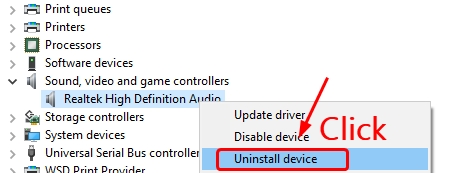
  • Right-click on the audio device and click Uninstall
uninstall sound device
  • Wait for the drivers to uninstall. Once the process is completed, go to Display Adapter category
  • Expand the Display adapters category

(Note – Write down the display device name, you will need to find latest drivers for the display device)

  • Right-click on the display adapter and click Uninstall
  • Wait for the process to complete. Close Device Manager

Step 2- Download and install Drivers manually

Launch an Internet browser and go to the sound card manufacturer website and find driver updates for sound cards cars installed in your PC

When you download sound card drivers, you need to download right sound drivers. For example, the audio device manufacturer lists both 32-bit and 64-bit drivers in the device drivers section though they are listed separately.

Check the Windows OS architecture and download right sound card drivers. I.e. 32- bit drivers for 32-bit Windows and 64-bit drivers for 64-bit OS. You need to download display drivers in similar manner.

Once the drivers are downloaded, you need to install them by following instructions given below.

  • If the driver setup file is in .exe format, you need to double-click on it to start the installation and then follow on-screen instructions to install the drivers
  • If the driver setup file is in zip format, you need to unzip the contents to a folder and then locate the setup file(.exe) and start the installation
  • Once sound card and display adapter drivers are installed, restart the PC

Check whether the Start Menu has started working. If the problem still exists, move to next solution. If you find the manual driver installation process complicated, you can use a Driver Update Tool to update drivers automatically

Steps to Update Drivers Automatically

A much simpler and faster way to update device drivers is by using a reliable driver update software tool.

Automatic driver update tools offer many benefits, the most important ones being:

  • You can update device drivers automatically
  • The software scans and updates all outdated or missing drivers at one go
  • The tool picks the right drivers for your device and operating system, so you won’t have to worry about installing an incorrect driver by mistake
  • Automatic driver updates are 100% safe

Driver Updater is one of the best driver update tools out there. Outbyte Driver Updater will give you access to a database of over 1 million drivers. It will regularly scan your PC, suggesting new driver versions to install. Driver Updater contains drivers for a variety of Windows devices. With just one click, you can update drivers in your system.

Step 1
Click here to Install and launch the app

Step 2
Scan all devices

Step 3
Install or update drivers automatically


Start Download


Solution Five- Uninstall/Disable 3rd party anti-virus program

Windows 10 features Windows Defender that is quite good security software. There is a possibility the 3rd party anti-virus software installed in your PC is causing the Start Menu issue. To rule out this possibility, disable the 3rd party antivirus software or uninstall it and switch to Windows Defender.

The steps to disable the 3rd party anti-virus software are unique to every software. The instructions given below are for reference purpose only. You need to check your anti-virus software documentation to know the exact steps.

Go to Desktop and look for anti-virus icon in the right hand bottom corner of the screen. Some ant-virus have temporarily disable option while some anti-virus require you to access the anti-virus main interface to temporary disable the security software.

By default, Windows Defender is On even after 3rd party anti-virus software is installed. If the Start Menu starts working after disabling the 3rd party anti-virus software, you need to contact the software manufacturer, explain the issue and ask for a solution. Till then you can leave the 3rd party anti-virus software disabled as Windows Defender is already active.

If needed you can uninstall the 3rd party anti-virus software and continue using Windows Defender or install another 3rd party anti-virus software. If the Start Screen issue is not resolved after disabling 3rd party anti-virus software, move to next solution.

Solution Six- Uninstall Dropbox

Many users who faced similar issue have mentioned they were able to get Start Menu working after uninstalling Dropbox software.  If you have Dropbox installed, you need to remove it to resolve Start Menu issue.

  • Hold down the Windows logo key and press R on the keyboard to invoke Run command box
  • In the Run command box, type control panel
  • Set the view by to Category and click Uninstall a program
  • Find Dropbox in the list and select it
  • Click Uninstall button
  • Wait for the program to get uninstalled and then close all windows

Press Windows logo key and see if the Start Menu is activated. If the problem remains unresolved, move to next solution.

Solution Seven – Check and repair System files

You cannot ignore the possibility of system files being corrupt and causing the Start Menu problem. In that case, you can use the system repair tools like SFC (System File Checker and DISM (Deployment Image Servicing and Management) to scan system files and replace the corrupt system files with good versions.

  • Go to Desktop
  • Click empty space in the task bar and select Task Manager
  • In the Task Manager window, click File
  • Click Run new task
run new task
  • In the Create new task window, type cmd
  • Check the box- Create this task with administrative privileges.
  • Click OK
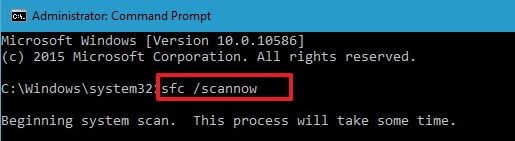
  • In the Command Prompt window, type sfc /scannow and hit Enter on keyboard
sfc-scannow
  • Wait for the command operation to complete.

Check whether Start Menu is working. If the problem is not resolved by SFC, you need to use DISM to fix the issue.

In many cases, SFC is not able to resolve some system file corruption issues. In that case, you need to use DISM. It is a command-line tool that is used to service Windows Recovery environment, Windows setup, Windows images. You need to use the use the//ScanHealth and //RestoreHealth command to scan the windows image for corruption and perform repairs automatically. Here are the steps you need to follow.

In the command prompt window, type the following commands hit enters on the keyboard. Wait for first command operation to complete before typing next command

<insert-windows  button not working-DISM commands>

  • Dism /Online /Cleanup-Image /ScanHealth
  • Dism /Online /Cleanup-Image /RestoreHealth

Now check whether the Start Menu is working, if the problem is not resolved, move to next solution.

Solution Eight – Reinstall Cortana

One reason Start Menu and Cortana might not be working is they are not installed correctly. A simple solution to this problem is reinstalling Cortana that will set things right. Here are the steps to follow

  • Open command prompt with admin rights (Refer steps given in Solution 7)
  • Type Get-AppXPackage -Name Microsoft.Windows.Cortana | Foreach {Add-AppxPackage -DisableDevelopmentMo

de -Register “$($_.InstallLocation)\AppXManifest.xml”}

cortana install
  • Wait for the operation to complete.
  • If the above command does not work for you, type the following command
  • Get-AppXPackage -AllUsers | Foreach {Add-AppxPackage -DisableDevelopmentMode -Register “$($_.InstallLocation)\AppXManifest.xml”}
  • The command will reinstall Cortana.

Check whether the Start Menu is working. In most cases, the windows button not working problem would be resolved by one of the solutions given in this post.
Filed Under: PC Fix Tips Tagged With: Windows button issue

Solution to Windows 10 keep freezing issue

By Susan C on February 24, 2019

Solution to Windows 10 keep freezing issue

In case your Windows 10 system is freezing randomly, this post is for you.  Windows 10 is far from a perfect system and Microsoft frequently provides updates and patches to fix newly discovered bugs. The updates do not go well with all users and many have complained about Windows 10 becoming non-responsive randomly.

It can be hard to pinpoint to any specific cause behind the problem which makes troubleshooting more difficult. Here we have presented 11 solutions and one of them might fix the issue. The best strategy to follow is start with Solution One and if it does not work you, try next solution and so on.

Before Anything Else

Incompatible hardware or software could be the reason behind “Windows 10 keeps freezing” issue.  Try to recall when this problem started.

  • Did it start after installing any hardware?
  • Did it start after installing or updating any application?

If you are able to recall any changes that led to this problem, you need to revert back the changes and see if the problem is resolved. For example, removing the new hardware or uninstalling the application.

Solution One – Update Graphic Drivers

Many Windows 10 issues are related to drivers. Updating Drivers can resolve several device related issues. Microsoft offers regular updates for Windows 10. Driver updates for various devices like network adapters, video cards, monitors, printers are automatically downloaded and installed through Windows update.

If you have updated from Windows 7or 8 to Windows 10, it is more likely your computer is still using old graphics drivers. There are two ways to update Graphics driver- Manually and Automatically. Here we have given steps to both methods

Windows 10 Freezes

Method One – Update Driver Manually

Sometimes the graphics drivers offered through Windows update may not be the latest drivers. In that case, you need to check the device manufacturer website for latest driver update. Here are the steps to follow.

  • Press Windows logo key and R simultaneously on your keyboard to invoke Run command
  • In Run command window, type devmgmt.msc and click OK
  • In the Device Manager window, navigate to Display Adapters category and expand it
  • Right-click on Display adapter in the list and note down its name
  • Now launch an Internet browser and go to the Display card manufacturer website and find driver updates for graphics cars installed in your PC

When you download graphics drivers, make sure you download right graphics drivers. For example, the device manufacturer lists both 32-bit and 64-bit drivers in the device drivers section though they are listed separately. You need to check the Windows OS architecture and download right graphics drivers. i.e. 32- bit drivers for 32-bit Windows and 64-bit drivers for 64-bit OS.

If you find this method cumbersome, you can use an automatic driver update utility.

Method Two- Update Drivers Automatically

Automatic driver update tools offer many benefits, the most important ones being:

  • You can update device drivers automatically
  • The software scans and updates all outdated or missing drivers at one go
  • The tool picks the right drivers for your device and operating system, so you won’t have to worry about installing an incorrect driver by mistake
  • Automatic driver updates are 100% safe

Driver Updater is one of the best driver update tools out there. Outbyte Driver Updater will give you access to a database of over 1 million drivers. It will regularly scan your PC, suggesting new driver versions to install. Driver Updater contains drivers for a variety of Windows devices. With just one click, you can update drivers in your system.

Step 1
Click here to Install and launch the app

Step 2
Scan all devices

Step 3
Install or update drivers automatically


Start Download


Solution Two- Delete Temporary Files

As you use your computer, Windows creates several files for its operation. If you do not have a habit of deleting temporary files, over the time a large number of temporary files get accumulated in your C drive.

These temporary files not only occupy large disk space but also affect performance of your system. There is a possibility, windows is freezing due to large pile of temporary files. In general, it is safe to delete everything from temp folder. Here are the steps to delete temporary files.

  • Hold Windows logo key and X together on the keyboard to access the Context Menu
  • Choose File Explorer from the list
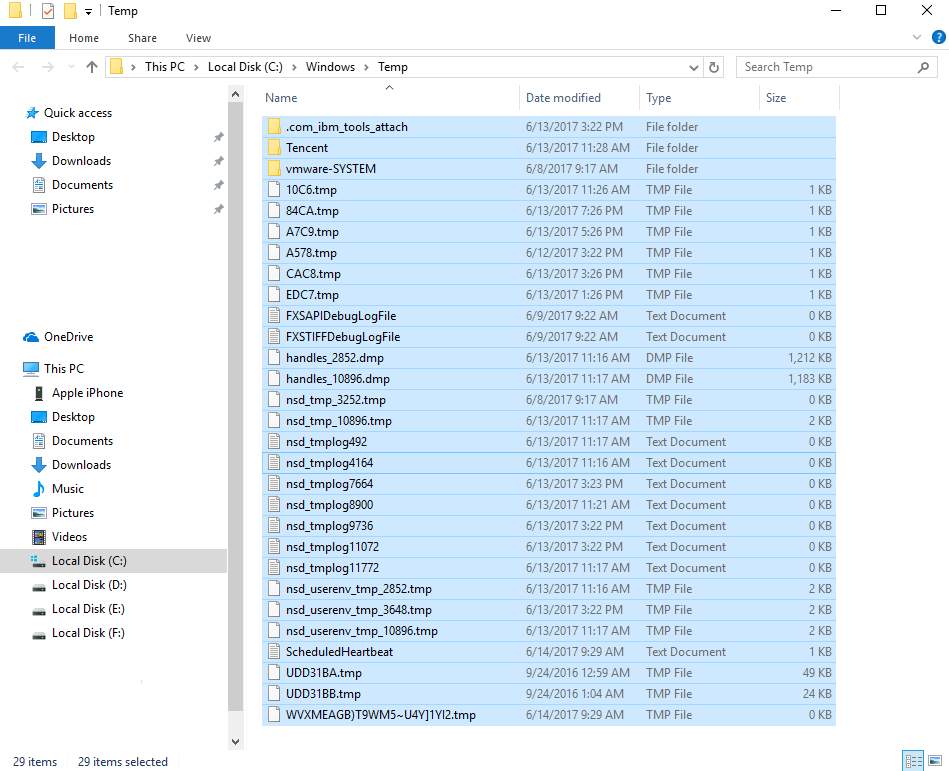
  • In the File Explorer address bar, type C:\Windows\temp and press Enter on the keyboard
  • If Windows prompts for administrator permission to access the folder, click Continue
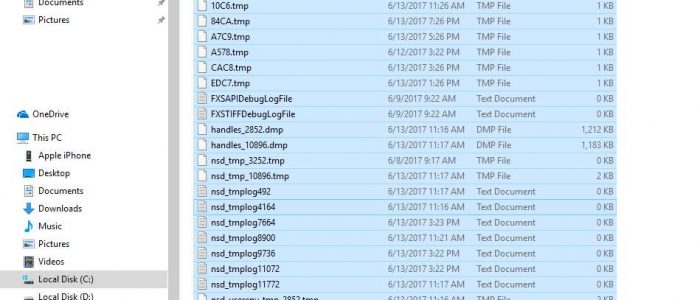
  • In the temp folder, press Ctrl+A on the keyboard to select all contents in the folder
temp folder
  • Press the Delete button on the keyboard
  • Close all windows
  • Restart your PC

Now use your PC and see if it freezes or becomes non-responsive. If you do not notice any difference in performance of the PC and see it becomes non-responsive often, move to next solution.

Solution Three- Check RAM

RAM is one of the important components of your PC. Windows OS depends heavily on RAM for smooth functioning. You cannot ignore the possibility of faulty RAM behind the “Windows 10 keeps freezing” issue.

Windows has an in-built memory check tool that can diagnose any problems with memory and report them to you. If you find any faults in the RAM, you need to get a new RAM module to make things right.

The Memory diagnostic tool runs at start of Windows. It means you have to close all apps and files and restart your PC to run the Memory diagnostic tool. Here are the steps to follow.

  • Hold Windows key and R button together simultaneously on the keyboard to invoke Run command box
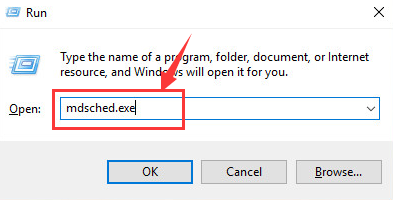
  • In the Run command box, type mdsched.exe
mdsched
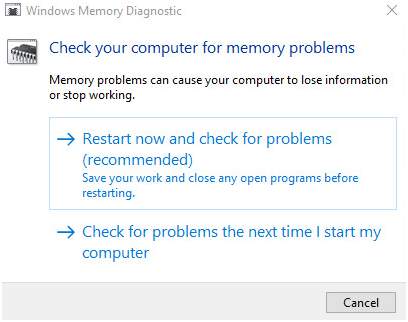
  • You will see two options- 1) Restart now and check for problems (recommended) and 2) Check for problems the next time I start my computer.
  • check RAM
  • If you want to start memory check immediately, select option one else select option two
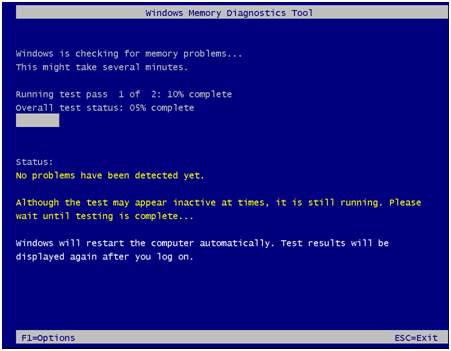
  • If you have selected the first option, the PC will restart and you will see Windows Memory Diagnostic tool in action checking RAM module for any faults
  • If you select the second option, the Windows Memory Diagnostic tool would run when the computer reboots next time.
diagnostics tool

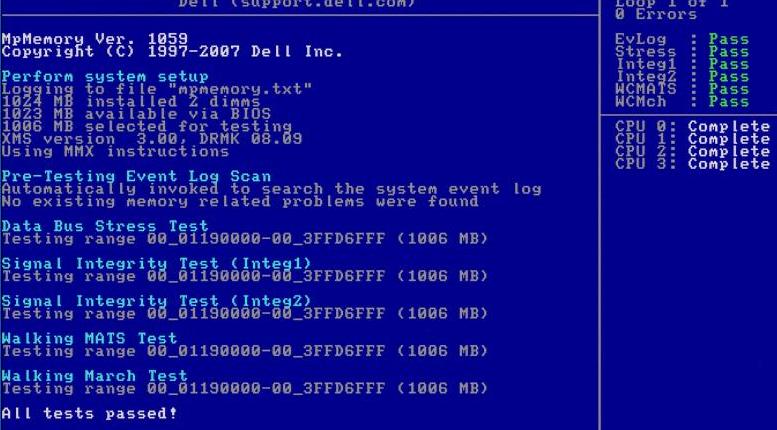
If Memory Diagnostic tool finds any faults, it will report an error. If the Memory Diagnostic tool completes the process without any errors, you can conclude the RAM modules are in good condition. See the image below for reference that shows memory test passed successfully.

memory test passed

Since the Physical RAM is not at fault and the issue remains unresolved, you can move ahead to next solution.

Solution Four- Increase Virtual Memory

Windows has two types of memory- Physical RAM which we have checked earlier and Virtual memory which is also referred as Paging File. If Windows does not have enough Physical RAM to run programs, it uses Virtual Memory to compensate.

There is a possibility Windows is falling short of memory and that is causing Windows to freeze and become irresponsive. While increasing Physical RAM is an option, it will require you to buy new RAM modules. Increasing virtual memory is easy and you just need to make changes to some settings. Here are the steps to follow.

  • Hold Windows key and Pause/Break key together on the keyboard to open the Control Panel Home window
  • On the left panel, select Advanced System settings
  • Click the Advanced tab->Settings
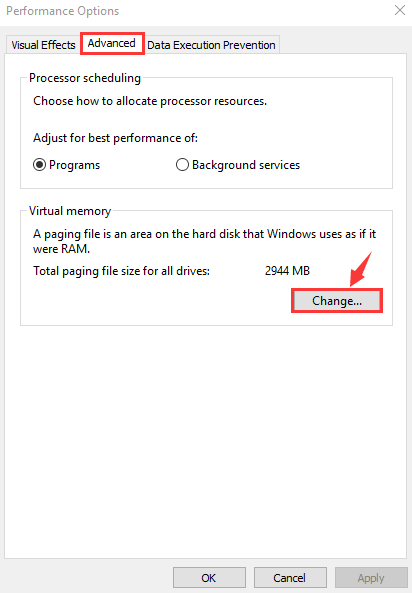
  • In Performance Options window, click the Advanced tab- > Change
change virtual memory
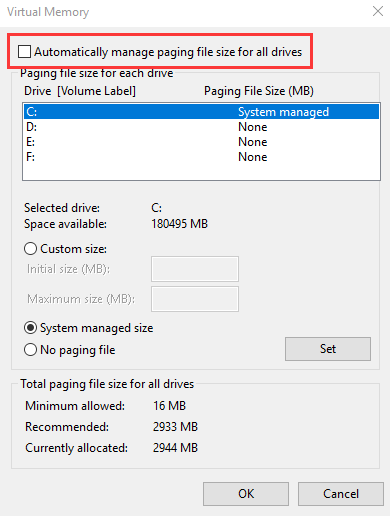
  • Make sure the option “Automatically manage paging file size for all drives” is not checked
auto manage paging
  • Select drive where Windows is installed. By default, it is C drive for most Windows 10 unless you have dual boot windows.
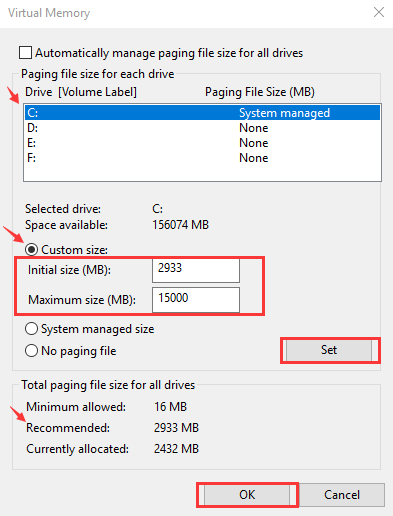
  • Click Custom size and enter the initial size and maximum size for the virtual memory
custom size paging
  • Initial size – If you are confused about the right value for initial size, you can enter the recommended value
  • Maximum size- it varies with a computer and mainly depends on the size of Physical RAM installed. Microsoft recommends maximum size anything between 1.5 times to 3 times of the physical RAM size installed. If you have 4GB RAM(4096MB) installed, the recommended maximum size can be 4096×1.5 = 6144 MB
  • After you have types right initial and maximum size for virtual memory, click Set
  • Click OK

If your Windows 10 system still freezes after trying this solution, try next solution.

Solution Five- Diagnose Hard Disk for Issue

Bad sectors can develop in hard disks and corrupt data stored in the sectors. In that case, the Windows OS is not able to access data stored in bad sectors which might be important for its functioning. This could make the system irresponsive.

Windows has a hard disk tool that can diagnose hard disk for any errors and fix problems. Here are the steps to follow.

  • Close all program and files
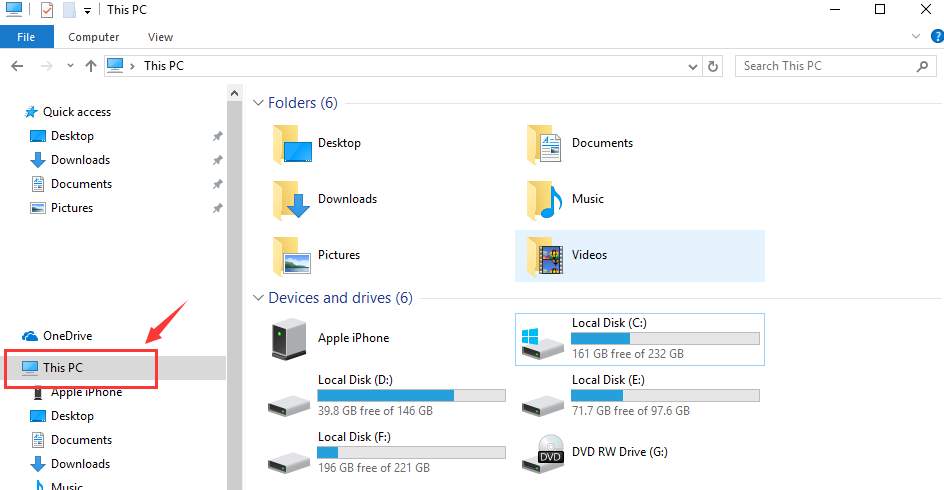
  • Go to Desktop and double- click This PC icon
this pc
  • Alternatively, you can Click Start-> File Explorer -> This PC
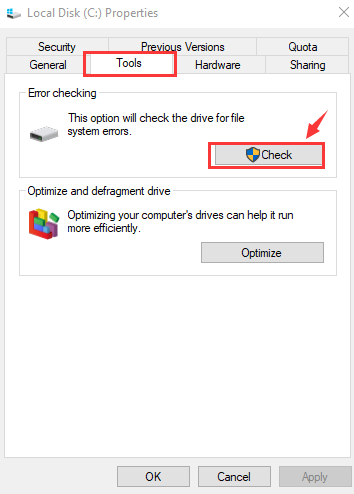
  • Right-click the hard drive partition you would like to check and select Properties
  • Go to Tools tab
tools tab check
  • Click Check

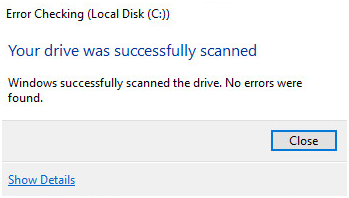
Windows will start hard drive diagnosis and report any error it find. The system will display a message after successful completion of hard disk diagnosis

drive scanned

If the system shows message like the one above, you can conclude, the hard disk is in good condition and not the cause behind “Windows 10 keeps freezing” issue. In that case, move to next solution.

Solution Six-Run SFC Scan

SFC stands for System File Checker. SFC is a command-line tool. It means you do not have graphical interface to run the tool. The tool is run through a command. You will need command prompt with admin rights to run SFC command. Here are the steps to follow.

  • Hold Windows logo key and R simultaneously on the keyboard to invoke Run command console on the screen
  • In the Run command box, type cmd
  • Right-click command prompt from the list of results and choose Run as administrator
  • In the User Account control pop-up, click Yes
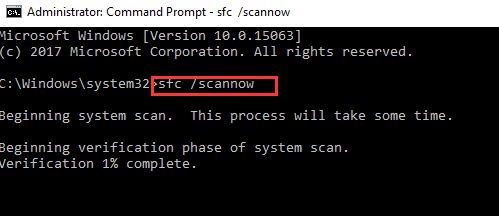
  • In the command prompt window, type sfc /scannow and hit Enter
sfc-scannow

The System File Checker tool will check the integrity of system files and find the corrupted files. It then restores the right versions of the corrupt file. If SFC does not find any problems with system files, the SFC scan completes without reporting any errors. In that case, you can conclude the system files are in perfect condition and you need to move to next solution.

Solution Seven – Disable C-State in BIOS

Today, every company is required to produce green products that save electricity. C-State in computer terminology refers to idle power saving states. During C-State, the processor is idle and nothing is running on your system.

If you look in the BIOS, you will see a C-State option that can be enabled/disabled. In most motherboard BIOS, the option is disabled by default though that might not be the case in your computer.

If the C-State in BIOS is enabled, the motherboard will shut down the processor when system is idle and it might make the Windows irresponsive. Since this setting is causing Windows to freeze, you can go ahead and disable C-State in BIOS.

(Note- Not all motherboards refer the power saving feature as C-State. Intel refers the setting as C-State while AMD refers it as C6 or cstate global control. In some BIOS, you might see this setting with other name. Check the motherboard or processor documentation to know about C-State settings)

  • Restart PC
  • Press F2 key to enter BIOS setup.
bios f2

Note: the key to access BIOS differ with BIOS manufacturers and it is listed on the logo screen that you see when PC starts

  • After you enter the BIOS setup, go to the Advanced Configuration tab
  • Select CPU configuration using the up and down arrow keys
  • Once the CPU configuration is highlighted, hit enter
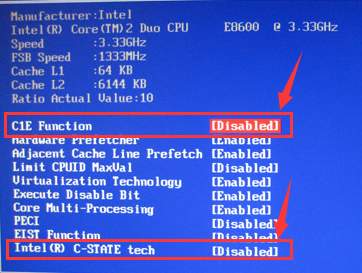
  • Look for C1E and Intel® C-State tech and use the navigation keys to disable these options
intelr-c-state-tech
  • Save and exit settings in BIOS
  • Restart your computer

Now check whether the Windows 10 keeps freezing issue is resolved. If the problem persists, move to next solution.

Solution Eight – Reset Winsock Catalog

Winsock is a programming interface that handles input/output of Internet applications. Sometimes wrong Winsock settings can delay the response to Internet application that can make the operating system irresponsive.

Resetting Winsock catalog resets the Winsock catalog to default state or clean state that could resolve the issue. Here are the steps to follow.

  • Hold Windows Key and Press X to bring up Context menu
  • Click Command prompt(admin) from the list
  • In the command prompt window, type netsh winsock reset and press Enter on keyboard
  • Wait for the command operation to complete
  • Close command prompt window

Check whether the “Windows 10 keeps freezing” issue is resolved. If the problem persists, move to next solution.

Solution Nine- Turn Off Link State Power Management

The Link State Power Management is part of the PCI-E Specification. It works with active-state power management (ASPM) for power savings.  It is a complex subject. Link State Power Management has two levels- Moderate Power Savings and Maximum Power Savings

  • In Moderate Power Savings, the power savings are moderate but the time to recover from Sleep state is shorter
  • In Maximum Power Savings, the power savings are greater but the time to recover from Sleep state is higher

If your computer is set for Maximum Power Savings, it can cause problems like Windows 10 keeps freezing. A simple solution to this problem is turn off Link State Power Management. Here are the steps to follow.

  • Press Windows logo key and R together to bring up Run command
  • In Run command box, type powercfg.cpl and click OK
  • In the Power Setting window, click Change Plan Settings for your Active Plan.
  • Select Change Advanced Power Settings
  • Scroll down until you see PCI Express -> Link State Power Management
  • Click the option next to Settings and select Off
  • Click Apply and then click OK
  • Close all windows and restart PC

Check whether problem is resolved. If you still find Windows becomes irresponsive randomly, move to next solution.

Solution Ten- Turn Off Fast Startup

Many users have reported that turning of Windows Fast Startup was the cause of Windows freezing randomly and disabling the option resulted in resolving the “Windows 10 keeps freezing” issue. Here are the steps to turn off fast startup.

  • Right-click on Start button to launch Win X menu
  • Click Power Options.
  • In the right pane, Click Choose what the power buttons do
  • Click Change settings that are currently unavailable.
  • To disable fast startup – uncheck the checkbox beside Turn on Fast Startup (recommended),
  • Click Save changes
  • Close all windows
  • Restart your PC

Solution Eleven- Switch from Broadcom network adapter to Microsoft Network adapter

Note- This solution applies only to users whose computers have Broadcom network adapters.

Many Windows 10 users were able to resolve “Windows 10 keeps freezing” issue by switching from Broadcom network adapter to Microsoft network adapter software. According to networking experts, the Broadcom network adapter driver software for its network adapters can cause Windows freezing issues.

A simple solution to this problem is using Microsoft driver software for the network adapter. Here are the steps to follow.

  • Click on Start button and type device manager in Cortana search box
  • Select Device Manager from the list of results
  • In the Device Manager window, go to Network adapters and expand the category
  • right-click on Broadcom network adapter and click Properties
  • Navigate to the driver tab
  • Click Update Driver
  • Click Browse my computer for driver software.
  • Click Let me pick from a list of device drivers on my computer
  • You will see two variants of driver software for network adapter, click on Microsoft variant
  • With Microsoft driver variant selected, click Next
  • Windows will start the installation of Microsoft network driver software. Wait for the installation to complete
  • Close all windows and restart your PC

Check whether “Windows 10 keeps freezing” issue is resolved. Like many Windows 10 users, the Windows 10 keeps freezing issue would be resolved by one of the solutions given below.

Filed Under: PC Fix Tips Tagged With: Windows 10 freezing

  • « Previous Page
  • 1
  • …
  • 125
  • 126
  • 127
  • 128
  • 129
  • …
  • 189
  • Next Page »


  • Recent Posts
  • Popular Posts
        

Read More Posts


Read More Posts

Drivers.com Sites

  • Software Drivers
  • Drivers Ed

About Us

  • Advertise
  • About Drivers
  • Drivers Support
  • Drivers.com Privacy Policy
  • Disclaimer
  • Software Drivers
  • Mac Fixes and Tips
  • PC Fix Tips
  • Security/ Backup
  • Tablets & Smartphones
  • Tech News

© Copyright 2026 PDE Publications Ltd. End User License Agreement (EULA)