Drivers.com

follow us:

facebook twitter
  • Home
  • Download Drivers
  • Drivers Help
  • PC/Mac Resources
  • Software Drivers
  • Mac Fixes and Tips
  • PC Fix Tips
  • Security/ Backup
  • Tablets & Smartphones
  • Tech News
  • Software Drivers
  • Mac Fixes and Tips
  • PC Fix Tips
  • Security/ Backup
  • Tablets & Smartphones
  • Tech News

Solution to Base System Driver Issue in Windows

By Susan C on February 14, 2019

Solution to Base System Driver Issue in Windows

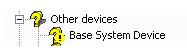
Do you see a yellow exclamation mark near the base system device item in the Device Manager?

base-system-device-error

If yes, this post is for you. Many users have complained of finding driver related issues after installing or reinstalling Windows.

What is the base system device driver related issue?

Base system device issue points towards the driver problem.  It occurs when the drivers of the card reader are not properly installed on your computer. The base system device is generally listed under “Other devices” category in Device Manager. There is a possibility the base system device issue is related to other system drivers.

A simple solution to this problem is updating drivers that can be done in 3 ways.

Method One – Update Drivers through Device Manager

  • On your keyboard, press Windows logo key and R simultaneously to invoke Run command
  • In Run command, type devmgmt.msc
  • In the Device Manager window, go to Other devices category and expand it
  • right-click on Base System device item and click on the option Update driver software
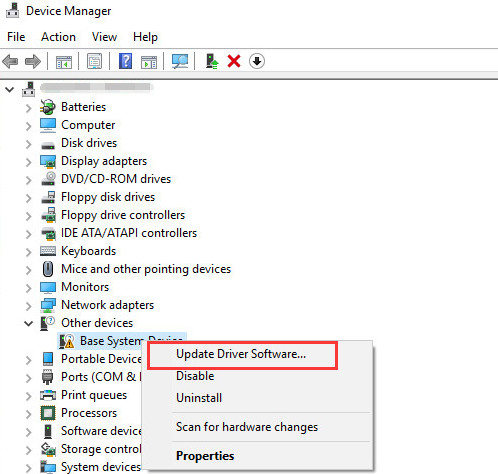
update driver software
  • In the next window, click on the option that says the search for driver software automatically
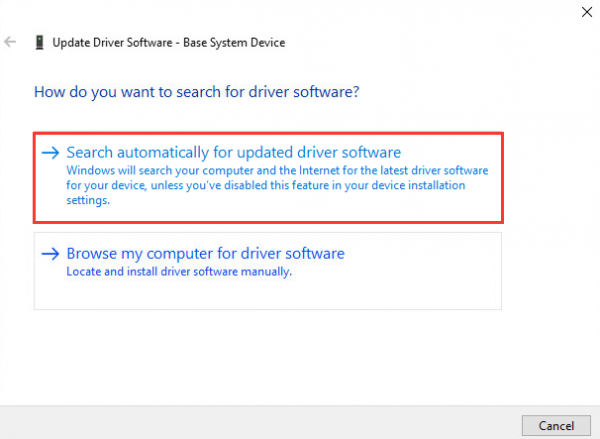
search automatically
  • Windows will search the Internet for driver software update and install it
  • If this method does not work for you, try updating the driver manually

Method Two- Update drivers manually

  • Open Device manager. Refer the first three steps given in solution above
  • In the Device Manager window, expand Other Devices category
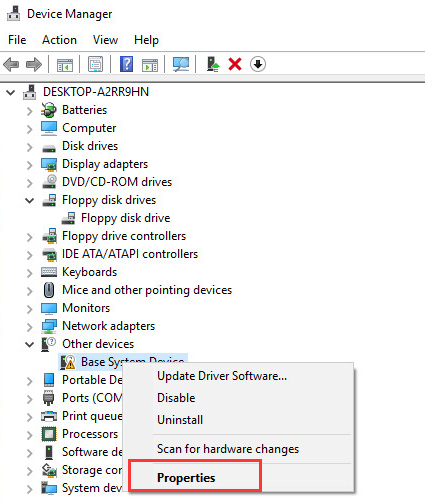
  • Right-click on Base System device
  • Select Properties
device properties
  • In the Base System Device Properties window, go to Details tab
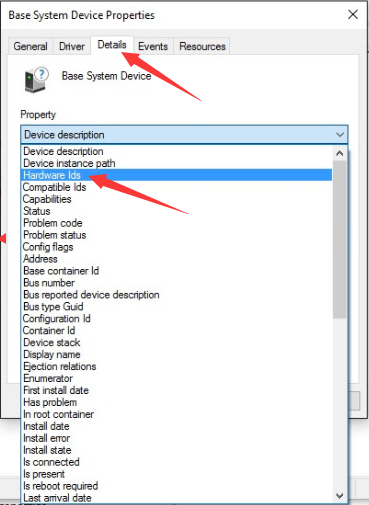
device details
  • Under Device description, expand the drop down list
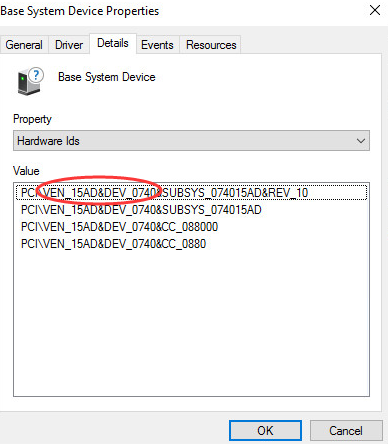
  • Select Hardware Ids from the list
hardware ids

The Hardware Ids contains two important values- VEN stands for Vendor and DEV stands for Device.  You need to have Vendor ID and Device ID to find the right device drivers on the internet. Look at the image below – the Vendor ID is 15AD and the Device ID is 0740

  • Copy the entire Hardware ID and paste in Google search box, you will get the name of few sites where the driver might be available.

If you find the manual driver update method difficult, you can use a Driver Update Tool to update the driver automatically

Method Three- Update Drivers automatically

Automatic driver update tools offer many benefits, the most important ones being:

  • You can update device drivers automatically
  • The software scans and updates all outdated or missing drivers at one go
  • The tool picks the right drivers for your device and operating system, so you won’t have to worry about installing an incorrect driver by mistake
  • Automatic driver updates are 100% safe

Driver Updater is one of the best driver update tools out there. Outbyte Driver Updater will give you access to a database of over 1 million drivers. It will regularly scan your PC, suggesting new driver versions to install. Driver Updater contains drivers for a variety of Windows devices. With just one click, you can update drivers in your system.

Step 1
Click here to Install and launch the app

Step 2
Scan all devices

Step 3
Install or update drivers automatically


Start Download


Other Solution

If none of the solutions have worked for you, try the troubleshooting steps given below.

  • Launch Internet browser
  • Download “Onboard Network Driver for Microsoft Windows”
  • Unzip the file and run:

\apps\PROSETDX\<OS version>\DxSetup.EXE

We hope you are able to resolve the base system device driver issue by following one of the solutions given in this post.
Filed Under: PC Fix Tips Tagged With: base system driver

Solution to mouse lag, stutter, and freezing issues

By Susan C on February 11, 2019

Solution to mouse lag, stutter, and freezing issues

Many Windows 10 users have complained of mouse lag, freeze, and stutters after upgrading.

This is not a bug but some problem related to your system which includes clash or compatibility issues between hardware and software.

Like other Windows issues, there is no single solution to this problem. We have provided 5 solutions that could resolve the mouse lag freeze and stutter issue.

However, it is almost impossible to tell in advance which of these solutions will work for you. This is because this problem can occur because of a myriad of reasons.

Therefore, we recommend you to start with the first solution and work your way downward until you are able to resolve the issue.

Keyboard and Mouse Drivers Download & Updates

Things to remember

Don’t use USB hubs to connect a mouse. You should always connect the mouse to USB ports on the motherboard that are situated at the back of the desktop. Also, do not connect the mouse to from USB ports in desktop as they are not directly connected to the motherboard.

Before Anything Else

You cannot ignore the possibility of a mouse going bad or bad USB port. Before moving to any advanced troubleshooting steps, ensure that is not the case.

  • Try connecting mouse to other USB port to rule out the possibility of the problematic USB port.
  • Remove all USB devices like a USB disk drive, thumb drives, card readers and let only the keyboard and mouse remain connected.
  • To rule out the possibility of the bad mouse, use another mouse and see if you are still facing mouse pointer problems like a lag, stutter, or freeze. If you are not facing any problem with the new mouse, you can conclude the old mouse has gone badly. If you are facing similar mouse problems even with the new mouse, you can conclude the older mouse is good and the problem lies elsewhere.

Now, let’s look at the solutions.

Solution One – Reinstall Mouse Driver

Many times mouse settings change due to some software installation without you knowing about it.

Also, you cannot ignore the problem with the mouse driver. You can resolve this problem by reinstalling the mouse that will set all mouse settings to default and also install a new mouse driver.

Here are the steps to follow.

  • Click the Start button
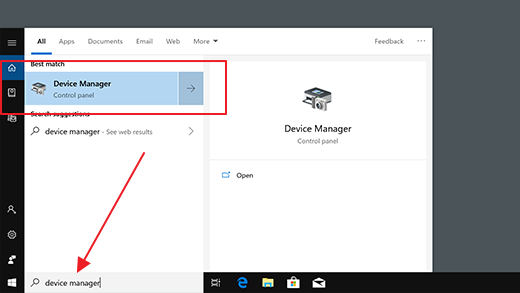
  • In the Cortana search box, type Device Manager
  • From the list of results, double-click on Device Manager
device manager
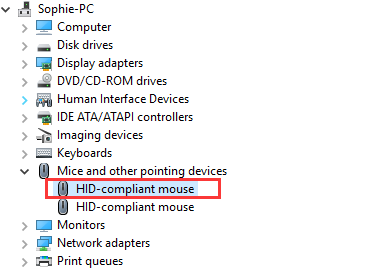
  • In the Device Manager window, go to Mice and other pointing devices category and expand it
mouse device
  • Right-click the mouse entry in the list and click Properties from the menu
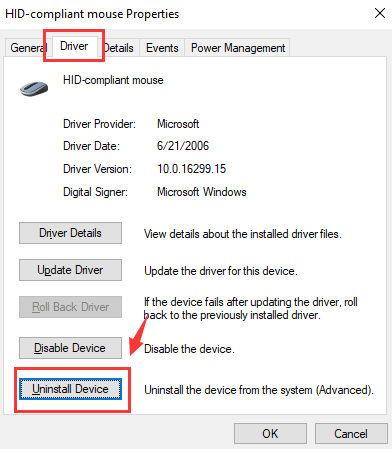
  • In the mouse properties window, go to the Driver tab
  • Click Uninstall device button that appears at bottom of the window
  • Click OK
  • When the computer displays a confirmation pop-up for uninstalling the device, click Uninstall
uninstall mouse
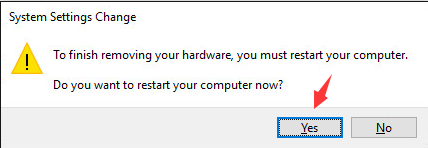
  • If you are prompted to restart your computer and you are ready to proceed, click Yes
restart computer
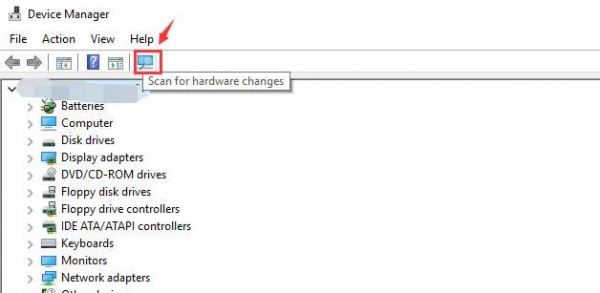
  • If you are into the middle of some important work and don’t want to restart, go to the Toolbar of the Device Manager window
  • Click Scan for hardware changes
scan hardware changes

Windows OS will now detect mouse and install a new device driver. Check if the mouse problem of lag, stutter, or freezing has vanished. If the problem still persists, move to the next solution.

Solution Two- Update graphic drivers

The mouse problem can also crop up due to incompatible graphic drivers. In that case, you need to install the latest graphics drivers for Windows 10.

You can update graphics drivers manually or automatically. Both methods are discussed ahead.

Update Graphic Drivers Manually

  • Press Windows logo + R
  • Type devmgmt.msc in the run dialog box to access the Device Manager window
  • Expand Display adapters. You will see the list of installed graphic cards
  • Check and note down the name of your graphics cards. Visit the graphic card manufacturer’s site or your computer manufacturer’s site and conduct a search for the newest driver for the graphics card or PC model. If you want, you can also you run a Google search by typing the name and the model number of your graphic card in Google search bar. Once you locate the newest driver, download and save the driver file. That said, you need to do one thing before you start the downloading process. Check whether the driver file corresponds to your PC type. That is, if you use Windows 10 32-bit, the file you download must be for 32-bit Windows 10 PCs. Similarly if you run Windows 64-bit, you need to download the driver file that is for 64-bit Windows 10 version.
  • Now go back to the Device Manager window, right-click on your graphics card and then select Uninstall device
  • You will see a confirmation dialog box on the screen. Check the box that is located before Delete the driver software for this device. Finally, click Uninstall
  • After driver is fully uninstalled, you need to restart the computer
  • Now run the video driver’s setup file and follow onscreen instructions to install the new driver.

Update Graphic Drivers Automatically

The easiest way to update graphic drivers is by using an advanced driver update software application.

Automatic driver update tools offer many benefits, the most important ones being:

  • You can update device drivers automatically
  • The software scans and updates all outdated or missing drivers at one go
  • The tool picks the right drivers for your device and operating system, so you won’t have to worry about installing an incorrect driver by mistake
  • Automatic driver updates are 100% safe

Driver Updater is one of the best driver update tools out there. Outbyte Driver Updater will give you access to a database of over 1 million drivers. It will regularly scan your PC, suggesting new driver versions to install. Driver Updater contains drivers for a variety of Windows devices. With just one click, you can update drivers in your system.

Step 1
Click here to Install and launch the app

Step 2
Scan all devices

Step 3
Install or update drivers automatically


Start Download


Solution Three- Disable LAN

Some users who faced similar mouse problem reported disabling LAN helped them resolve the issue. In that case, you can connect the computer wirelessly to the router and disable the LAN.

Here are the steps to follow.

  • Press Windows logo key and R at the same time on the keyboard to invoke Run command box
  • In the Run command box, type control and click OK
  • In the Control Panel window, set the View by Category to small icons and hit Enter on the keyboard
  • Locate Network and Sharing Center option and double-click on it
  • In the Network and Sharing Center window, go to Change adapter settings and click on it
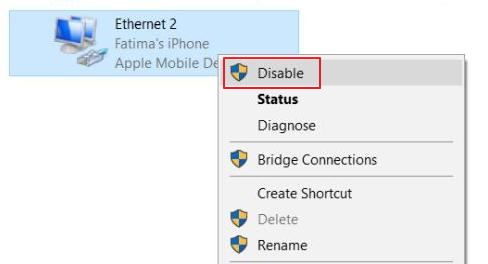
  • In the Network connection window, look for Ethernet option
  • Right-click on Ethernet icon and click Disable
disable ethernet
  • Close all windows and restart your computer

Check whether mouse lags and stutter problem has been resolved. If it still exists, you can enable Ethernet again and proceed to the next solution

Solution Four- End Realtek audio process

Note – Perform these troubleshooting steps if your computer has Realtek audio

Like the earlier solution, many users were able to resolve the mouse problem by disabling Realtek audio. You can try performing the troubleshooting steps and sees if it helps you too.

Here are the steps to follow.

  • Right-click on an empty area of the task bar and click on Task Manager
  • In the Task Manager, go to Processes tab
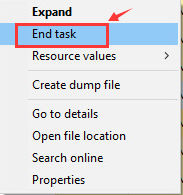
  • Look for Realtek audio.exe process and right-click on it
  • Click End task from the menu.
mouse lag-end task

Check whether the above actions have got rid of mouse lag and stutter issue, if the issue still exists, look for application with high disk usage. End the suspected application processes one by one and check whether mouse problem is resolved. If the mouse problem still persists, move to the next solution.

Solution Five – Turn Off Cortana

Like the above two solutions, many users were able to get rid of mouse lag by disabling Cortana. This may work in your case too.

Here are the steps to follow.

  • Launch Cortana from the search bar on the task bar
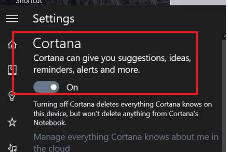
  • From the left menu, click the Settings menu
  • Under Cortana(first option), slide the pill switch to Off position
cortana off

Check whether above troubleshooting steps have got rid of mouse lag and other issues. If the problem still persists, move to the next solution.

Solution Six- Disable ATI Hotkey Poller service

Many Windows users have also reported that ATI Catalysts drivers could be the cause of the mouse lag and stutter problems. The ATI Hotkey Poller service might be related to the problem and disabling it can help you fix the problem once and for all.

Here are the steps to follow.

  • On the keyboard, hold down windows logo key and R simultaneously to invoke the Run command
  • In the run command, type services.msc and hit Enter on the keyboard
  • In the services window, look for ATI Hotkey Poller service on the right side
  • right-click on it and open Properties
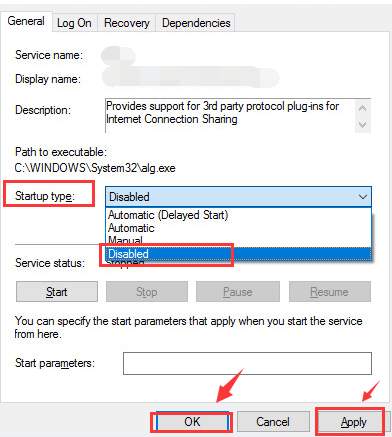
  • Go to General tab and look for Startup Type option
  • Click the down arrow to open the drop-down list
  • From the list, select Disabled
startup disabled
  • Click Apply and then Click OK
  • Close all windows and restart the computer

Check whether the mouse lag, stutter, and the freezing problem is resolved. In most cases, the mouse lag problem would be resolved by one of the solutions in the list.

Filed Under: PC Fix Tips Tagged With: mouse lag

Solution to “Ethernet not working” issue

By Susan C on February 8, 2019

Solution to “Ethernet not working” issue

Today, most Windows users especially laptop users connect to the Internet using Wi-Fi. But there are times when you might feel the need to use an Ethernet connection. Here Ethernet connection refers to a wired Internet connection through RJ45 port.

If you are facing “Ethernet not working” issue on your computer, this post is for you. Here we have provided some easy solutions that could fix the issue.

Before Anything Else

  • If the Ethernet connection is coming through one of the port on your router, there is a possibility the router port you are using currently has gone bad. Try using another port on the router for the Ethernet connection.
  • Make sure the RJ45 connector on both ends of the connection are in good condition and the Ethernet cable is not broken. Check the wire and look for any signs of damage.

After you have confirmed there is no problem with the router or the Ethernet cable, you can go ahead to perform troubleshooting steps given in solutions below. You don’t need to try all solutions. Start with the first solution and work your way downwards until the “Ethernet not working” issue is resolved.

Solution One- Ensure the Ethernet is enabled on your computer.

There is a possibility the Ethernet connection on your Windows PC is disabled accidentally. In that case, you need to enable the Ethernet connection to resolve the issue. Here are the steps to follow.

  • Press Windows key and R simultaneously on the keyboard to bring up a Run command box
  • In the Run command box, type devmgmt.msc and hit Enter on the keyboard
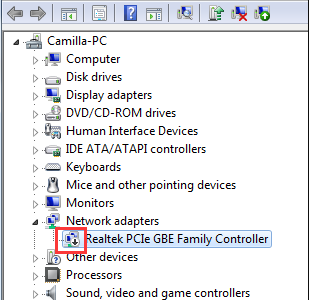
  • In the Device Manager window, go to Network adapters and double-click on it to expand the category
ethernet adapter
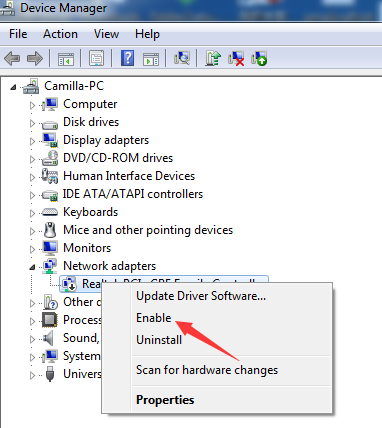
  • Locate and right-click your Network device from the list
  • Click Enable from the menu
ethernet adapter enable
  • Close the device manager window

Now open a browser and check whether the Ethernet not working issue is resolved. If the issue still persists, move to next solution

Solution Two- Disable anti-virus temporarily

Anti-virus software tools are known to sometime block Internet connectivity. You need to ensure the anti-virus is not causing the issue. Disable the anti-virus temporarily and see if the issue is resolved.

The steps to disable anti-virus differs with every software tool. Here we have given general steps that can be used as a reference. The menu and the options and the steps to disable anti-virus may be entirely different in your case.

  • go to system tray and click on anti-virus icon
  • Click Open
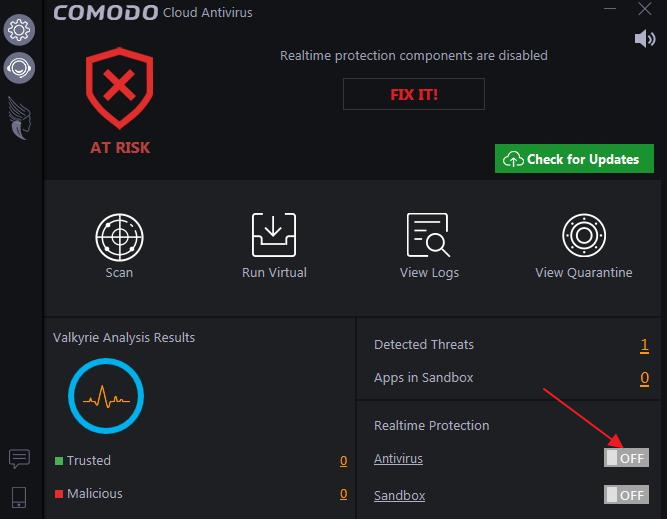
  • Under Realtime protection, move the toggle switch besides Anti-virus to Off position
anti-virus off

Check whether the Ethernet not working issue is resolved. If the issue is resolved, you can conclude the anti-virus is the cause of the issue. In that case, you need to contact the software manufacturer and explain the issue and ask for a solution.

Note- If your Ethernet connection as started working after disabling anti-virus, be careful when visiting sites or opening files.

You also have the option of using another anti-virus to secure your computer. However, if the issue remains unresolved even after disabling anti-virus, enable it again and move to the next solution.

Solution Three- Uninstall Driver

There is a possibility the network driver is corrupt and causing the issue. You can try uninstalling the driver which will force the Windows operating system to use a generic network driver that might resolve the “Ethernet not working” issue. Here are the steps to follow.

  • Press and hold Windows logo key and R on the keyboard to launch Run command box
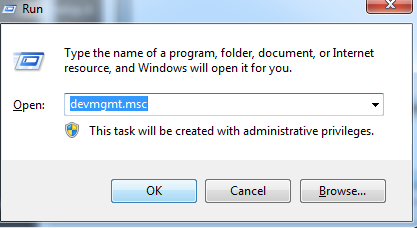
  • In the Run command box, type devmgmt.msc
devmgmt
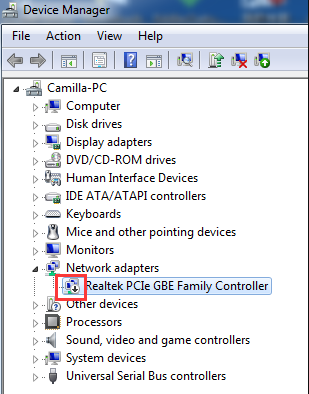
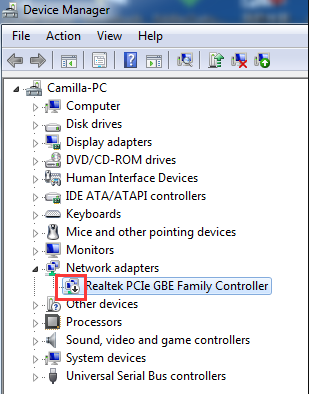
  • In the Device Manager window, go to Network adapters category and expand it
ethernet adapter
  • Locate the Network device and right-click on it
  • Click Uninstall from the menu
  • If prompted for confirmation, click Yes
  • Wait for the operation to complete and then close Device Manager window
  • Restart your PC.

Check whether Ethernet not working issue is resolved. If the issue still persists, move to next solution.

Solution Four – Update Drivers

An outdated network driver can cause ‘ethernet not working’ problem. You may be able to fix the issue by updating the network driver.

The easiest way to update your network driver is to use a fast, accurate, and advanced driver update tool.

Automatic driver update tools offer many benefits, the most important ones being:

  • You can update device drivers automatically
  • The software scans and updates all outdated or missing drivers at one go
  • The tool picks the right drivers for your device and operating system, so you won’t have to worry about installing an incorrect driver by mistake
  • Automatic driver updates are 100% safe

Driver Updater is one of the best driver update tools out there. Outbyte Driver Updater will give you access to a database of over 1 million drivers. It will regularly scan your PC, suggesting new driver versions to install. Driver Updater contains drivers for a variety of Windows devices. With just one click, you can update drivers in your system.

Step 1
Click here to Install and launch the app

Step 2
Scan all devices

Step 3
Install or update drivers automatically


Start Download


Filed Under: PC Fix Tips Tagged With: ethernet not working

  • « Previous Page
  • 1
  • …
  • 127
  • 128
  • 129
  • 130
  • 131
  • …
  • 189
  • Next Page »


  • Recent Posts
  • Popular Posts
        

Read More Posts


Read More Posts

Drivers.com Sites

  • Software Drivers
  • Drivers Ed

About Us

  • Advertise
  • About Drivers
  • Drivers Support
  • Drivers.com Privacy Policy
  • Disclaimer
  • Software Drivers
  • Mac Fixes and Tips
  • PC Fix Tips
  • Security/ Backup
  • Tablets & Smartphones
  • Tech News

© Copyright 2026 PDE Publications Ltd. End User License Agreement (EULA)