Drivers.com

follow us:

facebook twitter
  • Home
  • Download Drivers
  • Drivers Help
  • PC/Mac Resources
  • Software Drivers
  • Mac Fixes and Tips
  • PC Fix Tips
  • Security/ Backup
  • Tablets & Smartphones
  • Tech News
  • Software Drivers
  • Mac Fixes and Tips
  • PC Fix Tips
  • Security/ Backup
  • Tablets & Smartphones
  • Tech News

Solution to “No Sound” issue in Windows 7

By Susan C on February 5, 2019

Solution to “No Sound” issue in Windows 7

If you are facing a no sound issue on your Windows 7, this post is for you. Sound issues are common in Windows computer. Sometimes there could be the simple reason behind no sound issue like you have muted the sound on your PC or speakers or the audio wire between computer and speaker is not properly connected.

Here, we offer six simple solutions that could resolve the issue.

You don’t have to try all the solutions given here. The best approach would start with the first solution and try the next one in the list if the previous one has not worked for you and so on.

Before Trying Anything  Else

Before you go ahead and try the troubleshooting steps given below, make sure the sound connection is firm and audio jack are well seated in their respective slots. Computers have 3 audio jacks in the motherboard:

  • a microphone jack
  • a line-in jack
  • a line-out jack

All the above mentioned jacks are connected to sound processor on your motherboard. The speaker or sound system cable should be connected to line-out jack. If you are using a headphone without a mic, it should be plugged to line-out jack. After checking the connections, you need to also check whether the sound system is on (receiving power) and there are no other problems with the sound connection.

Solution One- Run the Microsoft Sound Troubleshooter

Windows has an in-built sound troubleshooter tool that can fix sound related issues. Here are the steps to follow.

  • Click on Start – > Control Panel
  • Make sure the View by option is set to Category
  • go to System and Security and click on Find and fix problems
  • In the next window, go to Hardware and Sound
  • Click Troubleshoot audio playback
  • The Playing audio troubleshooting tool starts working, click Next
  • Follow on-screen instructions to resolve the no sound issue.

If the Microsoft Sound Troubleshooter fails to identify and fix the no sound issue, move to next solution.

Solution Two– Check the default sound device

Windows has a default audio playback device which is primarily used for sound output. Your Windows computer can have several audio playback devices configured like headphones, speakers and other devices.

When we say other devices we also point towards the sound cards installed in your computer that appear in the default audio playback device list. If any of the devices are removed or not connected at the moment or the current audio device is not set as default, it can lead to no sound problem. Hence, you need to check whether the right default sound device is selected. Here are the troubleshooting steps to follow.

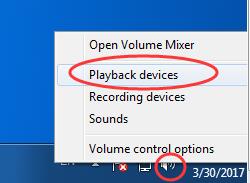
  • Go to system tray and right-click on the speaker icon
  • Select Playback devices from the menu
playback devices
  • In the Sound settings dialog box, make sure you are at Playback tab
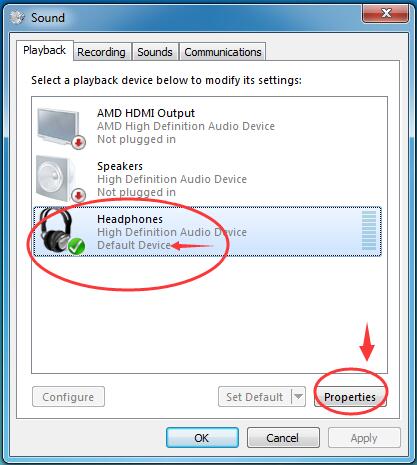
  • Check the list of sound devices and see whether your current sound device selected as default
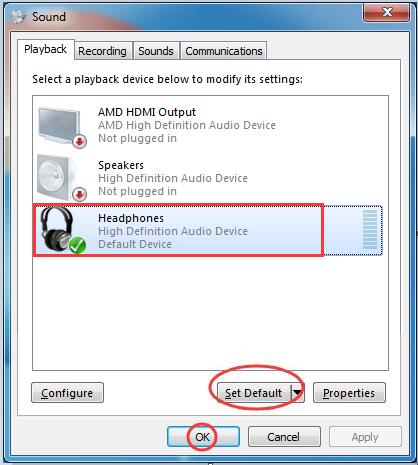
default audio device
  • If not select the device you want to use and click Set Default
  • Click OK to close the window

Play a song or video in media player and see whether no sound problem is resolved. If the no sound issue still persists, go to the next solution

Solution Three- Make changes to the audio format

Windows supports various audio formats. Today, the audio files and video files support different audio formats like 16-bit at 48 KHz format, CD quality, DVD quality. There is a possibility your computer does not support the sampling and the bit rate of the audio or video file you are trying to play. In that case, your Windows computer may not be able to produce sound.

To overcome this issue, you can try changing the audio format and see if it works. Here are the steps to follow.

  • Go to the right bottom corner of the desktop and click on the sound icon
  • Click on Playback devices option
playback devices
  • when the sound settings window opens, select the default audio device
  • Click Properties
audio device properties
  • In the Properties window, click Advanced tab
  • Click on down arrow to reveal all options under Default format
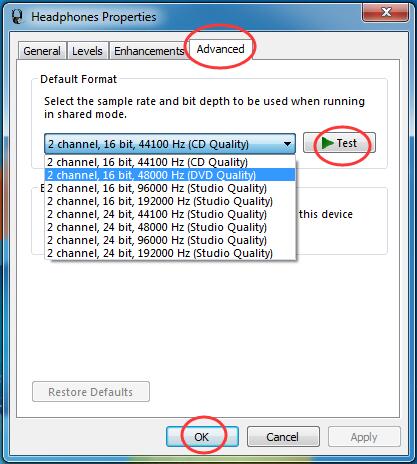
default format
  • Select a different audio rate than earlier and click Test
  • Open an audio and video file and check whether you can hear the sound
  • If you find out the selected format works, confirm your selection by clicking OK
  • If you find out the selected format does not resolve the issue, try another format from the list and see if it works

If the “no sound” issue is not resolved even after trying all audio formats in the list, move to the next solution.

Solution Four – Disable all enhancements

Your Windows computer has several advanced sound settings. If any of these settings have changed or wrong selections exist, it could lead to “no sound” issue. Sound enhancements refer to different sound effects that make the audio sound much rich.

Some of the sound enhancements available in Windows 7 are Virtual Surround, Loudness Equalization, and many more. In this solution, we need to ensure the sound enhancements are not the cause of “no sound” issue. Here are the steps to follow.

  • You need to access sound settings to perform troubleshooting steps. Perform first four steps (till Properties)
  • In the Properties window, click on Enhancement tab
  • Check the box Disable all sound effects or you can disable one sound effect at a time and see if the issue is resolved

Play an audio or video file and see if the no sound problem is resolved. If the issue still persists, move to next solution.

Solution Five – Reinstall sound drivers

In many cases, corrupt or incompatible sound drivers are the cause behind “no sound” issue. In that case, reinstalling sound drivers seems to be an easy solution to resolve the no sound problem in windows 7.

  • Press Windows key+ R on the keyboard simultaneously to bring up a Run command box
  • In the Run command box, type devmgmt.msc
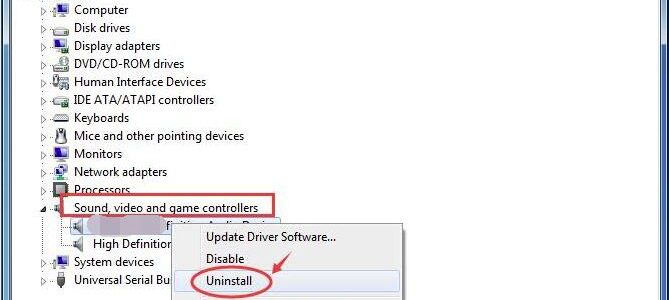
  • In the Device Manager window, go to Sound, Video, and Game controllers category and expand it
  • Right-click on the audio device in the list and click on Uninstall
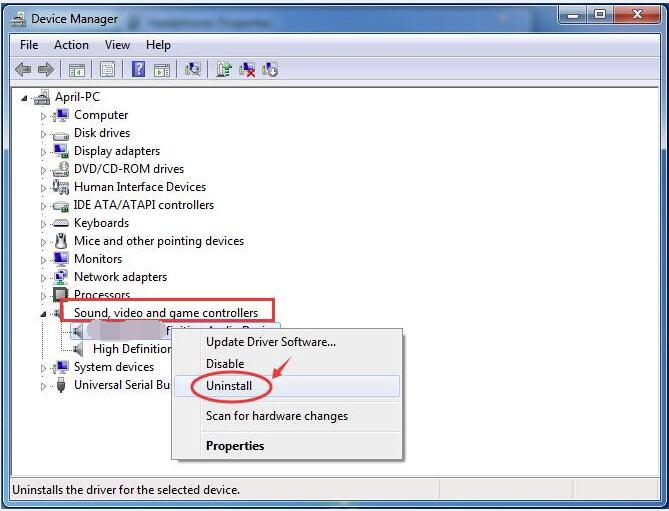
uninstall audio device
  • Allow the uninstallation process to complete
  • Reboot your computer
  • Upon restart, Windows will automatically install the sound driver

Play an audio or video file and see if the problem persists. If you see the no sound issue remains unresolved, you’ll have to update your sound card drivers.

Solution Six – Update Drivers Automatically

The best way to update sound device drivers, or any other device driver for that matter, is to use a fast, advanced driver update tool.

Automatic driver update tools offer many benefits, the most important ones being:

  • You can update device drivers automatically
  • The software scans and updates all outdated or missing drivers at one go
  • The tool picks the right drivers for your device and operating system, so you won’t have to worry about installing an incorrect driver by mistake
  • Automatic driver updates are 100% safe

Driver Updater is one of the best driver update tools out there. Outbyte Driver Updater will give you access to a database of over 1 million drivers. It will regularly scan your PC, suggesting new driver versions to install. Driver Updater contains drivers for a variety of Windows devices. With just one click, you can update drivers in your system.

Step 1
Click here to Install and launch the app

Step 2
Scan all devices

Step 3
Install or update drivers automatically
 

Start Download


Filed Under: PC Fix Tips Tagged With: no sound issue

Keyboard and Mouse Not Working Fixed

By Susan C on February 2, 2019

Keyboard and mouse are two primary input devices attached to the computer. Even if one of these devices stops working, it can cause a lot of inconvenience. Imagine both keyboard and mouse stop working at the same time?

Many users have complained of keyboard and mouse not working at the same time. If you are facing a similar problem and looking for a solution, this post is for you.

We have provided a few solutions and one of them might work for you.

What to try first

Though highly unlikely that both keyboard and mouse become bad (non-functional) at the same time, you need to ensure the devices are working as intended. You can try connecting the mouse and keyboard to other computer and see if they are working.

If you face similar problems with the keyboard and mouse when connected to another computer, you can conclude the fault lies in the keyboard and mouse. In that case, you need to buy a new keyboard and mouse. If both mouse and keyboard are good, you can move to Solution One in the list.

Solution One – Unplug keyboard and mouse and plug them back

Switch on your PC and then unplug the keyboard and mouse. If possible plug them to different USB ports. This will force the Windows operating system to load new drivers for both devices and Windows OS will recognise them and you will see the keyboard and mouse start working again. If this solution does not work for you, move to the next solution.

Solution Two – Disconnect your Computer from Power Source

Though this solution may sound weird to you, it has worked for many users. According to computer experts, the residual power in the motherboard or other components can lead to various problems in computer.

When you disconnect the computer from the power source, the residual power is drained from electronic components that might solve the problem. Here are the steps to follow.

  • Switch off your computer and disconnect the computer from the power source
  • Laptop users also need to remove the battery before unplugging the AC adapter
  • Press the power button on your computer for 10 seconds
  • Desktop users can plug back the computer to a power source
  • Laptop users can insert the battery back in its compartment and then plug in the AC adapter
  • Restart your computer

If the keyboard and mouse are still not working, move to the next solution.

Solution Three – Disable Driver Signature Verification in Windows

Driver Signing refers to the Windows process where the operating system uses digital signatures to verify the integrity of driver packages. The process also checks the vendor of the device driver. Microsoft requires original equipment manufacturers and 3rd part software vendors to get their driver packages verified by Microsoft via a digital signature.

You need to disable driver signature enforcement and see if it resolves the keyboard and mouse not working issue. Here are the steps you need to follow.

  • If your computer is on, restart the computer
  • Once the computer starts and moves beyond the BIOS splash screen, press F8 repeatedly at small intervals (1 second interval). This will bring up the Advanced Boot Options screen
  • On the Advanced Boot Options screen, use the arrow key to select Disable Driver Enforcement option and press Enter on the keyboard.
  • Windows will now restart

Check whether the keyboard and mouse not working issue is resolved. If the problem persists, move to next solution.

Solution Four – Update USB driver

Since both mouse and keyboard are USB devices, you cannot ignore the problem of USB drivers. One of the reasons for keyboard and mouse not working could be corrupt USB drivers. In that case, you need to update USB drivers.

You will need a working keyboard and mouse to perform steps in a given solution. Since the mouse and keyboard are not working in normal boot, you need to boot your computer in Safe mode to perform the troubleshooting steps. Once you have booted the computer in Safe Mode, follow the steps given below.

You need to uninstall the existing USB drivers before updating the USB driver. Here are the steps you need to follow

  • Press Windows logo key and R simultaneously on the keyboard to bring up Run command box on the screen
  • In Run dialog box, type devmgmt.msc and hit Enter on the keyboard
  • In Device Manager Window, navigate to Universal Bus Controllers category and expand it.
  • Find USB 3.0 eXtensible Host Controller in the list. This is not a standard name and it might be different in your case. You need to find a USB device in the list. If you do not find, USB device in Universal Bus Controllers category, look in Other devices
  • Locate USB device with a yellow exclamation mark. It indicates problems with drivers.
  • Select the USB device and press Delete button on your keyboard
  • The Device Manager will show a Confirm Device Uninstall pop-up on the screen. check the option “Delete the driver software for this device” and click OK

After uninstalling the USB drivers, you need to go to manufacturer website to download USB drivers for keyboard and mouse. Desktop users need to go motherboard manufacturer website to download USB driver update. Laptop users need to go to their manufacturer website to download USB driver update.

Updating Drivers Automatically

Automatic driver update tools offer many benefits, the most important ones being:

  • You can update device drivers automatically
  • The software scans and updates all outdated or missing drivers at one go
  • The tool picks the right drivers for your device and operating system, so you won’t have to worry about installing an incorrect driver by mistake
  • Automatic driver updates are 100% safe

Driver Updater is one of the best driver update tools out there. Outbyte Driver Updater will give you access to a database of over 1 million drivers. It will regularly scan your PC, suggesting new driver versions to install. Driver Updater contains drivers for a variety of Windows devices. With just one click, you can update drivers in your system.

Step 1
Click here to Install and launch the app

Step 2
Scan all devices

Step 3
Install or update drivers automatically
 

Start Download


Solution Five- Uninstall Windows Update

Note- This solution is only applicable for Windows 10 users

The KB4074588 Windows 10 update is causing several issues and one of them is keyboard and mouse stops working suddenly.  If you are a Windows 10 user and facing a similar problem, follow the steps given below to resolve the issue.

  • Click on the Cortana search and type Run
  • The Run command option will appear on the top of the list, click on it
  • In the Run command box, type appwiz.cpl
  • You will see Windows update dialog box that lists all installed Windows update
  • Locate Security update for Microsoft Windows(KB4074588) in the list
  • right-click on it and select Uninstall

Since KB4074588 is a security update, it might again get installed. Hence, you need to make a few changes to Windows update setting. Here are the steps to follow

  • Go to Desktop and click on Settings(gear icon)
  • In the Settings window, click Update and Security
  • In the Windows update dialog box, click Advanced options
  • In the Advanced options screen, scroll down and pause updates.
  • Reboot your computer to get your mouse and keyboard back(active)

Filed Under: PC Fix Tips Tagged With: keyboard mouse issue

A Required CD DVD Drive Device Driver Missing Error Fixed

By Susan C on February 1, 2019

A Required CD DVD Drive Device Driver Missing Error Fixed

CD and DVD Windows installation media are slowly becoming obsolete.  Today, you can see Microsoft offering USB drive installation media option for Windows OS installation.

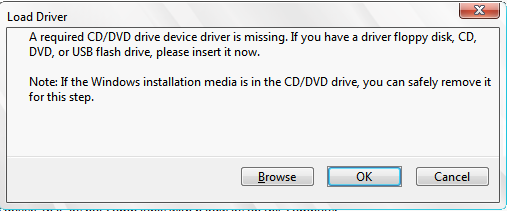
Installing Windows OS through USB drive is one of the easiest things.  However, many users have complained of an error that says “a required CD DVD drive device driver missing.”

CD-DVD driver missing

The error mentioned above leaves many users confused.  Though the error is related to missing driver, many users don’t know what should be done about it.

If you are facing a similar problem, you have arrived at the right place. Here we have discussed some easy solutions to fix the “a required CD DVD drive device driver missing.” error.

What is the reason behind “a required CD DVD drive device driver missing” error?

The first thing that comes to your mind when you see this error is – why you are getting this error especially when you are not using CD/DVD installation media?

The error clearly points towards a missing CD/DVD device driver when you aren’t using any.  Well, the answer is – it is an only a difference of terminology but the meaning remains same.

In simple words, the error is pointing toward a missing USB driver and not a CD/DVD device driver.  The error is caused due to some generic reasons such as the use of USB 3.0 thumb drive to install Windows 7.  As you may know, the USB 3.0 is a new technology which was not common when Windows 7 was developed.  Hence there is no native support for USB 3.0 in Windows 7 installation environment.

That being the case, when you use USB 3.0 Windows 7 installation drive or plug in Windows 7 USB installation media into USB 3.0 port, you are more likely to get the error – a required CD DVD drive device driver missing.” However, this might not be the only reason behind this error.

Here we have tried to provide you with effective solutions that could resolve “a required CD DVD drive device driver missing” error and help you install Windows 7 successfully using a thumb drive.

Solution One – Remove USB drive from the port and plug it back in the same port

First and foremost thing, the error could be a one-time issue which gets resolved by following instructions given in this solution.  In order to resolve the issue, remove the USB drive from the port and plug it back in the same port and restart your computer.

If the error was generated due to some incredible generic issue, you are more likely to see the error vanish and Windows 7 installation runs smoothly. If you are still encountering an error – a required CD DVD drive device driver missing.” move to next solution.

Solution Two- Remove USB drive from the port and plug it back in different port

There is a possibility there is some problem with a USB port that you used earlier and it might be the reason the Solution One did not work for you.  In that case, you need to try another USB port. Here are the steps you need to follow.

  • Unplug the Windows 7 USB installation media from the port
  • Plug the USB installation media in another USB port
  • Restart your computer
  • Check whether the error is generated.

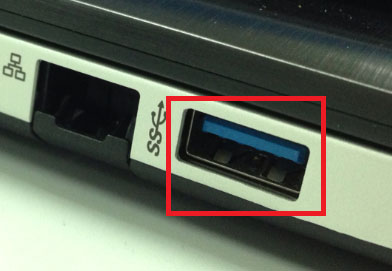
It would be a good deal if the new USB port you choose is a USB 2.0 port and not a USB 3.0 port which is indicated by blue color.  See the reference image below

USB 3.0 port

If you are still getting a required CD DVD drive device driver missing.” try next solution in line.

Solution Three – Make changes to USB 3.0 settings in BIOS

(Note- This solution is applicable only for Windows devices with USB 3.0 ports)

You cannot ignore the possibility of faulty USB settings that is causing the error. To rule out this possibility, you need to make changes to USB 3.0 settings in BIOS. The steps to enter BIOS differ with BIOS manufacturers.  In most cases, you need to press a specific key to enter BIOS setup utility which is displayed on the startup screen. Take a look at a reference image below.

BIOS setup key

After you enter BIOS setup, you need to look for USB 3.0 setting.  Here we have given steps to make changes to USB 3.0 settings in BIOS. The steps given here are for reference purpose only.  The actual steps to change BIOS 3.0 in your case might be different altogether.

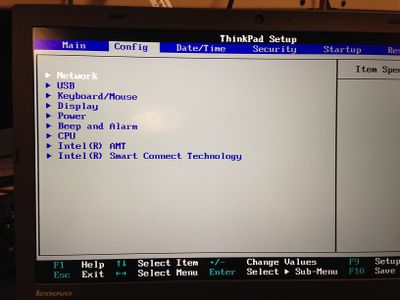
  • Press the Tab button to select Config option
config
  • In the Config option, look for USB 3.0 option
  • Use the down arrow key on the keyboard to select USB 3.0
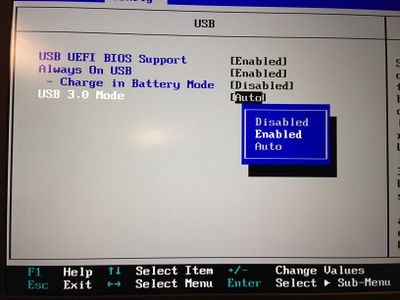
USB 3.0
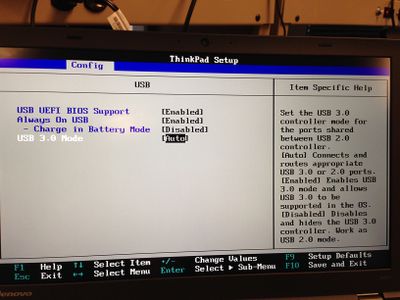
  • When you see the option beside USB 3.0 highlighted, press Enter on the keyboard to see all available options
USB 3.0 enabled
  • From the list, select Auto or Enabled
  • Tap F10 to save the settings
  • Close BIOS and restart your computer.

In most cases, you will see the “a required CD DVD drive device driver missing” resolved. If you are still getting the error, we recommend you to update drivers which could be causing the issue.

Solution Four- Update Drivers

The easiest and simplest method to update device drivers is by using a reliable driver update tool.

Automatic driver update tools offer many benefits, the most important ones being:

  • You can update device drivers automatically
  • The software scans and updates all outdated or missing drivers at one go
  • The tool picks the right drivers for your device and operating system, so you won’t have to worry about installing an incorrect driver by mistake
  • Automatic driver updates are 100% safe

Driver Updater is one of the best driver update tools out there. Outbyte Driver Updater will give you access to a database of over 1 million drivers. It will regularly scan your PC, suggesting new driver versions to install. Driver Updater contains drivers for a variety of Windows devices. With just one click, you can update drivers in your system.

Step 1
Click here to Install and launch the app

Step 2
Scan all devices

Step 3
Install or update drivers automatically

 

Start Download


Filed Under: PC Fix Tips Tagged With: CD DVD Driver

  • « Previous Page
  • 1
  • …
  • 128
  • 129
  • 130
  • 131
  • 132
  • …
  • 189
  • Next Page »


  • Recent Posts
  • Popular Posts
        

Read More Posts


Read More Posts

Drivers.com Sites

  • Software Drivers
  • Drivers Ed

About Us

  • Advertise
  • About Drivers
  • Drivers Support
  • Drivers.com Privacy Policy
  • Disclaimer
  • Software Drivers
  • Mac Fixes and Tips
  • PC Fix Tips
  • Security/ Backup
  • Tablets & Smartphones
  • Tech News

© Copyright 2026 PDE Publications Ltd. End User License Agreement (EULA)