Drivers.com

follow us:

facebook twitter
  • Home
  • Download Drivers
  • Drivers Help
  • PC/Mac Resources
  • Software Drivers
  • Mac Fixes and Tips
  • PC Fix Tips
  • Security/ Backup
  • Tablets & Smartphones
  • Tech News
  • Software Drivers
  • Mac Fixes and Tips
  • PC Fix Tips
  • Security/ Backup
  • Tablets & Smartphones
  • Tech News

Your computer is low on memory (Fixed)

By Susan C on February 21, 2019

Your computer is low on memory (Fixed)

If you are getting “Your computer is low on memory” error message, it means some process is using more memory and other programs are facing memory shortage.

If you don’t fix this problem, your computer may freeze or some application may crash and give out an error.

Getting this memory related error does not mean you need to add more RAM to your computer. Many times the error occurs due to a memory leak. It is also possible that some program in your computer is causing the problem.

Sometimes the low memory error message may also ask the user to close a certain app that is utilising too much memory. If you don’t follow the instructions, your computer may crash.

Here we have provided some solutions that might resolve the “Your computer is low on memory” error.

You can start with the first solution, and if it does not work, move to the next solution and so on. Let’s look at the solutions.

Solution One- Find out the program that is using more memory and kill its process

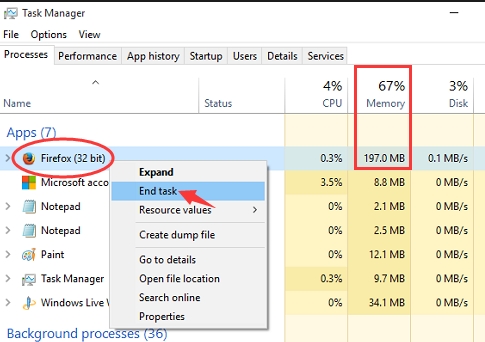
You need to find the app that is hogging more memory and kill its process. You can find the culprit program in the Task Manager. Here are the steps to follow.

  • On the keyboard, press Shift and Ctrl keys at the same time and continue holding them and then press Esc key to invoke Task Manager window
  • In the Task Manager window, go to Processes tab
task manager

  • In our case, the process that appears on the top is using more memory and the process belongs to Firefox app. In your case, it can be any other app/process.
  • Right-click on the process and select End task
  • Close Task Manager window

Check whether you are getting “Your computer is low on memory” error message. If you are still getting the error and see the same app/process is hogging more memory, update the app and see if it resolves the issue. If this solution has not worked for you, move to next solution.

Solution Two – Increase Paging File size (virtual memory)

Your Windows computer uses two types of memory – Physical Memory and Virtual Memory which is also referred as paging file. The virtual memory serves an important purpose. It is used by Windows to store infrequently accessed modified pages so that they can be removed from Physical Memory. The result is the computer is able to free memory for other programs.

The Paging file size is set during installation of Windows and the recommended size depends on the Windows system architecture (32-bit or 64-bit) and amount of RAM installed in your computer. You can increase the paging file size to enhance performance of Windows. Here are the steps to follow.

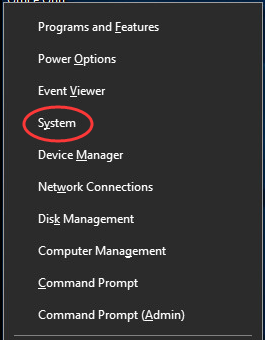
  • On the keyboard, Hold down Windows logo key and X together to invoke quick access black colored menu
  • In the quick access menu- click System
system

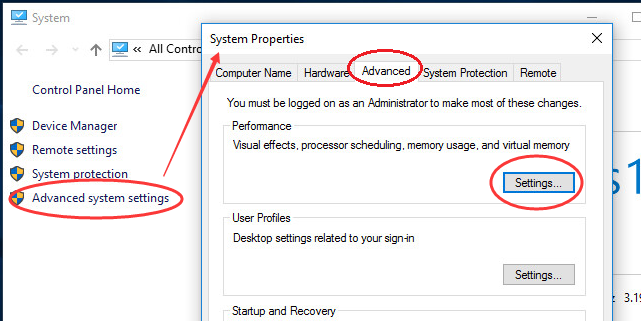
  • In the System window, look for Advanced System settings in left-hand column and click on it
adv system settings

  • In the System Properties window, go to Advanced tab
  • Under Performance, click on Settings
  • In the Performance Options window, go to Advanced tab
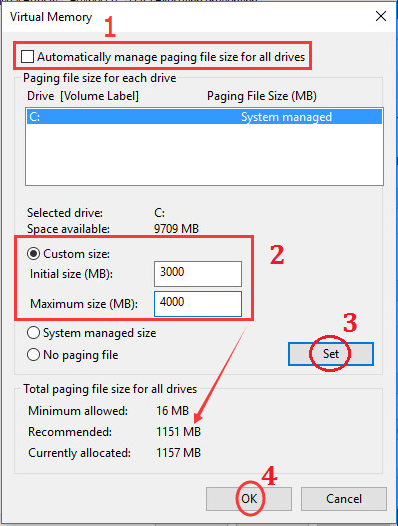
  • Under Virtual Memory, click on Change button
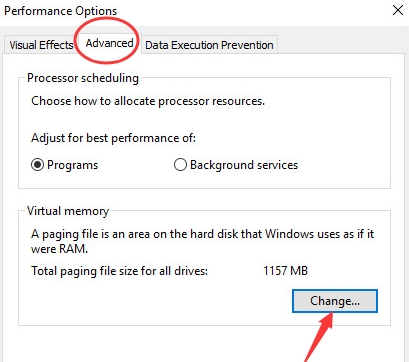
change virtual memory

  • Uncheck the box – Automatically manage paging file size for all drives
  • Click on Custom Size

set custom size

  • Set Initial Size and Maximum size in right manner. Follow the instruction below when deciding values for Initial Size and Maximum size.

Note – Type any value greater than recommended values shown below. One general rule to follow is the size of paging file can be greater than 1GB but lesser than 4GB.

  • After entering values in Initial size and Maximum size boxes, click Set
  • Click OK
  • Close all Windows

Now check whether you are getting “Your computer is low on memory” error message. If the low memory problem still persists, move to next solution.

Solution Three- Update Windows

It is always a good habit to install all recommended Windows updates to keep your Windows running smoothly. From time to time, Microsoft releases updates to plug-in known vulnerabilities and bugs.

There is a possibility this problem is being caused by some bug in the operating system and installing updates might help resolve the problem once and for all.

Here are the steps to follow.

  • Click Start
  • Click Settings(gear icon)
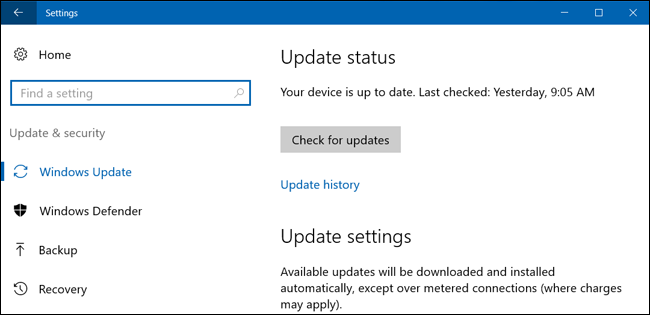
  • Click Update and Security -> Windows Update
  • Click Check for updates

check for updates

  • Windows OS will now check for latest updates, download them and install the updates automatically. After Windows updates are installed, restart your PC.

You should be able to resolve the problem by now.

Check if you are still receiving “Your computer is low on memory” error message. If the problem persists, you can consider adding more RAM to your computer which would resolve the low memory issue.
Filed Under: PC Fix Tips Tagged With: memory low issue

Solution to No Internet Access but Connected in Windows 10

By Susan C on February 20, 2019

Solution to No Internet Access but Connected in Windows 10

The “No Internet Access but Connected” is a common Internet-related error experienced by Windows users. If you are facing similar problem and looking for solution, this post is for you. Before we look at the solutions, let’s understand the error in detail and the possible causes.

“Windows 10 cannot connect to this network” error [Fixed]

What is “No Internet Access but Connected” error?

If you are getting this error, it means you are connected to router but you are not able to access Internet.  You can get this error in both scenarios- you are connected wirelessly to the router or you have a wired connection between your PC and router.

When you are experiencing this problem, you will see a yellow exclamation mark on the Internet connectivity icon in the system tray. When you hover the mouse pointer over network icon, you will see a message that says “No Internet access”

Possible causes of “No Internet Access but Connected” error

You might be getting this error due to many reasons like

  • The Internet connection is having some problem
  • Problem with router or modem
  • Network driver related issue
  • Wrong network settings

You cannot ignore the possibility of other causes behind the “No Internet Access but Connected” error. There are two scenarios in this error.

Scenario One- No device has internet connectivity

If none of the devices connected to router have internet connectivity, you can conclude the problem lies with the internet connection or the networking devices. If the problem is with your internet connection, you need to contact your internet service provider, explain the problem and seek a solution.

If the problem is with your networking devices- Modem and router, you need to follow the troubleshooting steps below.

Solution – Restart Modem and Router

  • Unplug the power cord of the Modem and router.
  • Remove all cables from the router and modem.
  • Wait for some time and plug the cables back again in their respective slots
  • Now plug the power cord of the modem and router
  • Switch on the modem first and wait for some time until the internet connection is established
  • Switch on the router and wait for the internet connection to stabilize
  • Start your computer and see if the internet connectivity is restored.

Scenario Two – Only computer has no internet connectivity

If other devices connected to router or modem is having internet connectivity, you can conclude the problem lies in your computer. In that case, you need to perform troubleshooting steps given in solutions below

We have provided six solutions in this post and one of them might work for you. Since we do not know the exact cause behind “No Internet Access but Connected” error, it is difficult to tell which solution is right for you.

The best strategy to follow is start with the first solution and if it does not work, moves to next solution and so on. Now, let’s look at the solutions.

Solution One- Use Network Troubleshooter

Windows 10 has an in-built network troubleshooter tool that can fix network issues. You need to run the Network Troubleshooter and see if it fixes the problem. Here are the steps to follow

  • Right-click the network icon in the notification area
  • Select Troubleshoot problems
  • Follow on-screen instructions
  • The Network Troubleshooter will try to diagnose the problem and fix it
  • If the Network Troubleshooter is successful, it will display a message mentioning problem fixed
  • If the Network Troubleshooter is not successful in fixing the problem, it will display a message about inability to fix the problem.
  • Close Network Troubleshooter

Check whether your computer is getting Internet access. If the problem is not resolved, move to next solution.

Solution Two- Disable and Re-enable the Network adapter

The cause behind “No Internet Access but Connected” error could be simple or temporary. Disabling and re-enabling network adapter might help. Here are the steps to follow.

  • Press Windows logo key and R simultaneously on your keyboard to bring up Run command
  • In Run command box, type control and press Enter on keyboard
  • In the Control Panel window, click Network and Sharing Center
  • In the next window, click Change Adapter settings that appear in left-hand side menu

(Note- Problematic network adapter will have a yellow exclamation mark)

  • Right-click on problematic network adapter and select Disable
  • Wait for some time
  • Right-click on problematic network adapter and select Enable

Check your computer and see if the Internet access is restored. If the problem still persists, move to next solution.

Solution Three- Disable IPv6

Not all application use IPv6 protocol and you need to check whether disabling IPv6 resolves the issue. Here are the steps to follow.

  • Go to Network and Sharing Center (Follow steps given in Solution Two)
  • Click Change Adapter Settings on the left sidebar
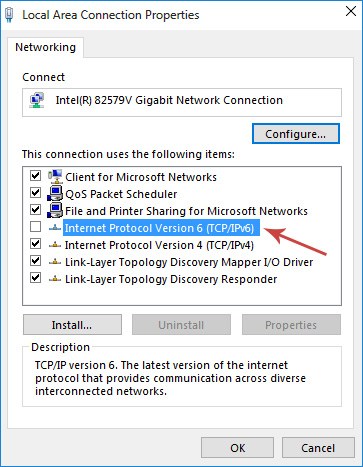
  • Right-click on the problematic Network adapter and click Properties
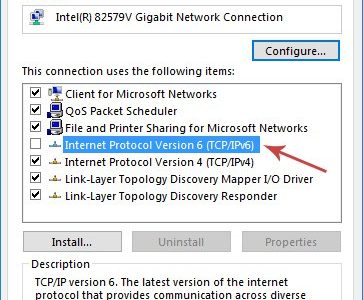
  • In the Properties window, uncheck IPv6 from the list of protocols
uncheck IPv6
  • Click OK
  • Close all windows

Check your PC and see if the Internet access problem is resolved. If the problem persists, try next solution.

Solution Four – Remove temporary files

  • Right-click on Start button and select File Explorer
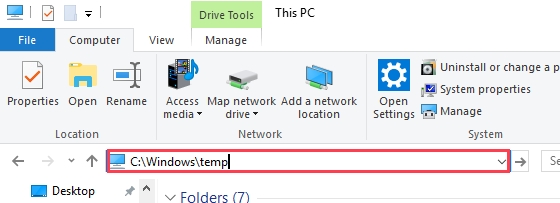
  • In the File Explorer window, type C:\Windows\temp and press Enter on keyboard
windows-temp-folder
  • If Windows prompt you for Administrator permissions to access the folder contents, click Continue
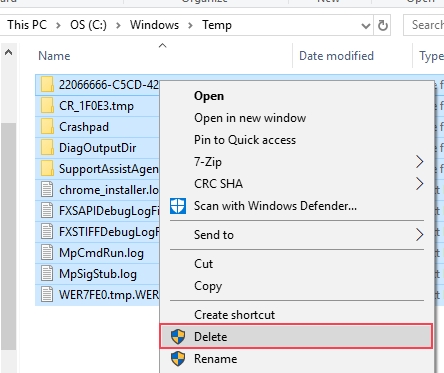
  • In the Temp folder, you will lots of files. We have to delete all files from temp folder
  • Press Ctrl+A to select all files in the temp folder
delete temp files
  • Press Delete button on the keyboard
  • Close all windows

Check whether Internet connectivity is restored. If this solution has not worked for you, move to next solution.

Solution Five – Disable Antivirus

There is a possibility the anti-virus software is blocking the internet connection. A simple solution to this problem is disabling anti-virus temporarily and check whether your computer is getting internet access.

If your computer gets internet access after disabling anti-virus software, you can conclude the anti-virus is the cause of “No Internet Access but Connected” error. You need to contact the anti-virus manufacturer and explain the problem and ask for solution.

Note- After disabling anti-virus, be careful about websites you visit or files you open.

Other solution is using other 3rd party anti-virus software or using the in-built Windows Defender security software that is part of Windows 10. Here are the steps to activate Windows Defender.

Before activating Windows Defender, you need to uninstall anti-virus you are currently using. After you have removed anti-virus software, restart the computer and then activate Windows Defender on your Windows 10 system. Here are the steps to follow.

  • Click Start
  • Click Settings (gear icon)
  • Click Update and Security
  • Click Windows Defender
  • Scroll down until you see Windows Defender Offline
  • Click Scan Offline button

If the computer is still not getting internet access after disabling anti-virus, you can conclude anti-virus is not the cause of  the “No Internet Access but Connected” error. In that case, enable the anti-virus before moving to next solution.

Solution Six- Update Network Driver

Microsoft provides regular updates and patches for Windows 10. There is a possibility Windows needs latest network driver for establishing internet connectivity. In that case, a simple solution is updating Network drivers. There are two ways to update Network driver- Manually and Automatically. Here we have given steps to both methods

Method One – Update Driver Manually
  • Hold Windows logo key and R together on your keyboard to bring up Run command
  • In Run command window, type devmgmt.msc and press Enter on keyboard
  • In the Device Manager window, navigate to Network Adapters category and expand it
  • Right-click on Network Card in the list and note down its name

Note- Since your computer is not having Internet connectivity; you need to perform the step below on computer that has Internet connectivity. After downloading the network driver, copy the driver setup file to your computer and then perform steps given below.

  • Now launch an Internet browser and go to the Network card manufacturer website and find driver updates for network card installed in your PC

While downloading a driver update, make sure you download the right network driver file. Find out which version of Windows 10 your computer is running – 32 bit OS or 64-bit OS. Here are the steps to follow

  • Click Start->Settings
  • Click System->About
  • Note down the System type info

If your computer is running Windows 10 32-bit OS, you need to download a network driver file intended for 32-bit Windows. Similarly, you need to download the right network driver file for 62-bit Windows 10.

  • Download the right network driver to your computer
  • Open Device Manager window again and go to the Network Adapters category
  • Expand the category and right-click the network card and click Uninstall
  • Wait for the uninstallation process to complete
  • Close Device Manager
  • Now navigate to the drive/folder where you have downloaded the network driver file
  • If the file is in zip format, you need to unzip the contents. After unzipping the contents, double-click on Driver setup file to start the installation
  • If the file is in exe format, double-click on the setup file to start the installation
  • Follow on-screen instructions to install the latest network drivers.
  • Wait for the process to complete and then restart your computer
Method Two- Use a Driver Update Tool to update Network Driver automatically

Automatic driver update tools offer many benefits, the most important ones being:

  • You can update device drivers automatically
  • The software scans and updates all outdated or missing drivers at one go
  • The tool picks the right drivers for your device and operating system, so you won’t have to worry about installing an incorrect driver by mistake
  • Automatic driver updates are 100% safe

Driver Updater is one of the best driver update tools out there. Outbyte Driver Updater will give you access to a database of over 1 million drivers. It will regularly scan your PC, suggesting new driver versions to install. Driver Updater contains drivers for a variety of Windows devices. With just one click, you can update drivers in your system.

Step 1
Click here to Install and launch the app

Step 2
Scan all devices

Step 3
Install or update drivers automatically


Start Download


Solution Seven- Reset Network

Wrong network settings could be the cause of the “No Internet Access but Connected” error. Resetting network would set the network settings to “default” that could resolve the issue. Here are the steps you need to follow.

  • Click Start -> Settings
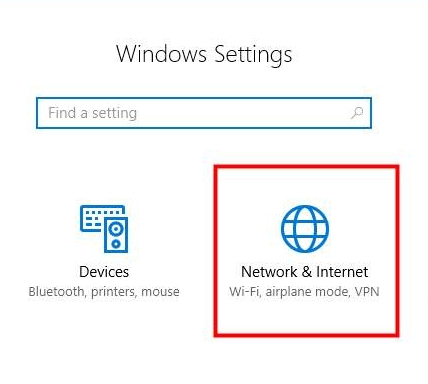
  • Click Network & Internet
network & internet
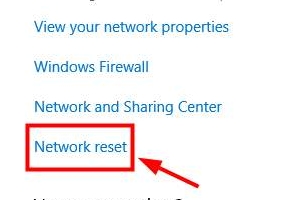
  • Click Network Reset
network reset
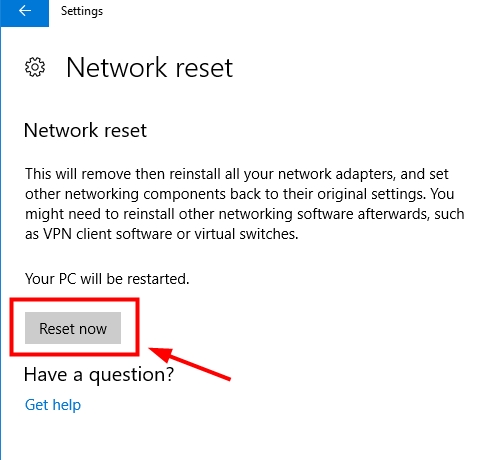
  • Click Reset Now
reset now

Windows will reset network and restart the computer. After computer restarts, check whether Internet access problem is resolved. If you are still not able to surf the Internet, move to next solution.

Solution Eight- Change DNS

If the DNS server of your ISP is facing issues, it can lead to “No Internet Access but Connected” error. You can resolve this problem by using high-speed DNS servers. Here are the steps to change DNS on your Windows 10 PC.

  • Press Windows logo key and R at the same time on your keyboard to bring up Run command
  • In Run command box, type control and press Enter on keyboard
  • In the Control Panel window, click Network and Sharing Center
  • In the Network and Sharing Center, click Change Adapter setting
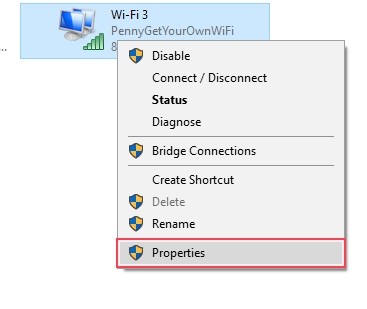
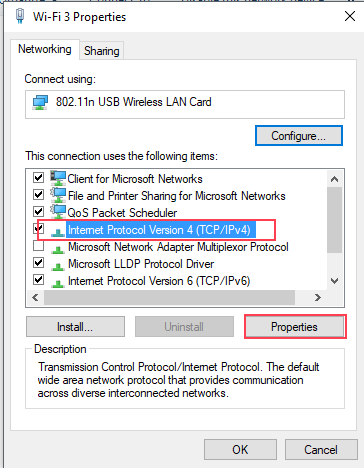
  • Right-click on the problematic Internet connection you are using and select Properties
network adapter properties
  • Click on Internet Protocol Version 4 (TCP/IPv4)
TCP-IPv4-properties
  • Click Properties
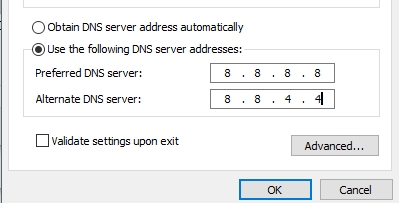
  • In the Internet Protocol Version 4 properties window, click the option Use the following DNS server addresses.
DNS server
  • Type 8.8.8.8 in Preferred DNS server
  • Type 8.8.4.4 in Alternate DNS server
  • Click OK
  • Close all windows

Check whether your computer is getting Internet access. If the problem persists, move to next solution.

Solution Nine – Reset IP address

IP address configuration plays an important role in Internet access. There is a possibility the IP address configuration of your Windows PC is not proper that is causing “No Internet Access but Connected” error. Resetting IP address will override any wrong IP address configuration. Here are the steps to follow.

The IP address is reset in Windows through a series of networking commands that are run through command prompt window. You need to launch a command prompt window with admin rights to run these commands. Now let’s look at the steps.

  • Click Start button and type command prompt in Cortana search
  • Right-click on the first result in the list and select Run as administrator
  • In the User account control window, click Yes.
  • You will see command prompt window launched with admin rights.

(Note- you will be typing a series of networking commands one after another in command prompt window. Hit Enter on keyboard to run the command. Wait for the command operation to complete before typing next command in the line)

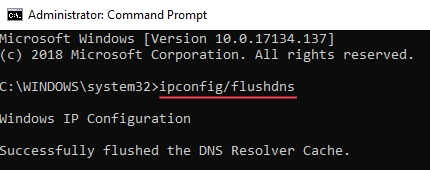
  • Type ipconfig/flushdns and press Enter
ipconfig
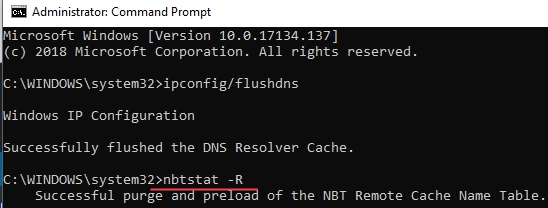
  • Type nbtstat -R and press Enter.
nbtstat-R
  • Type nbtstat -RR and press Enter
nbtstat-RR
  • Type netsh int ip reset c:\resetlog.txt and press Enter
netsh-int-ip-reset
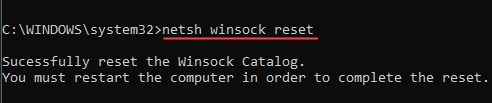
  • Type netsh winsock reset and press Enter
netsh-winsock-reset
  • Close command prompt window and reboot computer

After computer reboots, check whether Internet access issue is resolved. In most cases, the “No Internet Access but Connected” error would get resolved by one of the solution given in this post.

Fix WiFi Connectivity Issues in Windows 8.1

Filed Under: PC Fix Tips Tagged With: no internet issue

Solution to Memory Management BSOD Error on Windows 10

By Susan C on February 15, 2019

Solution to Memory Management BSOD Error on Windows 10
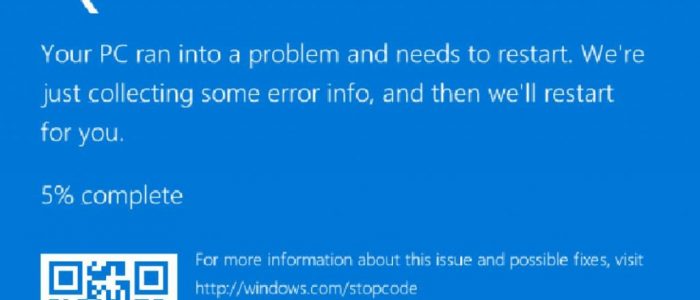
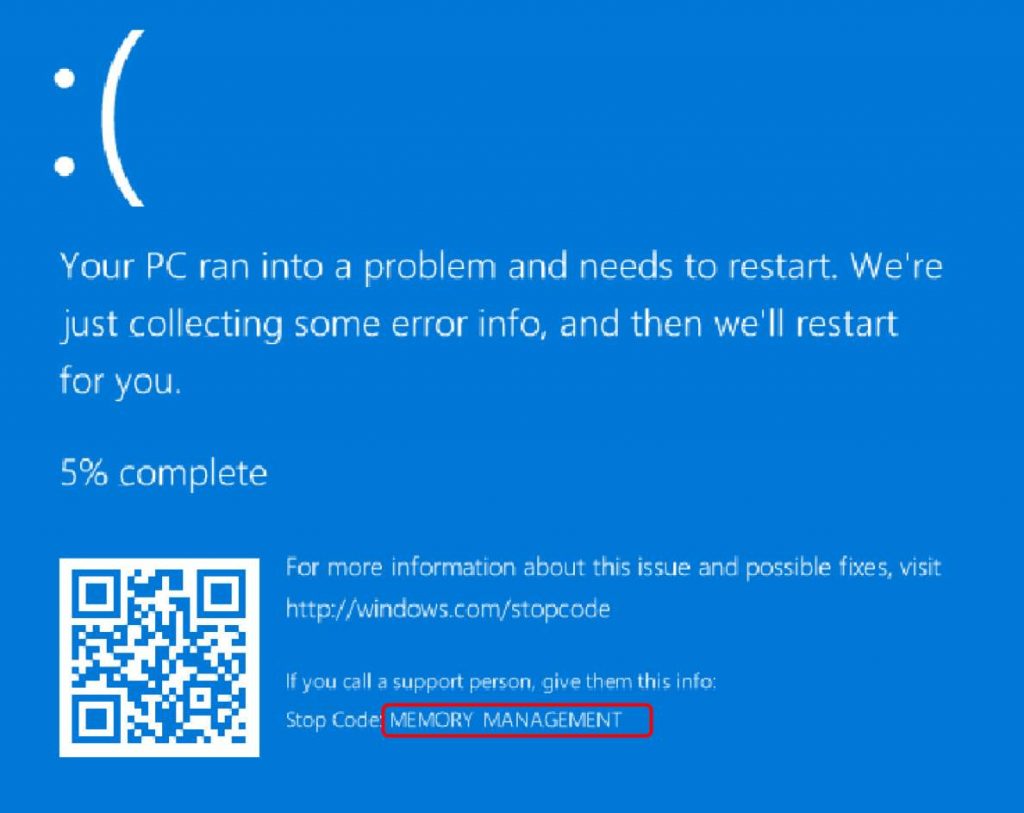
error image

Blue Screen of Death (BSOD) is a common occurrence for Windows users. Almost every regular Windows user sees one or two BSODs in their lifetime. T

The BSOD can be a one-time error which means you may not see it repeatedly while sometimes a particular BSOD appears more frequently. You can find more about particular BSOD by looking at the Stop error code that is displayed on the screen.

There is no harm in ignoring single BSOD occurrences as the computer recovers after a system restart followed by BSOD.

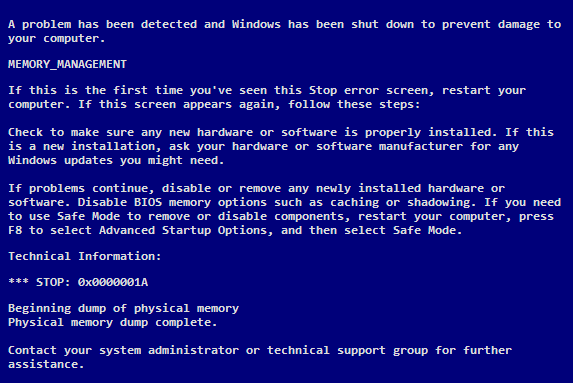
However, if you are seeing a particular BSOD frequently, something is wrong with your system that needs your attention. Many Windows users have complained about BSOD related to Memory Management. the stop error code of the BSOD is 0x0000001A.

error image 2

If you are getting this BSOD error and looking for a solution, this post is for you.

What is Windows Memory Management?

Memory management is an important aspect of Windows that keeps the operating system running smoothly. Windows keeps tracks of memory allocated to different system processes and app. Whenever any app is closed, the memory is freed and then Windows can allocate it to any app or process needing it.

When memory management goes wrong, system hangs or in worst cases, a BSOD appears on the screen and the system reboots. Though Memory Management BSOD error can happen when you are multi-tasking, its frequent occurrence indicates some problem which needs to be resolved

Causes behind Memory Management BSOD error

Though the name of the BSOD error refers to memory management, a problem with memory is not always the cause. Some of the causes behind this error can be

  • Disk Errors
  • Faulty RAM
  • Software issues like corrupt system files
  • Faulty Drivers
  • Issues with hardware like Graphics card

The right solution for the Memory Management BSOD error depends on the root cause. If you know the root cause, you can straightway perform the troubleshooting steps in related solution and get rid of the error.

If you are unaware of the root cause for the BSOS error like many users, you need to try all solutions given below until the issue is resolved. The best approach is to start with the first solution. If that does not work for you, move to the next solution and so on.

Solution One- Check and clean RAM modules

Note- Only desktop users who are comfortable opening their computer and performing the steps need to go ahead. If you are not comfortable with the steps, skip the Solution One and go to the next one.

Before you perform any troubleshooting, clean the RAM modules in your computer. Here are the steps you need to follow.

  • Disconnect the computer from the power supply
  • Remove all cables attached to the CPU unit
  • Open the computer casing
  • Clean the motherboard especially areas near the RAM slots
  • Remove the RAM stick and clean it
clean RAM
  • Put back the RAM stick in the slot
  • Do this to all RAM sticks on the motherboard
  • Connect all cables to the CPU unit
  • Plug the computer to the power supply and start the computer

Run the computer and see whether you get the Memory Management BSOD error. If the error persists, move to next solution.

Solution Two – Run Memory Diagnostic Tool

Windows has a built-in memory diagnostic tool that can check for memory related problems. The memory test is performed at the system startup. Before you run the memory diagnostic tool, make sure you save all work.  Here are the steps to follow.

  • Click Start and type memory in the search bar
  • Select Windows memory diagnostic from the list of results
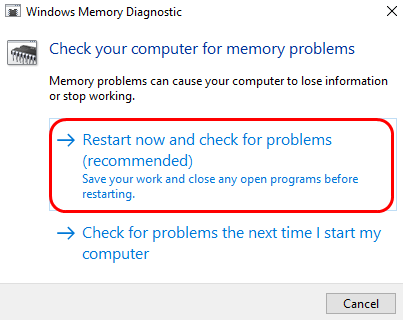
  • In the Windows memory diagnostic pop-up, you can see two options – 1) Restart now and check for problems(recommended) and 2) Check for problems next time I start my computer
windows memory diagnostic
  • If you select the 1st option, the computer would restart immediately and scan the memory before booting. If you select the 2nd option, the computer will run the memory diagnostic tool at next boot.
  • You can choose any option. Here we have selected the 1st option that allows fixing the BSOD memory management error at earliest. Make sure you save all work before the computer shuts down.
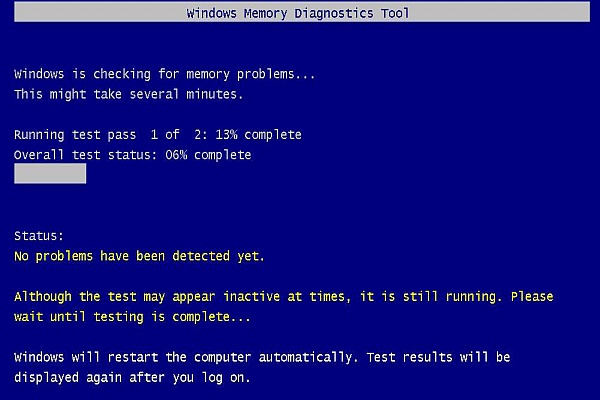
  • Wait for Windows to shut down normally and reboot. The memory diagnostic tool is automatically launched when the computer restarts
memory scan running
  • Wait for the memory diagnostic tool to complete its operation. The diagnostic tool may take several minutes to check the memory completely
  • After the memory scan is completed, the computer will reboot automatically. If the memory diagnostic tool reports any errors, you should replace the RAM module.

If the memory diagnostic does not find any problems with memory, you can conclude the RAM is not the cause of the Memory Management BSOD error. You need to proceed to the next solution to check the hard disk for errors.

Solution Three- Run Check disk

You cannot ignore the possibility of the corruption of the NTFS volume which prevents Windows from accessing files needed to run the operating system normally. Windows has an in-built tool for disk check and repair which is known as Chkdsk. The tool checks the file system and file system metadata of a volume for physical and logical errors.

Chkdsk is a command-line tool which means you need to open a command prompt window (with admin rights) to run Chkdsk. Here are the steps to follow.

  • Click Start and type cmd prompt in the Cortana search box
  • Right-click on Command prompt from the list of results and select Run as administrator
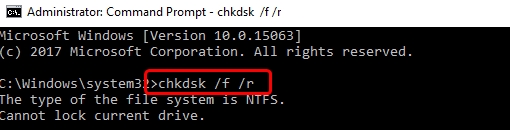
  • In the command prompt window, type chkdsk /f /r.
chkdsk command
  • Press Enter on the keyboard
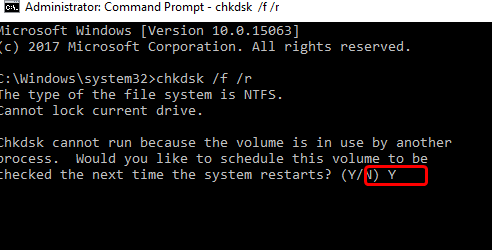
  • When Windows prompt you question about scheduling chkdsk at next restart. Type Y for an answer
chkdsk Press Y
  • Press Enter on the keyboard
  • Windows will run the Chkdsk tool at the next The tool will report any errors it comes across and fixes them

Note – Chkdsk can take a longer time to complete and you need to be patient

  • After the Chkdsk complete its operation, the system will reboot

Boot into Windows and use your computer and see if you encounter Memory Management BSOD error again. If the issue is not resolved, move to next solution.

Solution Four – Update Graphics Driver

As mentioned earlier, memory management BSOD could be a graphic card related issue. To rule out the possibility of a problem with graphic cards driver, install the latest graphic card drivers.  there are two ways to update graphic card drivers- Manually through Device Manager and Automatically using Driver Updater software. Here we have shown both methods, you can use any method that suits you.

Method One- Manual Driver Update

  • On your keyboard, press Windows logo key and R together to launch Run command
  • In Run command window, type devmgmt.msc and click OK
  • In the Device Manager window, go to the Display Adapters category and expand it
  • Right-click on Graphic Card in the list and note down its name
  • Now open an Internet browser and go to the graphic card manufacturer website and find driver updated for graphic cards installed in your PC

While downloading a driver update, make sure you download the right driver file. For example, if your computer is running Windows 32-bit OS, you need to download a graphic driver file intended for 32-bit Windows. Similarly, you need to download the right graphic driver file for 62-bit Windows OS.

  • Download the right graphic driver to your computer
  • Open Device Manager window again and go to the Display Adapters category
  • Expand the category and right-click the graphic card and click Uninstall
  • Wait for the uninstallation process to complete
  • Close Device Manager
  • Now navigate to the drive/folder where you have downloaded the driver file
  • If the file is in zip format, you need to unzip the contents. After unzipping the contents, double-click on Driver setup file to start the installation
  • If the file is in exe format, double-click on the file to start the installation
  • follow on-screen instructions to install the latest graphics drivers.
  • Wait for the process to complete and then restart your computer

If this method does not work for you, try updating the driver automatically

Method Two- Use Driver Update Tool to update Graphic Drivers automatically

Automatic driver update tools offer many benefits, the most important ones being:

  • You can update device drivers automatically
  • The software scans and updates all outdated or missing drivers at one go
  • The tool picks the right drivers for your device and operating system, so you won’t have to worry about installing an incorrect driver by mistake
  • Automatic driver updates are 100% safe

Driver Updater is one of the best driver update tools out there. Outbyte Driver Updater will give you access to a database of over 1 million drivers. It will regularly scan your PC, suggesting new driver versions to install. Driver Updater contains drivers for a variety of Windows devices. With just one click, you can update drivers in your system.

Step 1
Click here to Install and launch the app

Step 2
Scan all devices

Step 3
Install or update drivers automatically


Start Download


Solution Five – Run SFC

Windows has a System File Checker tool (SFC) that can fix the problem with system files.  The SFC tool replaces corrupt and missing files with good cached versions that could resolve the memory management BSOD issue. You need to run SFC commands from the command prompt with admin rights. Here are the steps to run the SFC tool.

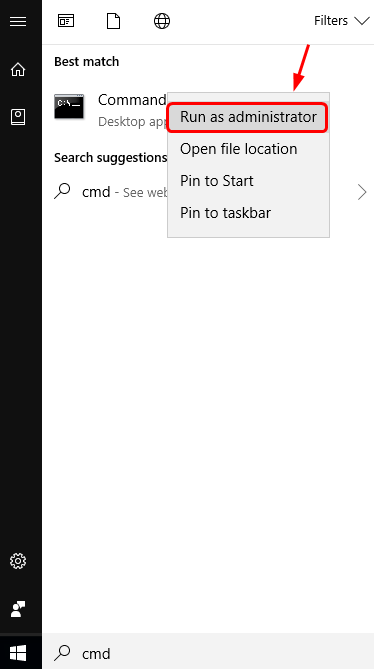
  • Click Start menu and type cmd in Cortana search box
cmd admin
  • Right-click command prompt from the list of results and select Run as administrator
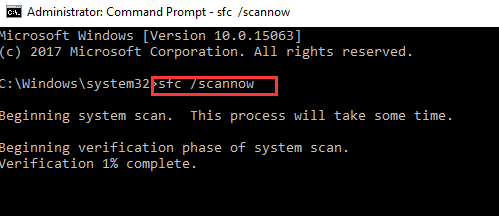
  • In the command prompt window, type sfc /scannow and hit Enter on the keyboard
cmd sfc
  • Wait for the process to complete

Check whether memory management BSOD is generated. If the issue persists, go to the next solution.

Solution Six- Update Windows

there is a possibility the memory management BSOD is caused due to some big in Windows OS. Microsoft offers regular updates to Windows users to fix different bugs in Windows. You should always install all recommended Windows update to ensure the operating system keeps running smoothly. Here are the steps to install windows updates.

  • On your keyboard, press Windows logo key and I simultaneously to open Settings Window
  • In the Setting Window, click Update & Security
  • Click Windows updates and look for any pending updates in the right-hand column
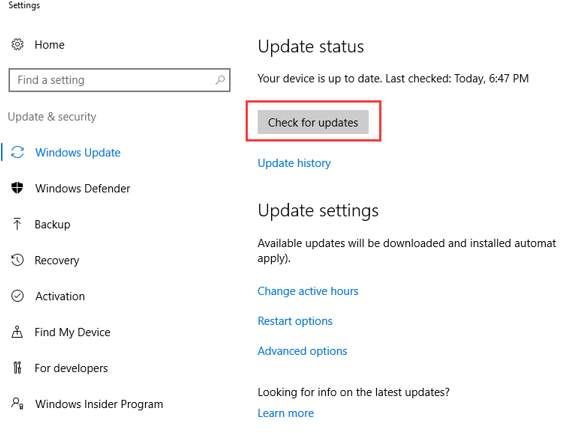
  • Click Check for updates. Windows will look for any pending updates, download them and install updates automatically
check updates
  • After the Windows Update process is completed, restart your computer.

Check whether the memory management BSOD error is generated. If the problem remains unresolved, go to the next solution.

Solution Seven – Check newly installed hardware and software

You cannot rule out the possibility of incompatible hardware or software causing memory management BSOD. Try to recall when the memory management BSOD started appearing. Did you start getting the error after installing any new hardware or software? If that is the case, you need to remove any new hardware like a graphic card or any software that you have installed recently

To remove software, follow the given steps

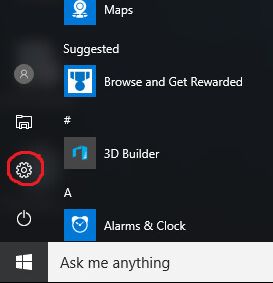
  • Open Start Menu
  • Click Settings(gear icon)
settings
  • In the Settings menu, click System
  • Select App & features from the left pane
  • Select an app which you want to uninstall
  • Click Uninstall button that appears besides the app

To remove hardware, follow the given steps.

As mentioned earlier, the hardware related troubleshooting steps are only applicable to desktop users. Try the solution only if you are confident about performing the steps given below

  • Unplug the computer from the power source
  • Remove all cables connecting the CPU unit
  • Remove the computer casing
  • Remove the hardware component you wish
  • Close the computer casing
  • Connect all cables back
  • Plug the computer to a power source and start your computer

Are you still getting the memory management BSOD? if the answer is Yes, move to next solution.

Solution Eight- Run Virus scan

In rare cases, memory management BSOD could be due to virus infection. Make sure the virus antivirus software has the latest virus definitions. Update anti-virus and then run a virus scan to get rid of possible infections

the steps to run virus scan differ with each anti-virus software. the steps given here are for reference purpose only. To know about detailed steps to run a deep virus scan, read your anti-virus software documentation. Here we have demonstrated steps for Windows Defender which is an in-built security software in Windows.  Now let look at the steps

  • Open Start Menu
  • Click Settings(gear icon)
  • In the Settings menu, click Update & Security
  • Click Windows Defender option on the left side
  • In the next dialog box that appears, click Open Windows Defender Security Center.
  • Now look on the left side and click the Virus and Threat Protection button
  • Click Advanced scan
  • Click Full scan

In most cases, the memory management BSOD error will get resolved by one of the solutions. however, if none of the solutions work for you, reset your PC or show your computer to a repair professional.

Filed Under: PC Fix Tips Tagged With: BSOD error

  • « Previous Page
  • 1
  • …
  • 126
  • 127
  • 128
  • 129
  • 130
  • …
  • 189
  • Next Page »


  • Recent Posts
  • Popular Posts
        

Read More Posts


Read More Posts

Drivers.com Sites

  • Software Drivers
  • Drivers Ed

About Us

  • Advertise
  • About Drivers
  • Drivers Support
  • Drivers.com Privacy Policy
  • Disclaimer
  • Software Drivers
  • Mac Fixes and Tips
  • PC Fix Tips
  • Security/ Backup
  • Tablets & Smartphones
  • Tech News

© Copyright 2026 PDE Publications Ltd. End User License Agreement (EULA)