Drivers.com

follow us:

facebook twitter
  • Home
  • Download Drivers
  • Drivers Help
  • PC/Mac Resources
  • Software Drivers
  • Mac Fixes and Tips
  • PC Fix Tips
  • Security/ Backup
  • Tablets & Smartphones
  • Tech News
  • Software Drivers
  • Mac Fixes and Tips
  • PC Fix Tips
  • Security/ Backup
  • Tablets & Smartphones
  • Tech News

Solution to Xbox One Controller Driver update failed issue

By Susan C on April 4, 2019

Solution to Xbox One Controller Driver update failed issue

Getting an error message “Device Driver software was not successfully installed” when you try to connect Xbox One controller to your computer?

How to connect an Xbox One Wireless Controller to a Windows PC

Microsoft does not offer direct download of Xbox One controller drivers and the latest drivers are provided through Windows update.

Many Xbox One users get the above-mentioned error when they try to update Xbox One Controller driver through Windows update.

Here we have provided a fix to this problem.

Solution One – Uninstall Xbox One controller

You need to uninstall your Xbox One Controller from Windows PC.

When you reconnect Xbox One Controller, Windows will automatically install drivers for Xbox One controller.

Here are the steps to follow.

  • Click Start
  • Type device manager in the search box
  • Select Device Manager from the list of search results
  • In the Device Manager window, go to Microsoft Xbox One Controller and expand it
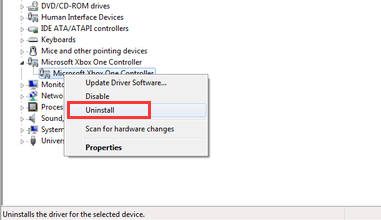
  • right-click on Microsoft Xbox One Controller and select Uninstall
xbox one uninstall
  • You will see a Confirmation dialog pop-up for uninstalling the device. Check the box- Delete the driver software for device and then click OK
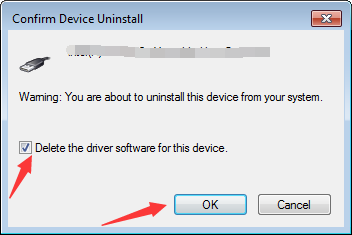
delete driver software
  • Unplug the Xbox One controller
  • Restart your computer
  • Plug Xbox One Controller and you will see Windows will install the device drivers automatically.
  • Open the Device Manager again and go to go to Microsoft Xbox One Controller and expand it
  • Now right-click on Microsoft Xbox One Controller and select Update Driver Software
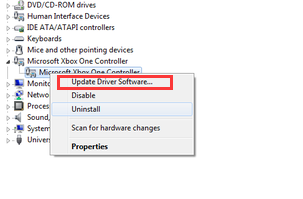
update driver software
  • In the next window, select option which says search for drivers automatically
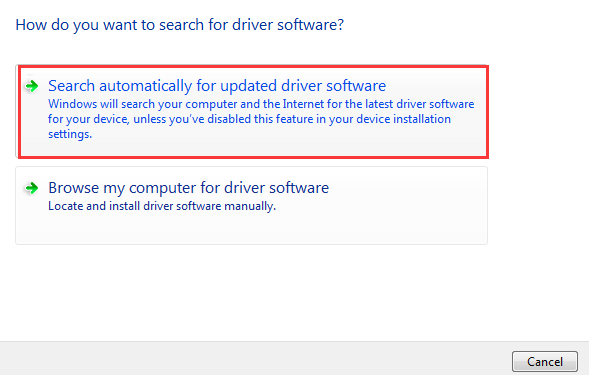
search automatically

(Note- You need latest .NET Framework 4.5 installed on your computer to install and update Microsoft Xbox One Controller successfully)

If you want an easy method to update Xbox One controller driver, you can use update it automatically.

Solution Two- Update Xbox One Controller Drivers automatically

Updating drivers manually is tedious and complicated. Plus there’s always a chance of installing an incompatible driver, which can make matters worse.

Automatic driver update tools offer many benefits, the most important ones being:

  • You can update device drivers automatically
  • The software scans and updates all outdated or missing drivers at one go
  • The tool picks the right drivers for your device and operating system, so you won’t have to worry about installing an incorrect driver by mistake
  • Automatic driver updates are 100% safe

Driver Updater is one of the best driver update tools out there. Outbyte Driver Updater will give you access to a database of over 1 million drivers. It will regularly scan your PC, suggesting new driver versions to install. Driver Updater contains drivers for a variety of Windows devices. With just one click, you can update drivers in your system.

Step 1
Click here to Install and launch the app

Step 2
Scan all devices

Step 3
Install or update drivers automatically
 

Start Download


Filed Under: PC Fix Tips Tagged With: Xbox One Driver

Solution for establishing Remote Desktop connection in Windows

By Susan C on April 2, 2019

Solution for establishing Remote Desktop connection in Windows

Remote Desktop has been a feature in Windows OS since XP. The remote desktop feature in Windows allows you to connect one PC to another Windows device to retrieve files or provide PC support.

In Windows 10, the remote desktop feature is enhanced and you also have the option of downloading and using Remote desktop app from the Microsoft app store.

Here we have discussed steps to set up Remote desktop in Windows. The steps given here can be used to connect to PC in local network or connect to a PC through Internet connection.

Before Anything Else

The two computers that you intend to connect through remote desktop should have necessary permissions for remote connectivity and network connections. Also, both PC should be ON and connected to a network.

Here we will look at the requirements of the target PC and ensure the remote PC has necessary permissions and network connection.

Step One – Giving necessary permissions to target PC

  • Click Start
  • Click Control Panel
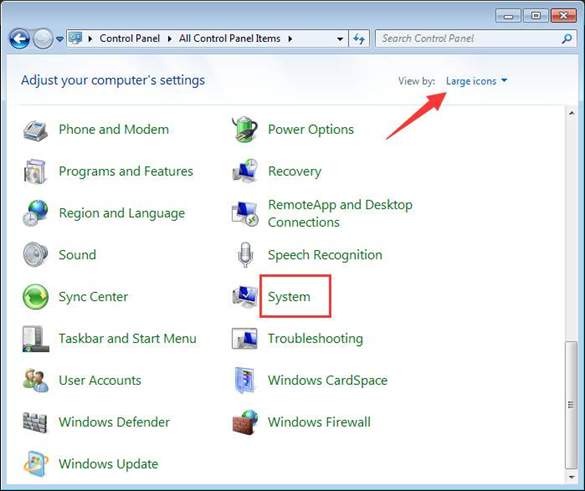
  • Set the View by to Large Icons
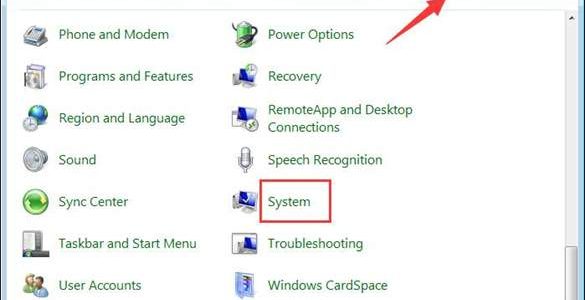
  • Click System

click system

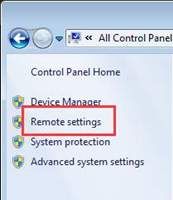
  • In the System window, go to left panel and click Remote settings

remote settings

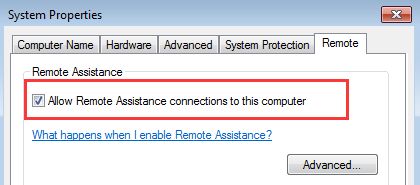
  • In the System Properties window, go to Remote tab
  • Check the box which says allow remote connections. Refer the image below

allow remote assistance

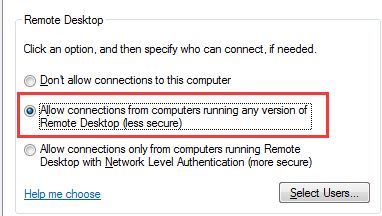
  • In the same window, go to remote desktop section
  • Select the option which says Allow connections ……..any version of Remote Desktop.

allow connections

  • Click OK

The next step is changing the Windows firewall settings so that it does not block any remote desktop connections.

Step Two- Changing Windows Firewall settings

  • Click Start
  • Click Control Panel
  • Set the View by to Large Icons
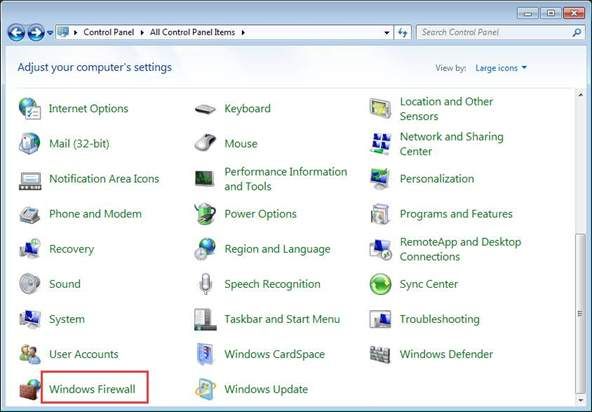
  • Click Windows Firewall

windows firewall

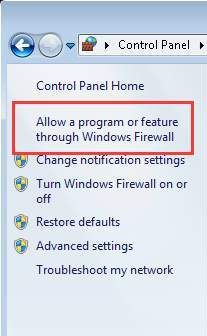
  • In the Windows Firewall, go to left panel and click option which says Allow a program or feature through Windows Firewall.

allow a program

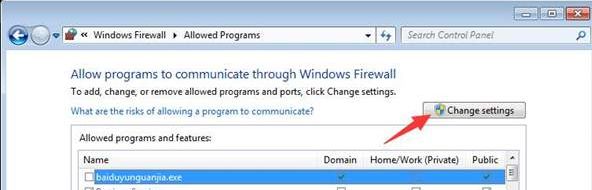
  • click Change Settings

change settings

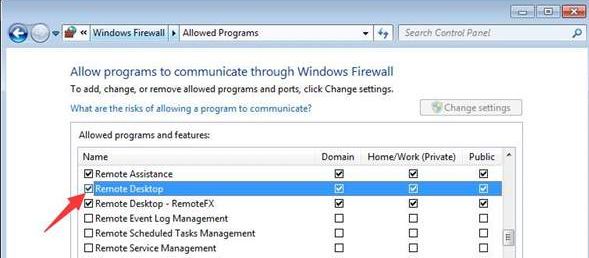
  • Make sure the Remote Desktop box is checked

check remote desktop

To establish remote desktop connection, you also need to know the IP address of the target PC.

Here are the steps to follow.

Step Three- Get IP address of target PC

  • Press Windows logo key and R button on the keyboard simultaneously to invoke Run command box
  • In the Run command box, type cmd and hit Enter on the keyboard
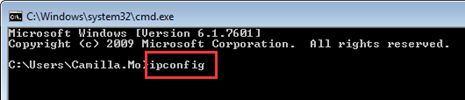
  • In the command prompt window, type ipconfig

ipconfig

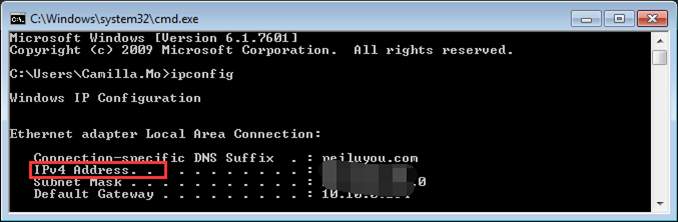
  • Scroll down the window and note down the IPv4 address

IPv4

After you are done with the step three, you can now proceed to connect to target computer.

Here are the steps to follow,

Step Four – Connecting to target PC through Remote Desktop

  • Press Windows logo key and R button on the keyboard together to bring up Run command window
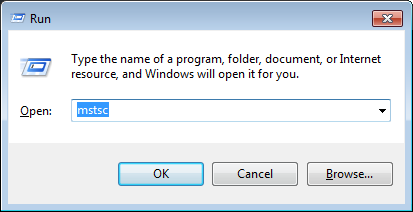
  • In the Run command pop-up, type mstsc and click OK

mstsc

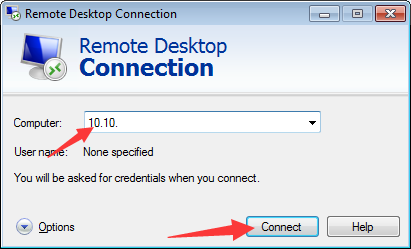
  • A remote desktop connection window pops up on the screen

remote desktop connection

  • Type the IP address of the target PC in the box and click Connect.

Now your PC will connect to the target PC and you can perform troubleshooting steps or access files on target PC.


Filed Under: PC Fix Tips Tagged With: remote desktop

Solution to YouTube videos not playing issue

By Susan C on March 31, 2019

Solution to YouTube videos not playing issue

Are you unable to play YouTube videos?

This is a common problem, and a frustrating one at that.

There is no one fixed reason behind this problem. It can occur because of varied reasons.

Thankfully, the issue is easily resolvable.

Here we have discussed some easy to follow solutions to fix “YouTube videos not playing” issue.

Reasons for YouTube videos not playing

The problem could be because of the YouTube server. It is also possible that an internet connections issue at your end is causing the problem.

YouTube uses HTML5 video player to stream videos. As such the problem might be related to Adobe Flash Player or your browser.

Here we given solutions that fix the various underlying issue mentioned above. Now, let’s look at the solutions.

Solution One- Close the tab/Restart Browser

The problem might be temporary. Just close the tab and open YouTube in new Tab.

If this does not work for you, restart the browser and try again.

If neither works for you, move to the next solution.

Solution Two- Restart WI-Fi connection

The problem might be with the Internet connection.

If you are connected to Internet through Wi-Fi, disconnect and reconnect to your router.

If you are still facing same issue, move to the next solution.

Solution Three- Restart Computer

There is a possibility some temporary glitch in your computer is causing the “YouTube videos not playing” issue.

Many users were able to resolve the issue by restarting the computer.

Restart your computer and check whether YouTube videos are playing.

If the issue remains unresolved, move to the next solution.

Solution Four- Update your Internet browser

There is a possibility your browser is outdated and hence you are not able to watch YouTube videos.

An easy solution to this problem is updating your Internet browser.

Here we have discussed ways to update Google Chrome and Mozilla FireFox.

Steps to update Google Chrome

  • Launch Google Chrome
  • Click three horizontal dots that appear at the right-hand upper corner of the browser
  • Click Help-About Google Chrome
  • Google Chrome will now show the version of the browser and also check for updates.

Steps to update Mozilla FireFox

  • Launch FireFox browser
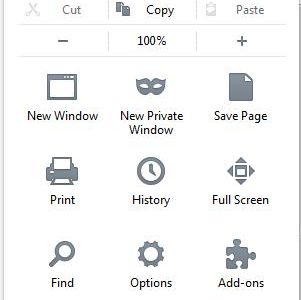
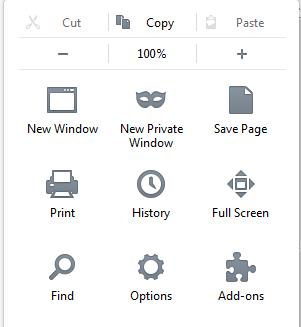
  • Click on the three horizontal bar menu that appears at right-hand upper corner of the browser
  • Click Options

click firefox options

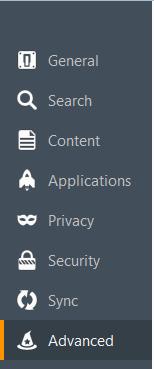
  • Click Advanced option in left-hand column

click advanced options

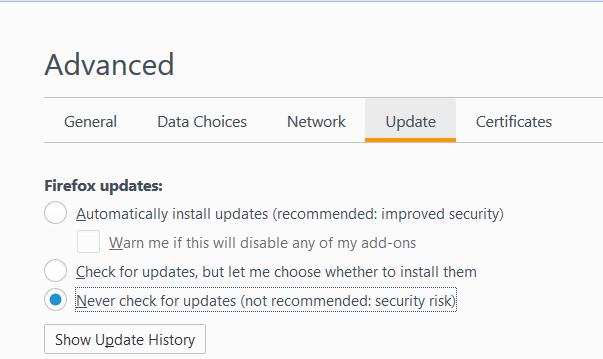
  • Click Update

click firefox update

  • Select option- Automatically install updates(recommended)
  • Now, Firefox will connect to update server and install updates.

If the browser is not able to update automatically, you need to update it manually. Note down the version of the browser first.

Steps to manually update Internet browser

  • Go to browser developer site and download the latest version of browser
  • You need to uninstall the older version of browser before installing the latest browser version.

Now check whether YouTube videos are playing.

If the issue is not resolved, move to the next solution.

Solution Five- Delete Browsing Data

Browsers store cookies and some images, audio, and video files of every website you visit. They also caches pages of the websites you visit.

If you don’t regularly delete cookies or clear cache, the size of the temporary internet files and browser cache can become enormous.

There is a possibility some cookies and cache have become corrupt and that is causing the “YouTube videos not playing” issue.

A simple solution to this problem is deleting cookies and clearing browser cache.

Here are the steps to follow.

For Google Chrome

  • Launch Google Chrome
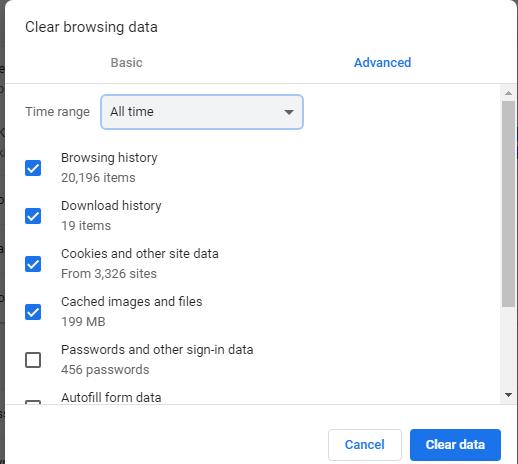
  • go to More tools and click Clear Browsing data
  • A setting window opens where you see options to delete browsing data

clear browsing data

  • In the time range, select All time
  • Make sure the options like Browsing history, download history, cached images and files, and cookies and other site data are checked
  • Click Clear Data
  • Wait for the operation to complete

For Mozilla FireFox

  • Open Firefox browser
  • Click on the hamburger menu button (three horizontal bar) that appears at right-hand upper corner of the browser
  • Click Options
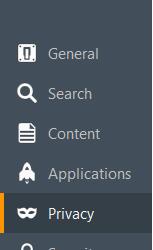
  • In the left-hand column, click Privacy

Firefox privacy

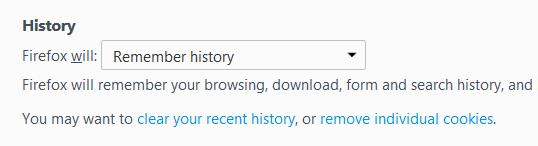
  • In the right-hand section, under History, click clear your recent history option

Firefox history

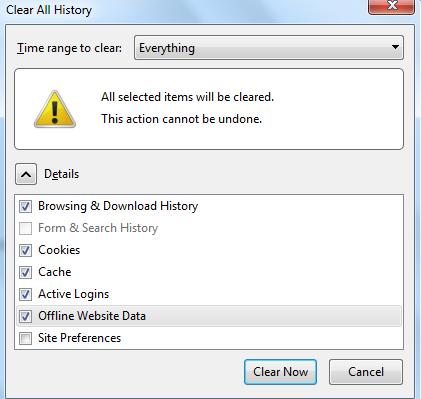
  • In the Clear your recent history pop-up, select Everything in Time range to clear
  • Make sure the boxes for Browsing and download history, cookies, cache, active logins, offline website data are checked.
  • Click Clear now

clear recent history


For Internet Explorer

  • Open Internet Explorer
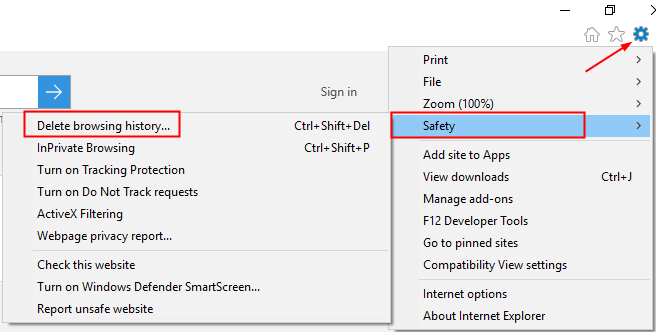
  • Click the gear icon
  • Click Safety and then click Delete browsing history

delete browsing data

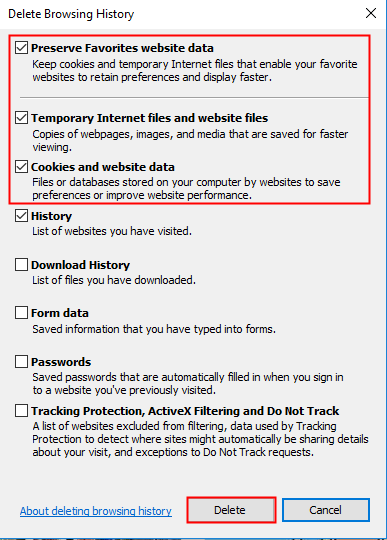
  • In the Delete Browsing history pop-up dialog, make sure Temporary Internet and website files, Preserve favorite website data, cookies, and website data, history options are checked.

delete browsing history

  • Click Delete

After you have deleted browsing history of browser, restart your computer. Now, check whether YouTube videos are playing.

If you can’t watch YouTube videos, move to next solution.

Solution Six- Uninstall and Reinstall Adobe Flash Player

Though HTML5 video player is the default video player to play YouTube videos, some older computers still rely on Adobe Flash Player to watch YouTube videos.

There is a possibility the installation and settings of Adobe Flash player have corrupted, preventing you from watching YouTube videos on your PC.

A simple solution to this problem is uninstalling Adobe Flash player and reinstalling updated version of Adobe Flash player.

Here are the steps to follow.

Steps to uninstall Adobe Flash Player

  • Click Start
  • Click Control Panel
  • Make sure the View by is set to Large icons
  • Click Program and Features
  • In the next window, look for Adobe Flash Player entry in the installed program list and right-click on it
  • Select Uninstall/Change option
  • Windows will not uninstall Adobe Flash Player

Steps to install latest Adobe Flash Player

  • Open Internet browser
  • Go to Adobe Flash Player download website
  • On the Adobe Flash Player download page, uncheck options like Install free McAfee Security Plus and install McAfee Safe connect
  • Click Install Now
  • In the next screen, you will see latest Adobe Flash Player setup file is downloaded to your computer
  • After the file is downloaded, double-click on it to start the installation
  • Follow on-screen instructions to install Adobe Flash Player
  • Restart your computer

Now check whether you are able to watch YouTube videos.

If the problem still persists, move to the next solution.

Solution Seven- Reset Internet Connection settings

You cannot ignore the possibility of some problem with Internet connection settings.

An easy way to fix the issue is to reset Internet connection settings.

Here are the steps to follow.

  • Click Start
  • Click Control Panel
  • Set the view by to Large Icons
  • Click Internet options
  • In the Internet Properties window, go to Advanced tab
  • Click Restore Advanced Settings
  • Click Reset
  • Close all windows
  • Restart computer

Check whether you are able to watch YouTube videos.

We are confident the “YouTube videos not playing” issue would be resolved by one of the solutions given in this post.

Filed Under: PC Fix Tips Tagged With: YouTube Videos

  • « Previous Page
  • 1
  • …
  • 122
  • 123
  • 124
  • 125
  • 126
  • …
  • 189
  • Next Page »


  • Recent Posts
  • Popular Posts
        

Read More Posts


Read More Posts

Drivers.com Sites

  • Software Drivers
  • Drivers Ed

About Us

  • Advertise
  • About Drivers
  • Drivers Support
  • Drivers.com Privacy Policy
  • Disclaimer
  • Software Drivers
  • Mac Fixes and Tips
  • PC Fix Tips
  • Security/ Backup
  • Tablets & Smartphones
  • Tech News

© Copyright 2026 PDE Publications Ltd. End User License Agreement (EULA)