


Remote Desktop has been a feature in Windows OS since XP. The remote desktop feature in Windows allows you to connect one PC to another Windows device to retrieve files or provide PC support.
In Windows 10, the remote desktop feature is enhanced and you also have the option of downloading and using Remote desktop app from the Microsoft app store.
Here we have discussed steps to set up Remote desktop in Windows. The steps given here can be used to connect to PC in local network or connect to a PC through Internet connection.
Before Anything Else
The two computers that you intend to connect through remote desktop should have necessary permissions for remote connectivity and network connections. Also, both PC should be ON and connected to a network.
Here we will look at the requirements of the target PC and ensure the remote PC has necessary permissions and network connection.
Step One – Giving necessary permissions to target PC
- Click Start
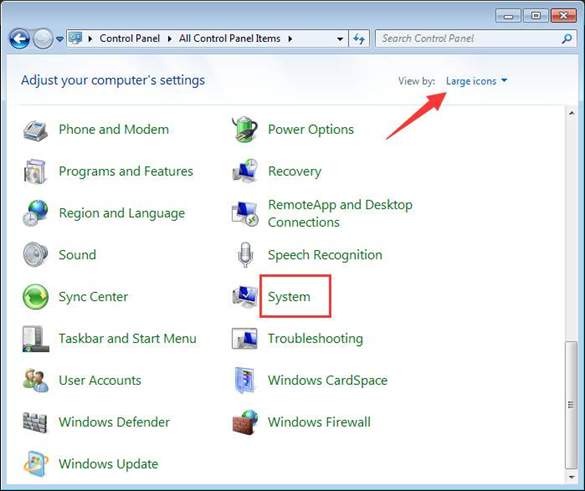
- Click Control Panel
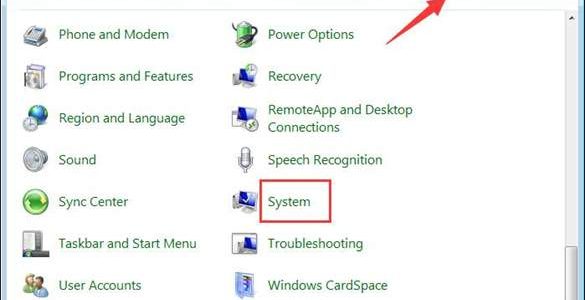
- Set the View by to Large Icons
- Click System
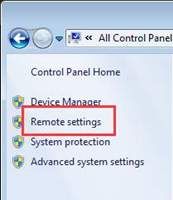
- In the System window, go to left panel and click Remote settings
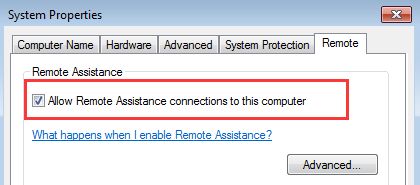
- In the System Properties window, go to Remote tab
- Check the box which says allow remote connections. Refer the image below
- In the same window, go to remote desktop section
- Select the option which says Allow connections ……..any version of Remote Desktop.
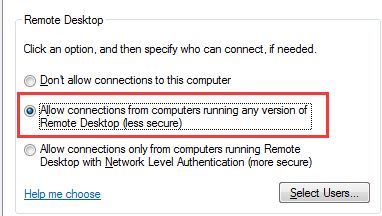
- Click OK
The next step is changing the Windows firewall settings so that it does not block any remote desktop connections.
Step Two- Changing Windows Firewall settings
- Click Start
- Click Control Panel
- Set the View by to Large Icons
- Click Windows Firewall
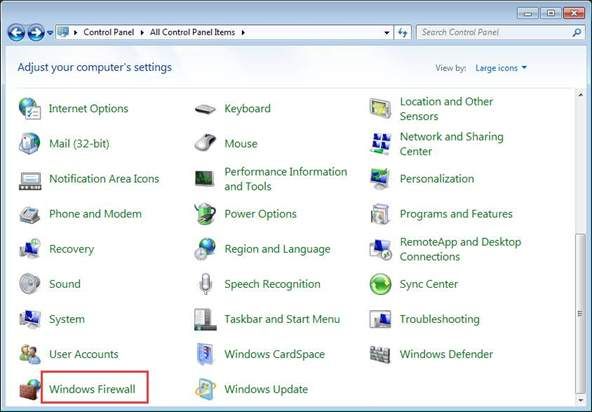
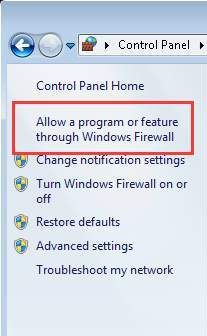
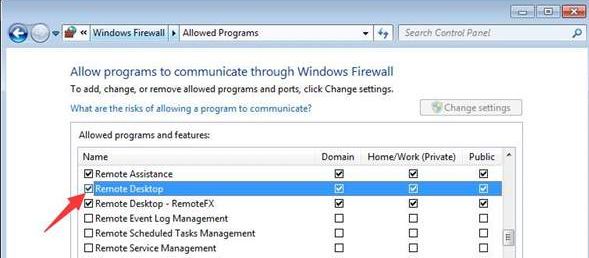
- In the Windows Firewall, go to left panel and click option which says Allow a program or feature through Windows Firewall.
- click Change Settings
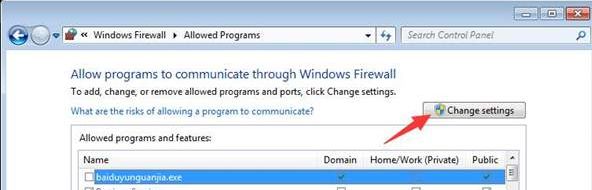
- Make sure the Remote Desktop box is checked
To establish remote desktop connection, you also need to know the IP address of the target PC.
Here are the steps to follow.
Step Three- Get IP address of target PC
- Press Windows logo key and R button on the keyboard simultaneously to invoke Run command box
- In the Run command box, type cmd and hit Enter on the keyboard
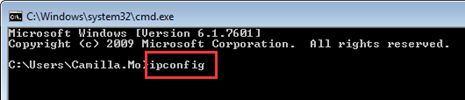
- In the command prompt window, type ipconfig
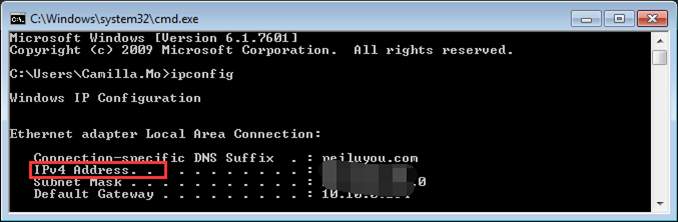
- Scroll down the window and note down the IPv4 address
After you are done with the step three, you can now proceed to connect to target computer.
Here are the steps to follow,
Step Four – Connecting to target PC through Remote Desktop
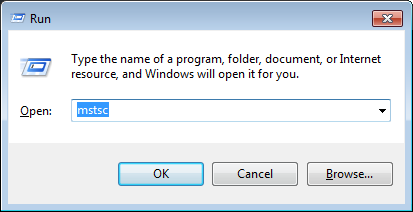
- Press Windows logo key and R button on the keyboard together to bring up Run command window
- In the Run command pop-up, type mstsc and click OK
- A remote desktop connection window pops up on the screen
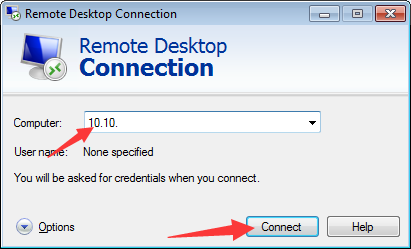
- Type the IP address of the target PC in the box and click Connect.
Now your PC will connect to the target PC and you can perform troubleshooting steps or access files on target PC.