Drivers.com

follow us:

facebook twitter
  • Home
  • Download Drivers
  • Drivers Help
  • PC/Mac Resources
  • Software Drivers
  • Mac Fixes and Tips
  • PC Fix Tips
  • Security/ Backup
  • Tablets & Smartphones
  • Tech News
  • Software Drivers
  • Mac Fixes and Tips
  • PC Fix Tips
  • Security/ Backup
  • Tablets & Smartphones
  • Tech News

Can’t Find the Name of Intel ICD Open GL Driver Error Solved

By Susan C on July 13, 2019

Can’t Find the Name of Intel ICD Open GL Driver Error Solved

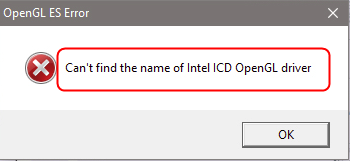
Some Windows users have complained of receiving “Can’t find the name of Intel ICD Open GL driver” error while playing games or opening Google Chrome or any other application that uses Open GL.

If you are receiving a similar error and looking for a solution this post is for you.

OpenGL Driver Download and Update

Solution One – Update Intel Graphics Driver

Since the error message mentions a problem with Intel driver, you need to install the latest Intel graphics driver that could fix the issue.

There are two methods to update Intel graphics driver – manually and automatically.

In the manual method, you need to go to Intel website, download the right driver and install it. If you want an easy alternative, you can use a driver update tool, which updates Intel graphics driver automatically.

Here we have given steps for both methods.

Intel Drivers Download & Updates

Steps to update Intel graphics driver manually

  • Press key combination – Windows logo key and R to invoke Run command
  • In Run command, type devmgmt.msc and click OK
  • In the Device Manager window, go to the Display adapters category and expand it
  • Right-click on Intel graphics entry and select Properties
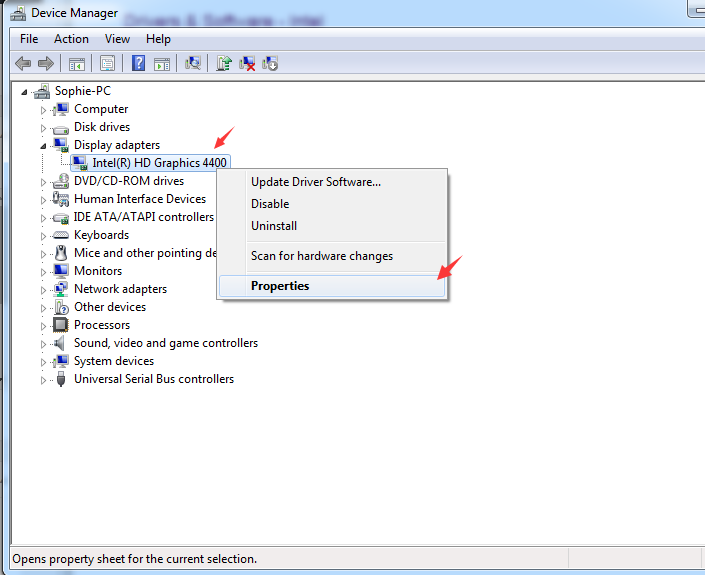
  • In the Intel graphics properties window, go to Driver tab
  • Note down details like driver version. You will need the details to download the latest Intel graphics driver from the Internet.
  • Open an Internet browser and open Intel website
  • Go to Download Center
  • Choose the right product and operating system on the page
  • Make sure you pay attention to the bit architecture of the graphics driver (32-bit/64-bit) and the version number. You need to look for a higher version of the driver than one installed in your system.
  • After downloading the driver file, double-click on the exe file and follow on-screen prompts.
  • If the driver is in zip file format, unzip the contents to a folder and then double-click on the executable file.

Steps to update Intel graphics driver automatically

Automatic driver update tools offer many benefits, the most important ones being:

  • You can update device drivers automatically
  • The software scans and updates all outdated or missing drivers at one go
  • The tool picks the right drivers for your device and operating system, so you won’t have to worry about installing an incorrect driver by mistake
  • Automatic driver updates are 100% safe

Driver Updater is one of the best driver update tools out there. Outbyte Driver Updater will give you access to a database of over 1 million drivers. It will regularly scan your PC, suggesting new driver versions to install. Driver Updater contains drivers for a variety of Windows devices. With just one click, you can update drivers in your system.

Step 1
Click here to Install and launch the app

Step 2
Scan all devices

Step 3
Install or update drivers automatically


Start Download


Open any application or games that use OpenGL and check whether you are still getting the “Can’t find the name of Intel ICD Open GL driver” error. If the error persists, move to next solution.

Solution Two- Check the bit-architecture of applications

Though 32-bit applications run on 64-bit Windows, computer experts always recommend users to install 64-bit applications on 64-bit Windows OS.

Many users who experienced similar issues have reported the real culprit is not driver incompatibility but incompatibility with the application architecture version.

Here are the steps to find out bit architecture of Windows OS.

  • Press Windows logo key and R simultaneously to invoke Run command
  • In the Run command window, type cmd and hit Enter on the keyboard
  • Click command prompt from the list of results
  • In the command prompt window, type wmic os get osarchitecture and hit Enter on the keyboard.
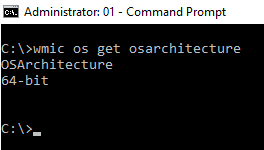
Now that you know Windows bit architecture, make sure you install the right version of the application. If you are using a 32-bit version application, uninstall it and install a 64-bit version of the application.

If the error still remains resolved, move to next solution.

Solution Three- Install a stable Intel graphics driver version

After the problem with OpenGL was reported, Intel released a fix for this specific issue in all of their driver versions 15.46 and higher. Since updating the Intel graphics driver has not helped you, the only viable solution available to you is use an old Intel graphics driver that is most stable.

(Note- According to computer experts, the version 15.40 is one of the stablest releases that could resolve the “Can’t find the name of Intel ICD Open GL driver” error)

Here are the steps to follow.

  • Visit this link from your Internet browser
  • Download the right driver file as per your Windows OS version and system’s bit architecture
  • Open Device Manager
  • Go to Display adapters category and expand it
  • Right-click on Intel graphics entry and click Uninstall
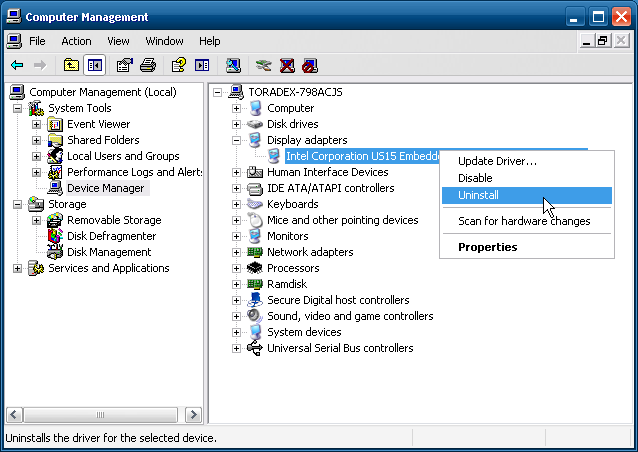
  • Wait for the uninstallation to complete successfully
  • Now go to the folder where you have downloaded the Intel graphics driver version 15.40.
  • Double-click on the executable file and follow on-screen prompts
  • Restart your system after installing the Intel graphics driver.

We are hopeful that, like most Windows users, you would have been able to resolve the issue of “Can’t find the name of Intel ICD Open GL driver” using one of the solutions listed in this post. Which one was that? Leave us a comment.
Filed Under: PC Fix Tips Tagged With: Intel Driver error

Low memory error in Windows 10 Fixed

By Susan C on July 7, 2019

Low memory error in Windows 10 Fixed

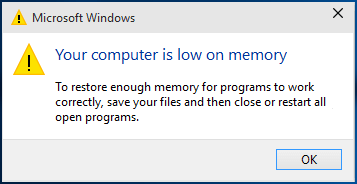
If you are getting “your computer is low on memory” error, it indicates a specific process or processes are using more memory than the computer can provide.

You might get this error while playing games or running a certain application.  Sometimes you might even get this error when you are using not using any heavy applications.

If you click OK as recommended to clear the error pop-up, you might see error popping up on the screen frequently, which can be quite annoying.

Thankfully, this is one issue that you can easily resolve — and we’ll show you how.

Here are two easy-to-follow solutions that resolve the low memory issue in Windows 10.

Solution One – Check RAM usage

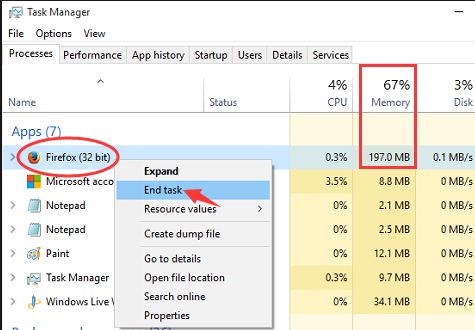
You don’t have to guess which applications or processes are using more RAM. Windows offers an application called Task Manager that allows you to view RAM usage of every application and process running on your system.

  • Press Shift and Ctrl keys simultaneously on the keyboard to invoke Task Manager

  • The application that appears at the top of the list is using more memory. Check the image below for reference.
  • Right-click on the application process and click End task
  • Now wait for some time and see if the “your computer is low on memory” error pops up

If the error is not resolved, you can uninstall the application and install a lighter alternative (a program which uses fewer resources).

Another option is moving to the next solution in the list.

Solution Two- Increase Virtual memory

Virtual memory is also known as the page file. By default, Windows manages the size of the page file. Its size is determined by the size of physical RAM installed in your system.  Windows uses page file to extend RAM.

The operating system uses page files to store data when RAM is full. If you are getting “your computer is low on memory” error, it could mean the RAM and page file size is proving insufficient for the programs.

Increasing virtual memory can extend RAM further and resolve the issue.

Here are the steps to follow.

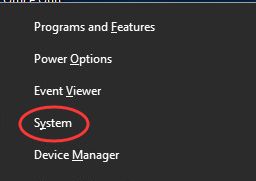
  • Press Windows logo key and X simultaneously on the keyboard  to bring up the Quick access menu
  • Click System
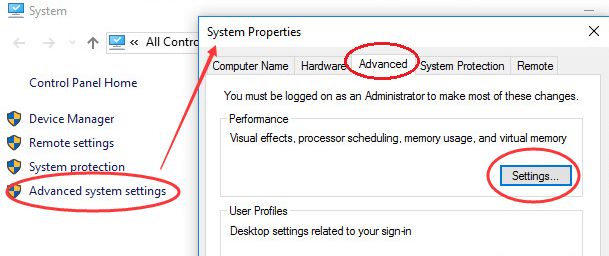
  • In the System window, click Advanced system settings

  • In the System properties  window, click Advanced tab
  • In the Advanced tab, click Settings
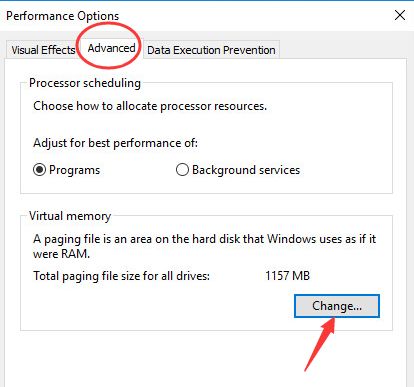
  • In the Performance Options window, click Advanced tab
  • Under Virtual memory,  click Change

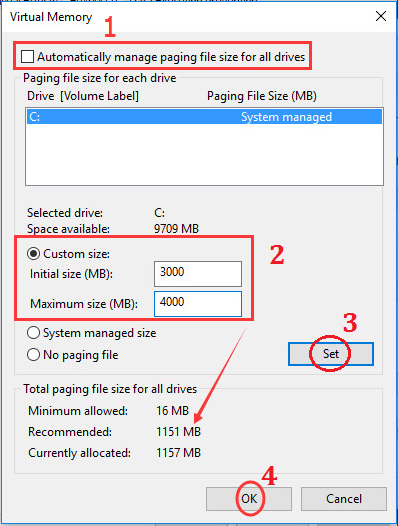
  • In the Virtual memory window, uncheck the option- Uncheck Automatically manage paging file size for all drives.

  • Click Custom size
  • You can set the Initial size to 1.5 times your system’s total memory
  • You can set the Maximum size to 2 times your system’s total memory
  • Enter the right values in Initial Size  and Maximum size
  • Click Set
  • Click OK
  • Close all windows

Now check whether you are still getting “your computer is low on memory” error. In most cases, the low memory error in Windows 10 will vanish after following troubleshooting steps given above.

Filed Under: PC Fix Tips Tagged With: low memory error

Windows Explorer keeps Crashing Solved

By Susan C on July 4, 2019

Windows Explorer, also known as File Explorer, is a graphical user interface used for accessing folders, files and other data in computer.

If the Windows Explorer keeps crashing, you simply can’t access your files. This, obviously, can be quite annoying at times.

Many windows 10 users have complained of windows explorer crashing frequently.  If you are facing similar problem, this post is for you. Here we have discussed 4 easy to follow solutions that could fix the issue.

You don’t need to try all solutions given in this post. Since it is difficult to predict which solution might work for you, you can start with first solution. If it does not work for you, move to the next solution and so on. 

Solution One- Clear Windows Explorer history

If the Windows Explorer history has not been cleared for long time, it can cause the Windows Explorer to crash frequently.

Clearing Windows Explorer history will prevent the Windows Explorer from loading the previously accessed files data, which can help resolve the problem:

  • Press Windows logo and S keys simultaneously  on the keyboard  and type folder options
  • Select File Explorer options from the list of the results
  • In the File Explorer options window, click General tab
  • Navigate to the Privacy section below, and click Clear
  • Click Apply and then click OK
  • Close all windows

After clearing Windows Explorer history, the problem of Windows explorer crashing should vanish.

If the Windows Explorer continues to crash frequently, move to the next solution.

Solution Two- Update Graphics Driver

If the Windows Explorer keeps on crashing, it could be due to some issue with graphic card driver.

To fix this issue, you are advised to update your graphic card driver.

The procedure to update graphics driver is quite simple with a driver update tool. However, you can also update graphics driver manually. Here we have provided steps to both methods.

Steps to update graphics driver manually

  • Press Windows logo + X to open Context Menu
  • Select Device Manager from the menu
  • In the Device Manager window, go to Display adapter category and expand it
  • Right-click on the graphic card item and select Properties from the menu
  • In the graphic card properties window, click Driver tab
  • In the Driver tab, note down the name of the graphic card, driver provider, and driver version
  • Close all windows
  • Open Internet browser and go to Driver provider website
  • Look for latest driver offered for the graphic card installed on your system
  • Download the graphic card driver. Make sure you download the right driver. Pay attention to bit-architecture(32-bit or 64-bit) while downloading  graphics card driver
  • Now open Device Manager again and  go to Display adapter category and expand it
  • Right-click on the graphic card item and select Uninstall. Make sure there is check mark for option “Check Delete the driver software for this device”
  • Wait for the uninstallation to complete.
  • Now browse to the location where you have downloaded the latest graphic driver file. Double-click on the setup file and follow on-screen instructions to install the graphics card driver.

(Note- if the downloaded drive is in zip file format. You need to unzip the file and extract the contents to a folder. In the unzipped folder content, look for an executable file and double-click on the file to start installation)

If you find the manual driver update process, you can use a Driver Update Tool as mentioned below. Here are the steps to update graphics drive automatically.

Steps to update graphics drivers automatically

Automatic driver update tools offer many benefits, the most important ones being:

  • You can update device drivers automatically
  • The software scans and updates all outdated or missing drivers at one go
  • The tool picks the right drivers for your device and operating system, so you won’t have to worry about installing an incorrect driver by mistake
  • Automatic driver updates are 100% safe

Driver Updater is one of the best driver update tools out there. Outbyte Driver Updater will give you access to a database of over 1 million drivers. It will regularly scan your PC, suggesting new driver versions to install. Driver Updater contains drivers for a variety of Windows devices. With just one click, you can update drivers in your system.

Step 1
Click here to Install and launch the app

Step 2
Scan all devices

Step 3
Install or update drivers automatically


Start Download


Solution Three – Run Netsh and Winsock reset

  • Press Windows logo and type cmd in Cortana search box
  • From the list of results, right-click on Command prompt and select Run as administrator
  • In the command prompt window, type following commands in the order given below. After typing first command hit Enter on the keyboard.  Wait for the command execution to complete and then type second command in the list and press Enter on the keyboard
  • netsh
  • winsock

Note – Alternatively, you can also type the entire command netsh winsock reset in a single fix attempt.

  • Close command prompt window
  • Reboot your PC

Try opening Windows Explorer. If the issue is not resolved, move to next solution

Solution Four – Give yourself (user account) full permission to access the folder content

If you are not using administrator account and your user account does not have full permissions to access the folder content, it could cause the Windows Explorer to crash frequently. Granting full permissions to access the folder content for the username (you are currently logged in) would resolve the issue. Here are the steps to follow.

  • Press the following key combination – Windows logo + E to launch Windows Explorer
  • Right-click on any folder and select Properties
  • In the folder properties window, go to Security tab
  • Look for Advanced option below Permissions for System section
  • Click Advanced button
  • In the next window, look for Owner and click Change
  • In the new window that pops up, go to section – Enter the object name to select
  • If you already know the username, type the username in the box
  • If you don’t know the username, click Advanced
  • In the new window that pops up, click Find now
  • Select the right username that populates in the search results
  • Click OK
  • You will be taken back to Advanced Security Settings window. In this window, place a check mark on option- Replace owner on subcontainers and objects.
  • Click Apply and then click OK

Now that right username is selected, the next step is to grant full permission to access folder content. Here are the steps to follow.

  • Right-click on the folder for which you want full access and click Properties
  • Go to General tab and click Advanced
  • In the window that pops up, click Add
  • In the next window, click Select a Principal
  • In the window that pops up, select your username that appears under Enter the object name to select and click OK
  • Now set the Type to Allow
  • Under Basic Permissions, tick the box for Full Control
  • Click OK
  • Close all windows

Now try opening windows explorer. If the problem remains unresolved, move to next solution.

Solution Four – Change Windows Explorer options

According to some users, they were able to resolve the Windows Explorer frequently crashing issue by making changes to Windows Explorer option. Here are the steps to follow.

  • Press Windows Key + S to launch Cortana search
  • Type  folder options in search box
  • Select File Explorer Options from the list of results
  • In the File Explorer option window, click View tab
  • Place a tick in box – Check Launch folder windows in a separate process
  • Click Apply and then click OK
  • Close all windows

In most cases, the windows Explorer frequently crashing would be resolved by one of the solutions given above.

Filed Under: Software Drivers

  • « Previous Page
  • 1
  • …
  • 114
  • 115
  • 116
  • 117
  • 118
  • …
  • 189
  • Next Page »


  • Recent Posts
  • Popular Posts
        

Read More Posts


Read More Posts

Drivers.com Sites

  • Software Drivers
  • Drivers Ed

About Us

  • Advertise
  • About Drivers
  • Drivers Support
  • Drivers.com Privacy Policy
  • Disclaimer
  • Software Drivers
  • Mac Fixes and Tips
  • PC Fix Tips
  • Security/ Backup
  • Tablets & Smartphones
  • Tech News

© Copyright 2026 PDE Publications Ltd. End User License Agreement (EULA)