Drivers.com

follow us:

facebook twitter
  • Home
  • Download Drivers
  • Drivers Help
  • PC/Mac Resources
  • Software Drivers
  • Mac Fixes and Tips
  • PC Fix Tips
  • Security/ Backup
  • Tablets & Smartphones
  • Tech News
  • Software Drivers
  • Mac Fixes and Tips
  • PC Fix Tips
  • Security/ Backup
  • Tablets & Smartphones
  • Tech News

USB Composite Device error in Windows Solved

By Susan C on July 30, 2019

USB Composite Device error in Windows Solved

If USB devices are not working on your computer, you should check the USB Composite device driver in Device Manager. If you see a yellow exclamation mark near USB Composite Device entry, it means the right driver for the device is missing.

An easy solution to this issue is to get new drivers. You can do this manually or automatically. Here we have provided steps to both methods.  

Before you go ahead and update drivers, we suggest you to run the Hardware and Devices troubleshooter to isolate the issue.

Run Hardware and Devices troubleshooter

  • Press Windows key + R to bring up Run command
  • In Run command window, type control panel and click OK
  • In the search bar of Control Panel window, type troubleshooting
  • Click on Troubleshooting
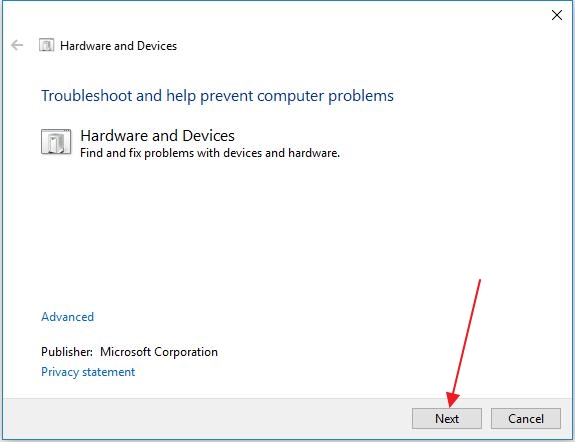
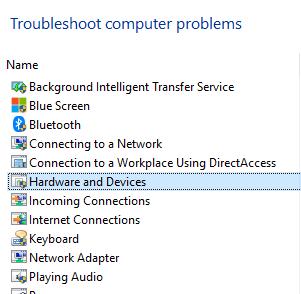
  • Click Hardware and Devices
  • Follow the on-screen instructions to run the troubleshooter
How to manually update USB Composite Device driver?

  • Hold down Windows logo key and press R key on the keyboard. It will invoke the Run command tool
  • In Run command box, type devmgmt.msc and click OK
  • In the Device Manager window, go to Universal Serial Bus Controllers category and expand it
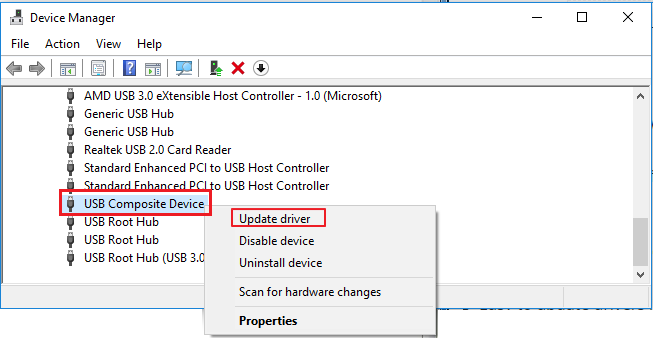
  • Locate USB Composite device entry in the list and right-click on it
  • Click  Update Driver software

  • In the next window, select the first option that says Search automatically…..
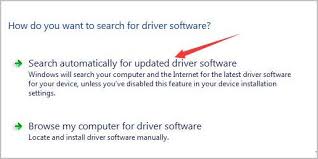
search for amd driver updates
  • Wait while Windows search for driver updates
  • Follow instructions to install driver updates

If the above method did not work for you, perform the troubleshooting steps given below.

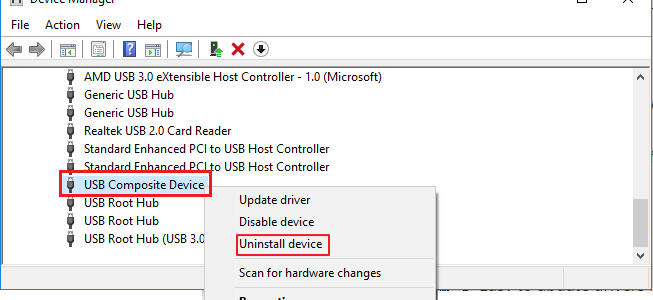
  • Right-click on USB Composite device and select Uninstall device
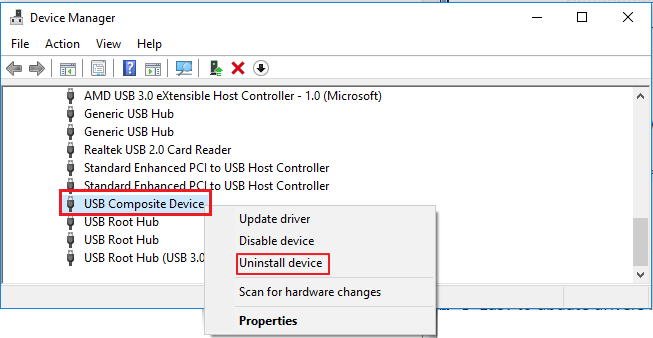
  • If you are prompted for permission by User Account Control, click Yes
  • After the uninstallation is complete
  • Restart your PC
  • Windows will identify missing drivers and install drivers for USB Composite device

How to update driver for USB Composite Device automatically?

Automatic driver update tools offer many benefits, the most important ones being:

  • You can update device drivers automatically
  • The software scans and updates all outdated or missing drivers at one go
  • The tool picks the right drivers for your device and operating system, so you won’t have to worry about installing an incorrect driver by mistake
  • Automatic driver updates are 100% safe

Driver Updater is one of the best driver update tools out there. Outbyte Driver Updater will give you access to a database of over 1 million drivers. It will regularly scan your PC, suggesting new driver versions to install. Driver Updater contains drivers for a variety of Windows devices. With just one click, you can update drivers in your system.

Step 1
Click here to Install and launch the app

Step 2
Scan all devices

Step 3
Install or update drivers automatically
 

Start Download


Filed Under: PC Fix Tips Tagged With: USB driver error

Solution to Mouse moving on its own issue in Windows

By Susan C on July 27, 2019

Solution to Mouse moving on its own issue in Windows

If you find the mouse pointer moves randomly on its own while you are typing, then the solutions given here might help fix the problem.

Here we have presented six solutions that have helped several others fix this issue. We are sure at least one of these — if not more — will work for you. So let’s dive in.

Solution One- Restart your computer

The problem might be temporary which might get resolved by restarting the computer. Restart your PC and see if the mouse moving on its own problem is resolved.

If this solution didn’t turn things around, you need to dig into mouse settings and make some changes.

Solution Two – Run Hardware Troubleshooter

Windows has a troubleshooter tool that can resolve common hardware and software problems. Here are the steps to run the troubleshooter.

  • Click Start
  • Type Control Panel in Cortana search box
  • Select Control Panel from list of results
  • n the Control Panel window, set the View by to Large icons
  • Select Troubleshooting from the control panel window

  • In the next window, find View all option in the left pane and click on it

  • Select Hardware and devices from the list

  • In the windows that pops us, click Next
  • Windows will try to find hardware problems. Be patient while the Troubleshooter scans for problems
  • Windows might prompt you to restart PC to fix the problem
  • When you are presented with option- Apply this fix, click on it

Solution Three – Check Mouse Settings

If the mouse pointer speed is set too low or high, it could lead to such problems. An easy solution to resolve the issue is to check mouse settings and make some changes as shown in troubleshooting steps below.

  • To bring up Run command, press the key combination – Windows logo key +R
  • In the Run command box, type control and click OK
  • In the Control Panel window, set the View by to Large icons
  • Click Mouse
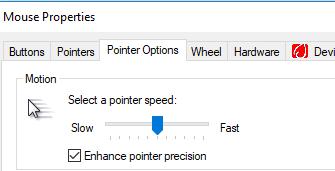
  • In the Mouse Properties window, go to the Pointer options tab
  • Under the motion section, move the slider to the center position. This will ensure the pointer speed is neither high or low

  • Click Apply and then click OK

Solution Four – Change touchpad delay

Note- this solution is applicable to laptop users only

In laptops, the mouse pointer is controlled by the mouse (external USB mouse) and touchpad. There is a possibility there is some problem with touchpad settings that is causing such an issue. Here are the steps you need to follow.

  • Click Start
  • Type Settings in search box
  • In the Settings window, go to Devices option and click on it

  • When the list of devices is revealed, look for Touchpad option and click on it
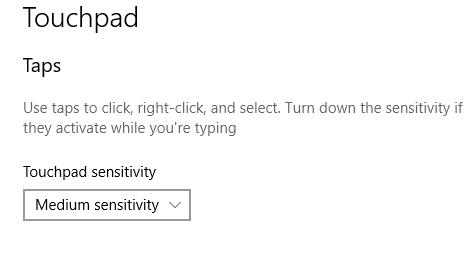
  • In the right pane, set the Touchpad sensitivity to Medium sensitivity

<insert- mouse moving on its own-medium sensitivity>

  • Close all windows

Solution Five – Update drivers

There is a possibility the mouse driver is corrupt. In that case, updating the mouse driver could resolve the issue. You can update the mouse driver manually or automatically. Here we have given steps for both methods

Steps to manually update the mouse driver

  • Press Windows logo key + R together to bring up the Run command
  • In Run command, type devmgmt.msc and click OK
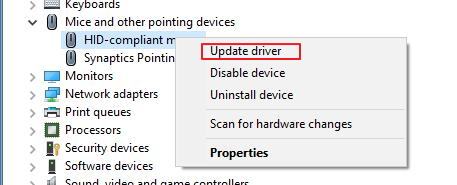
  • In the Device Manager, go to Mice and other pointing devices category and expand it
  • Select your mouse and right-click on it
  • Select update driver from the list of options
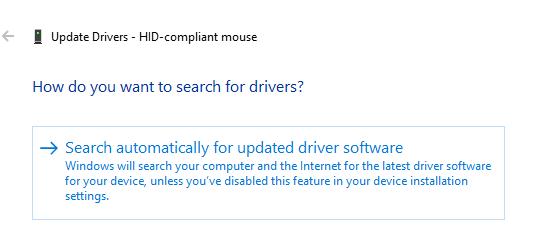
  • In the next window, select Search automatically for updated driver software.

  • Windows will search the internet to find a driver update and install it. If it does not find a driver update, you have to manually download the mouse driver and install it.
  • Open Internet browser
  • Go to the Mouse manufacturer website
  • Go to the Download section and select your product
  • Download mouse driver compatible with your OS version(Windows 7/8/8.1/10)
  • Double-click on the driver setup file to install the driver
  • Restart your computer

If you find the manual driver update lengthy and want an easy option, you can update drivers automatically

Steps to update the driver automatically

Automatic driver update tools offer many benefits, the most important ones being:

  • You can update device drivers automatically
  • The software scans and updates all outdated or missing drivers at one go
  • The tool picks the right drivers for your device and operating system, so you won’t have to worry about installing an incorrect driver by mistake
  • Automatic driver updates are 100% safe

Driver Updater is one of the best driver update tools out there. Outbyte Driver Updater will give you access to a database of over 1 million drivers. It will regularly scan your PC, suggesting new driver versions to install. Driver Updater contains drivers for a variety of Windows devices. With just one click, you can update drivers in your system.

Step 1
Click here to Install and launch the app

Step 2
Scan all devices

Step 3
Install or update drivers automatically
 

Start Download


Solution Six – Check Mouse hardware

There is a possibility the mouse hardware has gone bad.

Connect the mouse to other PC and see how it works. If the mouse works normally on another computer, you can conclude the problem lies in your PC.

If you experience a similar problem on other PC as well, you can conclude the problems lies in mouse hardware. In that case, you need to get a new mouse for your computer.

Filed Under: PC Fix Tips

Tablet driver not found error (Solved)

By Susan C on July 24, 2019

Tablet driver not found error (Solved)

tablet driver not found

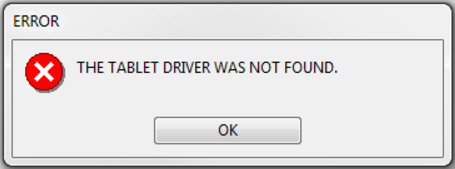
Are you getting an error “Tablet driver not found” when trying to pull data from your Wacom tablet?

If the answer is “Yes”, keep your worries aside as the error can be fixed easily.

In this post, I have presented 6 easy to follow solutions that could fix the issue. Let’s get the ball rolling, then.

Solution 1 to tablet driver not found– Check Hardware

The first thing you need to do is check whether you have plugged in the tablet properly in the USB port.

If the tablet is plugged in properly but you are still getting “Tablet driver not found” error, try plugging the tablet in other USB port.

Though it sounds simple, many Windows users miss out the simple issue of the bad USB port. If this solution has not worked to resolve the issue, you can conclude there is no problem with hardware and you need to perform some troubleshooting steps to resolve the issue.

Solution 2 to tablet driver not found- Restart Wacom Service

The problem might be temporary which could be get resolved by restarting Wacom service. Here are the steps to follow.

  • Press Windows logo key and R simultaneously on the keyboard to invoke Run command
  • In the Run command, type services.msc and click OK
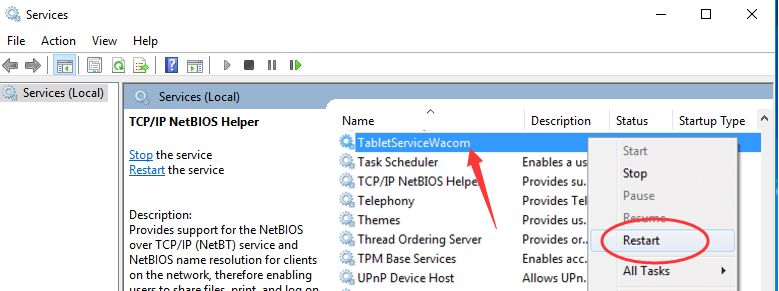
  • In the Services window, locate the service named – TabletServiceWacom
  • Right-click on TabletServiceWacom and click Restart


  •  If you do not get Restart option, click Start

The Wacom service might have some other name. If you cannot find TabletServiceWacom, look for following names in the list of services.

  • Touch Keyboard and Handwriting Panel Service
  • Wacom Consumer Service
  • Wacom Profession Service
  • TabletServiceWacom

Once the service is started/restarted, reopen your drawing program and everything with your Wacom tablet should work properly. If you are still getting Tablet driver not found, move to next solution.

Solution 3 to tablet driver not found – Update drivers

Since the error mentions the problem with the driver, there is a possibility the tablet driver is missing or corrupt. In that case, updating drivers can resolve the issue. There are two ways to update drivers- manually or automatically through a Driver Update Tool.

How to update drivers manually?

  • Press Windows logo key and R simultaneously on the keyboard to invoke Run command
  • In the Run command, type devmgmt.msc and click OK
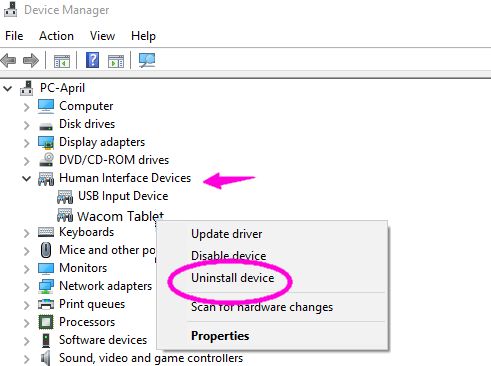
  • In the Device Manager window, go to Human Device Category and expand it
  • Right-click on Wacom tablet in the list and click Uninstall


  • Wait for the uninstallation to complete
  • Now open an Internet browser
  • Go to Wacom tablet support center page
  • Type your Wacom tablet model name and download right driver
  • Double-click on the setup file and follow on-screen instructions
  • Restart your PC

Updating Drivers Automatically

Automatic driver update tools offer many benefits, the most important ones being:

  • You can update device drivers automatically
  • The software scans and updates all outdated or missing drivers at one go
  • The tool picks the right drivers for your device and operating system, so you won’t have to worry about installing an incorrect driver by mistake
  • Automatic driver updates are 100% safe

Driver Updater is one of the best driver update tools out there. Outbyte Driver Updater will give you access to a database of over 1 million drivers. It will regularly scan your PC, suggesting new driver versions to install. Driver Updater contains drivers for a variety of Windows devices. With just one click, you can update drivers in your system.

Step 1
Click here to Install and launch the app

Step 2
Scan all devices

Step 3
Install or update drivers automatically
 

Start Download


Filed Under: PC Fix Tips Tagged With: Tablet driver error

  • « Previous Page
  • 1
  • …
  • 112
  • 113
  • 114
  • 115
  • 116
  • …
  • 189
  • Next Page »


  • Recent Posts
  • Popular Posts
        

Read More Posts


Read More Posts

Drivers.com Sites

  • Software Drivers
  • Drivers Ed

About Us

  • Advertise
  • About Drivers
  • Drivers Support
  • Drivers.com Privacy Policy
  • Disclaimer
  • Software Drivers
  • Mac Fixes and Tips
  • PC Fix Tips
  • Security/ Backup
  • Tablets & Smartphones
  • Tech News

© Copyright 2026 PDE Publications Ltd. End User License Agreement (EULA)