
Drivers.com

follow us:

facebook twitter
  • Home
  • Download Drivers
  • Drivers Help
  • PC/Mac Resources
  • Software Drivers
  • Mac Fixes and Tips
  • PC Fix Tips
  • Security/ Backup
  • Tablets & Smartphones
  • Tech News
  • Software Drivers
  • Mac Fixes and Tips
  • PC Fix Tips
  • Security/ Backup
  • Tablets & Smartphones
  • Tech News

Windows Did Not Detect Any Networking Hardware Solved

By Susan C on August 18, 2019

Driver-related problems can crop up any time. However, the good news is that they are generally easy to fix.

The same holds true for the “Windows did not detect any networking hardware” error, which occurs when your network adapter driver is not installed correctly.

Network Adapter Drivers Updates

How can you fix this Networking problem?

In this post, I’ll show you how to solve “Windows did not detect any networking hardware” error once and for all. However, before we look at the solution, let’s understand why this error occurs.

Typically, the said error shows up after you’ve upgraded Windows or installed a fresh version. Mostly Windows installs the default drivers on its own but sometimes errors happen and the end result is driver-related problems, like the aforementioned error.

To fix it, you must install the correct network adapter yourself.

Follow the steps below to do this.

Install Network Adapter Driver Manually

Windows comes with a utility called Device Manager preinstalled, through this you can install, update, and uninstall drivers.

You can direct Windows to look for the most relevant driver itself and install it. If this fails, you have the option to manually search the driver and install it.

  • Press Windows logo key + R together to bring up the Run command
  • In Run command, type devmgmt.msc and click OK
  • In the Device Manager, click Network Adapters and then right-click the Wireless hardware you are using and then finally click Update driver
  • Now a pop-up window will appear on your screen asking you how you want update the driver. Choose the first option on the screen (that is, Search automatically for updated driver software) and follow the onscreen instructions
  • Once the driver is installed, reboot Windows and check whether the issue is solved

If the error persists, you can try uninstalling the hardware and reinstalling it to install the default drivers.

  • Press Windows logo key + R together to bring up the Run command
  • In Run command, type devmgmt.msc and click OK
  • In the Device Manager, click Network Adapters and then right-click the network hardware and click Uninstall device
  • Once the device has been uninstalled, reboot Windows

If both the listed methods fail to update your drivers, try the last option of manually downloading the driver from the manufacturer’s site.

After you have downloaded the latest driver, follow these steps:

  • Press Windows logo key + R together to bring up the Run command
  • In Run command, type devmgmt.msc and click OK
  • In the Device Manager, click Network Adapters, right-click the network hardware and then finally click Update driver
  • This time select the second option in the pop-up Window (that is, Browse my computer for driver software)
  • Now go the location where the driver file is saved and install it
  • Reboot Windows

Install Network Drivers Automatically

As you might have realized, updating a device driver via the manual method can be quite a long process. Want to make short work of updating a network driver?

Then I recommend you use a reliable driver update tool. A good driver update tool can update outdated drivers in la matter of minutes.

Automatic driver update tools offer many benefits, the most important ones being:

  • You can update device drivers automatically
  • The software scans and updates all outdated or missing drivers at one go
  • The tool picks the right drivers for your device and operating system, so you won’t have to worry about installing an incorrect driver by mistake
  • Automatic driver updates are 100% safe

Driver Updater is one of the best driver update tools out there. Outbyte Driver Updater will give you access to a database of over 1 million drivers. It will regularly scan your PC, suggesting new driver versions to install. Driver Updater contains drivers for a variety of Windows devices. With just one click, you can update drivers in your system.

Step 1
Click here to Install and launch the app

Step 2
Scan all devices

Step 3
Install or update drivers automatically
 

Start Download


Filed Under: PC Fix Tips Tagged With: network hardware issue

Bluetooth Paired But Not Connected Solved

By Susan C on August 14, 2019

Bluetooth Paired But Not Connected Solved

Many Windows 10 users have complained of this problem:

They connect a device via Bluetooth to their Windows 10 computers and the devices are paired but not connected.

Are you facing the same issue? If yes, this post is all that you need.

I’ve provided two solutions to this problem. Let’s look at them.

Solution 1 – Restart the Bluetooth Service

Follow these steps to restart the Bluetooth Service:

  • Press the Windows key + R
  • Now in Run box, you need to type services.msc and then click the OK button
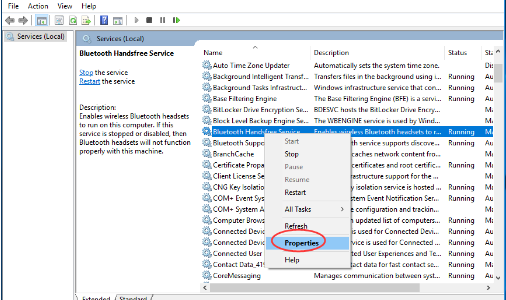
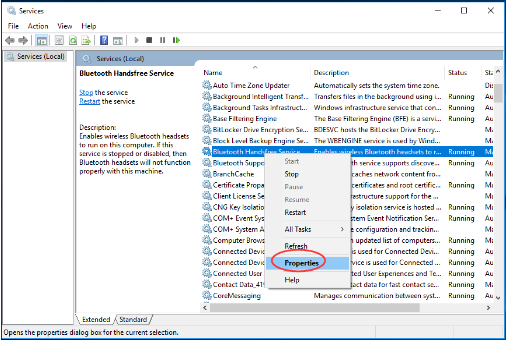
  • Now in the right pane of the Services window, browse and select Bluetooth-related services and then right-click on it. Now click Restart
  • Right-click Bluetooth service once again and now click PropertiesBluetooth services
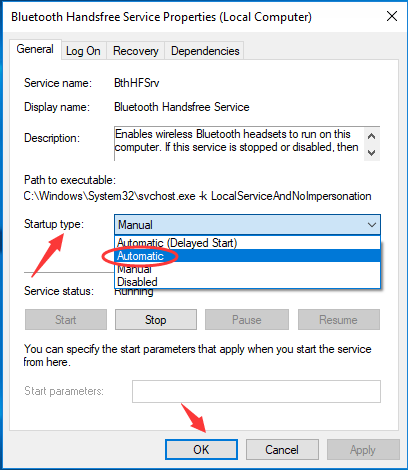
  • In the Service Properties dialog box, use the Startup type drop-down menu to select Automatic. Now click the OK button
  • Bluetooth startup Automatic
  • Restart Windows 10 and now connect the device via Bluetooth and see if the issue is resolved

Solution 2 – Reinstall the Bluetooth driver

An outdated or corrupt Bluetooth driver can cause all sorts of issues including the titled error.

So what’s the solution? The best way to resolve Bluetooth driver-related errors is to install the latest driver.

You can do this in two ways — using inbuilt Driver Manager utility or a reliable driver update software.

The advantages of using the second method are several. For one, you don’t need any technical knowledge. Two, you can update drivers in a matter of just couple of minutes. Three — and perhaps most importantly — you are not going to download a wrong driver by mistake, which can cause much harm.

Here I’ve described both the methods. You choose the one that you are most comfortable with.

Updating Bluetooth Drivers Manually

Here are the steps to follow:

  • Press Windows key + R
  • Now in the Run box, type devmgmt.msc and then click the OK button
  • In the Device Manager window, expand Bluetooth, right-click the Bluetooth device, and then select Update driver
  • In the next window, select Search automatically for updated driver software
  • Now Windows will search the internet for a suitable driver and install it. Simply follow the on-screen instructions, to update the driver.

However, in case Windows is unable to find a relevant driver, you’ll have to manually download the driver from the manufacturer’s website. Before you download it, make sure the selected driver corresponds to your PC type. That is to say, if you use Windows 10 32-bit, the driver should be for a 32-bit PC. Windows 10 64-bit users need to download a driver meant for 64-bit. Save the driver file on your desktop or some other location and follow these steps.

  • In the Device Manager window, right-click your Bluetooth Device and select Uninstall device
  • You will see a confirmation box on your screen. Simply check the box before Delete the software for this device. And then click the Uninstall button
  • Restart Windows once the driver is uninstalled
  • Now double-click the driver setup file you downloaded and follow onscreen instructions to install the latest driver for your Bluetooth device

Update Bluetooth Driver With Driver Update Software

Automatic driver update tools offer many benefits, the most important ones being:

  • You can update device drivers automatically
  • The software scans and updates all outdated or missing drivers at one go
  • The tool picks the right drivers for your device and operating system, so you won’t have to worry about installing an incorrect driver by mistake
  • Automatic driver updates are 100% safe

Driver Updater is one of the best driver update tools out there. Outbyte Driver Updater will give you access to a database of over 1 million drivers. It will regularly scan your PC, suggesting new driver versions to install. Driver Updater contains drivers for a variety of Windows devices. With just one click, you can update drivers in your system.

Step 1
Click here to Install and launch the app

Step 2
Scan all devices

Step 3
Install or update drivers automatically
 

Start Download


Filed Under: PC Fix Tips Tagged With: Bluetooth issue

Windows 10 USB Not Working Solved

By Susan C on August 11, 2019

After Windows 10 upgrade, it’s possible that one of your USB devices isn’t working. However, if that happens, there’s no need for you to worry as this issue can be resolved easily — and I will show you the steps.

Whether you are having problems with a USB mouse, pen drive, keyboard, or any other USB device, this post is all you need.

I have listed 5 possible solution. Needless to say, you don’t have to try each one. Start with the first one, and if that doesn’t work, move on to the next step.

Make Sure The Device Itself Is Not Faulty

Before you try any other troubleshooting step, ensure the USB device is fit and fine.

So how can you check this?

Simply unplug the device and plug it back into a different computer. In case you find it working fine on the new device, you can safely assume there’s nothing wrong with the USB device itself.

However, if the device doesn’t work, it’s about time you get a replacement.

Check The Power Supply (Only For Laptop Users)

The power supply of your laptop delivers power to the USB ports. In case if this isn’t happening properly, there’s a good chance you will not be able to use the devices plugged into the USB ports.

You might be able to fix this problem by performing the following simple steps:

  • Unplug the power supply as well as charger plug
  • Reboot the laptop
  • Connect the USB device back to your laptop
  • Plug in the power supply

Check Power Management Settings

Windows saves power by switching off the USB controllers when they are idle and switches them on the moment they are needed. However, at times things don’t go as designed. As a result, Windows doesn’t switches USB controllers on when you need them.

To prevent this from causing USB-related problems, simply ensure Windows isn’t ‘managing’ power to the USB controllers as well as devices.

Here are the steps to follow:

  • Type Device Manager in the Start Search box and click it in the results box
  • Expand Universal Serial controllers
  • You may or may not see multiple devices. In either scenarios, double-click the USB Root Hub device that appears first in the list
  • Click Power Management (the rightmost tab)
  • Un-select the Allow the computer…. option. Now click OK
  • Now repeat the last 3 steps (From step 3 to step 5) for all USB Root Hub devices that appear in the list

Update USB Device Drivers

Quiet often USB-related issues, including this one, occurs because of outdated or missing drivers. Thankfully, this is one problem you can solve in a jiffy. All you have to do is download a reputable driver update tool.

Update USB Drivers

This tool is not only fast but also very reliable. In a matter of a minutes it can update all your outdated drivers, including USB device drivers.

Automatic driver update tools offer many benefits, the most important ones being:

  • You can update device drivers automatically
  • The software scans and updates all outdated or missing drivers at one go
  • The tool picks the right drivers for your device and operating system, so you won’t have to worry about installing an incorrect driver by mistake
  • Automatic driver updates are 100% safe

Driver Updater is one of the best driver update tools out there. Outbyte Driver Updater will give you access to a database of over 1 million drivers. It will regularly scan your PC, suggesting new driver versions to install. Driver Updater contains drivers for a variety of Windows devices. With just one click, you can update drivers in your system.

Step 1
Click here to Install and launch the app

Step 2
Scan all devices

Step 3
Install or update drivers automatically
 

Start Download


Check USB Ports

In case you weren’t able to solve the issue using any of these steps, it is possible that your USB ports are damaged. The only way to find out if that’s really the case is to take your computer to the local PC repair store and have an experienced technician look under the hood.

Filed Under: PC Fix Tips Tagged With: USB Ports Not Working

  • « Previous Page
  • 1
  • …
  • 110
  • 111
  • 112
  • 113
  • 114
  • …
  • 189
  • Next Page »


  • Recent Posts
  • Popular Posts
        

Read More Posts


Read More Posts

Drivers.com Sites

  • Software Drivers
  • Drivers Ed

About Us

  • Advertise
  • About Drivers
  • Drivers Support
  • Drivers.com Privacy Policy
  • Disclaimer
  • Software Drivers
  • Mac Fixes and Tips
  • PC Fix Tips
  • Security/ Backup
  • Tablets & Smartphones
  • Tech News

© Copyright 2026 PDE Publications Ltd. End User License Agreement (EULA)