
Drivers.com

follow us:

facebook twitter
  • Home
  • Download Drivers
  • Drivers Help
  • PC/Mac Resources
  • Software Drivers
  • Mac Fixes and Tips
  • PC Fix Tips
  • Security/ Backup
  • Tablets & Smartphones
  • Tech News
  • Software Drivers
  • Mac Fixes and Tips
  • PC Fix Tips
  • Security/ Backup
  • Tablets & Smartphones
  • Tech News

Solution to WDF_VIOLATION BSOD in Windows 10

By Susan C on August 7, 2019

Blue Screen of Death is a concern for many Windows users as it indicates critical failure of a system component (software or hardware). Also, the abrupt rebooting of system causes great inconvenience and you lose all unsaved work. Many users have complained of WDF_VIOLATION Blue screen of death on Windows 10 system. If you are looking for solution for WDF_VIOLATION BSOD, this post is for you.

What is WDF_VIOLATION Error?

WDF stands for Windows Driver Files. Hence, you can draw a conclusion the BSOD is related to some driver problem. You get this error when the operating system finds some problem with framework based driver.

In this post, we have provided 5 solutions that could fix the issue. You don’t need to try all solutions. Start with first solution. If the solution does not work for you, move to next solution and so on.

Solution One – Disconnect peripheral devices

Many users have found that WDF_VIOLATION is caused by USB peripheral devices. They were able to resolve the error by disconnecting peripheral devices. You can follow this tip and see if it helps.

Disconnect all peripheral devices except mouse and keyboard and restart your computer. If you are still receiving WDF_VIOLATION error, move to next solution.

Solution Two – Update Drivers

Since the BSOD is related to driver, you cannot rule out possibility of some corrupted or incompatible driver behind the error. In that case, updating the drivers is the best solution. You can update drivers manually or automatically. Here we have provided both ways to update drivers.

Steps to update drivers manually

  • Press the key combination – Windows logo key + R on your keyboard to invoke Run command
  • In Run command box, type devmgmt.msc and click OK
  • In the Device Manager window, expand each category and look for devices with yellow exclamation mark. It indicates driver problem
  • Also check the WDF_VIOLATION error message code. Does it mention any driver or file name? if yes find the driver related to file name and go to related device driver in Device Manager
  • Right-click on problematic device and click Properties
  • In the Properties dialog box, go to Driver tab. Note down details like Driver manufacturer name, driver version and other details
  • Open Internet browser
  • Go to device manufacturer website and search for latest driver on the site
  • Download the driver and install it
  • Restart the system

Now check whether you still receive WDF_VIOLATION BSOD. If the issue persists, move to next solution.

If you are looking for an easy way to update drivers, you can use a driver update tool to update driver automatically.

Steps to update drivers automatically

The easiest way to update your drivers is using a reputable driver update tool.

Automatic driver update tools offer many benefits, the most important ones being:

  • You can update device drivers automatically
  • The software scans and updates all outdated or missing drivers at one go
  • The tool picks the right drivers for your device and operating system, so you won’t have to worry about installing an incorrect driver by mistake
  • Automatic driver updates are 100% safe

Driver Updater is one of the best driver update tools out there. Outbyte Driver Updater will give you access to a database of over 1 million drivers. It will regularly scan your PC, suggesting new driver versions to install. Driver Updater contains drivers for a variety of Windows devices. With just one click, you can update drivers in your system.

Step 1
Click here to Install and launch the app

Step 2
Scan all devices

Step 3
Install or update drivers automatically


Start Download


Solution Three – Use Driver Verifier

Driver Verifier is an in-built tool that monitors graphics drivers and Windows kernel-mode drivers and detect illegal call or function that might corrupt the system. Here are the steps to run Driver Verifier

  • Click Start
  • Type cmd in the Cortana search box
  • Right-click command prompt from the list of results and click Run as administrator
  • In the command prompt window, type verifier to open Driver Verifier Manager
  • In the Driver Verifier window, click Create standard settings (the default task)
  • Click Next
  • Select Automatically select all drivers installed on this computer
  • Click Finish
  • Wait for the Driver Verifier tests to complete. After tests are completed, you just need to follow the instructions to resolve WDF_VIOLATION error.

If the error persists even after using Driver Verifier, move to next solution.

Solution Three – Scan your system for virus or malware

There is a possibility some virus or malware are causing WDF_VIOLATION error. To rule out this possibility, update the virus definition and scan your C drive and other drives too.

Solution Four – Install KB 4468304

(Note- this solution is only applicable to HP devices)

According to Microsoft, it has recognized compatibility problems with HP keyboard driver (version 11.0.3.1). If you this driver installed, you are more likely to receive WDF_VIOLATION errors. The solution to this problem is installing KB 4468304 which removes the problematic driver from your Windows 10 system. Here are the steps to follow.

  • Click Start menu
  • Click Settings (gear icon)
  • In the Settings window, click Update & Security.
  • In the next window, click Windows Update.
  • Click Check for updates button
  • Windows will automatically download KB 4468304 update which will uninstall the problematic driver.

You need to check whether the problematic driver has been removed from your system. Here are the steps to follow.

  • Open Device Manager
  • Go to Keyboards category and expand it
  • Right-click the HP keyboard device and click Properties
  • In the properties window, go to Driver tab
  • Note down the driver version number. It should not be 11.0.3.1. If the driver version is different, you can conclude the problematic driver has been removed.

Solution Five- Remove problematic programs

Some 3rd party programs might cause BSOD errors likeWDF_VIOLATION. According to users, SteelSeries Engine software was causing WDF_VIOLATION error in their Windows PC. Removing the software helped in resolving the issue.

You need to ensure your system does not have any program that is not compatible with Windows 10. An easy way to find out is – try recalling the recently installed software. When WDF-VIOLATION error started appearing? Did the problem start after installing or updating a certain program?

Find answers to the questions given above and you will be closer to identifying the problematic program on your system. The next step is to uninstall the program and see if it helps. Here are the steps to follow

  • Click Start menu
  • Click Settings(gear icon)
  • In the Settings window, click System
  • In the next window, click App & features from the left pane
  • You can now see list of all installed programs
  • Click the desired program to uninstall
  • Click Uninstall option that appear below program name
  • Wait for the program uninstallation to complete
  • Close all windows

Check whether you are still receiving WDF_VIOLATION error. Like many users, the WDF_VIOLATION error would be resolved by one of the solutions given in this post.
Filed Under: PC Fix Tips

Solution to DRIVER CORRUPTED EXPOOL Error in Windows 10

By Susan C on August 5, 2019

Solution to DRIVER CORRUPTED EXPOOL Error in Windows 10

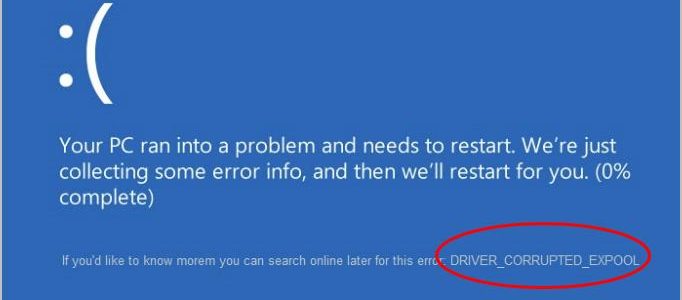
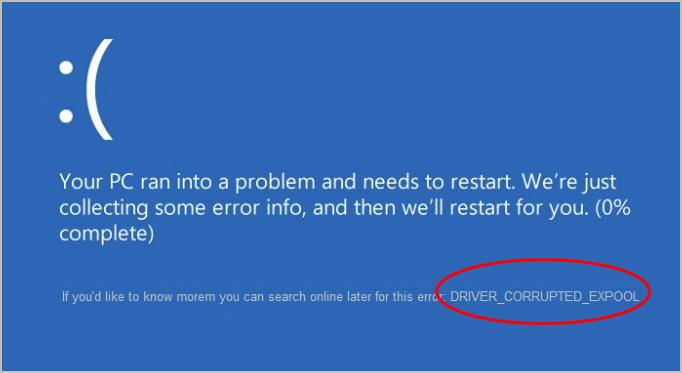
Blue Screen of Death error like “DRIVER_CORRUPTED_EXPOOL” cause your Windows 10 system to crash frequently, which is annoying to say the least.

The error name clearly points toward some driver problem behind this BSOD. Since BSOD errors are serious in nature (due to frequent restarts), you need to resolve these errors as early as possible.

Here we have given 5 solutions that could resolve the error. You are not required to try all of them. The best approach is to start with the first solution. If it does not work you, move to the next solution and so on.

Solution One – Uninstall problematic drivers

Since the BSOD mentions a problem with drivers, the first step in resolving the issue is to find problematic drivers in Windows 10 systems and uninstall them. Here are the steps to follow.

  • On the keyboard, press Windows logo key and R to invoke Run command
  • In Run command, type devmgmt.msc and click OK
  • In the Device Manager window, look for driver items with a yellow exclamation mark. First, check Other Devices category
  • If you find any driver items with a yellow exclamation mark, right-click on driver entry and click Uninstall
  • Visit all device categories in Device Manager and check for driver items with a yellow exclamation mark and uninstall them
  • After you are done with uninstallation of all problematic drivers, reboot your system

Windows 10 will now install new drivers for devices which would resolve the “DRIVER_CORRUPTED_EXPOOL” error. If the error persists, move to the next solution.

Solution Two- Update Drivers

Since uninstalling problematic drivers has not worked for you, try updating drivers. You can update system drivers manually or automatically. We have given steps for both methods.

How to update drivers manually?

  • Open Device Manager
  • Locate the driver you want to update
  • Right-click on the driver and click Update Driver
  • In the next window, click Search automatically for updated driver software
  • Windows will search for latest driver on the Internet and download and install it for you.
  • You have to perform the above steps for every driver you want to update

Many times Windows is unable to find driver updates for your system. In that case, you need to go the device manufacturer website and download the latest driver. Here are the steps to follow

  • Right-click on the driver you want to update
  • Click Properties
  • In the Properties window, go to the Driver tab.
  • Note down driver details like Driver provider, Driver version and other details

Use this information to find and download the latest driver. After downloading the latest driver, double-click on the setup file to install the latest driver. Reboot system after installing the driver.

If you find the manual driver update method difficult, you can use driver update software to update all drivers automatically

How to update drivers automatically?

Automatic driver update tools offer many benefits, the most important ones being:

  • You can update device drivers automatically
  • The software scans and updates all outdated or missing drivers at one go
  • The tool picks the right drivers for your device and operating system, so you won’t have to worry about installing an incorrect driver by mistake
  • Automatic driver updates are 100% safe

Driver Updater is one of the best driver update tools out there. Outbyte Driver Updater will give you access to a database of over 1 million drivers. It will regularly scan your PC, suggesting new driver versions to install. Driver Updater contains drivers for a variety of Windows devices. With just one click, you can update drivers in your system.

Step 1
Click here to Install and launch the app

Step 2
Scan all devices

Step 3
Install or update drivers automatically


Start Download


Solution Three – Install all pending updates

Windows 10 stability and performance is largely based on updates provided by Microsoft. According to experts, Windows 10 is far from being a perfect system and Microsoft regularly provides patches and updates to fix the bugs discovered.

In case, you have not chosen the option to install windows updates automatically, there are chances a large number of important updates are not installed on your system. The first thing you need to do is install all pending updates. Here are the steps to follow.

  • On the keyboard, press Windows logo key and I simultaneously to open Windows settings
  • In the Settings window, click Update and Security
  • In the next window, click Check for updates under Update Status
  • Windows will connect to the update server and provide you with a list of updates that need to be installed. Install all recommended updates.
  • After Windows completes installing updates, reboot the system

Check whether you are still getting “DRIVER_CORRUPTED_EXPOOL” error. If the error persists, move to the next solution.

Solution Four – Uninstall 3rd party antivirus

If you are already using Windows Defender, you can skip this solution. There is a possibility the 3rd party anti-virus software installed on your computer is causing a BSOD problem. To eliminate this possibility, uninstall 3rd party anti-virus program and use Windows Defender to protect your computer.

Here are the steps to follow.

  • Open Start Menu
  • Click the Settings options(gear icon)
  • In the Settings window, click System
  • In the next window, click Apps & features in the left-hand column
  • Click the 3rd party anti-virus program in the list ( in right-hand column)
  • Click Uninstall

Wait for the program uninstallation to complete. Now you have to enable Windows Defender program that is in-built in Windows 10. Here are the steps to follow.

  • Open Settings
  • In the Settings window, click Update & Security
  • In the next window, click Windows security in the left-hand column
  • Now click Open Windows Defender Security center to access the program settings
  • In the Windows Defender settings window, click Virus & Threat Protection settings link
  • In the next window, make sure the following options are ON-
  • Real-Time Protection,
  • Cloud-Delivered Protection
  • Automatic Sample Submission
  • Close all windows

Solution Five- Uninstall Problematic applications

According to experts, it is not always 3rd party anti-virus software that causes errors like “DRIVER_CORRUPTED_EXPOOL”. There are certain programs that could be the root cause of the problem. In that case, you need to uninstall problematic applications and see if it helps.

Some users have reported applications like Virtual Box and Radeon software behind BSOD error “DRIVER_CORRUPTED_EXPOOL”. Besides these applications, there might be many applications that could be the cause behind the error. You will have to find these problematic applications and uninstall them.

It is worth mentioning that any application installed on your system might be the cause of the “DRIVER_CORRUPTED_EXPOOL” error. We are not telling you to uninstall every application. Just try to recall any newly installed or updated software after which the cycle of “DRIVER_CORRUPTED_EXPOOL” BSOD started. Uninstall newly updated or installed software and see if it resolves the error.

Filed Under: PC Fix Tips Tagged With: expool error

Solution to Calculator not working in Windows 10

By Susan C on August 3, 2019

Unable to use the calculator in Windows? Getting “calculator not working” error?

If yes, this post is for you.

Here we have provided 8 easy to follow solutions that could fix the issue. Of course, there’s you don’t have to try all the solutions. Start with the first one, and if that doesn’t work, move to the next one, and so on.

Let’s look at the solutions now.

Solution One – Reset Calculator app

If the calculator is not working in Windows 10, you can try resetting the calculator app which will fix the issue. Here are the steps to follow.

  • Click the Start button
  • Click Settings(gear icon)
  • In the Settings window, go to the apps section
  • You will see a list of all applications, locate the calculator app in the list
  • Select calculator and click Advanced options
  • Click on Reset button
  • Click on Reset button again for confirmation

Solution Two – Get the updated version of the calculator from the Microsoft App store

There is a possibility the current version of calculator installed on your system is plagued with problems and there is an updated version of calculator available in Microsoft store. All you need to do is get the updated version of calculator which will replace the older version and also resolve the issues you are currently facing with the calculator. Here are the steps to follow.

  • Click Start
  • Look for Windows Store icon. See the reference image below
  • Click the Windows Store app icon
  • In the next window, type calculator in the search box. Wait for the results to populate
  • Click Windows calculator from the list of results
  • If you see there is updated version of calculator available, click the Update button to get updated calculator version
  • Check if the calculator is working now.

Solution Three- Create a new user account

Many users were able to resolve the issue by creating a new user account. Here are the steps to follow.

  • Click the Start button
  • Type add user in Cortana search
  • Click User Accounts from the list of results
  • In the user accounts window, click Manage another account
  • In the Manage accounts window, click Add a new user in PC settings
  • In the Settings window, click Add someone else to this PC
  • In the next window, click I don’t have this person’s sign-in information
  • Now, click Add a user without a Microsoft account
  • After the new user account is created, click Next
  • You will now see a new user account has been added in the window.
  • Click the Start button
  • Now click the new user account button to log into the account
  • Now check whether the calculator is working

Solution Four – Reinstall Calculator

You cannot ignore the possibility of some problem with calculator system files. Since Calculator is part of Windows core (in-built application), you cannot uninstall it from Add/Remove programs.

You can remove calculator from Powershell cmdlet. Here are the steps to follow

  • Click the Start button
  • Type PowerShell in the Cortana search box
  • Right-click Windows PowerShell from the list of results and select Run as administrator
  • Copy and paste the following line in the Powershell windows and press enter on the keyboard
  • Get-AppxPackage *windows calculator* | Remove-AppxPackage
  • Now we will attempt reinstalling the calculator by the command given below. Copy and paste the command in the PowerShell window and hit Enter on the keyboard
  • Get-AppxPackage -AllUsers| Foreach {Add-AppxPackage -DisableDevelopmentMode -Register “$($_.InstallLocation)\AppXManifest.xml”}

Solution Five – Run SFC and DISM commands

SFC is short for System File Checker. It is s Windows diagnostic and repair tool that checks system files for corruption and replaces any missing or corrupt files with cached versions. SFC does not have a graphical interface and the commands are executed through a command prompt window with admin rights. Here are the steps to follow.

  • Press Windows logo key and R simultaneously on the keyboard to invoke Run command dialog
  • In the Run command box, type cmd
  • Right-click command prompt from the list of results and select Run as administrator
  • In the User Account control pop-up, click Yes
  • In the command prompt window, type sfc /scannow and hit Enter
  • Wait for the command operation to complete.

After you have run the SFC tool, you need to also run DISM commands. DISM stands for Deployment Image Servicing and Management. It is a command-line tool used to service Windows image. Here are the steps to follow.

  • Open command prompt with admin rights
  • When prompted with UAC, click Yes to continue
  • In the command prompt window, type DISM /Online /Cleanup-Image /RestoreHealth. Make sure you do not make any typo error. See the reference image below.
  • Wait for the whole process to complete
  • Close all windows
  • Restart your computer

Solution Six – Install missing updates

According to some users, the calculator not working issue gets resolved by installing missing updates. Here are the steps to follow.

  • Press Windows key and I together to open the Settings app
  • In the Settings app, go to Update and Security section
  • Click Check on updates
  • Windows will now check for updates and install any pending updates. Wait for the update process to complete
  • Now check whether the calculator is working

Solution Seven- Turn off the firewall

If you are using any 3rd party firewall, disable it and see if the calculator starts working again. Many users have reported the calculator started working after disabling firewall. It might work for you too. Here are the steps to follow.

  • Click the Start button
  • Type firewall in the Cortana search box
  • Select Windows firewall from the list
  • In the Windows firewall dialog, look for Turn Windows Firewall on or off option in the left pane and click on it.

<insert-windows 10 calculator not working-turn windows firewall>

  • In the next window, click Turn off Windows Firewall (not recommended) for both Public and Private network settings
  • Click OK

Solution Eight- Enable User Account control

The user account control feature in Windows is there to prevent you from performing actions that need administrator privilege. The feature gives out lots of security notifications and hence some users choose to disable it.

Many users reported the calculator app stopped working after the user account control was disabled. Enabling the feature again brought things back to normal and calculator app started working. Here are the steps to follow.

  • Press Windows logo key and S together
  • Type user account control in search box
  • Select Change User Account Control settings from a list of results
  • In the User Account Control settings dialog, move the slider to the default position. Check the reference image below
  • Click OK

Filed Under: PC Fix Tips Tagged With: calculator not working

  • « Previous Page
  • 1
  • …
  • 111
  • 112
  • 113
  • 114
  • 115
  • …
  • 189
  • Next Page »


  • Recent Posts
  • Popular Posts
        

Read More Posts


Read More Posts

Drivers.com Sites

  • Software Drivers
  • Drivers Ed

About Us

  • Advertise
  • About Drivers
  • Drivers Support
  • Drivers.com Privacy Policy
  • Disclaimer
  • Software Drivers
  • Mac Fixes and Tips
  • PC Fix Tips
  • Security/ Backup
  • Tablets & Smartphones
  • Tech News

© Copyright 2026 PDE Publications Ltd. End User License Agreement (EULA)