Drivers.com

follow us:

facebook twitter
  • Home
  • Download Drivers
  • Drivers Help
  • PC/Mac Resources
  • Software Drivers
  • Mac Fixes and Tips
  • PC Fix Tips
  • Security/ Backup
  • Tablets & Smartphones
  • Tech News
  • Software Drivers
  • Mac Fixes and Tips
  • PC Fix Tips
  • Security/ Backup
  • Tablets & Smartphones
  • Tech News

Solution for USB port not working in Windows 7

By Susan C on July 20, 2019

Solution for USB port not working in Windows 7

Is your USB port not working?

If yes, don’t worry – this post will help you with a solution.

In this post, I’ve have provided 7 easy to follow solutions to fix the “USB ports not working issue”. I’m sure at least one of them, if not more, will work for you.

Of course, there’s no need for you to try all of the listed solutions. Start with the first one, and if it doesn’t work, move to the next solution and so on.

Update USB Drivers

Solution One- Restart your computer

The USB ports not working might be a temporary issue. Restart your system and see if the problem is resolved.

Solution Two- Check if the USB port is defective

You need to rule out the possibility of your USB port becoming defective before you proceed further.

You can check this out by plugging the USB device in another USB port on your computer. You can also try connecting to a USB device to another computer.

If the USB device is detected at another USB port on your computer or on another computer, it means the said USB port is defective.

In that case, you can stop using the defective USB port and connect USB devices to other USB ports on your computer.

Solution Three – Hold down the power button

Hold down the power button for 30 seconds or a little more. This will discharge capacitors. Now restart the computer and see if the issue is resolved.

Solution Four – Check your laptop’s power supply

USB ports need adequate power for functioning. If the power supply is not providing adequate power to the motherboard, such problem can arise. 

This can be fixed by following steps given below.

  • Remove the power supply/charger cord from your laptop
  • Restart your laptop
  • Now connect the USB device to one of the USB port
  • Reconnect the power supply/charger cord back to the laptop

Check whether USB ports are working now. If the issue remains unresolved, move to next solution.

Solution Five- Check Power Management settings

Windows have a power management feature where it stops supplying power to USB ports that are not in use.

Sometimes these settings could cause issues like “USB ports not working”.  You need to check power management settings and makes changes if needed.

Here are the steps to follow.

  • Press Windows logo key and R simultaneously to invoke Run command
  • In Run command, type devmgmt.msc and click OK
  • In the Device Manager window, go to the Universal Bus Controllers category and expand it
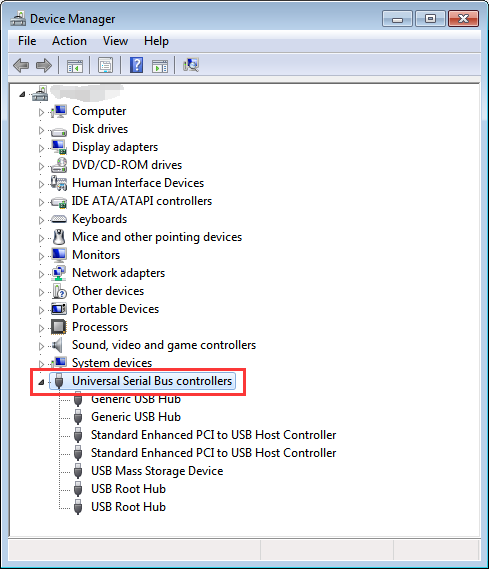
  • Double-click on the first USB hub entry in the list to open the Properties window
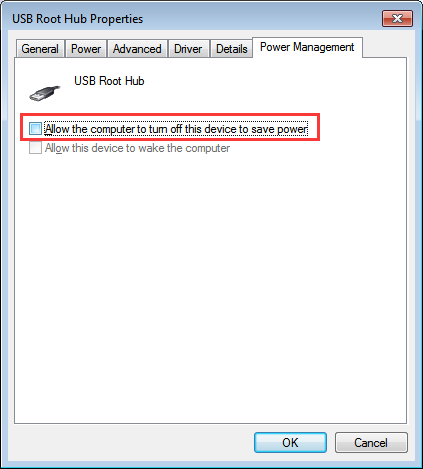
  • In the Properties window, go to Power Management tab
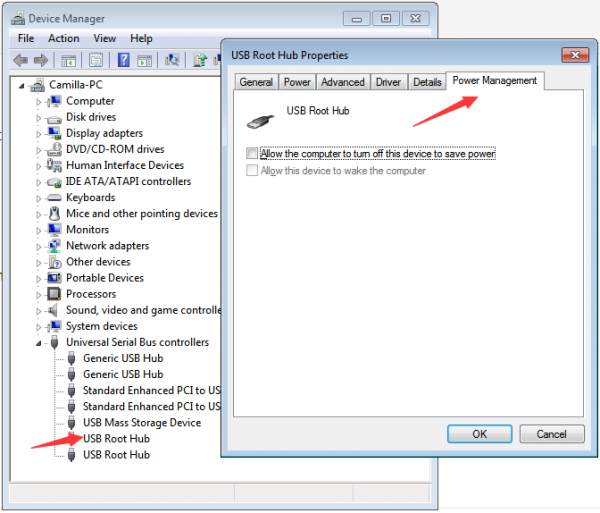
  • Uncheck the option  as shown below

  • Click OK
  • Repeat the above 4 steps for other USB hubs in the list
  • Close Device Manager
  • Restart your computer

Now check whether USB ports are working. If the issue persists, move to next solution.

Solution Six- Disable USB Selective Suspend feature

Sometimes power management features like USB Selective Suspend can override USB detection and cause issues like USB ports not working.

In such cases, disabling USB Selective suspend features can resolve the issue.

Here are the steps to follow.

  • Open Control Panel
  • Click Hardware and Sound.
  • Click Power Options.
  • Under “Preferred plan,” click the Change plan settings link for the plan you’re currently using. For example Balanced or Power Saver
  • Click Change advanced power settings link.
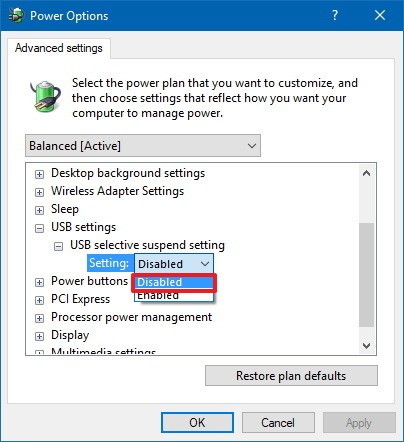
  • In the Power Options window, expand USB settings.
  • Expand USB selective suspend setting

  • Select Disabled from the drop-down list
  • Click Apply and then click OK
  • Close all windows

Solution Seven – Update Drivers software for Universal Serial BUS controller

There is a possibility the driver of Universal Serial BUS controller is corrupt and hence you are facing the USB ports not working issue. 

You need to update drivers, which can be done manually or automatically.

Here we have provided steps for both methods.

Steps to manually update drivers for Universal Serial BUS controller

  • Open Device Manager
  • Go to Universal Serial BUS controller category and expand it
  • Look for USB devices with a yellow exclamation mark
  • Right-click in USB device entry with a yellow exclamation mark and click Update Driver software.
  • In the next window,  select “Search automatically for updated driver software”
  • Wait for the windows to search for driver updates
  • If Windows cannot find any driver update, go to the USB device with a yellow exclamation mark
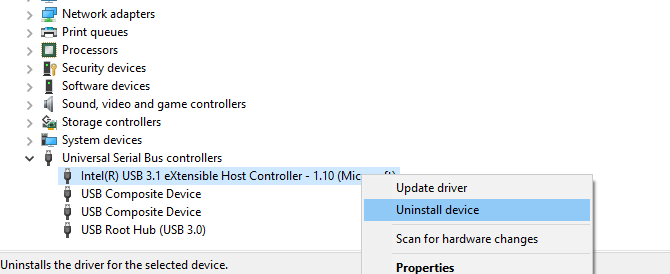
  • Right-click on the problematic USB device in the list and click Uninstall

  • Wait for the uninstallation process to complete
  • Now go to the Action menu in the Device Manager window
  • Click Scan for hardware changes

Note – Windows will install a new driver for USB device which might resolve the problem

  • Close Device Manager

Steps to update the driver automatically

A much simpler approach is to use an automatic driver update tool to update your USB driver.

Automatic driver update tools offer many benefits, the most important ones being:

  • You can update device drivers automatically
  • The software scans and updates all outdated or missing drivers at one go
  • The tool picks the right drivers for your device and operating system, so you won’t have to worry about installing an incorrect driver by mistake
  • Automatic driver updates are 100% safe

Driver Updater is one of the best driver update tools out there. Outbyte Driver Updater will give you access to a database of over 1 million drivers. It will regularly scan your PC, suggesting new driver versions to install. Driver Updater contains drivers for a variety of Windows devices. With just one click, you can update drivers in your system.

Step 1
Click here to Install and launch the app

Step 2
Scan all devices

Step 3
Install or update drivers automatically
 

Start Download


Filed Under: PC Fix Tips Tagged With: USB port not working

Remove Microsoft Edge (Solved)

By Susan C on July 19, 2019

Remove Microsoft Edge (Solved)

With Windows 10, Microsoft introduced a new Internet browser “Microsoft Edge”. The new browser has many improvements over its predecessor, but not everybody is pleased with it.

What about you? Are you happy with it?

If not, you can consider removing Microsoft Edge from your computer.

Here we have given two methods to remove Microsoft Edge; use whichever you find it simpler.  

Important – Before proceeding, kindly understand that Microsoft Edge is a core component of the Windows 10 operating system, and removing it completely might cause instability issues. Kindly proceed at your own risk.

Method One – Disable Microsoft Edge

This is by far the safest and easiest way to remove Microsoft Edge.  If you face any instability issues after disabling Microsoft Edge, you can always re-enable it.

This method involves renaming files and folders of Microsoft Edge.

Here are the steps to follow.

  • Press Windows logo key and R simultaneously to launch the Run command
  • In the Run command box, type msconfig and press Enter
  • In the System Configuration window, go to Boot tab
  • Check the Safe boot option

  • Click OK
  • Restart your computer
  • When the computer boots into Safe mode, follow the steps given below
  • Open Windows Explorer
  • Click the View tab and go to Options
  • Click Change folder and search options

  • At Folder options, do the following
  • Check the option – Show hidden files, folder, and drives
  • Uncheck the option- Hide protected system folders and files
  • When prompted, click Continue  to confirm

  • Click Apply to folders and then click OK
  • Close all windows
  • Now go to C:\Windows\SystemApps.
  • Select Microsoft.MicrosoftEdge_8wekyb3d8bbwe folder
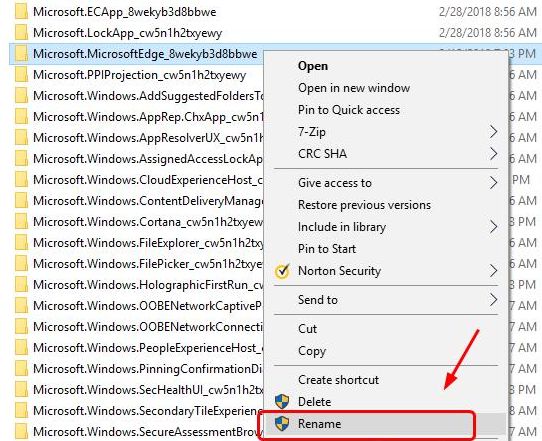
  • Right-click Microsoft.MicrosoftEdge_8wekyb3d8bbwe folder and select Rename
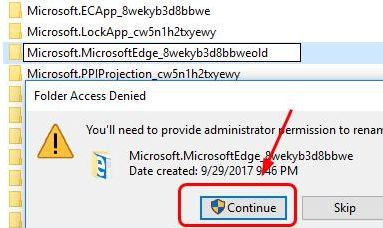
  • Rename the folder as Microsoft.MicrosoftEdge_8wekyb3d8bbwe.old
  • Click Continue
  • Restart your computer

Now the Microsoft Edge browser on your computer is disabled. If you want it back, follow the steps in the solution and rename the folder back to Microsoft.MicrosoftEdge_8wekyb3d8bbwe.

This will enable the Microsoft Edge browser again.

Method Two- Uninstall Microsoft Edge

Since Microsoft Edge is a core component of Windows 10, you cannot find it in Add/Remove programs list.

You need to use Windows PowerShell, a Windows command-line shell specifically designed for system administrators.

Here are the steps to follow.

  • Press key combination – Windows logo key + R to invoke the Run command
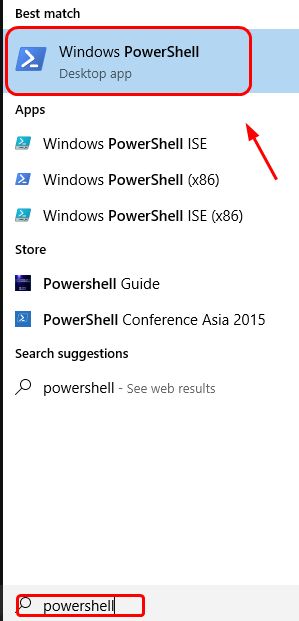
  • In the Run command, type powershell and click OK
  • From the list of results, click Windows PowerShell
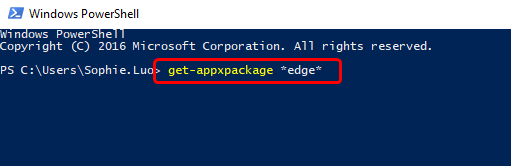
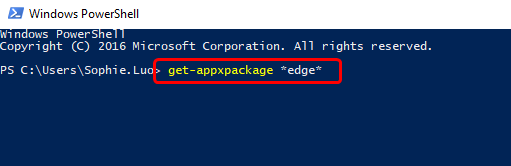
  • In the blue pop-up window, type get-appxpackage *edge* and hit Enter on the keyboard

  • Now you can see detailed information of  Microsoft Edge package
  • Copy the text that appears in front of Packagefullname and paste it in notepad
  • In the blue-pop window, type remove-appxpackage” and press space bar. Now copy the text from the notepad and paste it in the PowerShell window after the remove appxpackage command. Make sure there is space between the remove-appxpackage and the package name you just pasted.
  • Press Enter on the keyboard
  • Wait for the command operation to complete
  • Close PowerShell window

Now the Microsoft Edge is completely removed from your computer

Filed Under: PC Fix Tips

Windows Could not Find a Driver for Your Network Adapter Error Solved

By Susan C on July 13, 2019

Windows Could not Find a Driver for Your Network Adapter Error Solved

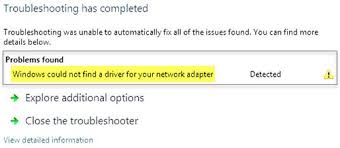
Network connectivity and driver issues are common in Windows. Many users have complained of “Windows could not find a driver for your network adapter” error. This error is known to appear when the Windows cannot find a link between the network hardware and network software component.

If you are getting a similar error and looking for a solution this post is for you.

Here we have given three easy-to-follow solutions, and we’re sure at least one of them might work for you.

Network Adapter Drivers Updates

Solution One- Run Network Troubleshooter

Windows comes with a Troubleshooter that can fix many problems on your computer.

Here are the steps to run Troubleshooter on your computer.

  • Click Start and then click Settings(gear icon)
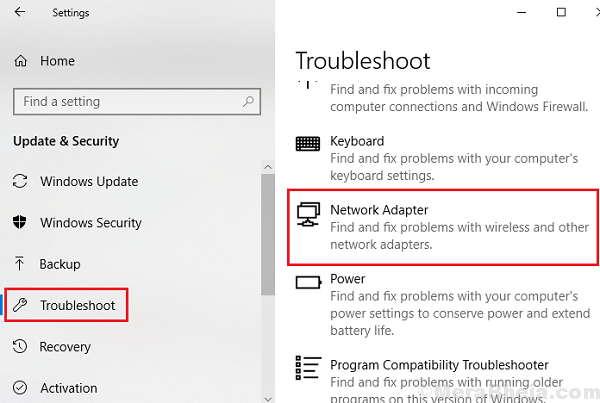
  • In the Settings window, click Troubleshoot in the left-hand column

  • Now click Network adapter in the right-hand column
  • Windows will now run the Troubleshooter and try to fix the network adapter issue. Follow any on-screen instructions that you see while the Troubleshooter is running
  • Wait for the Troubleshooter to complete its operation

Check whether you are able to connect to the Internet.  If the Troubleshooter fails to fix the issue, move to next solution

Solution Two- Change Power Management settings for the network adapter

  • Press the key combination – Windows logo key + R to invoke Run command
  • In the Run command box, type devmgmt.msc and hit Enter on the keyboard
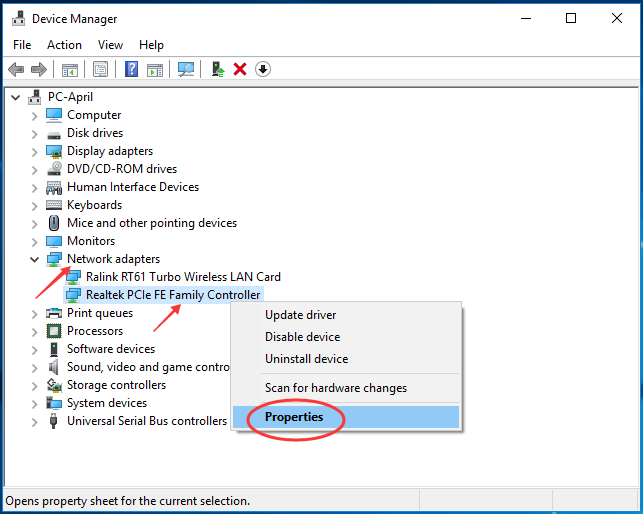
  • In the Device Manager window, go to the Network adapter category and expand it
  • Right-click on the network adapter in the list and click Properties

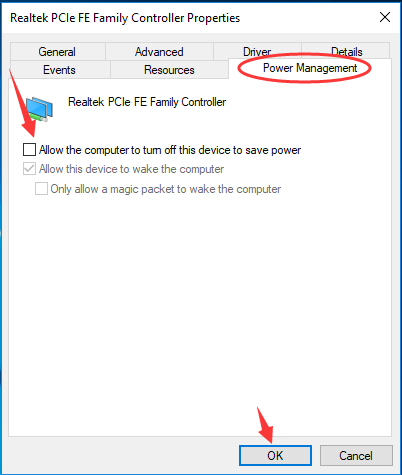
  • In the Network adapter properties window, go to Power management tab
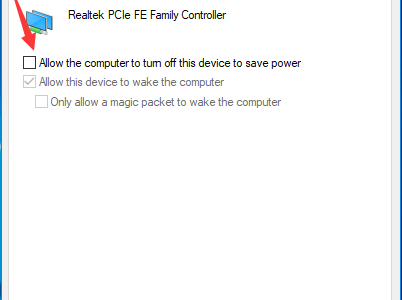
  • Uncheck the option- Allow the computer to turn off this device to save power
  • Click OK to save changes and close the window

Now check whether you are able to access the Internet. If the system continues to show “Windows could not find a driver for your network adapter” error, move to next solution.

Solution Three- Update Network adapter drivers

Since the error message mentions a problem with the driver, you should install the latest network adapter driver to resolve the issue.

Here are the steps to follow.

  • Open Device Manager(Refer the steps given in Solution One)
  • Go to Network adapters category and expand it
  • Right-click on the network adapter in the list and select Properties
  • In the Network adapter Properties window, go to Driver tab
  • Note down details like Device name, driver provider, and driver version. You will need the details to download the latest network adapter driver from the Internet.

Since your computer does not have an Internet connection, you need to use another computer with an Internet connection to download the latest network adapter drivers.

Here are the steps to follow.

  • Open Internet browser
  • Go to the driver provider website. Search the website for the latest drivers for your network adapter. You need to download the right network adapter drivers. Pay attention to the operating system version(7/8/8.1/10) and the system bit architecture(32-bit/64-bit)
  • After downloading the network adapter driver, copy it to your computer
  • Double-click on the executable file to start the driver installation. Follow on-screen instructions
  • If the driver file is in zip format, unzip the file and then double-click on the driver setup file.

For laptop users:

If the “Windows could not find a driver for your network adapter” is related to Ethernet adapter, there is a possibility the wireless connection is working on your computer. In that case, you can connect your computer to the Internet through the wireless connection and update network adapter drivers automatically through driver update software.

Steps to update Network adapter drivers automatically

Automatic driver update tools offer many benefits, the most important ones being:

  • You can update device drivers automatically
  • The software scans and updates all outdated or missing drivers at one go
  • The tool picks the right drivers for your device and operating system, so you won’t have to worry about installing an incorrect driver by mistake
  • Automatic driver updates are 100% safe

Driver Updater is one of the best driver update tools out there. Outbyte Driver Updater will give you access to a database of over 1 million drivers. It will regularly scan your PC, suggesting new driver versions to install. Driver Updater contains drivers for a variety of Windows devices. With just one click, you can update drivers in your system.

Step 1
Click here to Install and launch the app

Step 2
Scan all devices

Step 3
Install or update drivers automatically

 

Start Download


Filed Under: PC Fix Tips Tagged With: network adapter error

  • « Previous Page
  • 1
  • …
  • 113
  • 114
  • 115
  • 116
  • 117
  • …
  • 189
  • Next Page »


  • Recent Posts
  • Popular Posts
        

Read More Posts


Read More Posts

Drivers.com Sites

  • Software Drivers
  • Drivers Ed

About Us

  • Advertise
  • About Drivers
  • Drivers Support
  • Drivers.com Privacy Policy
  • Disclaimer
  • Software Drivers
  • Mac Fixes and Tips
  • PC Fix Tips
  • Security/ Backup
  • Tablets & Smartphones
  • Tech News

© Copyright 2026 PDE Publications Ltd. End User License Agreement (EULA)