


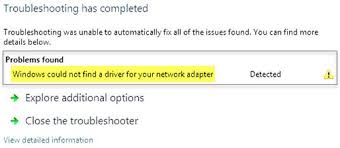
Network connectivity and driver issues are common in Windows. Many users have complained of “Windows could not find a driver for your network adapter” error. This error is known to appear when the Windows cannot find a link between the network hardware and network software component.
If you are getting a similar error and looking for a solution this post is for you.
Here we have given three easy-to-follow solutions, and we’re sure at least one of them might work for you.
Solution One- Run Network Troubleshooter
Windows comes with a Troubleshooter that can fix many problems on your computer.
Here are the steps to run Troubleshooter on your computer.
- Click Start and then click Settings(gear icon)
- In the Settings window, click Troubleshoot in the left-hand column
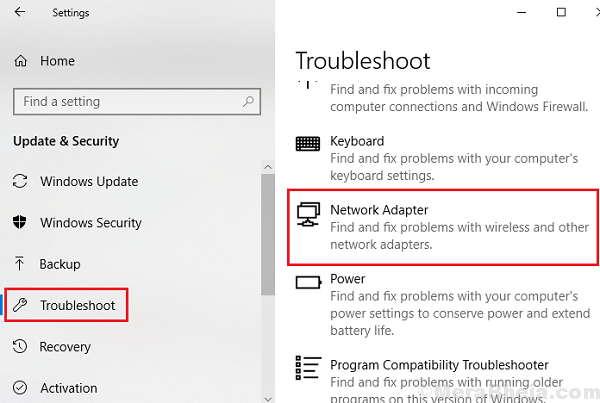
- Now click Network adapter in the right-hand column
- Windows will now run the Troubleshooter and try to fix the network adapter issue. Follow any on-screen instructions that you see while the Troubleshooter is running
- Wait for the Troubleshooter to complete its operation
Check whether you are able to connect to the Internet. If the Troubleshooter fails to fix the issue, move to next solution
Solution Two- Change Power Management settings for the network adapter
- Press the key combination – Windows logo key + R to invoke Run command
- In the Run command box, type devmgmt.msc and hit Enter on the keyboard
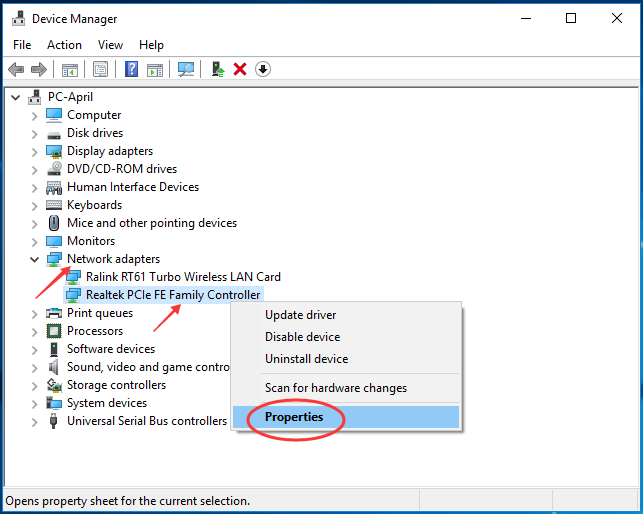
- In the Device Manager window, go to the Network adapter category and expand it
- Right-click on the network adapter in the list and click Properties
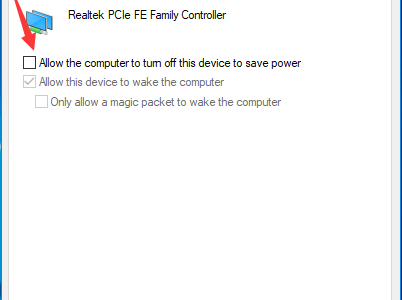
- In the Network adapter properties window, go to Power management tab
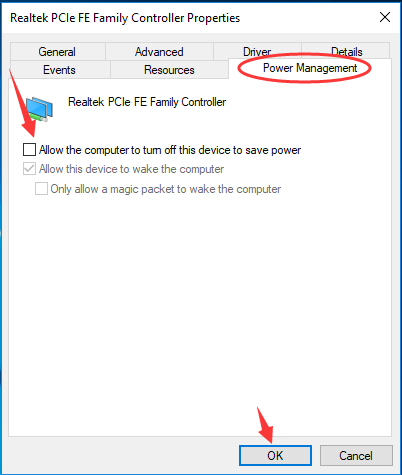
- Uncheck the option- Allow the computer to turn off this device to save power
- Click OK to save changes and close the window
Now check whether you are able to access the Internet. If the system continues to show “Windows could not find a driver for your network adapter” error, move to next solution.
Solution Three- Update Network adapter drivers
Since the error message mentions a problem with the driver, you should install the latest network adapter driver to resolve the issue.
Here are the steps to follow.
- Open Device Manager(Refer the steps given in Solution One)
- Go to Network adapters category and expand it
- Right-click on the network adapter in the list and select Properties
- In the Network adapter Properties window, go to Driver tab
- Note down details like Device name, driver provider, and driver version. You will need the details to download the latest network adapter driver from the Internet.
Since your computer does not have an Internet connection, you need to use another computer with an Internet connection to download the latest network adapter drivers.
Here are the steps to follow.
- Open Internet browser
- Go to the driver provider website. Search the website for the latest drivers for your network adapter. You need to download the right network adapter drivers. Pay attention to the operating system version(7/8/8.1/10) and the system bit architecture(32-bit/64-bit)
- After downloading the network adapter driver, copy it to your computer
- Double-click on the executable file to start the driver installation. Follow on-screen instructions
- If the driver file is in zip format, unzip the file and then double-click on the driver setup file.
For laptop users:
If the “Windows could not find a driver for your network adapter” is related to Ethernet adapter, there is a possibility the wireless connection is working on your computer. In that case, you can connect your computer to the Internet through the wireless connection and update network adapter drivers automatically through driver update software.
Steps to update Network adapter drivers automatically
Automatic driver update tools offer many benefits, the most important ones being:
- You can update device drivers automatically
- The software scans and updates all outdated or missing drivers at one go
- The tool picks the right drivers for your device and operating system, so you won’t have to worry about installing an incorrect driver by mistake
- Automatic driver updates are 100% safe
Driver Updater is one of the best driver update tools out there. Outbyte Driver Updater will give you access to a database of over 1 million drivers. It will regularly scan your PC, suggesting new driver versions to install. Driver Updater contains drivers for a variety of Windows devices. With just one click, you can update drivers in your system.
Step 1
Click here to Install and launch the app
Step 2
Scan all devices
Step 3
Install or update drivers automatically