


With Windows 10, Microsoft introduced a new Internet browser “Microsoft Edge”. The new browser has many improvements over its predecessor, but not everybody is pleased with it.
What about you? Are you happy with it?
If not, you can consider removing Microsoft Edge from your computer.
Here we have given two methods to remove Microsoft Edge; use whichever you find it simpler.
Important – Before proceeding, kindly understand that Microsoft Edge is a core component of the Windows 10 operating system, and removing it completely might cause instability issues. Kindly proceed at your own risk.
Method One – Disable Microsoft Edge
This is by far the safest and easiest way to remove Microsoft Edge. If you face any instability issues after disabling Microsoft Edge, you can always re-enable it.
This method involves renaming files and folders of Microsoft Edge.
Here are the steps to follow.
- Press Windows logo key and R simultaneously to launch the Run command
- In the Run command box, type msconfig and press Enter
- In the System Configuration window, go to Boot tab
- Check the Safe boot option
- Click OK
- Restart your computer
- When the computer boots into Safe mode, follow the steps given below
- Open Windows Explorer
- Click the View tab and go to Options
- Click Change folder and search options

- At Folder options, do the following
- Check the option – Show hidden files, folder, and drives
- Uncheck the option- Hide protected system folders and files
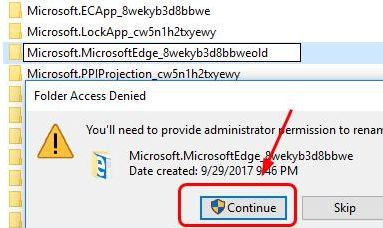
- When prompted, click Continue to confirm
- Click Apply to folders and then click OK
- Close all windows
- Now go to C:\Windows\SystemApps.
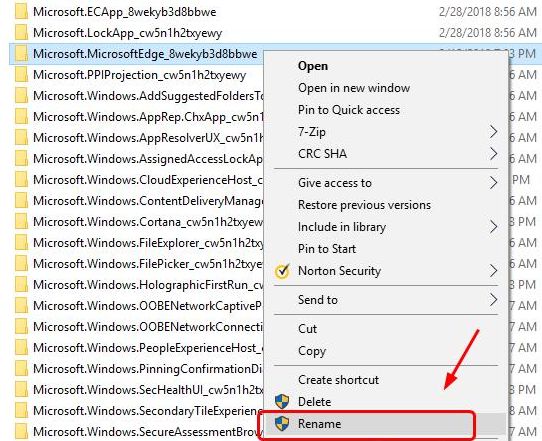
- Select Microsoft.MicrosoftEdge_8wekyb3d8bbwe folder
- Right-click Microsoft.MicrosoftEdge_8wekyb3d8bbwe folder and select Rename
- Rename the folder as Microsoft.MicrosoftEdge_8wekyb3d8bbwe.old
- Click Continue
- Restart your computer
Now the Microsoft Edge browser on your computer is disabled. If you want it back, follow the steps in the solution and rename the folder back to Microsoft.MicrosoftEdge_8wekyb3d8bbwe.
This will enable the Microsoft Edge browser again.
Method Two- Uninstall Microsoft Edge
Since Microsoft Edge is a core component of Windows 10, you cannot find it in Add/Remove programs list.
You need to use Windows PowerShell, a Windows command-line shell specifically designed for system administrators.
Here are the steps to follow.
- Press key combination – Windows logo key + R to invoke the Run command
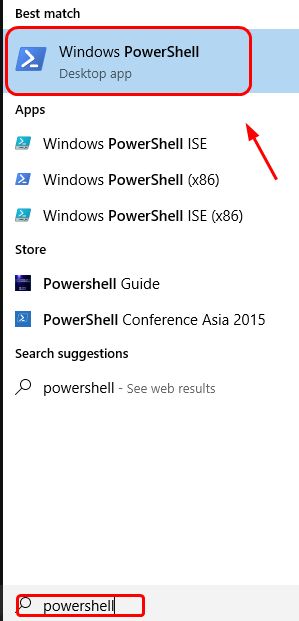
- In the Run command, type powershell and click OK
- From the list of results, click Windows PowerShell
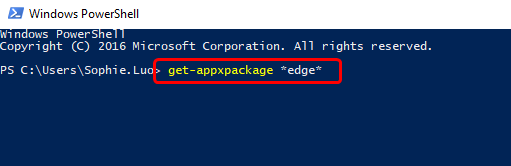
- In the blue pop-up window, type get-appxpackage *edge* and hit Enter on the keyboard
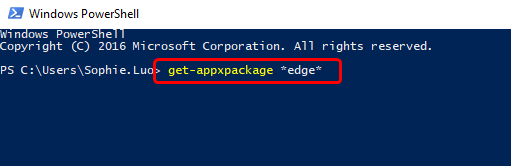
- Now you can see detailed information of Microsoft Edge package
- Copy the text that appears in front of Packagefullname and paste it in notepad
- In the blue-pop window, type remove-appxpackage” and press space bar. Now copy the text from the notepad and paste it in the PowerShell window after the remove appxpackage command. Make sure there is space between the remove-appxpackage and the package name you just pasted.

- Press Enter on the keyboard
- Wait for the command operation to complete
- Close PowerShell window
Now the Microsoft Edge is completely removed from your computer
Leave a Reply