Drivers.com

follow us:

facebook twitter
  • Home
  • Download Drivers
  • Drivers Help
  • PC/Mac Resources
  • Software Drivers
  • Mac Fixes and Tips
  • PC Fix Tips
  • Security/ Backup
  • Tablets & Smartphones
  • Tech News
  • Software Drivers
  • Mac Fixes and Tips
  • PC Fix Tips
  • Security/ Backup
  • Tablets & Smartphones
  • Tech News

Display driver nvlddmkm stopped responding and has successfully recovered (Fixed)

By Susan C on September 1, 2019

Display driver nvlddmkm stopped responding and has successfully recovered (Fixed)

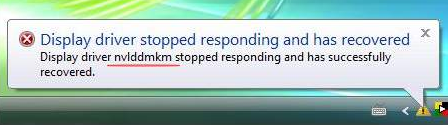
Are you getting the “Display driver stopped responding and has successfully recovered” error?

If yes, it doesn’t take much to fix this error, and in the post below we will show you how to go about it.

Typically, you will come across this error while playing games. When this problem arises, the screen turns black. 

However, the good news is if you try the solutions listed below, it won’t be long before your computer starts functioning like before.

Set Power Supply on High Performance

If the video card is getting lower power, this problem can occur. For this reason, you should first make sure power supply is set on high performance.

Here are the steps to follow:

  • In the Start Search box, type control panel and then select Control Panel in the results
  • In the Control Panel window, set View by to Large icons (use the drop-down menu to choose this option)
  • Under Select a power plan section, click Change plan settings next to High Performance
  • Now click Change advanced power settings
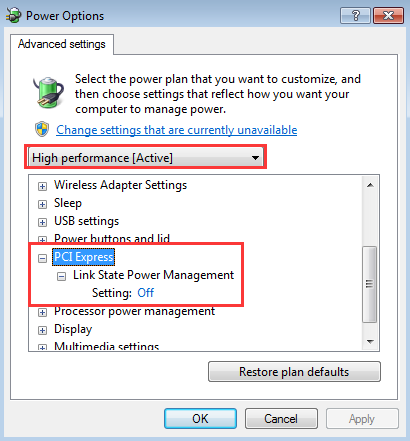
  • In the Power Options window, expand PCI Express and make sure the Setting is turned Off
  • In case it is not, turn it Off and apply the changes
Fix Drivers for Your Graphics Card

If your Nvidia graphics card driver is faulty, you may receive this error. To solve the issue, uninstall the driver in question and update it.

Here are the steps to follow for uninstalling Nvidia graphics card driver:

  • Press Windows key + R simultaneously
  • In the Run box, type devmgmt.msc
  • In the Device Manager window, expand “Display adapter”. Now right-click Nvidia graphics card and click Uninstall
  • You will receive a pop-up asking you to confirm you want to remove the said driver. Just select OK to continue
  • Restart Windows so that changes could take effect

Upon restart, Windows is going to install the driver for your graphics card automatically, which in turn might solve the issue. However, if this doesn’t happen, you should try to update the driver yourself.

You can update the driver manually in this case or use a reliable driver update tool. I’ve given steps for both; choose the one that sounds easier and more convenient to you.

Updating Nvidia Graphic Card Driver

  • Press Windows key + R simultaneously
  • In the Run box, type devmgmt.msc
  • In the Device Manager window, expand “Display adapter”. Write down the name of your Nvidia graphics card driver
  • Now go to the manufacturer’s website and download the latest driver for your graphic card. Make sure the selected driver is compatible with your Windows version. For instance, if you are using Windows 10, select a driver that’s compatible with Windows 10. Similarly, ensure that the driver file corresponds to your PC type. For instance, if you are using a 32-bit Windows 10, the driver file should be compatible with 32-bit version
  • Save the downloaded file in a relevant location, like your desktop
  • Double-click it to launch the driver file and follow on-screen instructions to install the driver

Update Nvidia Graphics Card Driver Automatically

Automatic driver update tools offer many benefits, the most important ones being:

  • You can update device drivers automatically
  • The software scans and updates all outdated or missing drivers at one go
  • The tool picks the right drivers for your device and operating system, so you won’t have to worry about installing an incorrect driver by mistake
  • Automatic driver updates are 100% safe

Driver Updater is one of the best driver update tools out there. Outbyte Driver Updater will give you access to a database of over 1 million drivers. It will regularly scan your PC, suggesting new driver versions to install. Driver Updater contains drivers for a variety of Windows devices. With just one click, you can update drivers in your system.

Step 1
Click here to Install and launch the app

Step 2
Scan all devices

Step 3
Install or update drivers automatically


Start Download


Update Registry

If the first two solutions didn’t work for you, you can try updating the Windows registry.

Important –  Before you make any changes to Windows Registry, it is recommended that you make a backup. This will help you restore the registry to its earlier state should any complications arise because of the recent changes made by you.

Here’s how you can backup Windows registry.

  • Click the Windows key + R to launch the Run box
  • Type regedit and press the Enter key to launch the Registry Editor
  • In the Registry Editor window, click the File menu and then click Export
  • Select a suitable location for backup, give the backup file a name and then finally click the Save button

Once you’ve done that, now you can go ahead and add the two registry keys. Here are the steps to follow.

  • Click the Windows key + R to launch the Run box
  • Type regedit and press the Enter key to launch the Registry Editor
  • Locate and click this registry subkey:

HKEY_LOCAL_MACHINE\SYSTEM\CurrentControlSet\Control\GraphicsDrivers
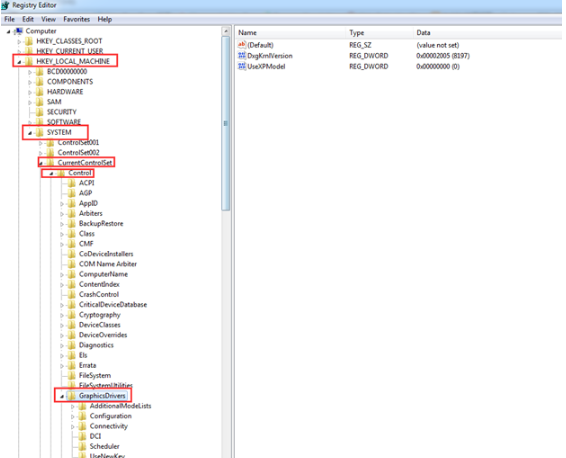
  • In the right-pane, right-click in the empty space and click New

For32-bit Windows

  • If you are running a 32-bit Windows, selectDWORD (32-bit) Value
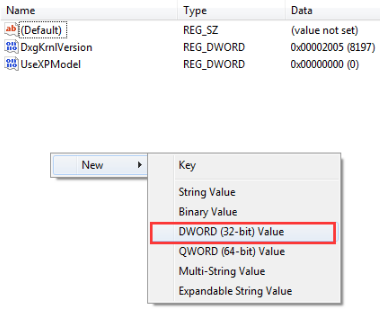
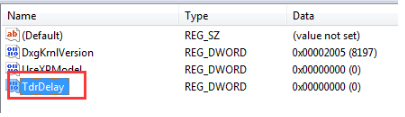
  • Type TdrDelay as Name and then click Enter
  • Now double-click TdrDelay and then in the Value data field type 20 and click the OK button
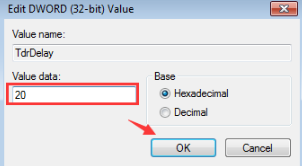
  • Now repeat the steps listed above to add a new DWORD called TdrDdiDelay and assign it the Value Data of “20”

For 64-bit Windows

  • If you’re running a 64-bit Windows, choose QWORD (64-bit) Value (by right-clicking in the empty space in the right pane and clicking New)
    • Now give the new value the name TdrDelay, and then double-click it and add “20” in the Value data field. Click the OK button
    • Now repeat the steps listed above to add a new DWORD called TdrDdiDelay and assign it the Value Data of “20”

Restart Windows and check if the problem is fixed.

Reinsert the Graphics Card

If nothing has worked, as a last resort you can check if the graphics card is seated well in its PCI-E slot. So remove the graphics card and reinsert it in its slot. Before putting it back, clean the slot with a soft cloth.
Filed Under: PC Fix Tips Tagged With: Nvidia driver error

iPhone Not Recognized By Windows 10 (Fixed)

By Susan C on August 28, 2019

iPhone Not Recognized By Windows 10 (Fixed)

Is your Windows 10 not recognizing your iPhone when you connect it? Are you unable to view iPhone content on your laptop or PC?

In this post, I have listed 5 solutions for this issue. All of them have worked for other users earlier, so I’m sure you will have no trouble in solving the “iPhone not recognized by Windows 10” using them, either.

However, before we begin, make sure you’ve got these things right.

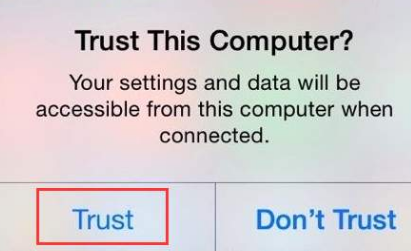
  • You have clicked “Trust” when the following message appeared on your screen

    click Trust
  • You don’t have any pending Windows updates
  • Your USB cable is in good condition
  • Your iPhone is not switched off
  • You have the latest version of iTunes (If the version of iTunes you have is old, you can encounter several problems, including the titled error).

Solution 1 – Reinstall iTunes

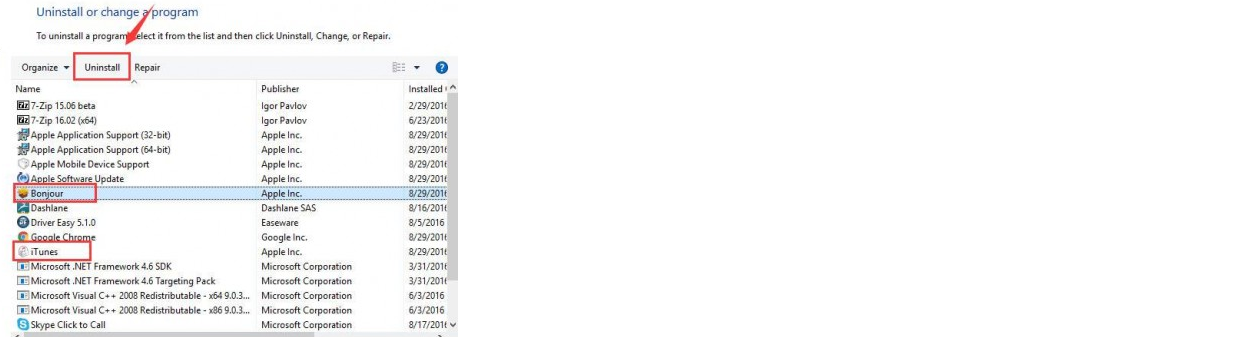
If you are facing the error even when the iTunes version is of the latest variety, try reinstalling it. This solution has worked for others in the past, and it may do the trick for you as well. Since it hardly takes any time to reinstall iTunes, it’s a potential solution that’s worth a try.

  • Type control panel in the Start Search box, and click Control Panel in the results
  • In the View by drop-down menu (it is located just below the search box), select Category
  • Now click Uninstall a program
  • Select iTunes and Bonjour. Now click the Uninstall option
  • uninstall iTunes
  • Now reconnect the iPhone and check if the issue is solved

Solution 2 – Update iPhone 7 Driver

You will need this solution in case you see iPhone with an exclamation mark against it listed below Portable Device—in place of Universal Serial Bus Controllers.

A yellow exclamation mark on iPhone means you’ll need to update the device driver. So how can you do that?

Well, there are two ways to update the iPhone driver — manually and automatically. The latter is simple, easier, and quicker, and that’s why I recommend you go the automatic way.

However, in this article, I’ll show you both, so you can pick the one that works better for you.  

Updating iPhone Driver Manually

Here are the steps to follow:

  • Press Windows logo key + R together to bring up the Run command
  • In Run command, type devmgmt.msc and click OK
  • In the Device Manager, go to Portable device, expand this category, and right-click iPhone
  • Select update driver from the list of options
  • In the next window, select Search automatically for updated driver software
  • Windows will search the internet to find a driver update and install it
  • Restart Windows

Updating iPhone Driver Automatically

Find the Device Manager confusing? Try using a driver update tool.

Automatic driver update tools offer many benefits, the most important ones being:

  • You can update device drivers automatically
  • The software scans and updates all outdated or missing drivers at one go
  • The tool picks the right drivers for your device and operating system, so you won’t have to worry about installing an incorrect driver by mistake
  • Automatic driver updates are 100% safe

Driver Updater is one of the best driver update tools out there. Outbyte Driver Updater will give you access to a database of over 1 million drivers. It will regularly scan your PC, suggesting new driver versions to install. Driver Updater contains drivers for a variety of Windows devices. With just one click, you can update drivers in your system.

Step 1
Click here to Install and launch the app

Step 2
Scan all devices

Step 3
Install or update drivers automatically


Start Download


Solution 3 – Enable Apple Mobile Device USB Driver

Are you seeing a down arrow against Apple Mobile Device USB Driver under Universal Serial Bus Controllers? This means that the device in question is disabled.

In that case, right-click the device and click the Enable option.

Solution 4 – Reinstall Apple Mobile Device USB Driver

If, instead of a down arrow, you see a question mark or a yellow exclamation mark next to this device, you need to complete these steps.

  • Quit iTunes in case you are able to open it. Now connect your iPhone to your computer
  • Open Device Manager and expand Universal Serial Bus Controllers
  • Now double-click Apple Mobile Device USB Driver
  • Select the second option in the Update Driver Software window — Browse my computer for driver software
  • In the next window, again pick the second option (Let me pick…)
  • Now click Have Disk button
  • Click Browse
  • Navigate to C:\Program Files\Common Files\Apple\Mobile Device Support\Drivers
  • If you use 32-bit version, double-click usbaapl. 64-bit users need to click usbaapl64
  • Can’t find the driver folder? Or perhaps you can see a driver folder but there’s no usbaapl file in it? In either case, look into this folder — C:\Program Files (x86)\Common Files\Apple\Mobile Device Support\Drivers
  • Now click the OK button
  • Click Next
  • Now Windows will install the relevant driver. You might see a pop-up stating the software hasn’t cleared Windows Log testing. Just click Continue in that case

After you’ve completed these steps, unplug iPhone 7, and then reconnect it. Open the iTunes and check if it is recognizing or detecting your iPhone now.  

Solution 5 – Restart Apple Mobile Device Support and Service

You can come up against this issue in case the Apple Mobile Device service is not working properly. In that case, restart it.

Here are the steps to follow:

  • Type control panel in the Start Search box and select Control Panel in the results
  • Set View by to Category
  • Click Uninstall a program
  • Check if Apple Mobile Device Support is present in the list of installed programs. If not, reinstall the iTunes
  • Now press Windows key + R and type services.msc and press OK
  • Now double-click Apple Mobile Device Service or Apple Mobile Device
  • Click Stop in the next window
  • Now click Start. This will restart the service
  • Restart Windows

Are you getting a black iPhone screen but device is still on?

If the solutions above don’t resolve your iPhone issue, try contacting Apple support

Filed Under: PC Fix Tips Tagged With: iPhone, Windows 10

Error 1067 The Process Terminated Unexpectedly (Fixed)

By Susan C on August 25, 2019

Error 1067 The Process Terminated Unexpectedly (Fixed)

The error 1067 typically occurs with the SQL service or some other similar service. That said, it can also be related with other services. It occurs when you attempt to execute an action that requires a service to run.

Thankfully, there are many ways to solve this error. In this post, I’ve listed some of the more common ones, all of which have worked for other users in the past.

I recommend you to start with the first solution, and if that doesn’t work, then to move on to the second one and so on.

Manage the Service

More often than not, the error 1067 is associated with various permissions. That’s why, giving the access of the service controls to your profile works for so many people to fix the problem.

You should try this solution before attempting any other. This is because it works regardless of the service that’s causing the error. Also taking control of a service is easy and quick.  

Here are the steps to follow:

  • Press the Windows key + R to launch the Run box
  • Type services.msc and press the Enter key. This will launch the Services tool
  • Browse through the list of services in the right pane, locate the one that is associated with the error, right-click it and choose Properties
  • Check whether the service is running. If yes, click the Stop button to stop it. In case the service is already stopped, leave it is as it is. Now click the second tab in the list—Log On. Then click the Browse button
  • Type the name of your account in the “Enter the object name to select” section, and click Check Names
  • Once your name shows up in the list, click the OK button and type the password (if you have set up one, that is).

The service should start now and the error 1067 should stop appearing.

Reinstall the Service That’s Giving the Error

If the previous solution didn’t work, you can try this one. However, mind you, this is a little more advanced than the previous one. You can use this method to restart a problematic service in case you aren’t able to launch it using the Services tool.

Important – This steps involve deleting a registry key. You should proceed only if you are confident about tweaking the Windows registry. You should always make a registry backup before making any sort of changes to it. This will help you restore Windows registry to its prior state in case any problem occurs due to the changes made by you.

First, let’s see how to back up Windows registry.

  • Click the Windows key + R to launch the Run box
  • Type regedit and press the Enter key to launch the Registry Editor
  • In the Registry Editor window, click the File menu and then click Export
  • Select a suitable location for backup, give the backup file a name and then finally click the Save button.

Now that we have made a registry backup, let’s see how to restart a service using the Registry Editor tool.

  • Click the Windows key + R to launch the Run box
  • Type regedit and press the Enter key to launch the Registry Editor
  • In the Registry Editor window, browse to the following key in left pane: HKEY_LOCAL_MACHINE\SYSTEM\CurrentControlSet\Services
  • Now once you have opened the Services key, locate the key that’s causing the problem. Right-click it and select the Delete option. If any dialog box pops up, confirm your action.
  • Reboot Windows

In case you couldn’t remove this key, it means you need more permission. You can add extra access without leaving Registry Editor.

Here’s what you need to do:

  • Right-click the service key that’s giving you the error, click the permission option
  • Locate the computer’s username under user names or Group names option. In case you are unable to find it, click Add | Advanced | Find Now. Now your user account will show up in the search results, select it and then click the OK button two times
  • Select your account and tick the Full Control checkbox below Permissions for (Your user name). Now apply the new changes
  • Now try to delete the problematic service key again. Don’t forget to reboot Windows once you are done
  • After Windows has restarted, run a SFC scan (instructions for this are given ahead) to help you find the deleted service and bring it back.

Now check whether the problem is resolved or not.  

Delete Specific Files

This is the easiest method to fix the error 1067 if it’s associated with the MYSQL Service. All that it requires is you stop the service and remove a few log files.

Here are the steps to follow:

  • Click the Start menu and select Control Panel
  • In the Control Panel window, set the View by option to Large Icons. Now scroll down to locate Administrative Tools, click it, locate Services shortcut in the list, and then finally click it
  • Now browse the list until you see the MYSQL service, right-click it, choose Properties. Now click Stop and then click OK
  • Now browse to the folder where MYSQL is installed. This is usually the C>> Program Files folder. Alternately MYSQL might be installed in the C>> Program Files (x86) folder. Open the folder that has MYSQL and then double-click “data” folder
  • Look for these two files—ib_logfile0 and ib_logfile1, right-click them one by one and click the Delete button
  • Now go back to the Service window. Right-click MYSQL service and select Properties and click Start
  • Now check if the issue is fixed

Tweak MYSQL Configuration Files

If the problem persists, try this solution. There’s an option inside the “my.ini” file, the MYSQL configuration file, that can cause error 1067. Disabling or deleting this option can help fix the issue.

Here are the steps to follow:

  • Go to the folder where MYSQL is installed. As said earlier, it will be either of these two folders: C>> Program Files folder or C>> Program Files (x86)
  • Open the folder with MYSQL and locate the my.ini file
  • Right-click it and open it with Notepad
  • Click the Ctrl key + F, type innodb_flush_method and check if you get any search result. If you do, set the entry to innodb_flush_method=normal
  • In case there’s no innodb_flush_method command, add innodb_flush_method=normal to the file, and then click Ctrl key + S to save the changes
  • Now check if the problem is resolved

In case the issue still persists, you’ll need to edit “my-default.ini” file. Here are the steps to follow:

  • Locate  “my-default.ini” file in the root folder (that is, the folder which has MYSQL) and open this file
  • Right click it and open it with Notepad
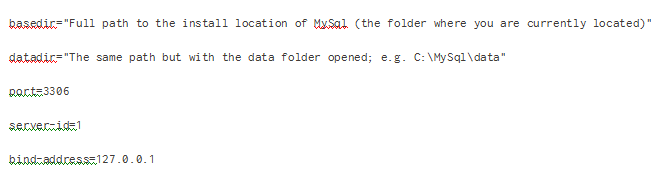
  • Make sure everything below the mysqld line is as shown below
  • Now save the changes by clicking Ctrl key + S

Reinstall SQL Server

Performing a clean install of the program will fix the problem once and for all. The thing about clean install is that removes all files, including temporary files that can also at times trigger the error 1067.

Here are the steps to follow:

  • You will need to log in with the admin account; otherwise you can’t uninstall SQL server
  • Are there some databases you would rather like to preserve? If yes, take their backups before you proceed further. This is important because, as said earlier, a clean install will remove all old files, down to the last one.
  • Click Start menu and then select Control Panel
  • In the Control Panel window, set the View by to Category and then click Uninstall a Program (in Programs section)
  • Click Apps in case you use Settings app. All the installed apps, as well as programs, will show up on your screen
  • Browse through the list to locate SQL Server, and click on this entry. Now click Uninstall (you will see it above the displayed list), and then follow on-screen instructions to complete the uninstallation of SQL Server
  • Restart Windows

Once this is done, don’t forget to remove data in the registry related to Spotify.

Here are the steps to follow.

Important – Don’t forget to make a registry backup before completing these steps. If you have made a backup, you will be able to easily restore Registry in case a problem occurs because of the changes made by you.

  • Click the Windows key + R to launch the Run box
  • Type regedit and press the Enter key
  • In the Registry Editor window, locate and delete these two keys

HKEY_LOCAL_MACHINE\SOFTWARE\Microsoft\Microsoft SQL Server
HKEY_LOCAL_MACHINE\SOFTWARE\Microsoft\MSSQLServer

  • Now delete these keys (both of them are associated with the SQL Server)

HKEY_LOCAL_MACHINE\SOFTWARE\Microsoft\Windows\CurrentVersion\Uninstall
HKEY_LOCAL_MACHINE\SYSTEM\CurrentControlSet\Services

  • Search your computer for folders referencing SQL. Next. rename all such folders.
  • Restart Windows
  • Go here and download SQL tool. Save the downloaded file in a suitable location and double-click. Follow on-screen instructions to complete installation.

Now check if the error is fixed.

Fix for EAServer Service

The Error 1067 can occur just when EAServer is starting. If that’s what is happening in your case, use this step to fix the issue. Usually what happens is that a registry key associated with the service becomes corrupt, possibly following an update, and that in turn causes the error.

Important – Make a registry backup before attempting these steps.

Here are the steps to follow:

  • In the Registry window, navigate to this key: HKEY_LOCAL_MACHINE\SYSTEM\CurrentControlSet\Services
  • Under Services, check if there’s an EAServer entry. If yes, click it to see all the registry keys related to it
  • Now locate a key called SERVERNAME, and then right-click it and select Modify. Type EASERVER under Value data bar. Save the changes and then check if the issue is fixed

Filed Under: PC Fix Tips

  • « Previous Page
  • 1
  • …
  • 109
  • 110
  • 111
  • 112
  • 113
  • …
  • 189
  • Next Page »


  • Recent Posts
  • Popular Posts
        

Read More Posts


Read More Posts

Drivers.com Sites

  • Software Drivers
  • Drivers Ed

About Us

  • Advertise
  • About Drivers
  • Drivers Support
  • Drivers.com Privacy Policy
  • Disclaimer
  • Software Drivers
  • Mac Fixes and Tips
  • PC Fix Tips
  • Security/ Backup
  • Tablets & Smartphones
  • Tech News

© Copyright 2026 PDE Publications Ltd. End User License Agreement (EULA)