Drivers.com

follow us:

facebook twitter
  • Home
  • Download Drivers
  • Drivers Help
  • PC/Mac Resources
  • Software Drivers
  • Mac Fixes and Tips
  • PC Fix Tips
  • Security/ Backup
  • Tablets & Smartphones
  • Tech News
  • Software Drivers
  • Mac Fixes and Tips
  • PC Fix Tips
  • Security/ Backup
  • Tablets & Smartphones
  • Tech News

Plugging in not charging Dell laptops (Fixed)

By Susan C on October 2, 2019

Is your Dell laptop not charging even when you have plugged in the AC adapter?

If yes, there is a likely to be a simple fix. This is a pretty common issue but can be very frustrating.

Do what do I do when I plug in my Dell laptop and it does not charge (according to the laptop’s battery indicator).

Solution 1 – Reconnect the AC adapter as well as the battery

We’ll start with the simplest fix. This involves reconnecting the AC adapter as well as the battery.

Here’s how you can do the same.

  • Shut down your laptop
  • Now unplug your AC adapter as well as the battery
  • Now press and hold your laptop’s power button for about 20 sec to ensure any residual power is released
  • Reconnect your battery as well as the AC adapter to the laptop
  • Turn your laptop on to check if the issue is resolved

Solution 2 – Plug the laptop to wall socket

Are you using a surge protector? Well, sometimes it can affect the way an adapter functions. So, power off your laptop and directly connect the AC adapter to a nearby wall socket. Power on the laptop and check if the issue is fixed.

Solution 3 – Use some other AC adapter

The possibility of something being wrong with your AC adapter cannot be ruled out. Therefore, test with some other AC adapter and see if that can charge the battery. If yes, you can safely conclude your AC adapter is the culprit. If the problem persists, move on to the solution four.

Solution 4 – Reinstall battery driver

Did you know that problems with your battery driver can lead to all sorts of issue, including this one?

Thankfully, updating the battery driver is easy, especially if you use a driver update tool. While you can update drivers manually, this can be time-consuming and requires technical know-how.  

We have listed both the methods here. You can pick the one that suits you better.

Manually updating the battery driver

Here are the steps to follow:

  • Press Windows logo key + R together to bring up the Run command
  • In Run command, type devmgmt.msc and click OK
  • In the Device Manager, click Batteries
  • Now right-click Microsoft ACPI-Compliant Control Method Battery. Then click Uninstall
  • Click Uninstall to confirm your action
  • Now click Action and choose Scan for hardware changes
  • Choose Batteries and right-click Microsoft ACPI-Compliant Control Method Battery. Now select Update Driver Software
  • In the window that opens, select this option: Search automatically for updated driver software

Once Windows is finished updating the battery driver, restart the computer. Now check if the issue is resolved.

Updating Battery Driver Automatically

When you use driver update software, you don’t have to perform these lengthy steps. All you ever need to do is click a button.

Automatic driver update tools offer many benefits, the most important ones being:

  • You can update device drivers automatically
  • The software scans and updates all outdated or missing drivers at one go
  • The tool picks the right drivers for your device and operating system, so you won’t have to worry about installing an incorrect driver by mistake
  • Automatic driver updates are 100% safe

Driver Updater is one of the best driver update tools out there. Outbyte Driver Updater will give you access to a database of over 1 million drivers. It will regularly scan your PC, suggesting new driver versions to install. Driver Updater contains drivers for a variety of Windows devices. With just one click, you can update drivers in your system.

Step 1
Click here to Install and launch the app

Step 2
Scan all devices

Step 3
Install or update drivers automatically


Start Download


Solution 5 – Update the BIOS

BIOS stands for Basic Input Output System. It has the responsibility of managing the connection between the Windows operating system and the hardware devices installed in the laptop.

At times, BIOS settings become faulty and that in turn can prevent the battery from charging.

Before you update BIOS, remember two things:

  • Always make a backup before updating BIOS.  If you are not confident, it’s better to seek professional help.  A mistake can lead to data loss or render your computer unusable.
  • Make sure you have enough laptop power.

Visit the Dell official site and find the support page relevant to the laptop you are using. Once you have found it, download the latest BIOS update and then install it.
2 common fixes to Why is my Laptop battery not charging?

Filed Under: PC Fix Tips Tagged With: Laptop not charging

WerFault.exe Error Fixed

By Susan C on September 30, 2019

WerFault.exe Error Fixed

This exe file is associated with Windows error reporting. Whenever you encounter an error associated to the Windows operating system or Windows features and apps, werfault.exe makes it possible to report the errors to Microsoft. After which, you get information related to how to fix the problem at hand.

You can try these two solutions to fix werfault.exe error in Windows 7 and Windows 10.

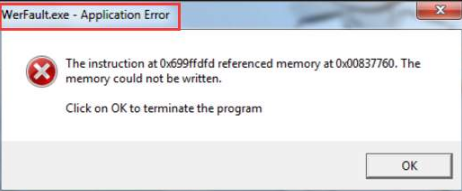
You are likely to receive an error message similar to the one displayed below. Of course, the content of the message might vary.

More often than not, this error shows up when you try to open programs. If you are getting the werfault.exe error with only a particular program, you should first get in touch with the vendor. This is because it is very much possible that the issue is related to some bug in the program, which the vendor might be aware of and, more importantly, able to fix.

In case this error is appearing with random programs, not any specific one, try these solutions.

First Solution – Disable Windows Error Reporting

Here are the steps to follow:

  • Press the Windows logo and R keys simultaneously
  • In the Run dialog box, type services.msc and then press OK
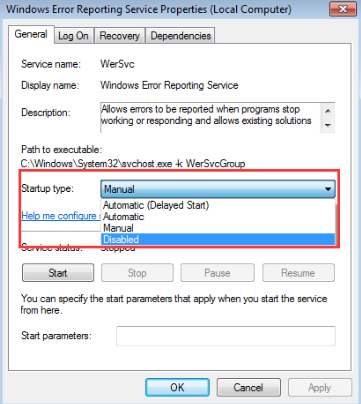
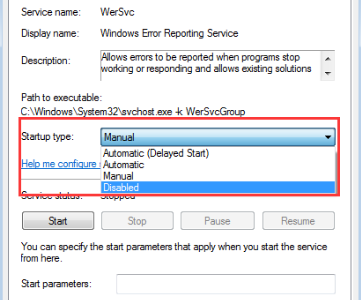
  • Browse through the list until you find Windows Error Reporting Service. Now double-click it and then in the Properties dialog box set the Startup type to Disabled. Finally, Click Apply and then OK to save the changes

Second Solution – Disable Antivirus Program

You can get this error because of some issue related to your antivirus program. Therefore, disable the antivirus program temporarily and check if the issue gets resolved.

Here we have given the steps to disable Avast antivirus. It is likely that the exact steps for you (if you use any other antivirus) will be different.

  • Right click the Avast antivirus icon in the system tray
  • Select Avast shields control and then specify for how much time you want to disable the software
  • Now confirm your action

If the problem gets fixed after you disable the antivirus, contact your vendor for a solution. Otherwise, use any other protective software.

Third Solution – Update Device Drivers

Many errors occur because of outdated device drivers. This error, too, can occur if there’s some problem with your device drivers.

The easiest solution is to update all outdated device drivers. Of course, if you want, you can do this manually, but the whole process will take time and you’ll need some amount of technical knowledge.

A faster way to update drivers is to use reputable driver update software.

Automatic driver update tools offer many benefits, the most important ones being:

  • You can update device drivers automatically
  • The software scans and updates all outdated or missing drivers at one go
  • The tool picks the right drivers for your device and operating system, so you won’t have to worry about installing an incorrect driver by mistake
  • Automatic driver updates are 100% safe

Driver Updater is one of the best driver update tools out there. Outbyte Driver Updater will give you access to a database of over 1 million drivers. It will regularly scan your PC, suggesting new driver versions to install. Driver Updater contains drivers for a variety of Windows devices. With just one click, you can update drivers in your system.

Step 1
Click here to Install and launch the app

Step 2
Scan all devices

Step 3
Install or update drivers automatically


Start Download


Filed Under: PC Fix Tips

0x80070005 Access Denied Error (Fixed)

By Susan C on September 26, 2019

0x80070005 is a general code error. It usually shows up when you are trying to install a system update.

In this article, we will look at different ways to fix this issue.

Why 0x80070005 Error Occurs

Like in the case of many Windows errors, there’s no single cause behind the 0x80070005 error. Typically, it occurs when you are downloading and installing a certain Windows update.

Sometimes the error code is described as “Access Denied”. This in general happens when you don’t have the required permissions of registry or file to complete a specific action. Your sudden lack of permission, in turn, could be because of malware or virus infection.

Having said that, this error can show up in many different circumstances and pinpointing the exact cause with accuracy is very tough.

Common Causes of 0x80070005 error

As said above, you usually get 0x80070005 error when you are installing updates for which you don’t have the necessary permissions. This, in turn, happens because of a computer’s security settings and policies. You are likely to encounter the issue when you are logged into as a standard user, not as administrator, or trying to make inappropriate settings in the system’s local group policy management utility.

However, the error also appears when you are actually logged in with the administrator account. Possibly, this could be associated with User Account Control, settings in Local Security Policy, or antivirus programs.

Lastly, a malware infection could also be the cause. Such programs are known to block various actions.

Solution 1 – Log in with administrative rights

An administrator has rights to make changes that influence other PC users, like configuring security settings and managing software, hardware and other files.

The simplest way to login as an administrator is to restart your computer and then switch to the administrator account.

If you want, you can login with administrative rights without restarting Windows. To do this, perform these steps:

  • Click the Start button and then click Control Panel
  • In the Control Panel Window click the User Account option
  • Here you will see all the user accounts that have been set up. Select your account and then click Change the account type. If needed, enter a password
  • Now log out of the Windows and log in again. You will have administrative rights and now you can try to install the update.

Solution 2 – Update Device Drivers

Did you know that outdated or corrupt drivers can cause a plethora of issues, including the 0x80070005 error?

Therefore, it is always a good idea to keep your drivers up to date. The best way to update drivers is by using a reliable driver update tool. Of course, you can use the inbuilt Device Manager utility to update drivers, but mind you, this process is a bit time-consuming and you will need to have some technical knowledge.

Using a driver update tool on the other hand is a much easier.

Automatic driver update tools offer many benefits, the most important ones being:

  • You can update device drivers automatically
  • The software scans and updates all outdated or missing drivers at one go
  • The tool picks the right drivers for your device and operating system, so you won’t have to worry about installing an incorrect driver by mistake
  • Automatic driver updates are 100% safe

Driver Updater is one of the best driver update tools out there. Outbyte Driver Updater will give you access to a database of over 1 million drivers. It will regularly scan your PC, suggesting new driver versions to install. Driver Updater contains drivers for a variety of Windows devices. With just one click, you can update drivers in your system.

Step 1
Click here to Install and launch the app

Step 2
Scan all devices

Step 3
Install or update drivers automatically


Start Download


Solution 3 – Scan your system for malware and virus infection

As said before, malware and viruses can cause the 0x80070005 access denied error. Therefore make sure your antivirus program is up-to-date, and then run a complete system scan.

If something comes up in the scan, take the appropriate action and then check if you are able to install the necessary update.

Filed Under: PC Fix Tips Tagged With: 0x80070005 Error

  • « Previous Page
  • 1
  • …
  • 107
  • 108
  • 109
  • 110
  • 111
  • …
  • 189
  • Next Page »


  • Recent Posts
  • Popular Posts
        

Read More Posts


Read More Posts

Drivers.com Sites

  • Software Drivers
  • Drivers Ed

About Us

  • Advertise
  • About Drivers
  • Drivers Support
  • Drivers.com Privacy Policy
  • Disclaimer
  • Software Drivers
  • Mac Fixes and Tips
  • PC Fix Tips
  • Security/ Backup
  • Tablets & Smartphones
  • Tech News

© Copyright 2026 PDE Publications Ltd. End User License Agreement (EULA)