


If you surf the internet and visit video streaming websites, you will need the flash player to be enabled on your browser.
Though HTML5 has become more popular now, there are several sites which use Flash to play video content.
In such cases, you will not be able to view video content if the flash plug-in is not installed and enabled.
In this post, we will show you how to enable flash in popular internet browsers like Google Chrome, Mozilla Firefox, Microsoft Edge, and Opera.
Steps to enable Flash in Google Chrome
- Open Google Chrome
- In the address bar, type chrome://settings/content and hit Enter on the keyboard
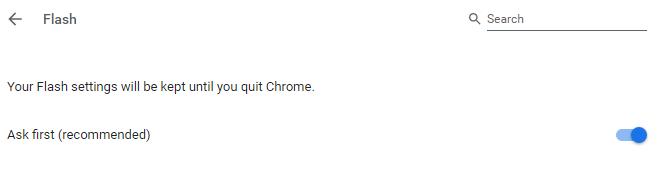
- In the Settings tab, scroll down to locate Flash settings
- Click Flash option
- Make sure the option – Ask first (recommended) option is selected. This will ensure you will be able to use Flash on specific websites.
- Open a new tab
- Open a website where you want to enable Flash.
- Click the lock icon that appears on the right of the URL
- From the drop-down menu, click Site Settings
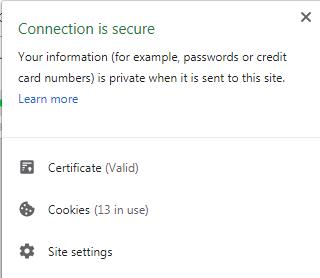
- On the Site setting page, click the drop-down menu on the right of Flash and select Allow

- After you have enabled flash for the website, go back to the page and refresh it. Now you can see Flash content is automatically loaded in the page
Steps to enable Flash in Mozilla Firefox
- Launch Mozilla Firefox
- Click the menu option(three horizontal bars) that appear on the extreme right side of the address bar
- Click Add-ons
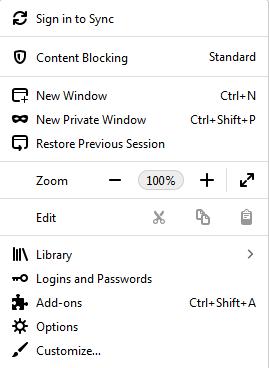
- In the Add-ons tab, click Plugins in the left column
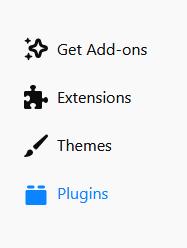
- Go to Shockwave Flash plugin and click the drop-down menu and select Always Activate

- Close all tabs
Steps to enable Flash in Microsoft Edge
- Launch Microsoft Edge browser
- Click the three horizontal dots that appear on the top right-hand corner of the address bar
- From the menu that appears, click Settings
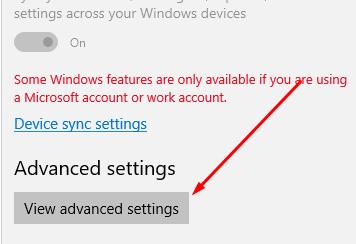
- Under the Advanced Settings header, click View Advanced settings
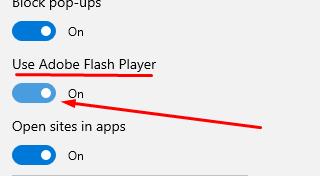
- Toggle the switch Use Adobe Flash Player to On position
After you have enabled Flash in Microsoft Edge, you need to perform additional steps to view flash content on a specific website.
- Open the website with missing flash content in Microsoft Edge
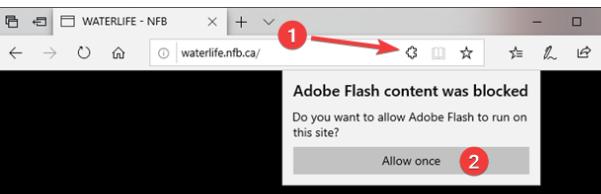
- When the site is loaded, you will see a puzzle piece on the right side of the URL. This indicates Adobe Flash is enabled in Microsoft Edge but the browser needs your permissions to play Flash content on the website
- Click the puzzle piece icon
- From the drop-down menu, click Allow once
- Now you can enjoy the Flash content on the website
Steps to enable Flash in Opera
- Launch Opera browser
- In the address bar, type opera://settings and hit Enter on keyboard
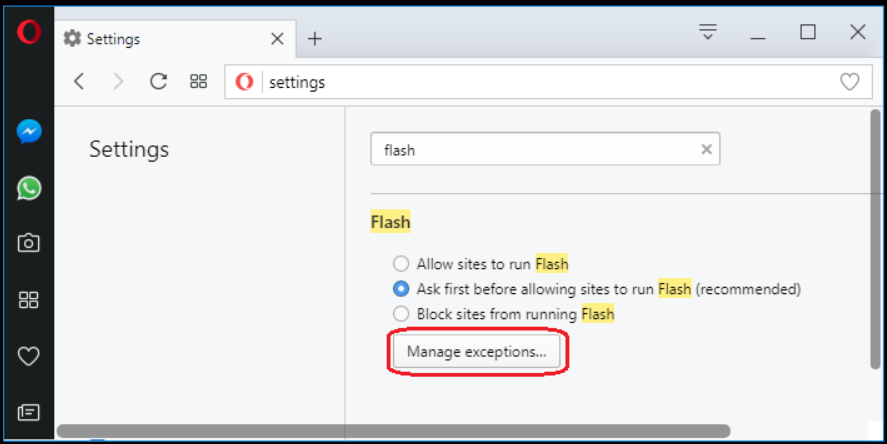
- On the settings page, type Flash in the search box to locate Flash settings quickly
- Click the radio button next to Allow sites to run Flash
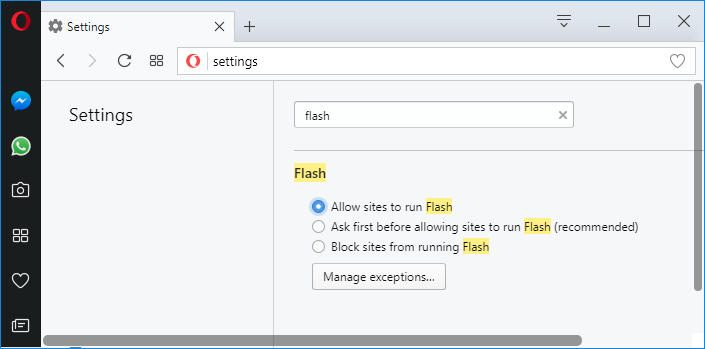
- Next, click Manage exceptions button
- In the Flash exceptions screen, type the name of the domain and then select Allow
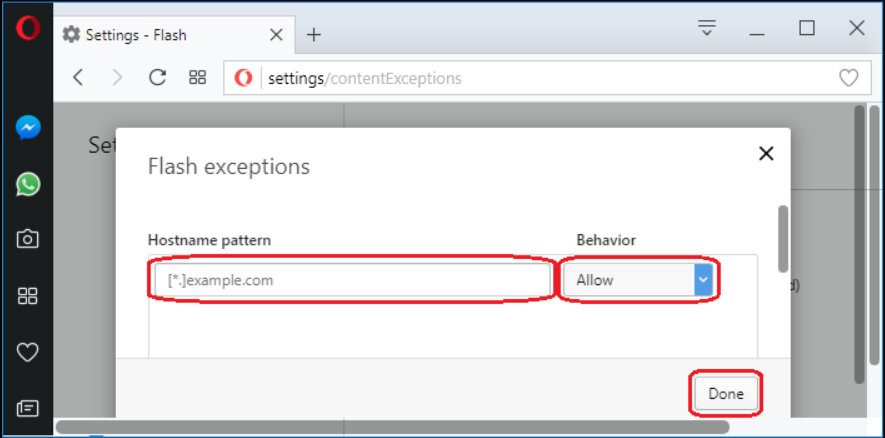
- Click Done
- Restart browser
Leave a Reply