


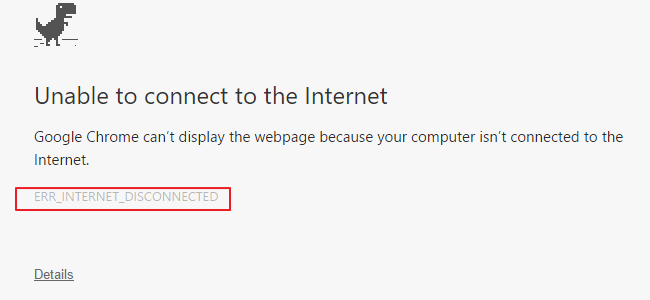
Err_Internet_disconnected is one of the common Internet-related errors.
When you get this error, it means your computer Internet connectivity is disrupted.
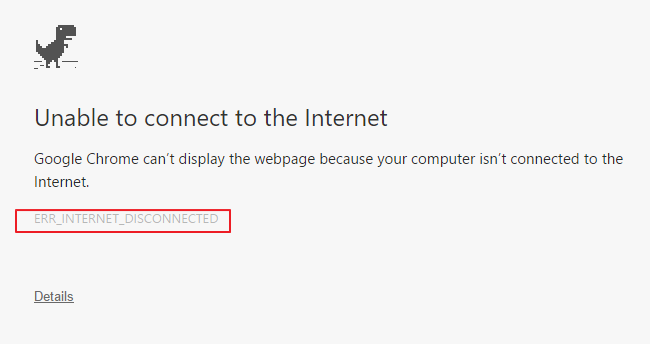
There can be many reasons behind this error.
We have provided 7 solutions to resolve the err_internet_disconnected error.
You can start with the first solution, and if it does not work for you, move to the next solution and so on.
Solution One – Check your Internet connection
Before you try other solutions, you need to ensure there is no problem with Internet connection.
The err_internet_disconnected issue crops up when your computer’s Internet connection is not active.
Check the status of the Internet connection and also check the cables.
Make sure the Internet connection is enabled on your computer. If the Internet connection is disabled, enable the Internet connection and then try to surf the Internet.
If there is no problem with an Internet connection, move ahead to the next solution.
Solution Two- Fix LAN Settings
Wrong LAN settings can also be the reason behind the err_internet_disconnected issue.
In that case, making necessary changes to the LAN can get rid of the error.
Here are the steps to fix LAN settings.
- Press Windows logo key on the keyboard
- Type Internet options in the search box
- Click Internet options from the list of results
- In the Internet Properties window, go to Connections tab
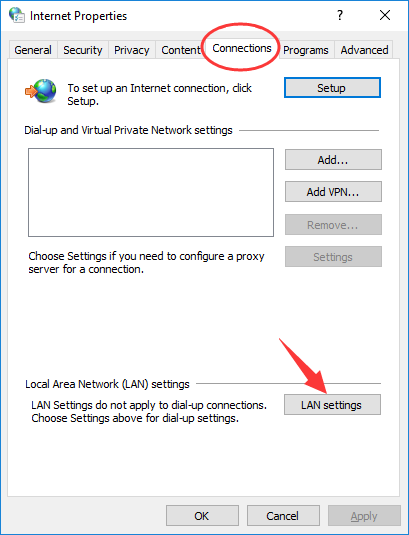
- Click LAN settings that appear below
- In the Local Area Network(LAN) Settings window, make sure the options – Use a proxy server for your LAN and Automatically detect settings are unchecked
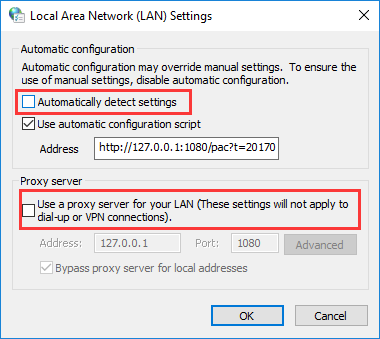
- Click OK to save changes
- Close all Windows
Open Google Chrome and see if Internet connectivity is restored. If you still get the err_internet_disconnected message, move to next solution.
Solution Three- Delete Browsing Data
When you surf the Internet, your browser saves Internet files and cookies to load the pages faster next time you revisit the pages.
If you don’t remove browsing data from time to time, the size of the browsing data can grow enormously (1GB or more).
Sometimes browsing data becomes corrupt, which triggers the err_internet_disconnected issue.
The reason is the browser tries to load Internet files from its storage cache.
To overcome this issue, you need to delete browsing data. This will force the browser to download the data again that could resolve the err_internet_disconnected issue.
Here are the steps to delete browsing data.
For Google Chrome-
- Open Chrome
- Click the menu button (three vertical dots) that appears on the top right corner of the browser.
- Click More tools
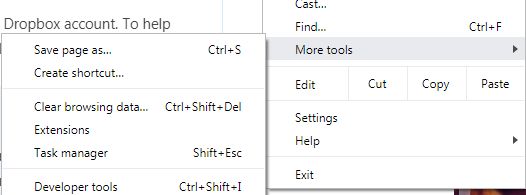
- Click Clear browsing data
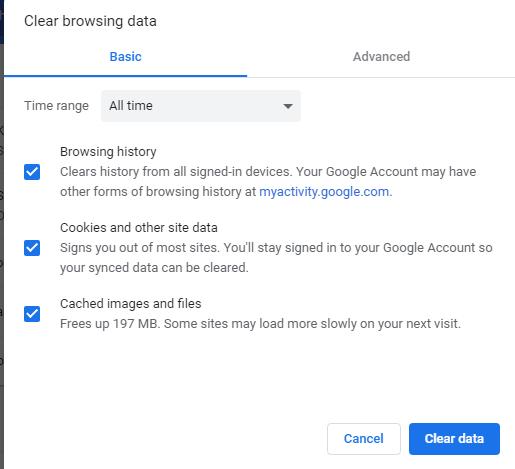
- In the Clear browsing data window, select All-time in the Time range
- Ensure the options Browsing history, Cookies and other site data, and Cached images and files are checked
- Click Clear data
For Firefox
- Open Firefox
- Click the Library button
- Click History
- Click Clear recent history
- In the Clear recent history window, select Everything in Time range to clear
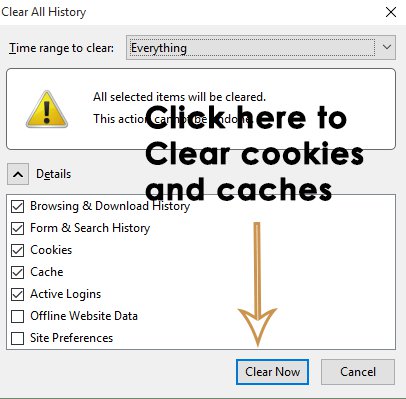
- Check the following boxes- Browsing and download history, Cookies, Cache, Active logins, Form and search history
- Click Clear now
With the browsing data cleared, check whether the err_internet_disconnected issue is resolved. If the issue still persists, move to next solution.
Solution Four – Check Anti-virus settings
There is a possibility your anti-virus is blocking the Internet connection.
You need to check the anti-virus settings to ensure it is not the root cause of the problem.
A good way to find out is disabling the anti-virus temporarily and sees if that resolves the err_internet_disconnected issue.
If the Internet connectivity is restored after disabling the anti-virus, you can conclude the security software was the problem.
You need to contact the software developers, explain the issue and seek a solution.
Another solution is using other anti-virus software.
Solution Five- Make changes to network settings
There is a possibility there is some problem with network settings that is causing the err_internet_disconnected issue.
Resetting network settings could help resolve the issue. Here are the steps to follow.
- Press Windows logo key and type cmd in the search box
- Right-click command prompt from the list of search results and select Run as administrator
- In the command prompt window, type following commands one after another. After typing the first command, press Enter. Wait for the command execution to complete before typing next command in line. Follow the above instructions for other commands too.
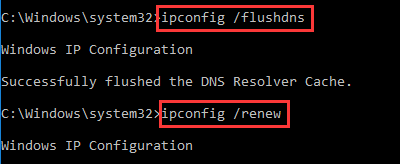
- ipconfig /flushdns
- ipconfig /renew
- netsh int ip set dns
- netsh winsock reset
After you have completed executing all four commands given above, restart the computer. Check whether Internet connectivity is restored.
If the issue remains unresolved, move to the next solution.
Solution Six- Power cycle your modem/router
Power recycling your network devices means resetting it. There is a possibility the problem lies with your networking device.
To rule this out, you need to reset the networking devices.
Here are the steps to follow
- Turn off your router and modem
- Unplug the power cord of both devices from the wall socket
- Wait for some time
- Plug back the power cord of both devices in the wall socket
- Start both devices
- Wait for the devices to establish an Internet connection
- Open an Internet browser and see if you are able to surf the Internet.
If you are still getting an err_internet_disconnected error, move to next solution.
Solution Seven- Reinstall network adapter
You can try reinstalling network adapter and see if it helps resolve the err_internet_disconnected issue.
Here are the steps to follow.
- Press Windows logo key and R simultaneously to launch Run command box
- In Run command box, type devmgmt.msc
- In the Device Manager window, go to the Network adapters category and expand it
- Right-click on the network adapter and click Uninstall
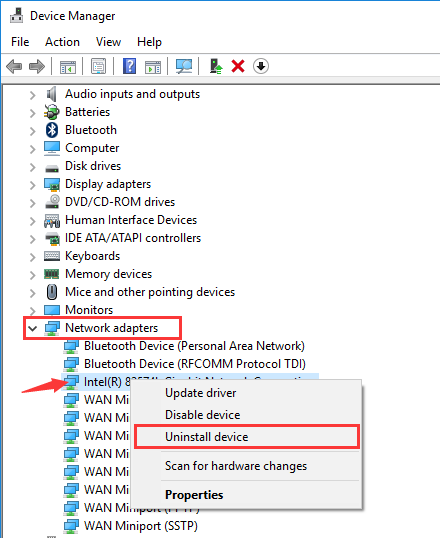
- If you are prompted for confirmation, click Yes to continue
- Close all Windows and restart your computer
When the computer boots, the operating system will automatically install the network adapter.
Check whether the err_internet_disconnected issue is resolved.
In most cases, the err_internet_disconnected error would be resolved by one of the solutions given in this post.