
Drivers.com

follow us:

facebook twitter
  • Home
  • Download Drivers
  • Drivers Help
  • PC/Mac Resources
  • Software Drivers
  • Mac Fixes and Tips
  • PC Fix Tips
  • Security/ Backup
  • Tablets & Smartphones
  • Tech News
  • Software Drivers
  • Mac Fixes and Tips
  • PC Fix Tips
  • Security/ Backup
  • Tablets & Smartphones
  • Tech News

10 Tips To A Faster PC

By Sushant Mehta on June 23, 2015

speed up slow PC

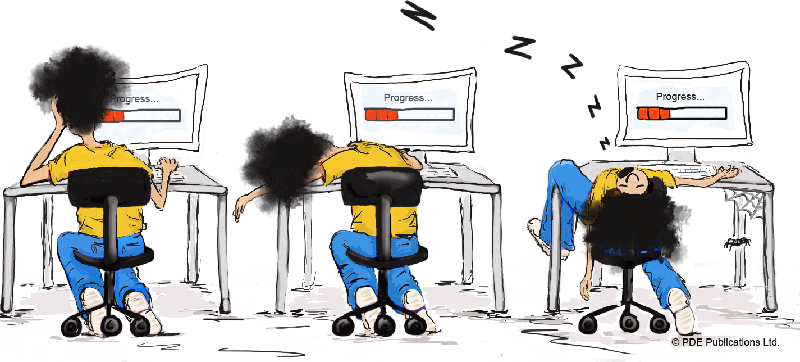
Troubled by a slow computer? Here are some easy-to-perform steps that will significantly speed up your computer.

  1. Increase Memory

RAM is used as temporary memory by your computer to load and execute programs and process files. If you have a habit of multitasking and opening several programs at a time, your PC may work at a snail’s pace if the RAM is at the bare minimum. Adding more modules/sticks of RAM will improve your PC’s speed.

  1. Uninstall Unused Programs

We often install programs for specific purposes but forget to remove them after we stop using them. Many of these programs continue to run unnecessarily in background, hogging memory and computing power of the CPU. Uninstall all programs you don’t use; this will improve the performance of your PC.

  1. Defragment Drives

Over time the data stored on the disk gets fragmented. As a result, the Operating System starts taking more time to access files. Additionally, fragmentation can also lead to hard disk errors. Defragging the hard disk addresses both of these issues.

  1. Run Disk Cleanup

Log files are created every time you start your PC or use any program. However, these files are not used again later. Running a disk cleanup program will remove such files and free valuable hard drive space.

To run a Disk Cleanup, follow the steps below:

Click on Start -> All Programs

Click -> Accessories -> System Tools -> Disk Cleanup

  1. Disable Or Delete Unwanted Entries From Startup

If you look at the startup, you will find many there are numerous Programs listed. These programs get loaded in the memory automatically and the processes continue to run and hog resources even if you have not launched the program that is related to the process. By disabling their entries in Startup, you can reduce the startup time and also prevent these Programs from using your system resources.

  1. Install An SSD

Solid State Drives are faster than hard drives. You can speed up your PC by installing a SSD along with HDD. Install the Operating system and Programs on SSD and data on hard drive.

  1. Replacing Old Graphics Card

If you are an avid gamer, you will want to use the latest graphic card. New games have blazing fast frame rates and an old graphic card is incapable of providing the required processing speed for that these new games require. For more information read our Graphics Card article >>

  1. Install A Reliable Protective Tool

Malware not only causes errors but also slows system speed. Keep your data protected and your PC working at a good speed by installing a reliable anti-malware tool.

  1. Update Your Drivers

 Old Drivers can cause performance-related issues. Update your Drivers on a regular basis to keep your computer running smoothly and efficiently. The easiest and fastest way of doing this is by using a driver update tool.

  1. Cleaning The PC From Inside

Dust settling on the motherboard and other components leads to overheating, which not only adversely affects your PC’s performance but also causes damage to hardware. To avoid this, open the PC cabinet and brush off any dust that has settled inside. Obviously only do this if you are confident in doing so. If you are not experienced in opening up the PC, then just complete the steps above that you feel comfortable doing.

Carrying out even half of these top tips should significantly speed up your PC.

Filed Under: PC Fix Tips Tagged With: speed

AMD Driver Update: How to Update Your AMD Graphics Driver 

By Sushant Mehta on June 9, 2015


Several situations may require an AMD Driver update:

  • You have an old Driver installed and a newer Driver version is needed so that you can take advantage of the latest features
  • You have upgraded the hardware and require the latest Driver to avoid incompatibility issues
  • You are getting an error or errors that suggest an outdated or corrupt AMD Driver is the culprit
  • You have performed a clean install

You can update your AMD Drivers using the AMD Driver Autodetect Utility or you can update them manually. Both methods are discussed here in detail.

AMD RX 580 Dropping Signal to Monitor – How to Fix?

If you are upgrading your Operating System or have a number of Drivers you need to update, you would be better using a driver update tool. You can download this software and run a Free Drivers Scan of your PC to check for outdated or missing Drivers.

Updating Drivers with AMD Driver Autodetect Utility

The tool helps you download a new AMD Driver if available. It detects your operating system and graphics card and then suggests the latest available Driver. It works on Windows systems only.

Complete these steps to update your AMD Driver:

  1. Go to AMD Auto Detect Tool page
  2. Click Download, and then click Run in the prompt window (The Utility will launch itself automatically after the completion of the download.)
  3. The Utility will analyze your operating system and graphics hardware and will suggest the most appropriate Driver on basis of its findings. Click the Download button to download the recommended Driver

AMD Driver Autodetect Utility Can’t the Graphics Card or Operating System

You may receive the following error when your run the AMD Driver Autodetect Utility:

“We are unable to find your product or OS”

The error means that the Autodetect Utility was not able to identify your operating system or product and you will have to manually update your Drivers or use a driver update tool.

If you are manually updating your Drivers you will need to check the model of graphics card installed (if using a Driver Update Tool the software will do this for you).

  1. Open Device Manager (type devmgmt.msc in the Search field and press Enter)
  2. Click Display Adapters
  3. You will find the model number under the Display Adapters; note it down

Now that you have the model number, complete the following steps to manually download the Driver:

  1. Go to the AMD Driver Download page
  2. In the Manually Select Your Driver box, select the appropriate option in the appearing drop-down menus
  3. Click Display Results
  4. Go through the results and download the latest Driver

For help wtih other AMD and Graphics issues, click on the links below:

Fix AMD Redeon 7850 errors

A guide to Graphics Cards

Is the Ryzen 9 7950X3D worth the hype?

Updating Drivers Automatically

Automatic driver update tools offer many benefits, the most important ones being:

  • You can update device drivers automatically
  • The software scans and updates all outdated or missing drivers at one go
  • The tool picks the right drivers for your device and operating system, so you won’t have to worry about installing an incorrect driver by mistake
  • Automatic driver updates are 100% safe

Driver Updater is one of the best driver update tools out there. Outbyte Driver Updater will give you access to a database of over 1 million drivers. It will regularly scan your PC, suggesting new driver versions to install. Driver Updater contains drivers for a variety of Windows devices. With just one click, you can update drivers in your system.

Step 1
Click here to Install and launch the app

Step 2
Scan all devices

Step 3
Install or update drivers automatically


Start Download


Filed Under: Software Drivers Tagged With: AMD, graphics

BIOS Drivers – Common Errors and Fixes

By Sushant Mehta on June 3, 2015

Is your Windows PC not booting up?

Then you should check if you are using the correct BIOS Drivers as, if they are corrupted or incompatible, your Windows system will fail to boot up.

What are BIOS Drivers?

To understand BIOS Drivers, it is important to learn what BIOS is. BIOS stands for basic input/output system and its primary job is to help Windows boot up properly and run the operating system.

The BIOS program uses Drivers to interact with other installed devices and hardware. Typically, BIOS Drivers, like BIOS itself, are specific to motherboard manufacturers. While different systems may use different interfaces, there is not much difference in the overall functionality. You can access the BIOS settings by pressing the “F” or “Delete” key during the Windows startup process.

What happens when there is a problem with BIOS Drivers?

Windows will not boot up when the BIOS drivers are incompatible, out-of-date, missing or have become corrupt. The BIOS is likely to not run properly or communicate with installed hardware correctly if the BIOS Drivers on the motherboard are not up-to-date. This in turn will prevent Windows from booting.

In case of erased or corrupt BIOS Drivers, the motherboard may not be able to access the computer’s hard drive. No access to the hard drive means no access to the Operating System (OS) because the OS is on the hard drive. Therefore, Windows will fail to boot.

Fix BIOS Driver Errors

Updating the BIOS Drivers will fix the issue. You can do this by downloading the latest Drivers from the manufacturer’s website and then installing these updated Drivers.

If you prefer to automate the Driver update process for BIOS and all other Drivers, then you should opt for a Driver Update Tool. A driver update toolwill resolve your BIOS Driver errors by scanning your system, identifying the BIOS version, and installing the latest drivers. All this is done within a few minutes.

Filed Under: Software Drivers Tagged With: bios, error

  • « Previous Page
  • 1
  • …
  • 35
  • 36
  • 37
  • 38
  • 39
  • …
  • 88
  • Next Page »


  • Recent Posts
  • Popular Posts
        

Read More Posts


Read More Posts

Drivers.com Sites

  • Software Drivers
  • Drivers Ed

About Us

  • Advertise
  • About Drivers
  • Drivers Support
  • Drivers.com Privacy Policy
  • Disclaimer
  • Software Drivers
  • Mac Fixes and Tips
  • PC Fix Tips
  • Security/ Backup
  • Tablets & Smartphones
  • Tech News

© Copyright 2026 PDE Publications Ltd. End User License Agreement (EULA)