Drivers.com

follow us:

facebook twitter
  • Home
  • Download Drivers
  • Drivers Help
  • PC/Mac Resources
  • Software Drivers
  • Mac Fixes and Tips
  • PC Fix Tips
  • Security/ Backup
  • Tablets & Smartphones
  • Tech News
  • Software Drivers
  • Mac Fixes and Tips
  • PC Fix Tips
  • Security/ Backup
  • Tablets & Smartphones
  • Tech News

Audio Drivers and Sound Cards

By Saira Barlas on March 7, 2015

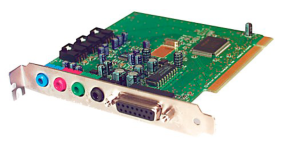
sound card

Audio Drivers and Sound Cards are interconnected and without them working together, your computer would be unable to produce sound. Knowing what type of sound card you have is vital in order to update the Sound Card Drivers and prevent any errors from occurring.

What is an Audio driver?

Audio drivers are pieces of software which interact with the Operating System of the computer. They help the Operating System identify any existent audio hardware connected to the computer. Audio Drivers make sure the Operating System works effectively with the hardware without any problems.

Audio Drivers either come with the piece of hardware or can be downloaded from the manufacturers website.Older and hard to locate Drivers may require the use of a Driver Update Tool.

Download & Update Audio Drivers

What is a Sound Card?

Integrated Sound Card

A Sound Card is an expansion card which allows the computer to be able to produce sound. This sound can then be output from audio devices connected to the computer e.g. speakers, headphones etc. Audio card, audio adapter, sound adapter are many different names used for a Sound Card.

Most modern computers come with sound cards already built into the motherboard and are referred to as Integrated Sound Cards or Onboard Sound. Dedicated sound cards, the opposite of integrated, can be installed onto the system and are more convenient for professional audio output and extensive gaming.

Dedicated Sound Card Specifications

Many consumers have become increasingly interested in buying Sound Cards for the best sound experience. These cards usually produce much higher quality sound. In order to get the right sound card, the following features should be taken into consideration before purchase:

Dynamic Range

Dynamic range can be defined as the difference between the quietest sound and the loudest sound humans are capable of hearing and is measured in decibels. It also describes the card’s ability to perform and present the broad range and variety of tones. High quality sound cards nowadays can deliver up to 109dB or even higher.

Frequency Response

The human ear can hear sounds on a particular spectrum. The frequency response of a sound card measures the different tones produced in this spectrum and should have the ability to produce sound in this entire spectrum.

Sampling Rate

The sampling rate of a Sound Card is the number of times the audio stream sends data over a period of time. This is measured in Hertz or kilohertz (kHz). The higher the sampling rate, the better the sound quality.

Signal to Noise Ratio

This measurement is the relationship between the sound produced against and above the sound of the background noise generated by all electrical equipment. The higher the ratio, the less the background noise. This is measured in decibels and anything above or at 105dB is deemed excellent.

Total Harmonic Distortion + Noise (THD+N)

This measures the ability of the sound card to shield itself from other outside noises. Exceptional Sound Cards will have THD+N close to 0%.

Examples of Sound Cards are Sweex 7.1 External USB Sound Card and Asus Xonar Essence STX Sound Card

Laptops usually cannot support internal high quality sound cards and hence external sound controllers can be purchased. These either use USB or FireWire and produce high quality audio output for laptops.

How do Audio Drivers work with Sound Cards?

Sound Cards cannot work without the presence of Audio Drivers. Every Sound Card has a precise Audio Driver which allows the Sound Card to run smoothly with the Operating System. Audio Drivers can be said to form data connections or data links between the Sound Card (hardware) and the Operating System (software).

Sound Cards with correct Audio Drivers will produce sound absolutely from your computer. They will also allow you to connect the microphone onto the computer.

Importance of correct Audio Drivers

Having the correct Audio Drivers installed onto the computer system is vital in order for the Sound Card to produce any kind of sound or many peripheral devices to even be connected to the computer. Sound will not be produced nor will you be able to get sound via microphone without the correct Audio Drivers.

If incorrect Audio Drivers are installed, the Sound Card will stop working permanently unless these incorrect Audio Drivers are uninstalled.

What type of Sound Card do you have?

Follow these instructions to find out what type of sound card your computer has.

1. Click on start and type “device manager” into the search box as shown. Press Enter.

device manager sound drivers


2. A list should come up on the start menu. Click on “Device Manager“. A new window should pop up.

windows device manager control panel

3. As shown, locate the “Sound, video and game controllers“.

sound video controllers

4. Click on the arrow to the left of the “Sound, video and game controllers” and a drop down list, showing the type of sound card you have, should appear, as shown.

sound video drivers details

In many cases you can update the Audio Drivers yourself by searching for, downloading and installing the Drivers. If you prefer not to update the Drivers manually, you can use a driver update tool to automate driver updates for all your devices.

Updating Drivers Automatically

Automatic driver update tools offer many benefits, the most important ones being:

  • You can update device drivers automatically
  • The software scans and updates all outdated or missing drivers at one go
  • The tool picks the right drivers for your device and operating system, so you won’t have to worry about installing an incorrect driver by mistake
  • Automatic driver updates are 100% safe

Driver Updater is one of the best driver update tools out there. Outbyte Driver Updater will give you access to a database of over 1 million drivers. It will regularly scan your PC, suggesting new driver versions to install. Driver Updater contains drivers for a variety of Windows devices. With just one click, you can update drivers in your system.

Step 1
Click here to Install and launch the app

Step 2
Scan all devices

Step 3
Install or update drivers automatically


Start Download


Filed Under: Software Drivers Tagged With: audio-sound

How to Update Video Card Drivers in Windows 7

By Saira Barlas on March 2, 2015

Keeping your Drivers up-to-date is a necessary part of keeping all your devices running smoothly. Corrupt, missing or out-of-date Video Drivers can cause:

  1. problems with video playback
  2. poor quality or erratic video display
  3. Video device not recognised
  4. Other unexpected actions such as crashes and screen-freezing

There are a number of error codes such as error code 0xc00d11d1 which are also related to problems with a Video Card.

When a Driver update is available, it is strongly recommended to install the update as soon as possible to prevent any of the above issues from occurring in the first place. If you want to run a free Drivers Scan to check if your Video Drivers are up-to-date, you can install a driver update tool.

If you are downloading and installing the Video Drivers yourself (without the help of a Driver Update Tool), it is worth bearing in mind that installing incorrect Drivers can prevent the hardware from working and it may be difficult to roll-back to your previous Driver if you have not taken a recent backup or restore point.

Automatic Video Driver Updates

To automatically download and install Driver updates as they become available, you will need to use a driver update tool, the software will then take care of all of your Video and other Driver updates so you don’t need to worry about this again. There is a cost to registering the software (just under US$30), so if you prefer to manually update the Drivers yourself, then follow the instructions below:

Manually update Video Drivers

The following steps will show you how to update Video Card Drivers (see images at end of post for more help):

windows 7 start menu

1. Open up the Start menu and then click on Control Panel

2. A window should appear. Click on Hardware and Sound

windows 7 control panel

3. Then proceed to click on Device Manager

windows 7 hardware and sound
windows 7 device manager

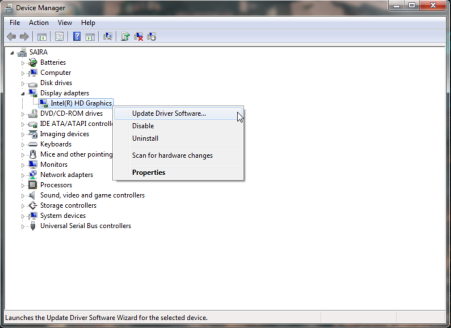
4. A new window should appear now. Display adapters is what you’re looking for. Click on the arrow to the left of the Display adapters

windows 7 video drivers update

5. Right click on the type of Video Card you have. As shown in the image, proceed to click on Update Driver Software

6. A new window should pop up as shown. Click on Search automatically for updated driver software. If your Video Card needs to be updated, the Drivers should download. If not, you should get a prompt stating your Drivers are up to date.

Filed Under: Software Drivers Tagged With: video, windows 7

Five Mistakes To Avoid When Buying A New Printer

By Saira Barlas on February 6, 2015

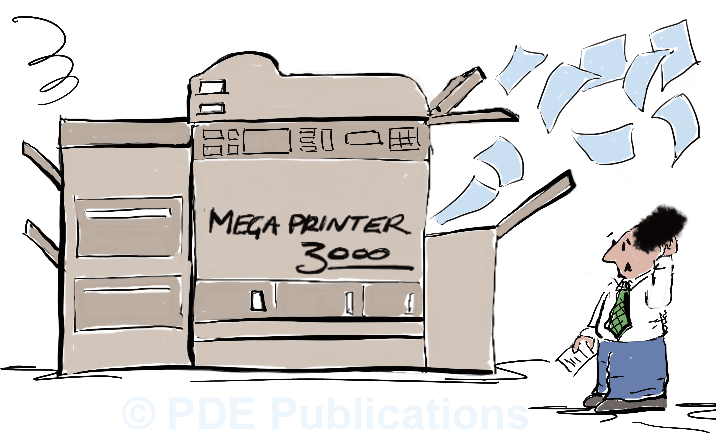
buying a new printer

Buying the right printer can make everyday printing tasks cheaper and easier. Buying the wrong printer will result in a lot of frustration and possibly an expensive piece of hardware gathering dust on a shelf. In order to help guide you in making the right choice when buying a new printer, we have put together a list of the top 5 mistakes people make when buying a new or replacing an old printer.

Mistake #1 – getting hung-up on the ticket price

When buying a new printer, it is important to make your assessment based on the overall value rather than the ticket price alone. Printers can be cheap and capable of doing the job, yet the cost of running a cheap printer (taking into account consumables such as ink) can more than outweigh any savings you make on the initial purchase price. It may make more sense to spend more on the initial piece of hardware and save money on cheaper, more widely available ink cartridges or other consumables.

Mistake #2 – A printer is a printer

This is a common misconception. There are many different technologies and types of printers e.g. Laser printers and Inkjet printers serving very different purposes. Buying a single functioning type of printer instead of an all-in-one may be a big mistake if you think you may need a scanner or copier. Think about what you will use your printer for before committing to a purchase e.g. an Inkjet printer that can only print documents will prove useless when it comes to printing photographs. A photo printer will be equally useless when you find the need to scan a document.

Mistake #3 – getting a great deal on an old printer

Some older printers may not be supported by newer Operating Systems, so even a free printer in this case is not a good deal if it is not compatible with your system. Not all printers work with all operating systems and not all printers support the latest technology or vice versa. It is best to buy a new printer rather than an older printer since it will most likely support older and newer computers and Operating Systems. The specifications of a new printer will set out the Operating Systems it will work with (may be PC and Mac compatible or may just be Windows 7 and Windows 8 compatible – this is an important section to read)

Mistake #4 – Not considering where the printer will ‘live’

The dimensions and the weight of a printer will vary greatly depending on its type and functions. If you are restricted to a small shelf space, there are certain designs of printers which are very narrow with collapsible feed trays. Similarly, if you plan to keep the printer on the top shelf of a wardrobe in your bedroom, then you will want to make sure that it has wireless functionality.

Mistake #5 – Not thinking about what you need the printer for

Research is essential in choosing the right printer. Researching the right printer does not have to mean hours of review-reading online or even meticulously comparing specifications. Research is simply deciding what you need the printer for, e.g. mostly text documents, some photographs and a scanning function, and where you will store the device e.g. on a desk or a shelf. If you don’t need to print hundreds of documents at a time and need an affordable option that will also allow for printing in colour, then an Inkjet printer is probably going to be the best option. To narrow the options down further you will then need to research the running cost of various models (ink, toner etc.)

The right printer can be a great asset so it is worth taking the time to research your printing needs, and what type and model will meet those needs.

What Printer? Choosing a new Printer in 4 easy steps!

Filed Under: PC Fix Tips Tagged With: printer, scanner

  • 1
  • 2
  • 3
  • Next Page »


  • Recent Posts
  • Popular Posts
        

Read More Posts


Read More Posts

Drivers.com Sites

  • Software Drivers
  • Drivers Ed

About Us

  • Advertise
  • About Drivers
  • Drivers Support
  • Drivers.com Privacy Policy
  • Disclaimer
  • Software Drivers
  • Mac Fixes and Tips
  • PC Fix Tips
  • Security/ Backup
  • Tablets & Smartphones
  • Tech News

© Copyright 2026 PDE Publications Ltd. End User License Agreement (EULA)