Drivers.com

follow us:

facebook twitter
  • Home
  • Download Drivers
  • Drivers Help
  • PC/Mac Resources
  • Software Drivers
  • Mac Fixes and Tips
  • PC Fix Tips
  • Security/ Backup
  • Tablets & Smartphones
  • Tech News
  • Software Drivers
  • Mac Fixes and Tips
  • PC Fix Tips
  • Security/ Backup
  • Tablets & Smartphones
  • Tech News

Resources by Tag

video

Windows 8 Video Drivers

How to Update Video Card Drivers in Windows 8

Whether you have bought a new Windows 8 PC or are updating your Operating System from Windows 7, Vista or XP to Windows 8, you will need to ensure your Drivers are updated. Device Drivers are Operating System specific so your Video Drivers that worked on Windows 7 are unlikely to work for Windows 8.

Drivers connect the hardware to the operating system and make sure the hardware works properly. Without the correct Drivers, the hardware either malfunctions or stops working altogether.

If your Video Drivers are not up-to-date or are the correct device Drivers for Windows 8, you are likely to see errors such as “Display Drivers stopped responding…” or “a display driver file is missing…”.

Installing Drivers can be a tedious task, particularly if you are unsure of the type of Drivers your Windows 8 PC requires.

Windows 8 Video Drivers – Automatic Updates

You can download, install and update your Drivers manually (remember all your devices will have corresponding Drivers) or you can choose a Driver Update Tool to automate Driver updates for all your devices. View driver update tools

If you prefer to manually update your Video Drivers, then follow the steps set out below:

How to Manually Update Windows 8 Video Drivers

  1. Swipe right to open up the Charms Bar and click on “Search“.
    win8 video drivers start
  2. Now in the search box, type “device manager” and then proceed to click on it as it appears under the box
  3. A new window should appear. Look for the “Display Adapters“
  4. Click on the arrow on the left of the “Display Adapters” which will then show the Video Card of your computer. Continue to right click on the video card, as shown, and then select “Update Driver Software…“
  5. A new window should appear. Click on “Search automatically for updated driver software“. If there are new updates, they will be downloaded, if not, a prompt will appear stating the drivers are up to date
win8-search-menu
win8-device-manager-update-video-drivers
win8-device-manager

Filed Under: Software Drivers Tagged With: video, windows 8

How to Update Video Card Drivers in Windows 7

Keeping your Drivers up-to-date is a necessary part of keeping all your devices running smoothly. Corrupt, missing or out-of-date Video Drivers can cause:

  1. problems with video playback
  2. poor quality or erratic video display
  3. Video device not recognised
  4. Other unexpected actions such as crashes and screen-freezing

There are a number of error codes such as error code 0xc00d11d1 which are also related to problems with a Video Card.

When a Driver update is available, it is strongly recommended to install the update as soon as possible to prevent any of the above issues from occurring in the first place. If you want to run a free Drivers Scan to check if your Video Drivers are up-to-date, you can install a driver update tool.

If you are downloading and installing the Video Drivers yourself (without the help of a Driver Update Tool), it is worth bearing in mind that installing incorrect Drivers can prevent the hardware from working and it may be difficult to roll-back to your previous Driver if you have not taken a recent backup or restore point.

Automatic Video Driver Updates

To automatically download and install Driver updates as they become available, you will need to use a driver update tool, the software will then take care of all of your Video and other Driver updates so you don’t need to worry about this again. There is a cost to registering the software (just under US$30), so if you prefer to manually update the Drivers yourself, then follow the instructions below:

Manually update Video Drivers

The following steps will show you how to update Video Card Drivers (see images at end of post for more help):

windows 7 start menu

1. Open up the Start menu and then click on Control Panel

2. A window should appear. Click on Hardware and Sound

windows 7 control panel

3. Then proceed to click on Device Manager

windows 7 hardware and sound
windows 7 device manager

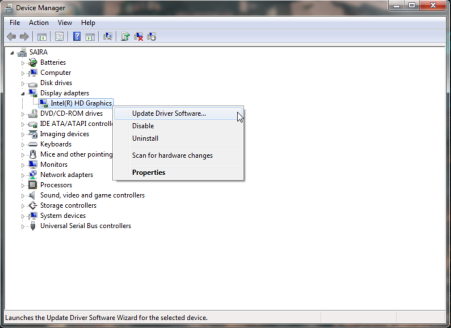
4. A new window should appear now. Display adapters is what you’re looking for. Click on the arrow to the left of the Display adapters

windows 7 video drivers update

5. Right click on the type of Video Card you have. As shown in the image, proceed to click on Update Driver Software

6. A new window should pop up as shown. Click on Search automatically for updated driver software. If your Video Card needs to be updated, the Drivers should download. If not, you should get a prompt stating your Drivers are up to date.

Filed Under: Software Drivers Tagged With: video, windows 7

How to play any video format on your new iPhone or iPad

Both iPhone and iPad are great devices for viewing videos. But they also have a major drawback: they can play only a few formats at high resolutions. This not-so-admirable feature leaves Apple lovers with three choices:

  • Spend a significant amount of time converting videos to a format supported by their iPhone or iPad
  • Do not view formats not supported by their Apple device
  • Use a third-party application for playing other formats not supported by their device

The third option is ideal for someone who loves watching videos. Some of the better third-party applications for viewing different video formats on an Apple device are AVPlayer HD, OPlayer HD, and Cinexplayer HD. All three are paid applications.

If you also use an Apple notebook, besides the video-converting applications you must also consider using a mac optimizing tool. Such tools can make a world of difference to your notebook’s performance and security. With the help of a Mac optimizing tool you can keep your Mac laptop new for virtually forever.

Filed Under: Tablets & Smartphones Tagged With: iPad, iPhone, mac, video


  • Recent Posts
  • Popular Posts
        

Read More Posts


Read More Posts

Drivers.com Sites

  • Software Drivers
  • Drivers Ed

About Us

  • Advertise
  • About Drivers
  • Drivers Support
  • Drivers.com Privacy Policy
  • Disclaimer
  • Software Drivers
  • Mac Fixes and Tips
  • PC Fix Tips
  • Security/ Backup
  • Tablets & Smartphones
  • Tech News

© Copyright 2026 PDE Publications Ltd. End User License Agreement (EULA)